Payroll Calculations
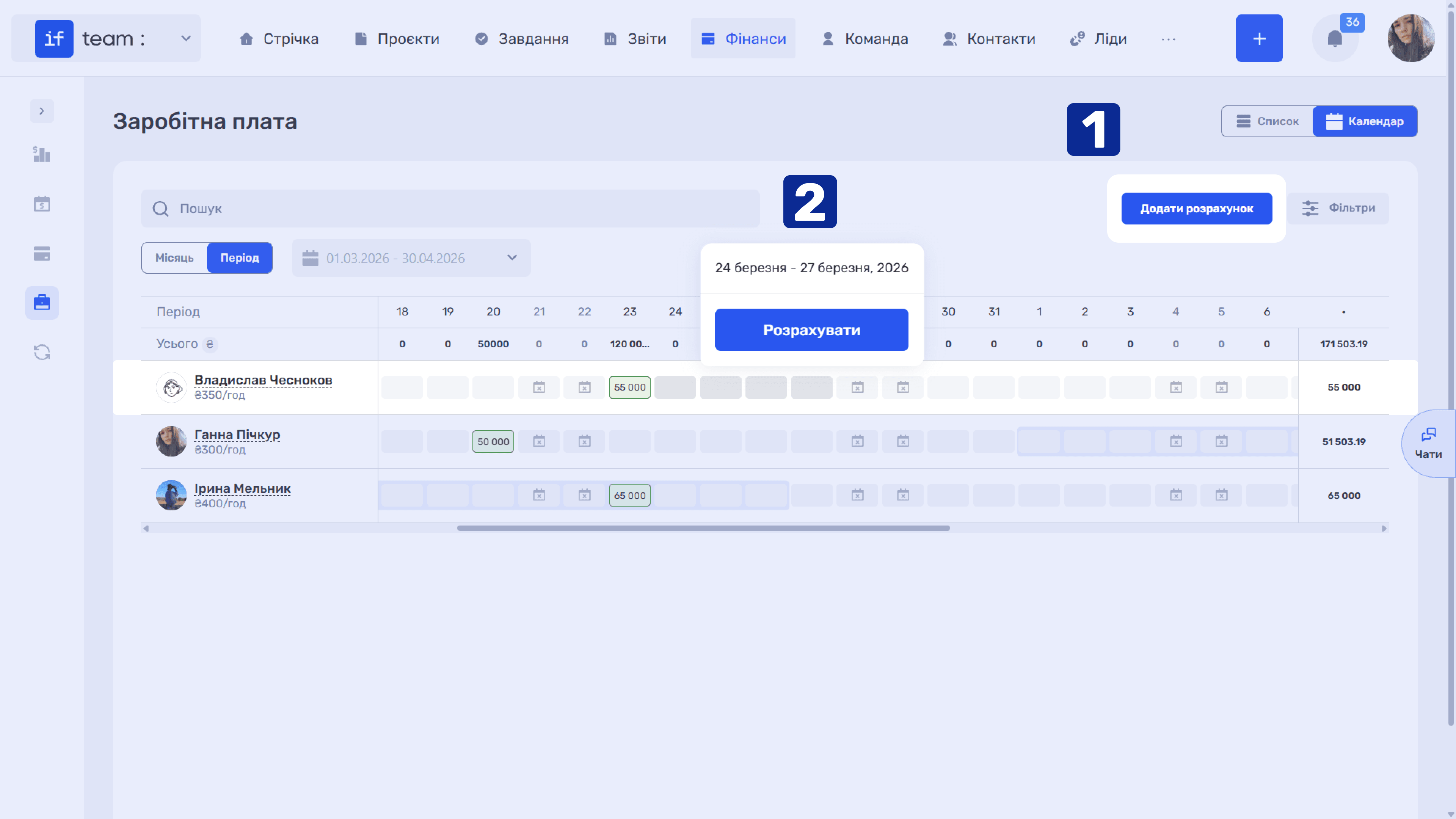
Open the New Calculation form by clicking Add Calculation. You can also open it from the calendar by clicking the required day or selecting a range of days in an employee’s row.
Creating a Calculation
Set the general parameters at the top: Employee, Transaction Category (for example, “Salary”), Period, and P&L Category.
Below, if.team automatically retrieves hours worked by rate. For each rate, it shows the hourly cost, the number of hours worked, and the amount (Current Rate), with the total amount (Total) below the table. The system automatically accounts for the employee’s rate, time worked, sick leave, and vacation during the period.
The following collapsible sections appear next:
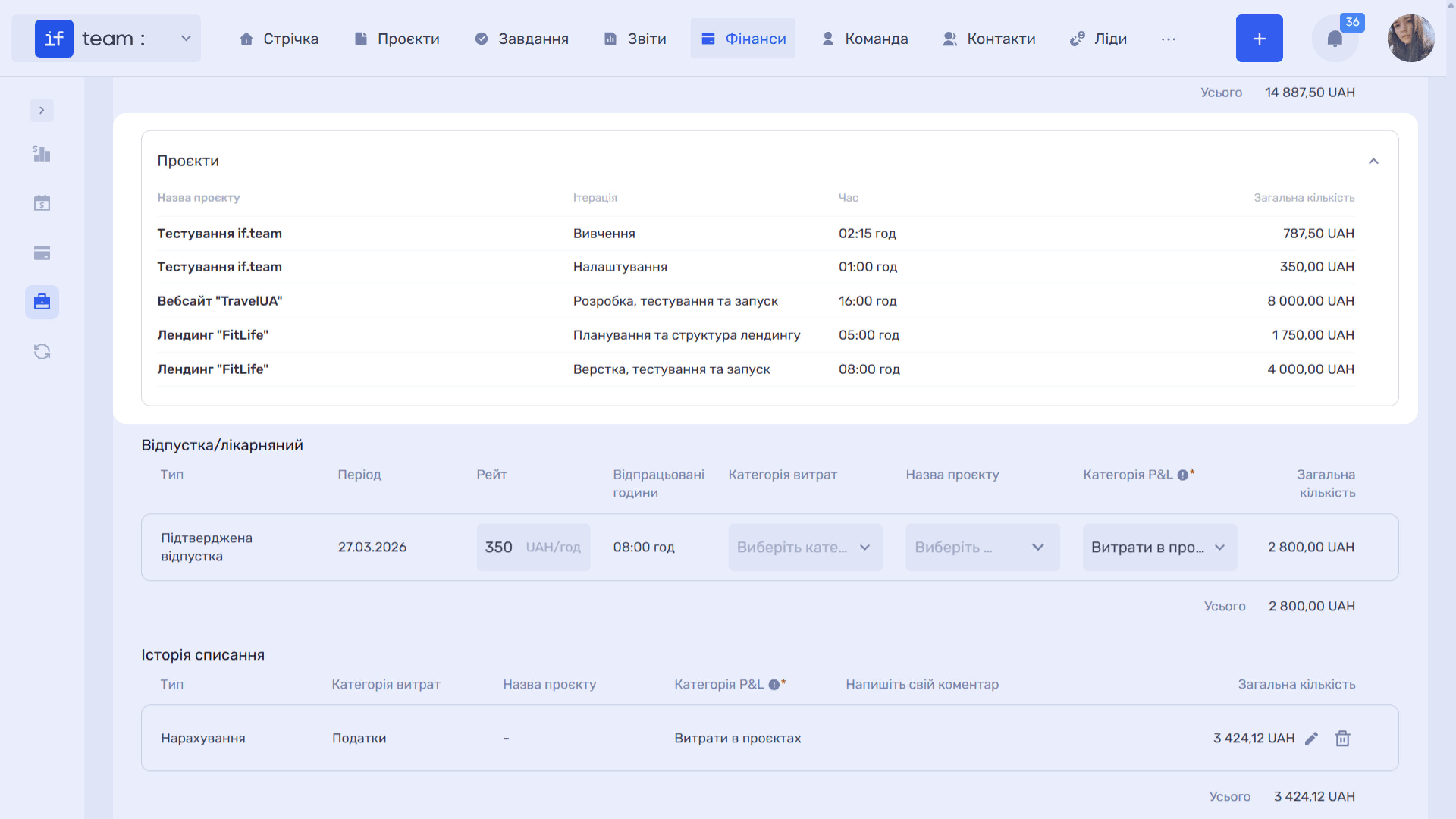
- Projects shows the distribution of hours and amounts by project and iteration: project name, iteration, time, and amount (Total Amount). This section shows which projects the paid work was allocated to.
- Hours Utilization shows the distribution of the employee’s work time, including planned and actual hours and rates—the planned and actual hourly cost. It shows how closely the employee’s workload matched the plan.
*Не маю реального фото блоку«Утилізація годин», якщо ця опція взагалі ще актуальна.*
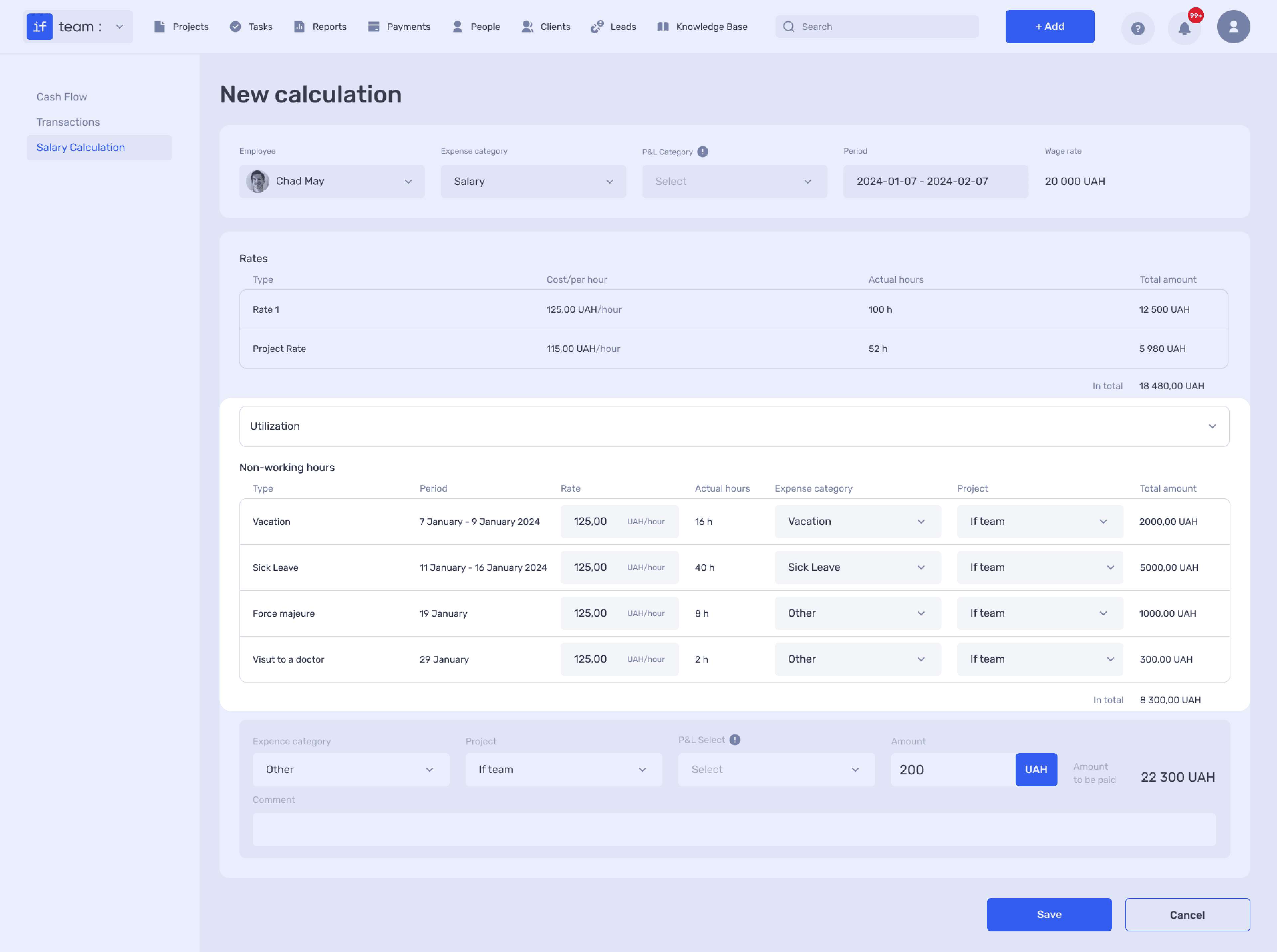
If the calculation period contains non-working hours, a Vacation/Sick Leave section appears. For each entry, you can set a rate, expense category, project, and P&L category, thereby assigning payment for non-working time to the appropriate item.
When the period contains unpaid hours, the system asks how to account for payment for time not worked: pay the fixed monthly rate, with the current rate recalculated for the hours actually worked, or pay for the hours actually worked at the planned rate.
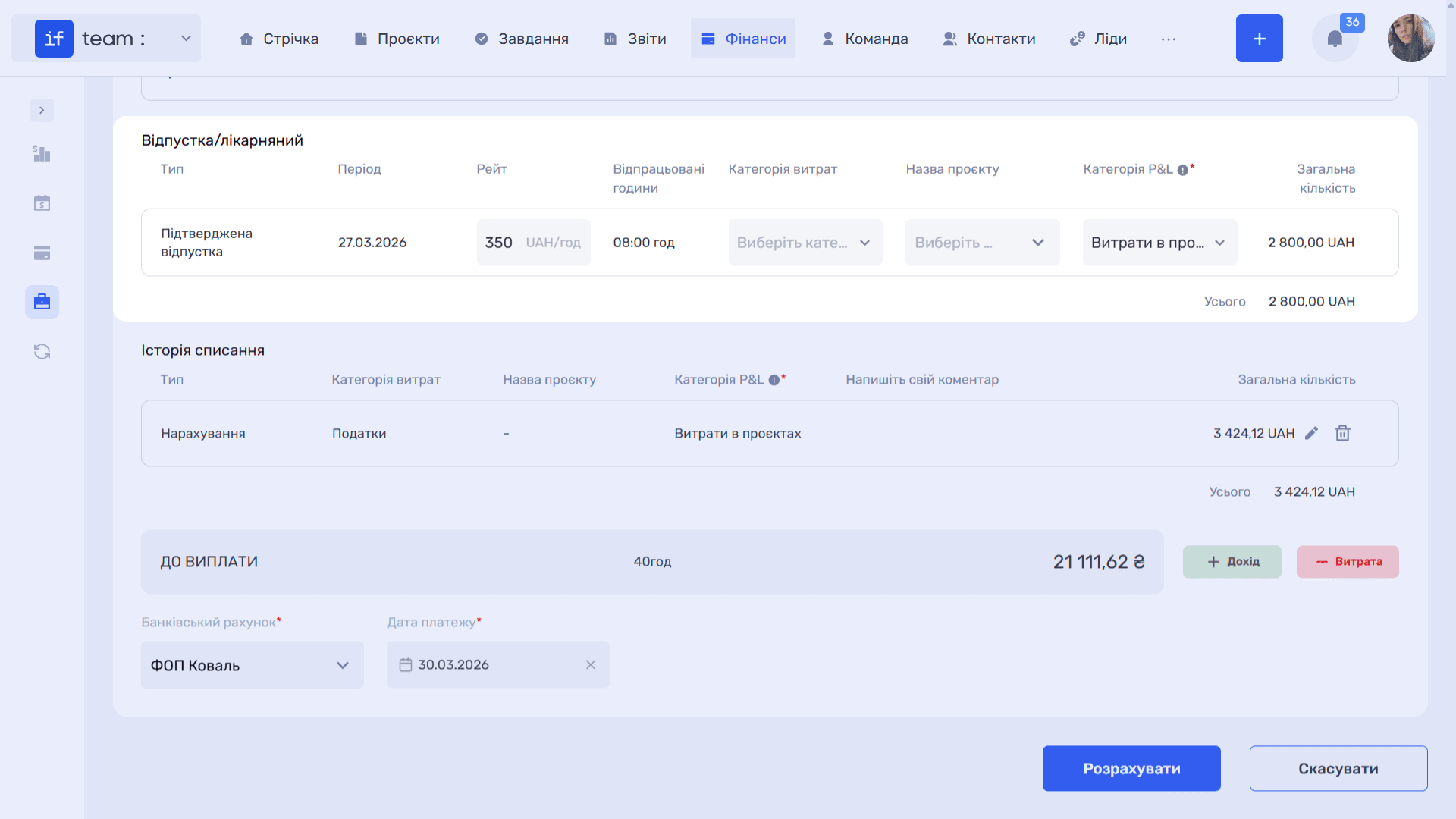
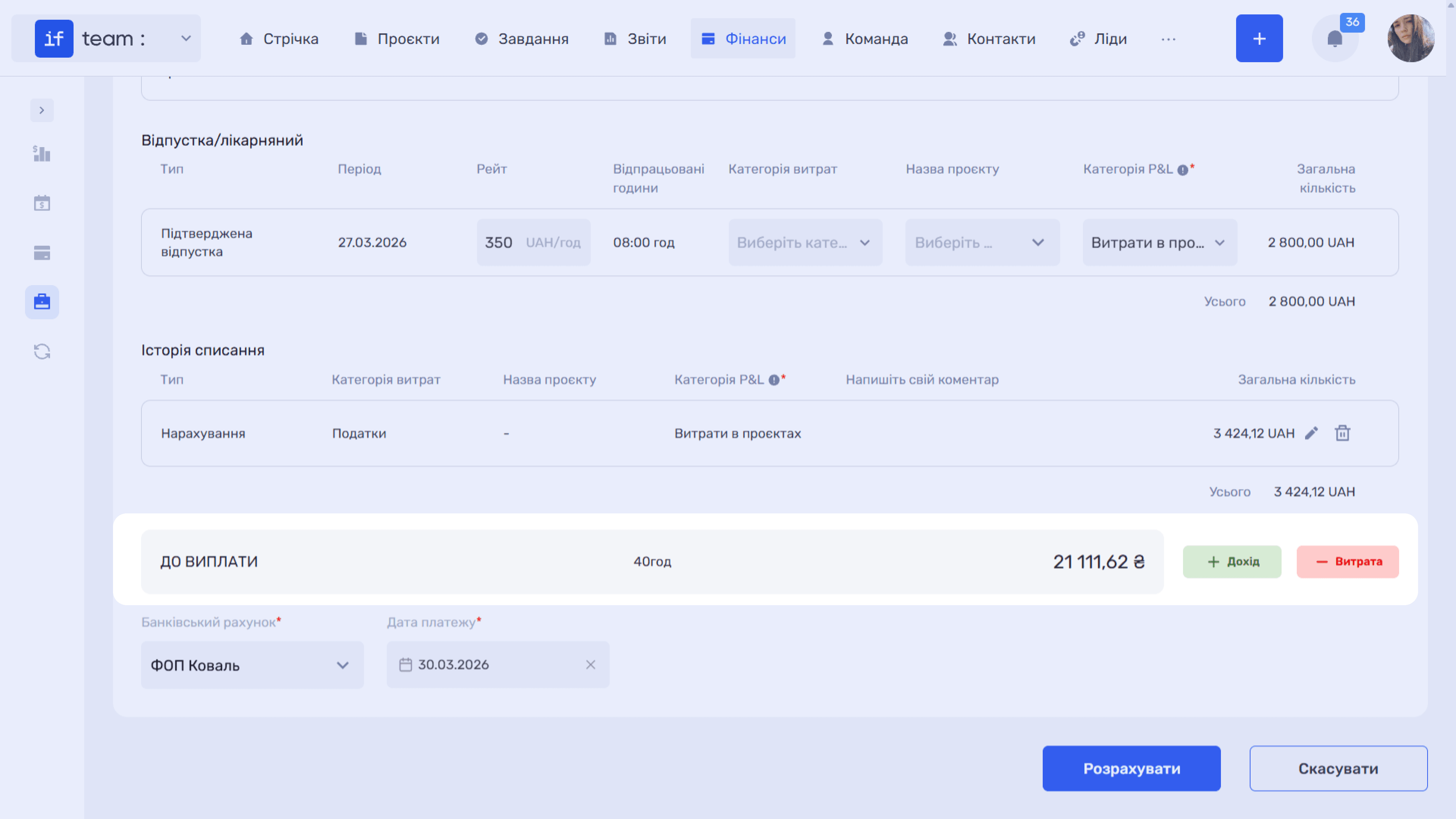
The Amount Payable row shows the final amount. The + Income and − Expense buttons next to it let you add additional accruals or deductions to the calculation.
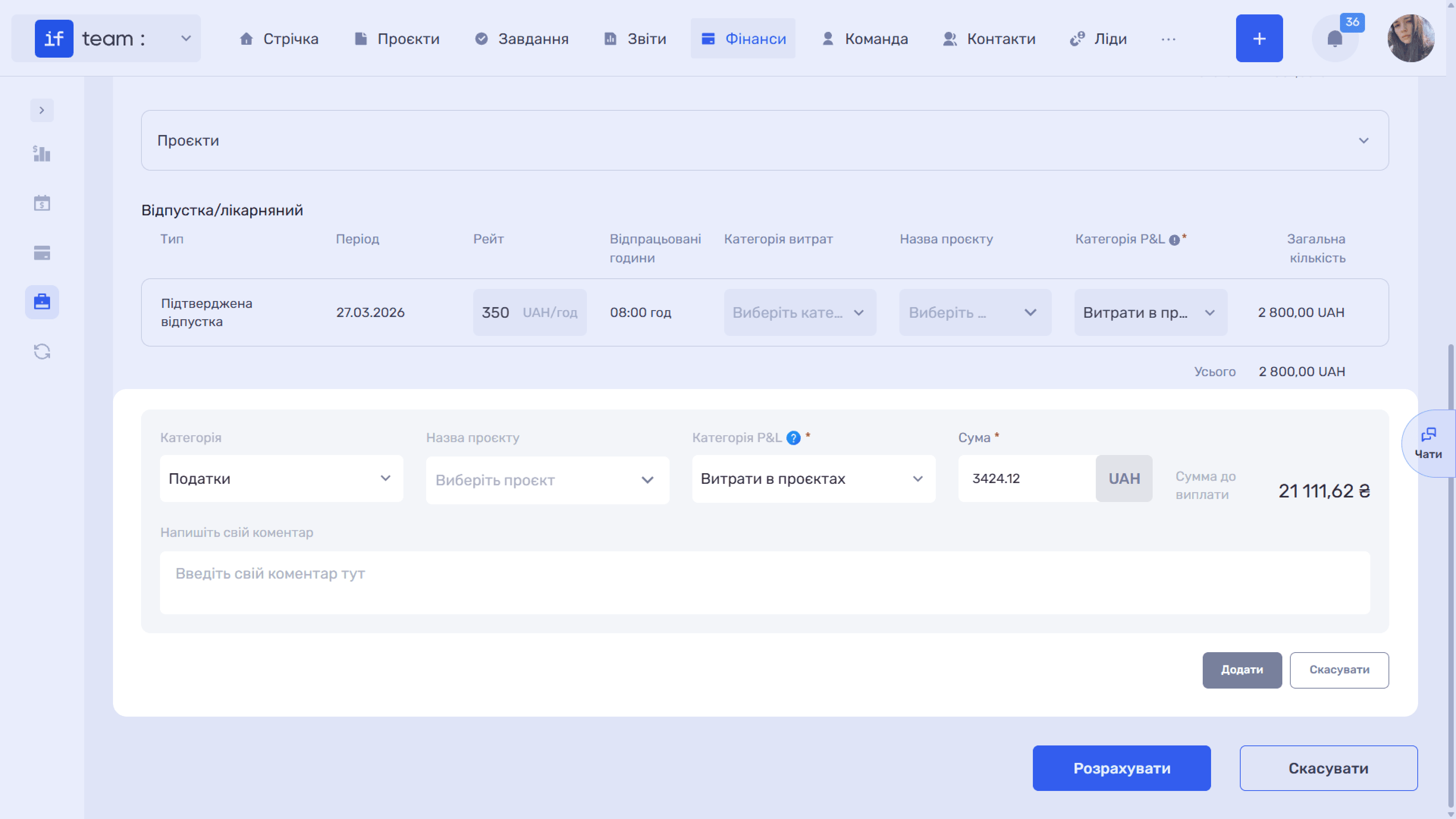
Clicking either button expands a form with Category, Project Name, P&L Category, Amount, and comment fields. The current Amount Payable appears alongside the form. Click Add to apply the entry.
The Deduction History section then appears in the calculation. It may contain, for example, bonuses as income or taxes as an expense.
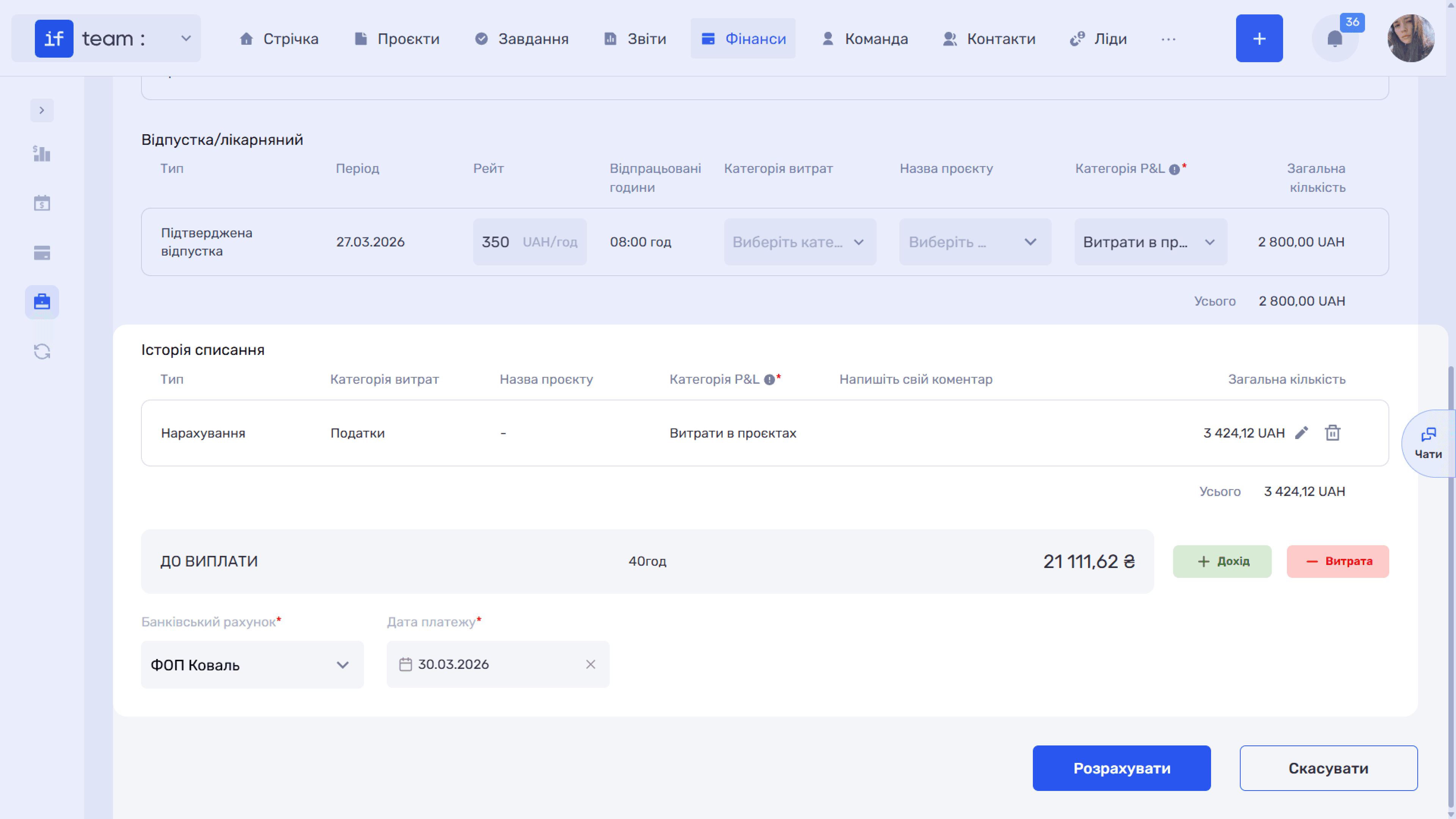
At the bottom, select the Bank Account and Payment Date, then click Calculate.
Viewing a Calculation
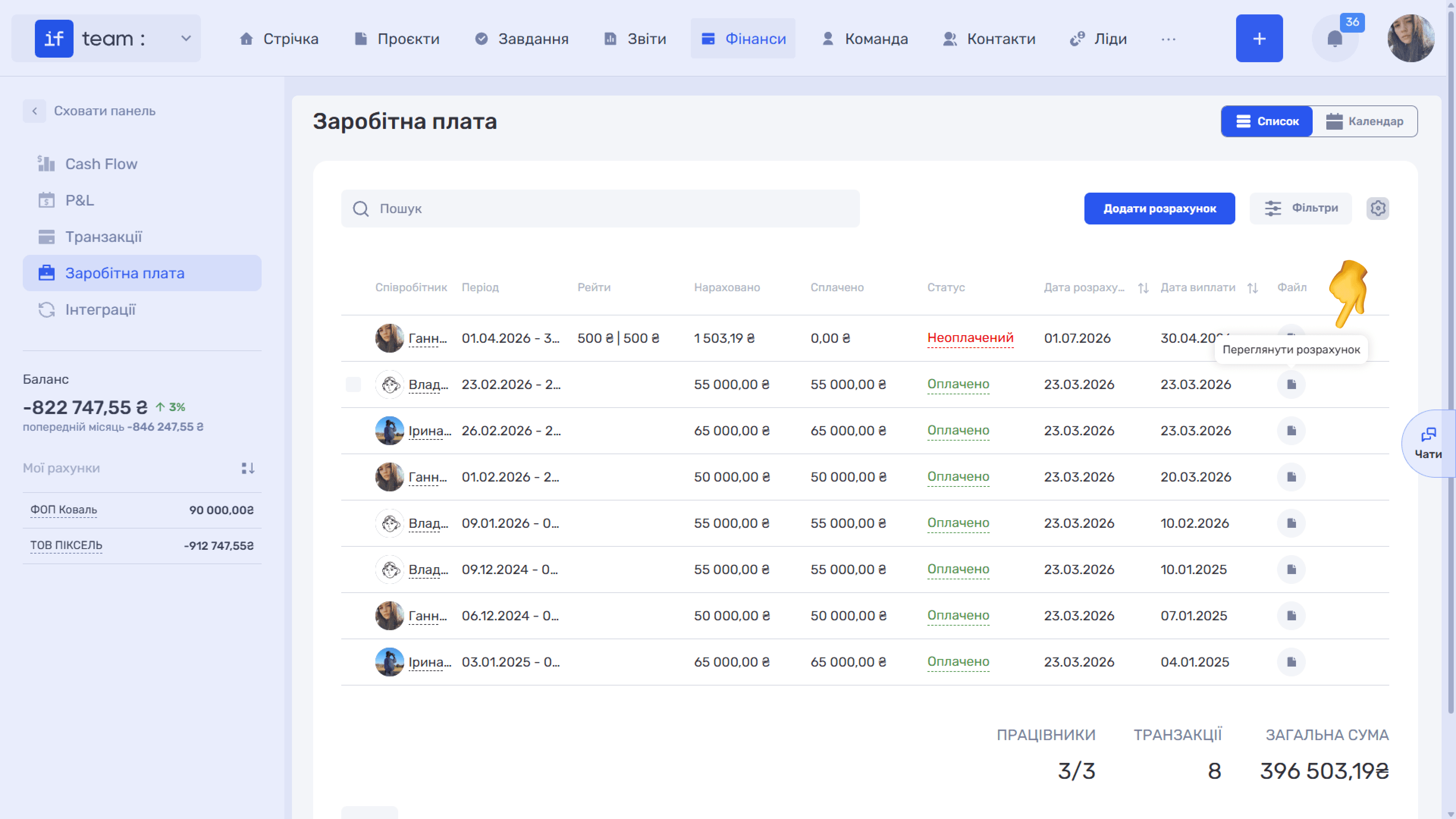
To View Calculation, click the file icon in the required row of the list.
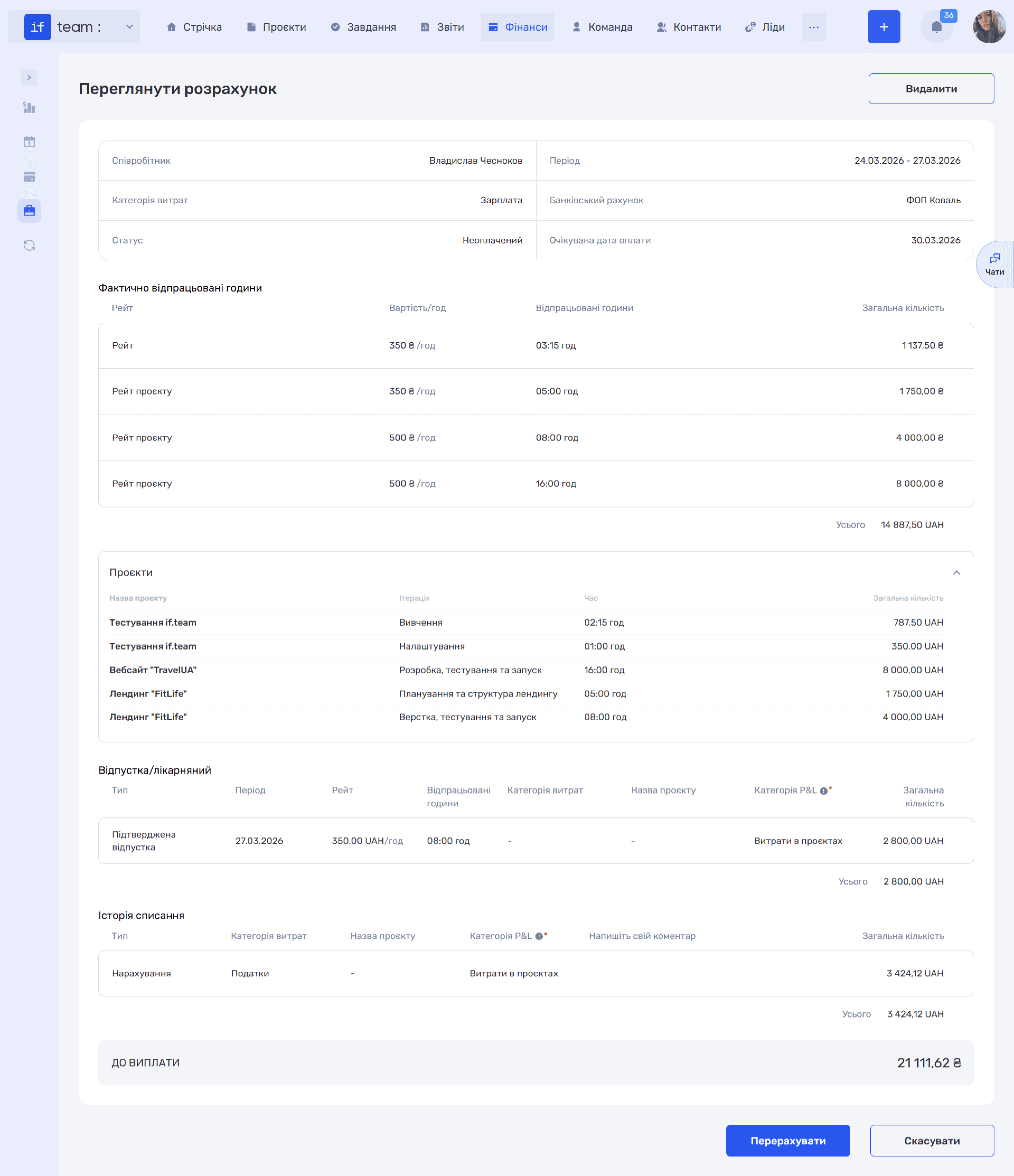
The page displays the completed payroll statement. At the top is a general section with the employee, period, expense category, bank account, status, and expected payment date. It is followed by:
- Hours Actually Worked, with a breakdown by rate—hourly cost, hours, and amount—and an overall total;
- Projects, with time and amounts broken down by project and iteration;
- Vacation/Sick Leave, showing payment for non-working days, if applicable, with the expense and P&L categories;
- Deduction History, containing all deductions, such as advances and taxes. Each entry has a type, expense category, P&L category, and a negative amount, followed by the total deductions;
- Amount Payable, the final amount after all accruals and deductions.
The Recalculate button updates the payroll statement, for example after the hours worked have changed. Cancel rejects the changes, and Delete removes the calculation.
Still have questions?
Maybe we haven't added this information yet. But you can always reach out:
Request a demo
Submit a request and we'll show you how the service works and its capabilities.
Book a demo