Adding and Editing Income and Expenses
You can create a financial entry from the Cash Flow, P&L, or Transactions subsections. Click + Income, the green button, to add incoming funds, or − Expense, the red button, to add an expense. The forms have the same structure and differ only in the available categories.
Adding Income and Expenses
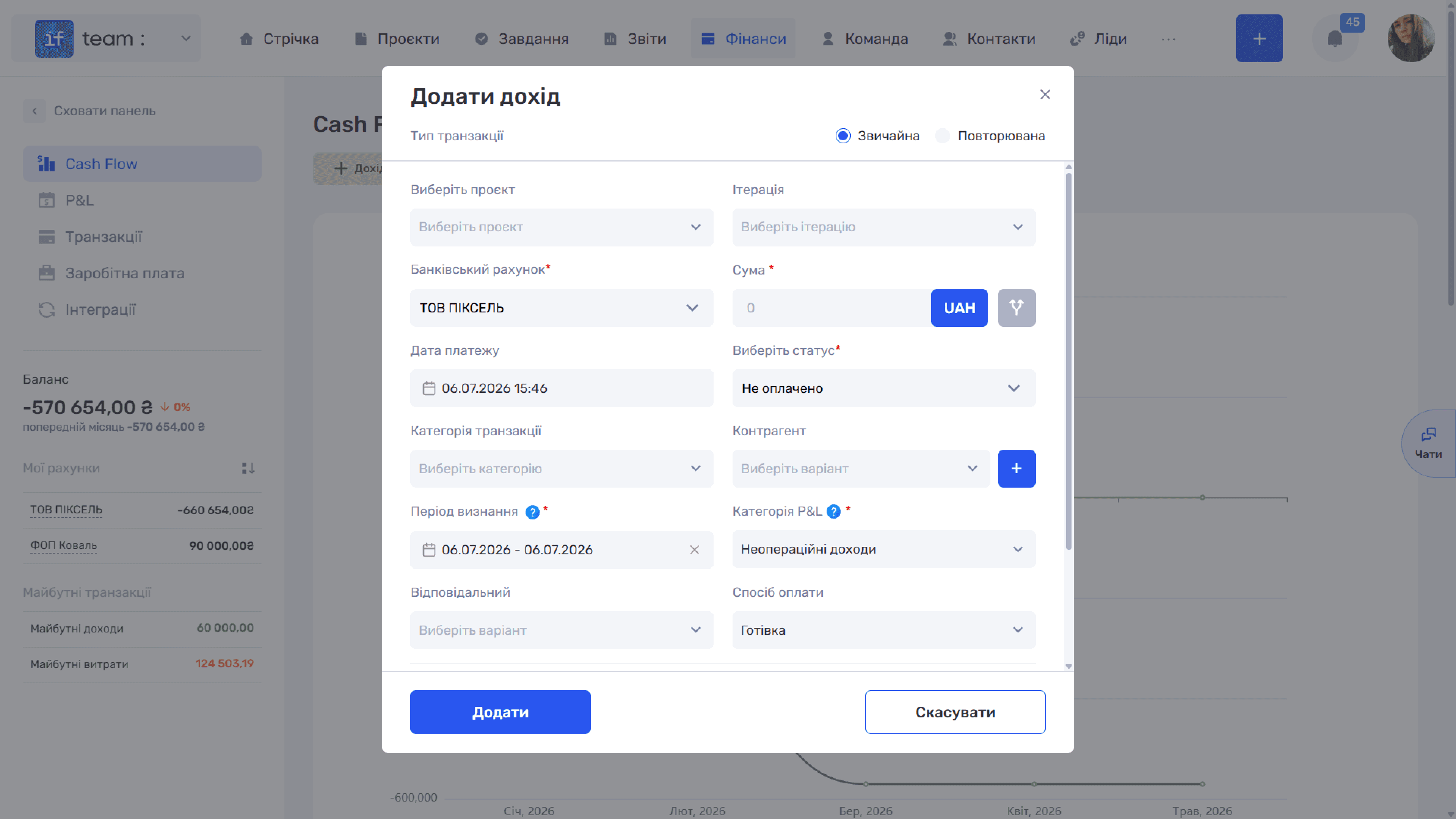
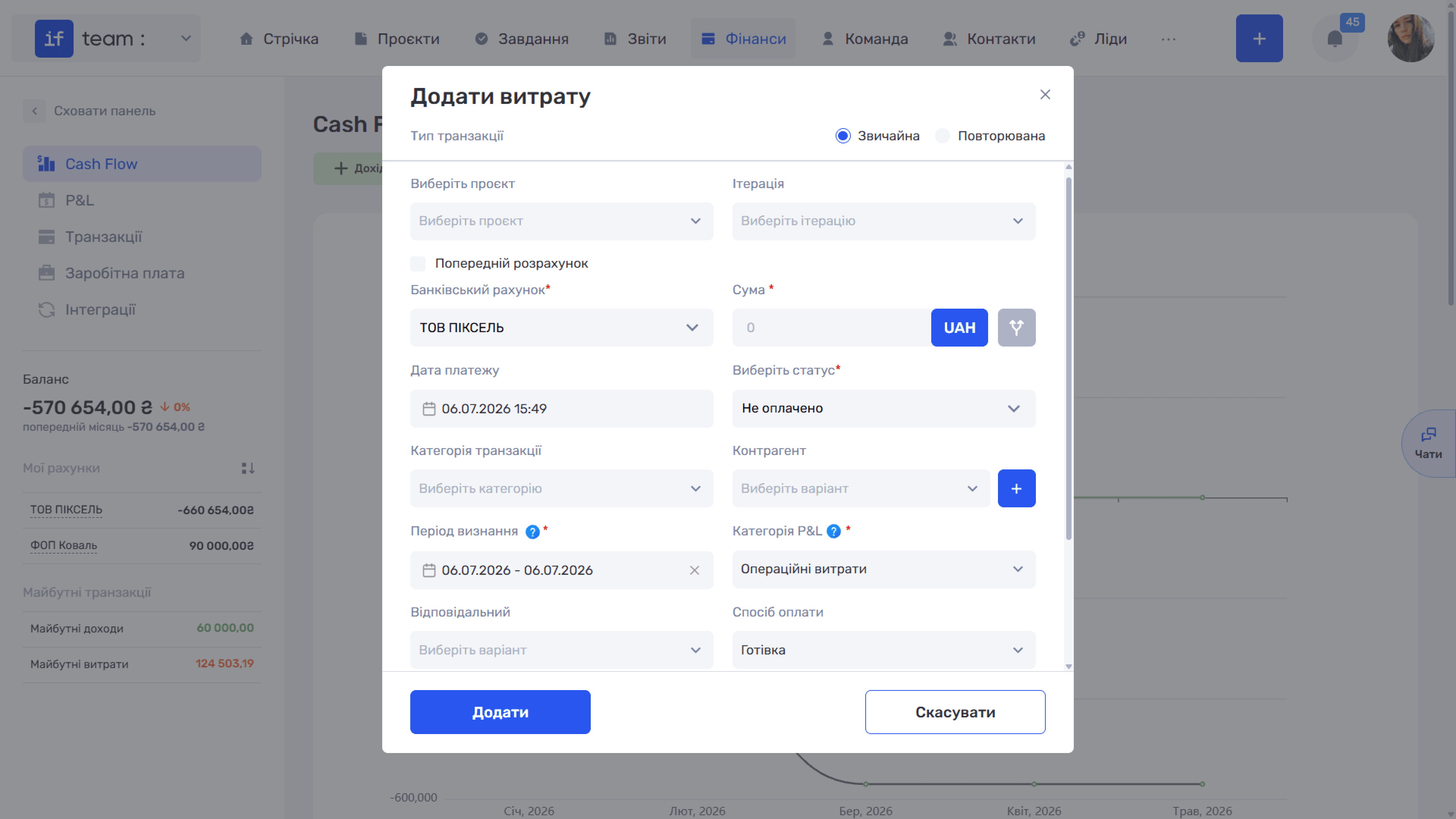
Main form fields:
- Select Project and Iteration link the entry to a project and a specific iteration and are optional.
- Bank Account is the account to which funds are received or from which they are withdrawn. This field is required.
- Amount is the transaction amount with a currency selector. This field is required.
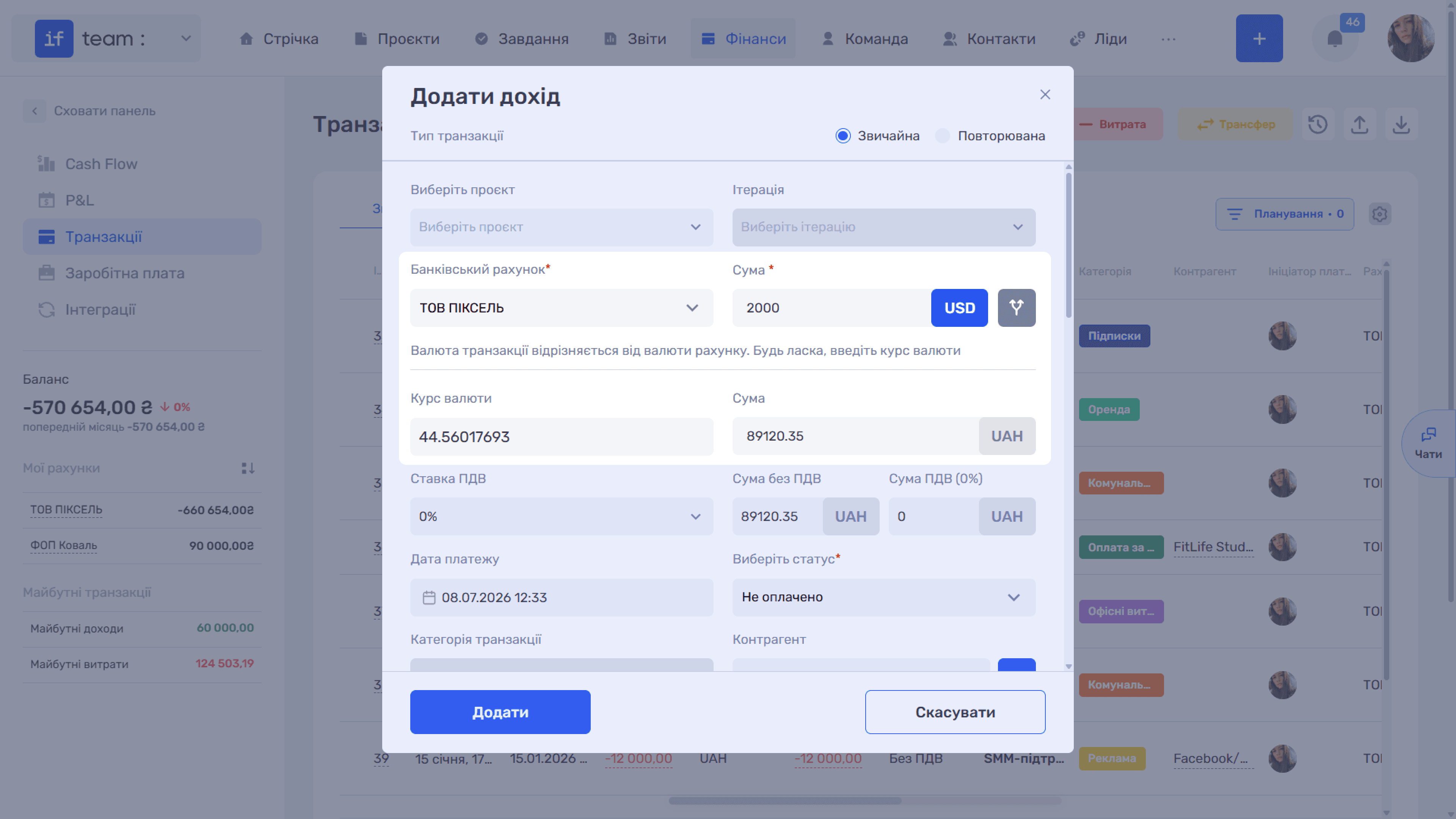
- Exchange Rate: if the transaction currency differs from the selected bank account’s currency, an Exchange Rate field and converted amount appear below Amount. Enter the rate, and the system converts the payment into the account currency.
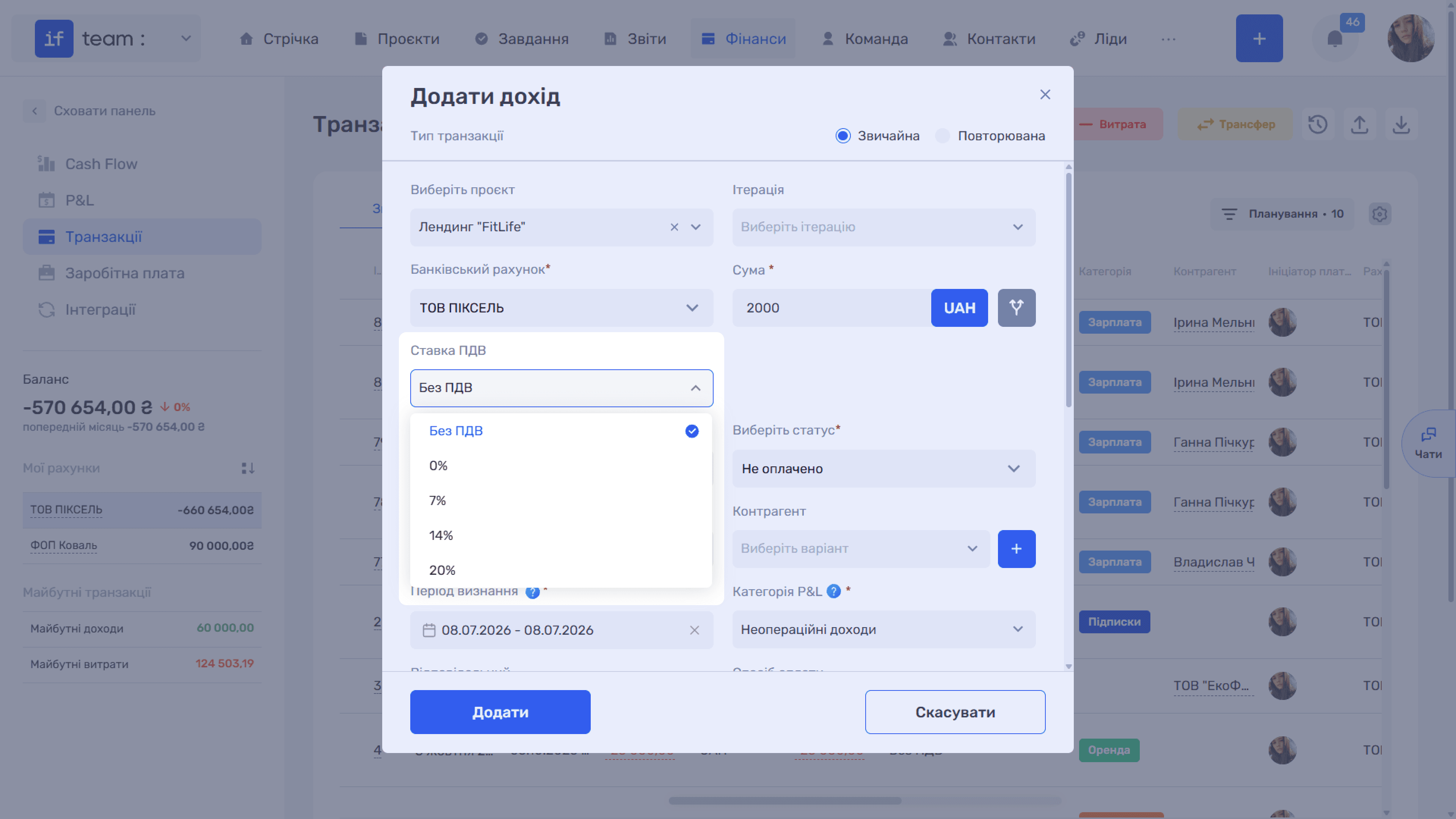
VAT Fields. If VAT accounting is enabled in the company settings, three related fields appear in the form regardless of the transaction currency:
- VAT Rate: select a rate from the list, such as 0%, 7%, 14%, or 20%, or select No VAT. If a default rate is set for the bank account, it is inserted automatically.
- Amount Excluding VAT is the payment amount before tax.
- VAT Amount (X%) is the amount of tax itself, with the selected rate shown directly in the field name.
if.team calculates the last two fields automatically based on the amount and selected rate, so you do not need to complete them manually.
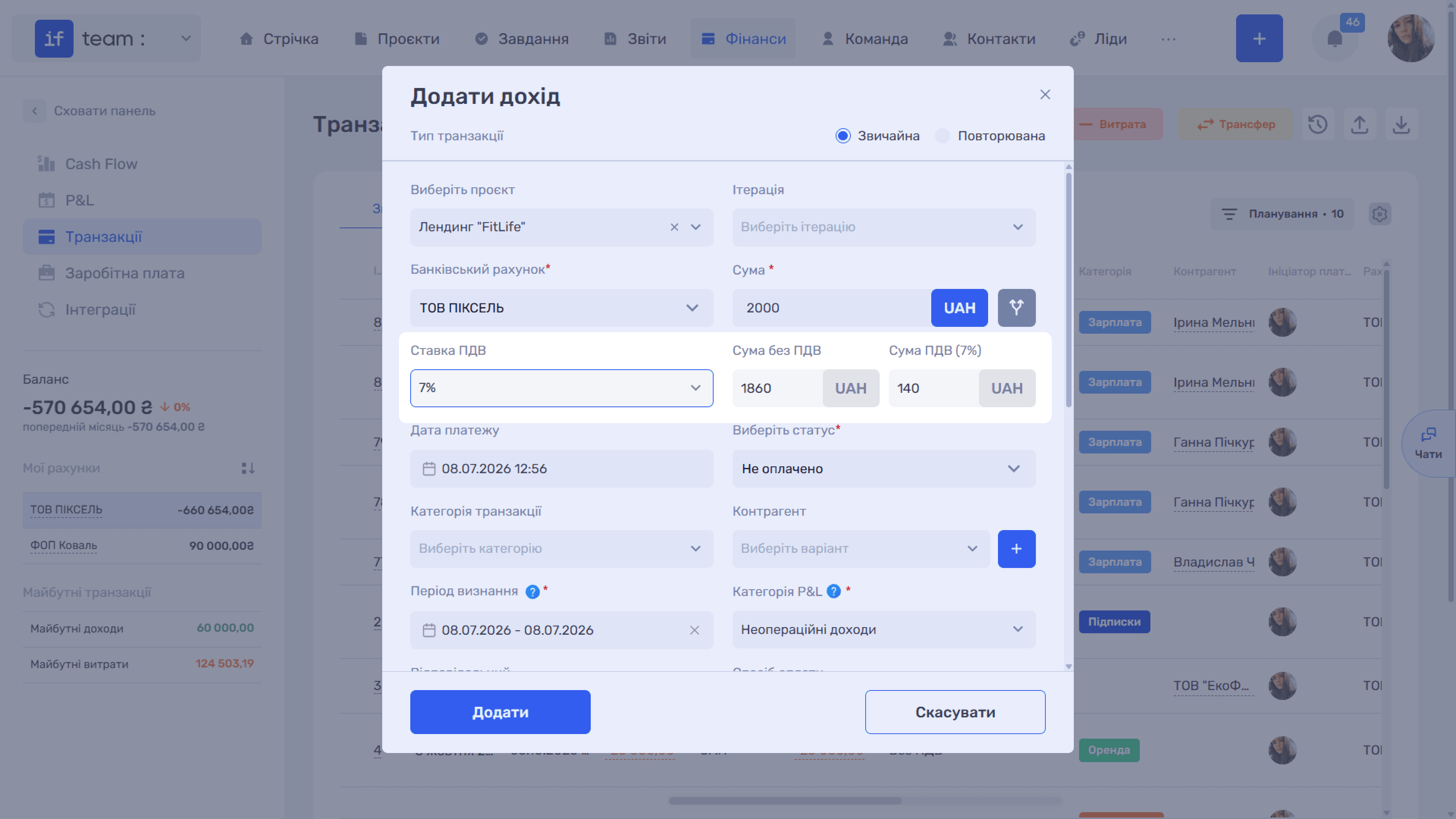
Both are displayed in the company currency even when the transaction itself uses a different currency:
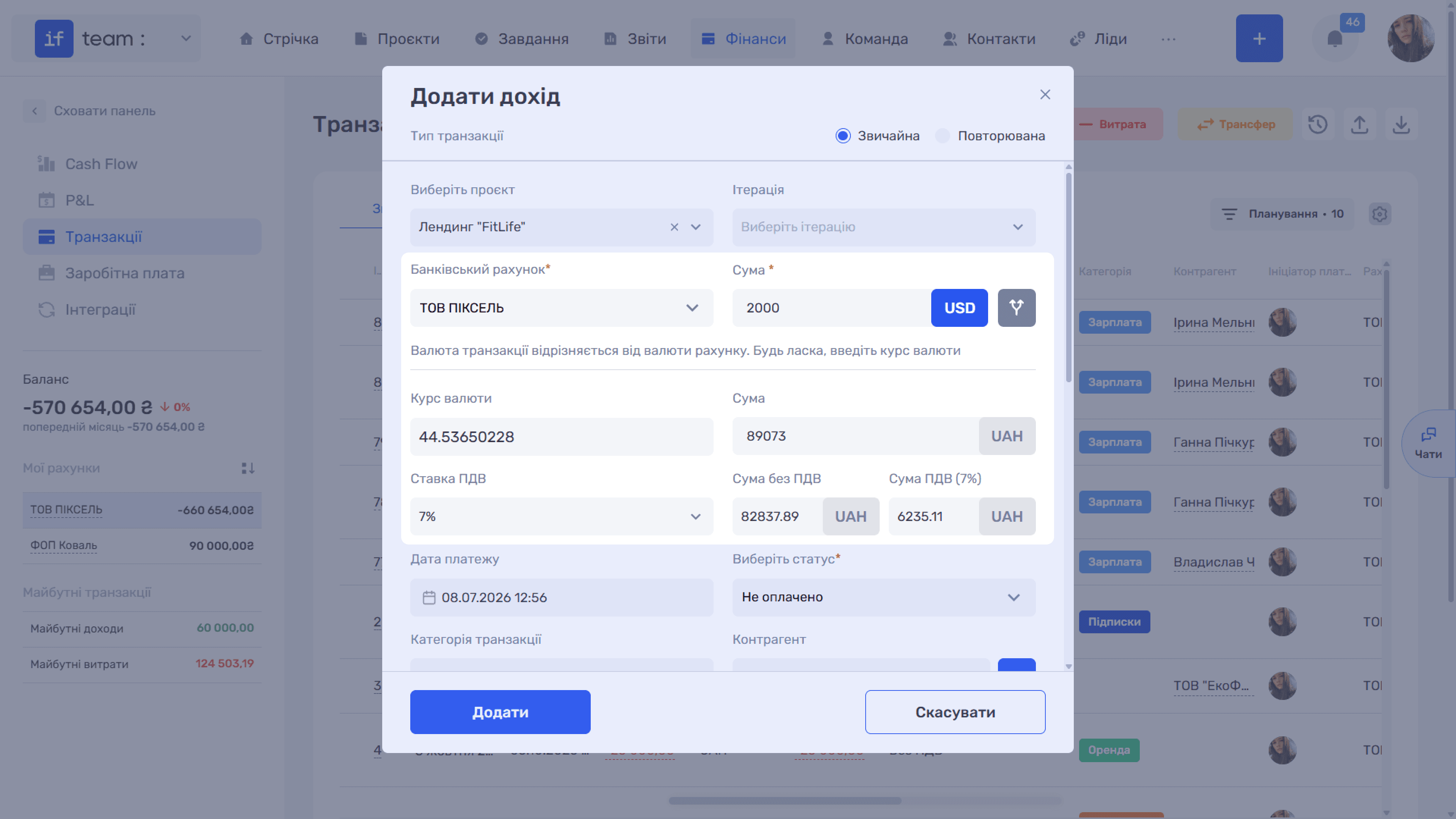
- Payment Date is the actual transaction date.
- Status is Paid or Unpaid. This field is required.
- Transaction Category is the transaction type, such as Payment for Services for income or Salary for expenses.
- Counterparty is the client or supplier. Add a new counterparty using the + button.
- Recognition Period is the period in which the transaction is included in the P&L report and may differ from the payment date. This field is required.
- P&L Category is the section of the profit and loss report to which the entry belongs, such as Total Income or Operating Expenses. This field is required.
- Responsible Employee and Payment Method specify the responsible person and the form of payment, such as Cash or Bank Transfer.
The following expandable sections appear below:
- Quote attaches a related commercial quote.
- Link to Tasks links the transaction to specific tasks and specifies an amount for each one. This makes income and expenses available by task in Reports.
- Additional Fields contains transaction custom fields.
- Comment and File contains the transaction description and related attachments.
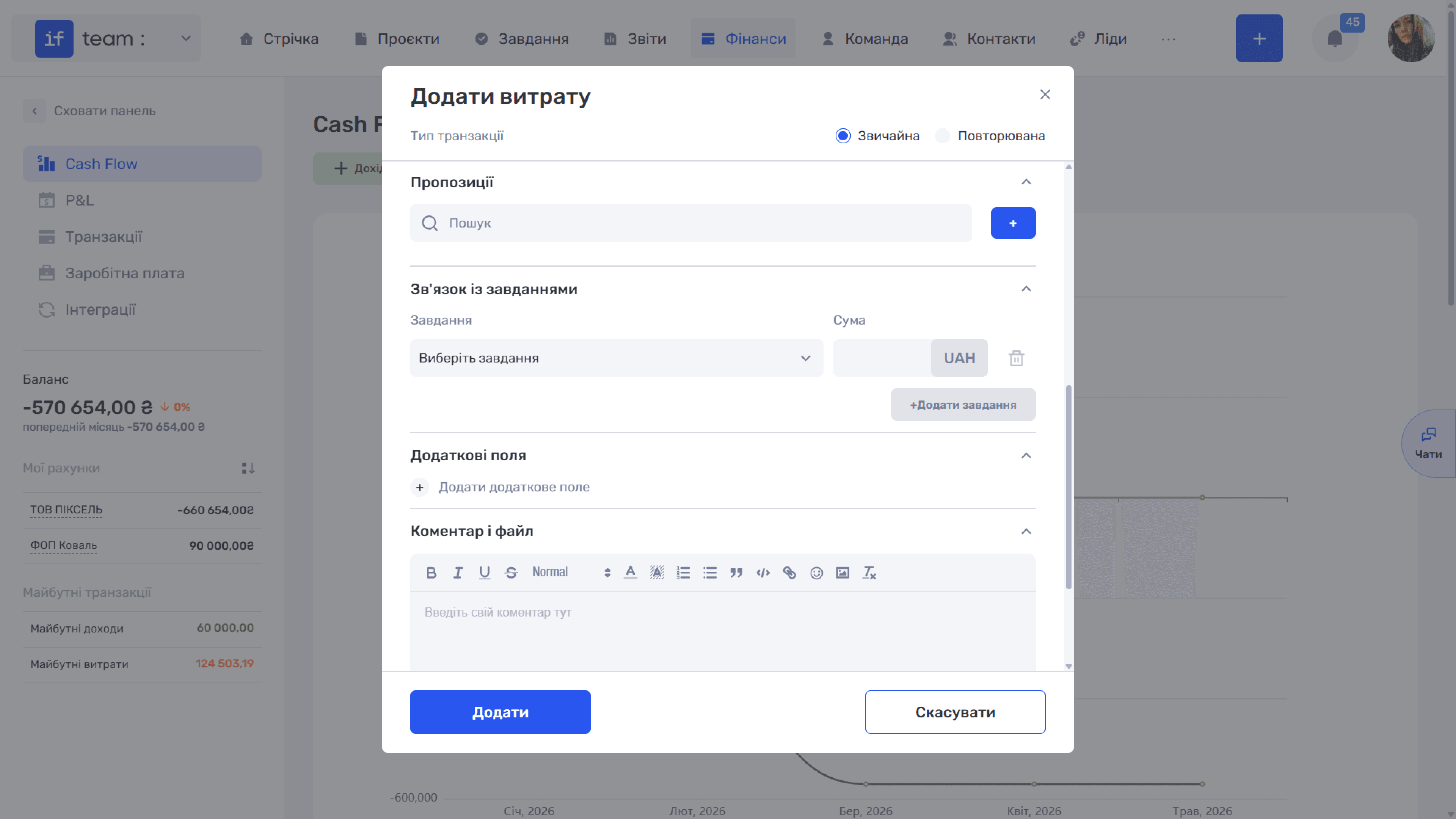
After completing the form, click Add. The entry appears in the transaction register and is included in financial analytics.
Splitting a Payment Between Projects
Sometimes one payment relates to several projects, items, or periods at once. For example, a client may pay for several stages in one payment, or a supplier payment may be divided between different expense categories. Instead of splitting it into separate transactions manually, you can divide the amount directly in the form.
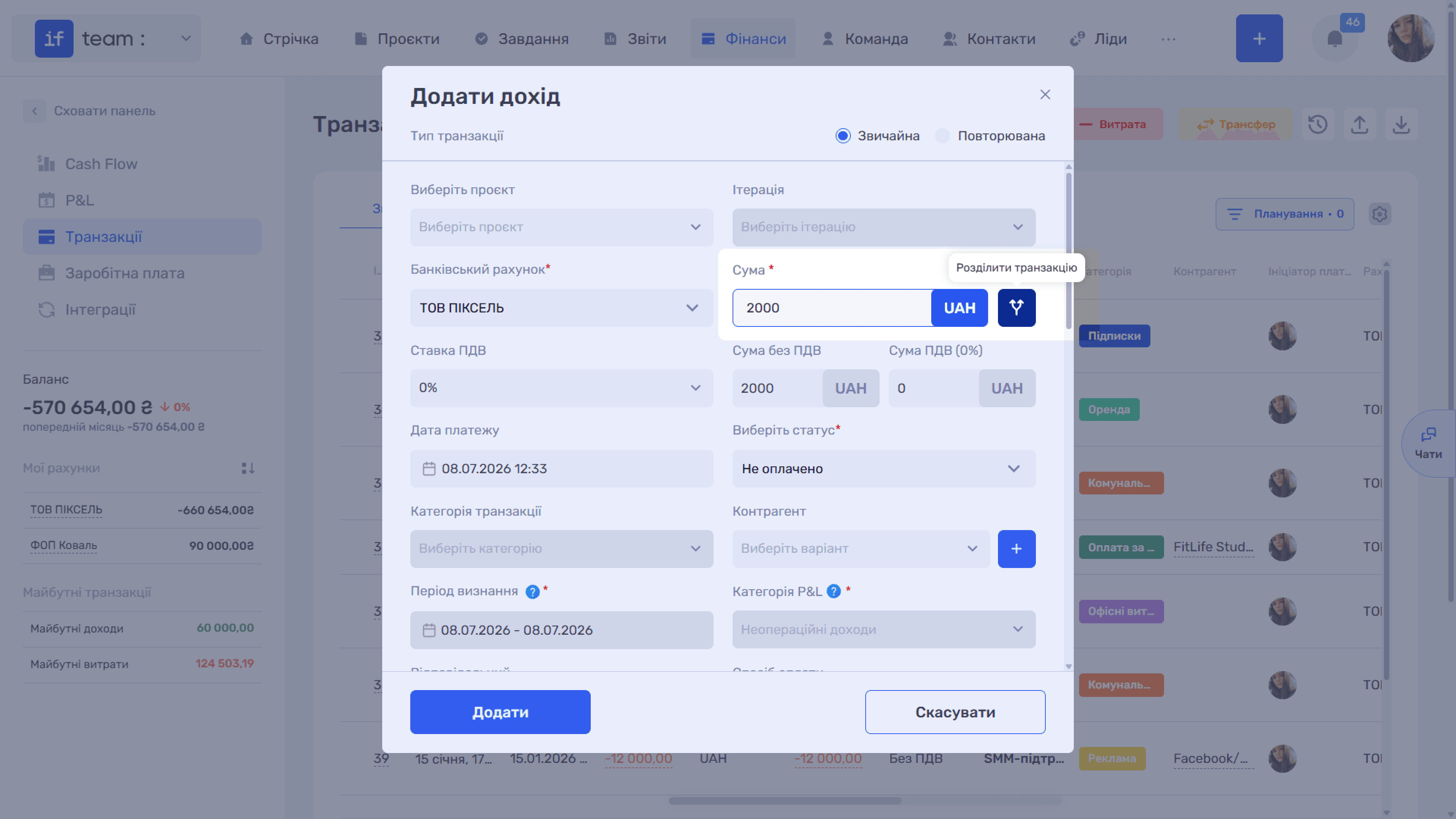
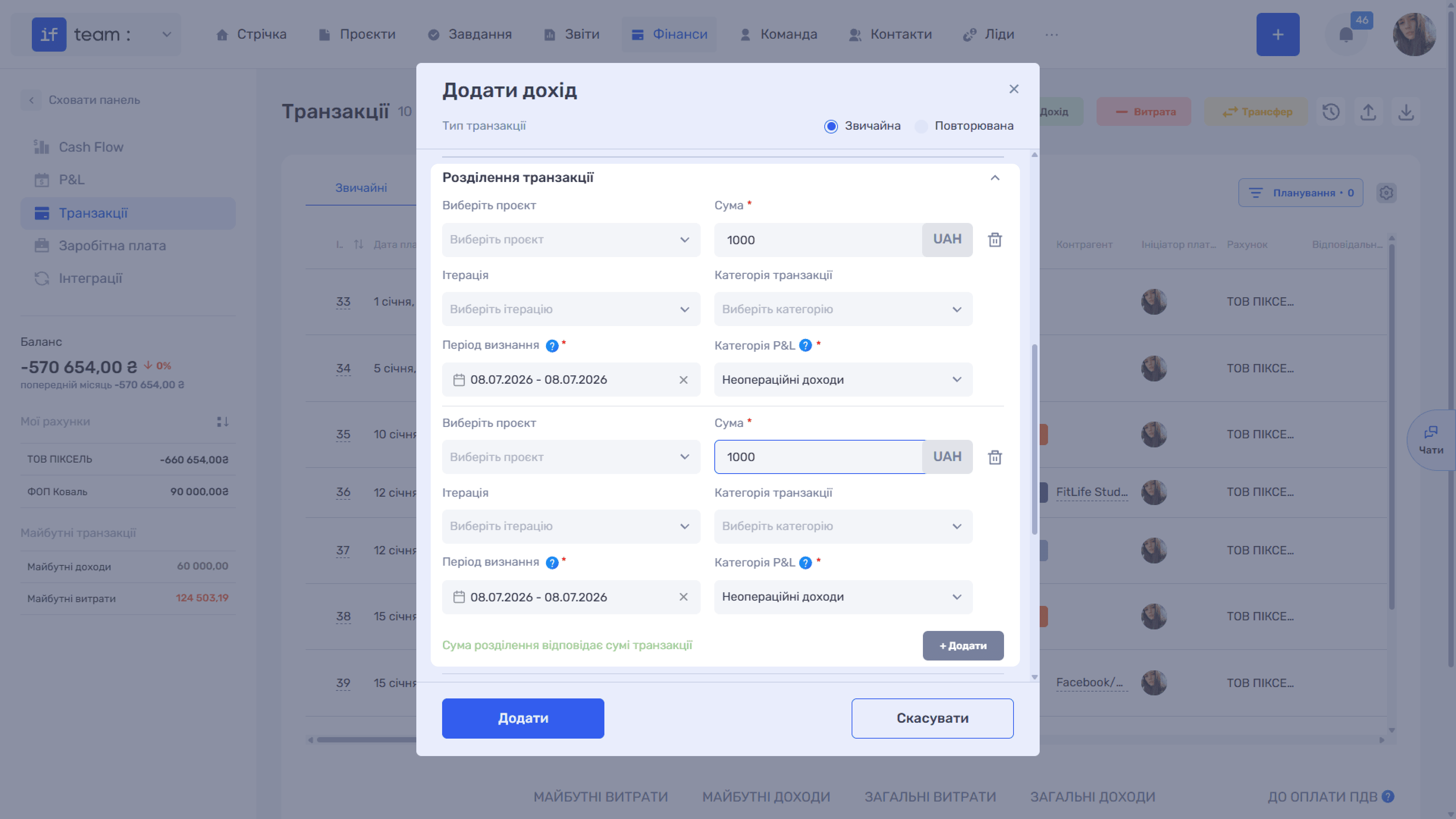
The split button next to Amount becomes active as soon as you enter the transaction amount. Click it to expand Transaction Split, where the payment is divided into parts. For each part, specify:
- the project and iteration it relates to;
- the part’s amount in the transaction currency;
- the transaction category and P&L category;
- the recognition period to which that specific part is assigned in P&L.
The sum of all parts must equal the transaction amount. When it does, the green Split Amount Matches Transaction Amount message appears below the split. To add another row, click + Add. Remove an unnecessary row using the trash icon (🗑).
Please note
Splitting is applied everywhere if.team calculates finances: project and project-stage economics, P&L, transaction filtering, and income and expense structure analysis. This means a single transaction can be distributed across several projects and items while remaining one entry in the register.
Editing Income and Expenses
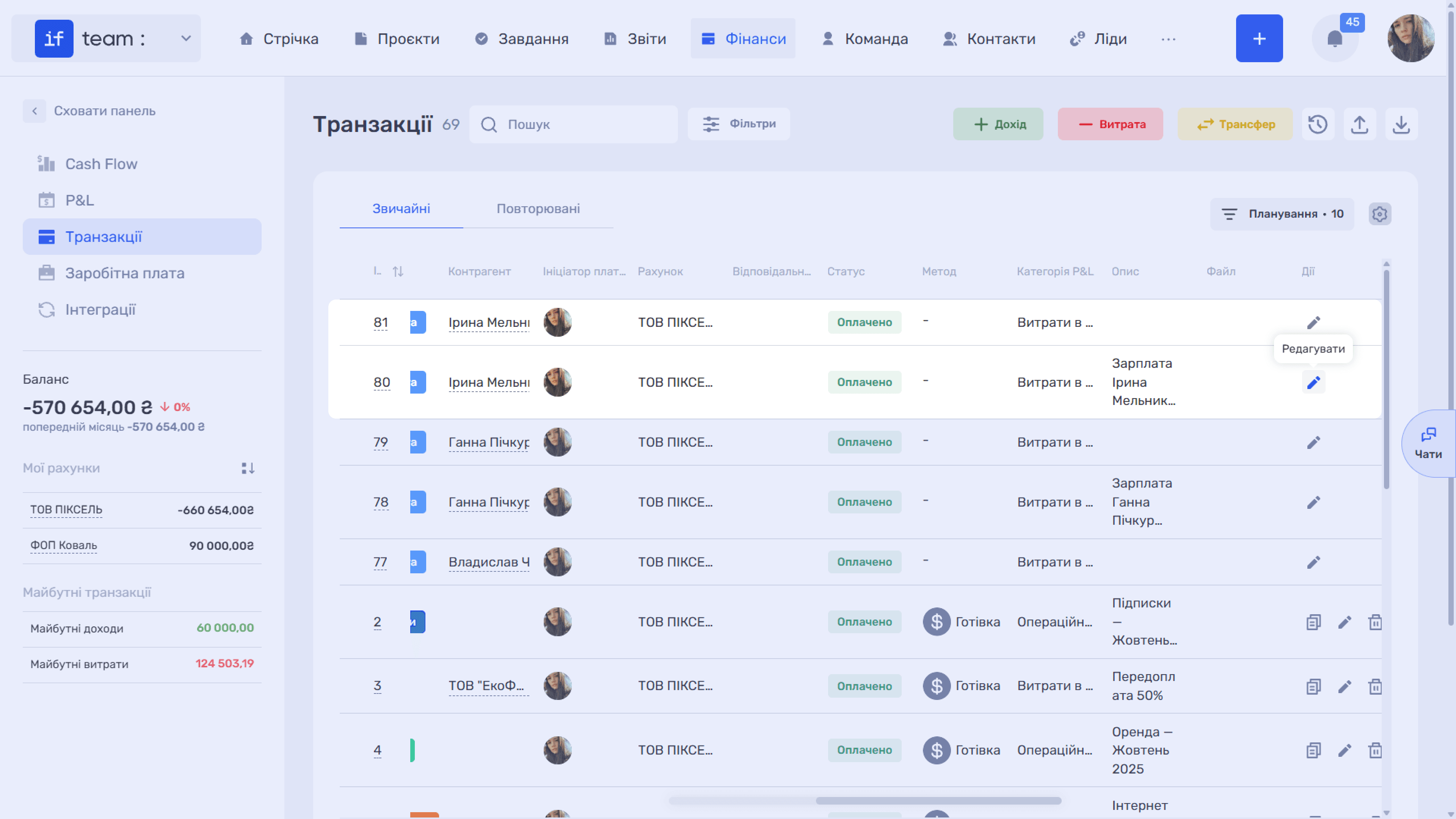
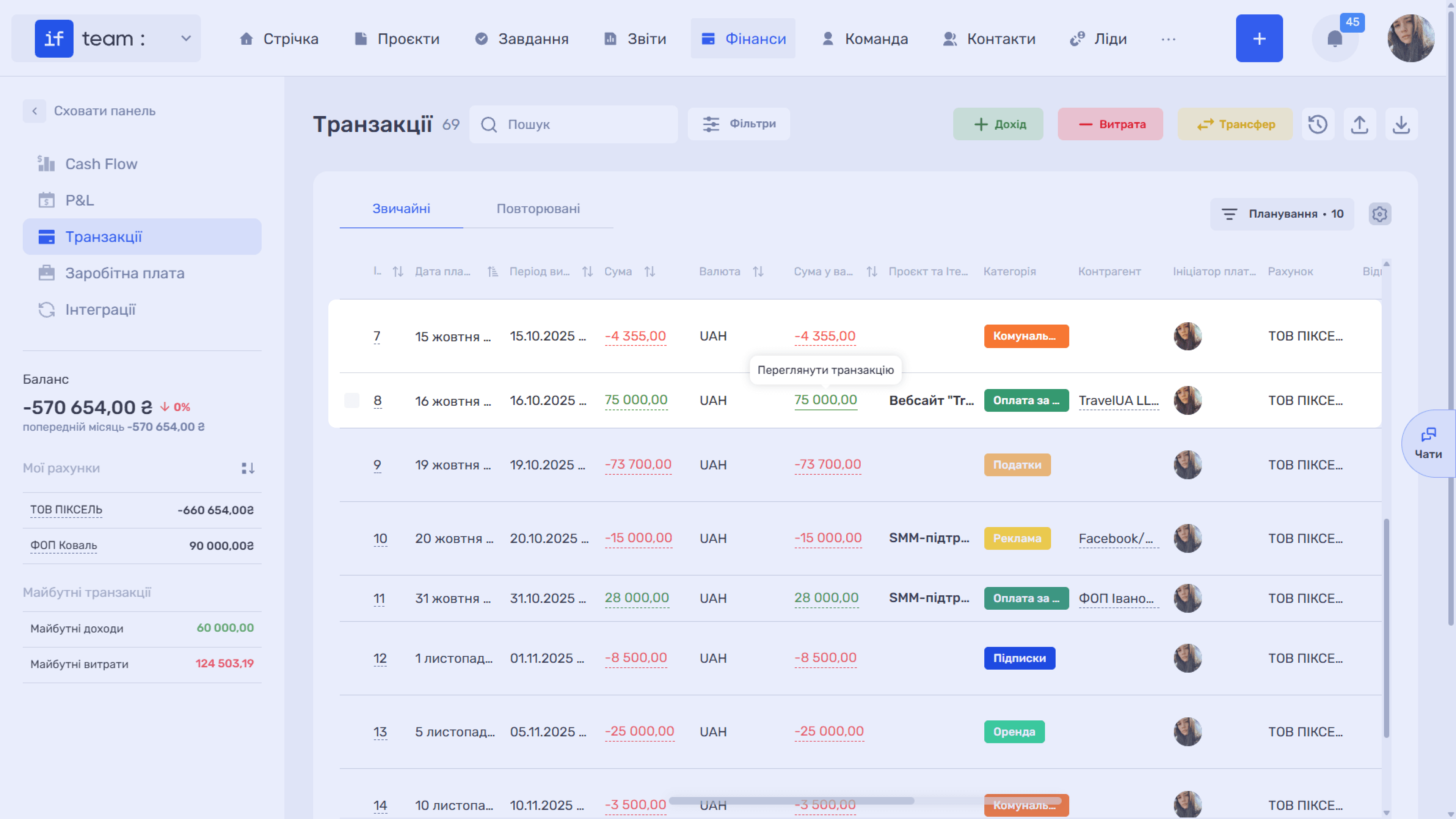
To change a previously created entry, click the pencil icon (✏) in the transaction list or the cell containing the amount (View Transaction).
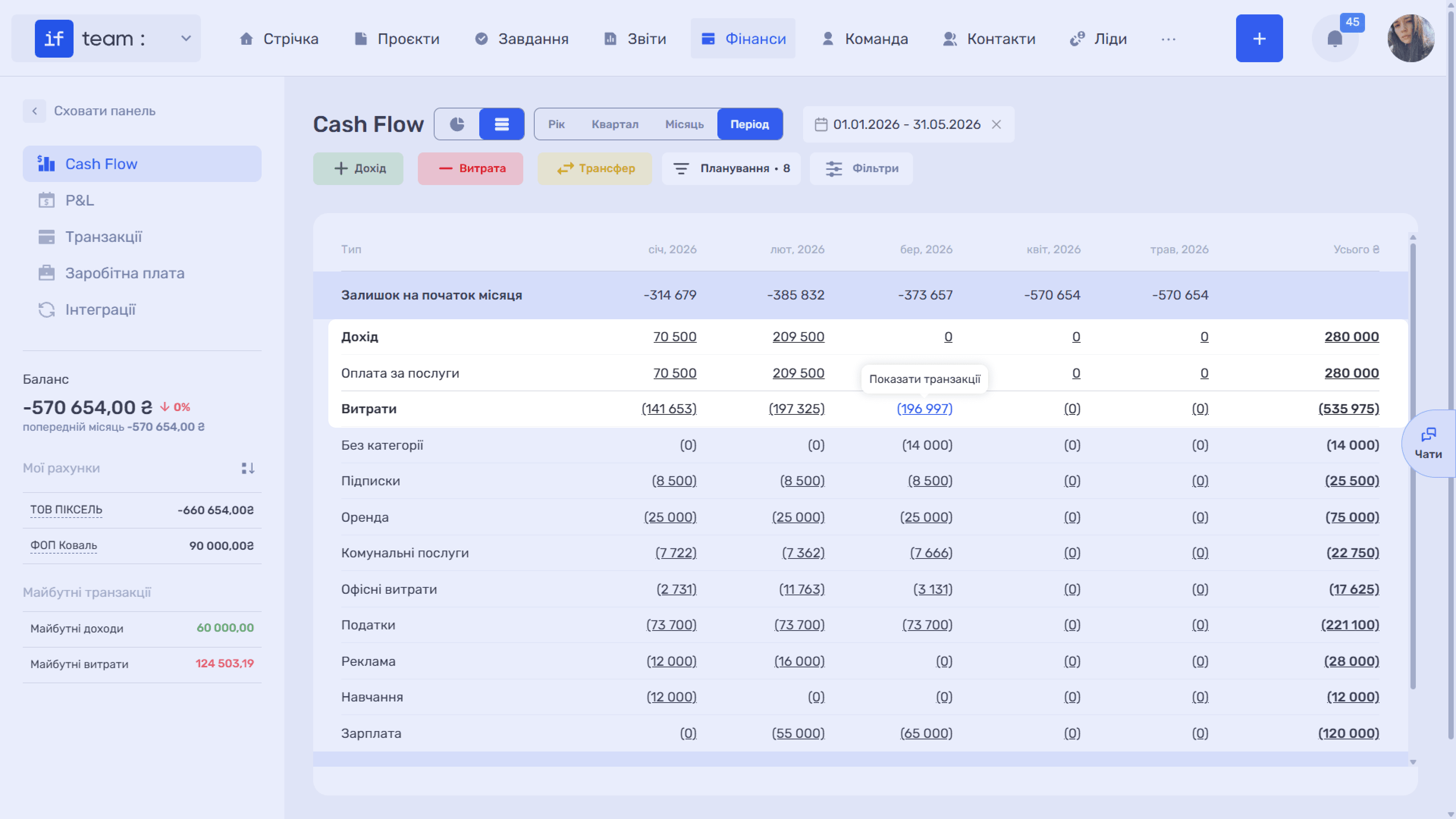
You can also open a transaction for editing from the Cash Flow and P&L tables. Click a cell containing an amount to display the transactions that make up that amount (Show Transactions), then select the required one.
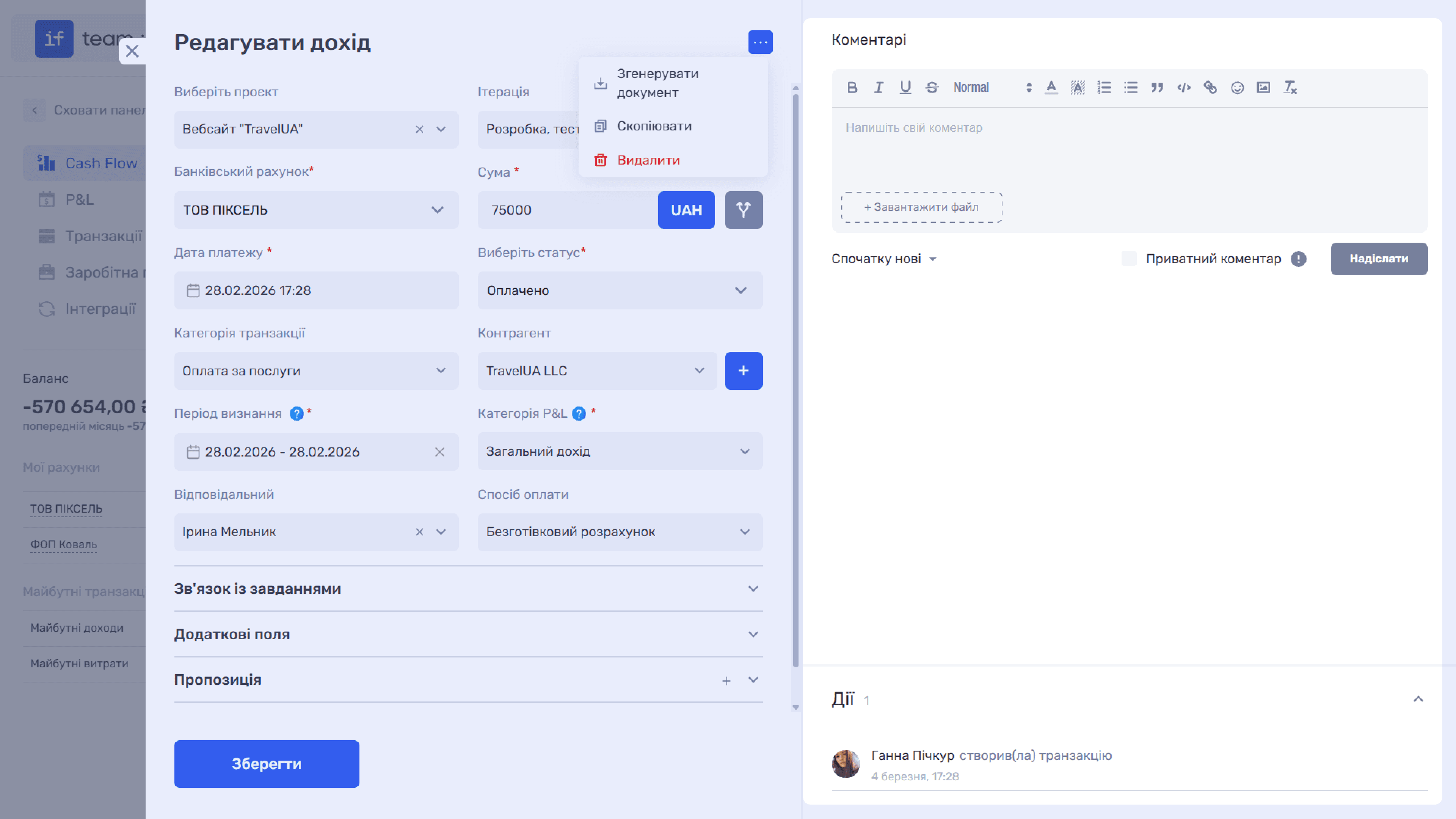
The Edit Income / Edit Expense form repeats the creation form, and all fields can be changed. It also contains a Comments panel with an Actions section on the right. Here, you can discuss the payment, view its change history, and attach files.
After making changes, click Save. For details about working with the transaction card, comments, and action log, see Transactions.
Please note
Recognition Period and P&L Category determine how the entry appears in the P&L report under the accrual method, while Payment Date affects Cash Flow under the cash method. Keeping these fields separate ensures correct accounting when income or an expense is recognized in one period but the money actually moves in another.
Still have questions?
Maybe we haven't added this information yet. But you can always reach out:
Request a demo
Submit a request and we'll show you how the service works and its capabilities.
Book a demo