Transactions
The Transactions subsection is the single register of all company financial transactions: income, expenses, and transfers. It contains everything: entries created manually, imported from Excel, generated from recurring templates and payroll statements, and synchronized through bank integrations. The
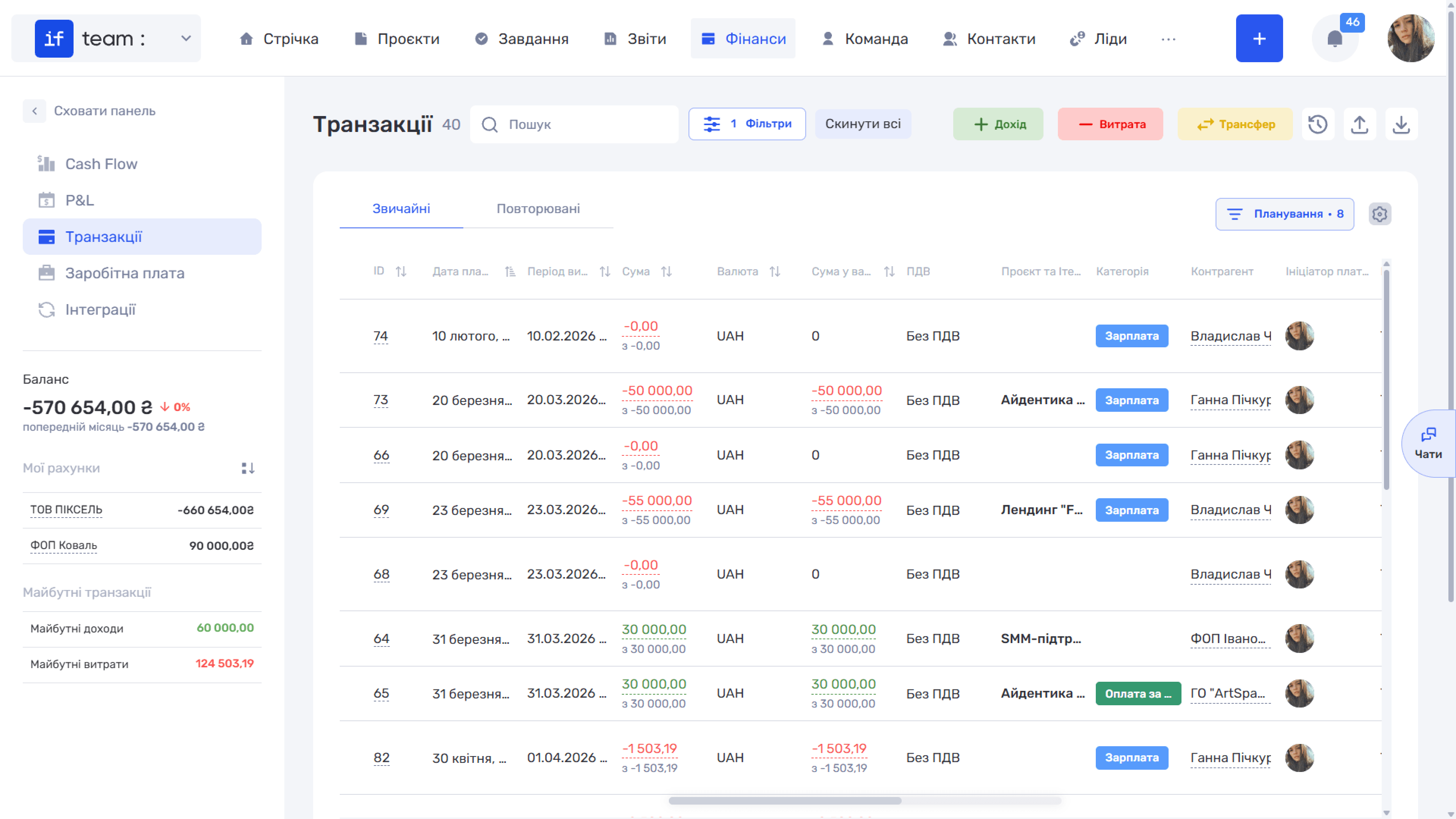
Transactions Table
Entries are divided between the Standard tab, which contains all transactions, and the Recurring tab, which contains recurring payment templates. See Recurring Transactions.
Available columns are ID, Payment Date, Recognition Period, Amount, Currency, Amount in Company Currency, VAT, Project and Iteration, Category, Counterparty, Payment Initiator, Account, Responsible Employee, Status, Method, P&L Category, Description, File, and Actions. Configure the set and order of columns using the gear icon (⚙, Field Settings). Click a column heading with the ↕ icon to enable sorting. You can disable the system ID just like any other column if you do not need it.
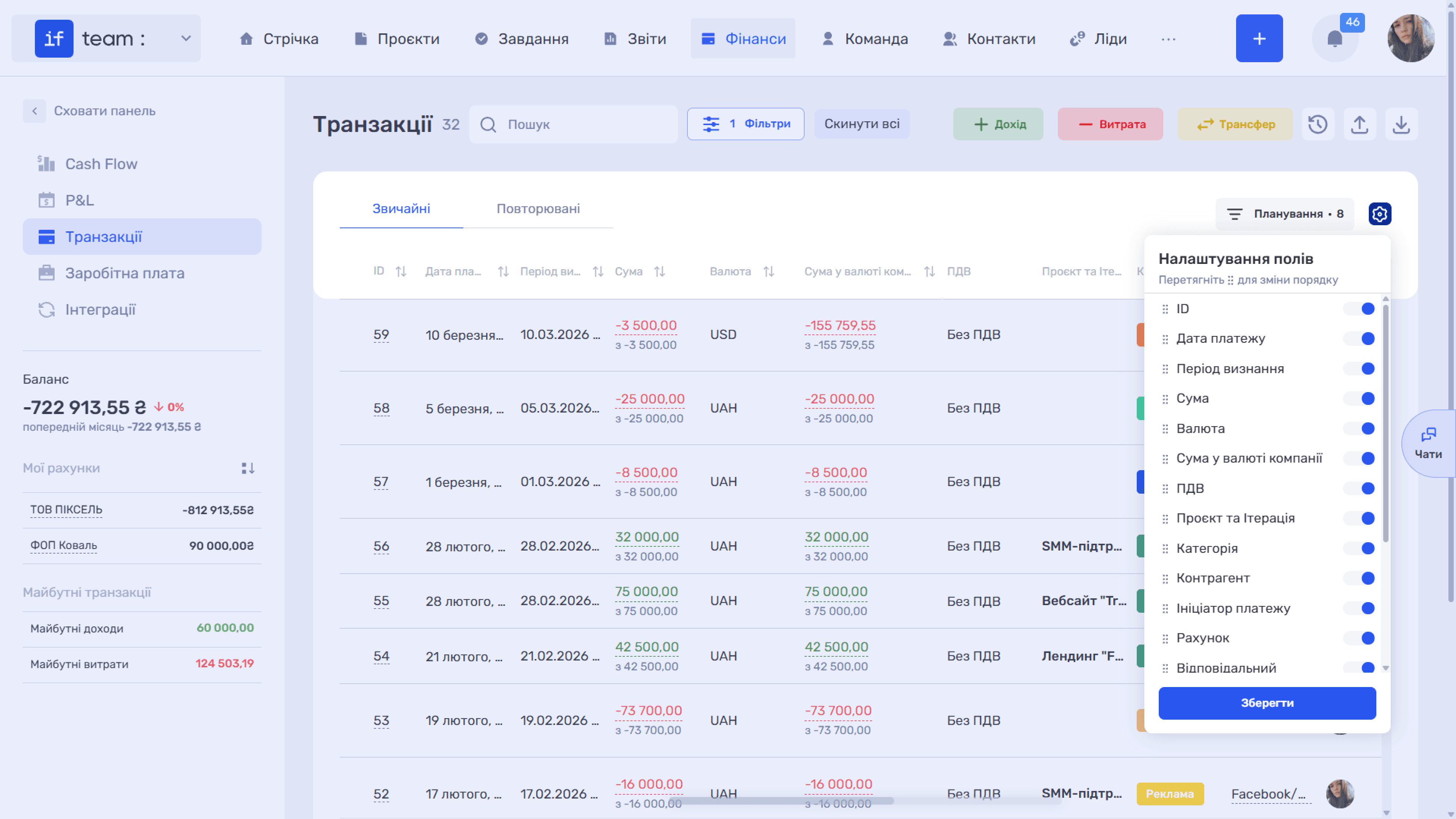
Income amounts in the table are green, while expense amounts are red. For transactions in a currency other than the company currency, both amounts are shown: the amount in the transaction currency and its equivalent in the company currency. The exchange rate is retrieved automatically for the payment date and updates if the date changes.
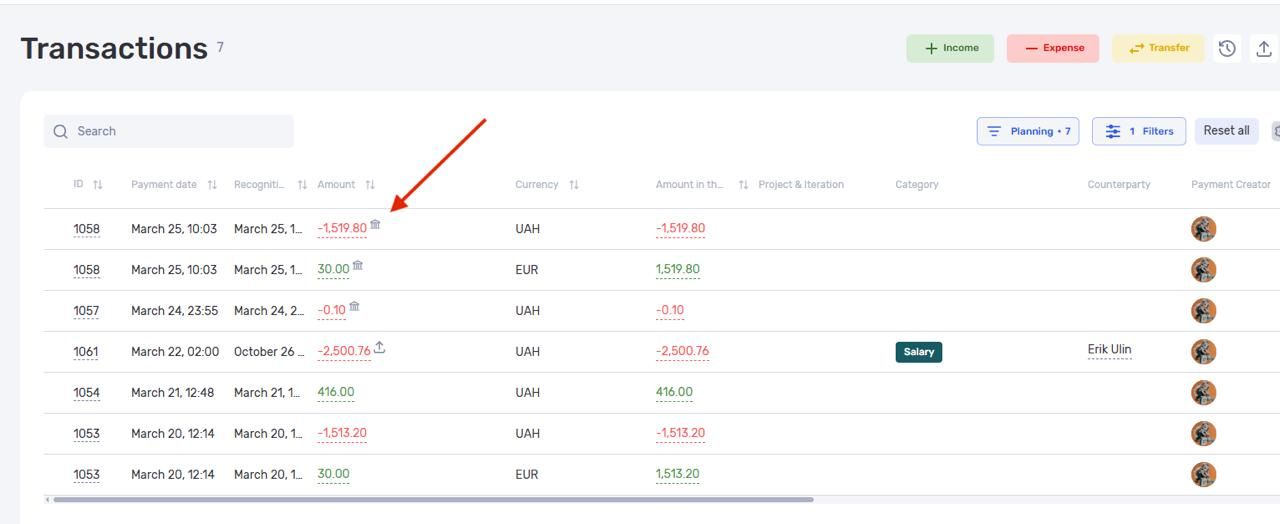
Each entry has a transaction source indicator: bank integration, API, import, recurring payment, or manual creation.
*Фото (потрібна укр. версія, не знаю, де взяти)*
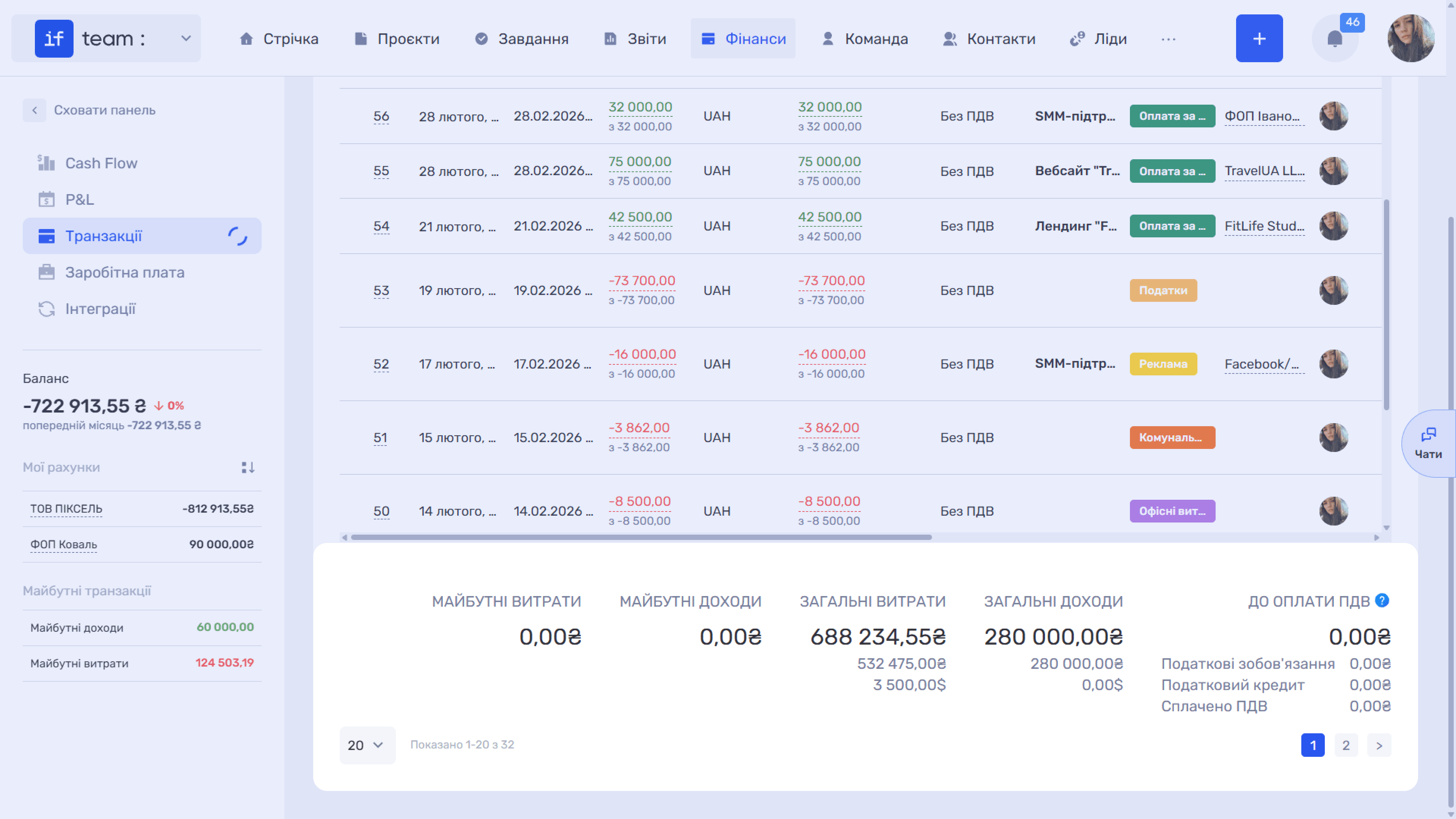
The selection totals appear below the table: future income and future expenses, and total income and total expenses. Totals are broken down by currency: the overall amount in the company currency plus amounts in the transaction currencies.
When VAT accounting is enabled for the company, a VAT Payable section is added with a breakdown into tax liabilities, tax credit, and VAT paid. The ? icon next to the heading explains the calculation logic: VAT is calculated only for transactions for which a tax liability has already arisen—in the current implementation, only paid transactions—and the recognition period does not affect the VAT calculation. For details, see VAT Accounting.
Search and Filters
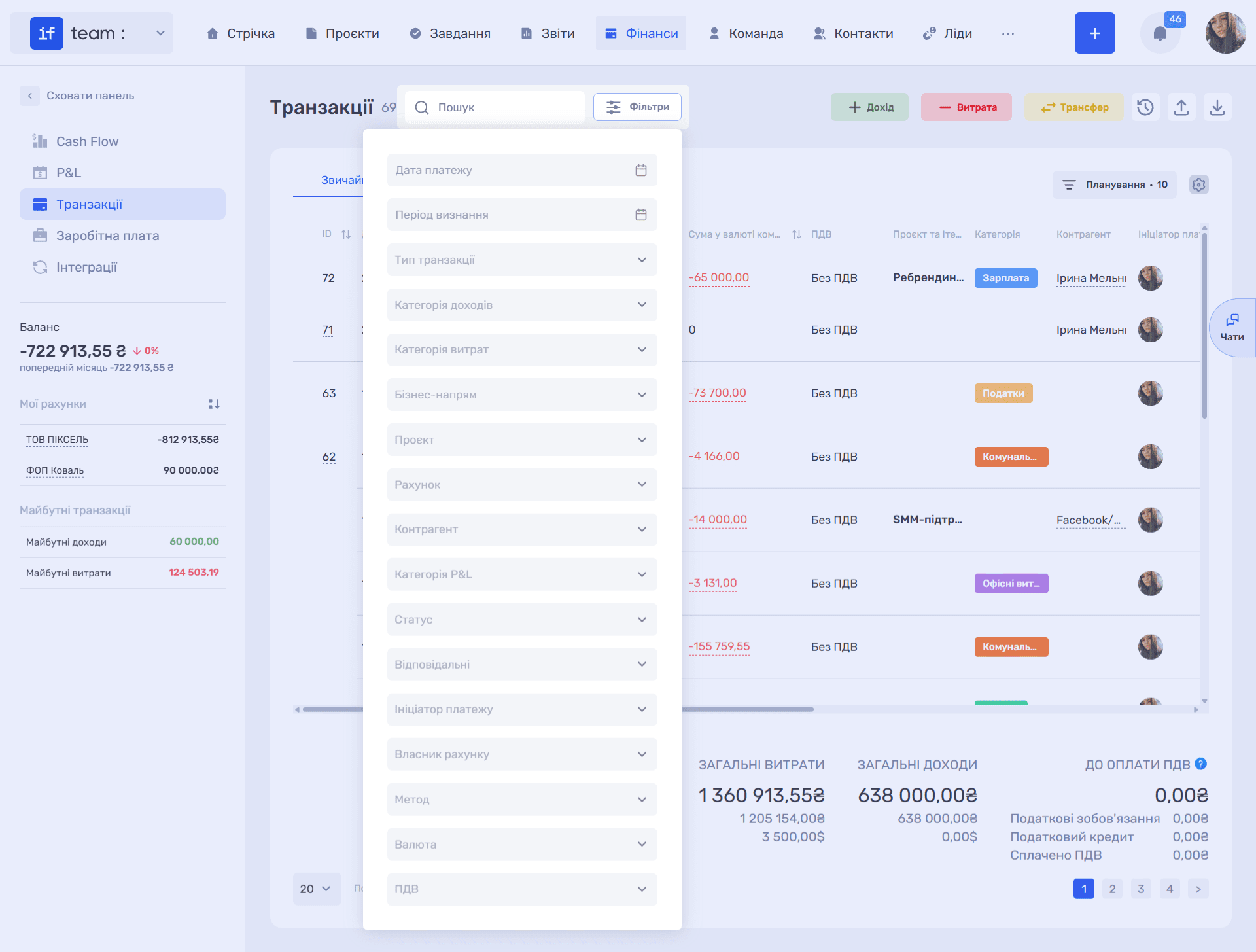
The Search field quickly finds entries, while Filters narrows the selection by payment date, recognition period, transaction type, income category, expense category, business line, project, account, counterparty, P&L category, status, responsible employees, payment initiator, account owner, method, and currency.
Within each filter, you can select all options at once or separately select transactions where the corresponding field is empty. Filtering by counterparty, including a team member, is useful for reviewing settlements with a partner, client, contractor, or employee, with accounts receivable and accounts payable calculated in the totals.
Transaction Card and Page
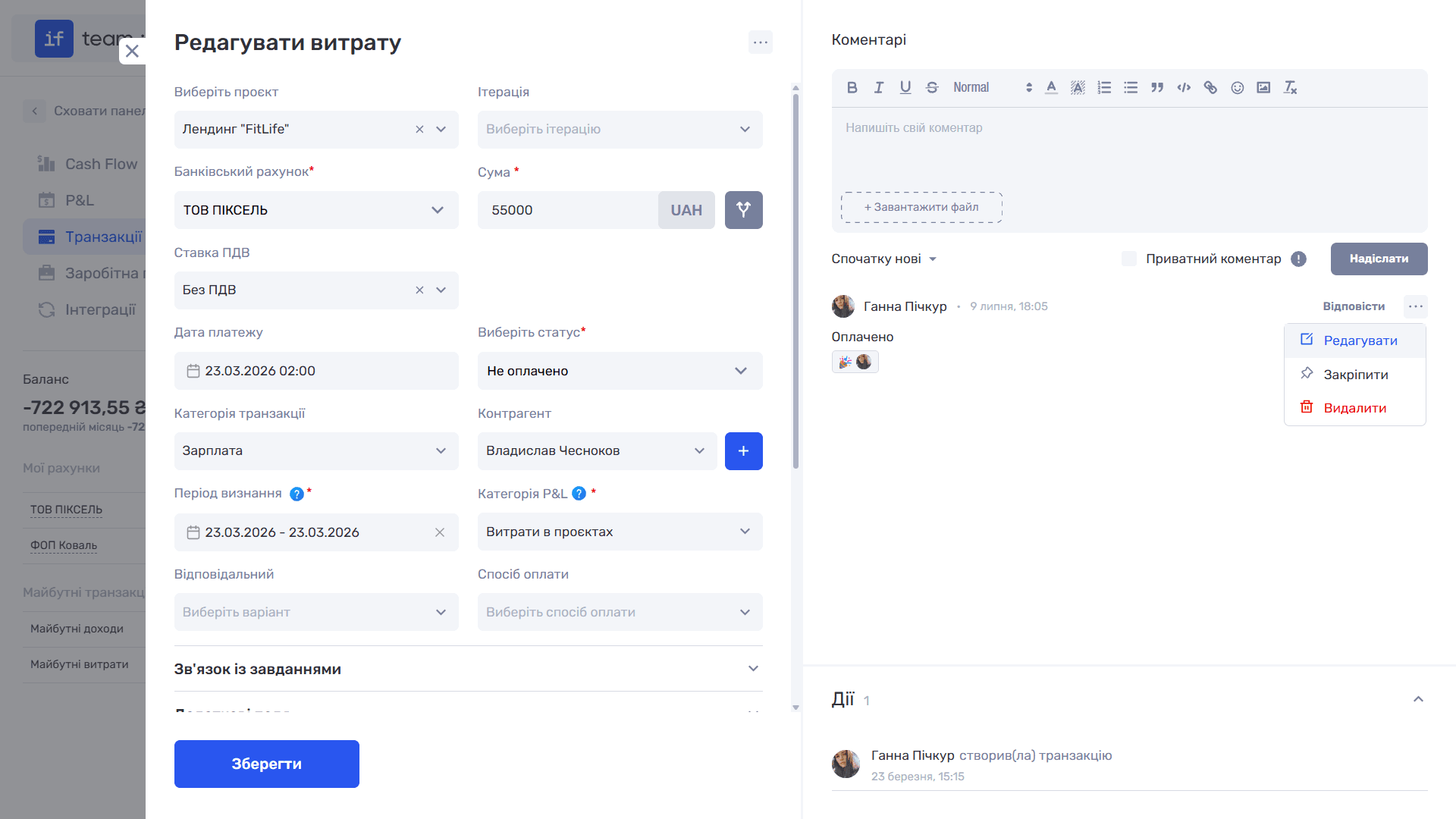
Click an entry’s amount (View Transaction) to open a card containing all editable fields.
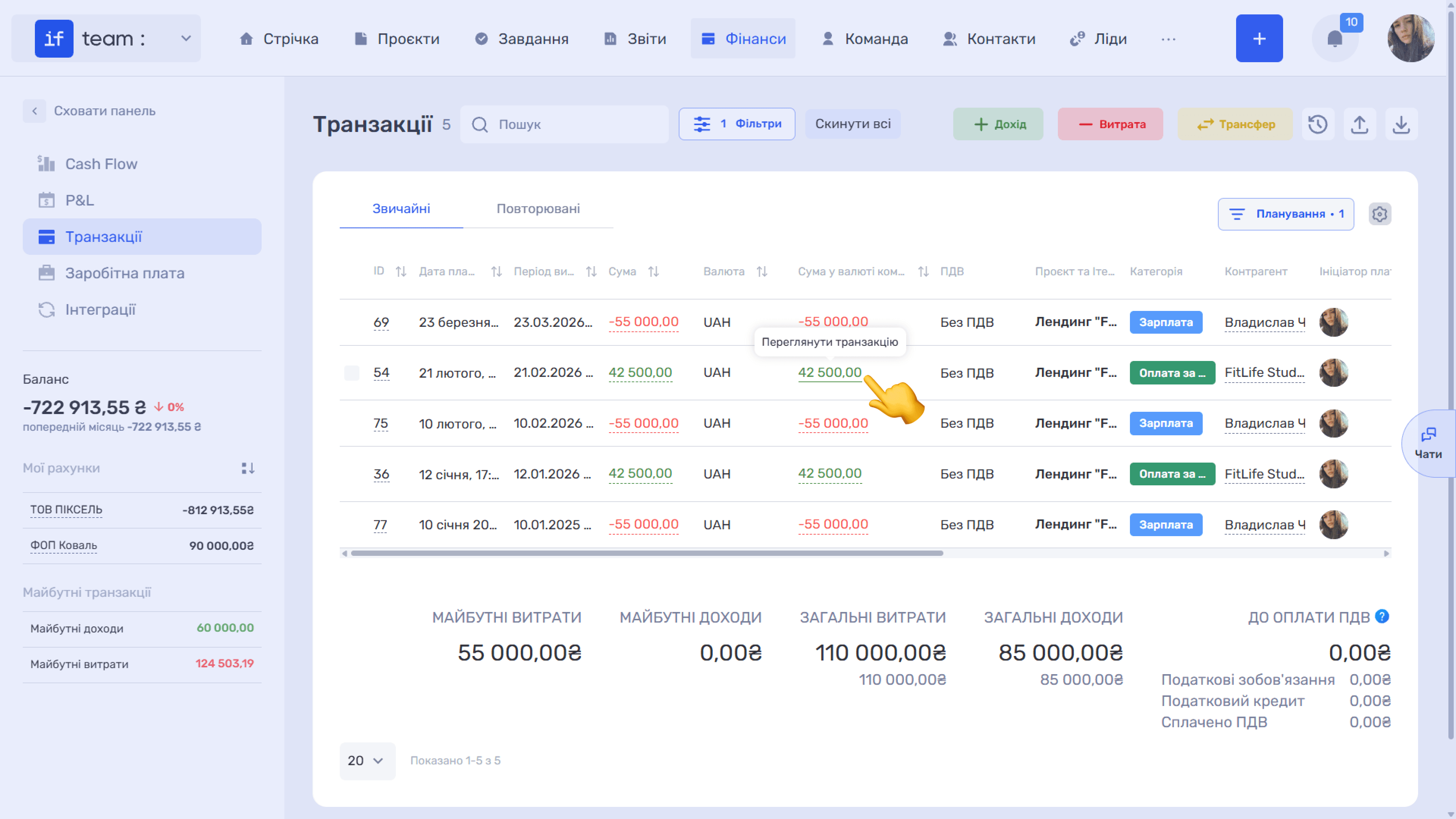
On the right are:
- Comments, a complete payment discussion with private and pinned messages, file sharing, and replies where you can tag the employees involved.
- Actions, a change log showing who created the transaction, when it was created, and what changes were made.
Each transaction has a separate page with a unique link that you can share with colleagues or open from notifications.
Actions and Bulk Operations
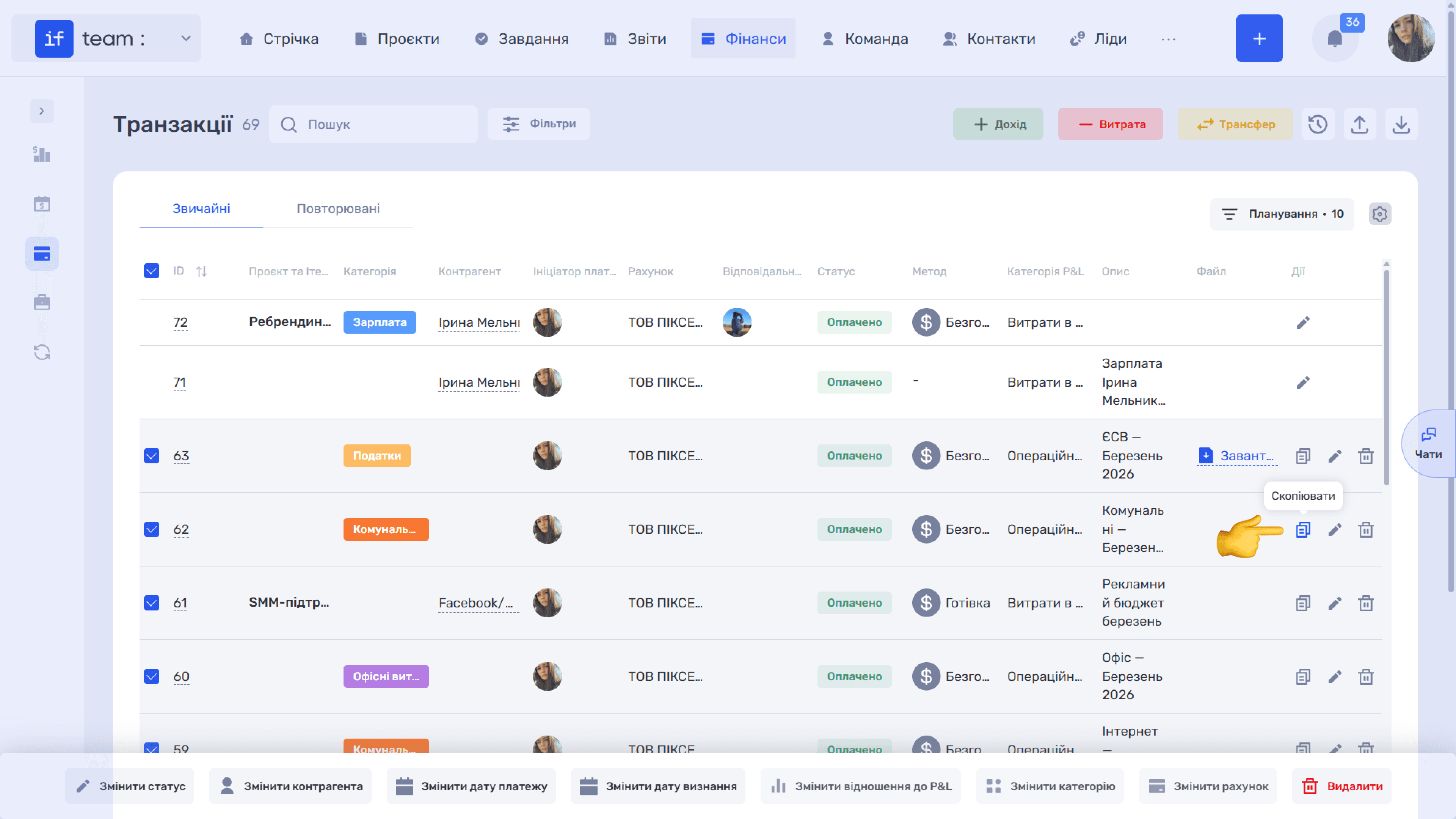
The Actions column provides options to copy, which creates a duplicate entry, edit (✏), and delete (🗑).
For bulk changes, select several transactions using the checkboxes. A bulk actions panel appears at the bottom with Change Status, Change Counterparty, Change Payment Date, Change Recognition Date, Change P&L Treatment, Change Category, Change Account, and Delete.
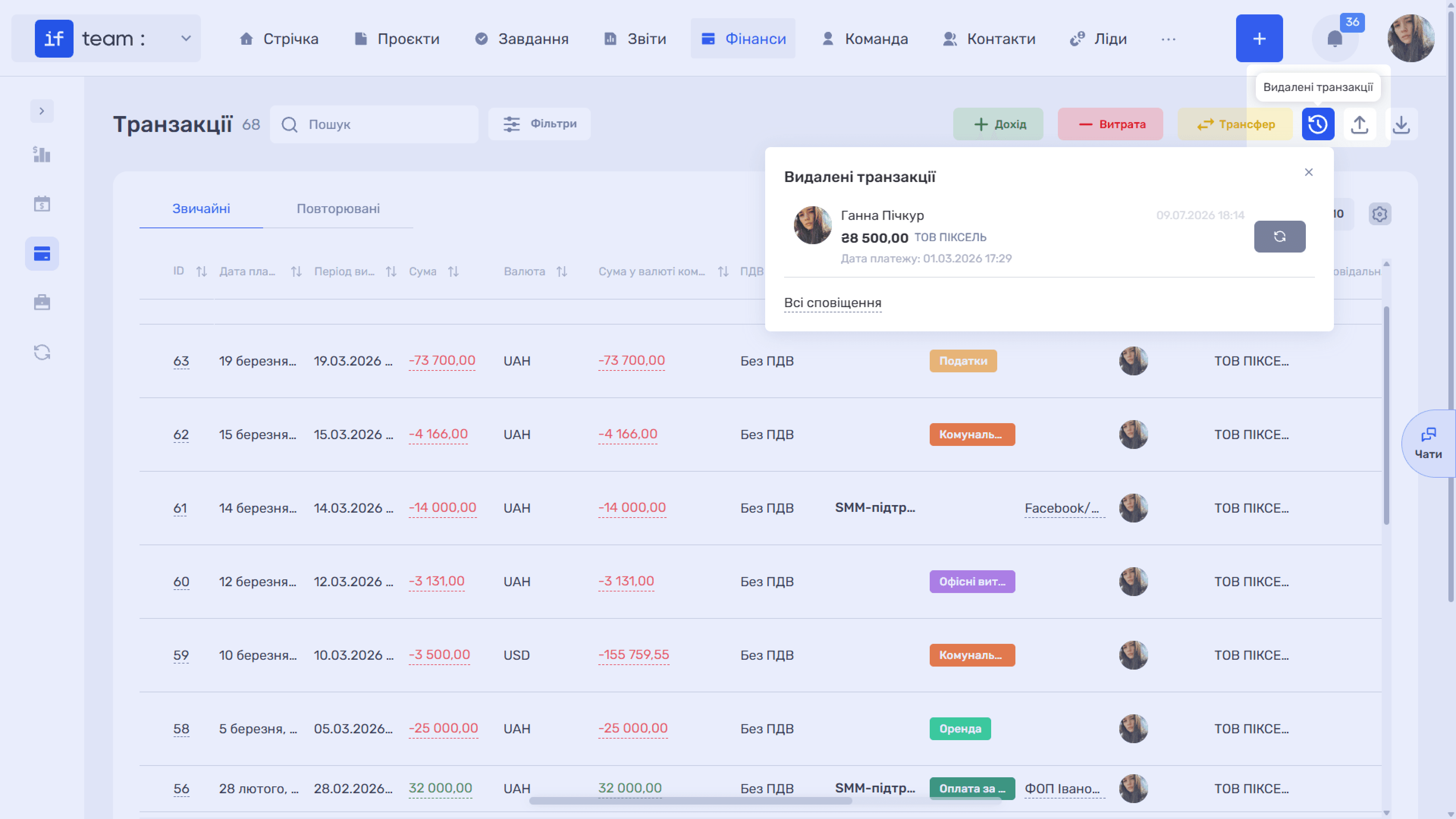
Deleted entries are not lost permanently. The clock icon (Deleted Transactions) in the upper-right corner opens the deletion history, where a transaction can be restored.
Splitting Payments
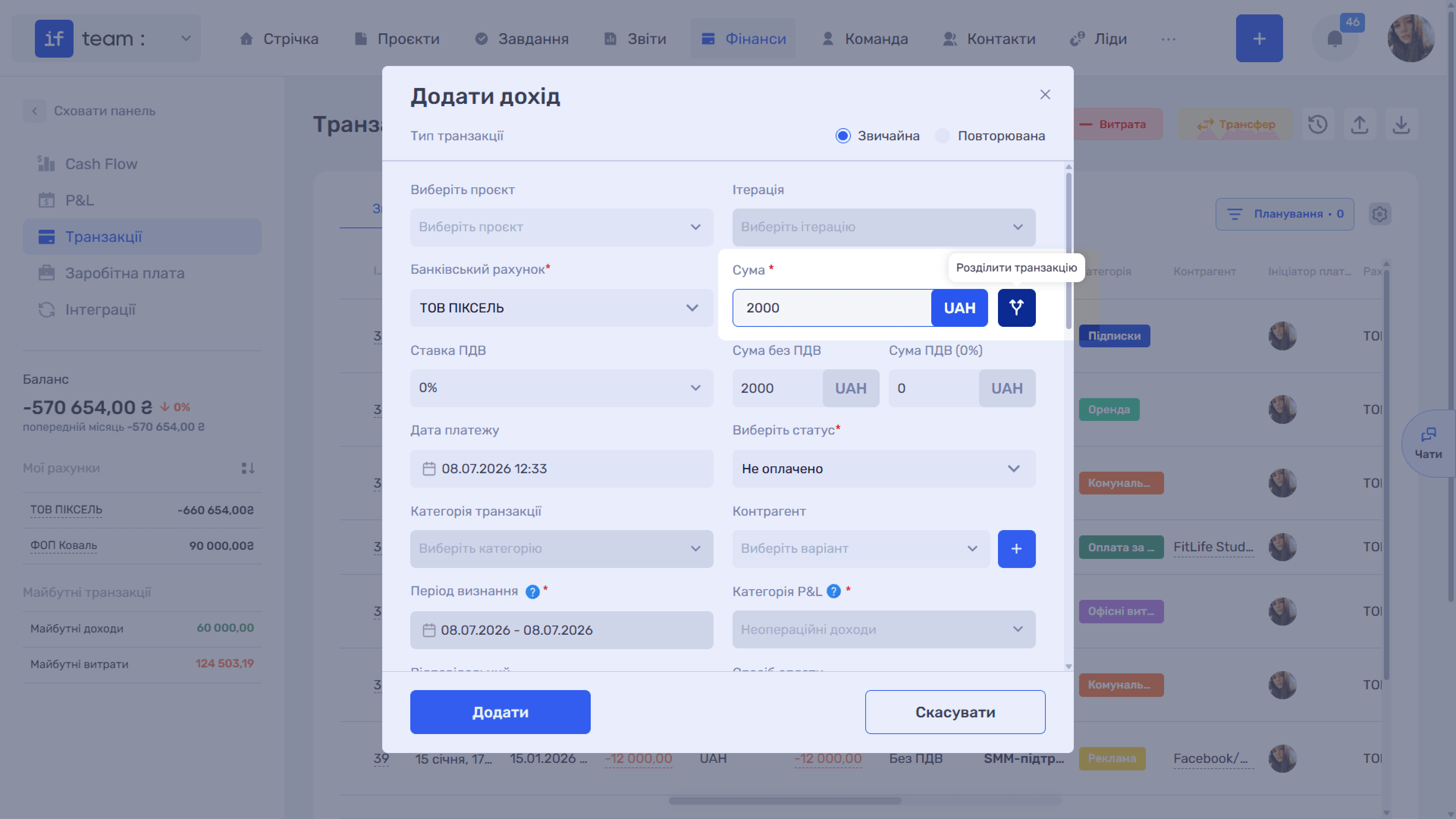
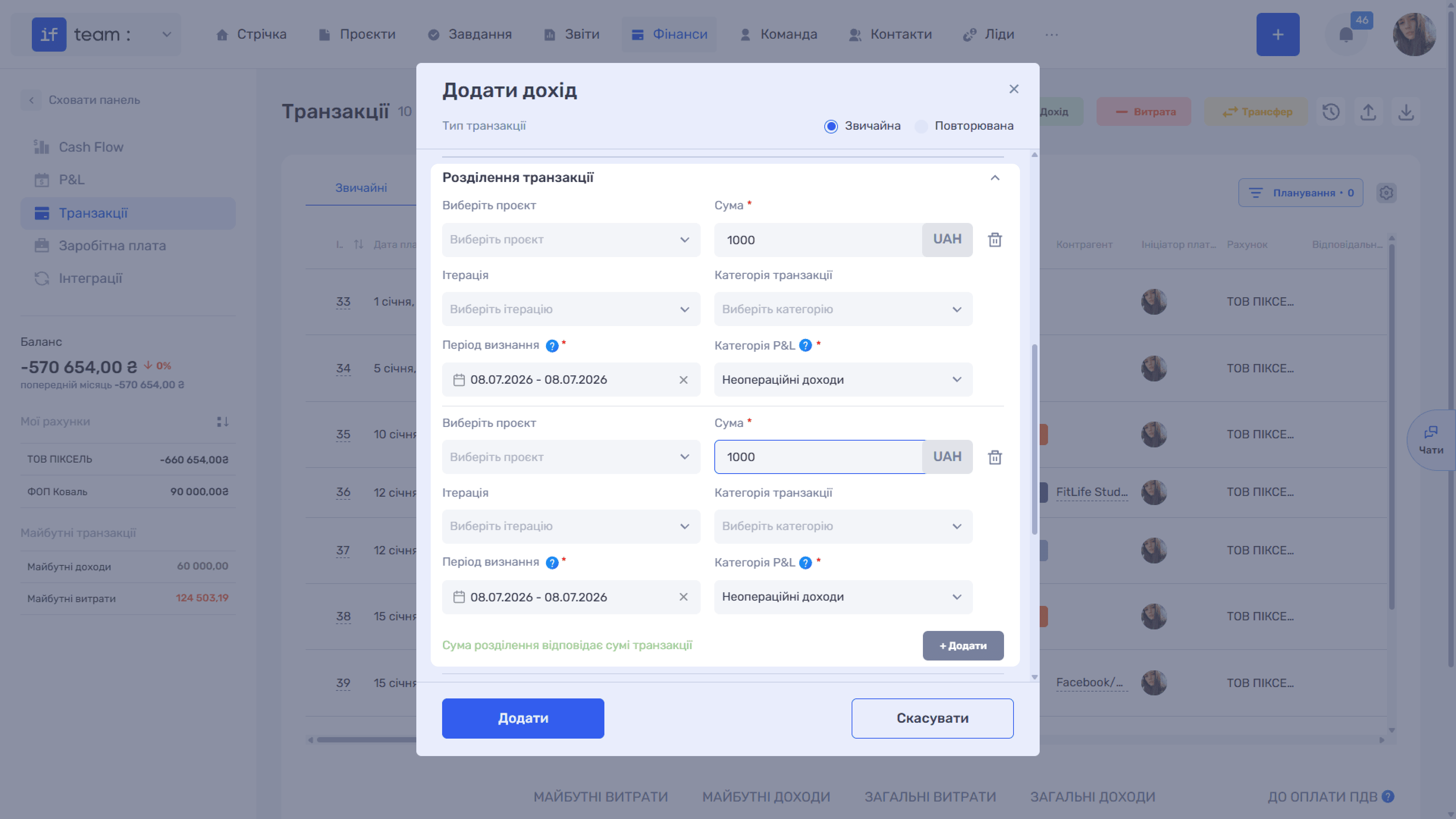
You can split a single transaction into several parts and link them to different:
- projects and iterations, for example when a client pays for several stages or projects in one payment;
- categories, when a supplier payment relates to several expense items or VAT must be separated from income;
- recognition periods, when income or an expense must be distributed across several months in P&L;
- P&L categories, when one part of a payment is operating project income or expense and another is non-operating.
Split parts are included in project and project-stage economics, P&L, filtering, and income and expense structure analysis, without the need to create several separate transactions manually.
Custom Fields for Transactions
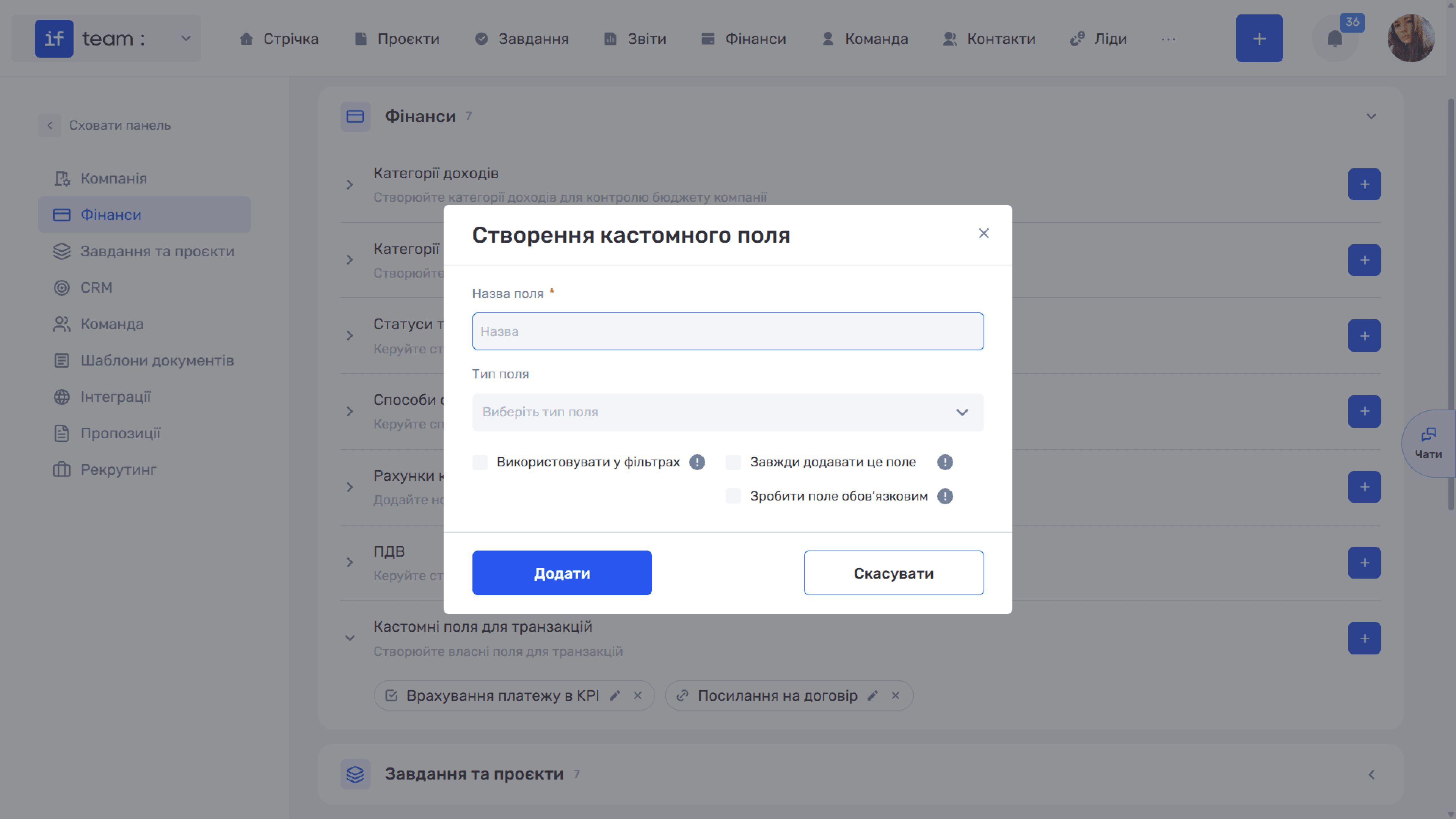
As with projects, tasks, leads, and clients, you can add custom fields of different types to payments. These fields are created in the Admin Panel. For each field, you can specify whether it is added to all transactions, whether it is required, and whether it is used in filters. Custom fields appear in the transaction card and as table columns.
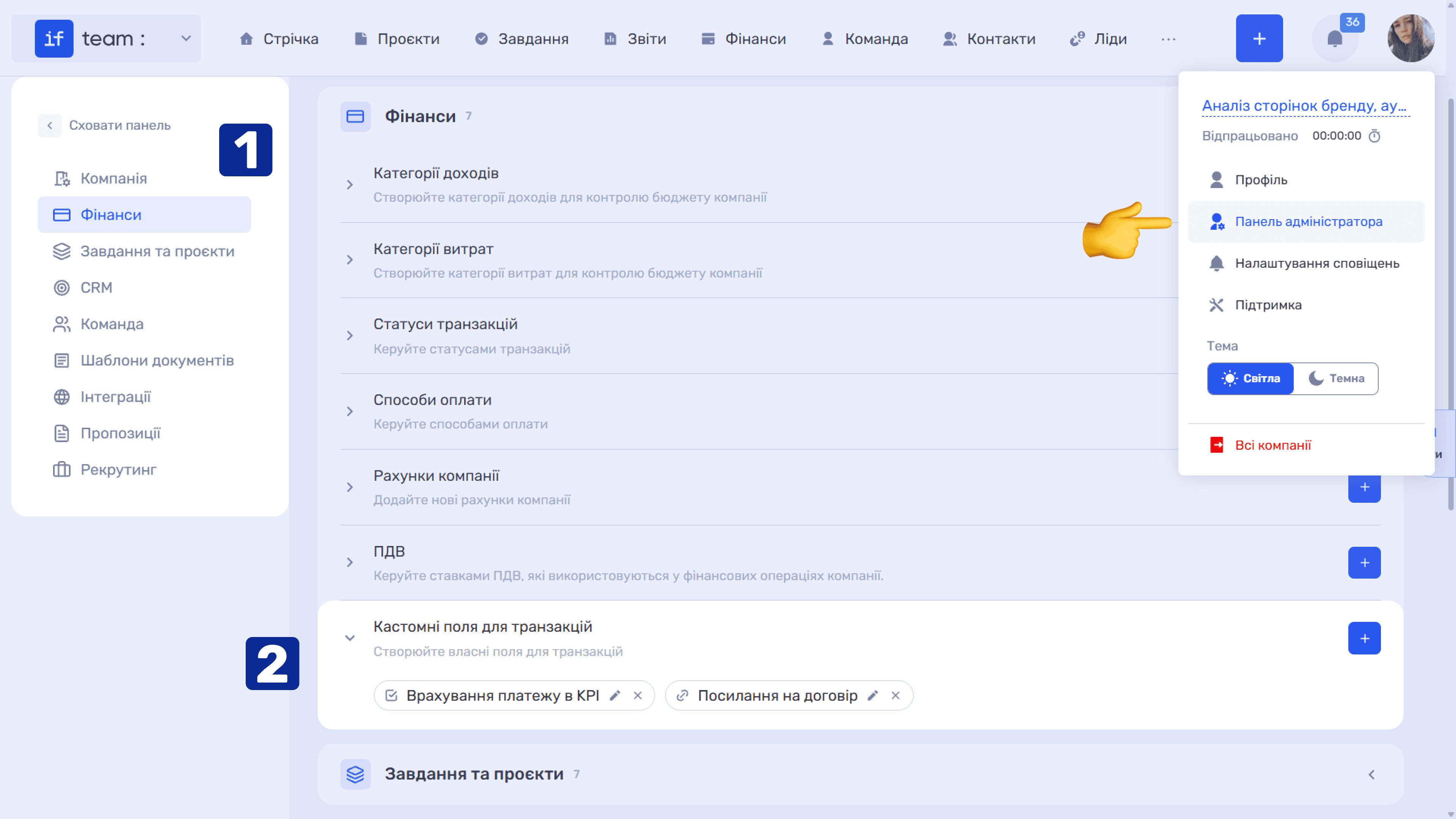
Typical use cases: a link to an invoice or contract, an indication that the payment is covered by acts, a transaction ID from an external service such as Stripe, PayPal, or a bank reference, internal finance department comments, additional income categorization by product, checkboxes for including the payment in KPI or ROI calculations, and document processing dates.
Still have questions?
Maybe we haven't added this information yet. But you can always reach out:
Request a demo
Submit a request and we'll show you how the service works and its capabilities.
Book a demo