Payroll
The “Payroll” subsection is used to record and calculate employee payments. Here you create payroll statements, see how much has been accrued and paid to each employee, and generate payments based on hours worked, rates, vacation, and sick leave. Each payroll calculation creates a set of related tra
Open the subsection from the left panel in Finance. In the upper-right corner is a switcher between two views: “List” and “Calendar.”
Payroll List
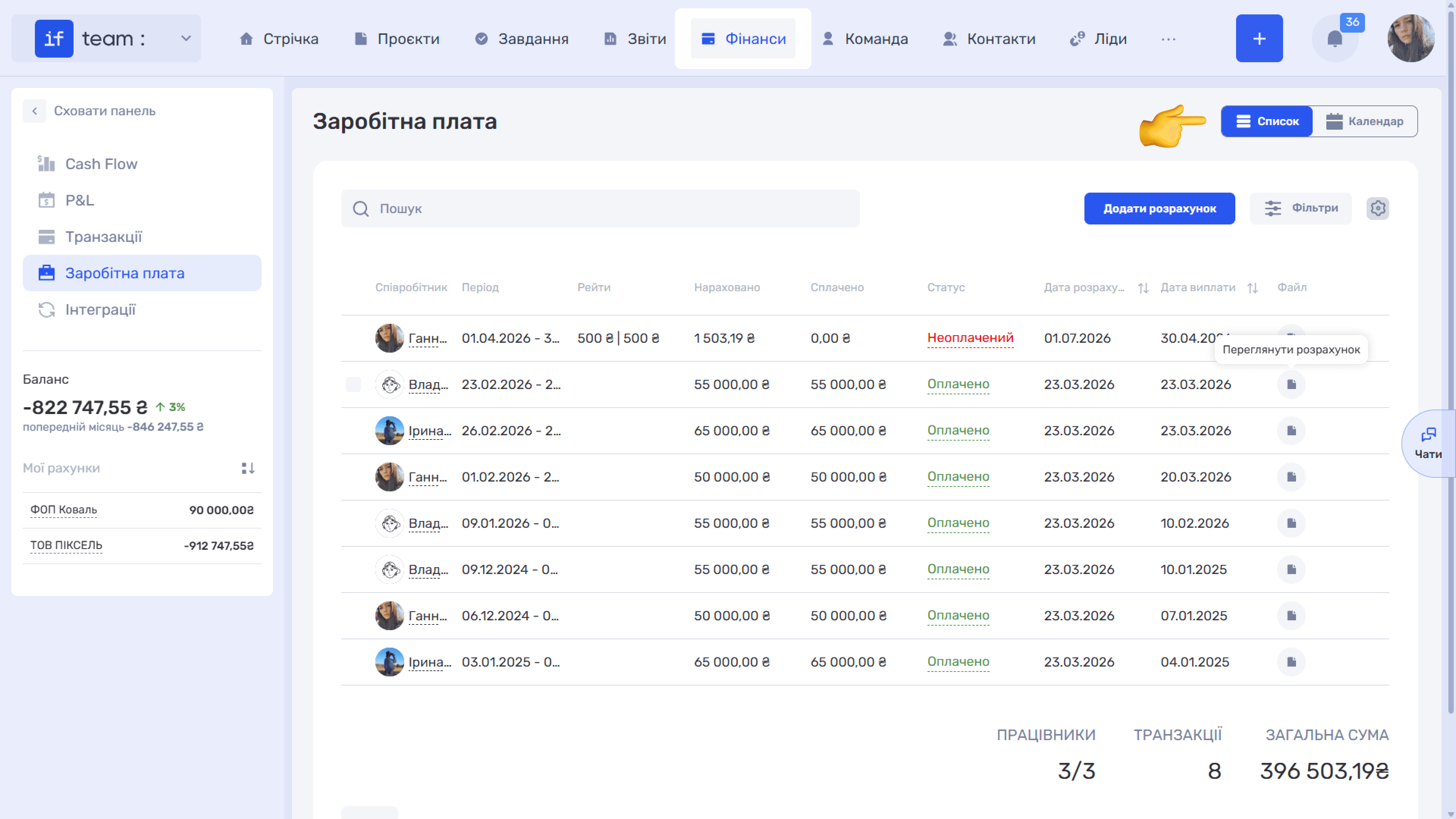
The “List” view is a register of all payroll calculations. Each row shows the employee, period, rates, “Accrued” and “Paid” amounts, status, calculation date, and payment date. The file icon in the corresponding column opens the “View Calculation” page with a complete breakdown.
Below the table are totals for the current selection: “Employees,” “Transactions,” and “Total Amount.” Above the table are:
- Search by employee;
- “Filters” by dates, members, status, and department;
- “Field Settings,” accessed with the gear icon (⚙), where columns can be enabled, disabled, and dragged;
- “Add Calculation,” which creates a new payroll statement; see below.
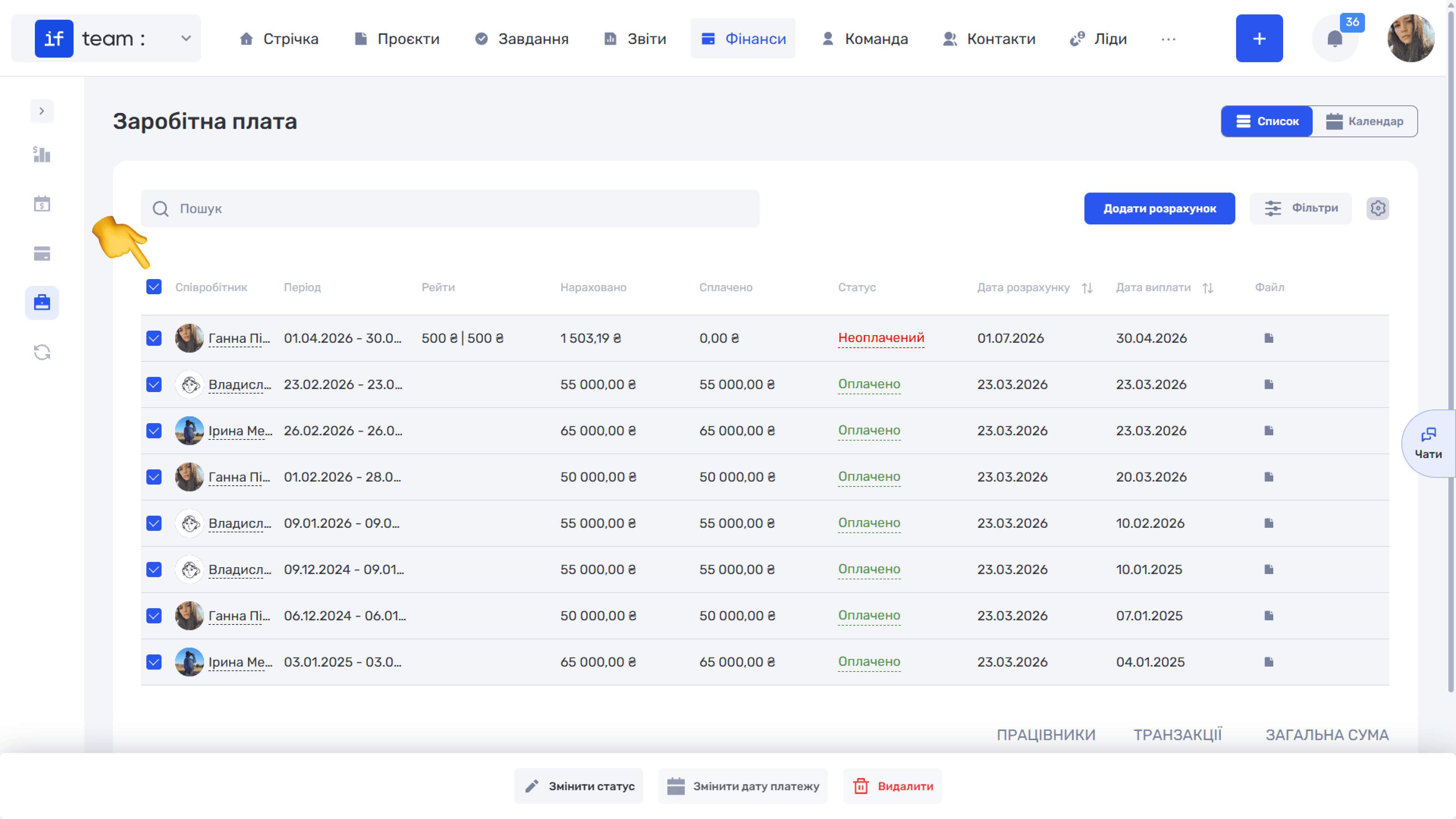
Select several rows using checkboxes to display the following bulk actions at the bottom: “Change Status,” “Change Payment Date,” and “Delete.”
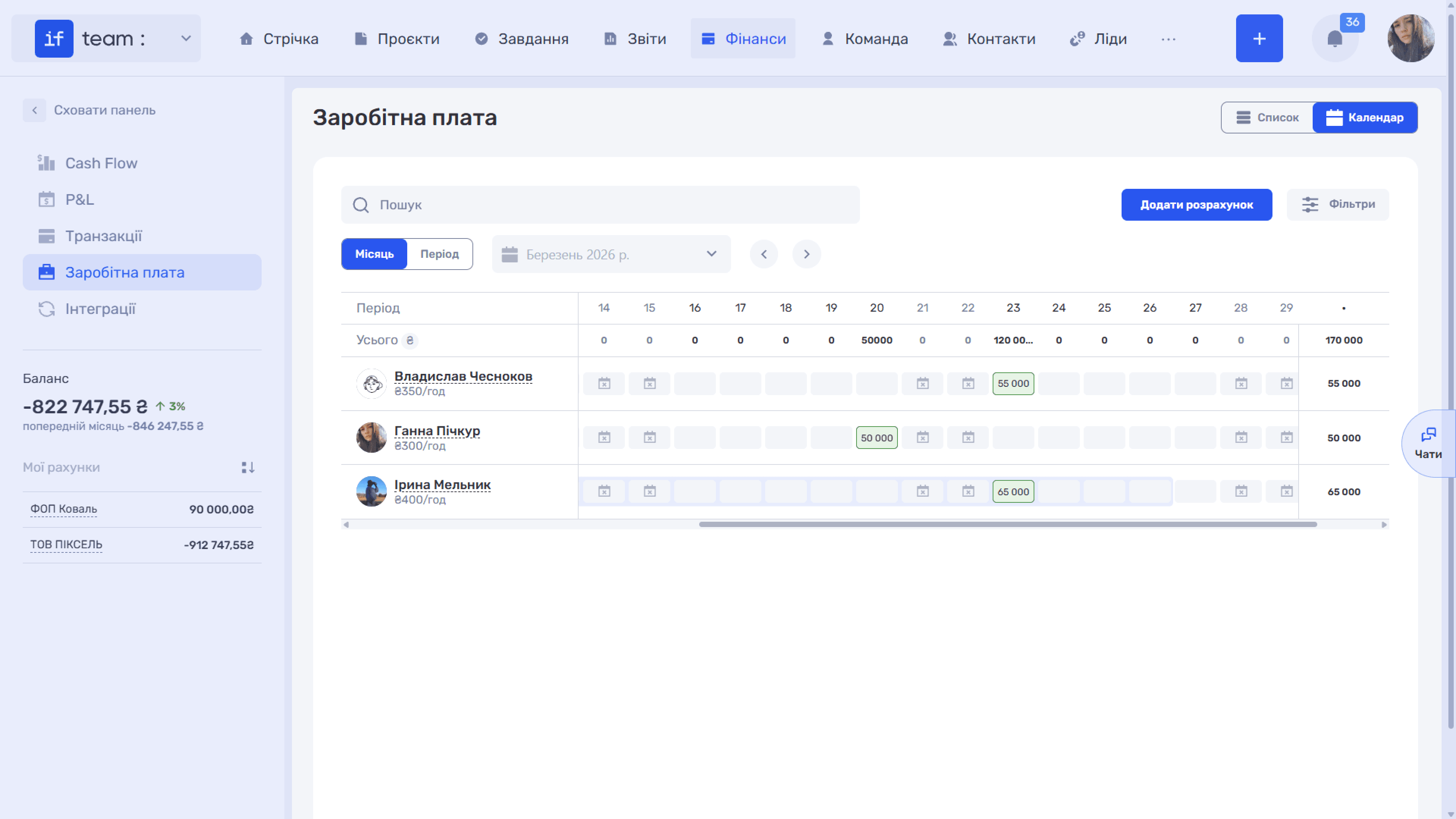
Payroll Calendar
The “Calendar” view displays the team’s hours worked by day and lets you quickly start a calculation for the required period. At the top, switch between “Month” and “Period,” which lets you choose a custom date range.
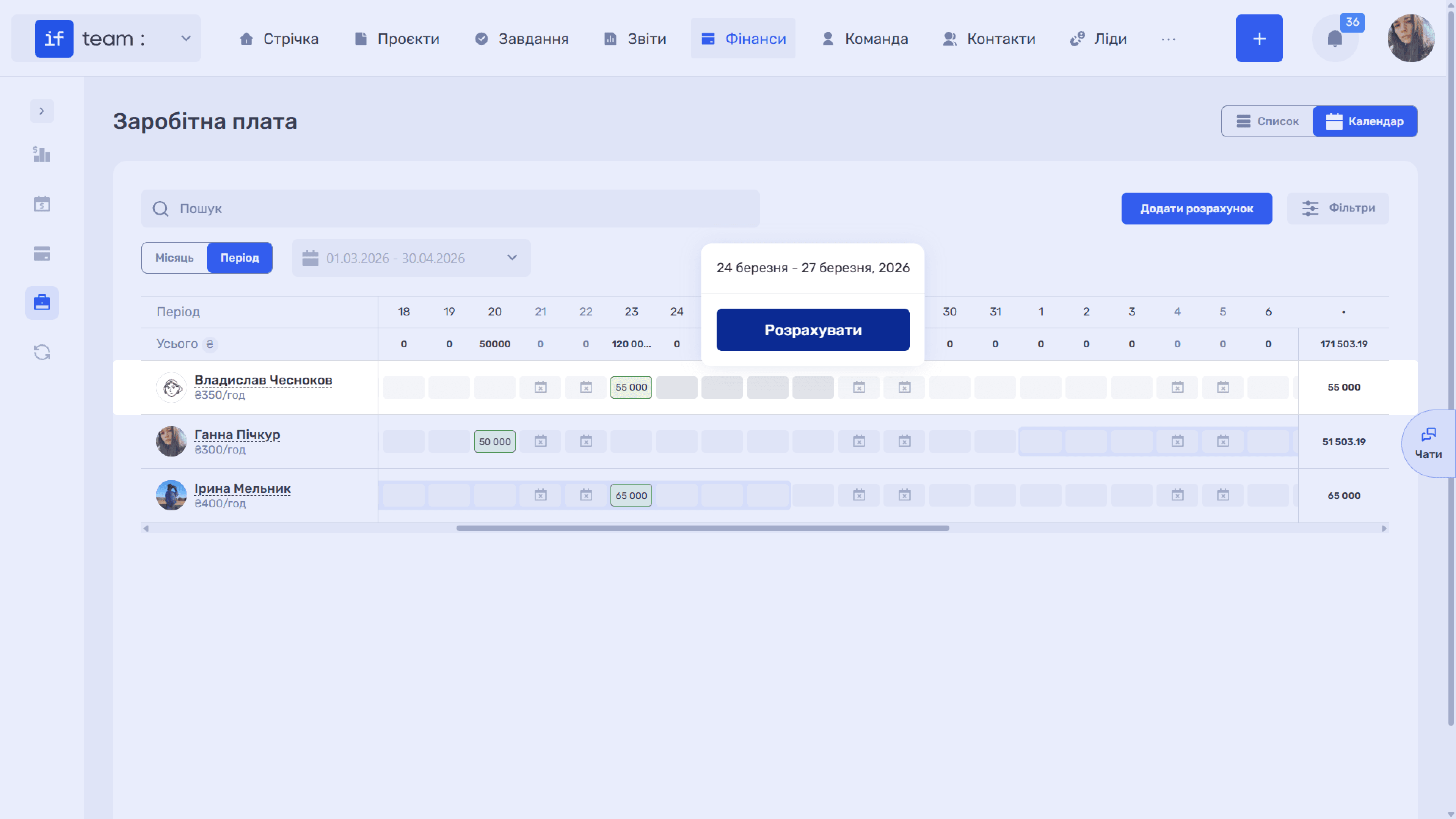
Each row represents an employee and their rate, while the cells represent days. Select the required range of days in an employee’s row. A tooltip will appear with the selected dates and a “Calculate” button, which opens the calculation form with the employee and period already filled in.
Still have questions?
Maybe we haven't added this information yet. But you can always reach out:
Request a demo
Submit a request and we'll show you how the service works and its capabilities.
Book a demo