Accounts and Payment Integrations
The Integrations subsection in the left-hand panel opens the Payment Integrations page. This page serves two purposes: managing the company’s bank accounts and connecting banks and payment systems to import transactions automatically.
Company Accounts
Click Add Account to open the Add Company Account window. The form contains the following fields:
- Account Name, which is required, and the account Currency.
- Default automatically inserts this account in the new transaction creation window.
- Off-balance Account is excluded from the company’s total cash balance and does not affect management financial reports. It is useful for tracking security deposits, funds in transit, contingent liabilities, or other amounts that must be monitored separately from the company’s own funds.
- Off-balance Account means that transactions for this account do not affect the company balance, Cash Flow, or P&L. It is convenient for internal accounting, budgeting, or transactions that should not appear in financial reports.
- Archived Account is an account that is no longer used. It remains included in financial reports and historical transactions but cannot be selected for new transactions or other documents. Once the archived account’s balance reaches zero, it automatically disappears from the account list. This is useful for closed bank accounts, old cash accounts, or temporary accounts.
- Opening Balance is the account balance when it is added to the system.
- Account Owner lets you separate access permissions: users see the balance and transactions only for their own accounts, or for their own and shared accounts.
- VAT Rate is the default rate for transactions in this account and applies when VAT accounting is enabled for the company.
- Registered Address and Bank Details—IBAN, company registration number, and bank—are used, among other things, when generating documents such as invoices and acceptance certificates from templates.
Click Add.
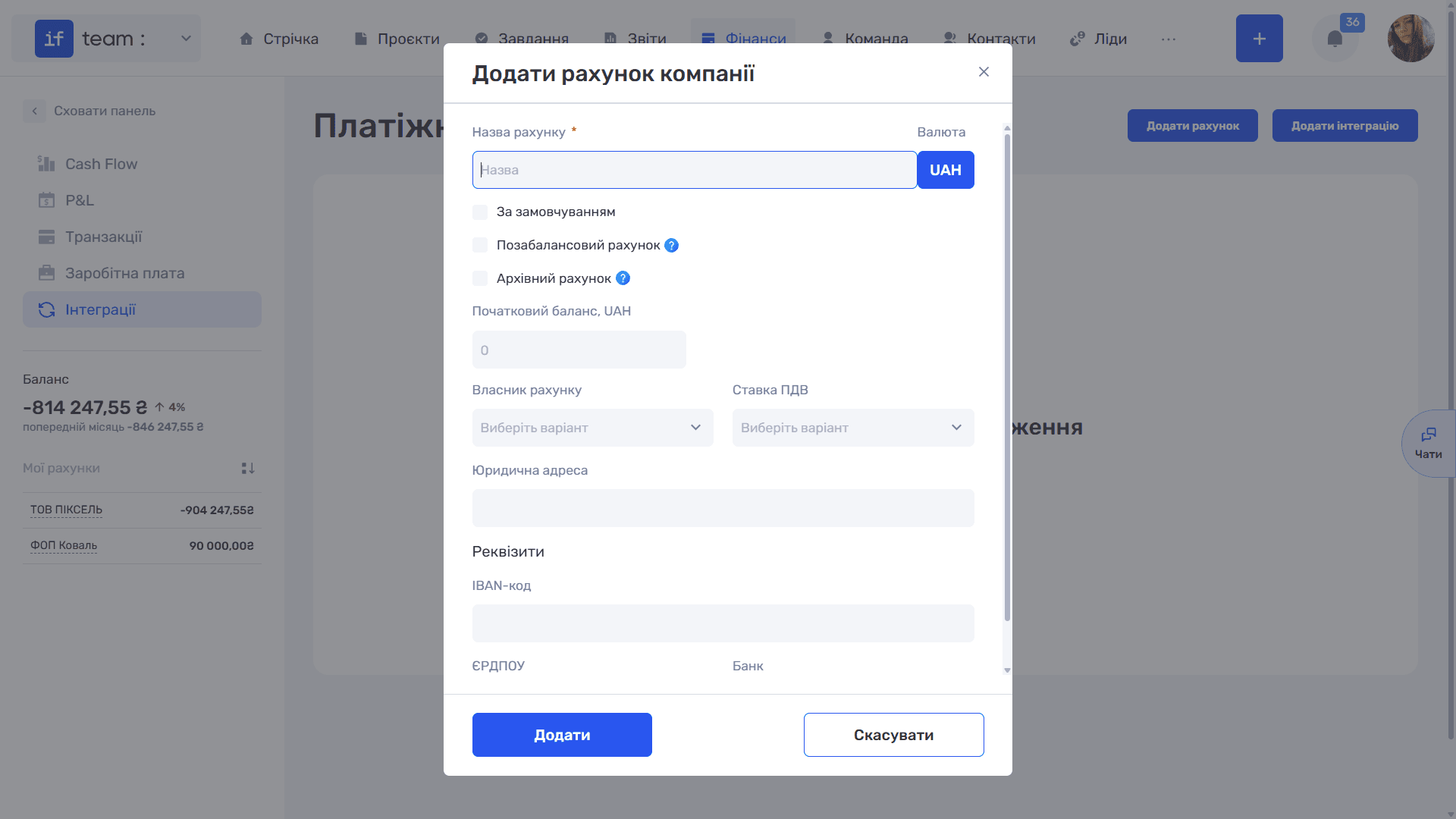
Created accounts appear in the My Accounts summary in the left-hand panel and become available for selection in transactions.
*Фото (не маю можливості зробити скрін — у тестовій компанії Uno1 пропали інтеграції)*
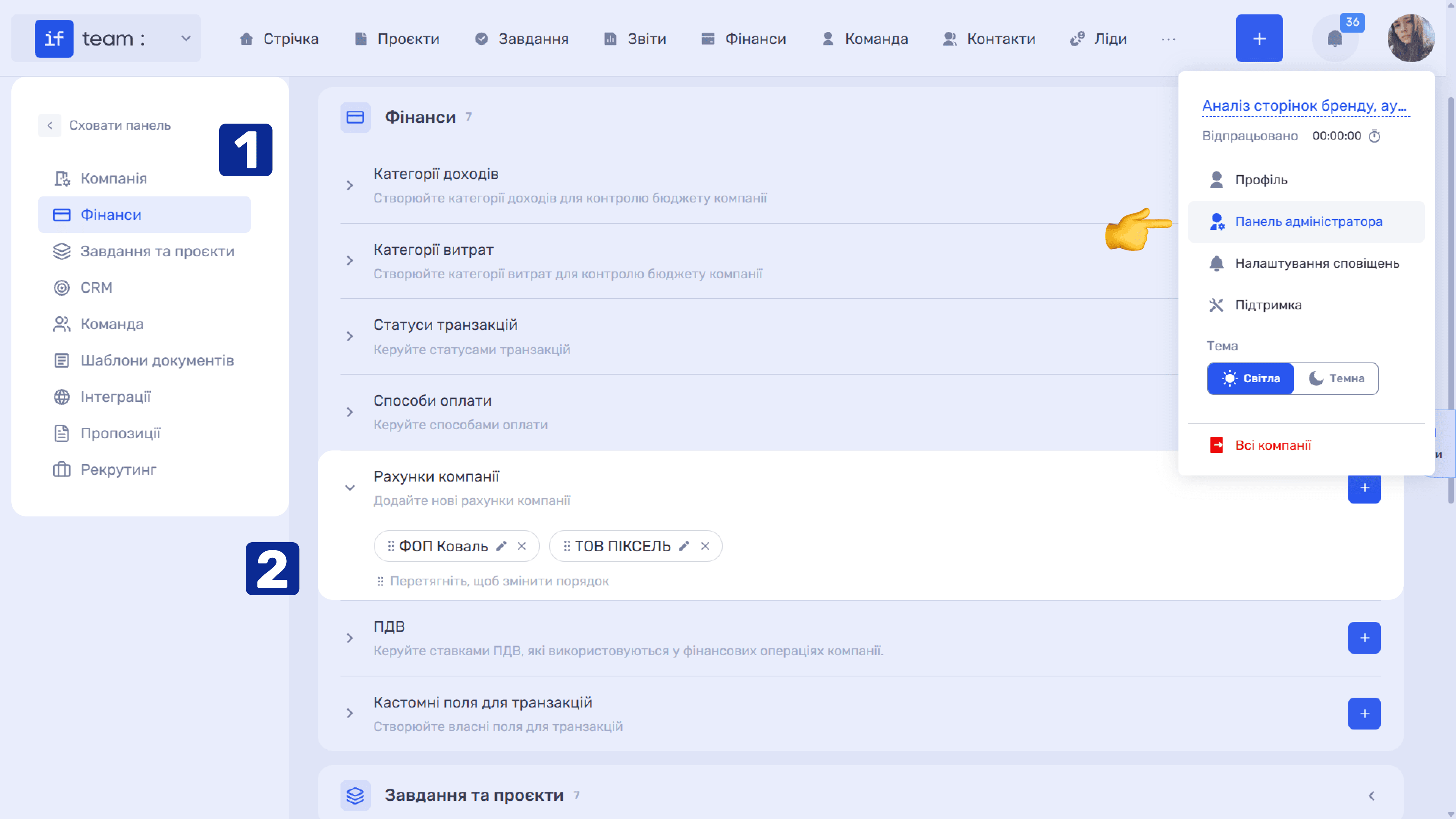
You can edit accounts and change their order in lists in the Admin Panel.
Payment Integrations
if.team supports integrations with PrivatBank, Monobank, PUMB, and Binance. Once connected, bank transactions are synchronized almost in real time without manual entry and are linked to the company account.
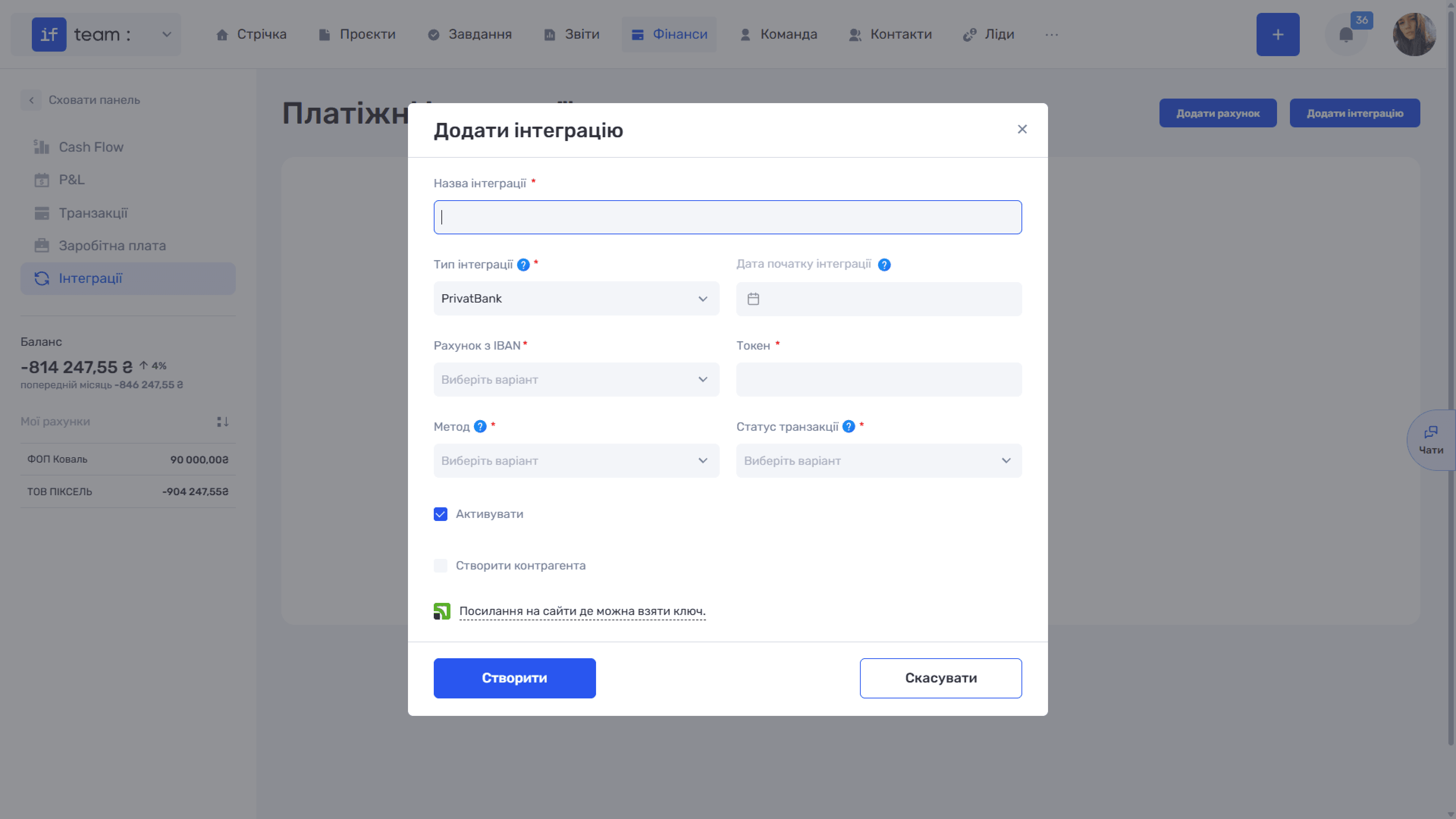
Click Add Integration to open the corresponding form with the following fields:
- Integration Name is a custom name used to distinguish between connections and is required.
- Integration Type is the bank or payment system—PrivatBank, Monobank, PUMB, or Binance—and is required.
After you select the integration type, the connection fields appear:
- Integration Start Date is the date from which payments will be imported. It cannot be more than 6 months before the current date.
- Account with IBAN is the company account that imported transactions will be linked to and is required.
- Token is the access key obtained from the bank or payment system account and is required. A link to instructions on obtaining a key for the selected bank appears below the form.
- Method is the payment method assigned to imported transactions and is required.
- Transaction Status is the status assigned to imported transactions and is required.
- Activate enables the integration immediately after creation.
- Create Counterparty automatically creates and completes a counterparty card if no counterparty is found in the database by account number or company registration/tax number.
- Create Counterparty automatically creates and completes a counterparty card if no counterparty is found in the database by account number or company registration/tax number. When you enable this option, the Client Type field appears next to it. Select Individual or Legal Entity, and the new counterparty will be created as a client of that type.
Click Create.
All connections appear in the table. The switch in the first column enables or disables the integration, followed by its name, the status for imported transactions, the linked account, masked token, type, and start date. Configure the set of columns using the gear icon (⚙).
Transactions imported from a bank are marked with the corresponding source indicator in the general list.
*Фото (не маю можливості зробити скрін — у тестовій компанії Uno1 пропали інтеграції)*
Still have questions?
Maybe we haven't added this information yet. But you can always reach out:
Request a demo
Submit a request and we'll show you how the service works and its capabilities.
Book a demo