Importing Transactions from Excel
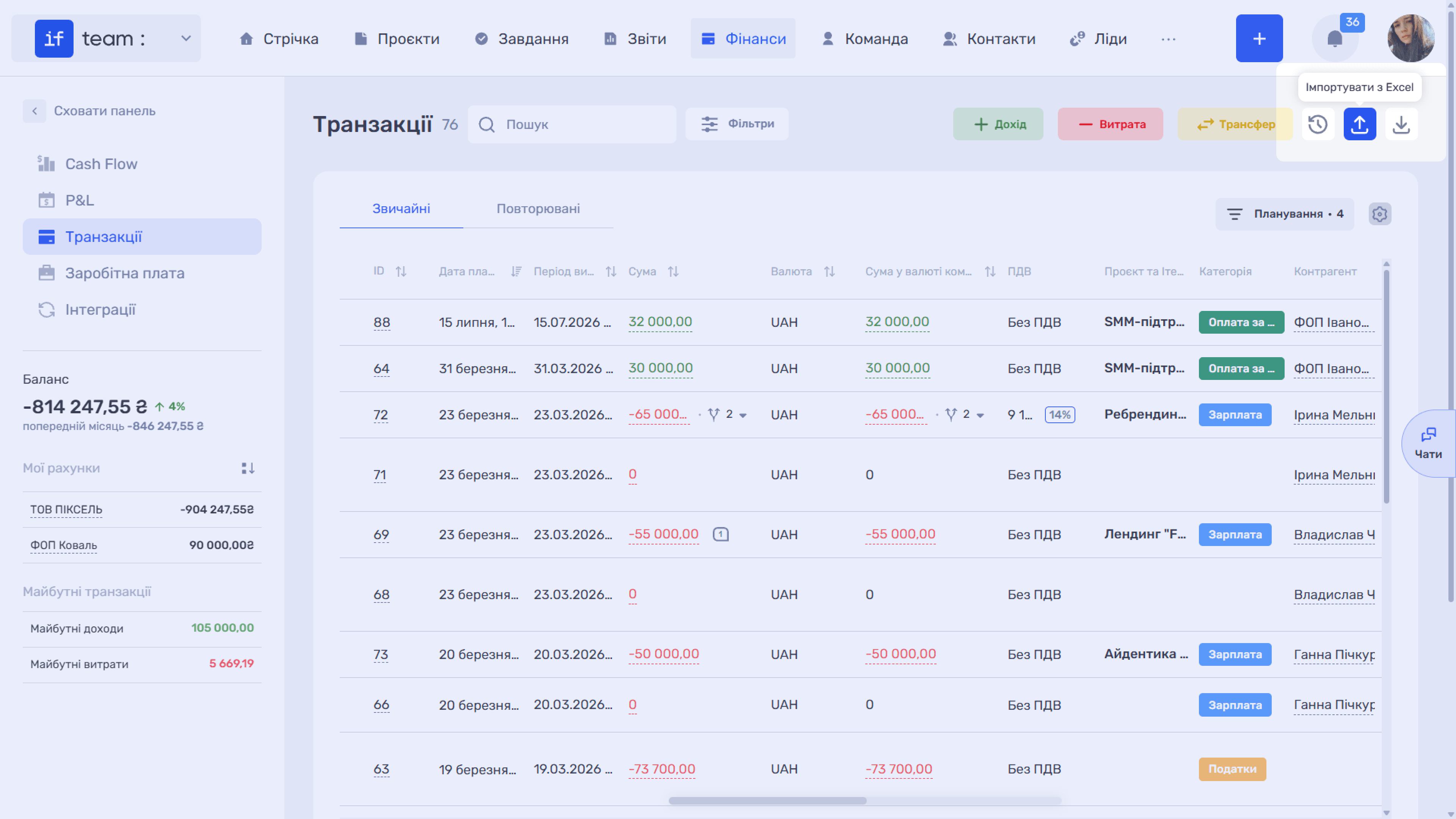
To transfer payment history from another system or add transactions in bulk, use the import feature. In “Transactions,” click the upward arrow icon (⬆) in the upper-right corner.
Generate AI summary
Open this page in your favorite AI assistant
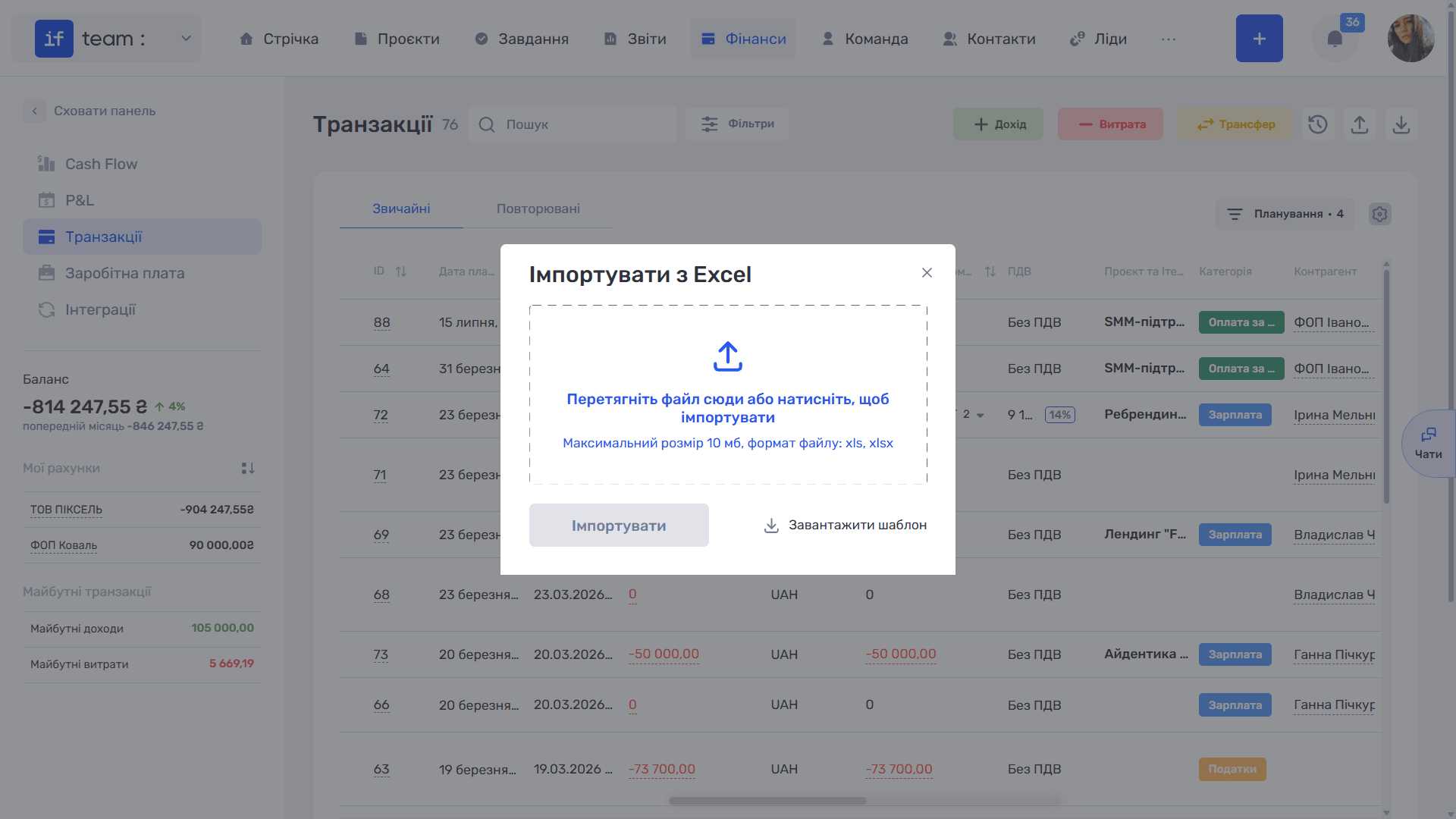
In the “Import from Excel” window:
- Click “Download Template” to get a file with the correct column structure.
- Fill the template with transaction data.
- Drag the file into the upload area, or click the area and select the file. Supported formats are xls and xlsx, and the maximum file size is 10 MB.
- Click “Import.” The records from the file will appear in the transaction list with “import” shown as their source.
Still have questions?
Maybe we haven't added this information yet. But you can always reach out:
Request a demo
Submit a request and we'll show you how the service works and its capabilities.
Book a demo