Connectors
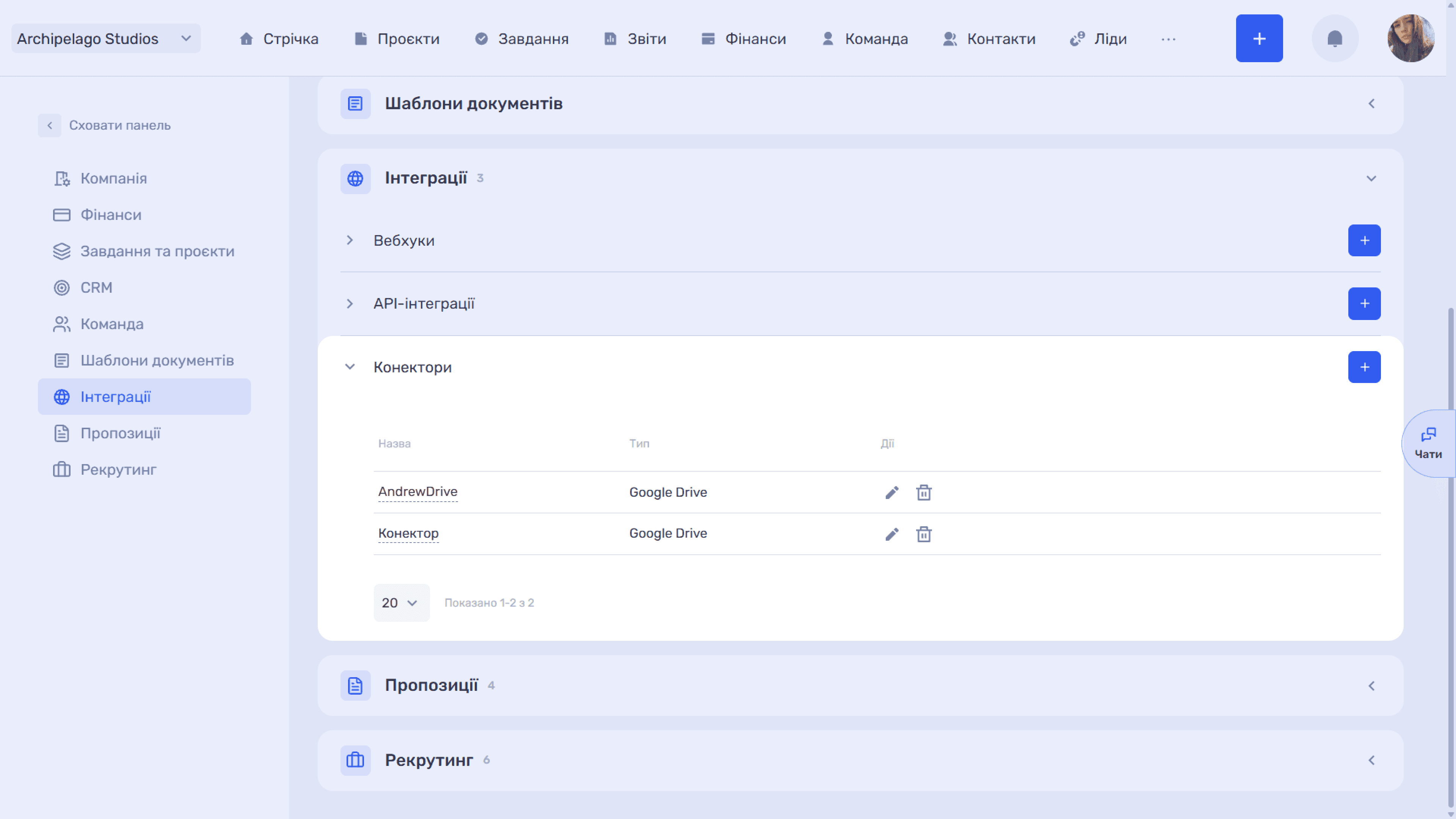
A connector links an external file storage — currently Google Drive. Automations use it, for example, to create a folder for every new project automatically.
Connectors connect external file storage. Currently, connectors are used in automations — so that the system can automatically create a folder in a connected Google Drive.
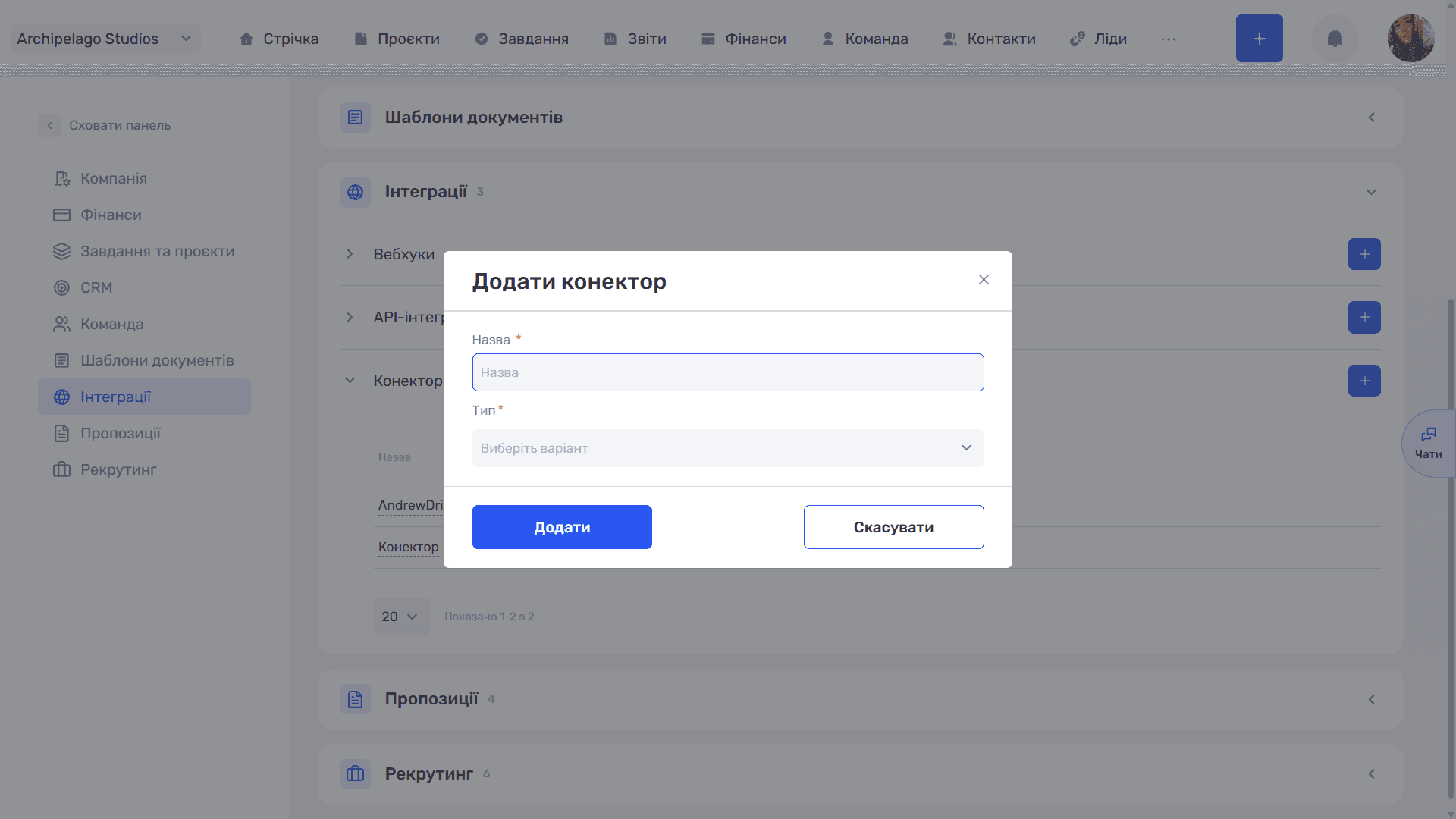
Click “+” next to “Connectors” and fill in the “Add connector” window:
- Name (required) — any name by which you will recognise the connection.
- Type (required) — currently Google Drive is available.
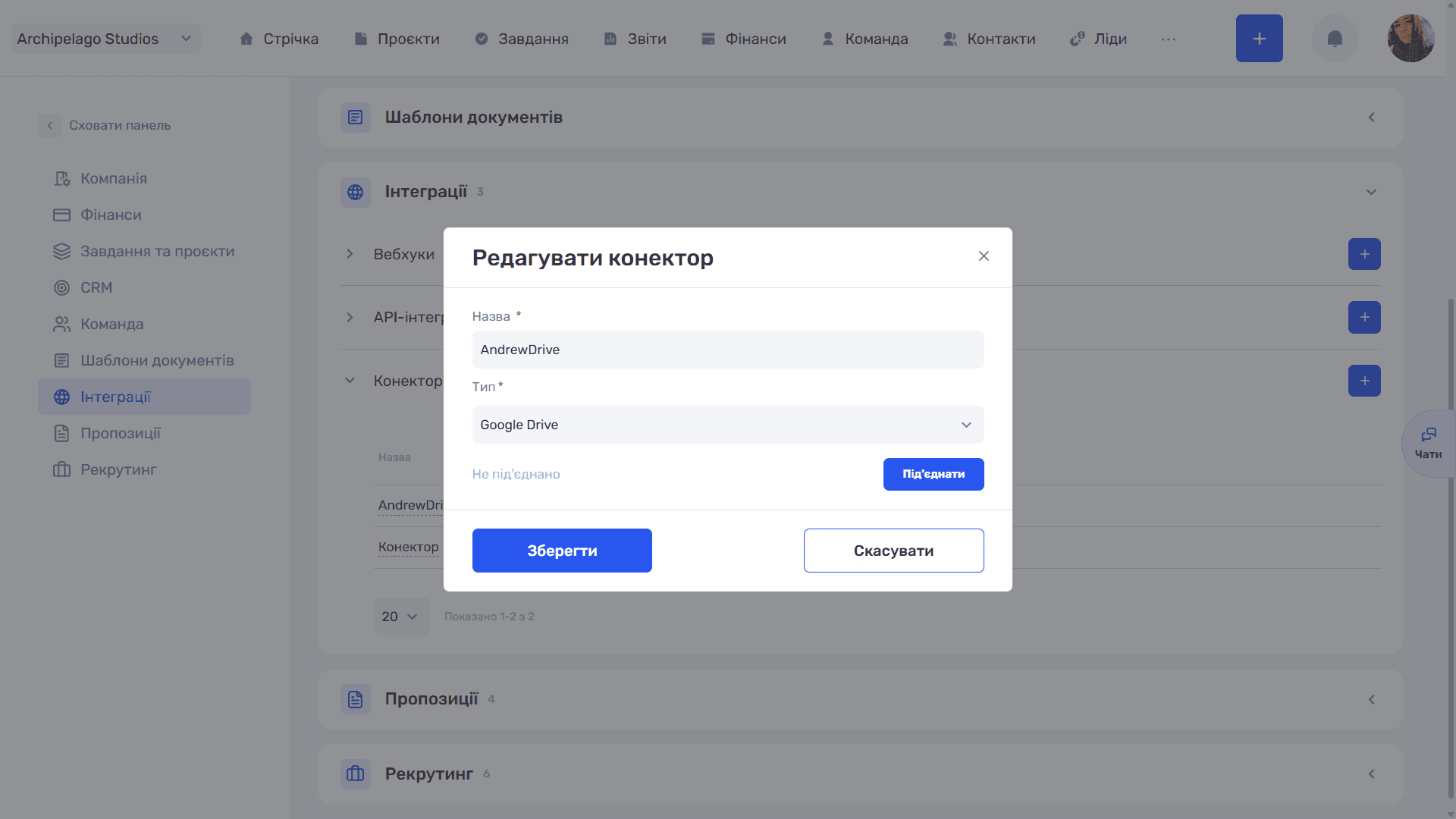
After you click “Add”, the connector appears in the list but is not connected yet — a separate authorisation step is needed. Open it with the “✏” icon: in the “Edit connector” window, the “Not connected” status and the “Connect” button are shown below the fields.
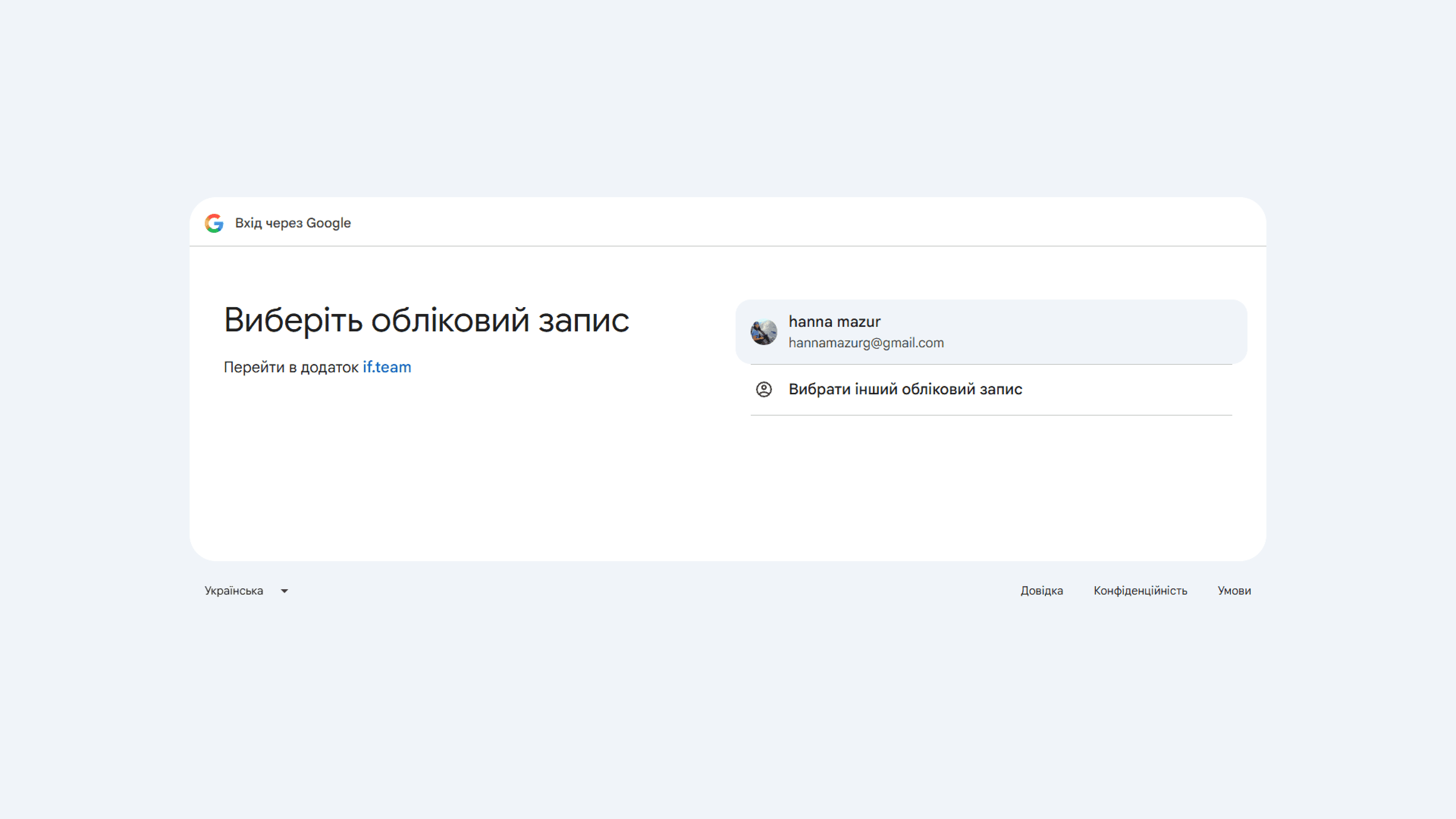
The button opens the standard “Sign in with Google” window — choose the account you grant access from and confirm the permissions for the if.team app.
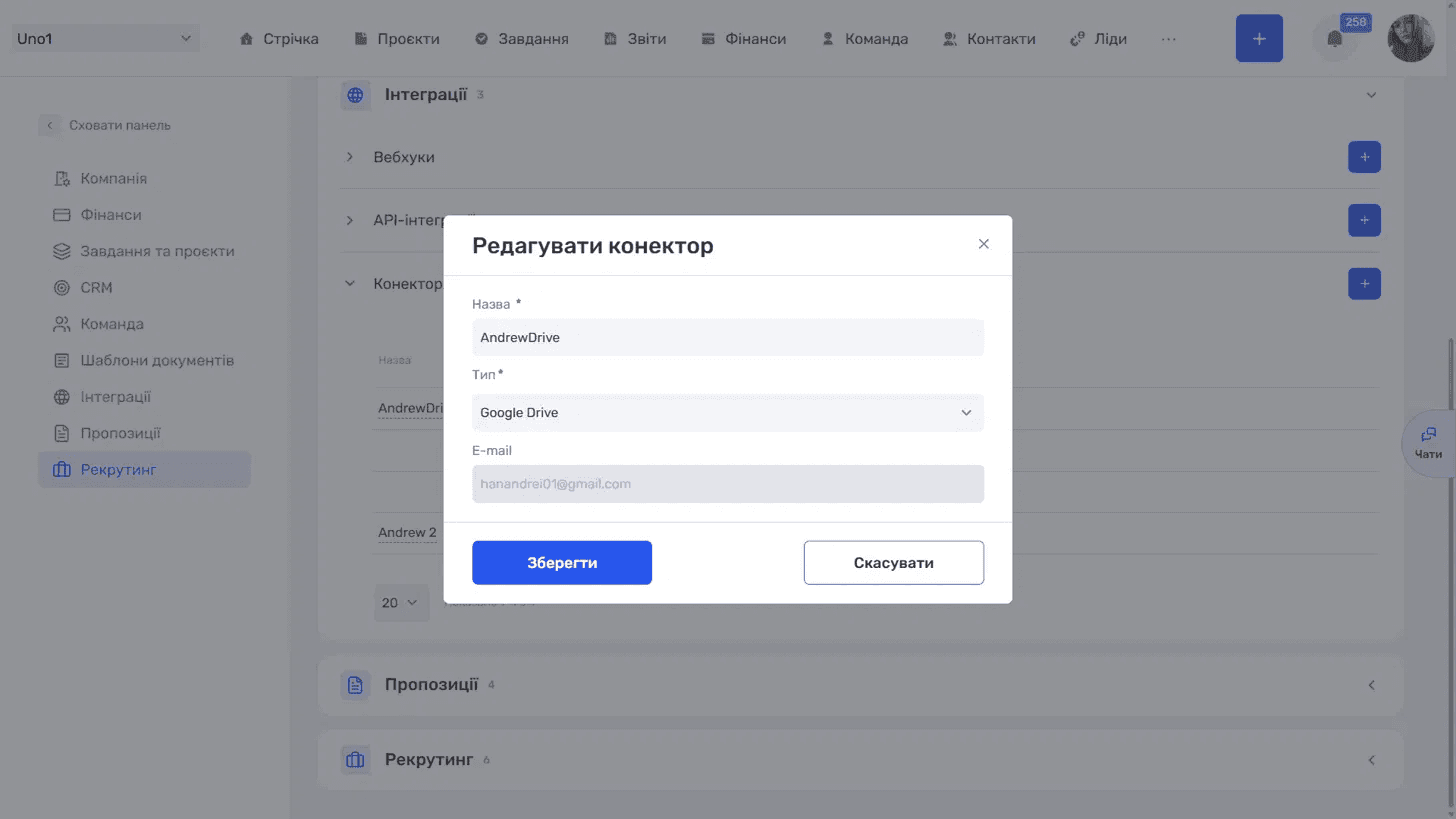
After successful authorisation, an E-mail field with the connected account address appears in the edit window instead of the status and button. The field is informational — you cannot change the account through it.
The connector list has the columns Name, Type, and Actions (“✏” edit and “🗑” delete). While no connectors are created, the block shows “No data to display yet”.
Please note
The connected account is visible only in the edit window of a specific connector. If you plan several connections, give connectors names that include the address or purpose — otherwise you won't be able to tell them apart in the list.
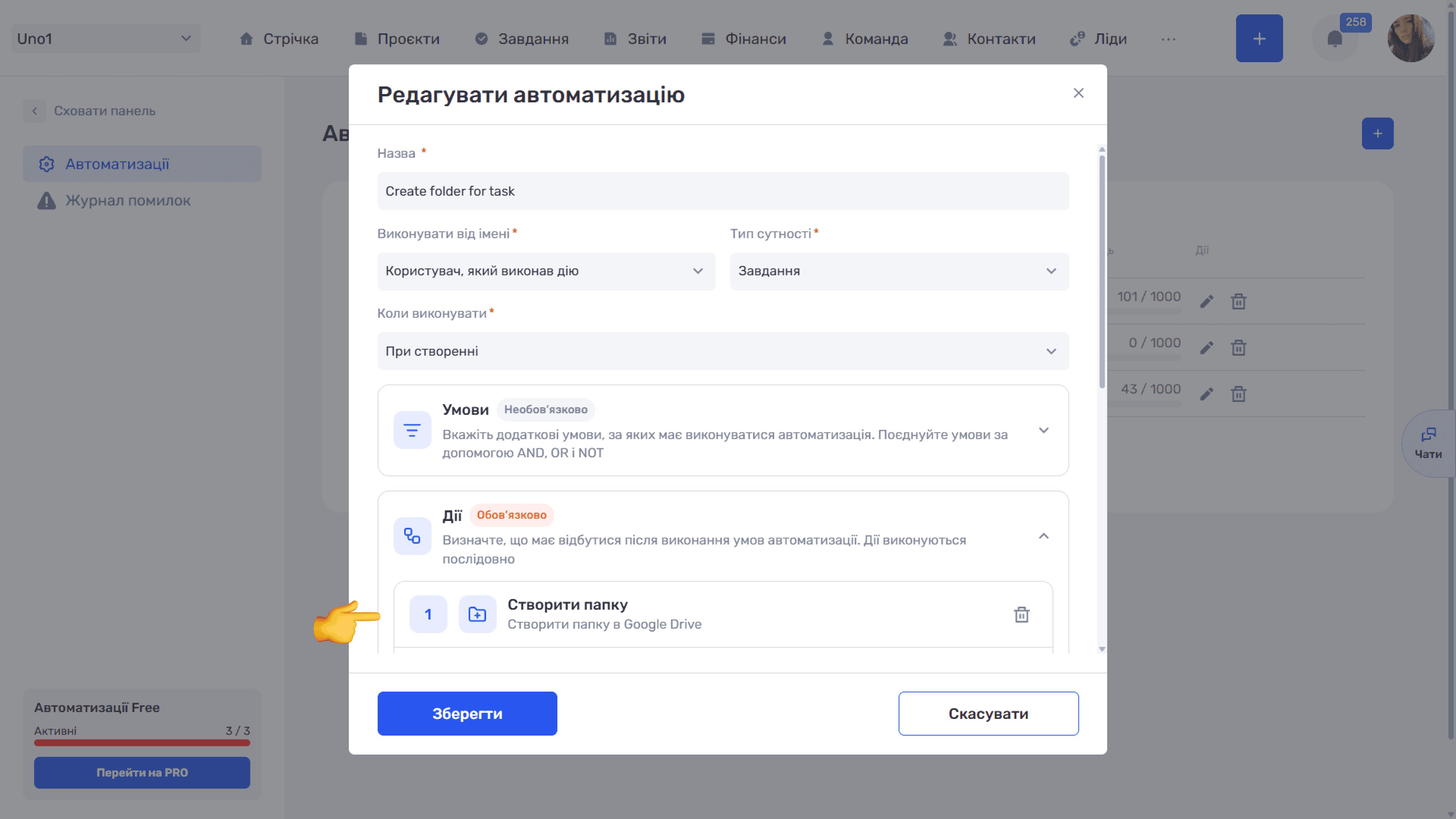
A connected connector is used in automations — in the “Create folder” action (the “External services” group). The settings of this action have a required “Connectors” field, where you choose one of the connections, and the “Name” field sets the path and variables that form the name of the created folder.
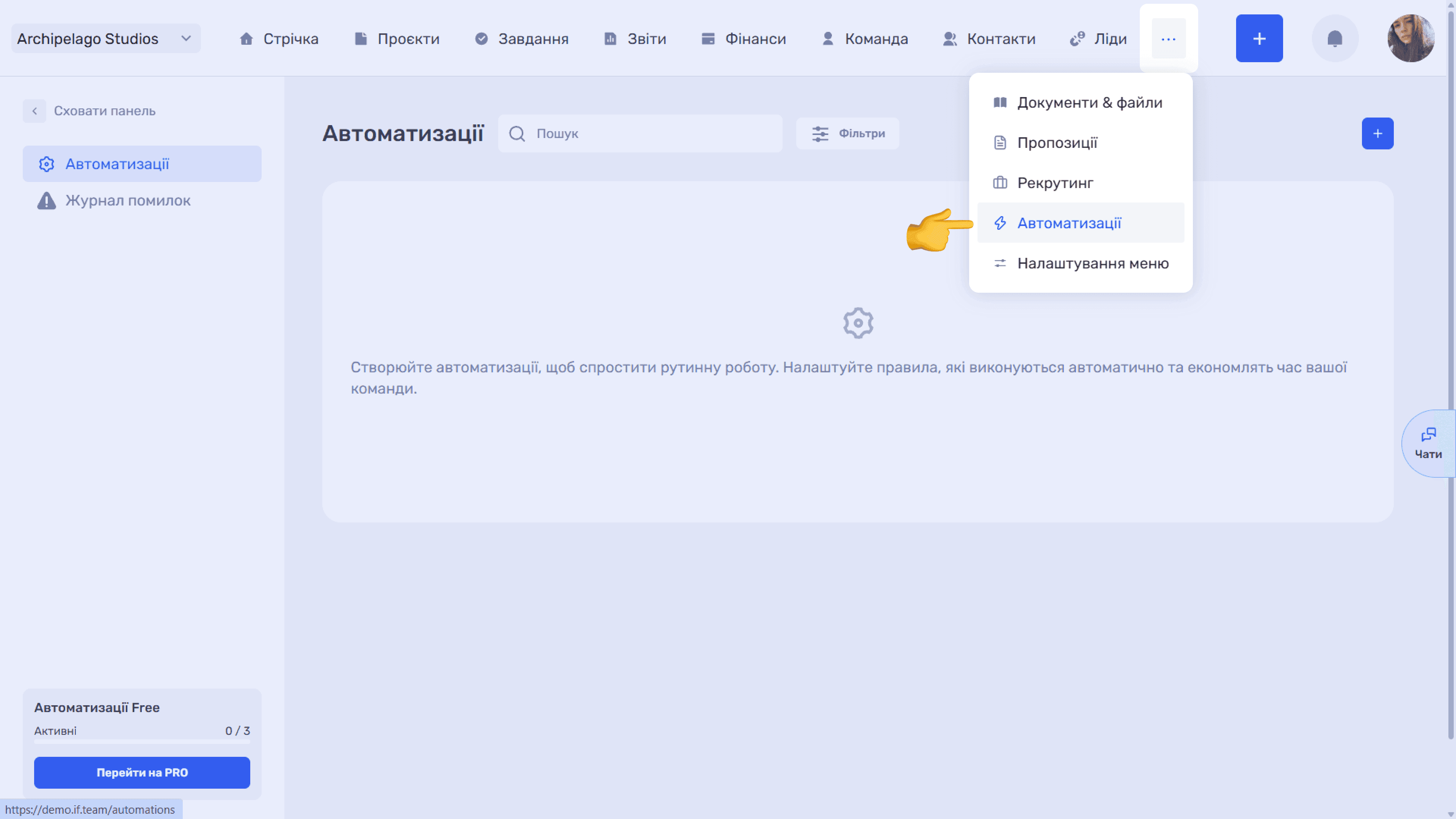
Automations open from the “...” menu in the top navigation → “Automations”. Read more in the Automations section.
Please note
If you delete a connector, “Create folder” actions in existing automations are left without storage and stop working. Before deleting, check that it is not used in active automations.
Still have questions?
Maybe we haven't added this information yet. But you can always reach out:
Request a demo
Submit a request and we'll show you how the service works and its capabilities.
Book a demo