Custom Fields Common Functionality
Custom fields are created separately for each entity—transactions, tasks, projects, leads, and contacts—but the creation window is the same everywhere, so you only need to learn how it works once.
Generate AI summary
Open this page in your favorite AI assistant
Field Name (required) determines how the field is displayed on the card and in the table.
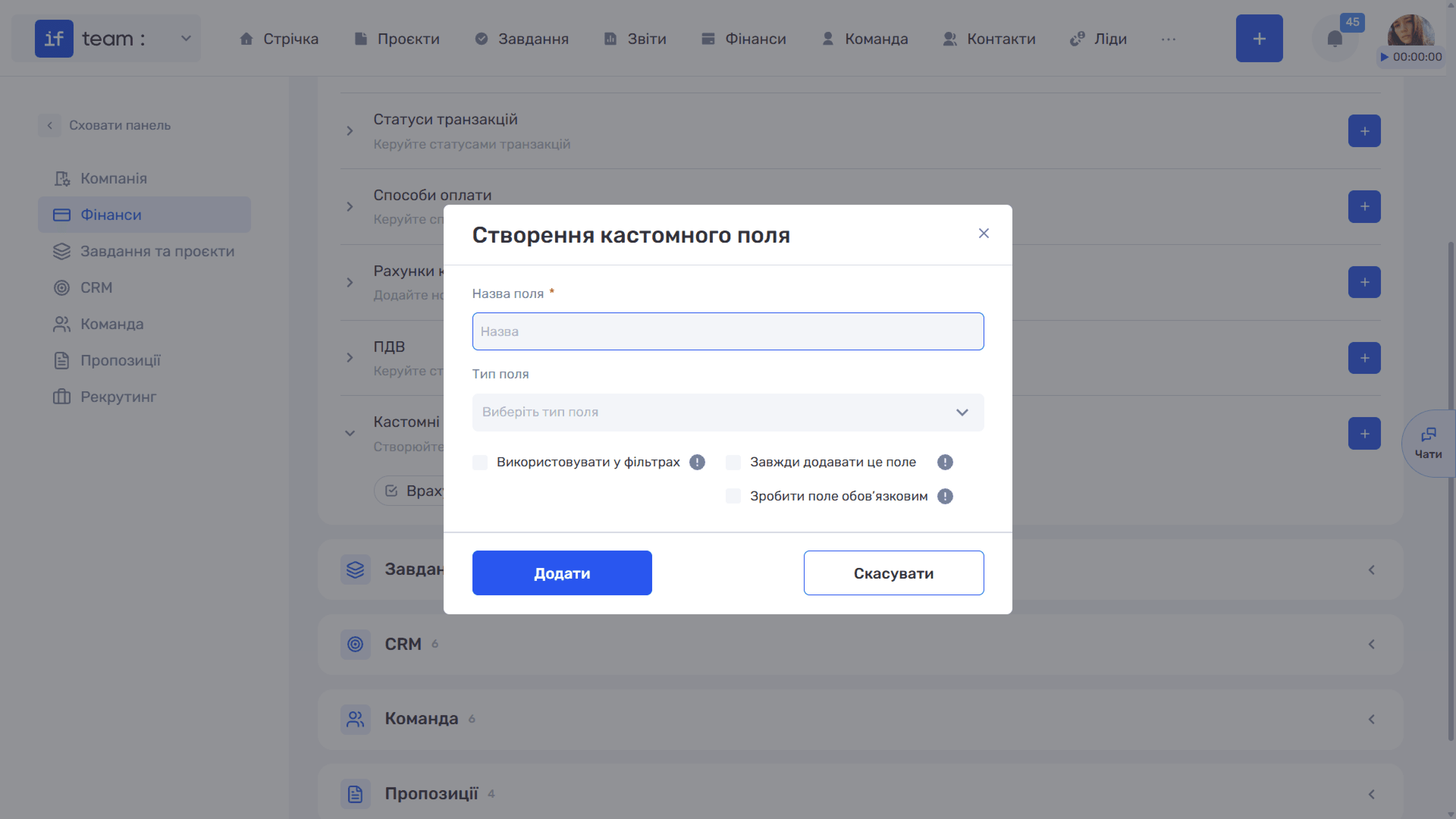
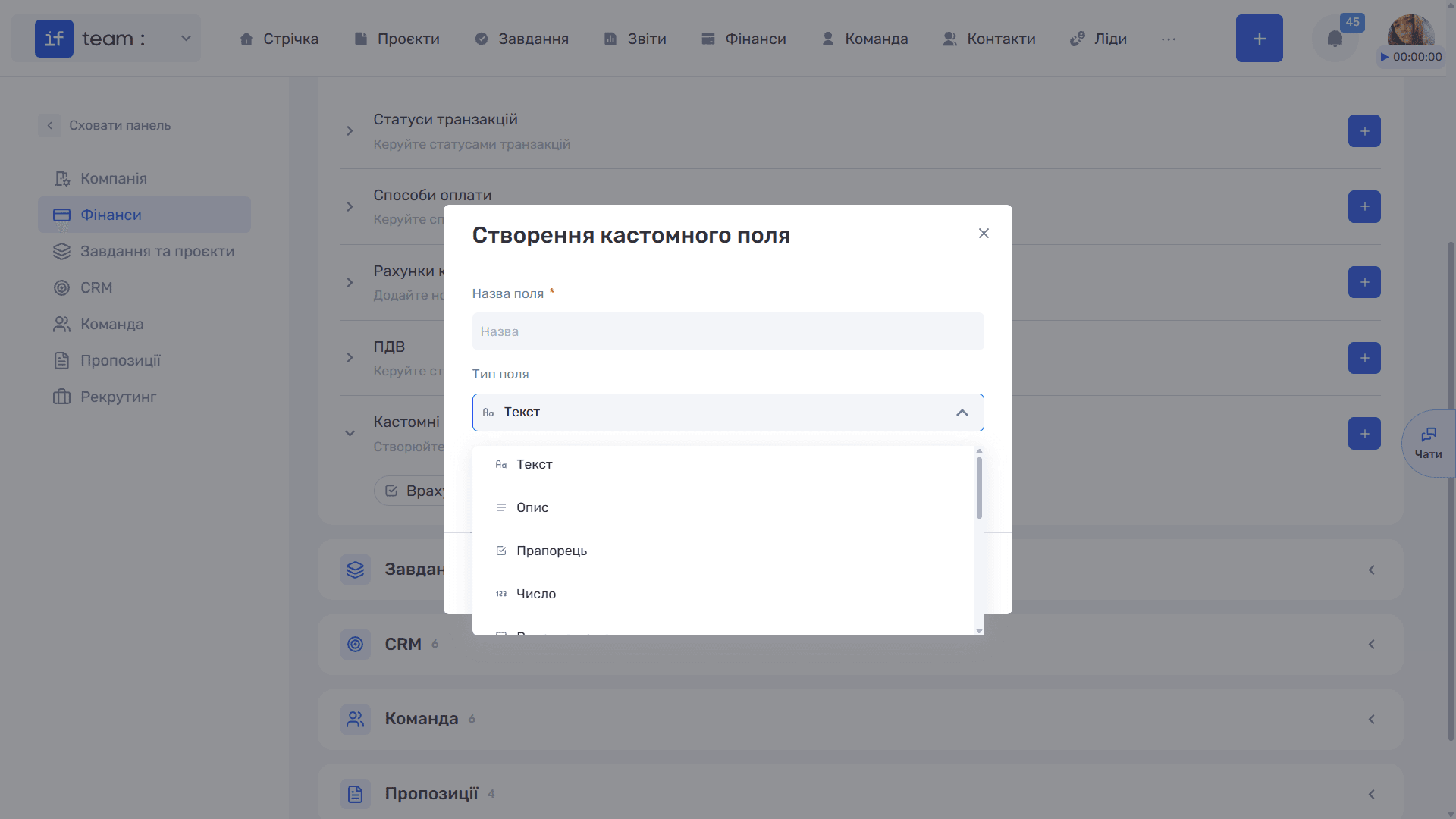
Field Type determines the data format:
- Text — A short string
- Description — Multiline text
- Checkbox — Yes/no, for example, “NDA Required”
- Number — A numeric value, for example, “Number of Revisions”
- Drop-down Menu — Select one value from a list
- Date — A calendar date
- Date and Time — A date with a specific time
- Time — Time only
- Link — A link, for example, “Link to Brief”
- Labels — Labels/tags
- Members — Select an employee, for example, “Coordinator”
- Contacts — Select a counterparty, for example, “Supplier”
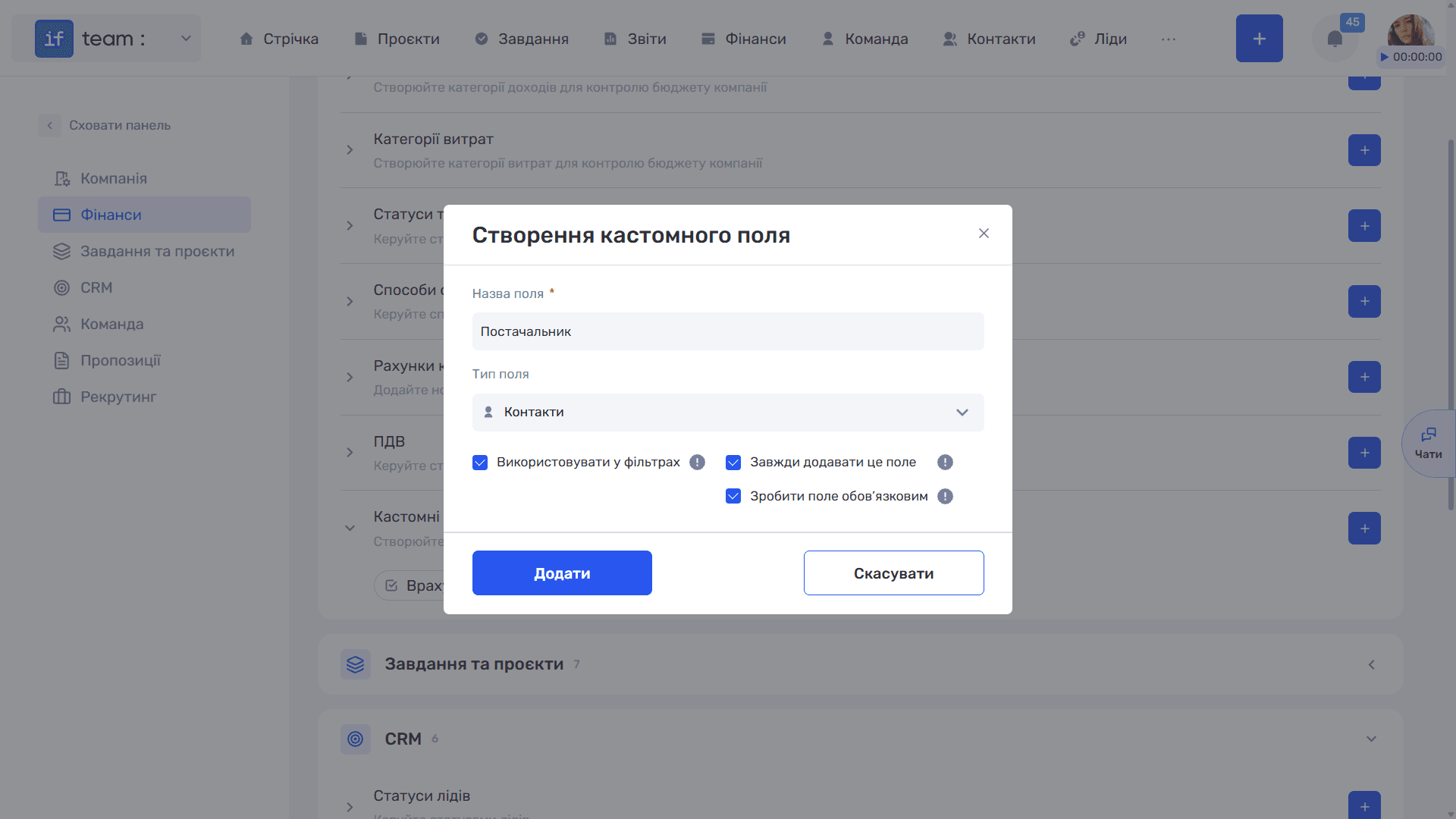
Below the field type are three checkboxes that control the field’s behavior:
- “Use in Filters” lets you filter the list by the field’s value. This is useful for fields you regularly search by, such as “Supplier.”
- “Always Add This Field” automatically displays the field when a new entity is created, so it does not have to be added manually.
- “Make This Field Required” prevents users from saving the form until the field is completed.
Still have questions?
Maybe we haven't added this information yet. But you can always reach out:
Request a demo
Submit a request and we'll show you how the service works and its capabilities.
Book a demo