Admin Panel Overview
The Admin Panel is where if.team is configured for a specific company’s processes. It contains reference data such as categories, statuses, and payment methods; the team structure; access permissions; and custom fields. Once configured, the panel eliminates routine work for the team: values are popu
How to Open It
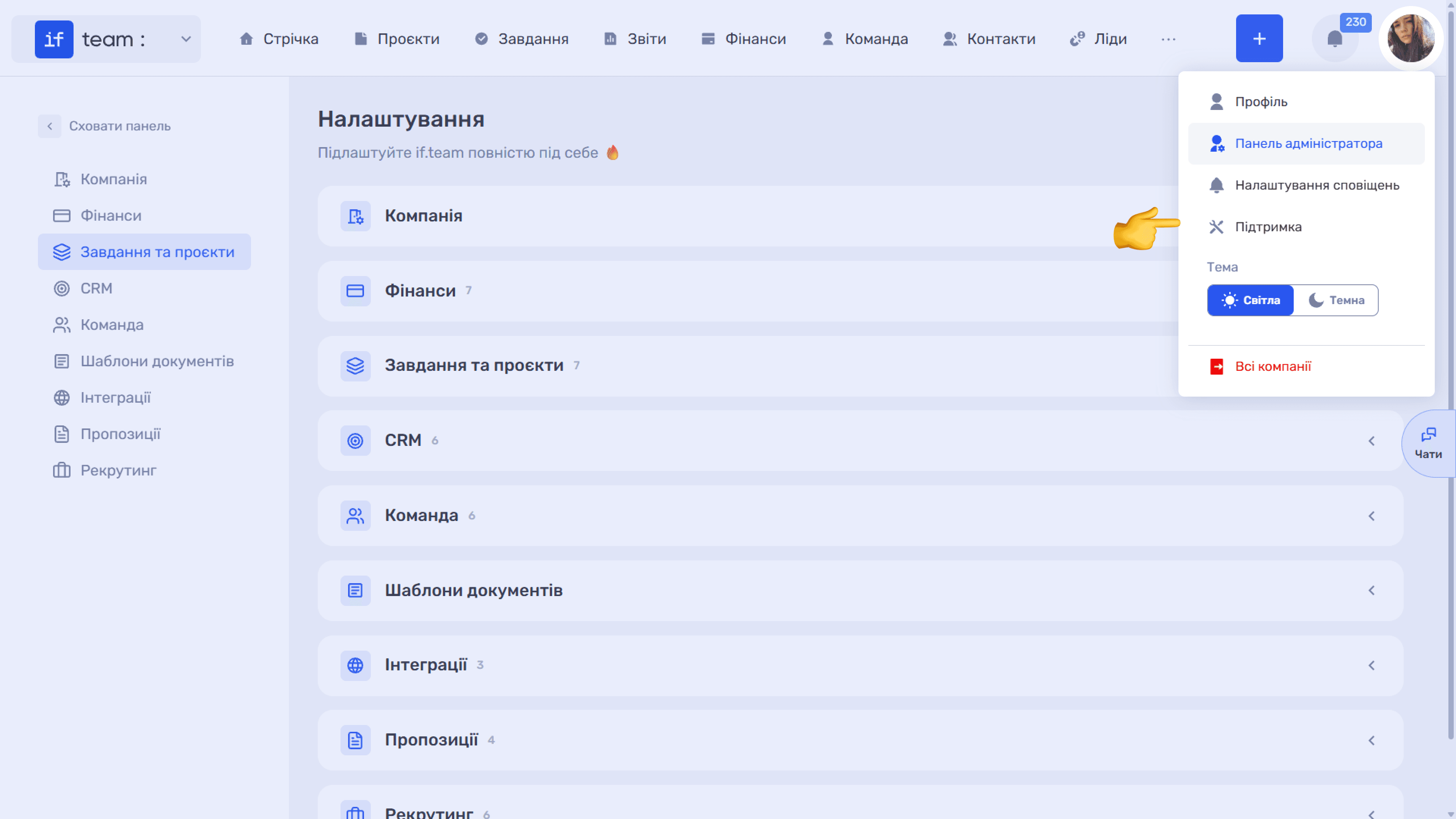
Click your profile avatar in the upper-right corner and select “Admin Panel.” The menu also contains “Profile,” “Notification Settings,” “Support,” the theme switcher (Light / Dark), and the option to return to the company list.
Please note
Access to the panel depends on the permissions assigned to your role. If this item is not available, contact your company administrator.
Page Structure
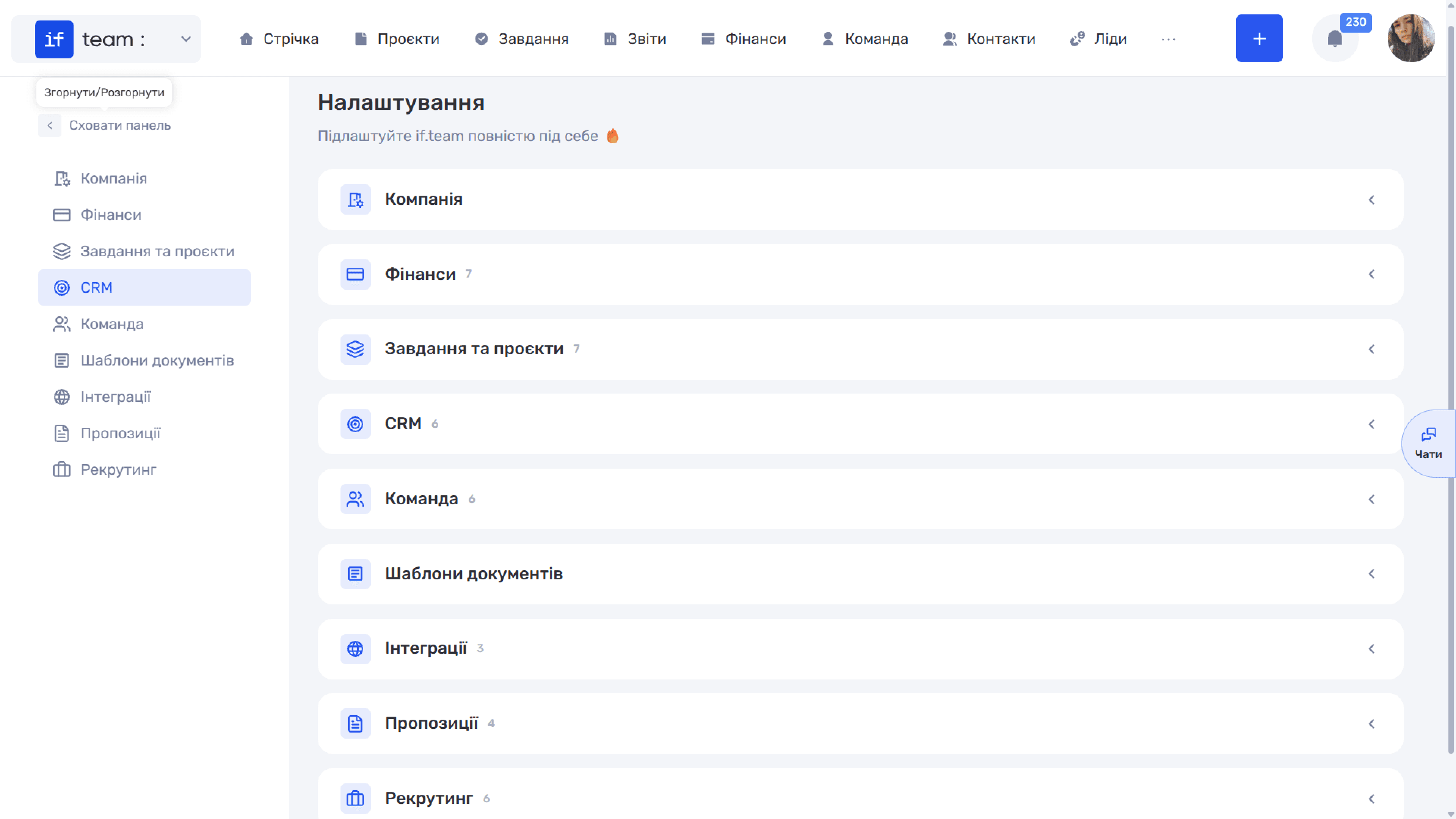
The page is called “Settings” and consists of two parts:
- The left panel provides navigation between Company, Finance, Tasks & Projects, CRM, Team, Document Templates, Integrations, Quote, and Recruiting. Click an item to scroll to the corresponding section. Use “Hide Panel” to collapse the panel and free up space.
- The workspace displays all sections as cards that can be expanded or collapsed using the arrow on the right. The number next to each section name is the number of settings blocks it contains. For example, “Finance 7” means that it contains seven blocks: income categories, expense categories, transaction statuses, payment methods, company accounts, VAT, and custom fields.
Common Settings Workflow
Most sections in the panel work in the same way, so you only need to learn the workflow once:
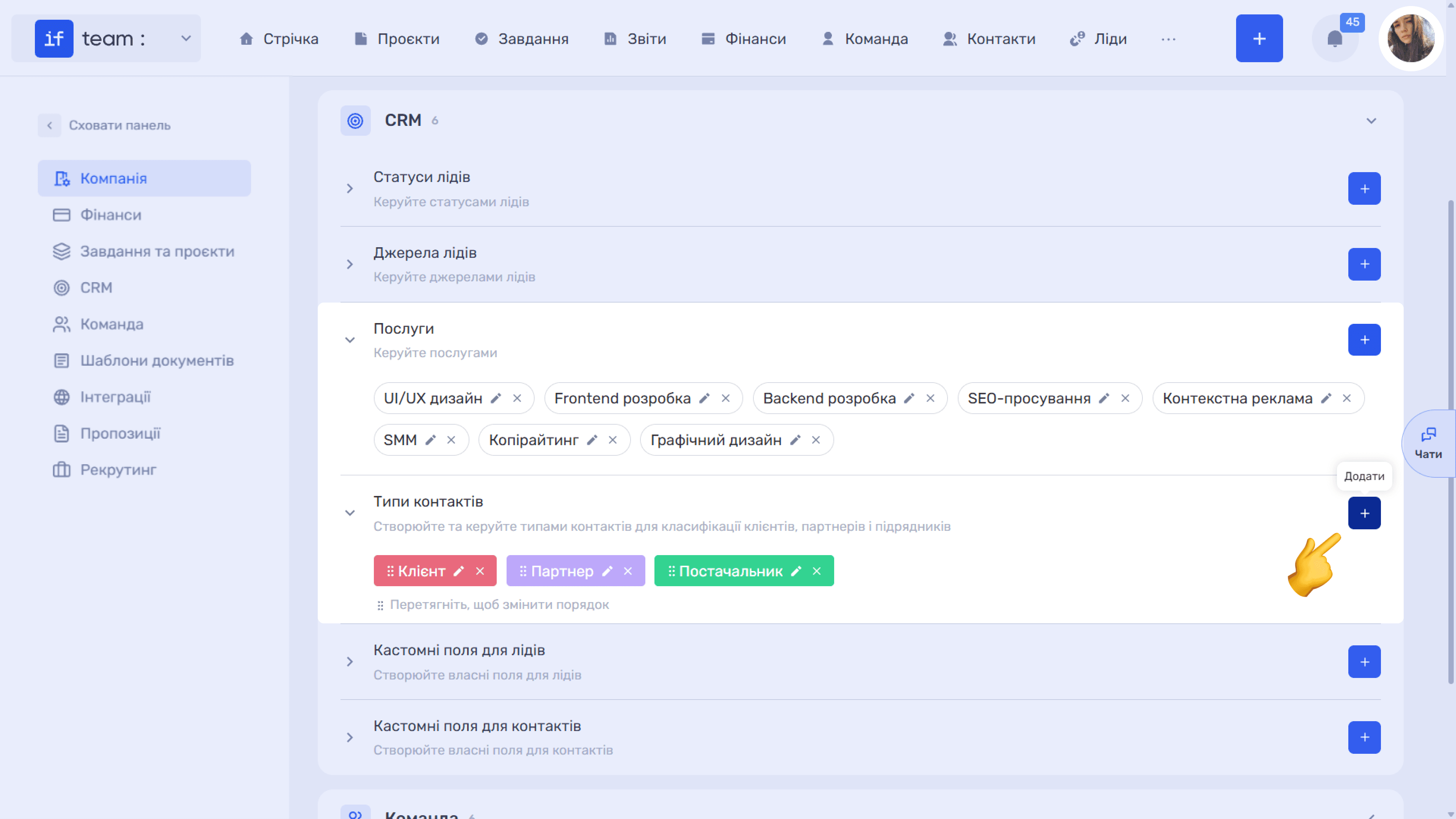
- Values are displayed as tags, either colored, such as categories and statuses, or neutral, such as accounts and VAT rates.
- The pencil icon (✏) on a tag opens it for editing, while “✕” deletes it.
- The “+” button to the right of a block name creates a new value.
- Drag values to change their order. Where this is available, “Drag to Change Order” appears below the tags. The order determines how values appear in drop-down lists throughout the system.
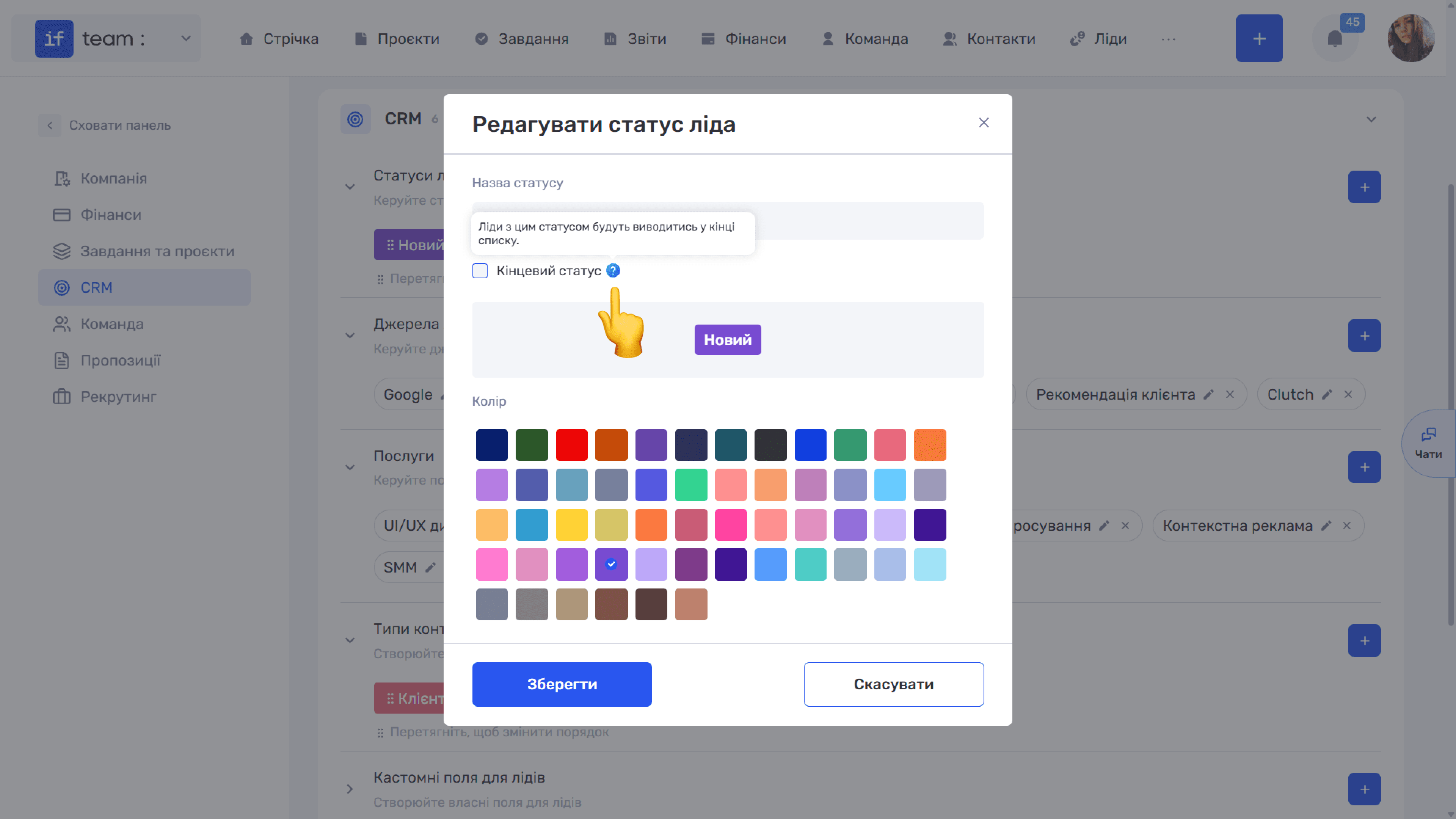
- The “?” icon next to a field name opens a tooltip explaining what the field does.
Still have questions?
Maybe we haven't added this information yet. But you can always reach out:
Request a demo
Submit a request and we'll show you how the service works and its capabilities.
Book a demo