Recruiting
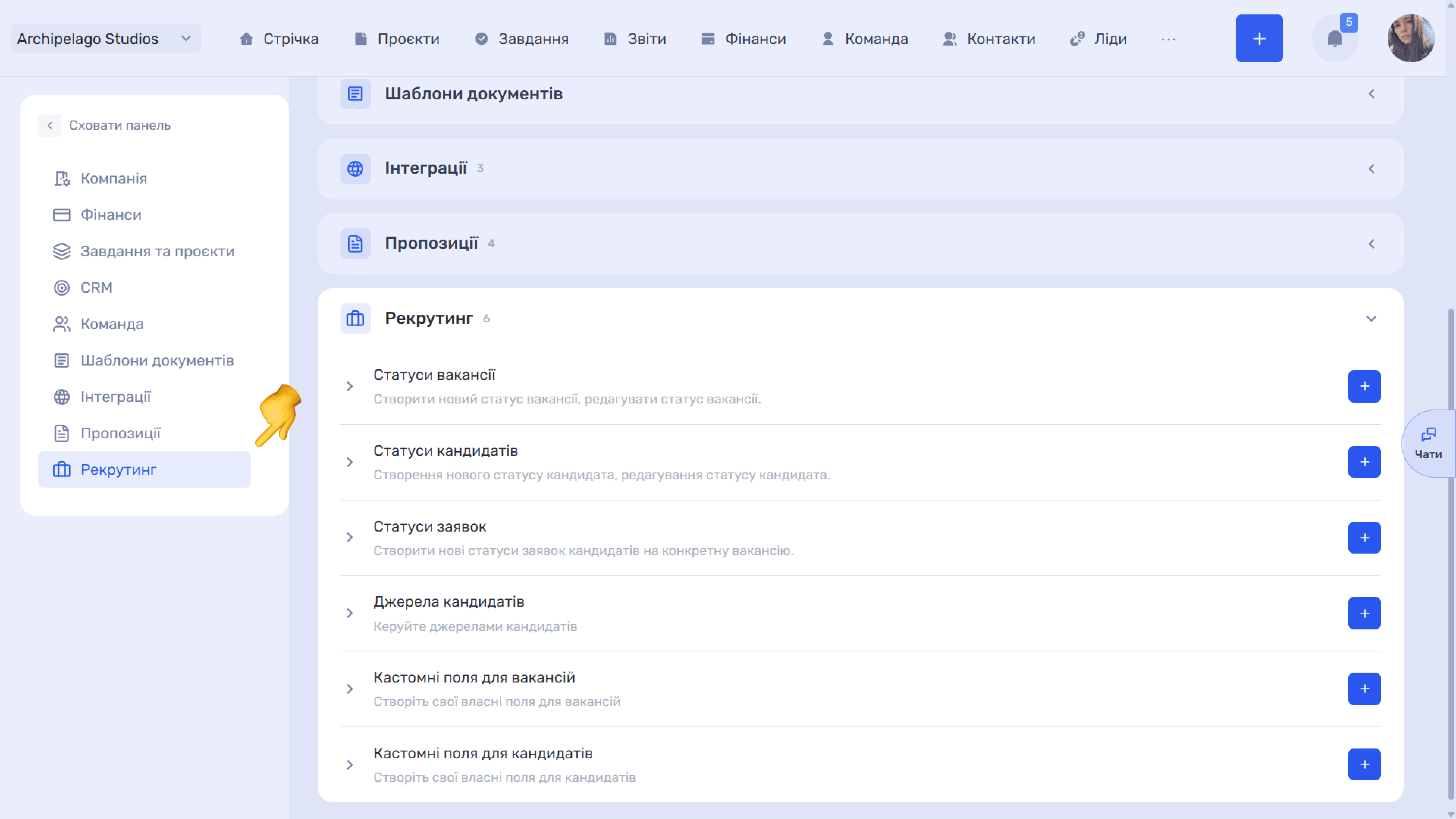
This section supports work with vacancies, candidates, and applications for specific vacancies. Statuses for each of these three entities are configured in separate sections.
This section holds the reference data for the Recruiting module: statuses, candidate sources, and custom fields.
Please note
The basic version limits the number of candidates and vacancies. The unlimited Pro version is paid separately.
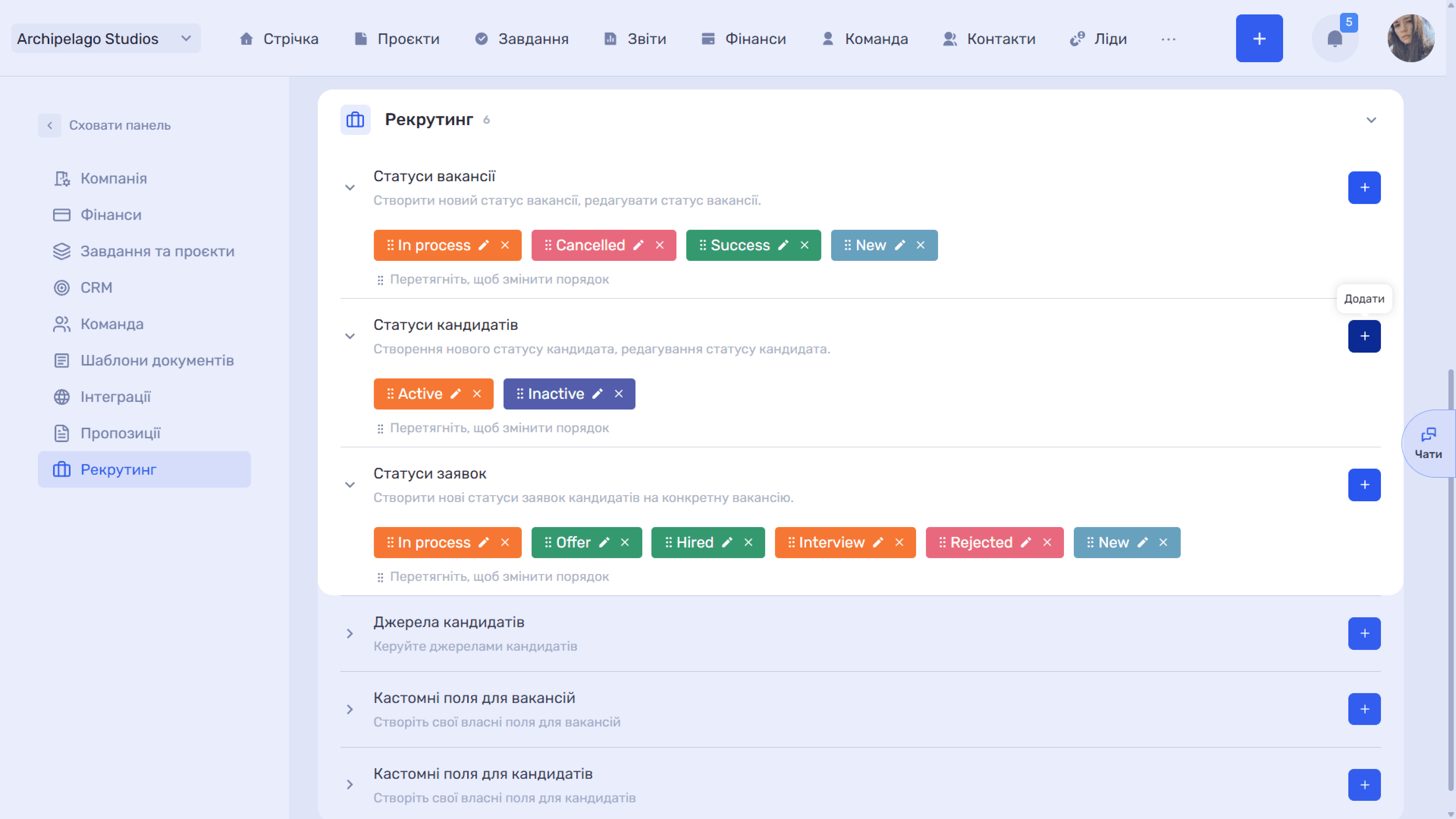
The module works with three linked entities, so statuses are set up in three separate blocks:
- Vacancy — a position you are hiring for;
- Candidate — a person in your database. One candidate can have several applications for different vacancies and be at different stages of selection at the same time;
- Application — a specific candidate's response to a specific vacancy. Applications for each vacancy are managed on their own Kanban board (the Candidates tab in the vacancy card → Kanban view).
How recruiting statuses work
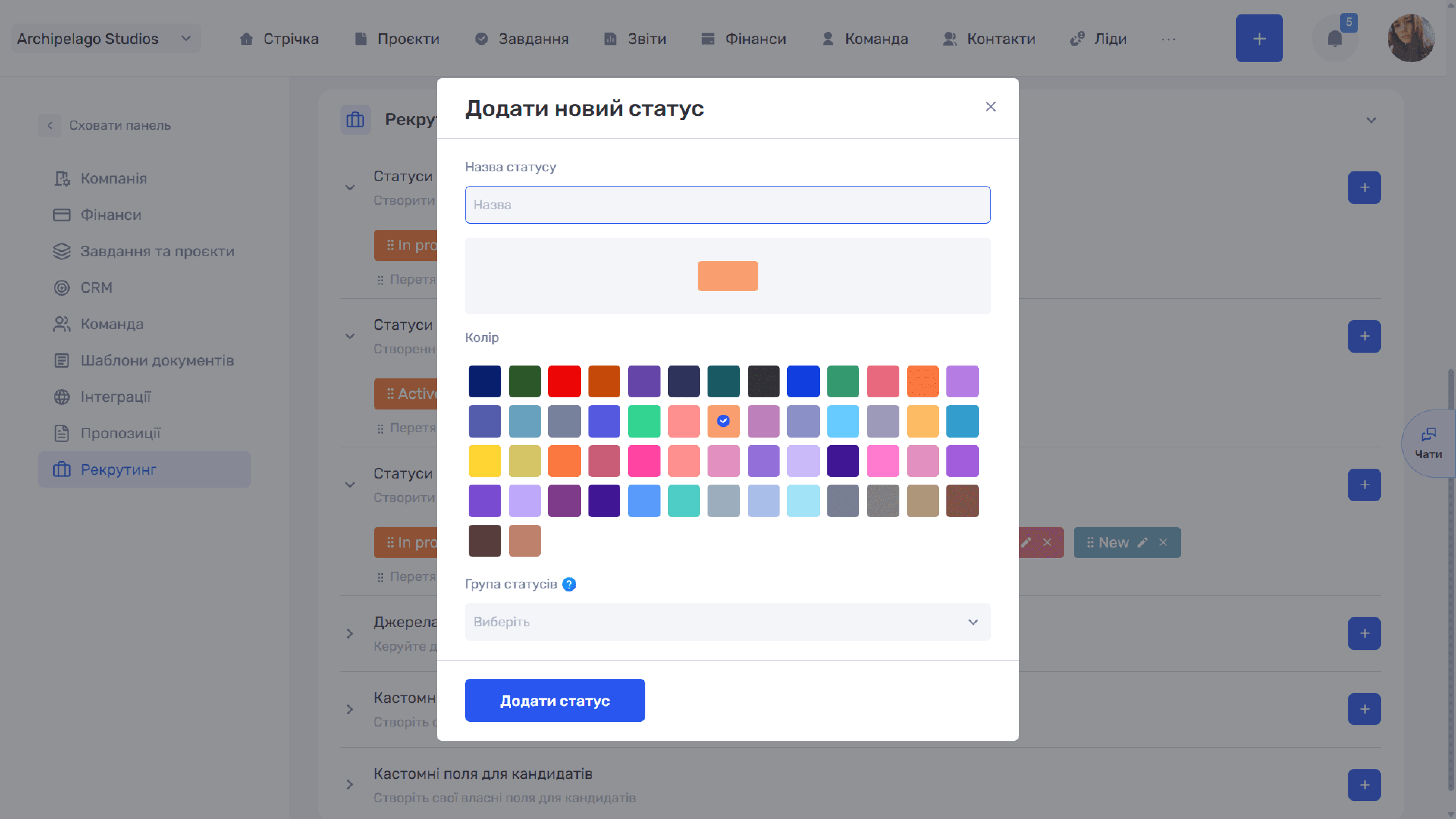
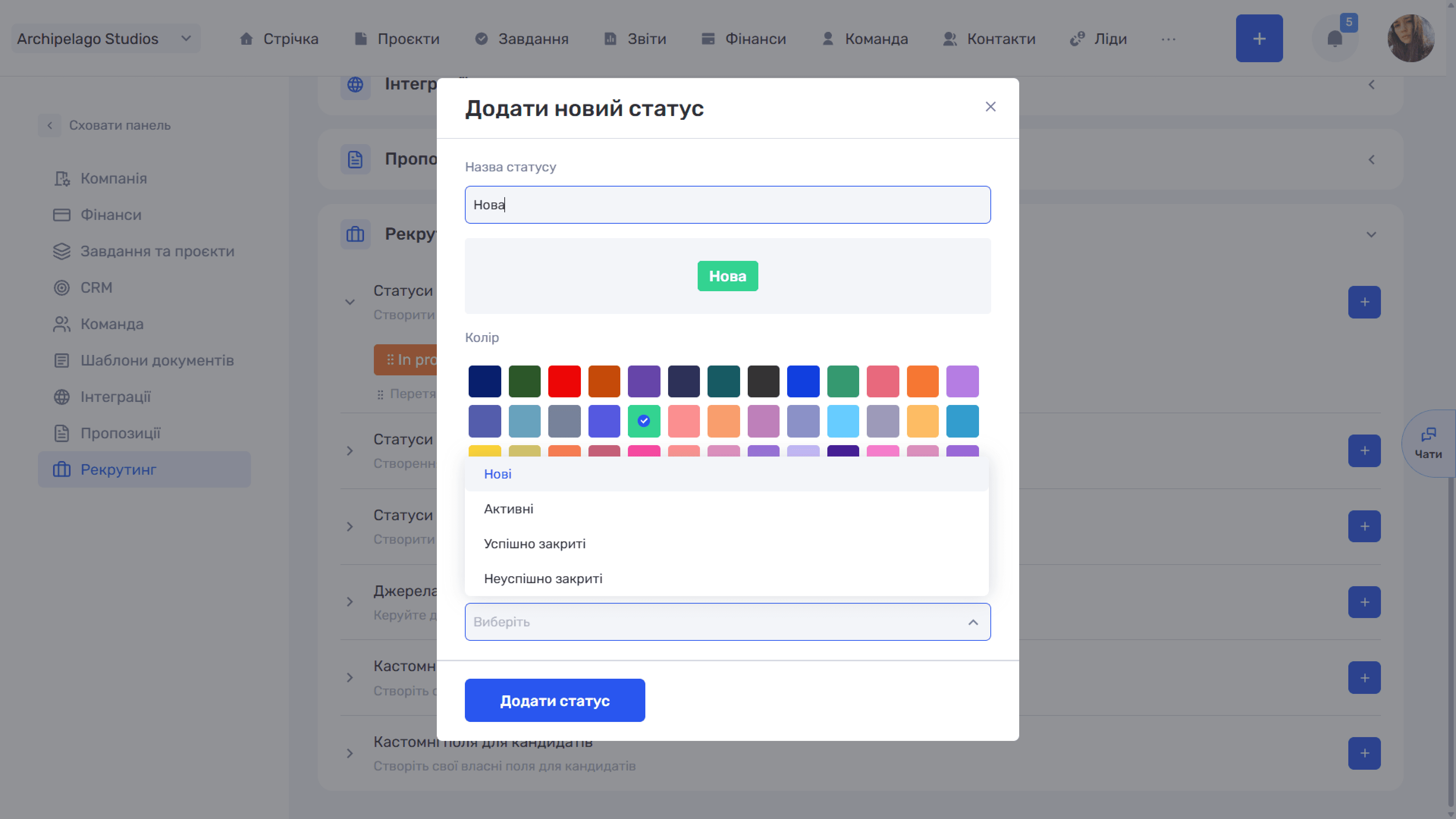
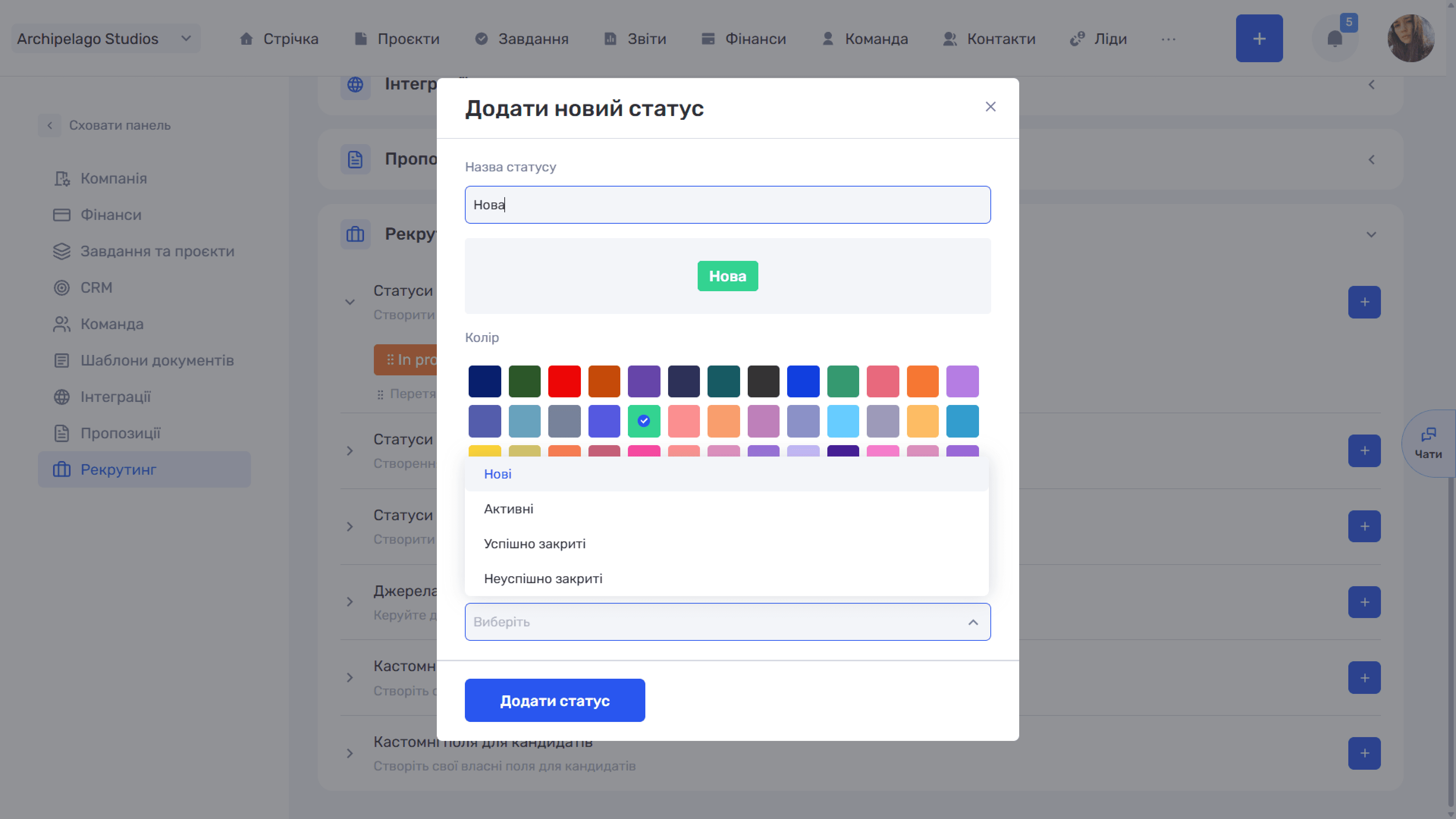
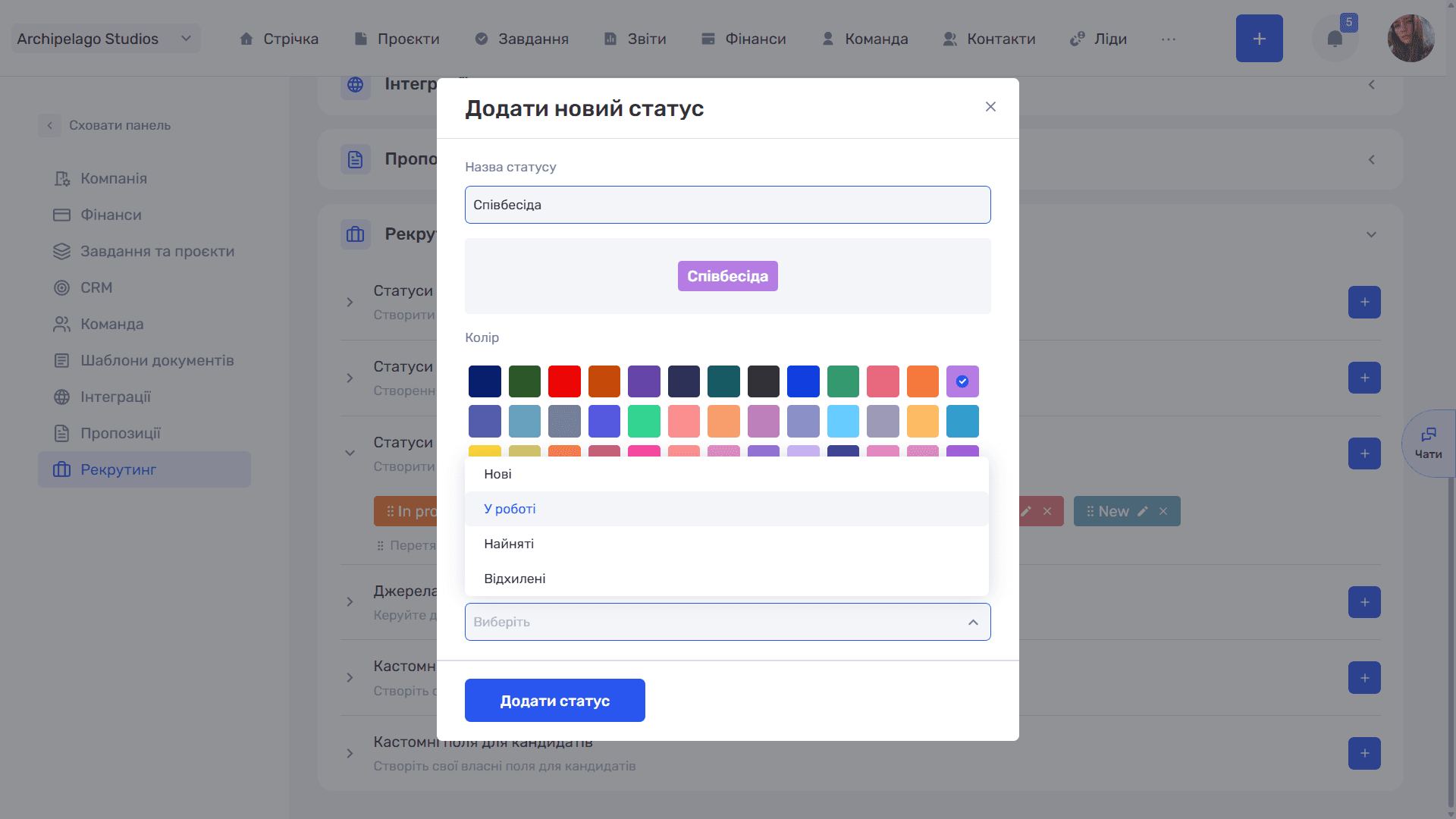
The Add new status window is the same for all three blocks and contains:
- Status name and a tag preview;
- Color — from the palette;
- Status group — a drop-down list.
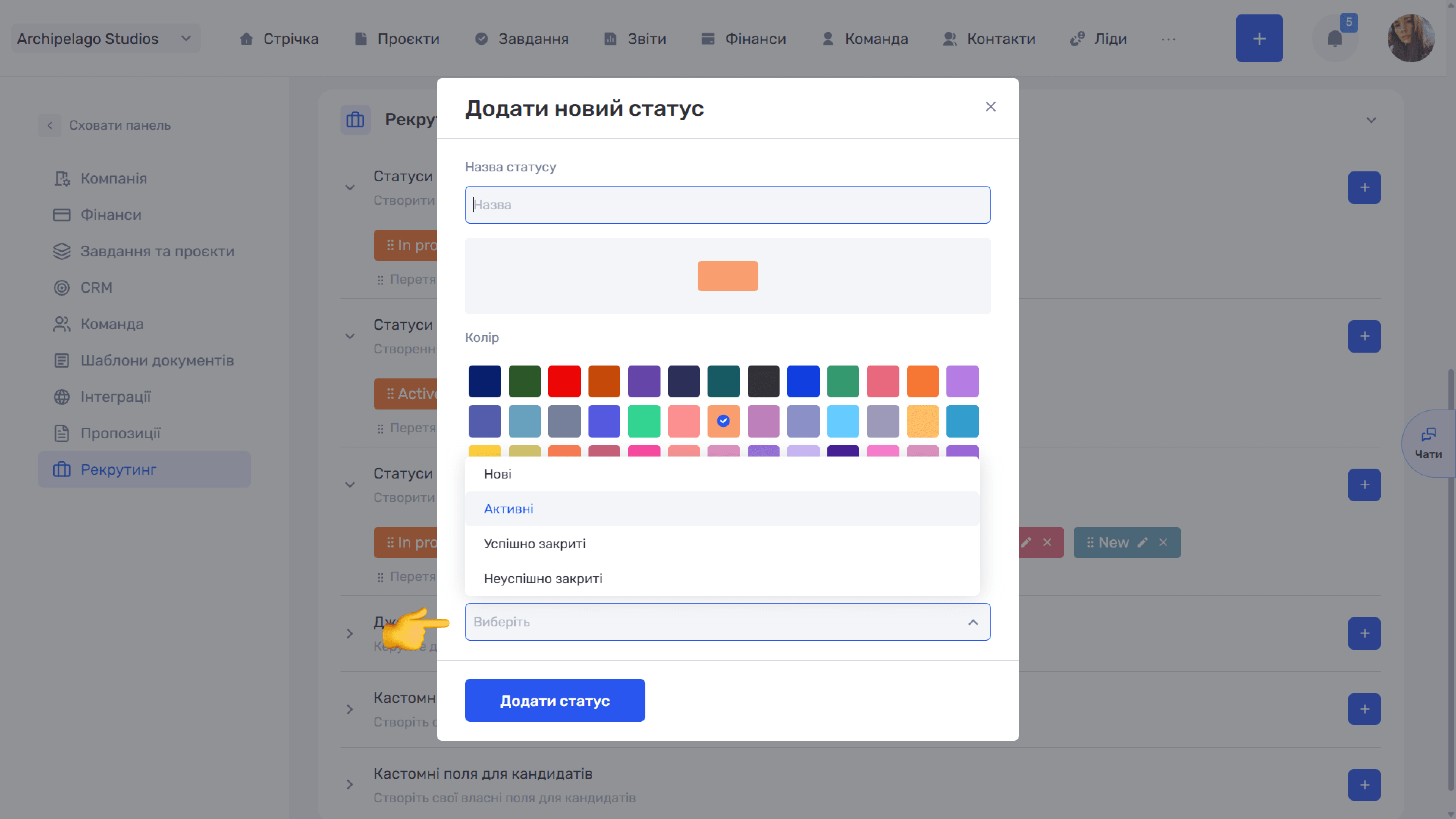
Status group is the key field, and it is what sets recruiting apart from the other sections. You can create as many statuses as your hiring process needs, but each must belong to one of the fixed groups — the system builds analytics by group, not by status name. This keeps reporting accurate even after you rename stages or add intermediate ones.
Vacancy statuses
For example: New, In work, Canceled, Finished. Your company's set may differ — all statuses are created and renamed here.
Available groups: New, Active, Closed successfully, Closed unsuccessfully.
Candidate statuses
For example: In work, Inactive.
Available groups: New, Active, Closed successfully, Closed unsuccessfully. The system uses them to count active and inactive candidates in the database.
Application statuses
An application is a specific candidate's response to a specific vacancy. For example: New, In progress, Interview, Offer, Hired, Rejected.
Available groups: New, In progress, Hired, Rejected.
Please note
One stage of your funnel can consist of several statuses within the same group — for example, "Technical interview" and "Final interview" can both belong to the "In progress" group. For the team these are two different stages; for analytics, one state.
Candidate sources
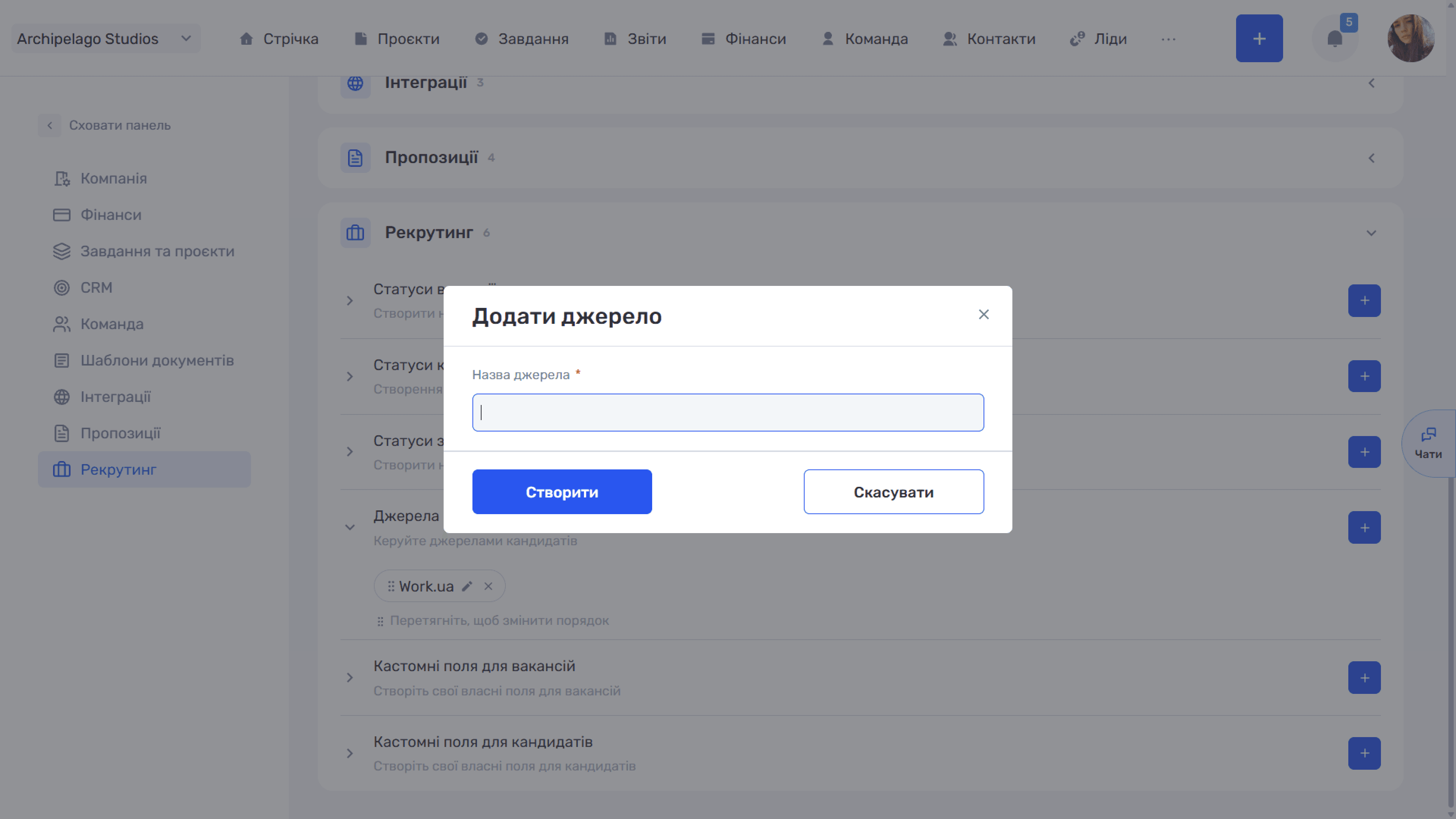
A reference list of the channels candidates come from.
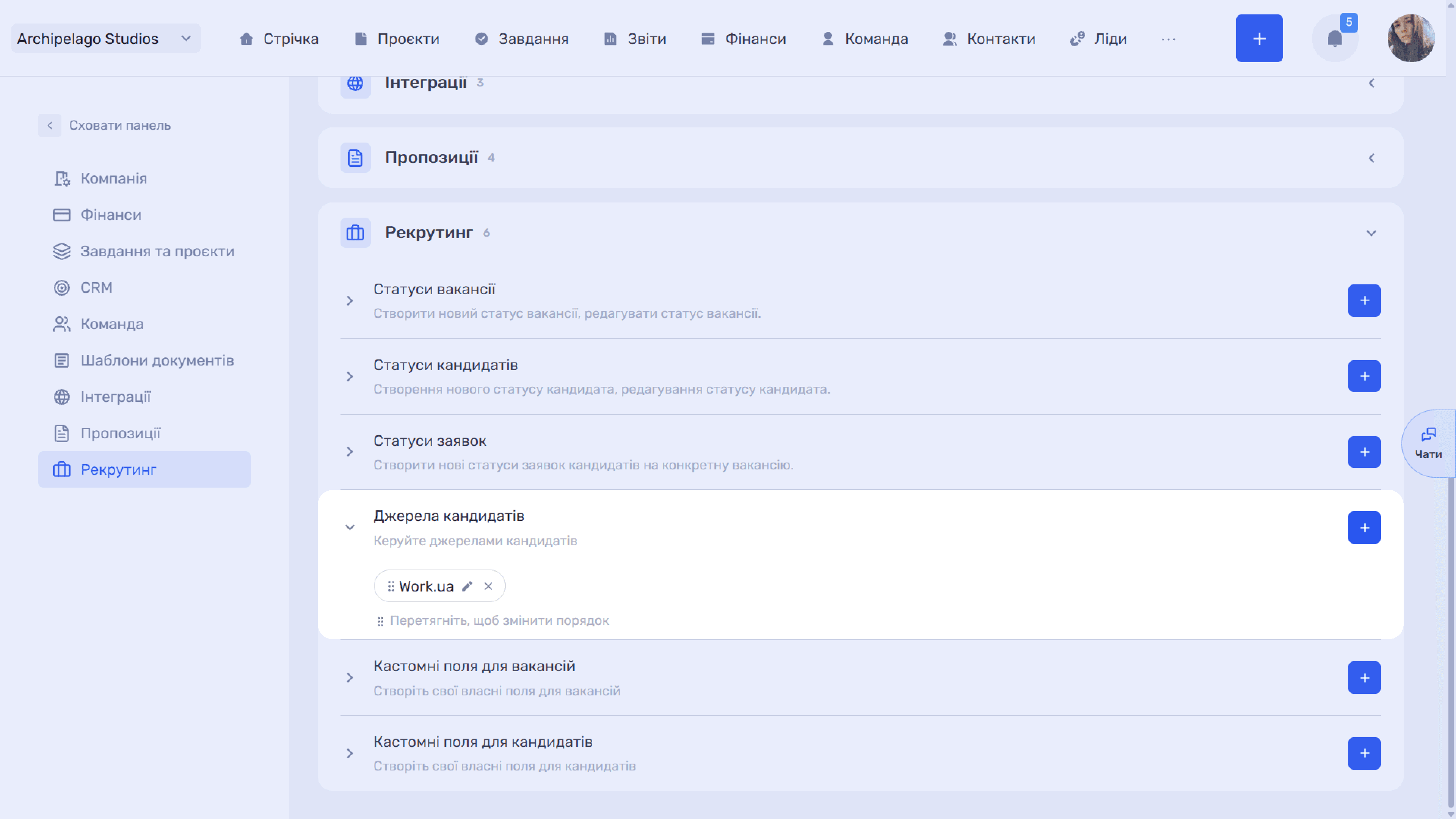
The Add source window has one required field — Source name.
Custom fields for vacancies and candidates
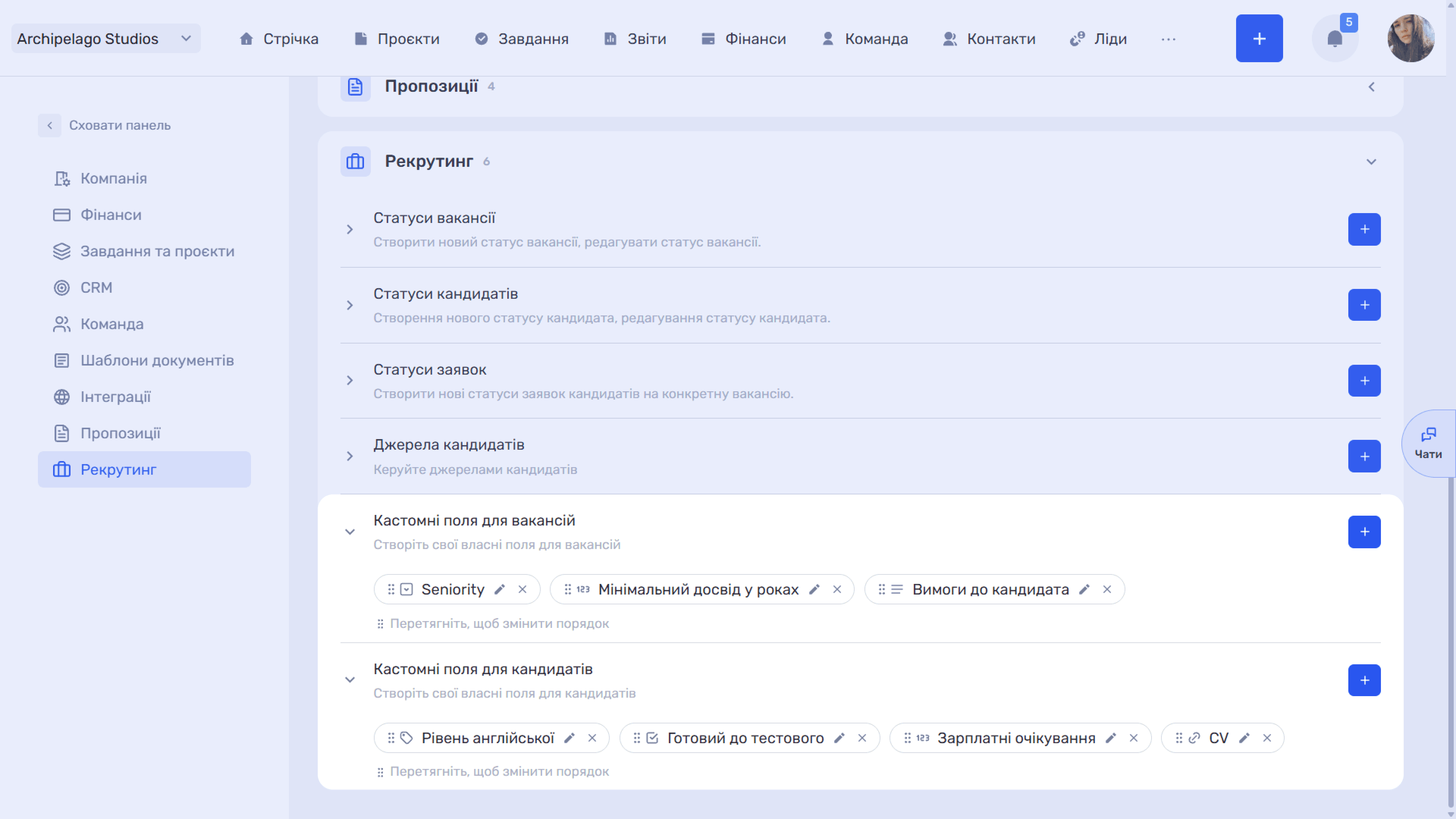
Two separate blocks with the standard field creation window (see Custom fields).
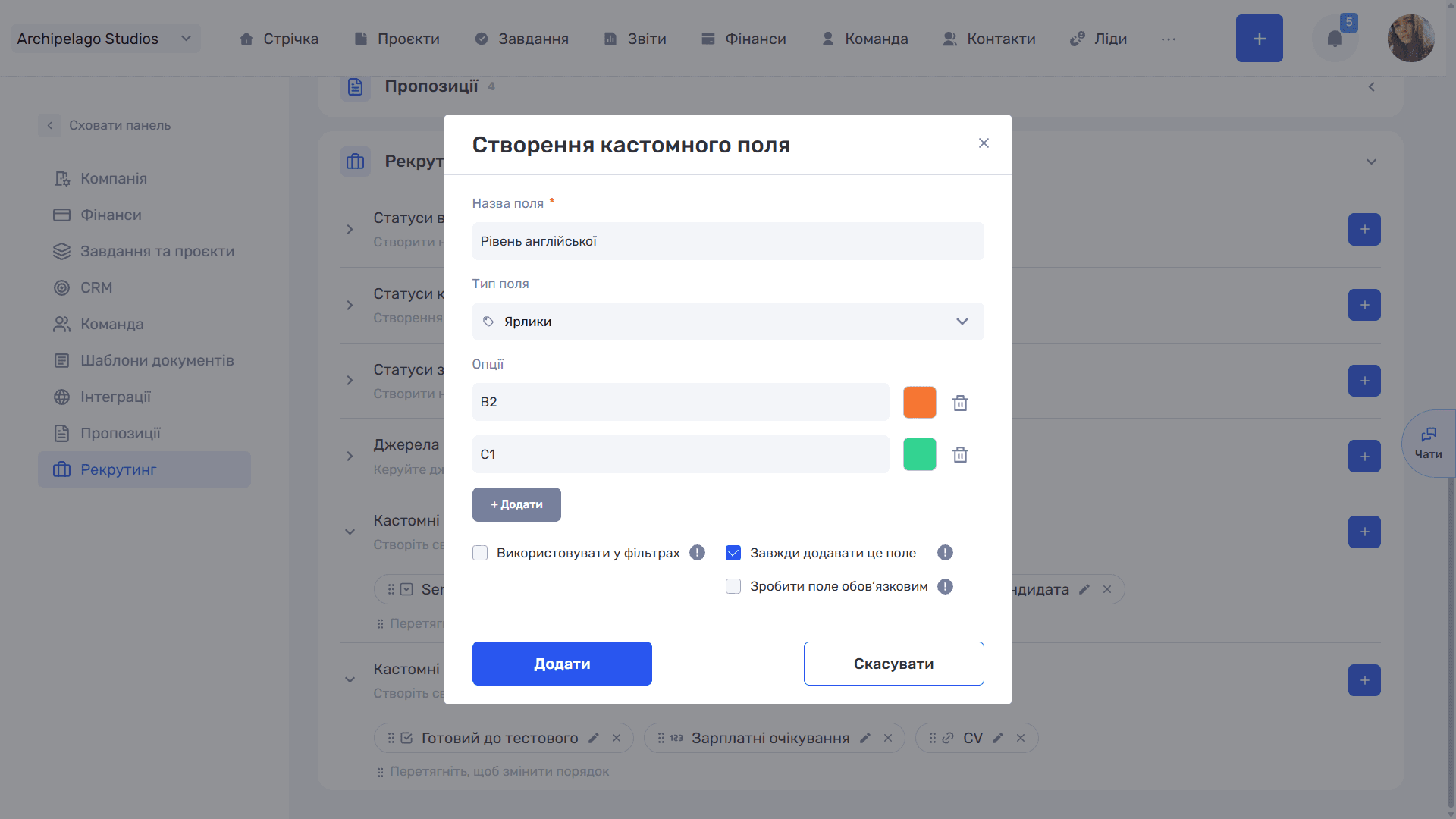
This lets you tailor the module to your process: add a salary range field to a vacancy, or English level and readiness for a test assignment to a candidate.
Please note
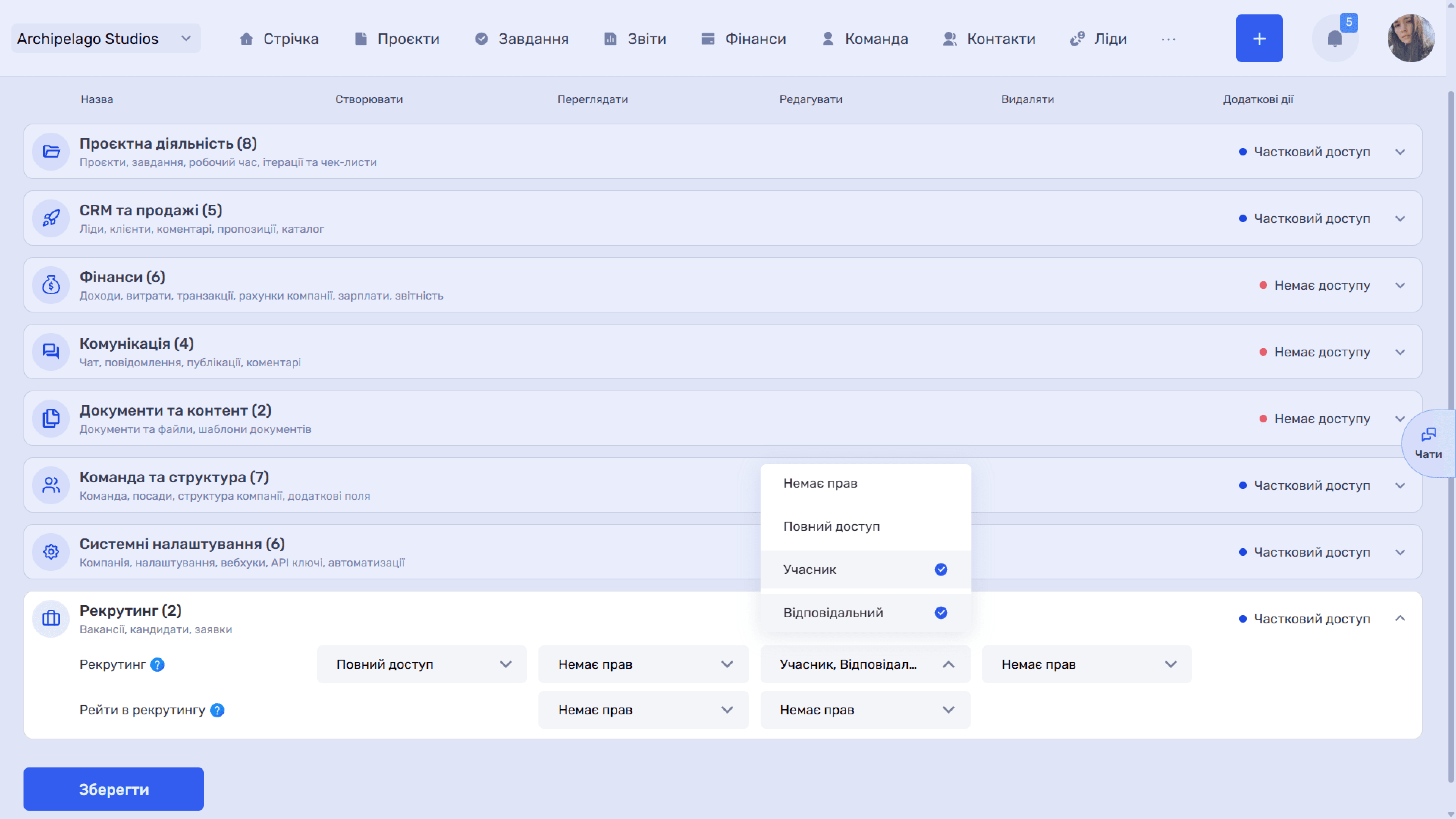
Access of recruiters, managers, and HR specialists to vacancies, candidates, and applications is configured in the Recruiting block of the permissions matrix — see Team → Roles.
Still have questions?
Maybe we haven't added this information yet. But you can always reach out:
Request a demo
Submit a request and we'll show you how the service works and its capabilities.
Book a demo