Finance Settings
The Finance section configures the directories used in transactions and P&L and Cash Flow reports. Correctly configured categories are the foundation for generating financial analytics automatically, without manually sorting payments.
Finance
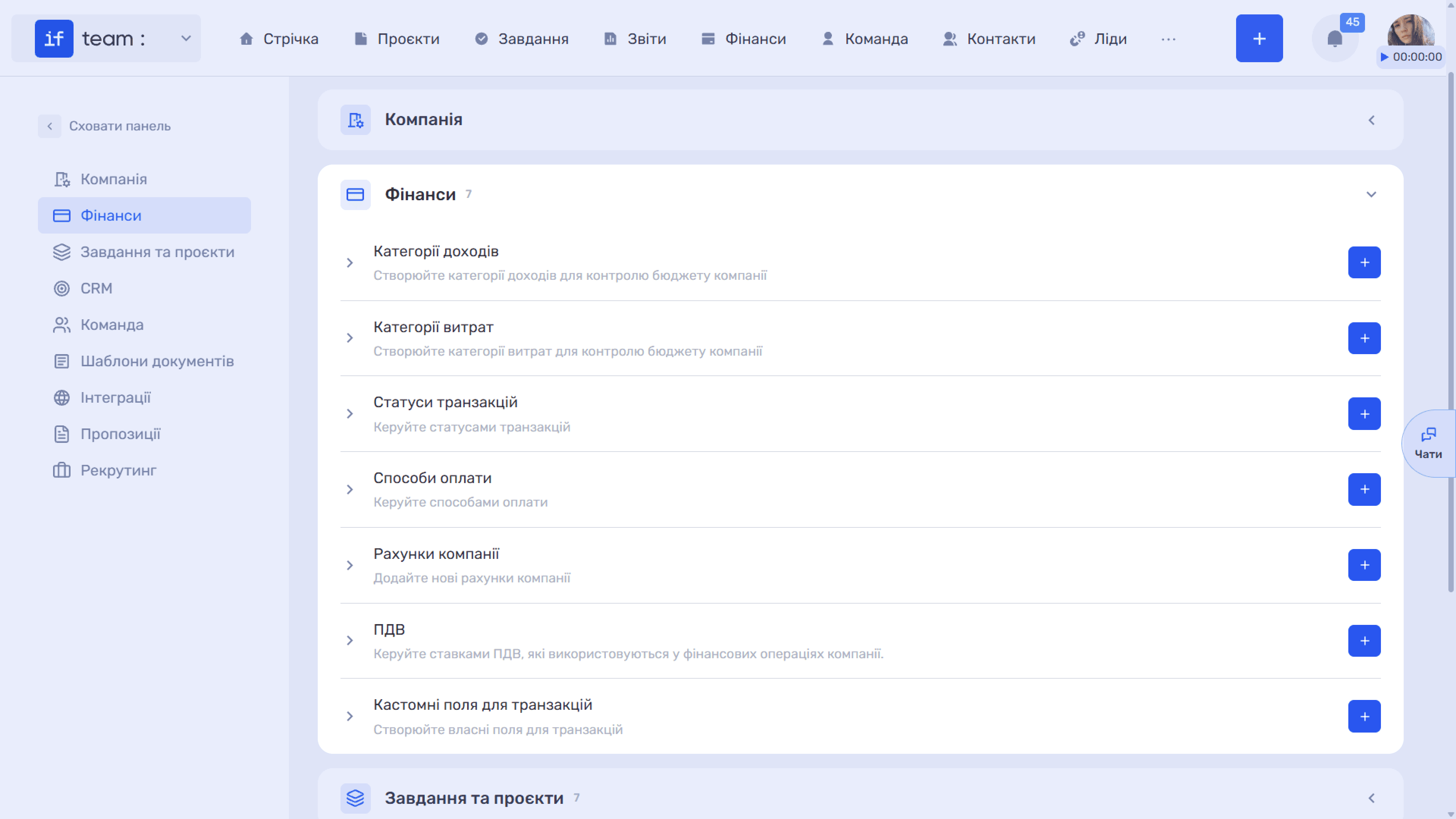
Income Categories
Income categories define what the company receives money for, such as Payment for Services. Click + to create a new category or the pencil icon on a tag to edit an existing one.
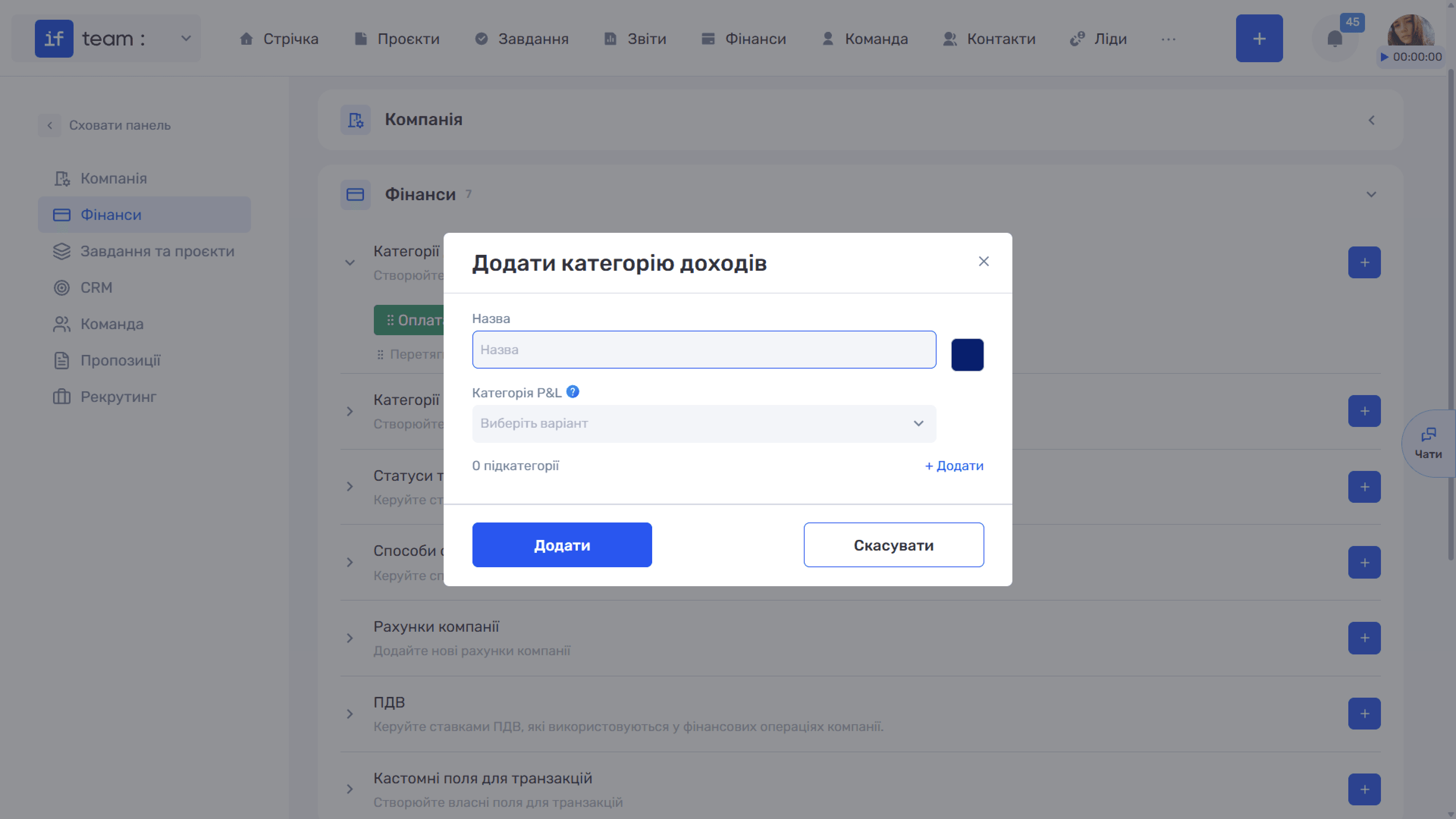
Complete the following fields in the window:
- Name defines how the category appears in transactions. Next to it is a color square; click it to select a shade from the palette. Color helps you quickly navigate the transaction list and income structure charts.
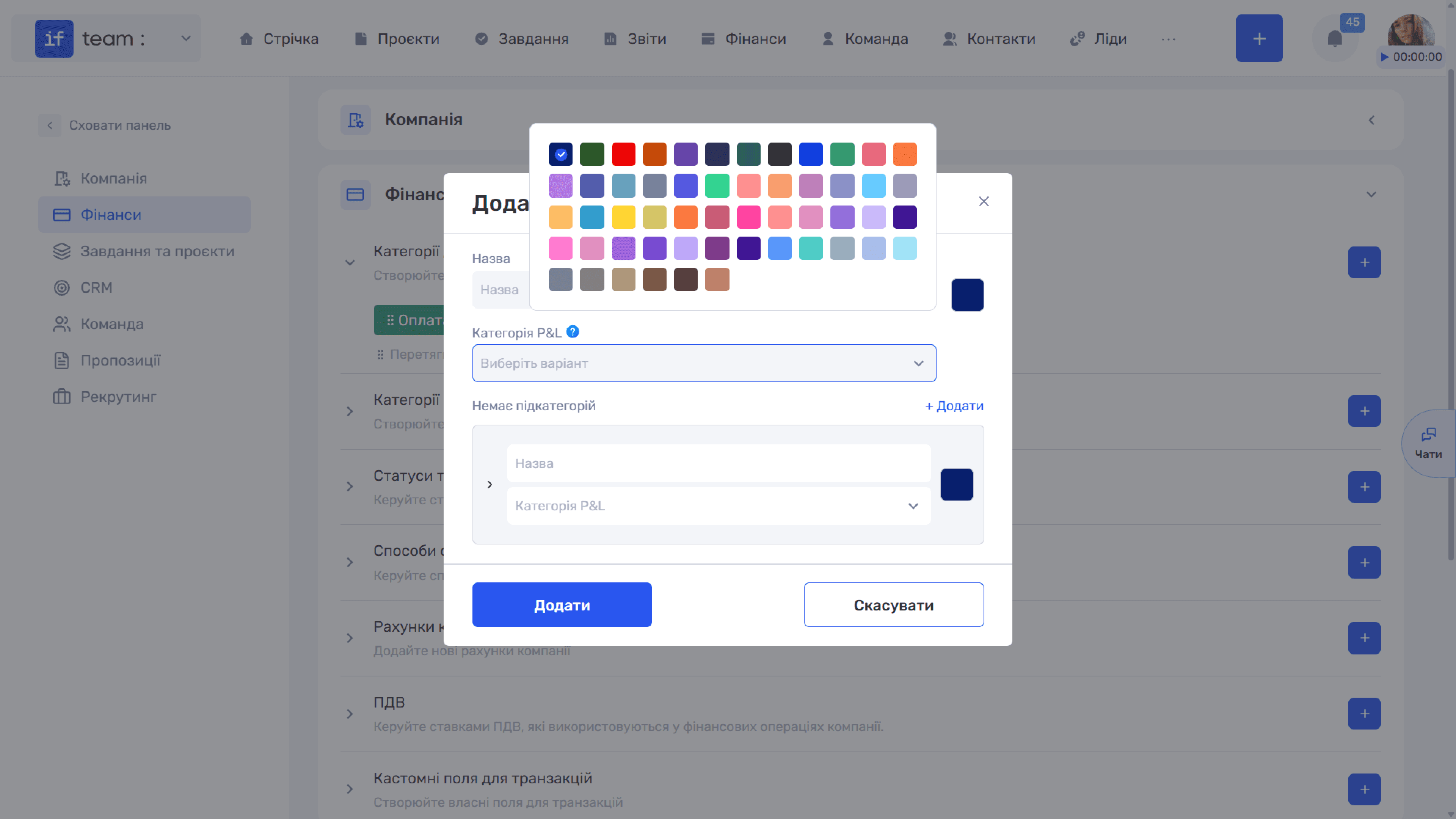
- P&L Category determines which row of the profit and loss report the payment is assigned to. Available values are Total Income, Non-operating Income, Recapitalization, Exclude from P&L, and VAT Reimbursement. The selected value is inserted automatically when a payment is created, so the finance specialist does not need to remember where to assign each payment every time.
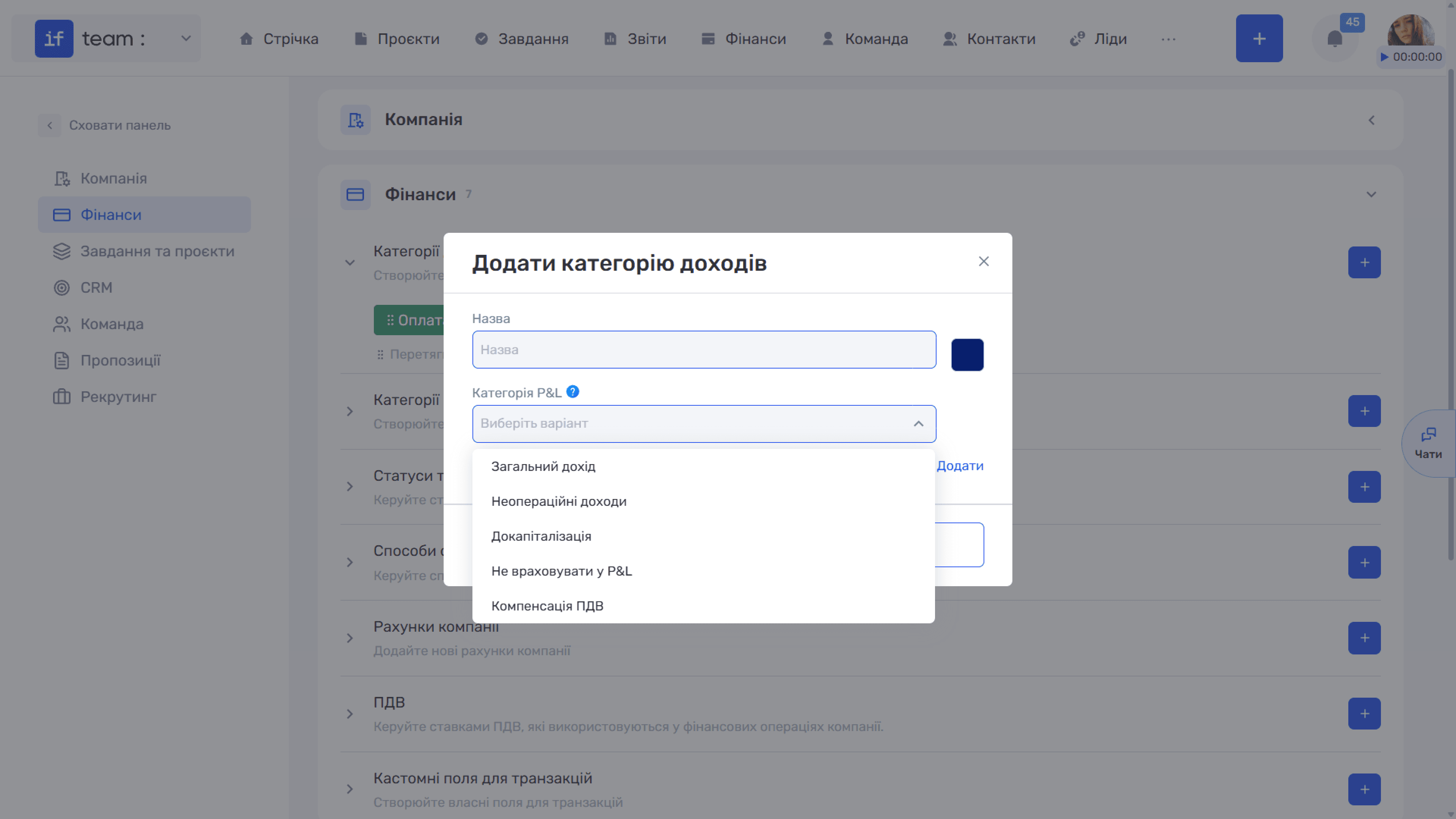
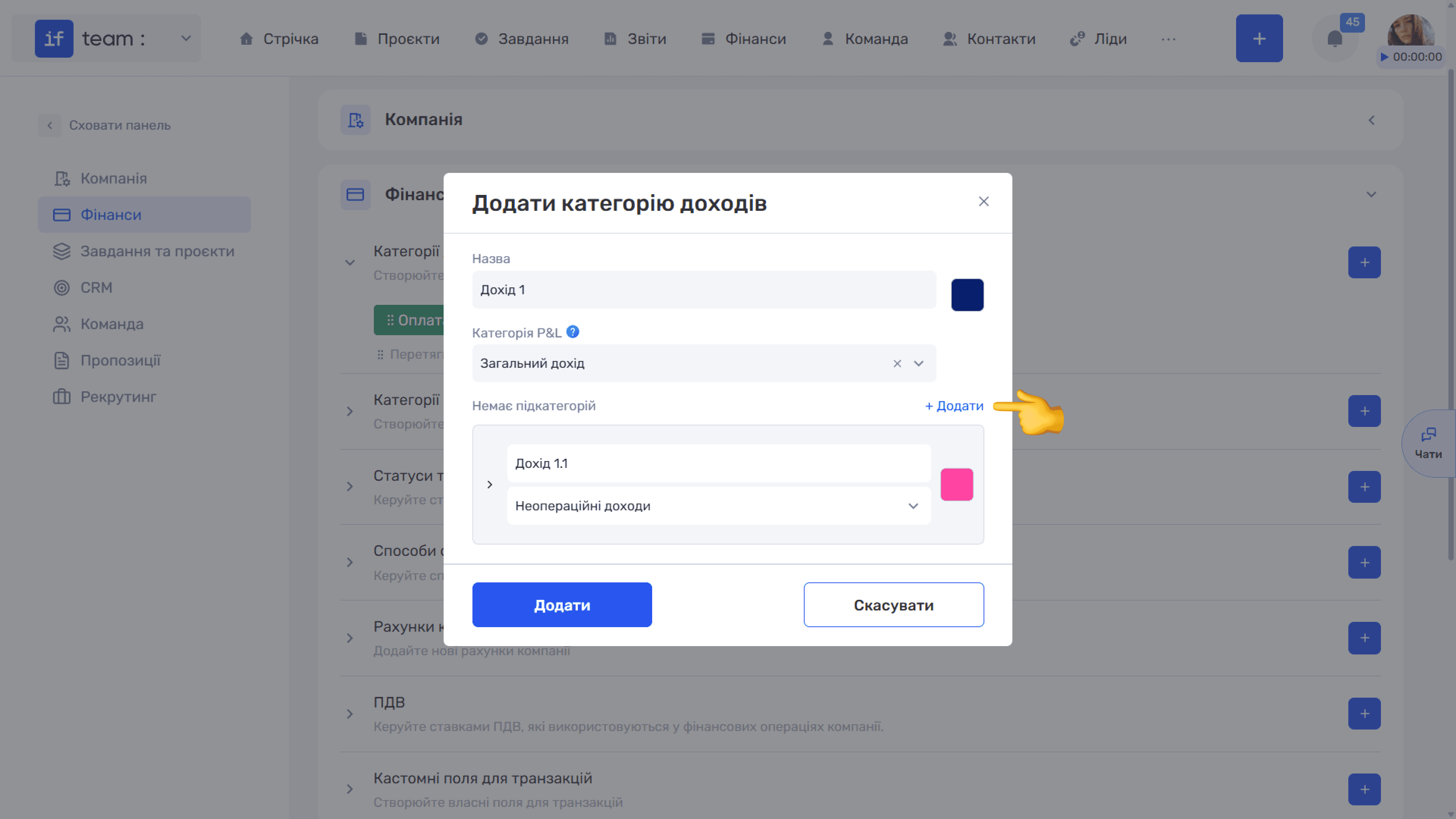
Subcategories. The number of subcategories appears below P&L Category. Click + Add to display a row with its own name, color, and P&L category. Click Add.
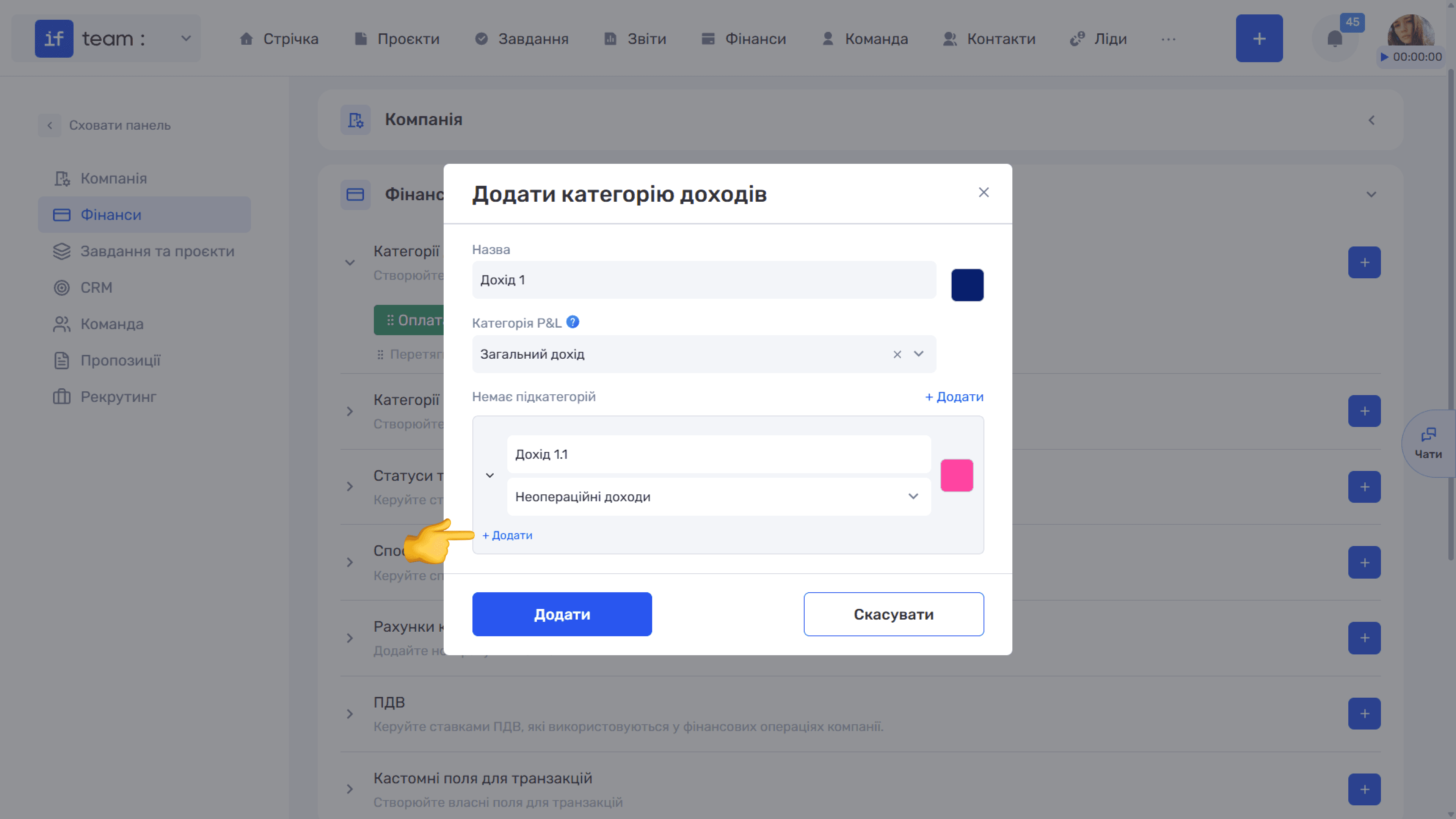
The + Add link inside the section creates another subcategory. Subcategories provide more detailed analytics: for example, the Payment for Services category can be divided by type of work.
Expense Categories
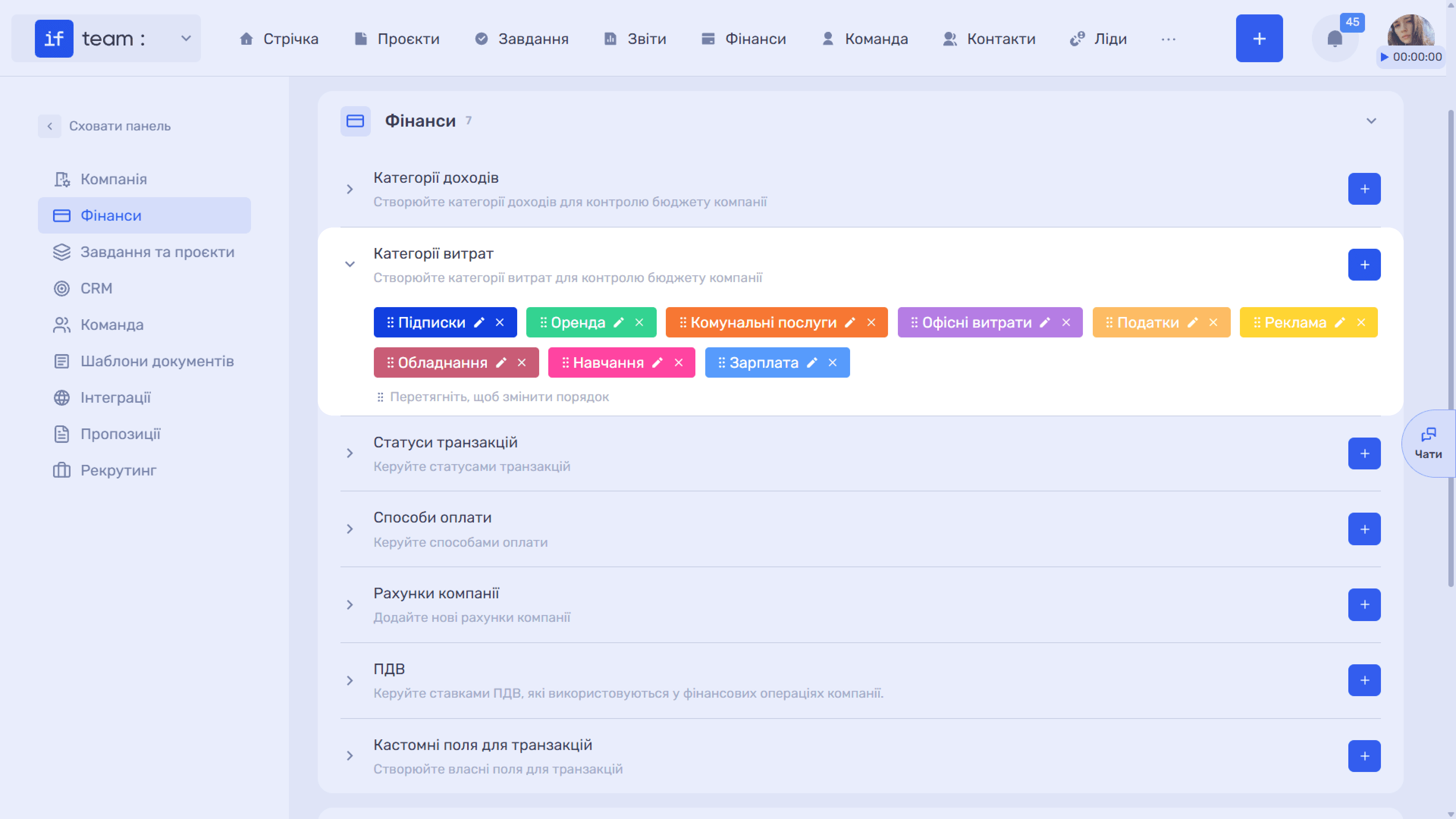
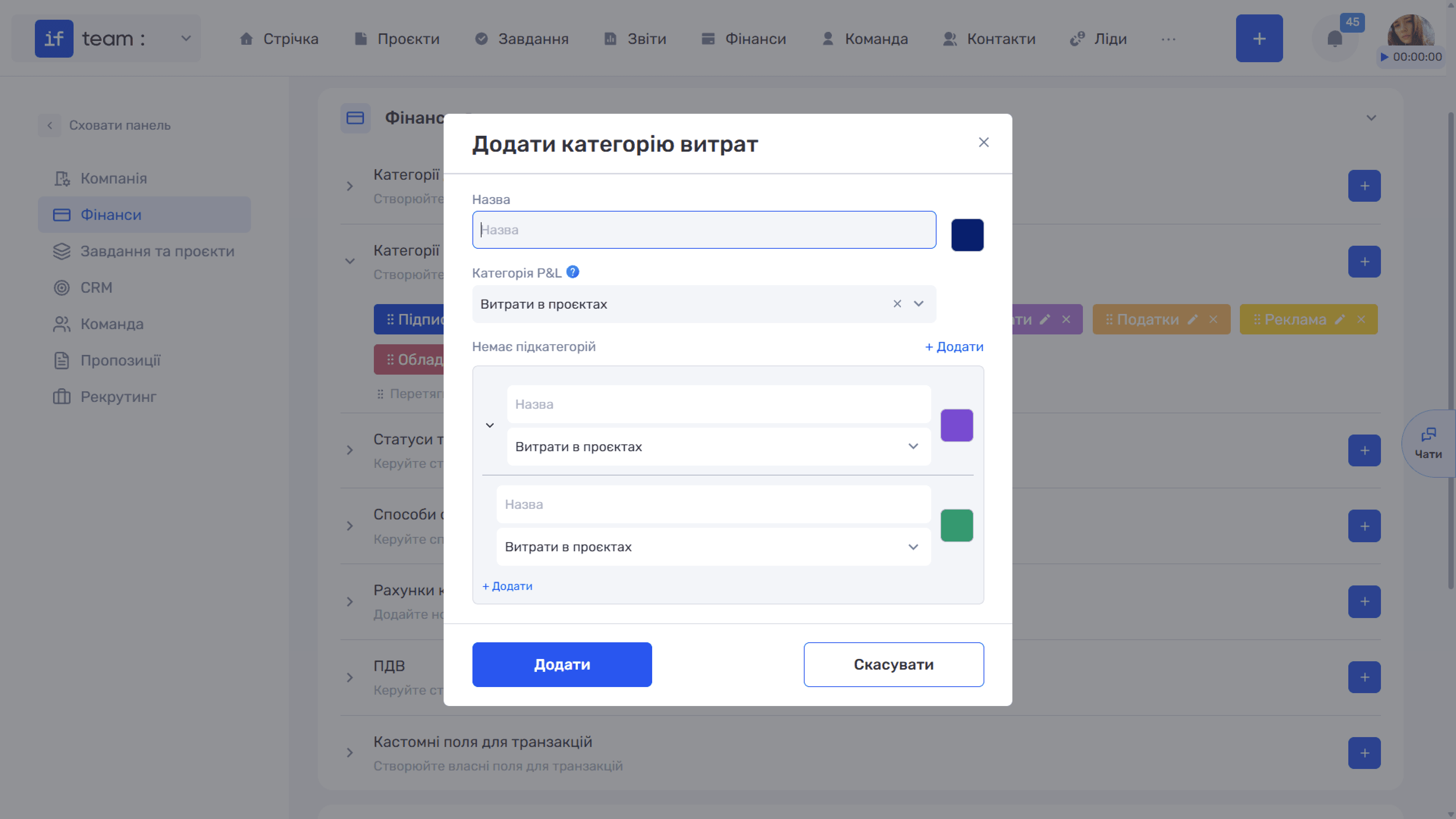
Expense categories work the same way as income categories: name, color, P&L category, and subcategories. A typical set used by agencies includes Subscriptions, Rent, Utilities, Taxes, Office Expenses, Advertising, Equipment, Training, Salary, and others.
Transaction Statuses
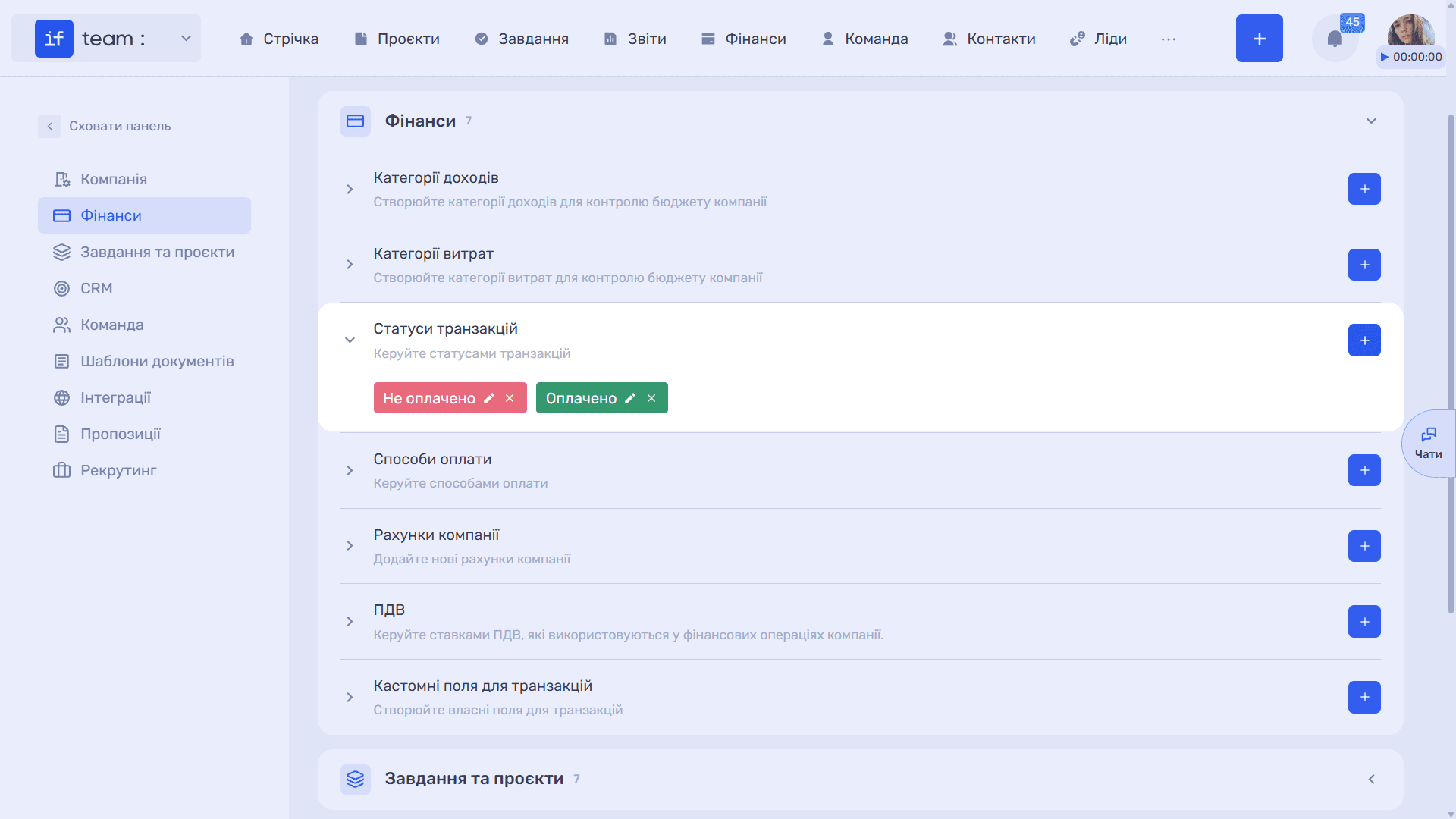
Statuses show the state of a payment. The default values are Unpaid and Paid. You can add custom statuses, such as Invoiced or Partially Paid.
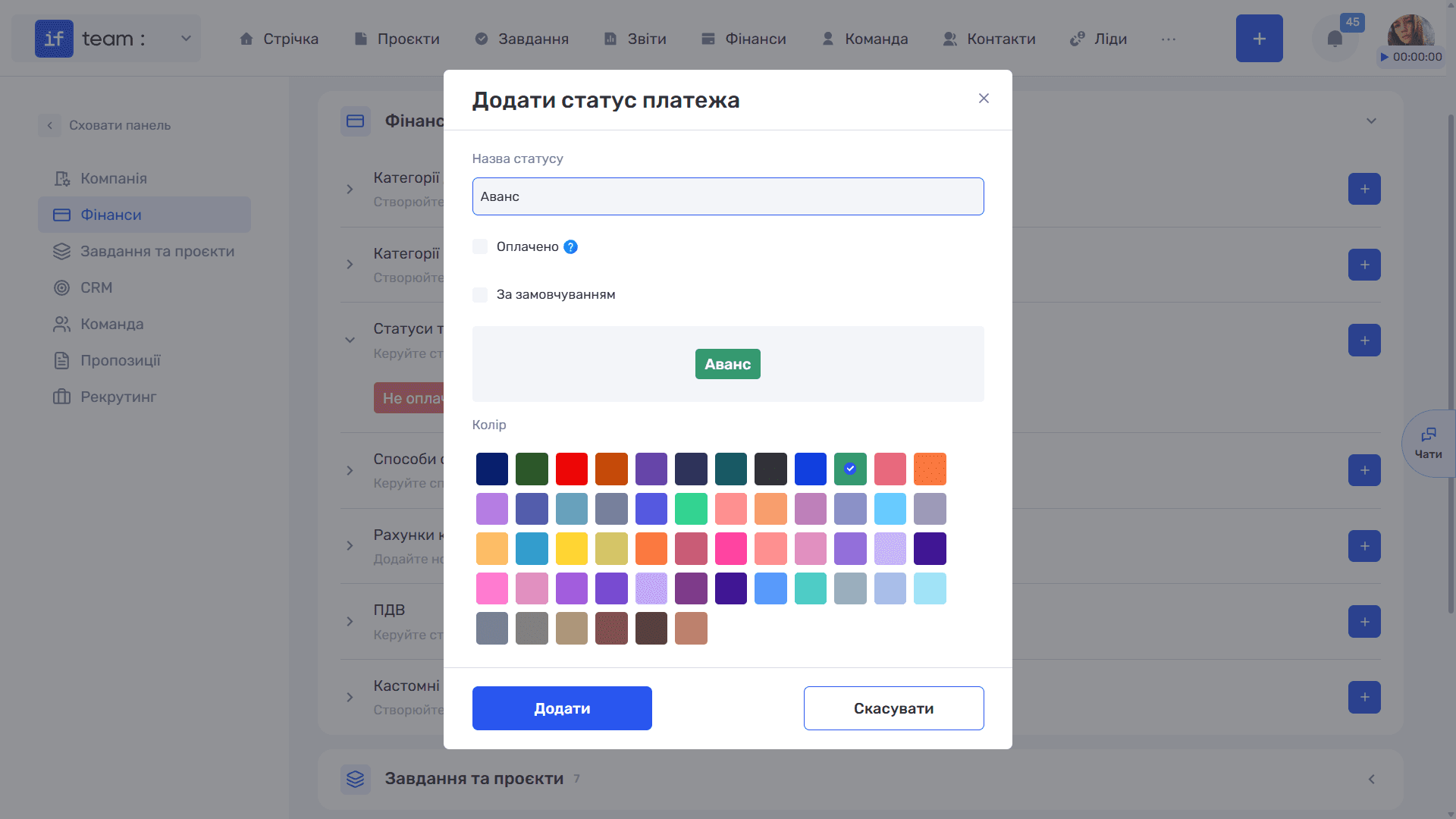
The creation window contains:
- Status Name;
- Paid checkbox, which is the key parameter: payments with statuses marked as paid are included in profitability calculations and when generating charts. If this checkbox is not selected, the transaction is considered planned and does not affect actual metrics;
- Default checkbox, which makes this status appear automatically in the new transaction creation window;
- Color, selected from the palette, with a tag preview shown next to it.
Payment Methods
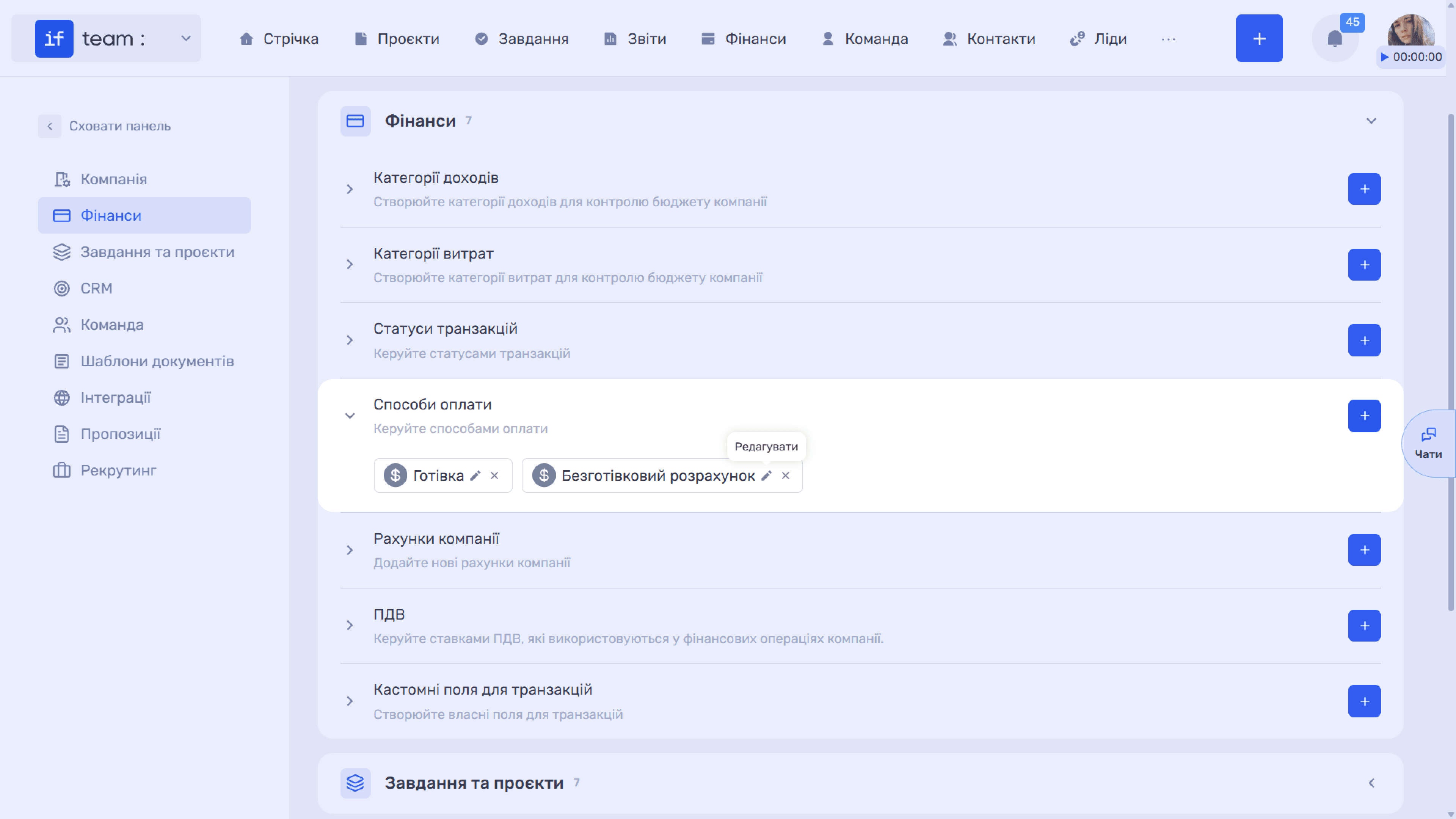
Payment methods describe how money is transferred, such as Cash or Bank Transfer.
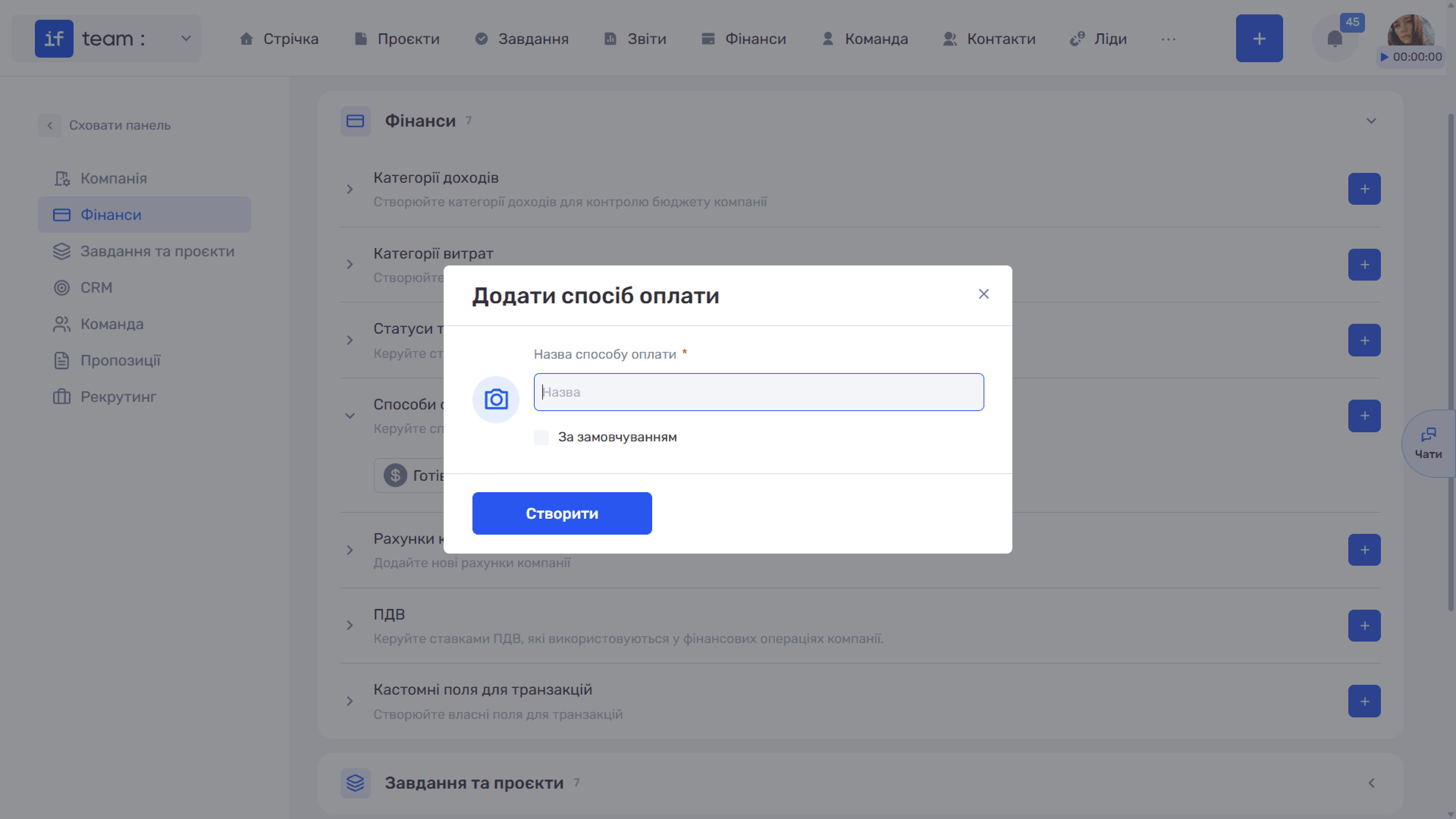
In the creation window, specify the required Name, an Icon uploaded using the camera button, and the Default checkbox.
Company Accounts
This section describes the accounts used for accounting.
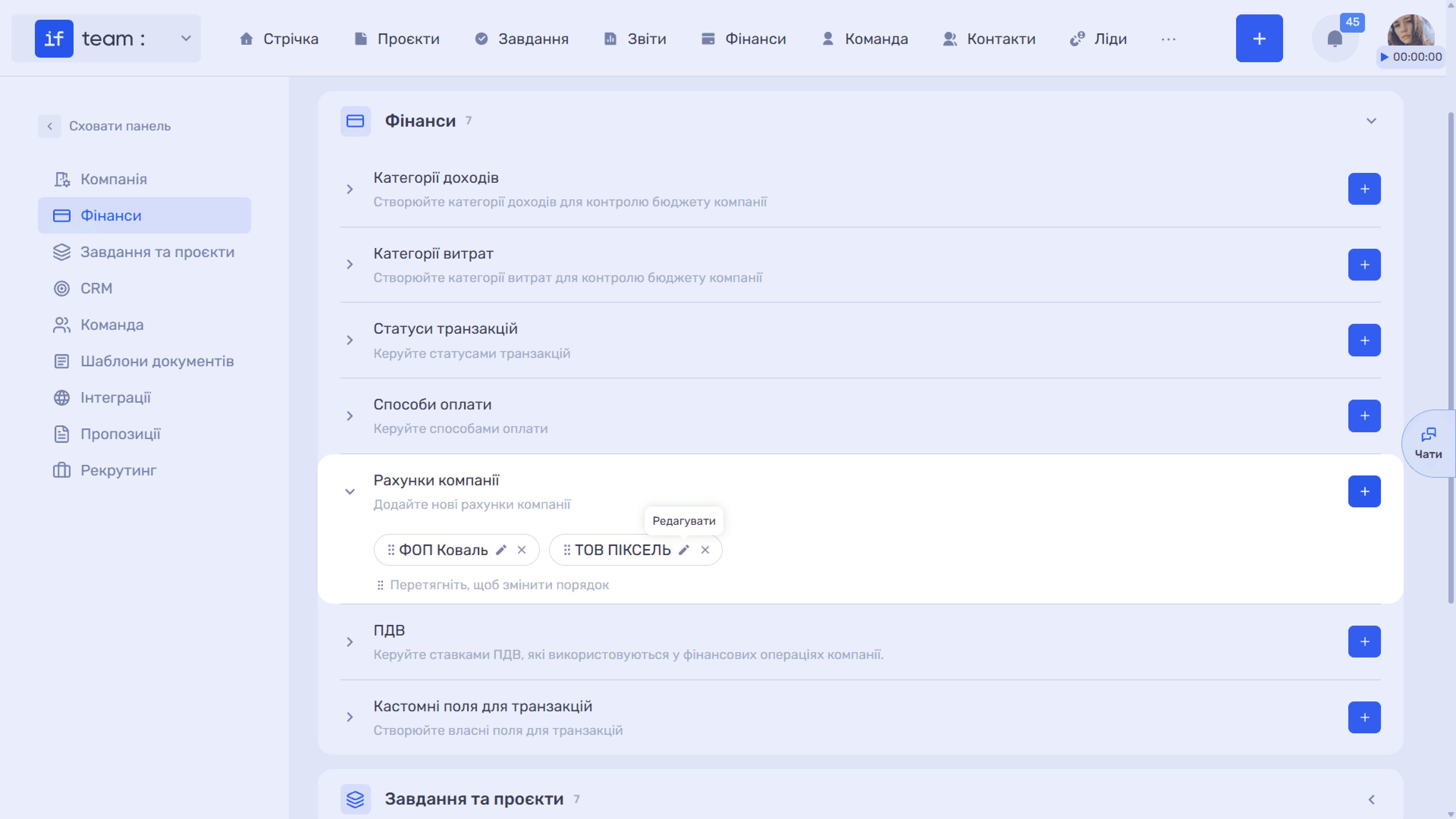
The creation window contains:
- required Account Name and Currency fields;
- Default means that the account is automatically inserted in the new transaction creation window;
- Off-balance Account means that transactions for this account do not affect the company balance, Cash Flow, or P&L. It is used for internal accounting, budgeting, or tracking transactions that should not appear in financial reports;
- Archived Account means that the account is no longer used but remains available for historical records. It continues to be included in reports but cannot be selected for new transactions;
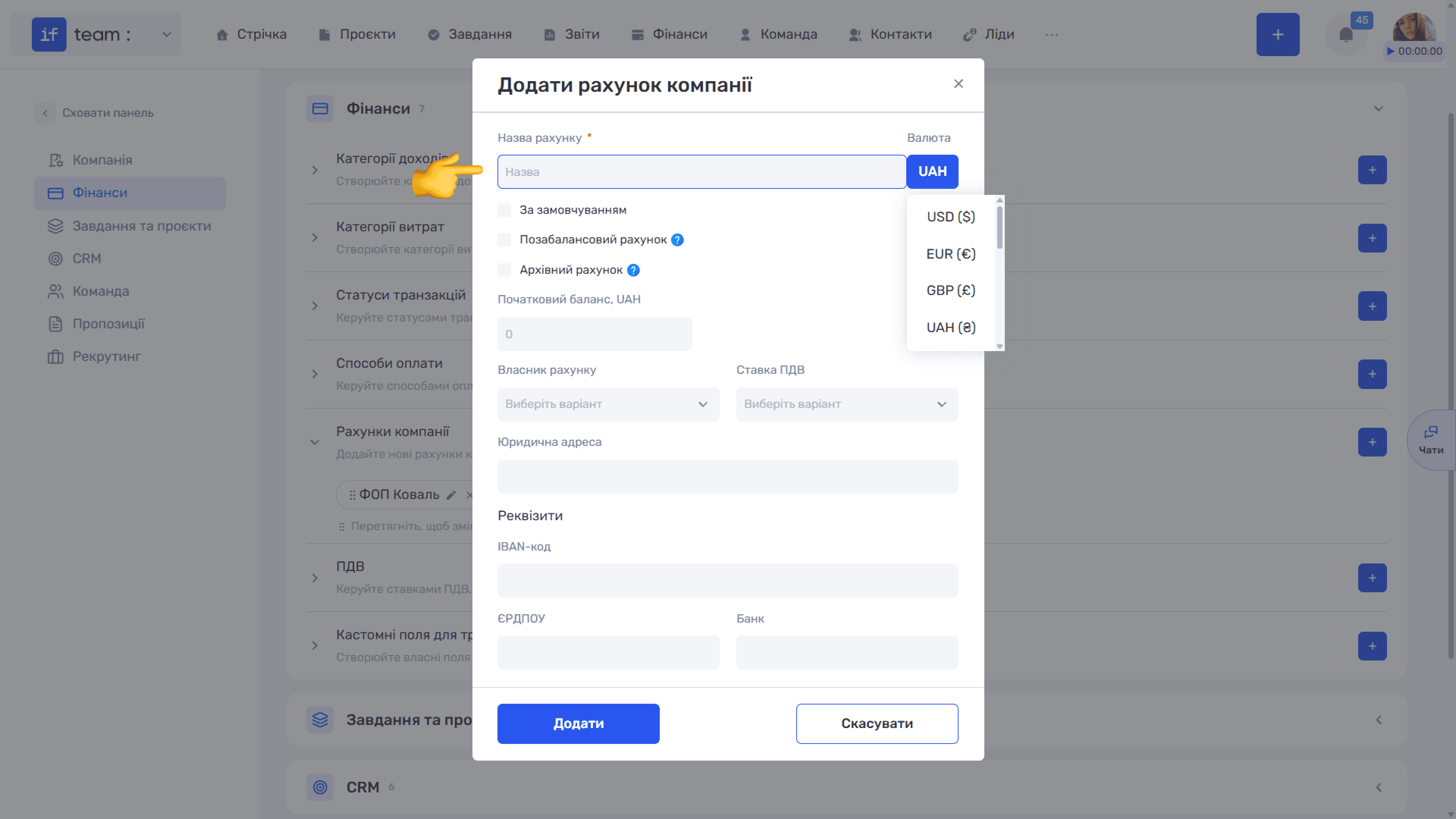
- Opening Balance is the amount from which accounting begins;
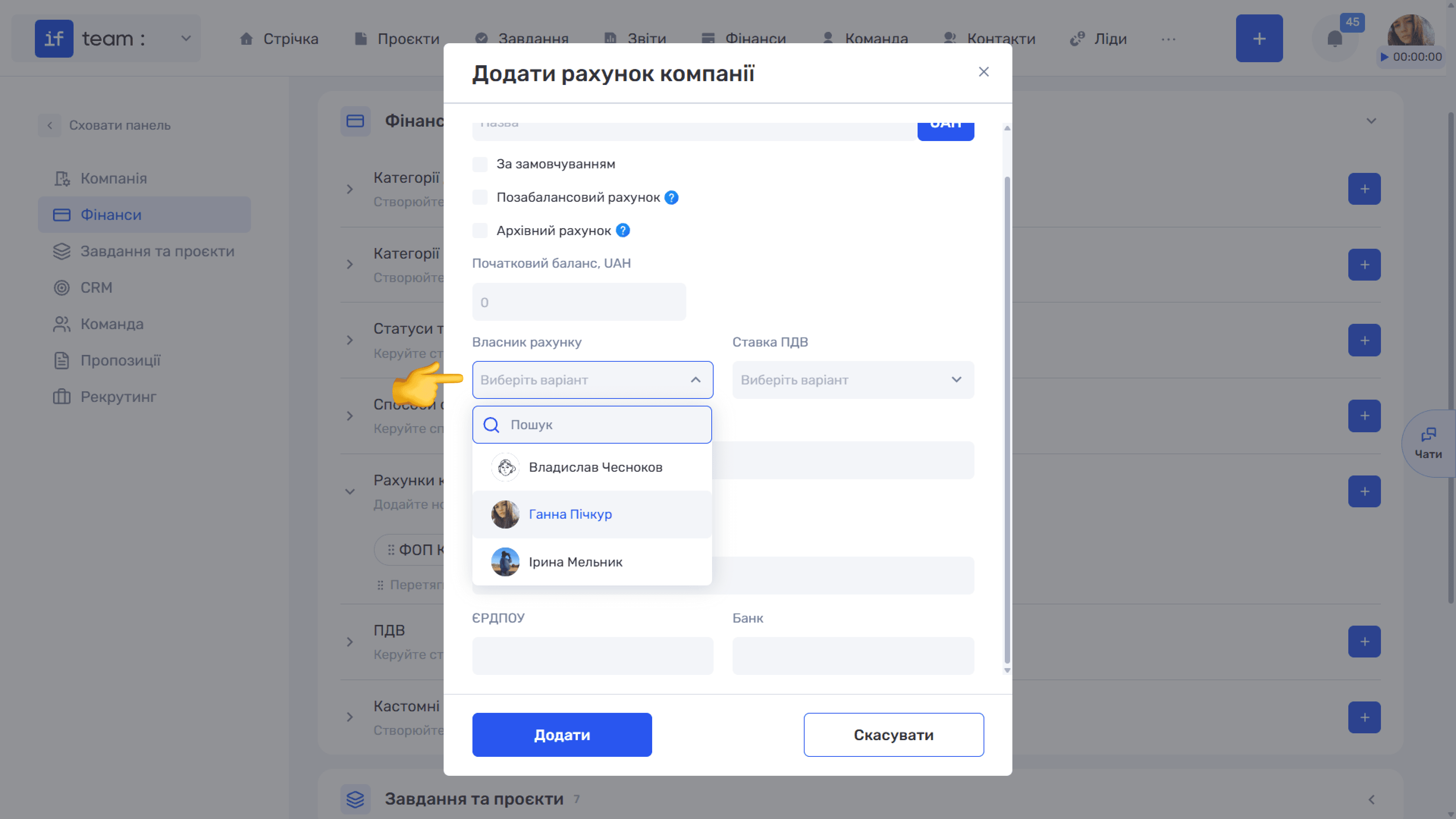
- Account Owner is an employee selected from a searchable list. The owner determines who can see the account balance and transactions;
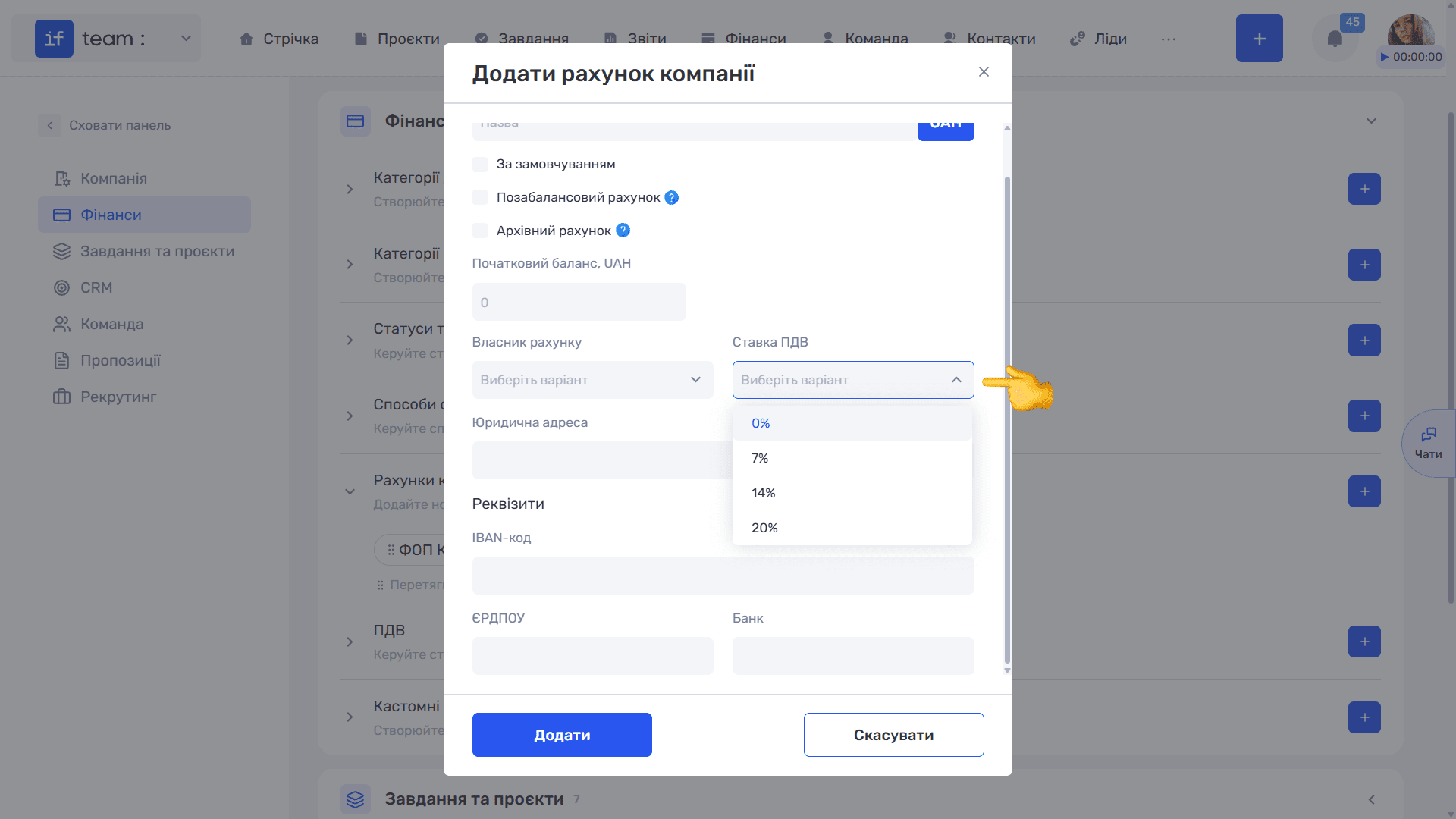
- VAT Rate is inserted for transactions using this account;
- Registered Address and the Bank Details section: IBAN, company registration number, bank, and other data used when generating invoices and acts.
VAT
The Enable VAT Accounting checkbox enables tax accounting for the entire company and is disabled by default. Once enabled, rates such as 0%, 7%, 14%, and 20% become available.
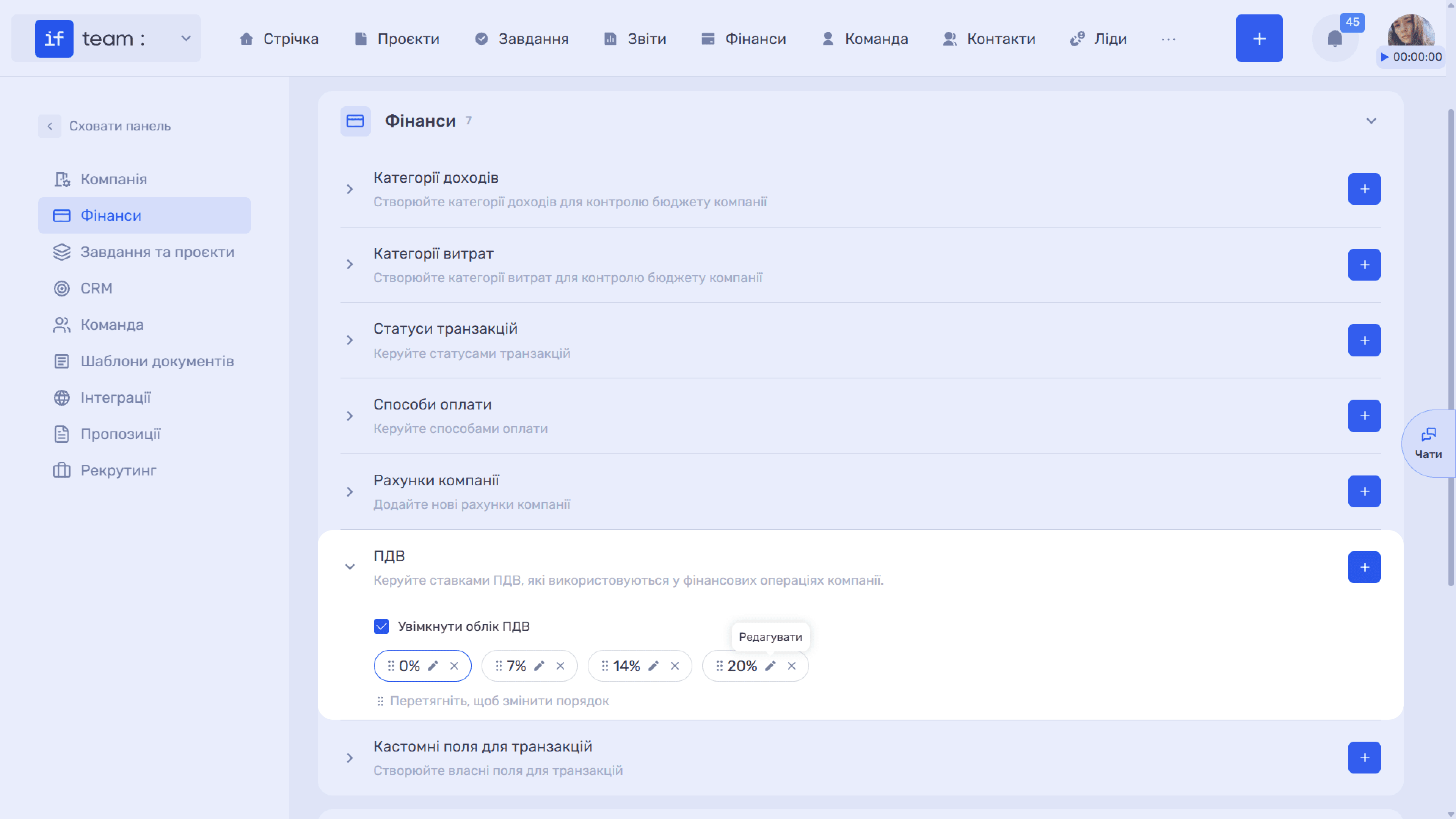
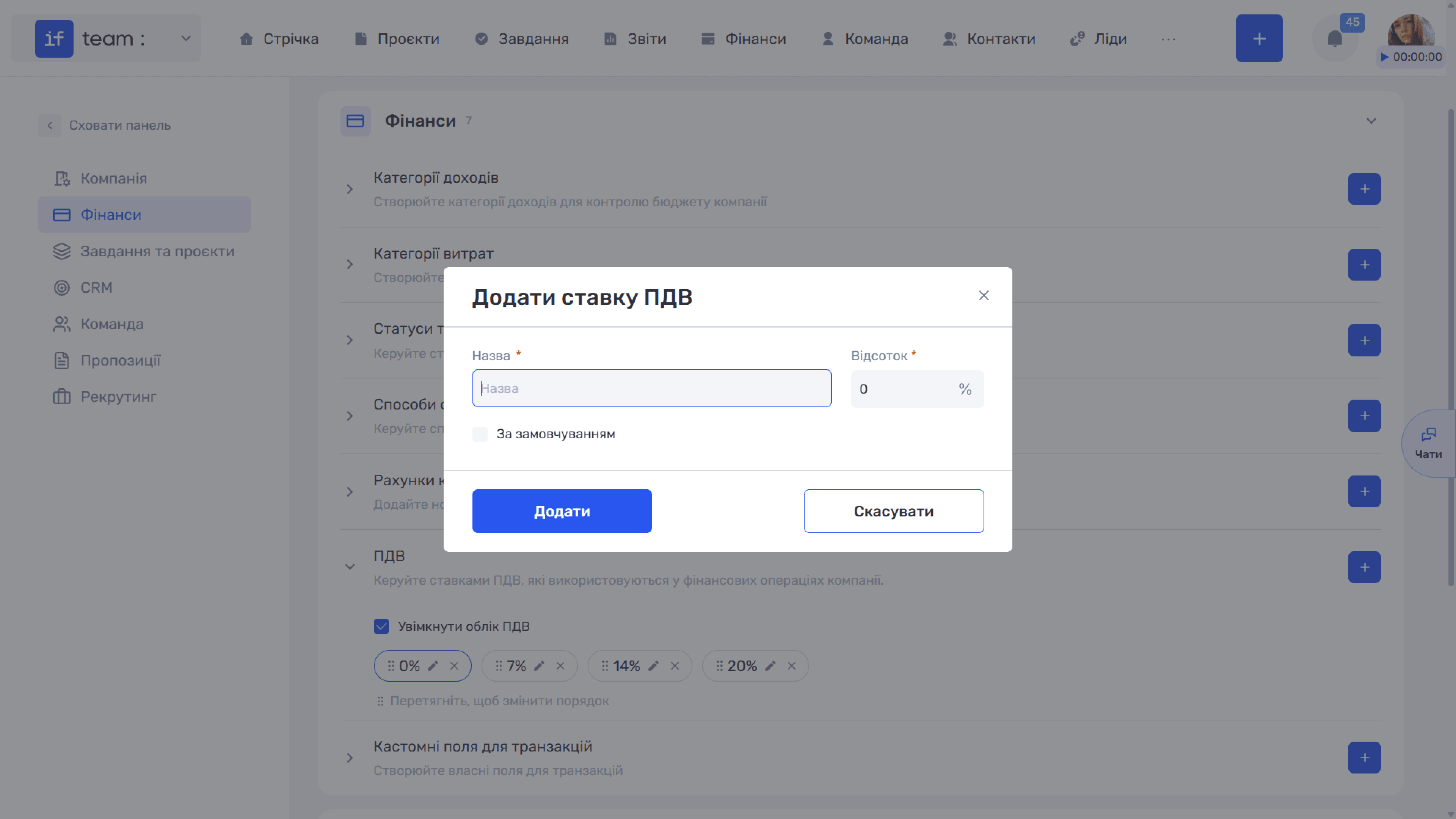
To add a rate, click + and enter its Name and Percentage. The Default checkbox makes it the primary rate. Drag rates to change their order.
ℹ️ When VAT accounting is enabled, P&L includes amounts excluding VAT, while Cash Flow includes the actual payment amounts including VAT.
Custom Fields for Transactions
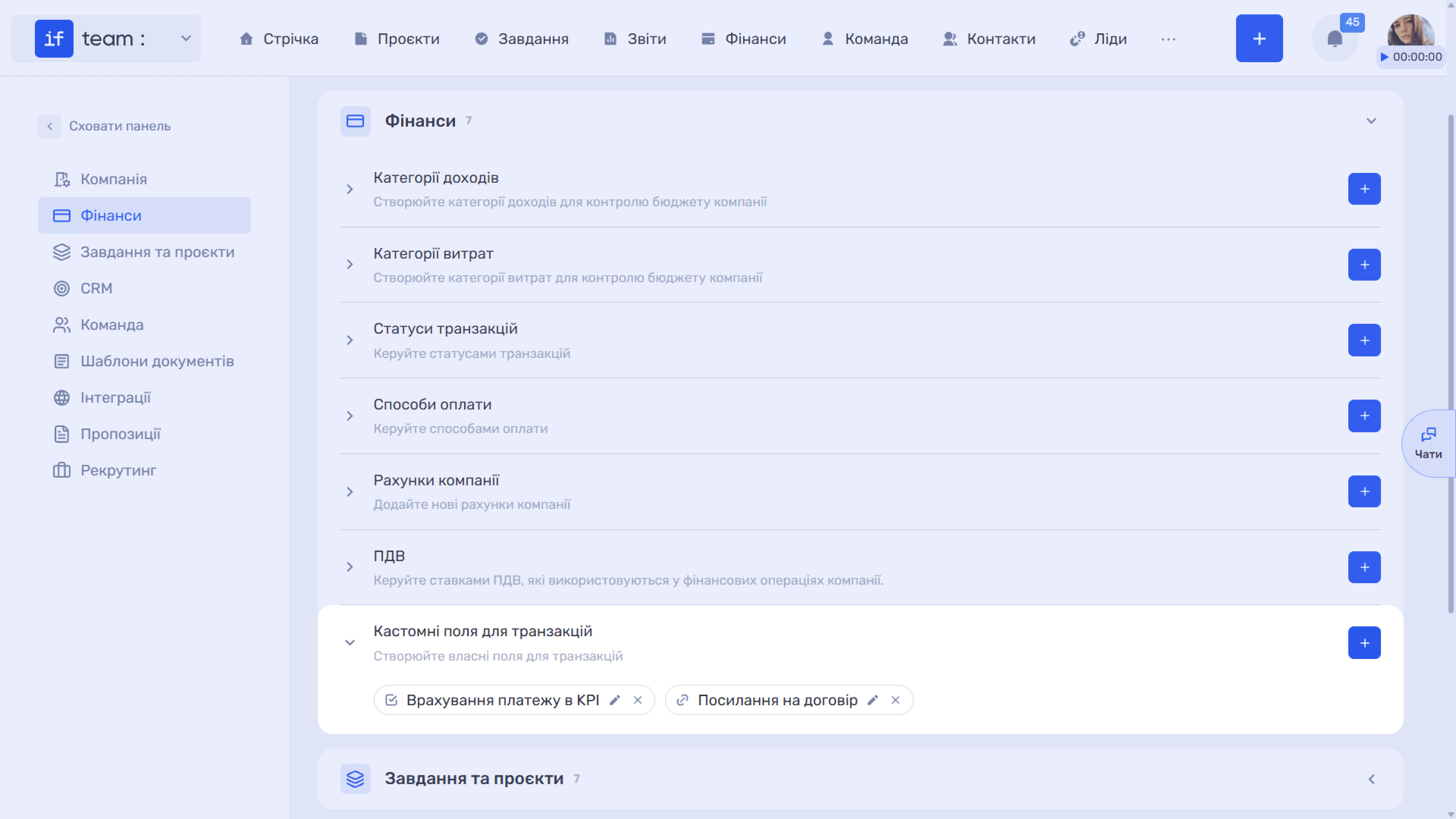
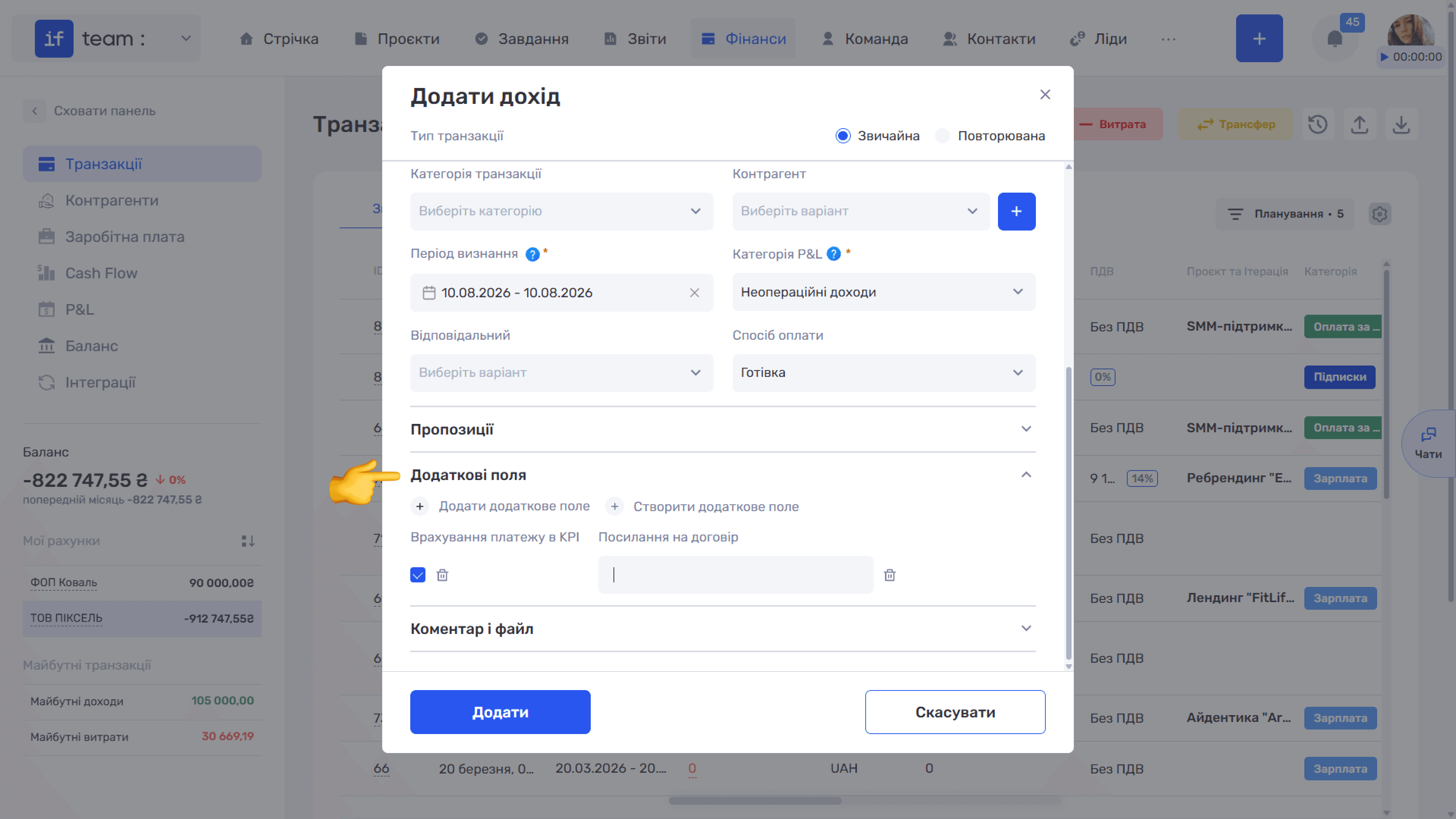
If the standard payment fields are insufficient, add custom fields such as Include Payment in KPI or Contract Link.
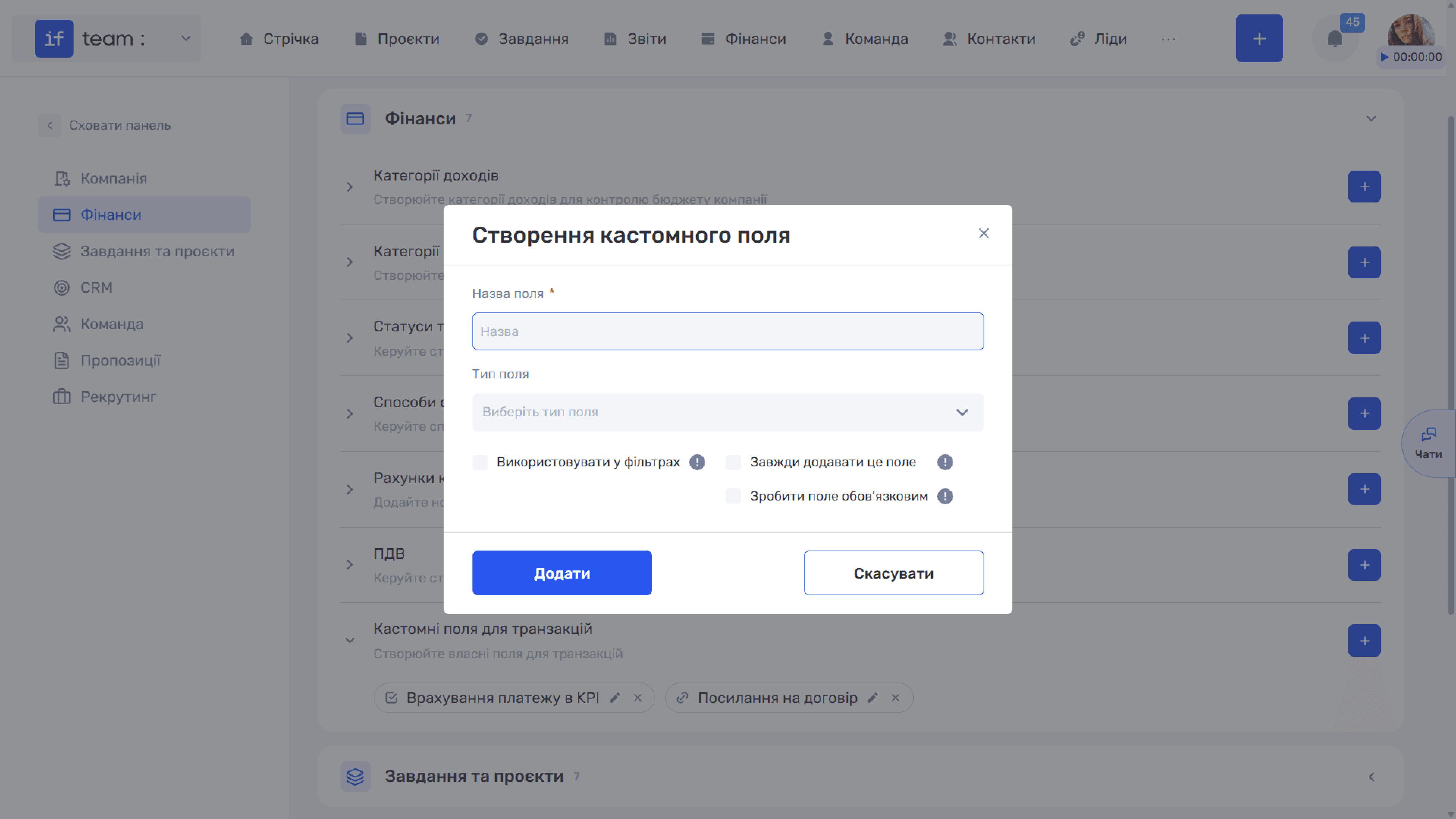
In the Create Custom Field window, specify the required Field Name and a Field Type: Text, Description, Checkbox, Number, Drop-down, Date, Date and Time, Link, Labels, Time, Members, or Contacts.
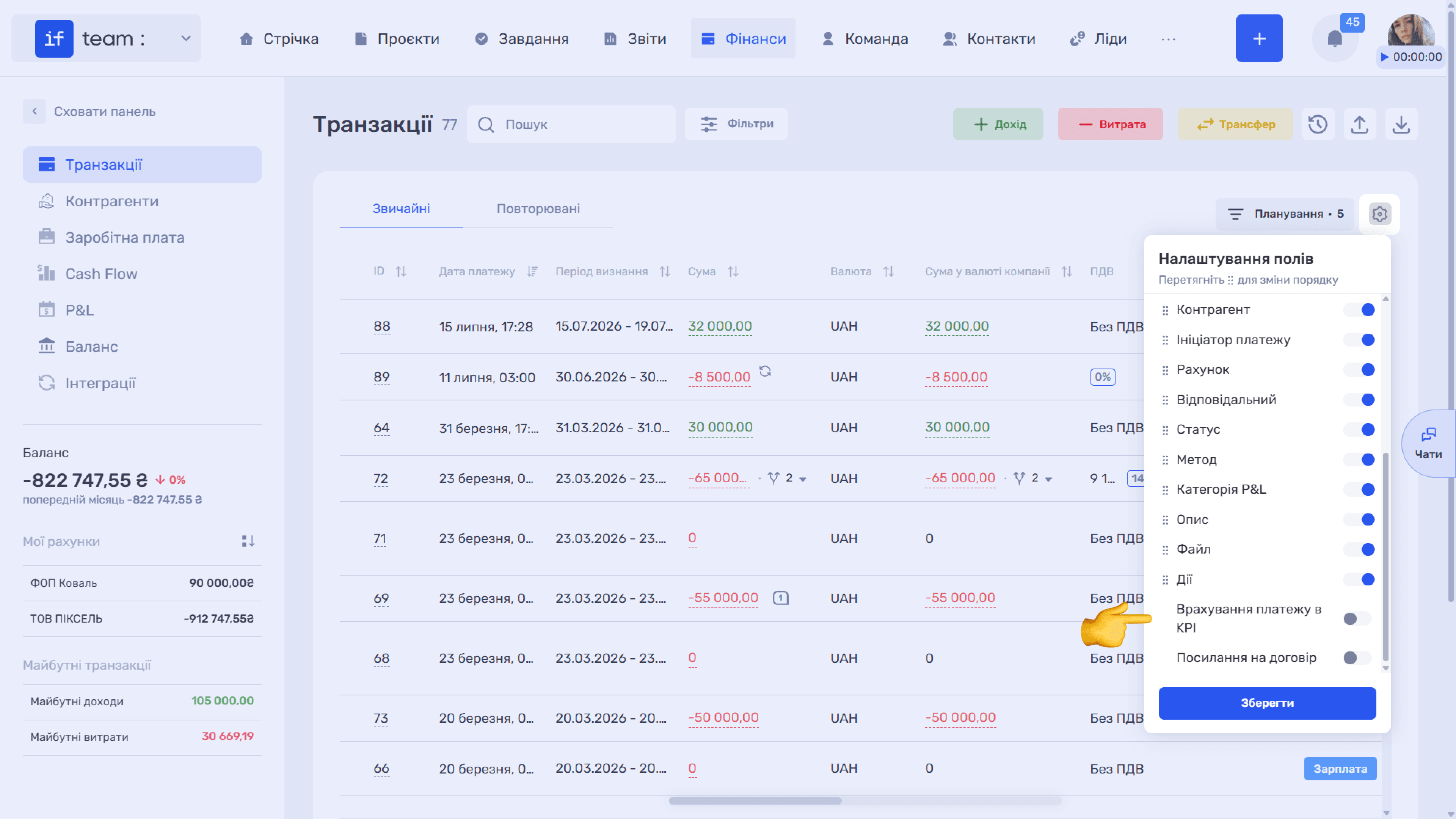
Custom fields appear in the transaction card and as columns in the transaction table, where you can configure their visibility and order.
Still have questions?
Maybe we haven't added this information yet. But you can always reach out:
Request a demo
Submit a request and we'll show you how the service works and its capabilities.
Book a demo