Module Overview
The Automations module lets you hand routine actions over to the system. For example, assign an owner to a new lead, add a sequential number to a project name, create a standard set of subtasks, or create a project folder in Google Drive. You describe a rule once using the pattern “when this happens and these conditions are met — do this”. After that, if.team applies it to every matching record without your involvement.
Automations are most useful where a process repeats dozens of times a month and is the same every time. An employee may forget to add a prefix, make a mistake in numbering, or not create a folder, while an automation processes every record without errors.
How an automation works
Every automation has three parts. The trigger defines what it reacts to and when. Conditions narrow down the records, and actions describe the result.
- Trigger (entity type + event) — What it defines: Which records start the automation and at what moment; Example: Lead · On create
- Conditions (optional) — What it defines: An extra filter: the automation runs only for records that match it; Example: Lead source — “website”
- Actions (required) — What it defines: What exactly the system does: a single action or a chain of steps; Example: Update lead: assign the responsible manager
Actions run sequentially, from top to bottom. So the result of one step can be used in the next one: first get a date, then format it, and then insert it into the project name. Read more in the “Variables” subsection of the Actions article.
Which records you can automate
An automation is always tied to one entity type. It defines the fields available in conditions and the list of actions.
- Task — What it is: A task in a project; Useful for: Creating standard subtasks, setting priority or participants
- Member — What it is: A company employee from the Team module; Useful for: Actions when an employee is added or their data changes
- Project — What it is: A project; Useful for: Numbering, assigning a co-manager, creating a Google Drive folder
- Iteration — What it is: A project iteration (stage); Useful for: Actions when a stage is created or changed
- Lead — What it is: A lead in the CRM; Useful for: Distributing leads between managers, setting status or services
- Transaction — What it is: A financial transaction; Useful for: Actions when a transaction appears or changes
- Contact — What it is: A contact in the CRM; Useful for: Filling in fields and assigning responsible managers
There are two events:
- “On create” — runs when a record appears in the system.
- “On update” — runs when an existing record changes.
Example scenarios
- Leads from the website should go straight to a specific manager — Lead · On create · condition “Lead source — website” · “Update” action with the selected owner
- Every new project should get a number — Project · On create · a chain of helper actions (date → format → counter) · “Update” action for the name (see helper actions)
- Every project needs a folder on a shared Google Drive — Project · On create · “Create folder” action through a connected connector
- Tasks of a certain type should get the same steps — Task · On create · several “Create subtask” actions in a row
How to open the module
The module is in the top menu under the “⋯” button, next to “Recruiting” and “Menu settings”. On a wide enough screen, some of these items may appear directly in the menu bar.
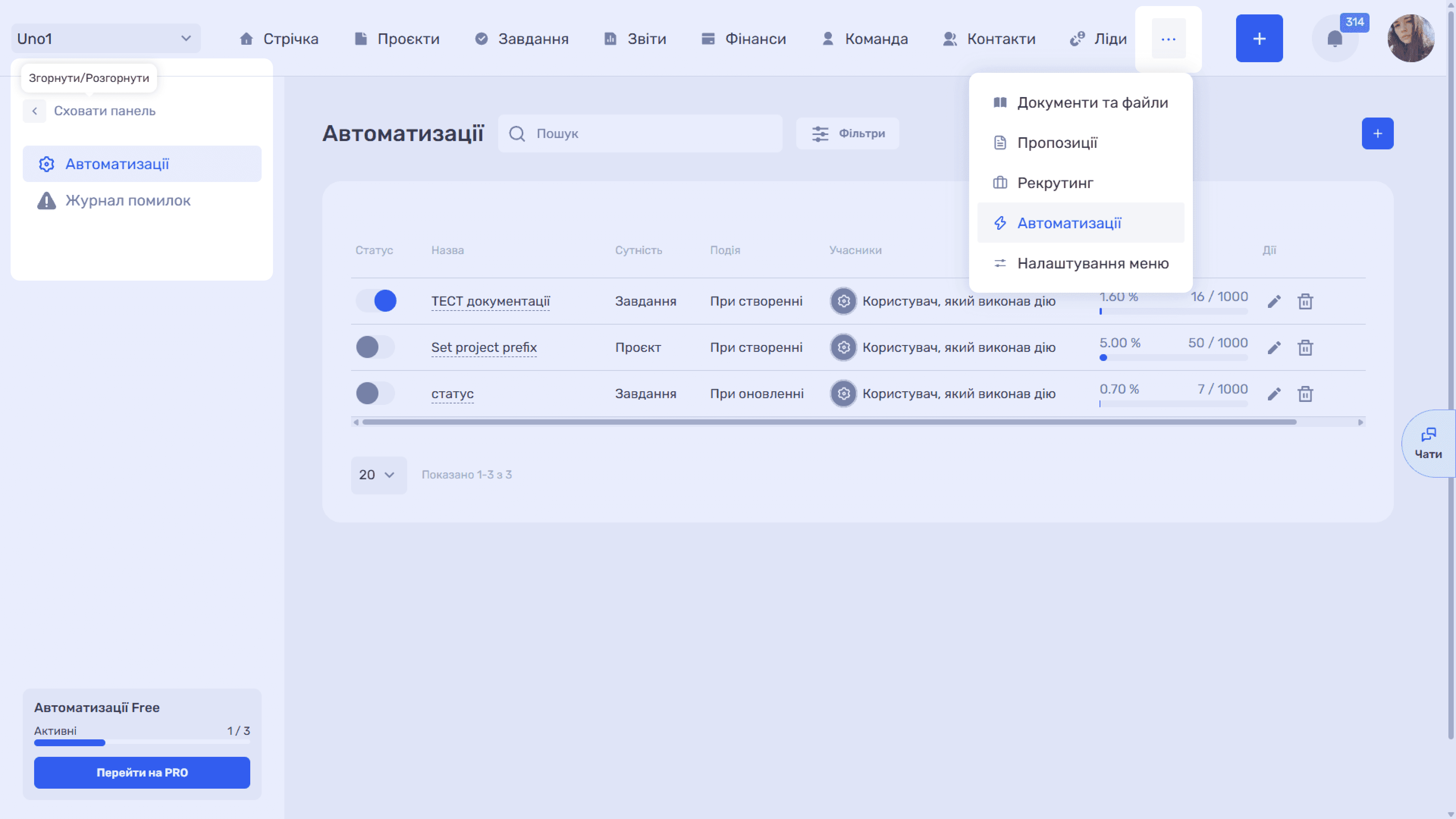
On the left there is a sidebar with two sections:
- “Automations” contains the list of all company rules.
- “Logs” shows runs that failed.
The “Hide panel” button collapses the sidebar and frees up space for the table.
Plan limits
The free version of the module allows up to 3 automation rules. When you try to save a fourth rule, the system shows the message “You have already created 3 automations — this is the maximum for the free plan”. The paid version, “Automations Pro”, costs $19 per month and allows up to 20 rules.
- Free — Rules: 3; Runs per rule per month: 1000; Total runs per month: 3000
- Pro ($19/month) — Rules: 20; Runs per rule per month: 1000; Total runs per month: 20,000
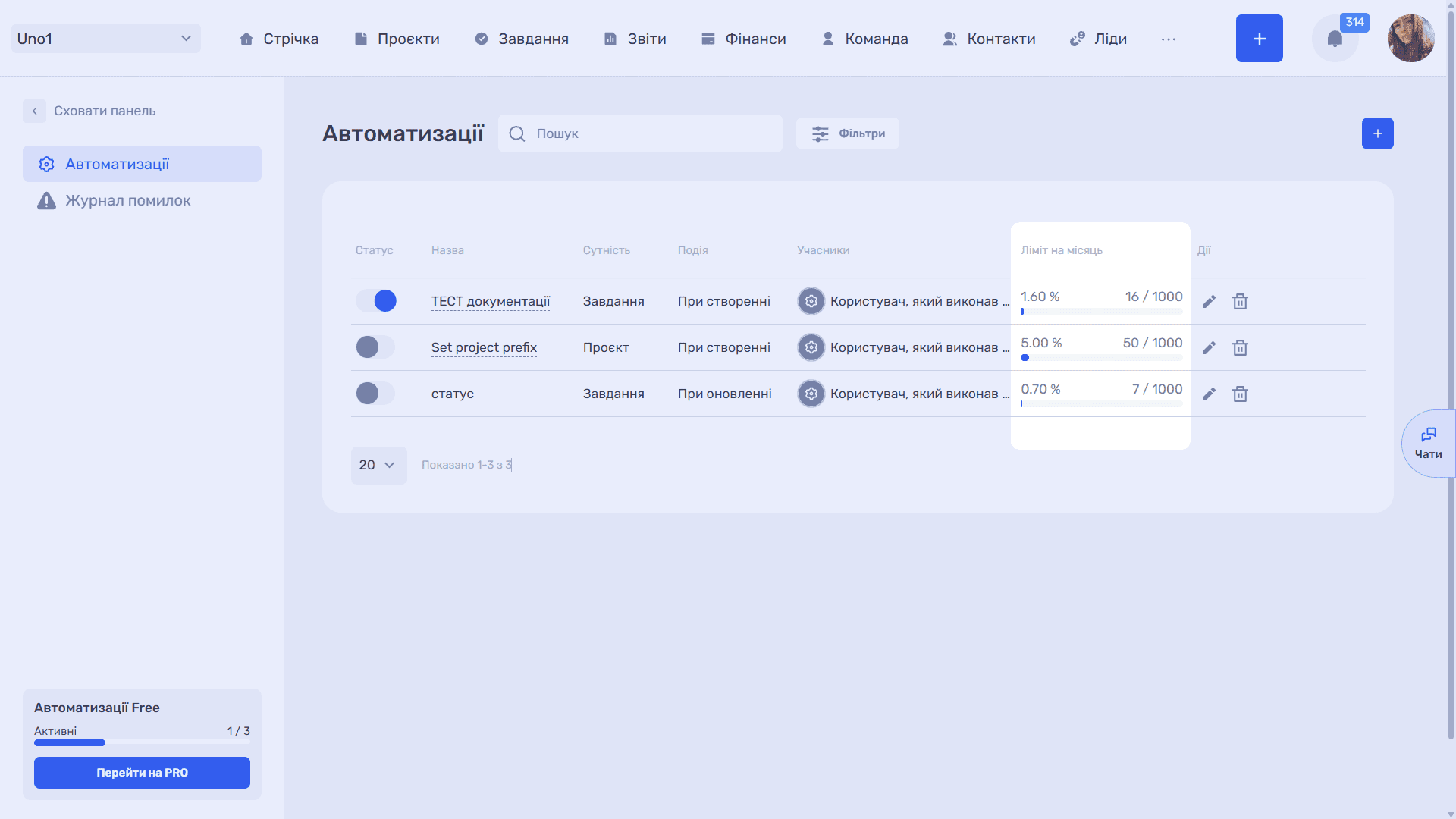
Each rule also has a monthly run limit: 1000 runs on both plans. In the “Monthly limit” column of the list it is shown as “50 / 1000”: the usage percentage, the absolute values, and a progress bar. The limit is counted for each rule separately: unused runs of one rule do not carry over to another.
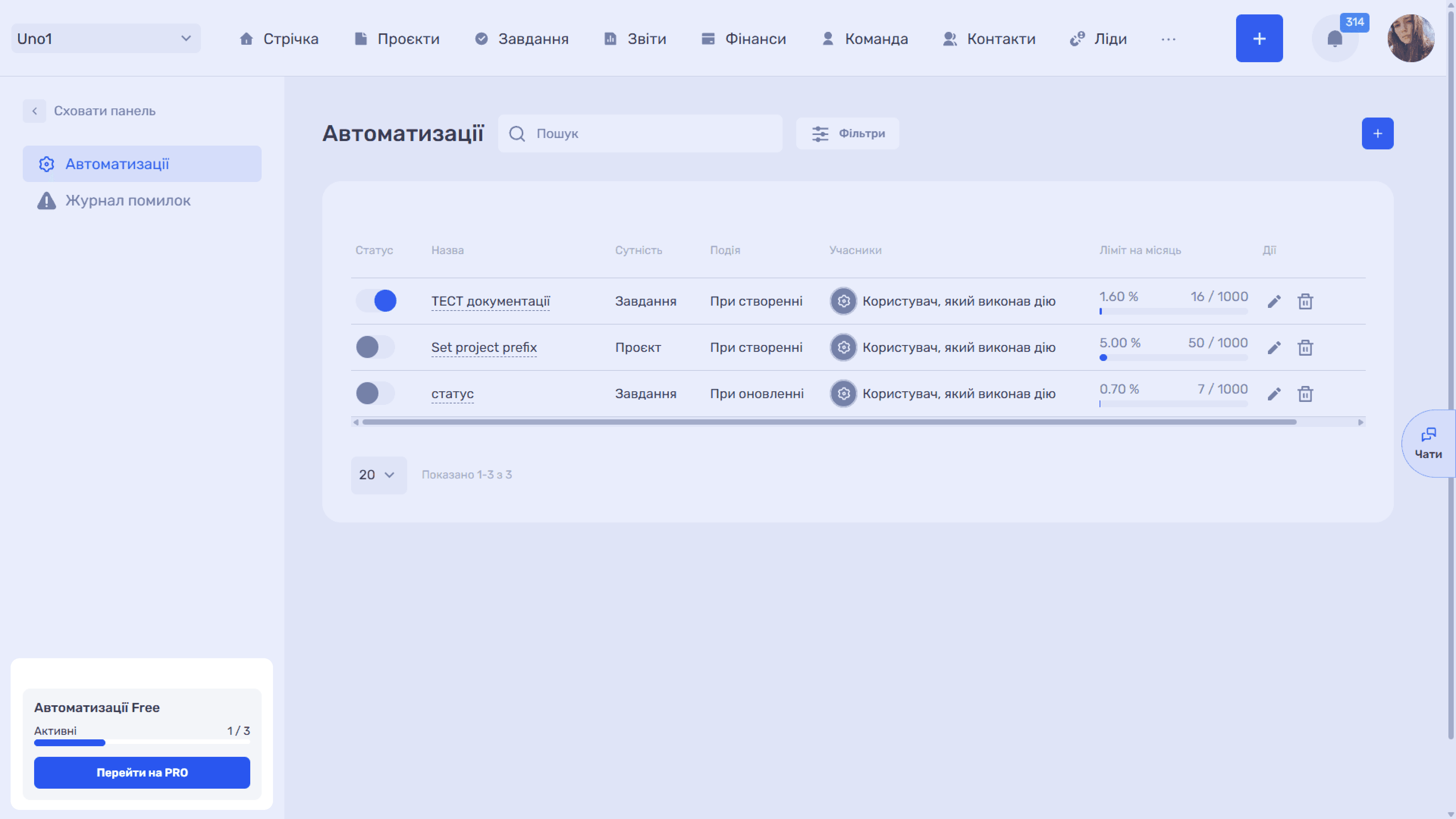
The current status is shown at the bottom of the sidebar. The “Automations Free” card shows the plan name, and the “Active 1 / 3” counter shows how many rules are created and how many the plan allows. The “Upgrade to PRO” button opens the pricing page to subscribe to the paid version.
Please note
The Free plan limit counts created rules, not just enabled ones. A disabled rule still takes a slot. To free up a slot, delete the rule.
Please note
The run counter resets on the first day of each month. When a rule reaches its limit of 1000 runs, it stops running until the end of the month, and the system shows a limit error. Keep an eye on the “Monthly limit” column: if the progress bar approaches 100% long before the end of the month, narrow the rule's conditions or split the work between several rules.
Still have questions?
Maybe we haven't added this information yet. But you can always reach out:
Request a demo
Submit a request and we'll show you how the service works and its capabilities.
Book a demo