Integrations
Currently, integration with Telegram and Google Calendar services is available. In this section, you’ll find step-by-step instructions for connecting, explanations of usage details, and notification settings. The page listing all possible programs for connection can be found on the main screen
In this section, you’ll find step-by-step instructions for connecting, explanations of usage details, and notification settings.
The page listing all possible programs for connection can be found on the main screen at Profile → Integration.
Integration Telegram
Connecting Telegram and if.team services is very simple. You just need to have an activated account on Telegram and be an employee of one of the companies in the if.team service:
1. Navigate to the Profile page, activate the Integration tab.
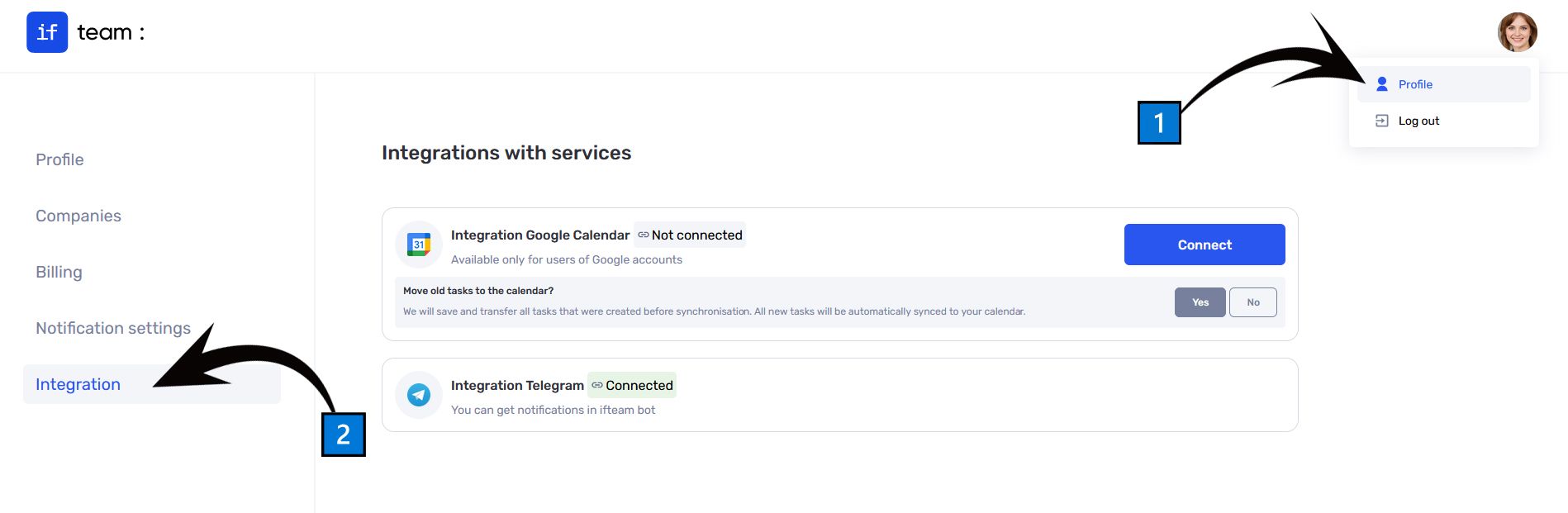
2. Press the Connect button next to the Integration Telegram heading.
3. Go to Telegram. You will receive a notification from the if.team bot on the mobile number provided in your profile.
4. Start the bot with the command /start.
5. Provide the phone number for integration.
6. After this, you will receive a notification in Telegram confirming that the integration with the if.team service has been successful. Now, notifications about changes in tasks, projects, or leads will be sent to the specified number according to the settings on the Notification Settings tab.
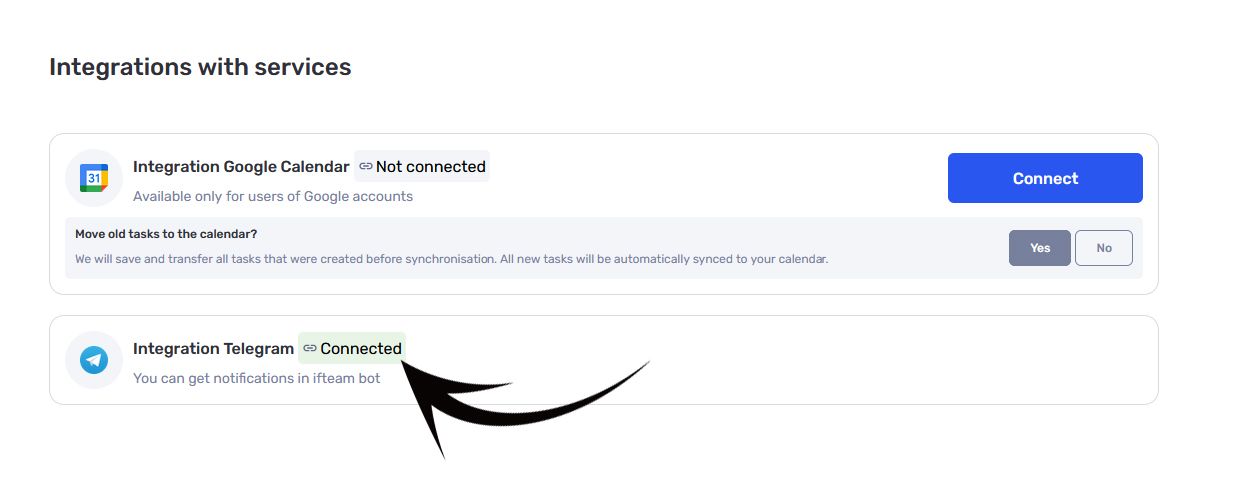
7. To verify successful integration, go to the Profile → Integration tab. Next to the Integration Telegram heading, there should be a label Connected (see image below).
Integration Google Calendar
- Navigate to the Profile page 1️⃣.
- Activate the Integration tab 2️⃣.
3. Press the Connect button next to the Integration Google Calendar heading.
4. On the Sign in with Google page, select the account for integration.
5. The next step will inform you that Google Calendar will grant if.team access to your name, email address, language settings, and profile photo. Review the privacy policy and terms of use for the if.team service. Press the Continue or Cancel button.
6. If you are ready to grant permissions for Viewing, modifying, and permanently deleting all calendars you can access in Google Calendar, press the Continue button on the next page.
7. A successful integration will result in the label Connected on the Integration tab on the profile page 3️⃣.
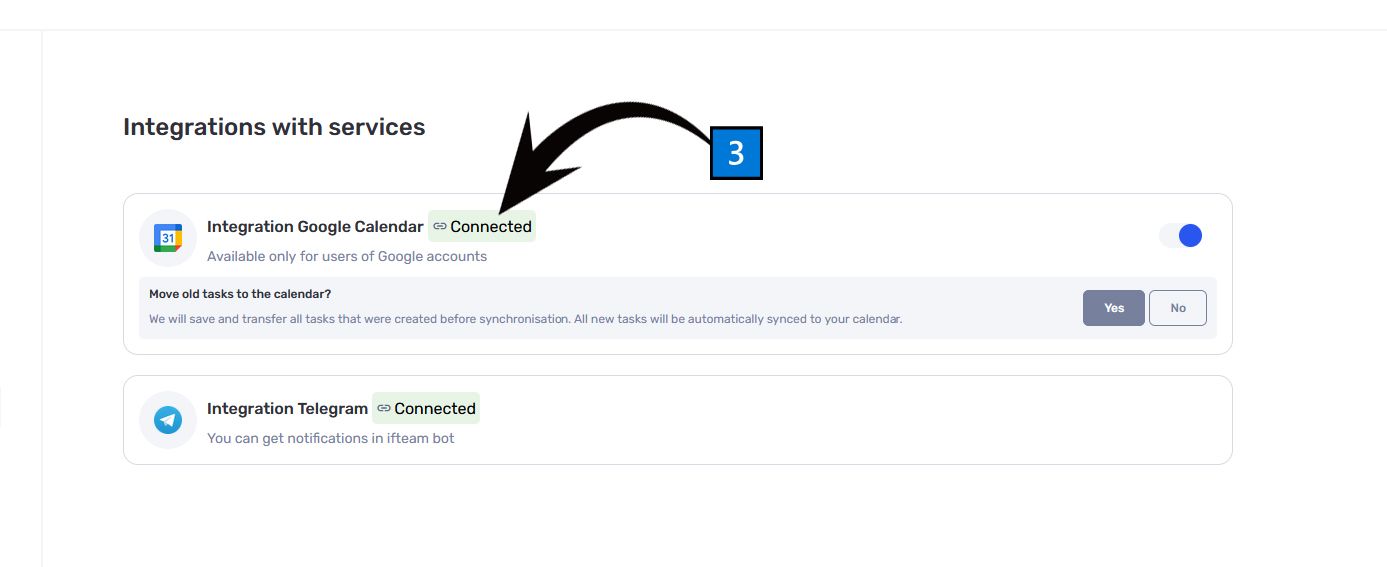
Now tasks from the if.team service will automatically be added to Google Calendar and notify the employee about deadlines and changes.
Still have questions?
Maybe we haven't added this information yet. But you can always reach out:
Request a demo
Submit a request and we'll show you how the service works and its capabilities.
Book a demo