Tasks and Projects Settings
This section defines the rules projects and tasks follow: how they are grouped, how profit is calculated, which statuses they move through, and what the project page looks like.
Tasks & Projects
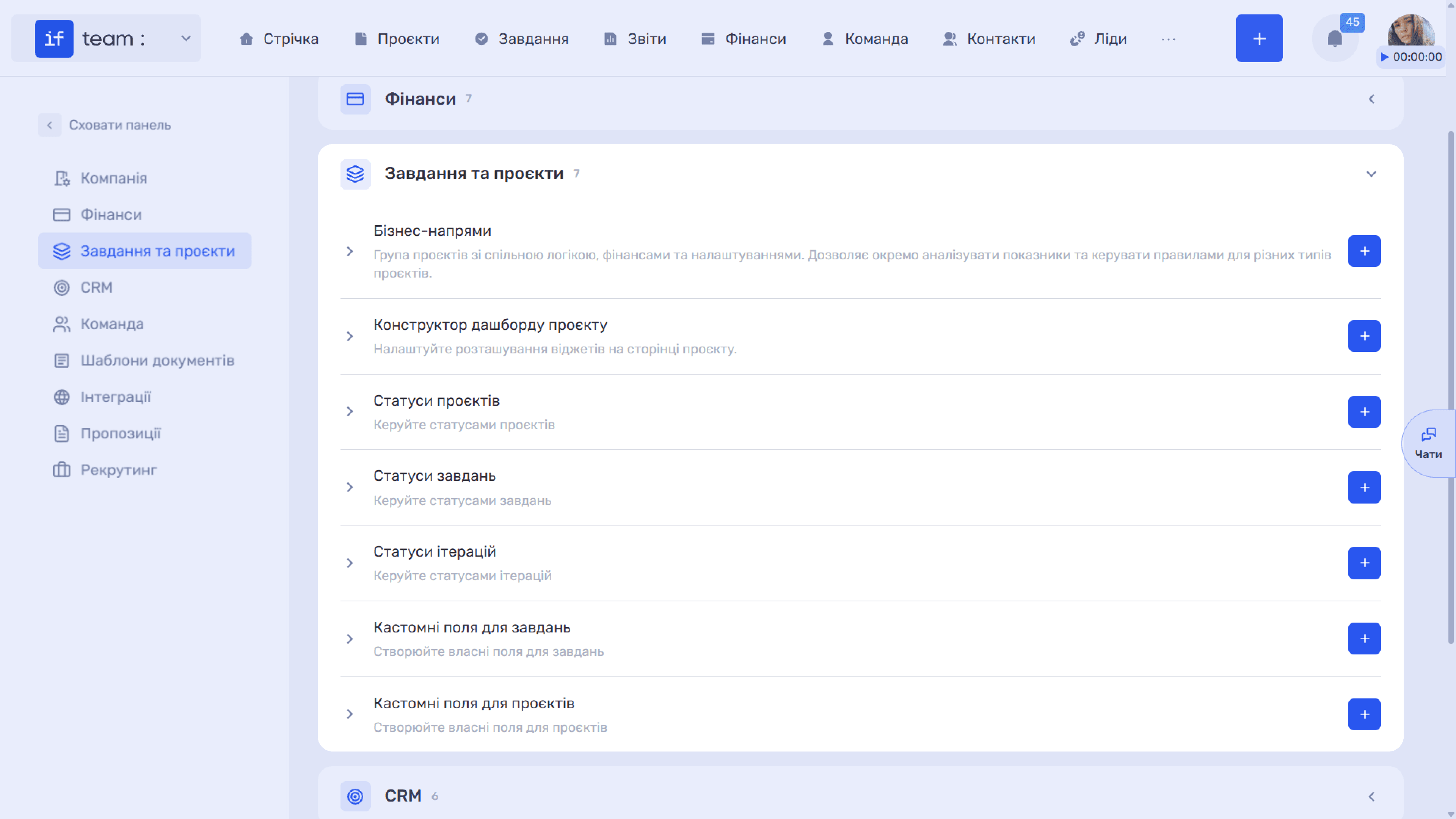
Business Lines
A business line is a group of projects or services within a company that share common workflows, finances, and settings. For example, an agency can divide its work into Web Development, Design, and Branding and view income, expenses, and profit separately for each line instead of combining everything.
In addition to analytics, a business line defines default rules for new projects, so the project manager does not need to manually set the project type or calculation method each time.
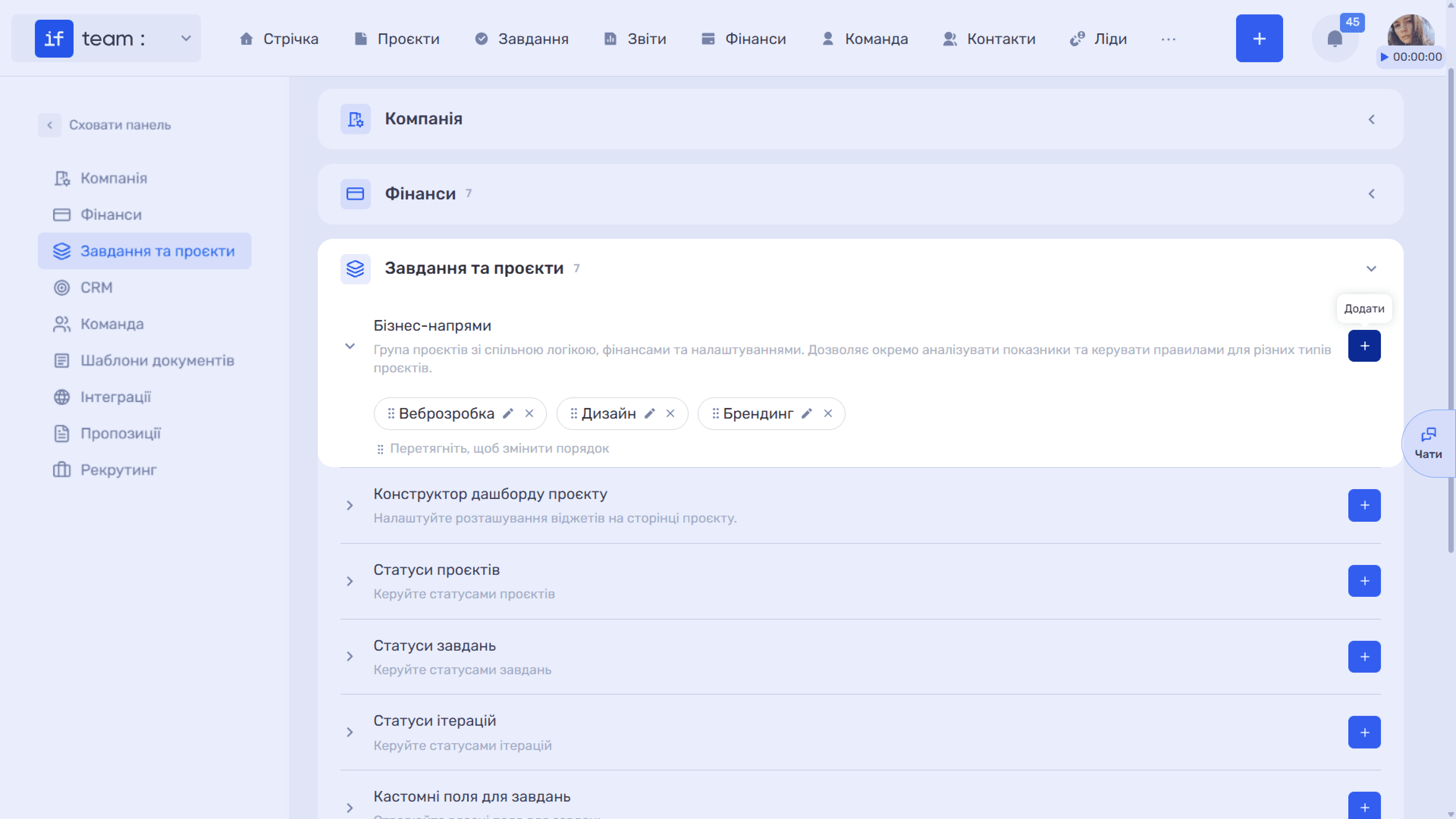
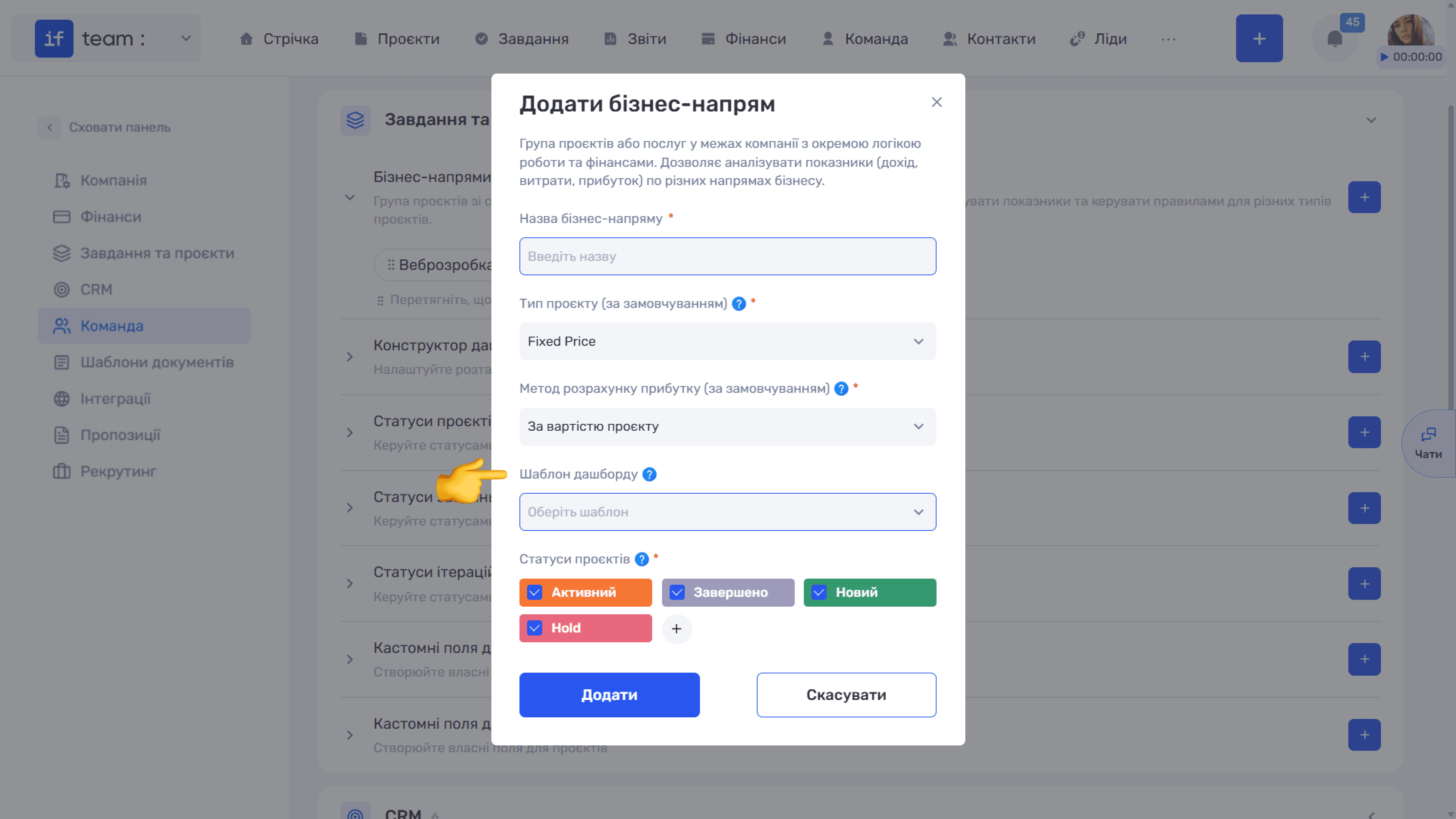
Complete the following fields in the Add Business Line window:
- Business Line Name is required.
- Default Project Type determines how you work with the client and what you invoice them for:
- Fixed Price is a fixed price for the entire project or stage;
- Time & Material is payment for the actual time spent.
- Default Profit Calculation Method determines what the system uses to calculate profit:
- By Project Cost uses the planned budget;
- By Money Received uses payments actually received.
- Dashboard Template is the project page layout applied to all projects in this business line. See the next section, Project Dashboard Builder.
- Project Statuses is required. Select the statuses available to projects in this business line. The + button next to the field creates a new status without leaving the window.
ℹ️ Choose the Profit Calculation Method based on the project type: calculation by project cost is more logical for Fixed Price, while calculation by money received is more suitable for Time & Material. This affects the figures the team sees in the Charts widget on the project dashboard.
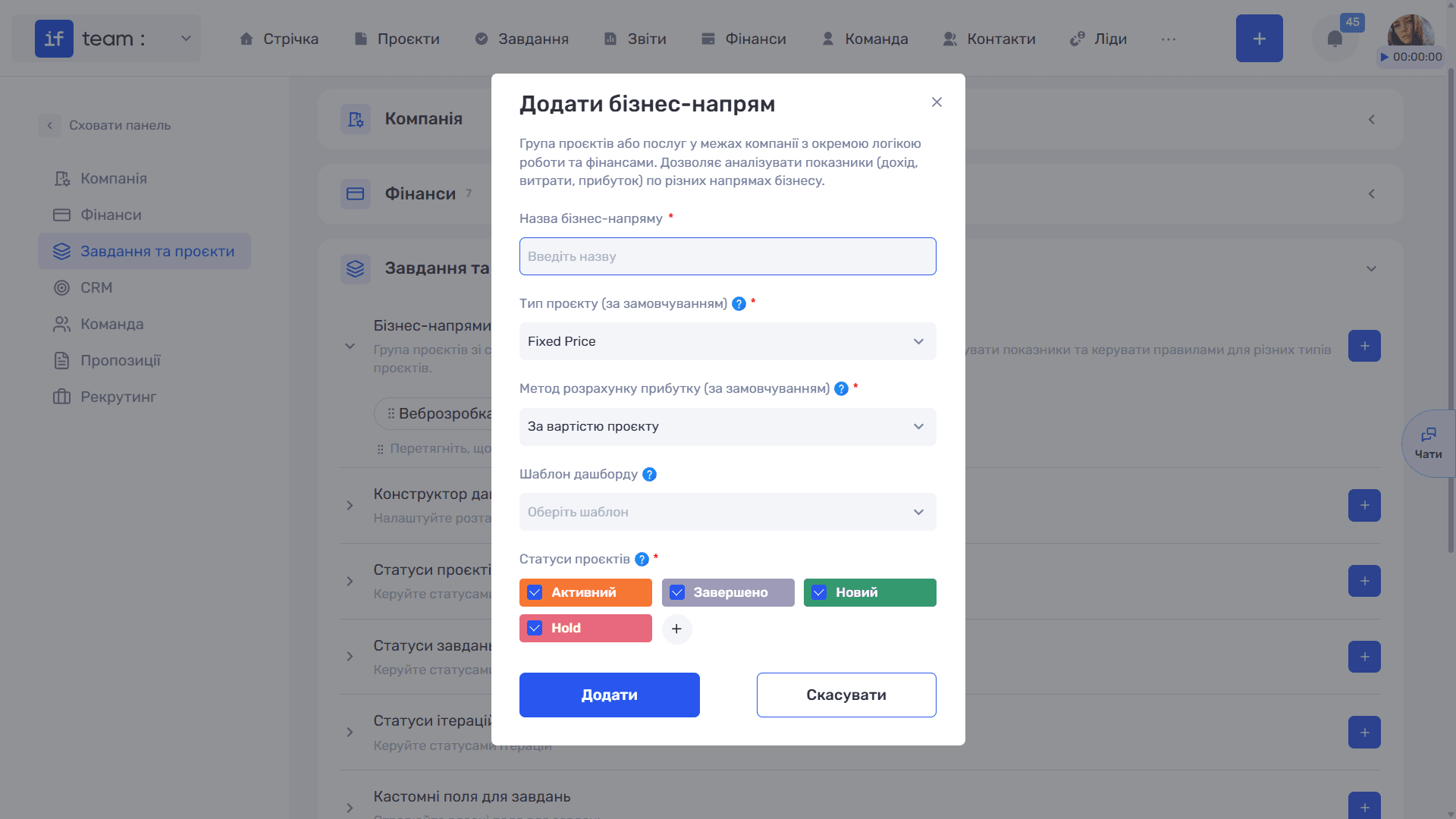
Project Dashboard Builder
The project dashboard is the page the team sees when they open a project. The builder lets you adapt it to your processes: remove unnecessary content, move important content to the top, and set block sizes. Finished layouts are saved as templates and applied to business lines.
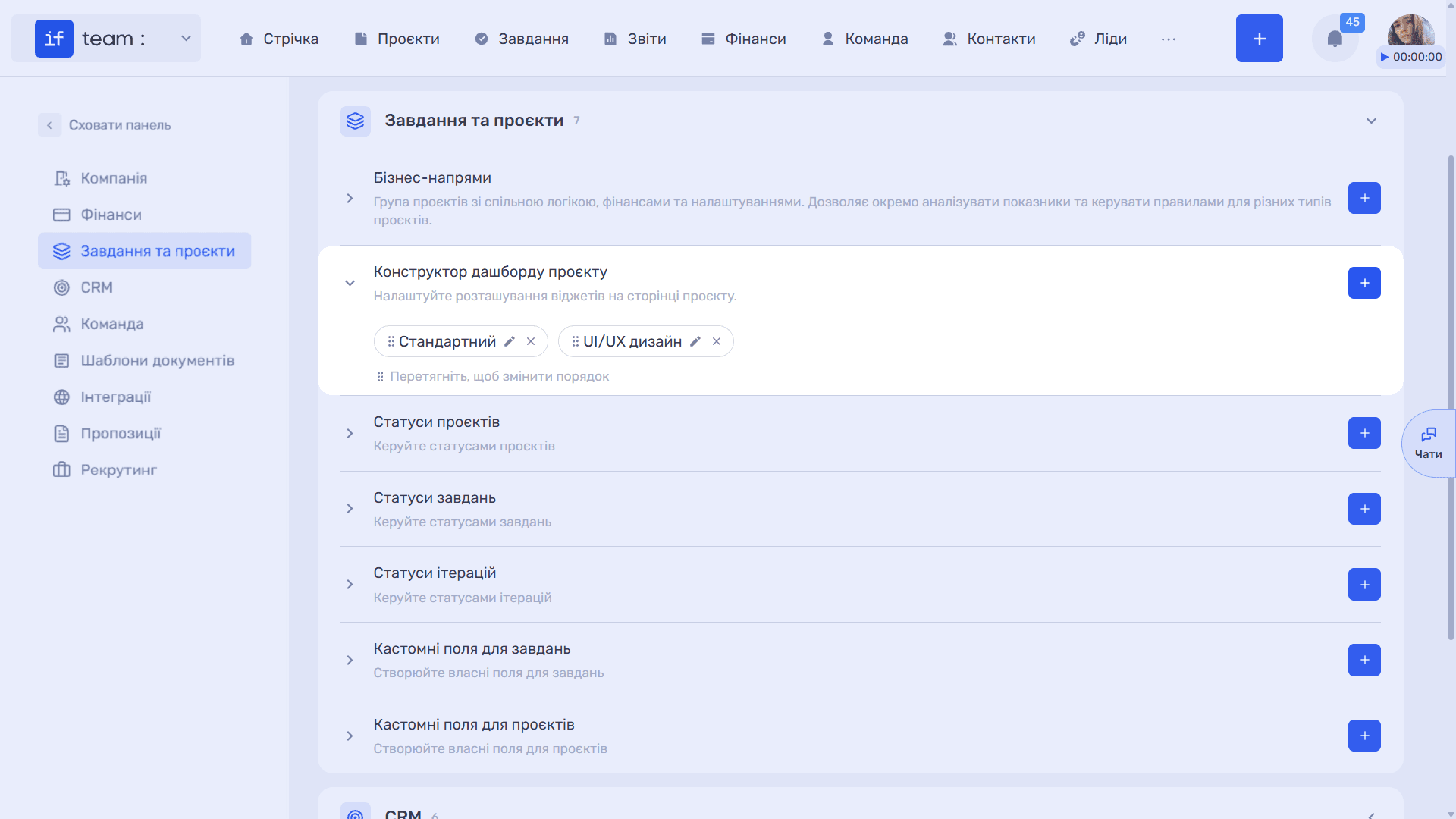
To create a template, click + in the section. In the Add Template window, enter the required Template Name and, if needed, select Default Template. It will be applied to projects that do not have a separate template assigned.
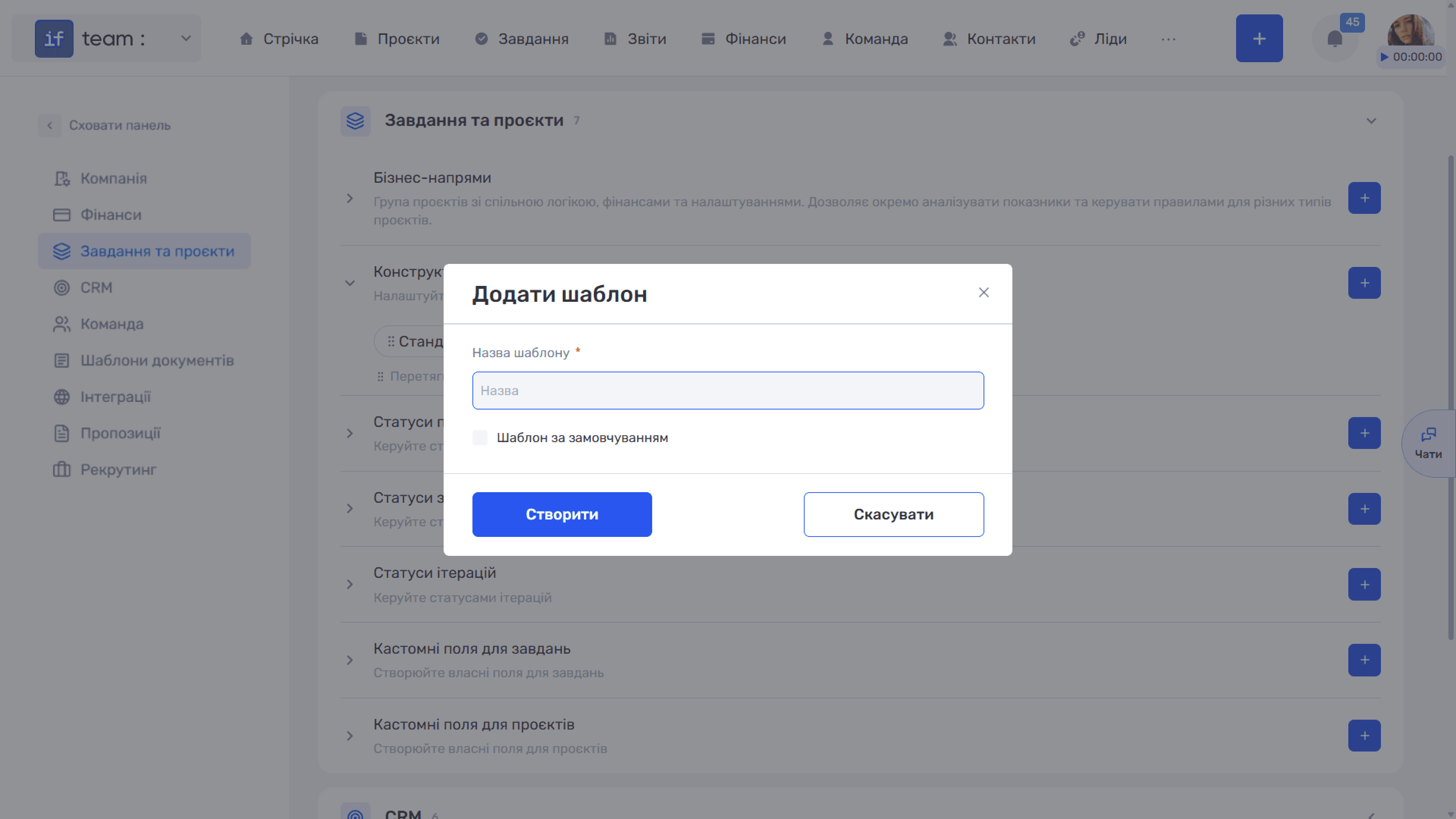
To edit the layout, click the pencil icon on the template tag to open the builder. It works as follows:
- The grid has 12 columns, and the minimum widget width is 4 columns.
- Drag the lower-right corner to resize a widget. Its current size appears in the widget header, for example 6×4, while the description shows the recommended minimum. A smaller size is technically possible, but the content may be inconvenient to view.
- Drag widgets by the ⠿ icon to change their order.
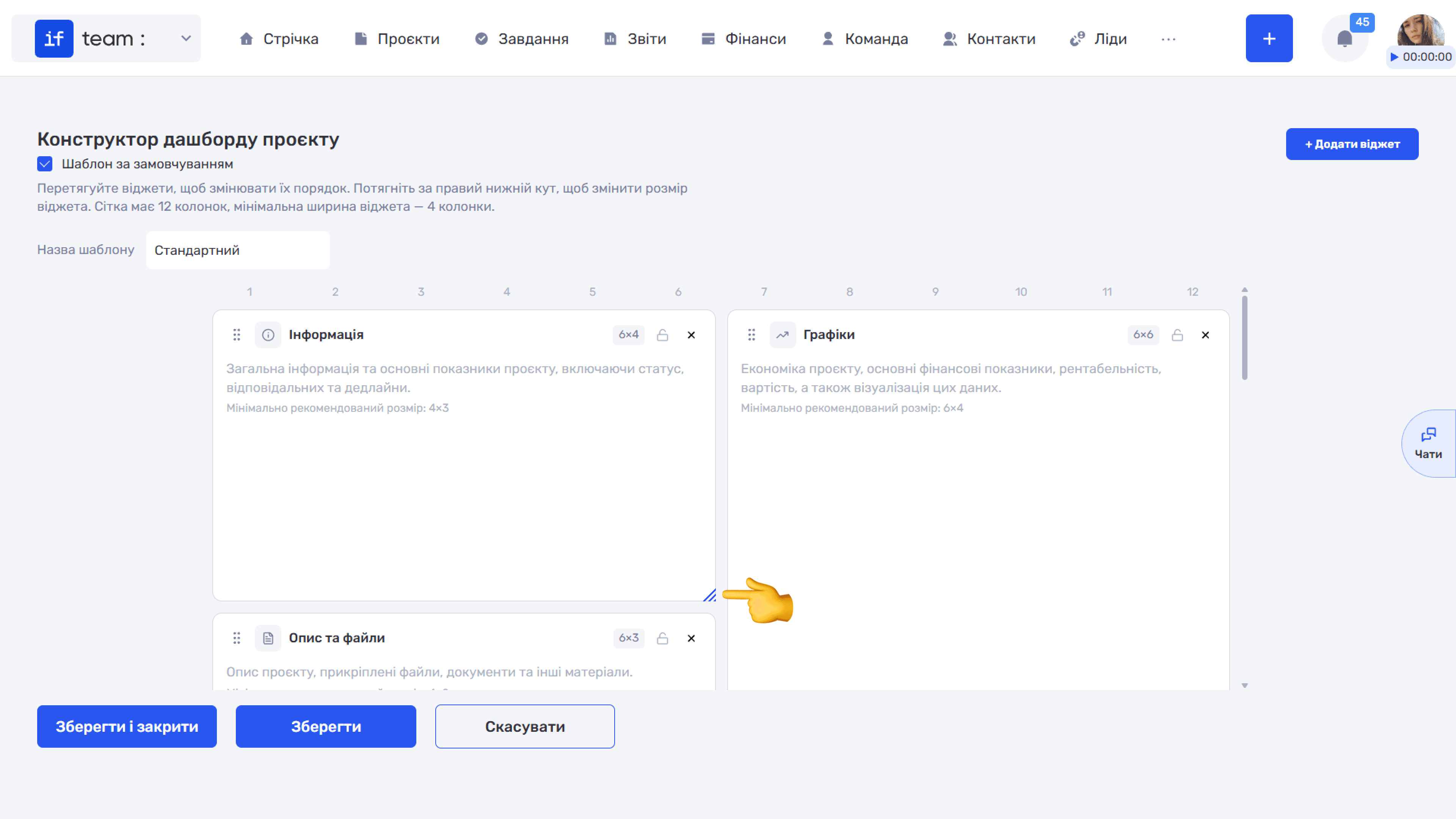
- The lock icon fixes a widget’s position while you move adjacent widgets. Click it again to unlock the widget. This is useful when a key section must remain at the top while you continue arranging the rest of the layout.
- The ✕ icon removes a widget from the layout.
- + Add Widget opens the Select a Widget to Add window. Select the required widgets and click Save.
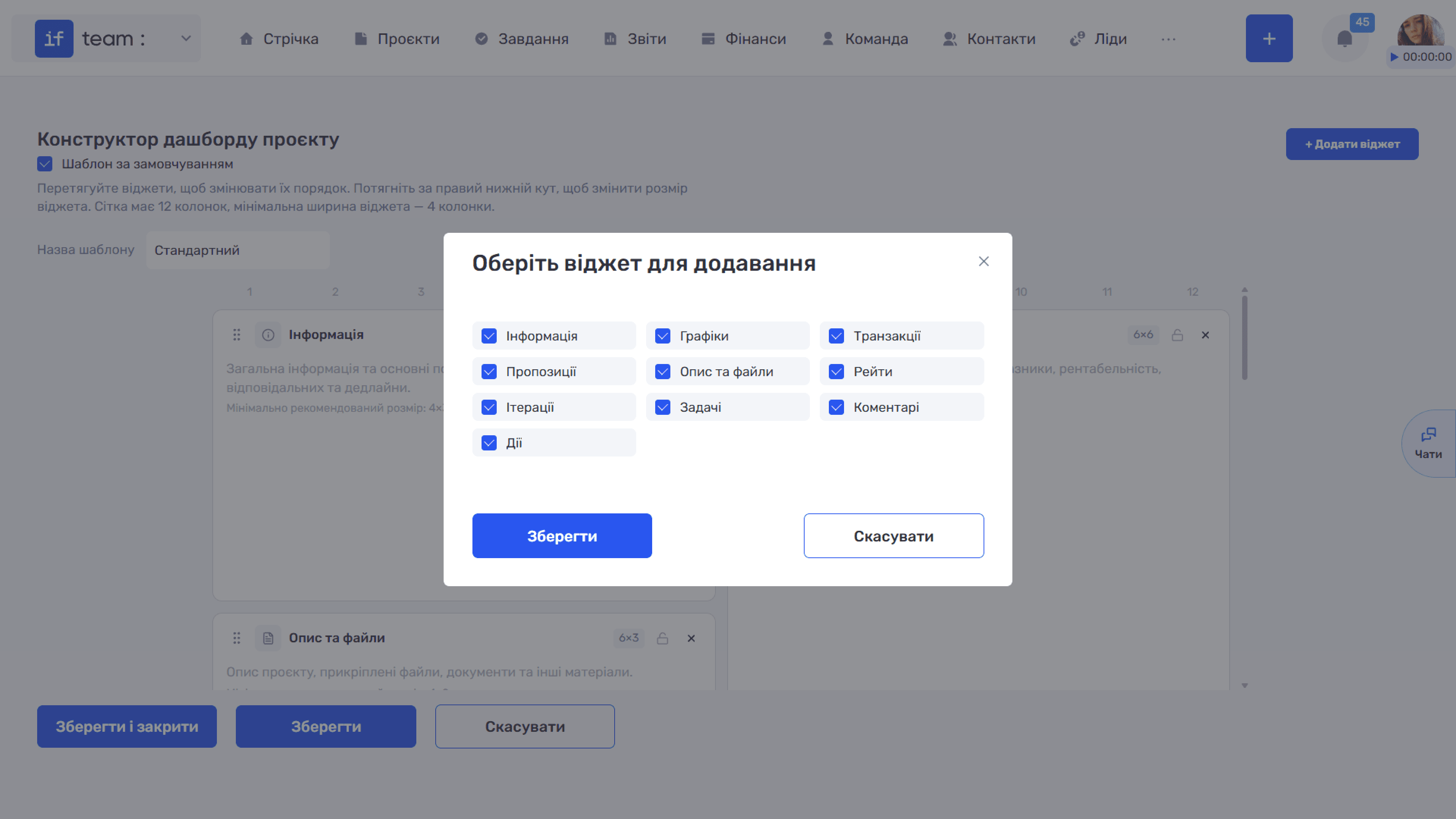
- After configuring the layout, click Save and Close, Save, or Cancel at the bottom of the page.
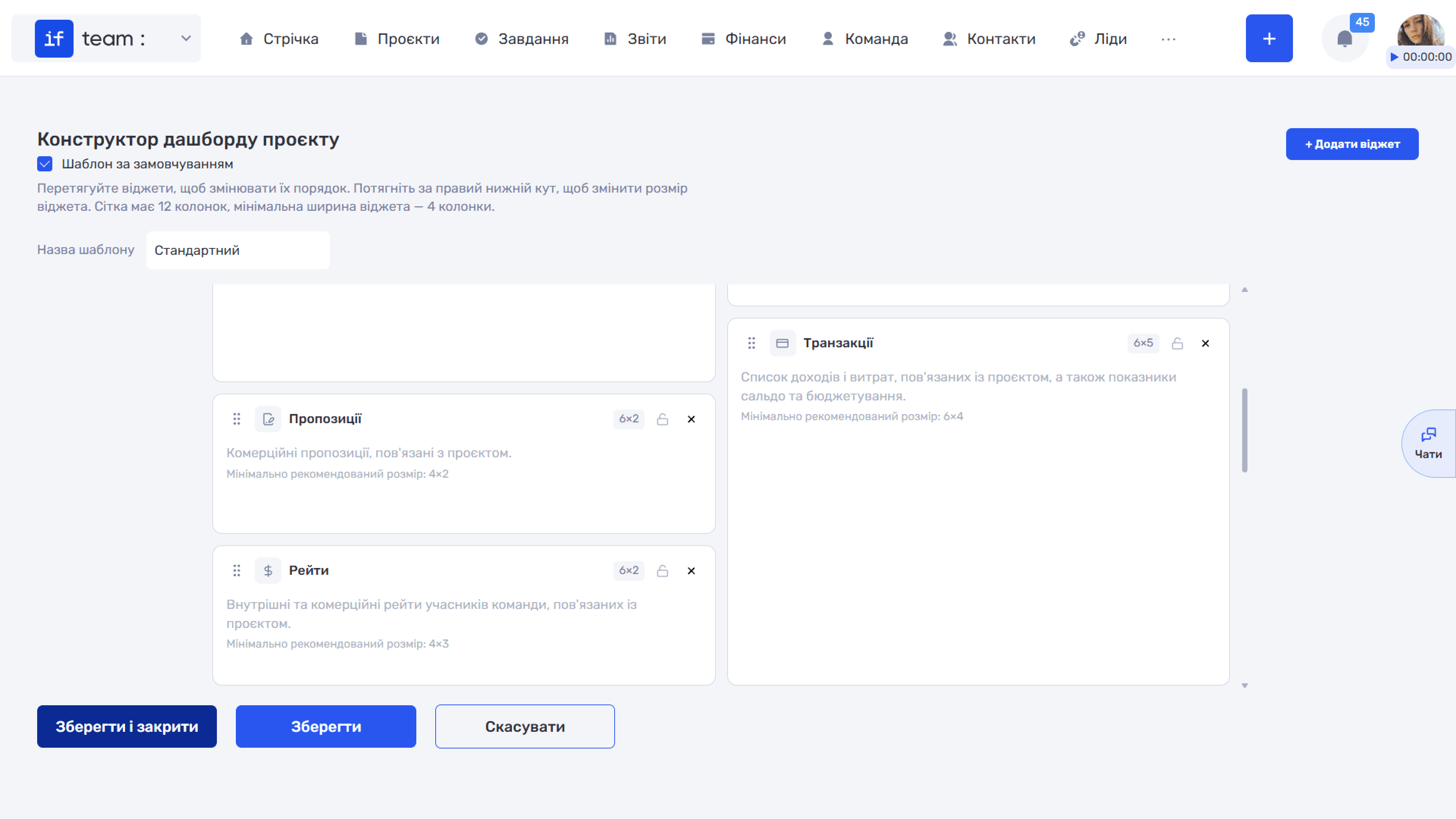
Available widgets:
- Information — General information and key project metrics: status, responsible employees, and deadlines
- Charts — Project economics: financial metrics, profitability, cost, and their visualization
- Transactions — Income and expenses related to the project, as well as balance and budgeting
- Description and Files — Project description, attached files, documents, and other materials
- Quote — Commercial quotes related to the project
- Rates — Internal and commercial rates of project team members
- Iterations — Iterations and subiterations—stages and phases—with related information and statuses
- Tasks — Project tasks with statuses, priorities, and responsible employees
- Comments — Recent comments, discussions, and participant activity
- Actions — History of changes, events, and key actions within the project
ℹ️ The Quote widget on the dashboard displays data from the Quote module—the same module configured in the corresponding Admin Panel section.
How a Template Is Applied to a Project
A template can be assigned at two levels:
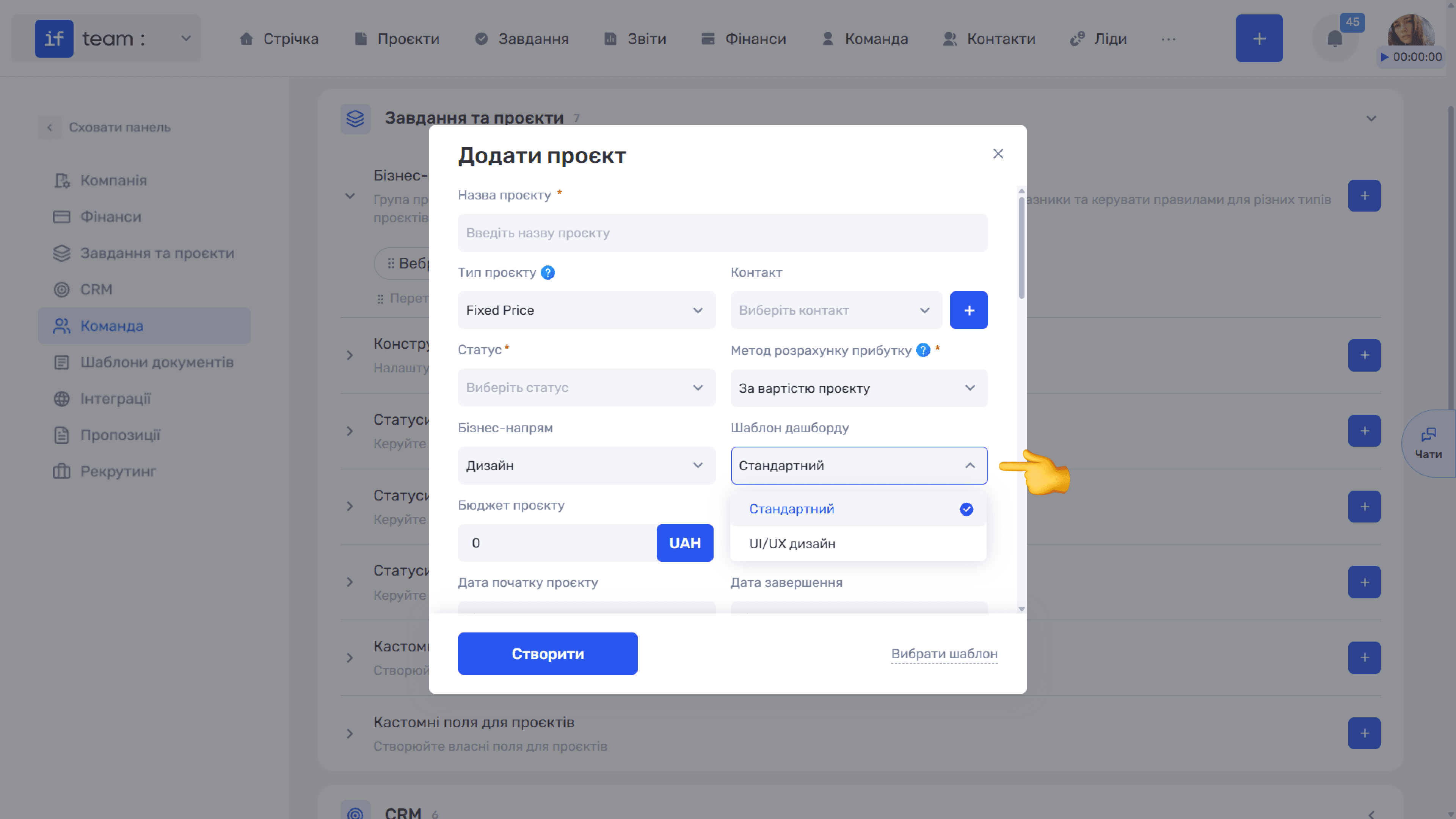
- For a business line, in the business line window under Dashboard Template. It is automatically applied to projects in that line.
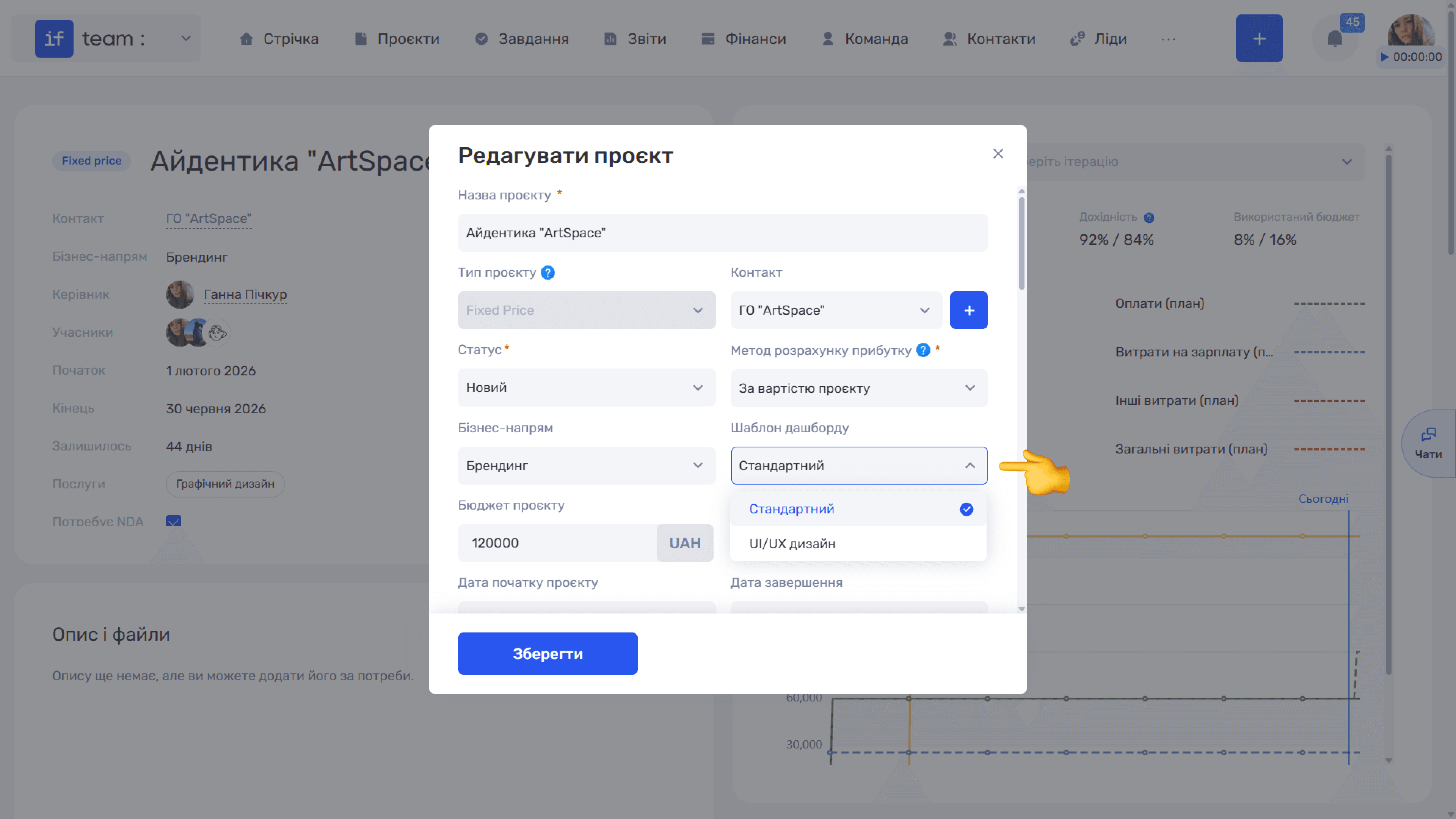
- For a specific project, the project form contains both Business Line and Dashboard Template, with a drop-down list of saved templates. This lets you assign an individual project a layout different from the default for its business line.
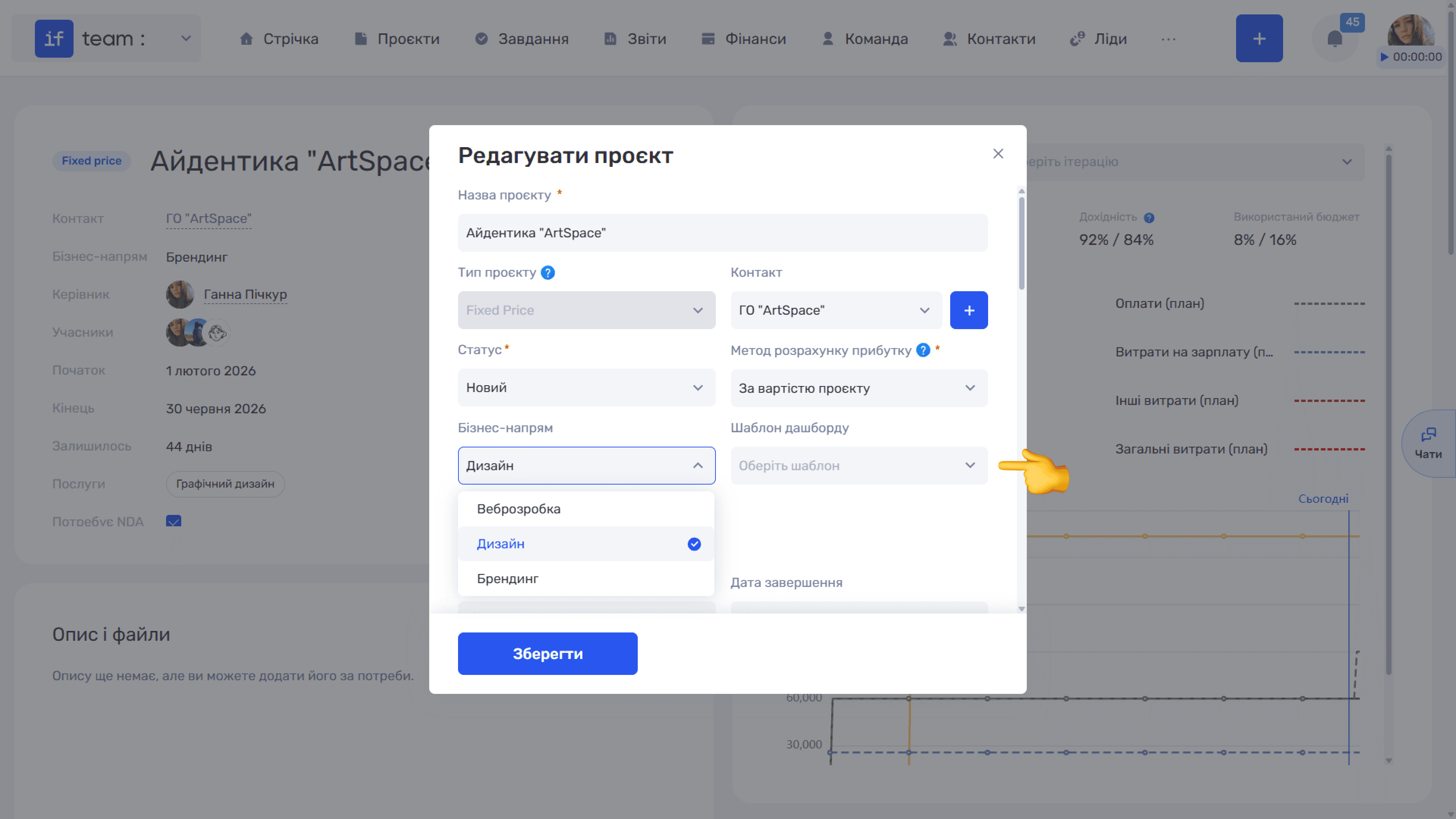
When changes are made:
- if you change the project’s dashboard template, the project page is immediately rebuilt using the new layout;
- if you change the project’s business line, Dashboard Template is cleared and displays the Select Template prompt, so you must select the layout again.
Project Statuses
Statuses show the project’s current stage, such as Active, Completed, or New. You can create custom statuses for your processes.
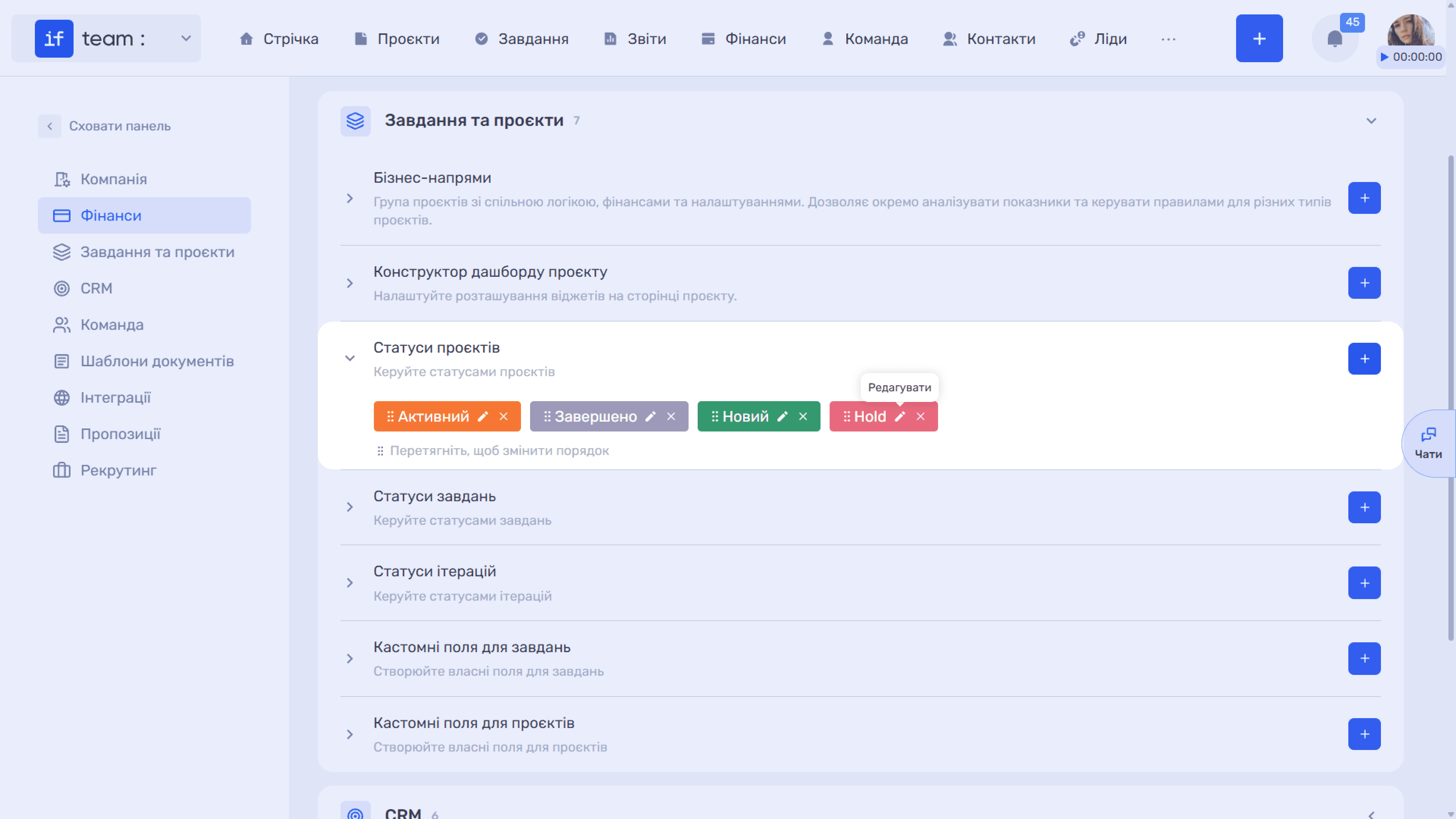
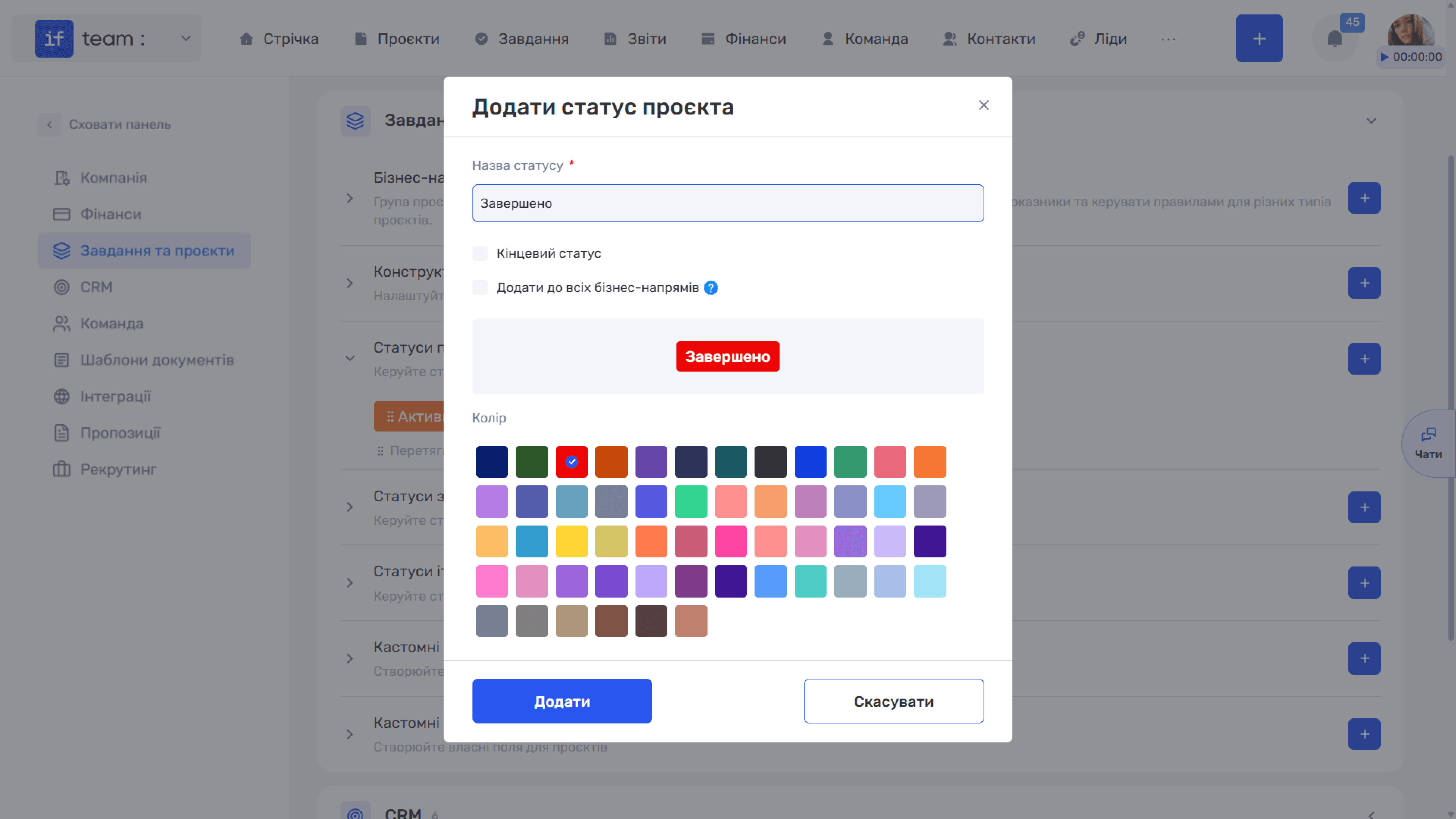
In the Add Project Status window, specify:
- required Status Name;
- Final Status, which indicates completion. Projects with this status cannot be edited: you cannot add tasks or track work time in them. A user with the Change Project Status permission can return the project to active work;
- Add to All Business Lines, which automatically adds the status to all existing company business lines. Without this option, you must add the status to business lines manually;
- Color, selected from the palette, with a tag preview shown above it.
ℹ️ A final status is the primary protection against shifting analytics: once a project is closed, new hours or tasks cannot be added retroactively. The permission to change the status should therefore remain with project managers.
Task Statuses
In addition to its name and color, a task status has three parameters that directly affect work tracking.
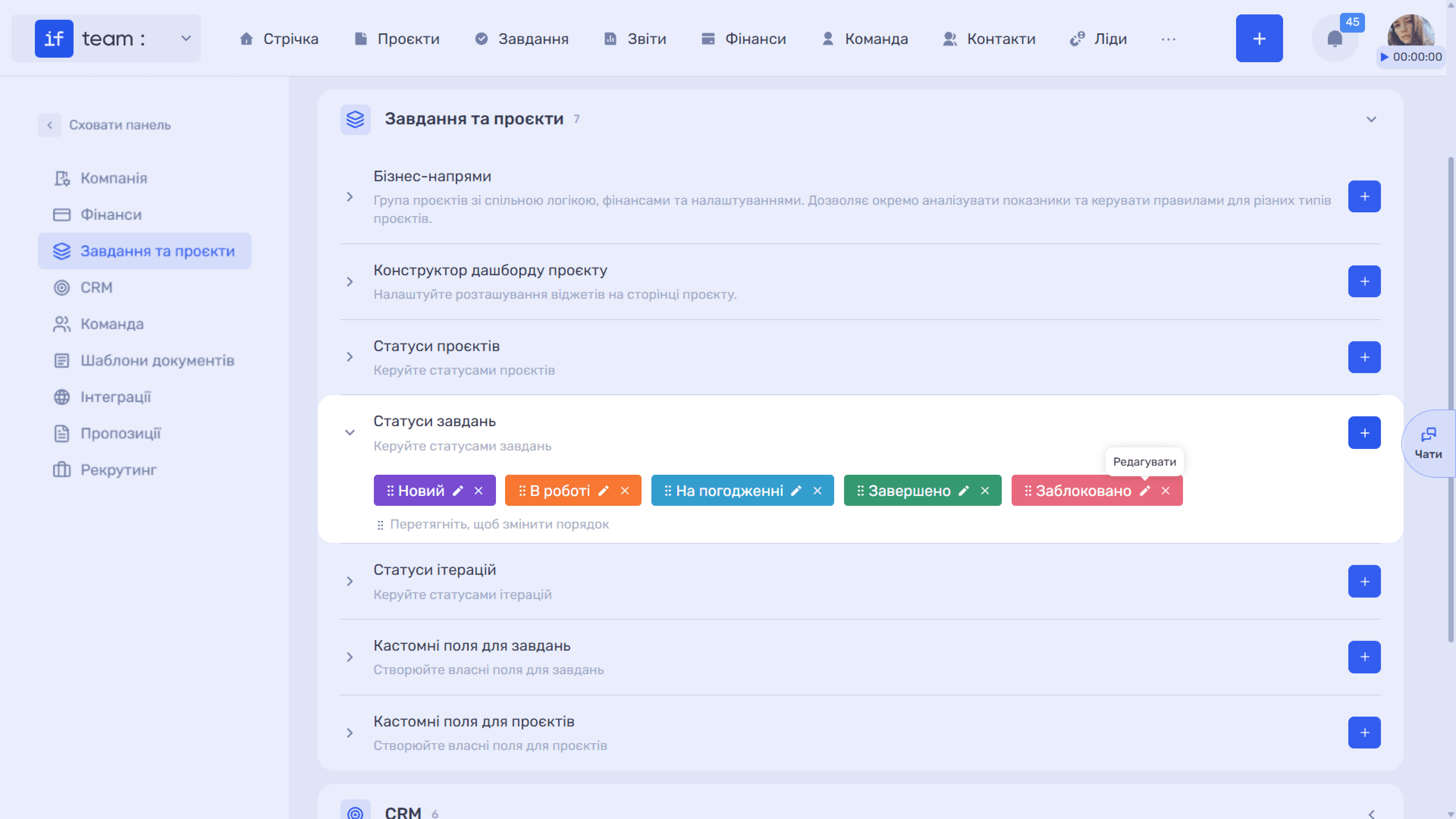
- Final Status means that the task has been completed or canceled. Work time cannot be logged to tasks with this status, and a filter lets you hide them from the general list.
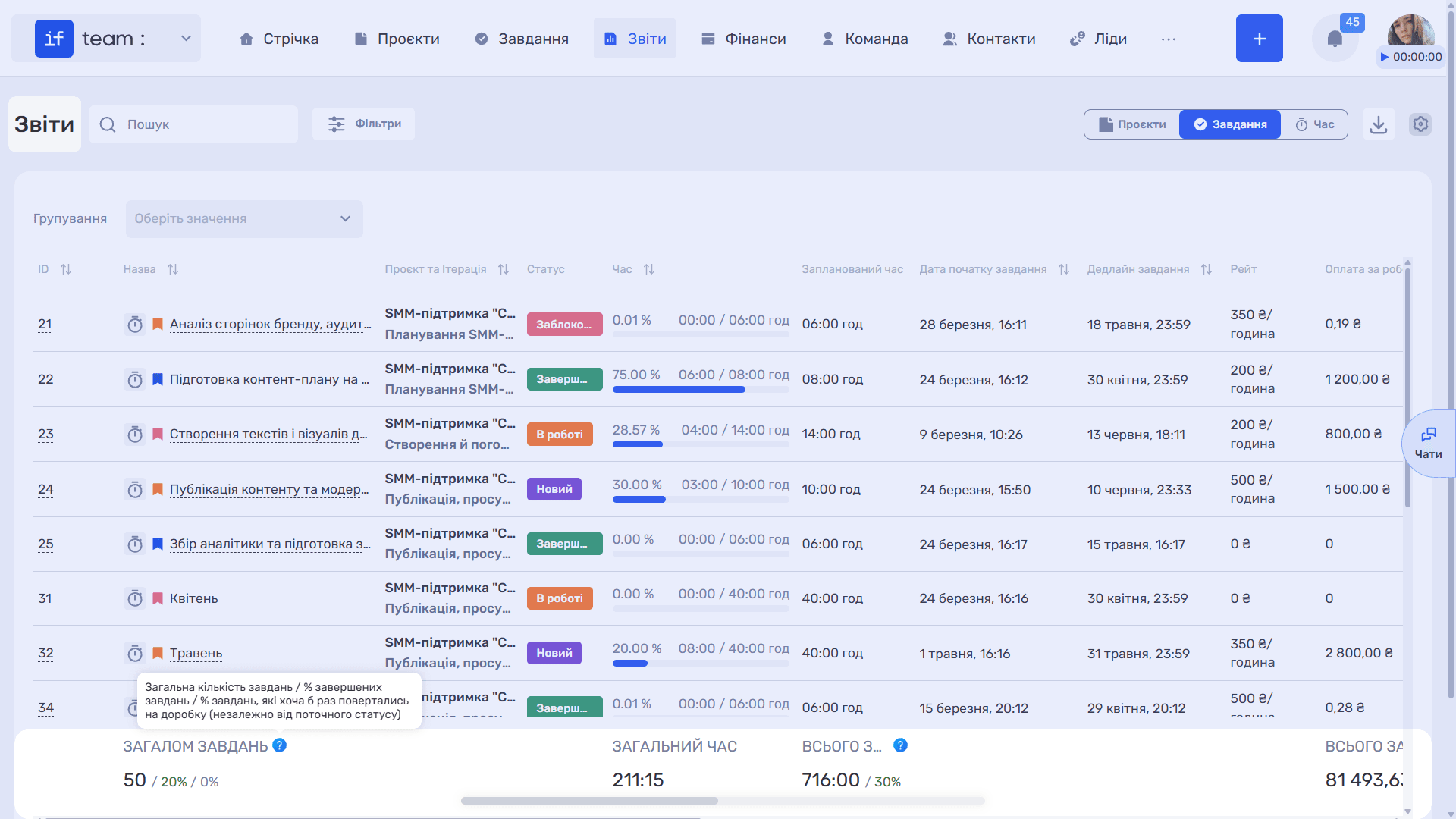
- Revision means that the task has been returned for revision because of errors, bugs, incomplete work, or another reason. Tasks that pass through this status are included in work quality assessments and performer and project statistics under Reports.
- Add to All Projects automatically adds the status to company projects.
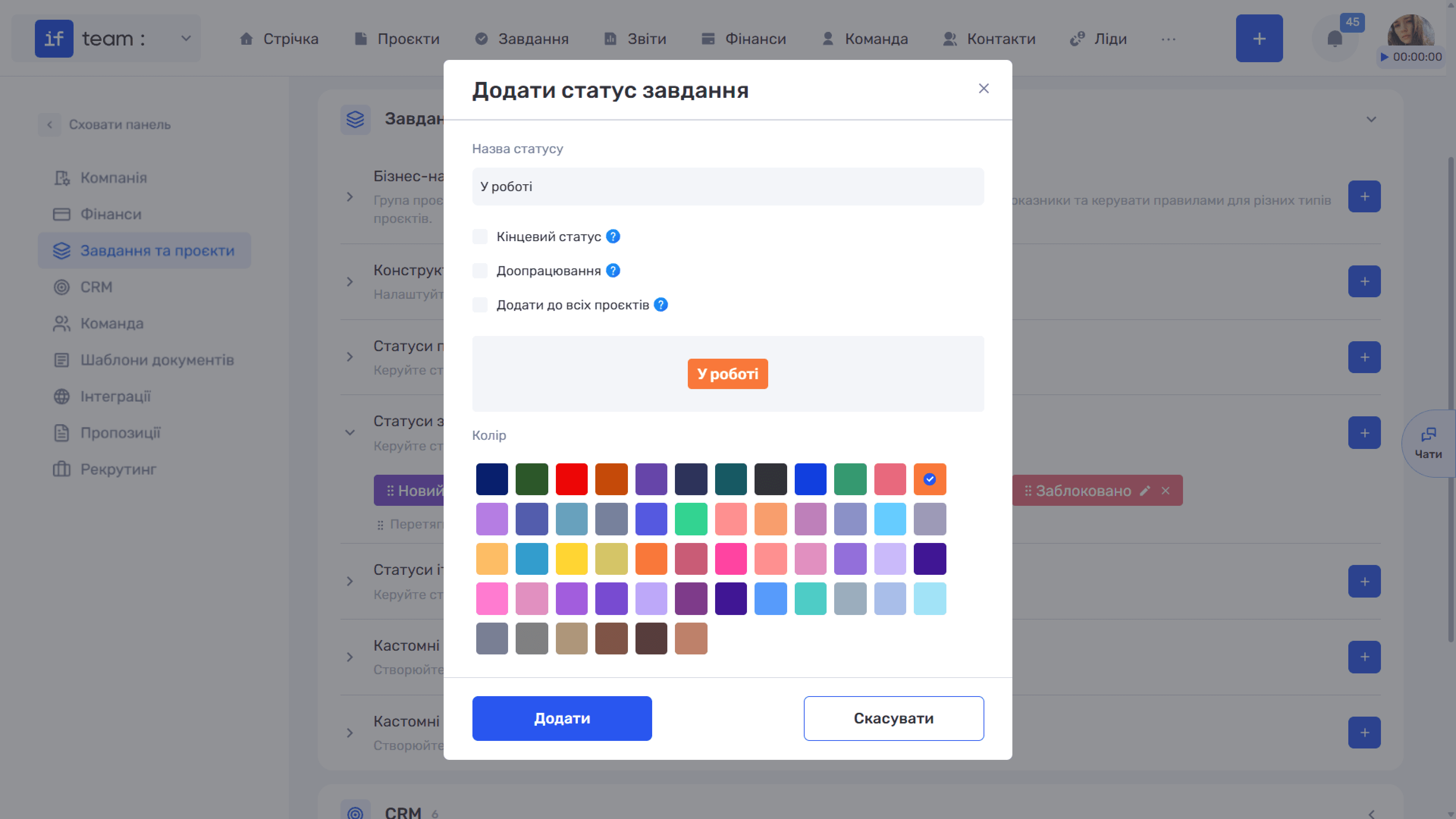
ℹ️ Different projects can use different status sets, allowing you to build a custom Kanban board for each project.
Iteration Statuses
Iterations are stages within a project.
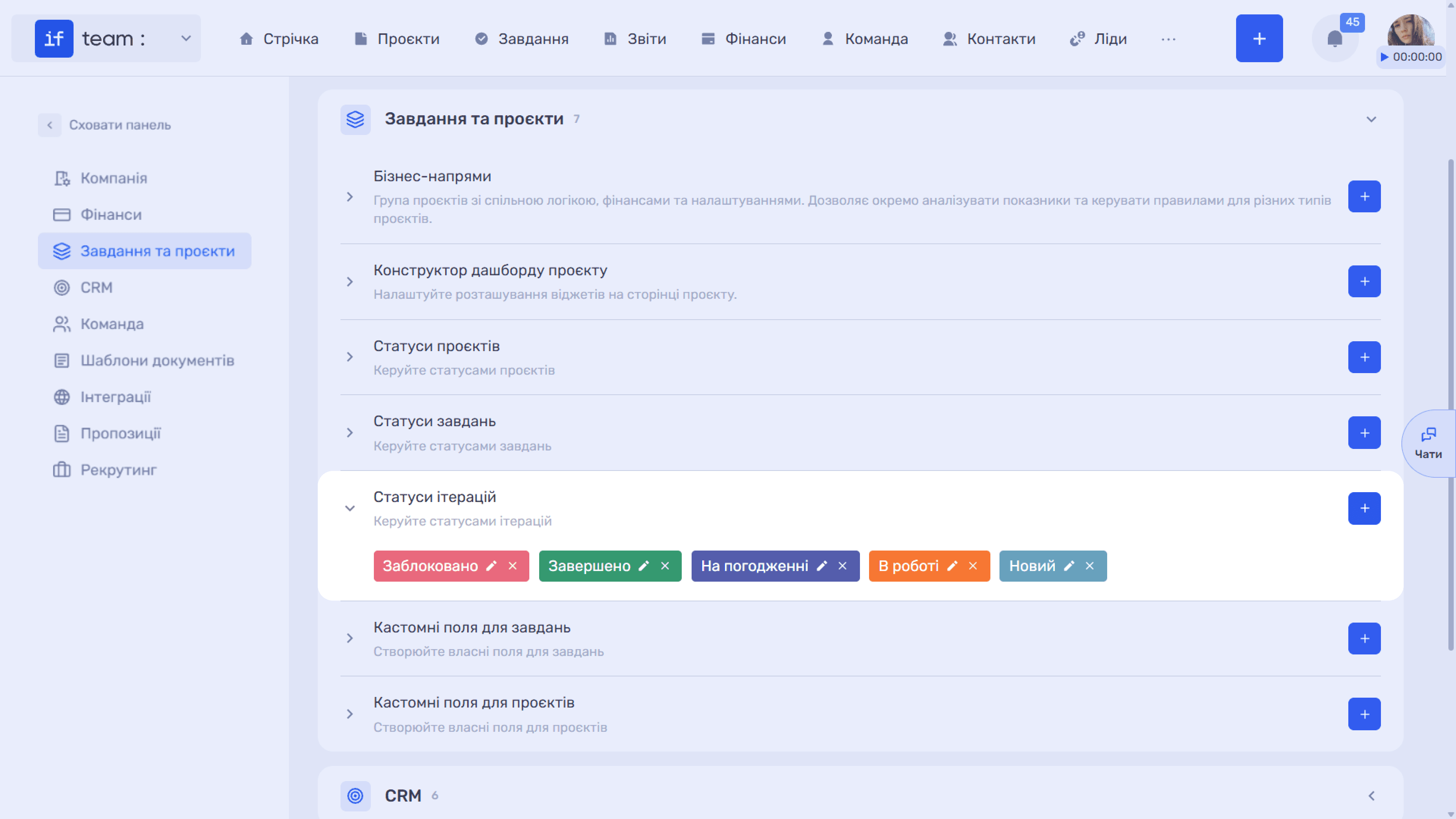
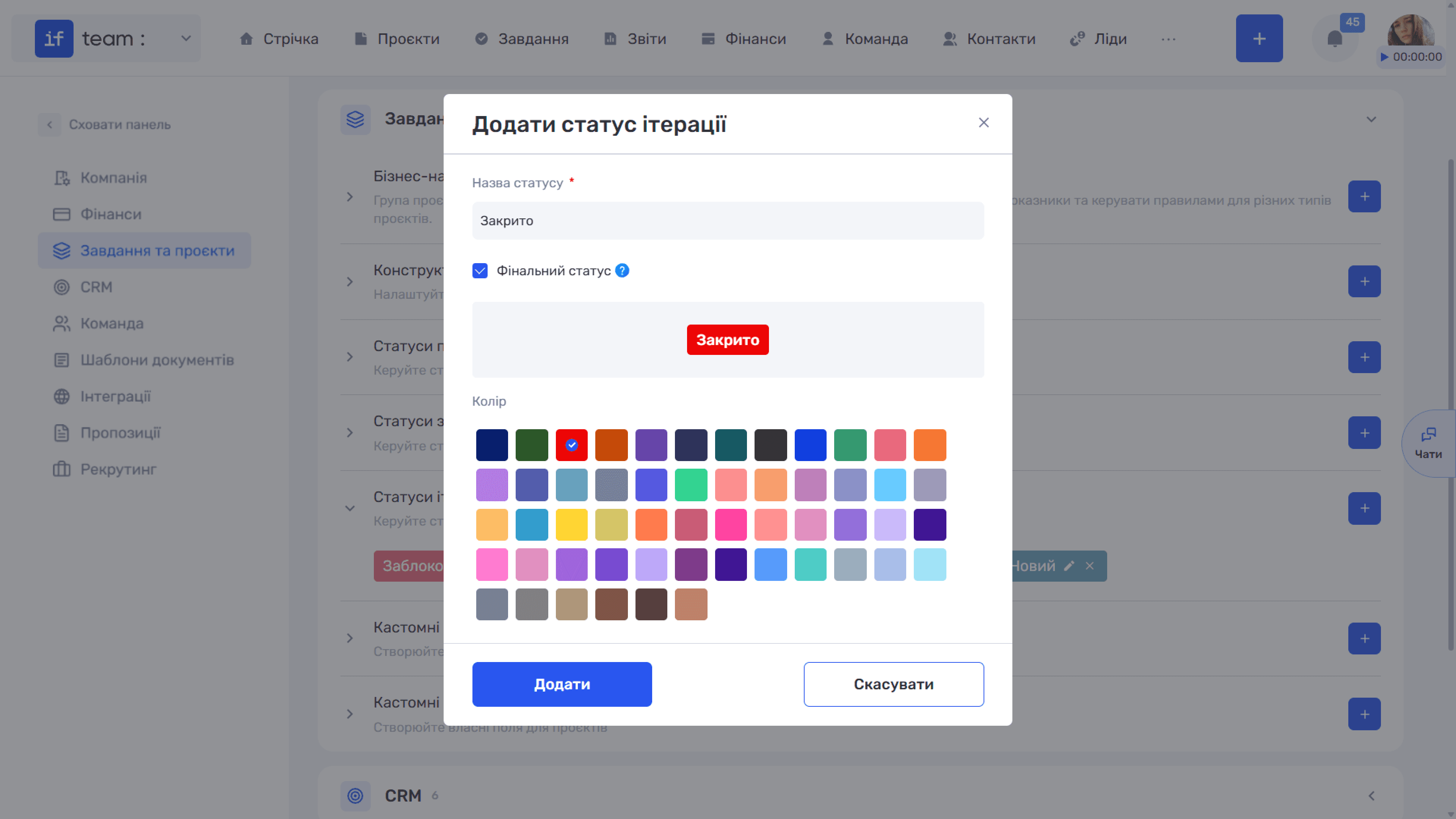
Their statuses are configured separately with required Status Name, Color, and a Final Status checkbox. Tasks cannot be added to an iteration with a final status. This is useful for stages such as Blocked or Closed.
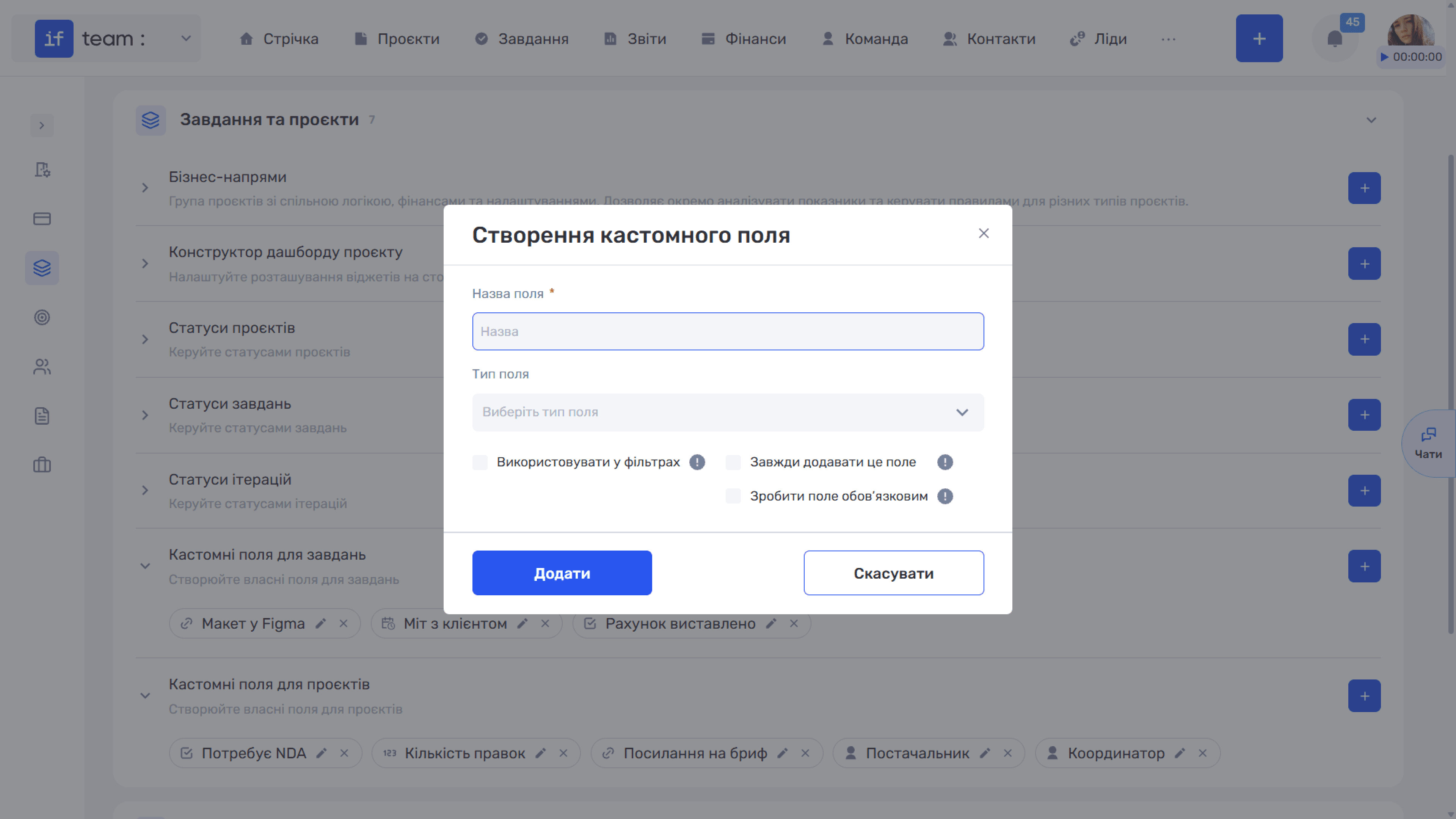
Custom Fields for Tasks and Projects
These are two separate sections that use the same functionality. See Custom Fields Common Functionality.
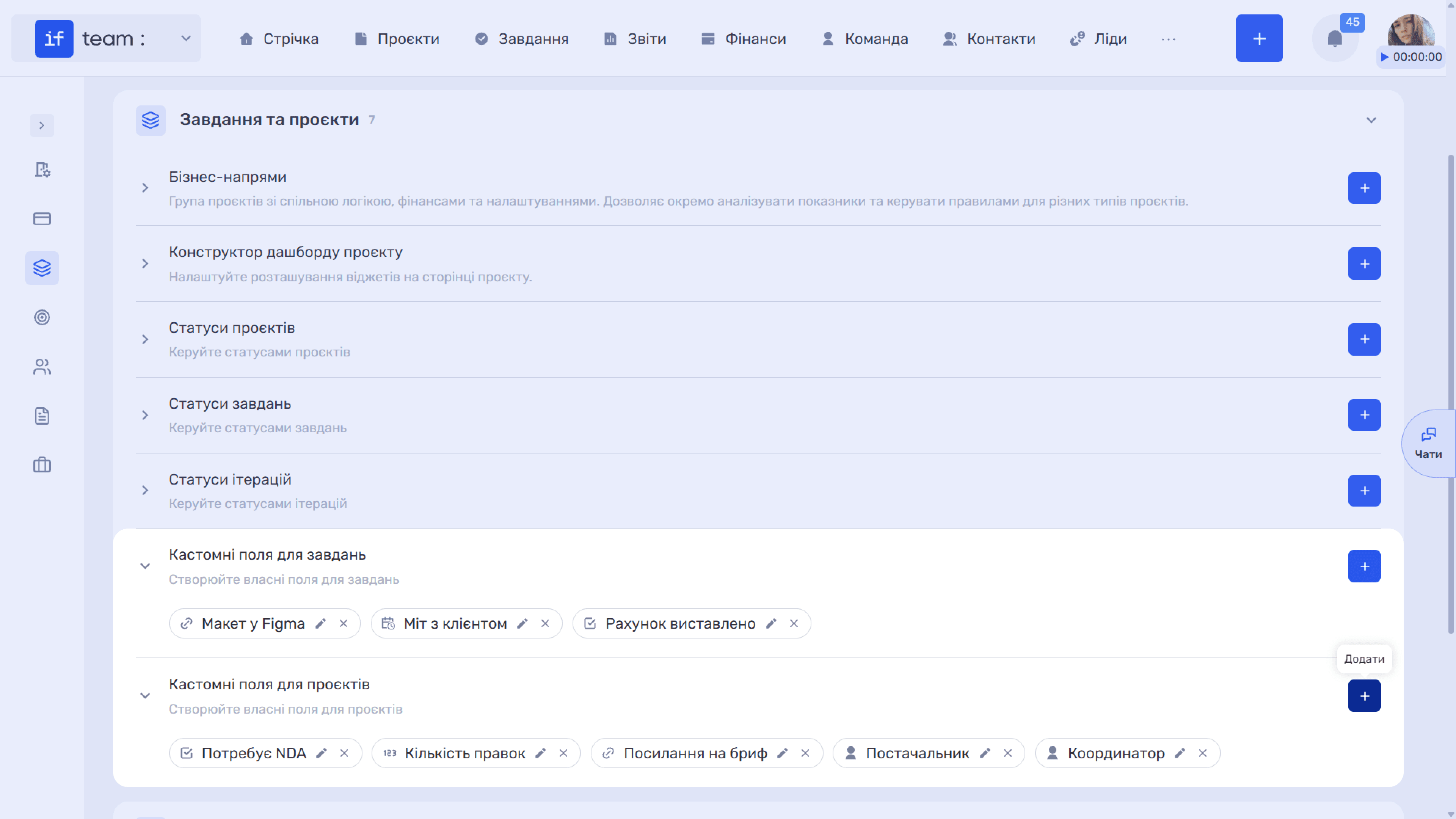
Typical project examples include Requires NDA (checkbox), Number of Revisions (number), Brief Link (link), Supplier (contacts), and Coordinator (members).
Still have questions?
Maybe we haven't added this information yet. But you can always reach out:
Request a demo
Submit a request and we'll show you how the service works and its capabilities.
Book a demo