
Project time tracking — how to track team hours and costs
A practical guide to recording project hours, understanding overruns, and calculating team costs, with a worked example and a walkthrough in if.team.
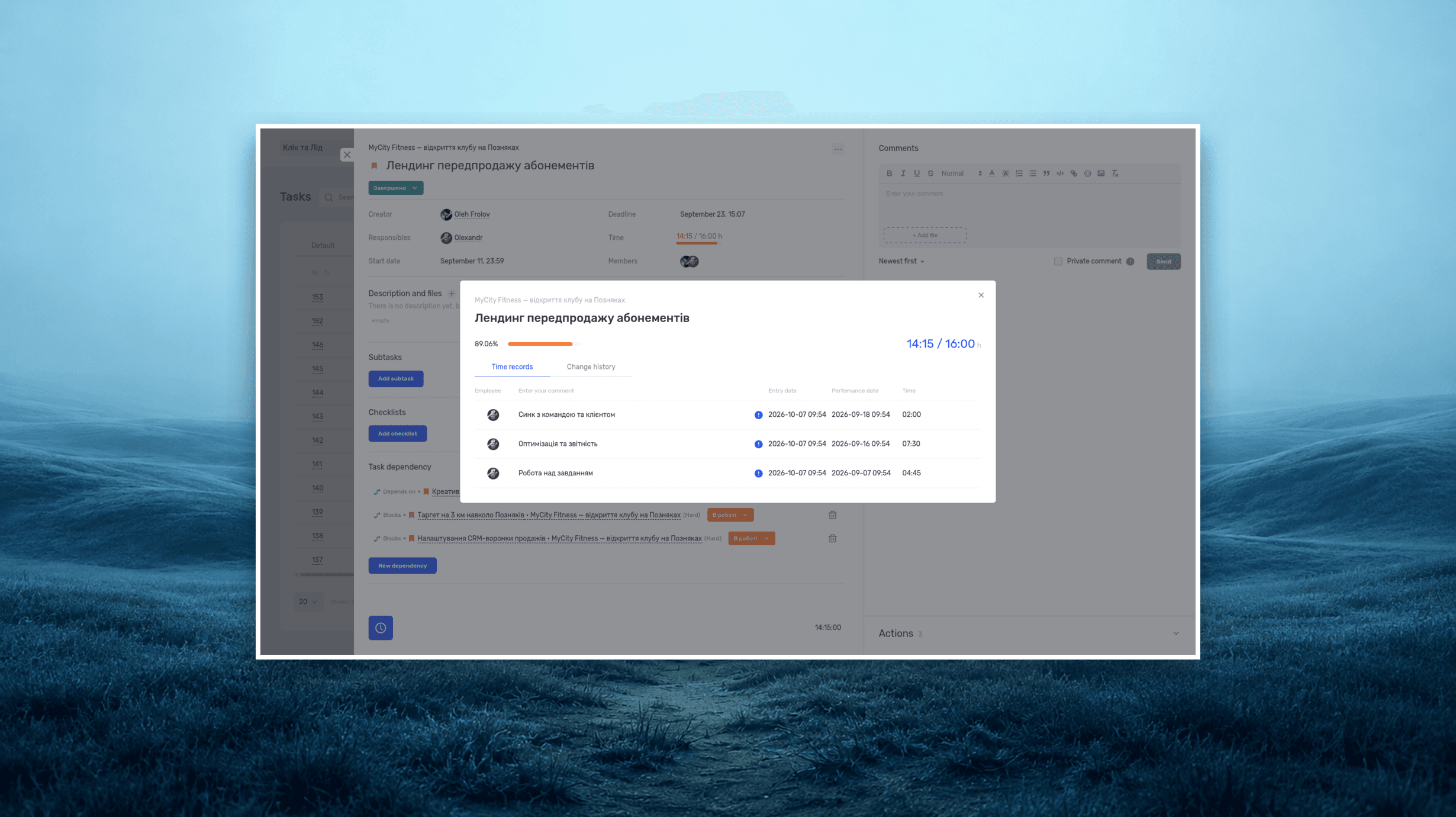
Project time tracking shows how many hours a team spends on each task and client project. These records help you check estimates and calculate the cost of the work.
Kontur, a design studio, delivered a presentation for Vektor for UAH 18,000. The client approved the work, and the team moved on to the next job. When the project manager added up the hours and costs, the studio had made a loss of UAH 400.
The team’s work cost UAH 14,900. A freelance illustrator added UAH 1,000. Under the studio’s overhead allocation policy, another UAH 2,500 belonged to this project. Total costs came to UAH 18,400. The time records helped explain where the money went.
We’ll follow this worked example to see how the studio records hours, finds the reasons behind an overrun, and prepares its next estimate. Then we’ll walk through the same process in if.team, from creating a task to reviewing a report. The studio, clients, hours, and rates are fictional. All amounts are in Ukrainian hryvnia (UAH).
This guide covers time tracking for project teams in agencies, studios, consultancies, law firms, and other service businesses.
What is project time tracking?
Time tracking records who worked, when they worked, and how long they spent. For a project team, each entry also belongs to a task and a project. For example, a designer spends four hours on the layout, one on a discussion, and one on changes after review. The manager can see which activities to include in the next estimate.
A basic entry includes a date, a person, a task, and a duration. A comment adds context that the task name leaves out: what was delivered, what needed clarification, or why someone returned to the work. When everyone follows the same approach, you can group the entries by client, phase, or week.
Time tracking, time logs, and timesheets
Time tracking is the process of recording time spent on work. A time tracker may use a timer, accept manual entries, or support both. The method depends on the tool and the team’s rules.
A time log stores individual entries. A designer might work on a layout for one hour and 20 minutes on Monday, then spend another 45 minutes on it on Tuesday. A timesheet presents hours in a table, often summarized by day, person, or task. Use the timesheet to compare totals and the log to check the entries behind them.
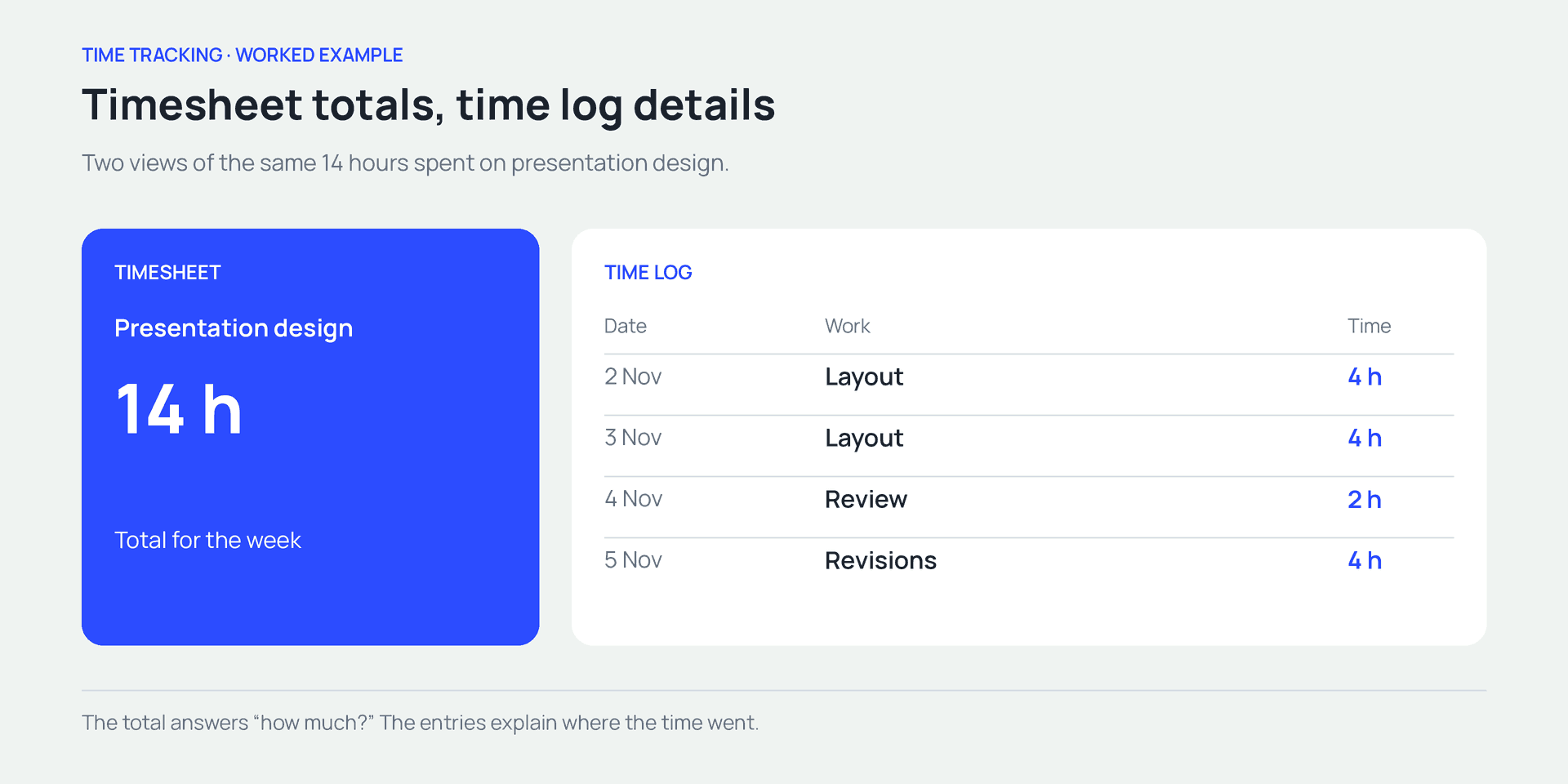
A standalone example — 14 hours of design work shown as a total and as individual entries. These entries explain the two formats and are separate from the Vektor example below.
Project time tracking and attendance records
Attendance records and project time records serve different purposes. Attendance records document working time and absences under the company’s HR procedures. Project records explain how people spent their time on specific work. This article focuses on project records.
| What you need to know | Where to look |
|---|---|
| How an employee’s working time and absences are recorded | The company’s HR records |
| How long a client project took | Time entries for the project |
| Which activities used the hours | The task-level time log |
| Why a phase exceeded its estimate | The estimate, time entries, and scope changes |
| What the team’s work cost | Hours multiplied by internal cost rates |
An export from a project system can provide data for other calculations. Whether it meets the requirements for HR records needs a separate check. Here, we’ll use the data to estimate work, calculate costs, and understand how the team spends its time.
Why track time by project?
Start by deciding what you want to learn from the records. Suppose a studio wants better estimates for presentation design. It needs to see the time spent on the outline, layouts, revisions, and checks. A single entry called “client work” leaves the reasons for an overrun buried in the total.
Build better estimates for new work
The studio estimated 30 hours for Vektor’s presentation. The work took 37. Revising the outline after a change in the brief added four hours; clarifying the source material added another three. Before estimating the next presentation, the manager can check whether the content has been approved and the required material is ready.
Psychologists Roger Buehler, Dale Griffin, and Michael Ross studied the tendency to predict completion based on a favorable scenario. In five studies involving students, participants’ predictions for completing their own tasks were often too optimistic. They focused on their plans and gave too little weight to past experience. The research examined completion-time estimates; it did not test the effectiveness of a particular time tracker.
Before preparing a new estimate, review several similar completed jobs. Look at the scope, actual hours, and reasons for any differences. A presentation with approved talking points needs a different estimate from one that starts with interviews.
The next proposal can separate content preparation, design, and review, and explain how changes will be approved. Our guide to writing a business proposal covers how to describe scope, pricing, and terms.
Spot an overrun while there is still time to act
Imagine the team has already used 25 of the 30 hours estimated for Vektor. The people doing the work expect to need another 12 hours. The forecast is now 37 hours, so the manager can see the likely overrun before delivery.
For how to agree on a due date that reflects estimates and availability, see our guide to setting realistic deadlines.
That forecast needs two inputs: time already spent and a current estimate of the work remaining. Using 25 out of 30 hours tells you how much of the time budget has been consumed. To judge how close the presentation is to completion, check it against the agreed acceptance criteria.
The manager can agree on additional work, change the sequence of tasks, or remove an unnecessary round of review. After delivery, the same records will help the team estimate the next job.
Understand costs on fixed-price projects
With hourly billing, time entries support the calculation of agreed charges. With fixed pricing, they help you check whether the project makes financial sense. Two presentations sold for the same fee can require very different amounts of work.
For Vektor, the seven extra hours reduced the amount left from the agreed fee. The time log lets the manager see what caused those hours and discuss the issue with the team and the client.
If the client expanded the brief, agree on the additional scope. If the studio regularly underestimates content preparation, update the estimate template. If the team keeps redoing approved work, review how feedback is collected and signed off.
Account for internal work
Preparing proposals, training, team meetings, and maintaining the studio’s own materials all take time. If those hours go unrecorded, the report may suggest that people have spare time when they are already busy.
Time tracking methods — spreadsheets, timers, and task-based tools
A timer measures how long a work session lasts. A spreadsheet or task management system stores entries and helps you add them up. One time tracking tool can combine a timer, manual entries, and reports.
| Option | When it helps | What to check |
|---|---|---|
| Shared spreadsheet | A small team is testing its tracking rules | Consistent project names, duration formats, formulas, and access |
| Timer | Someone works in focused sessions on specific tasks | The selected task, pauses, and when the session ends |
| Manual entry | Meetings, work away from a computer, or a missed session | Date, duration, context, and possible duplicates |
| Time tracking within a task system | Several people work across parallel projects | Task links, permissions, reports, and rates |
Start with a spreadsheet
A shared spreadsheet lets you test which fields the team needs. Use a separate row for each entry. Choose project and employee names from shared lists: “Obrii,” “Obrii website,” and “Website for Obrii” can otherwise end up in separate groups.
Agree on units from the start. In decimal hours, 1.5 means one hour and 30 minutes. A duration of 1:30 means the same thing, but spreadsheet formulas handle the two formats differently. Mixing them makes totals harder to trust.
A spreadsheet works while the team can keep it organized. If a manager spends every week reconciling names, copying records, and finding duplicates, consider a system that links time to tasks as it is recorded.
Use a timer for work in progress
Start the timer when you begin a task. Pause or stop it when you take a break or switch to something else. This records the session as the work happens.
Add meetings and missed sessions manually
After an off-site meeting, a manual entry may be easier: add the date, duration, task, and a short note. You can use the same approach if you forgot to start the timer.
Record time on the day you do the work, while the details are fresh. At the end of the month, separating a call from document preparation and revisions becomes much harder. People start reconstructing a rough picture, while the detailed report can look more precise than the information behind it.
How to set up team time tracking
Begin with rules that make the entries comparable. If one person includes meetings and another records only time spent editing files, their totals describe different kinds of work.
At Kontur, the team records preparation, meetings, the work itself, and review. Internal work gets its own category. A one-page guide gives the editor and designer the same definition of what to record.
Decide what counts as work
A shared definition matters. In a BLS study comparing survey estimates and time diaries, the authors examined differences in how working hours were defined. Average estimates were close for comparable weeks; definitions and the choice of reporting period affected the comparison.
For a project team, the useful principle is to agree on the activities and reporting period before comparing hours. Does a presentation estimate include client meetings and the final check? The study examined how work is measured in US statistics. It did not assess agency performance.
Talk through ambiguous situations. Suppose the team waits two days for a client’s reply and spends that time on another project. The first project’s elapsed duration increases. The working hours belong to the work people actually did.
A one-hour meeting attended by four people uses four person-hours. Each participant records one hour. The difference becomes significant when recurring meetings take up a large part of the week.
Choose a useful level of detail
A clear task name describes an outcome: “Prepare the presentation outline” or “Test the enquiry form.” Time logged against that task connects to a specific piece of work. A task called “Miscellaneous” provides very little context.
Too much detail also creates friction. Creating a separate task for every short message can make tracking consume too much attention. Group small related actions around a clear purpose, such as “Approve the catalogue content.”
Choose the level of detail to suit the analysis. If you want to estimate revisions separately, give them their own task. If you only need the total design time, a task for the whole phase may be enough. Our guide to assigning tasks to your team explains how to describe outcomes and acceptance criteria.
Keep actual hours separate from billable hours
Actual hours include all the time spent on the work. The client’s bill depends on the agreement: pricing model, rate, cap, and scope.
For example, a specialist spends six hours on a task, including two hours correcting their own mistake. All six hours stay in the time records. The agreement determines which hours the client pays for. Deleting the two hours would give the team incomplete information for its next estimate.
An internal cost rate helps calculate the company’s costs. A billing rate determines what it charges for the service. These rates usually differ. Set permissions for who can view and change each rate.
Agree on reviews and corrections
Decide when people should enter their time and who checks the totals. Team members might review their own entries at the end of each day, with the manager checking project records before the weekly review.
Explain who can see the records and how they will be used. A clear purpose makes it easier to discuss real time costs, including mistakes, learning, and helping colleagues.
A time tracking example — five people, three projects, one week
Let’s look at the full week in which Kontur delivered Vektor’s presentation. The team consists of a project manager, a designer, a developer, an editor, and a QA specialist. They are also building a website for Obrii, supporting Liniia’s website, and handling internal work.
In this example, each person has 35 available hours for the week and records all the time worked. We use that figure only for the calculation.
| Team member | Obrii, h | Vektor, h | Liniia, h | Internal work, h | Total, h |
|---|---|---|---|---|---|
| Project manager | 8 | 7 | 5 | 15 | 35 |
| Designer | 16 | 12 | 3 | 4 | 35 |
| Developer | 24 | 0 | 6 | 5 | 35 |
| Editor | 10 | 14 | 5 | 6 | 35 |
| QA specialist | 12 | 4 | 10 | 9 | 35 |
| Total | 70 | 37 | 29 | 39 | 175 |
The team spent 136 hours on client projects and 39 on internal work. Client work accounts for approximately 77.7% of all recorded time. That describes this particular week. It provides no basis for treating the percentage as a target for every studio.
The project manager spent 15 hours on internal work. Before drawing a conclusion, look at those entries. She may have been preparing next month’s proposals, interviewing candidates, or improving processes for the whole team.
Compare estimated and actual hours
For the same scope of work in this week, the studio estimated 60 hours for Obrii, 30 for Vektor, and 30 for Liniia.
| Project | Estimated, h | Actual, h | Difference, h | Difference from estimate |
|---|---|---|---|---|
| Obrii | 60 | 70 | +10 | +16.7% |
| Vektor | 30 | 37 | +7 | +23.3% |
| Liniia | 30 | 29 | −1 | −3.3% |
The difference in hours is actual time minus estimated time. To express it as a percentage, divide the difference by the estimate and multiply by 100. If the estimate is zero, this formula cannot produce a percentage. First find out why the work had no estimate.
Vektor has the largest relative overrun. The log shows four extra hours spent rewriting the outline after the client changed the brief, plus three hours clarifying source material. For the next presentation, the manager can get the outline approved and check the source material before design begins.
Compare like with like: the same scope and reporting period. If the team completed part of next week’s work early, the extra hours alone tell you little about the total project overrun. Compare them with the work delivered and the work still remaining.
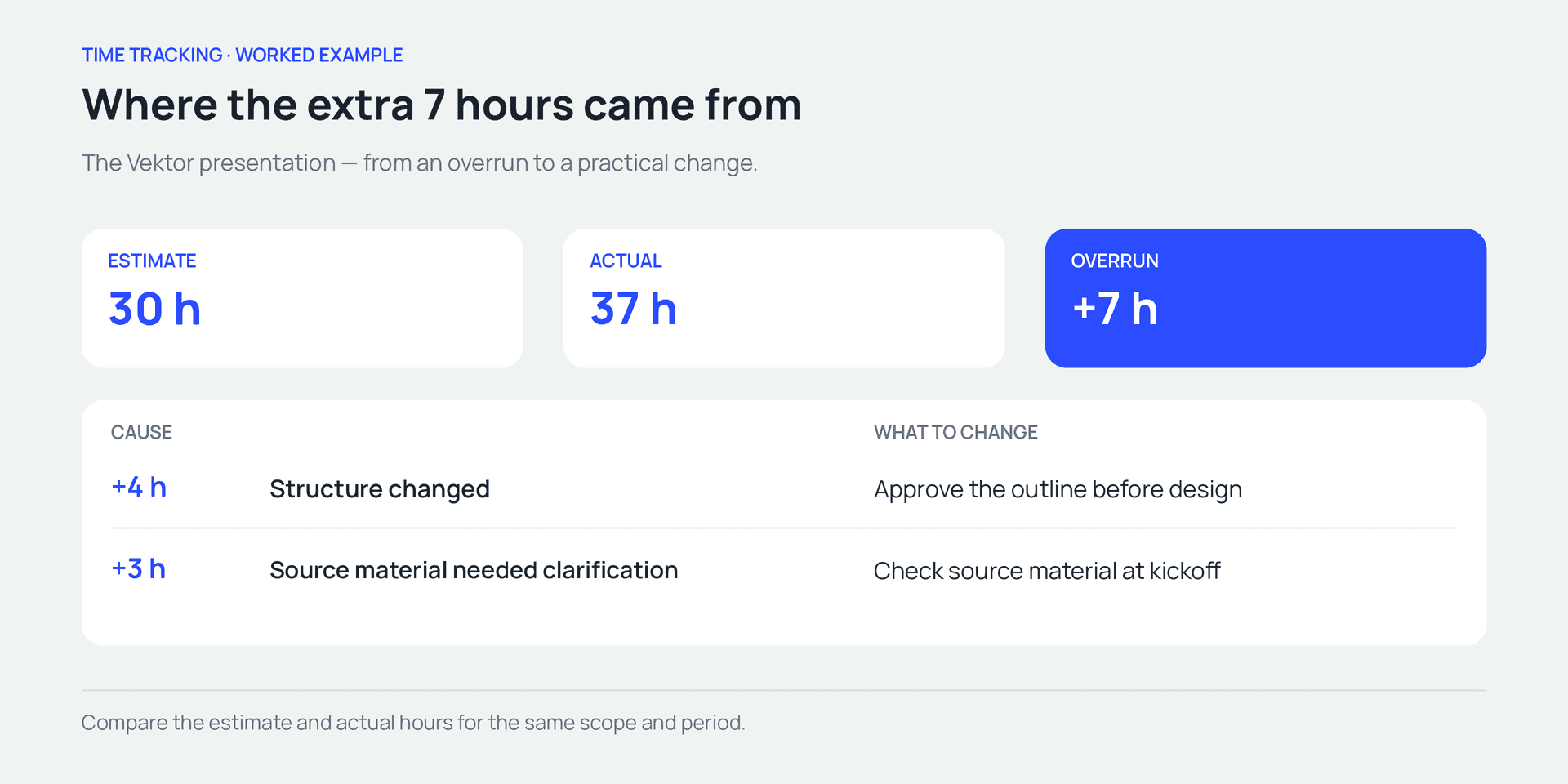
Vektor — 30 estimated hours and 37 actual hours. Each cause of the overrun points to a specific change.
Calculate the cost of the team’s work
For this management calculation, we’ll use illustrative internal cost rates: UAH 400 per hour for the project manager, 500 for the designer, 600 for the developer, 350 for the editor, and 300 for the QA specialist.
For each person, multiply their project hours by their internal rate. Add those amounts to get the team’s total cost for the project.
For Obrii, the calculation is:
8 × 400 + 16 × 500 + 24 × 600 + 10 × 350 + 12 × 300 = UAH 32,700.
| Project or activity | Hours | Calculated team cost, UAH |
|---|---|---|
| Obrii | 70 | 32,700 |
| Vektor | 37 | 14,900 |
| Liniia | 29 | 11,850 |
| Internal work | 39 | 15,800 |
| Total | 175 | 75,250 |
The table covers the team’s work. Contractors, software licences, purchases, and other expenses may add to the total. Decide what the internal rate includes so each cost is counted once.
For someone paid a fixed monthly salary, you can estimate an internal hourly cost by dividing the company’s cost for that person over a period by a chosen base of hours. For example, UAH 60,000 ÷ 120 hours = UAH 500 per hour. Both figures must relate to the same period, and the rule for choosing the hours must be consistent.
Dividing by all available hours produces a different rate from dividing only by expected client hours. The second approach may already recover the cost of internal work. Adding that same internal work as a separate surcharge would count it twice. In this example, we use direct cost rates and show internal work separately.
Connect hours to the project’s financial result
Now return to the UAH 400 loss in the introduction. The studio sold Vektor’s presentation for UAH 18,000 and completed it within the week shown above. Time entries produced a team cost of UAH 14,900. The freelance illustrator cost another UAH 1,000.
That leaves UAH 2,100 after direct costs: 18,000 − 14,900 − 1,000. This amount still has to cover the project’s share of company overhead. If the studio’s allocation policy assigns UAH 2,500 of overhead to this job, the result is a UAH 400 loss.
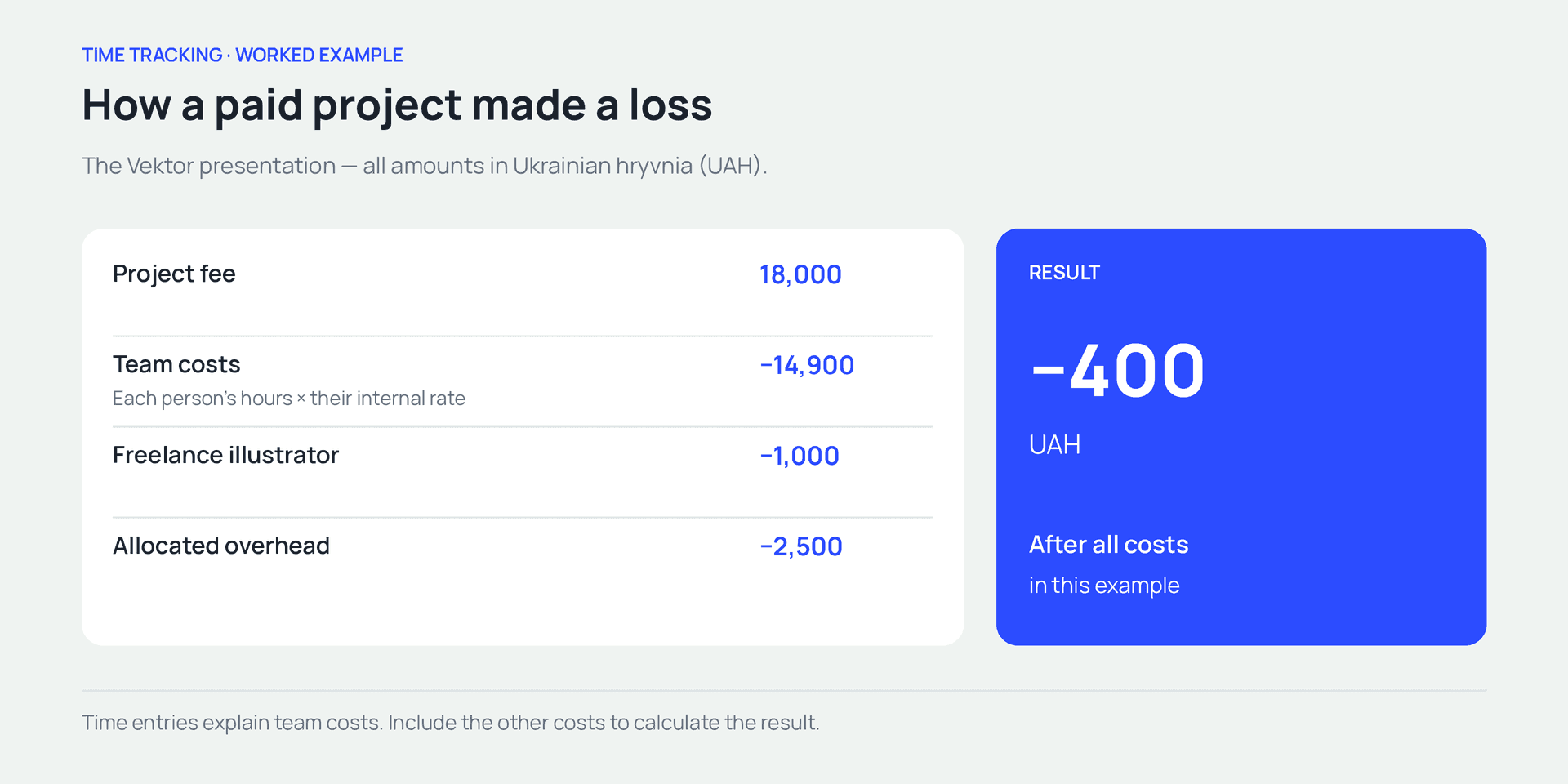
Vektor — UAH 18,000 in revenue minus UAH 18,400 in costs produces a UAH 400 loss under the example’s cost model
A completed, paid project can therefore lose money. For the next similar job, the studio can revisit its estimate, approval process, or price.
These calculations describe the financial performance of the work. When the payment reaches the bank account is a separate question. Our guide to the profit and loss statement explains the relationship between revenue, expenses, and profit.
How to choose project time tracking software
Test project time tracking software on a short, realistic workflow before the whole team switches to it. Create two projects, record a session with the timer, add a meeting manually, correct an error, and produce a weekly report. Then ask a colleague to explain the total using the saved records.
For a project team, check these capabilities:
- Task links. You can see which project each entry belongs to.
- Timer and manual entries. The team can record different kinds of work.
- Estimates and actuals. You can compare expected effort with recorded time.
- Entry-level detail. You can trace a total back to the entries and comments.
- Access permissions. You can control who views, adds, and corrects data.
- Rates. You can check cost and billing calculations for your pricing model.
- Export. You can use the data in the reports and workflows you need.
Common time tracking mistakes
Duplicate entries and time assigned to the wrong task
An editor manually adds a 45-minute meeting that the timer already recorded. Or she finishes work for Vektor and leaves the session running while working on Obrii. The first mistake inflates the total; the second assigns costs to the wrong client.
During the daily review, check durations and task names. Correct duplicate entries and move misallocated time. If the data has already appeared in a client report, tell the person responsible for that report.
Using estimates as actual hours
If every task receives exactly the number of hours originally estimated, the comparison stops being useful. The figures look tidy, but future estimates repeat the same assumptions.
Keep actuals separate from estimates. If you use automatic time credits, account for them in the analysis. To learn how long a task takes, record the hours actually spent on it.
Comparing people by hours alone
A developer handles a difficult integration, a manager negotiates with a client, and a senior designer helps two colleagues. The same number of hours can represent very different contributions.
Discuss time alongside role, complexity, and quality. Recurring overruns, such as repeated additional approval rounds, can reveal a process problem. A timer total alone is too little information to assess someone’s performance.
Collecting hours without changing decisions
After a month of tracking, the team still estimates by guesswork, and the manager only reminds people to fill in the report. The benefit becomes hard to see.
At each weekly review, choose one deviation and one practical change. Add a final check to the estimate template, reduce the number of people in a recurring meeting, or agree on new revisions separately. At the next review, check what that change achieved.
A time log template for your first week
Use the following structure to get started. In a task system, some fields will come from the linked task automatically.
| Field | What to record | Example |
|---|---|---|
| Date | When the work took place | 2 November 2026 |
| Team member | Who did the work | Olena |
| Project | Client project or internal work | Presentation for Vektor |
| Task | A specific outcome or activity | Approve the outline |
| Duration | Time in the agreed format | 45 min |
| Method | Timer or manual entry | Manual |
| Comment | Useful context | Approved sections; waiting for data for two slides |
In the first week, follow one entry all the way from a person’s work session to the project total. Then open the task with the largest overrun and choose one improvement for the next job. For Kontur, that means checking source material and approving the outline before design begins.
How to track project time in if.team
In if.team, time belongs to tasks. Individual entries feed into totals for a task, person, or project and, when rates are configured, into cost calculations. We’ll follow Kontur’s workflow: create a task, record time, review the week, and investigate an overrun.
The labels below follow the English documentation. Available actions depend on your permissions and company settings.
Create a task with a time estimate
Open Tasks and click +. In the Add Task form, enter a name, project, and status. Assign the person responsible and, where needed, an iteration, start date, and due date.
For Vektor, create “Prepare the presentation outline.” Describe the expected outcome: an approved slide sequence and talking points for each slide. Enter the estimate, for example six hours, in Planned Time.
The due date and the time estimate answer different questions. Six hours is the expected effort. The due date is when the result is needed. Other tasks, approvals, and breaks may fall between the start and finish.
The form also includes Auto-tracking and Credit Planned Hours. Auto-tracking adds a specified amount of time at the end of each workday. Credit Planned Hours records the planned time when the task moves to a final status. To measure actual effort in this example, we’ll use the timer and manual entries. When analyzing automatically credited hours, take their source into account.
The Creating a Task guide explains the full list of fields.
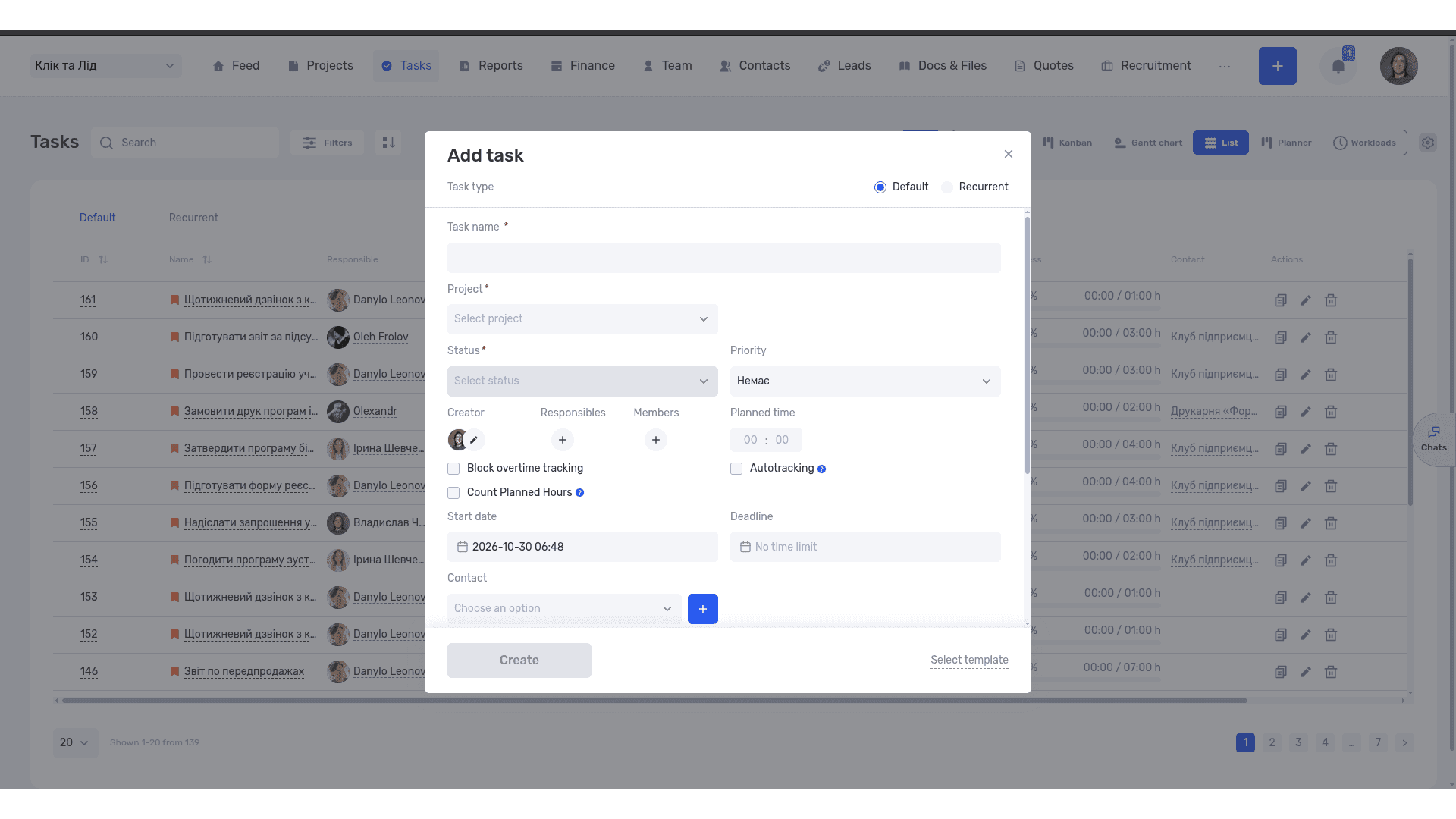
Planned time estimates the effort, while the due date records when the result is needed
Start the time tracker in the task card
Open the task and click Start at the bottom of the card. The timer records the current work session. Pause it when you take a break or switch to another task.
The Time field lets you compare recorded hours with planned hours. The clock icon opens the tracking history. Before starting, check the task’s navigation path: project, iteration, and task name.
Suppose the editor spends one hour and 20 minutes on the outline, then moves to content for Obrii. She stops the first session and starts the next one in the appropriate task. Each project gets the time spent on its own work.
The What Are Tasks guide explains the task card and its controls.
Add missing time and check the entries
If you held a meeting without starting the timer, add the time manually. Open the clock icon in the task card and add an entry with the date, duration, and a comment. Your permissions determine whether you can add and edit records.
For the presentation discussion, you might enter: “45 min. Approved the section order. Client to send data for two slides.” Check whether the timer has already recorded the meeting. Otherwise, the same work will increase the total twice.
With the required permissions, you can move all or part of an entry to another task. If the last 30 minutes of a two-hour session belonged to another project, move that portion to the correct task.
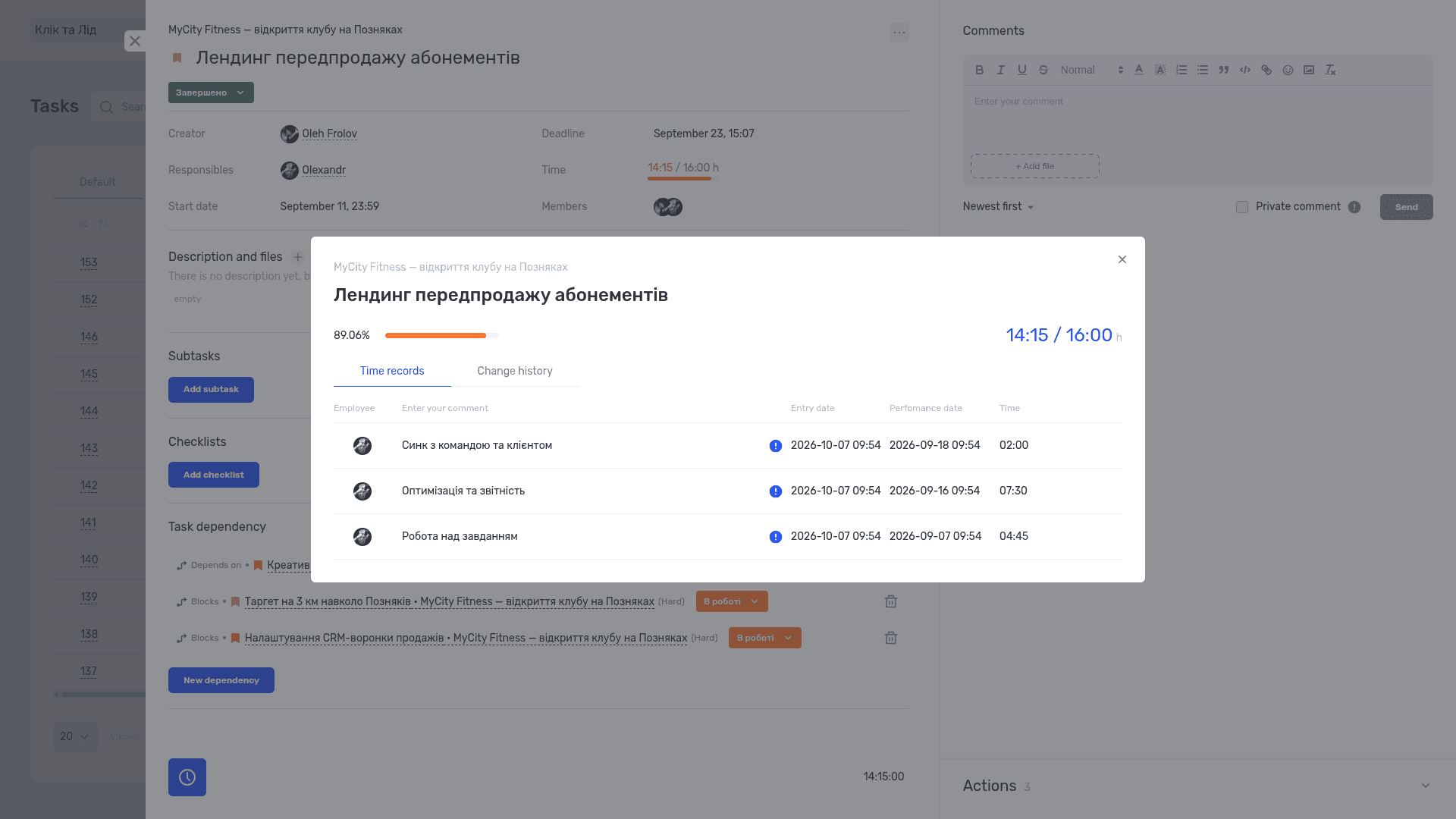
The time log shows individual entries, their duration, and comments
Review the week in Workload
In Tasks, switch to Workload. Select a week or a custom period. This view shows recorded time by day and the total for the selected period.
Group By Members to review each person’s hours or By Tasks to examine individual tasks. To analyze Vektor, filter by that project. For a studio-wide overview, review the team members available within your permissions.
If a total raises a question, open the details. The Working Time Log icon in a cell shows that task’s entries for the day. The Show Time for Day icon in the date header opens entries across tasks for that day.
The Non-Working Hours section at the bottom provides information about absences. This gives the weekly totals context: fewer hours may reflect someone’s leave.
Workload shows time that has already been entered. Before assigning new work, also check upcoming tasks and the person’s availability. Last week’s 35 hours say little about next week’s spare capacity. The Workload guide covers grouping, time logs, and export options.
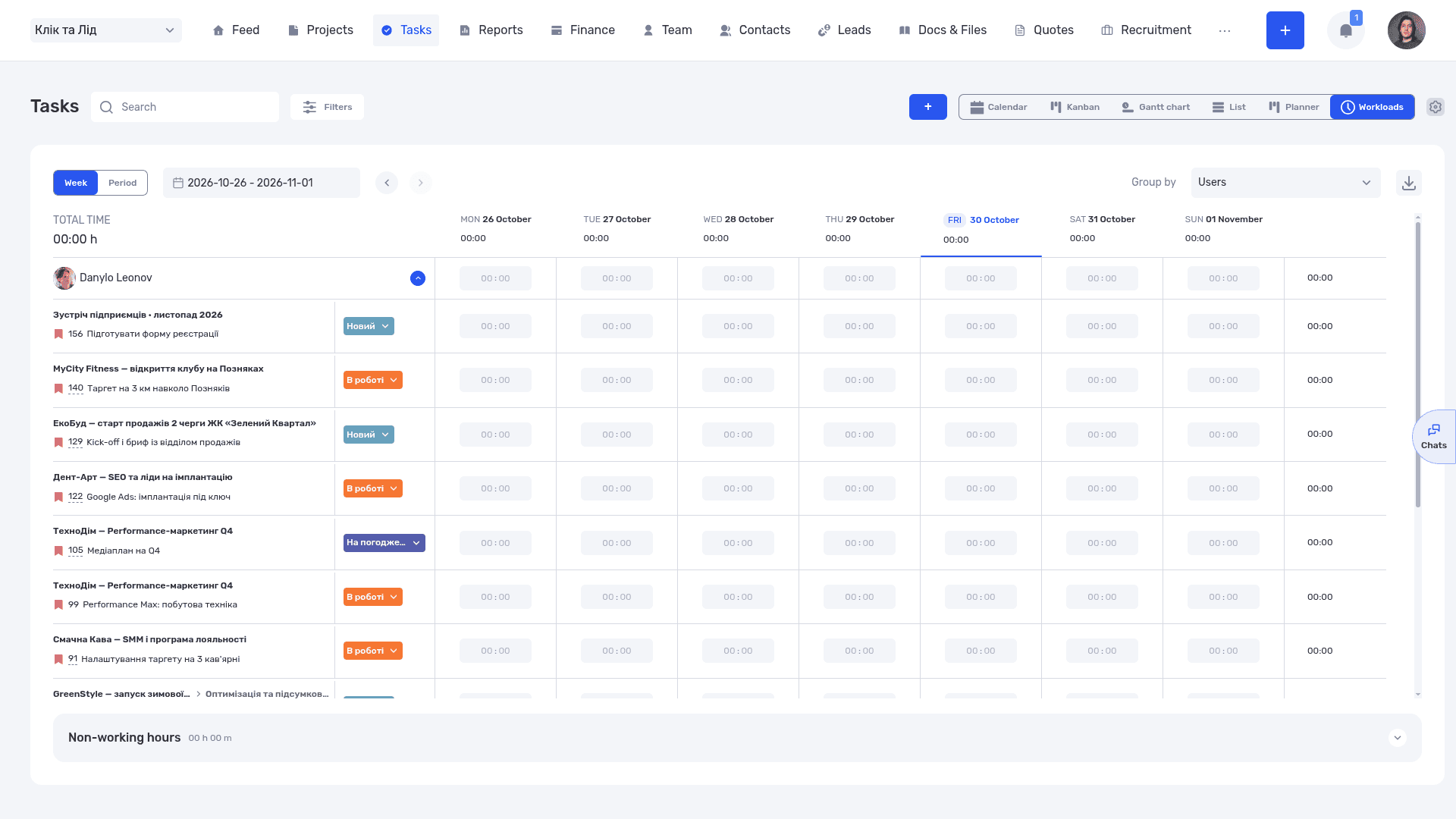
The weekly view shows tasks and the distribution of time across days
Investigate the overrun in the time report
Open Reports and select the Time breakdown. It lists individual entries with the task, project and iteration, date, employee, duration, and comment.
Filter for Vektor and the relevant period. Review the entries that explain the seven extra hours: changes to the outline and clarification of source material. A stopwatch icon identifies timer entries; a pencil identifies manual entries.
Before discussing the overrun with the client, you can export the selected entries and check the hours and comments. The Reports by Time guide describes the fields and filters.
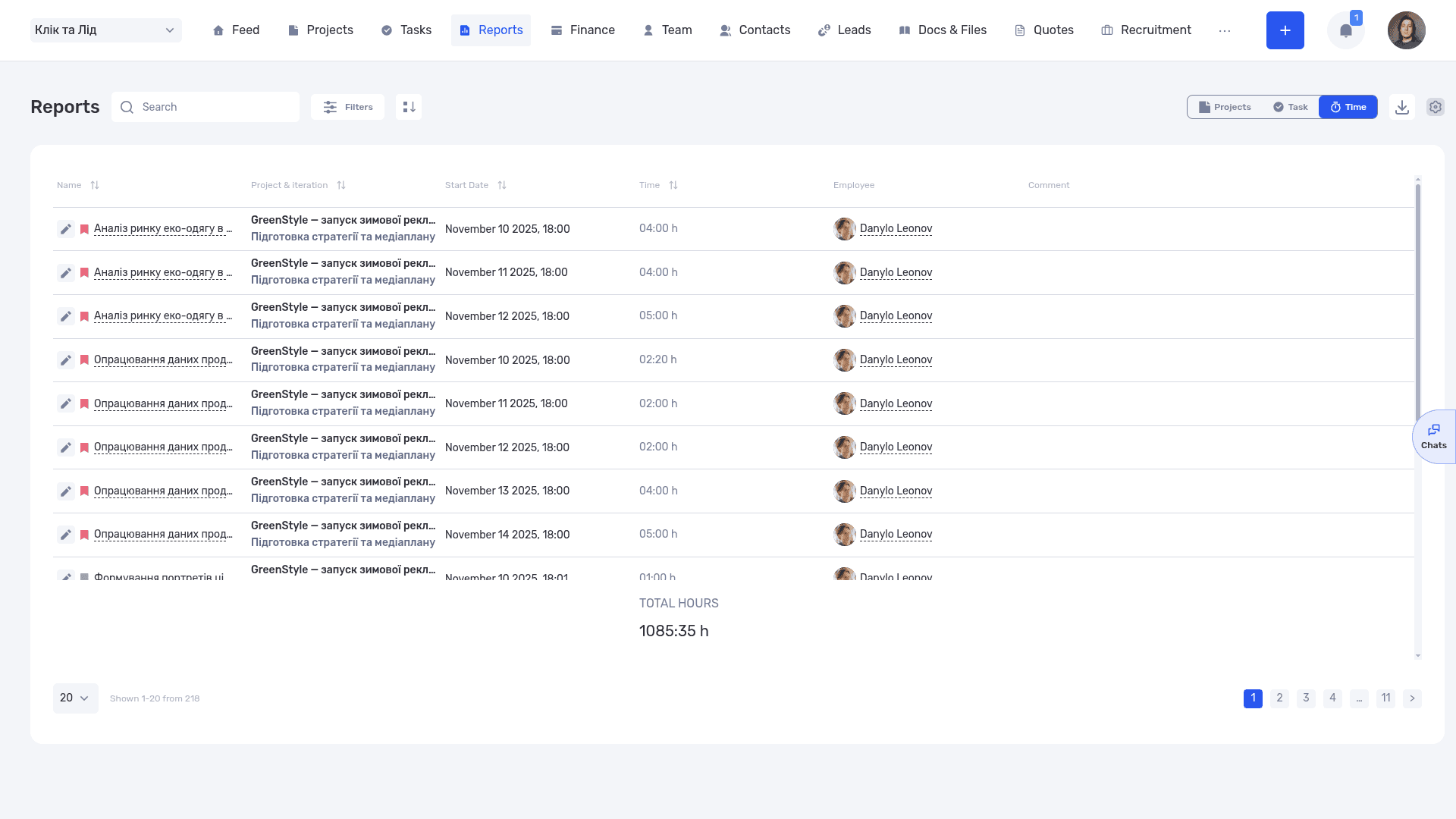
The report brings time entries together by task, project, date, and team member
Connect hours to project costs
Check the internal rates before using the cost figures. In the task form, the Rates section lets you choose an Internal Rate from the project’s rates. This affects the expenses calculated from tracked time.
To see how an ERP system connects hours, costs, and payments for a project, read our guide to ERP systems.
Run a simple check before analyzing the totals: take a task with a known number of hours and calculate its cost using the current rate. This makes a setup error easier to catch before you rely on the overall project result.
On the project screen, Planning displays planned financial figures alongside actual ones. The forecast uses inputs including unused planned hours, rates, and scheduled payments. If the estimate of remaining work changes, update the plan. A useful forecast depends on current inputs.
The Project Financial Planning guide explains the calculations. Our article on project dashboards looks at which figures to bring together for a regular review.
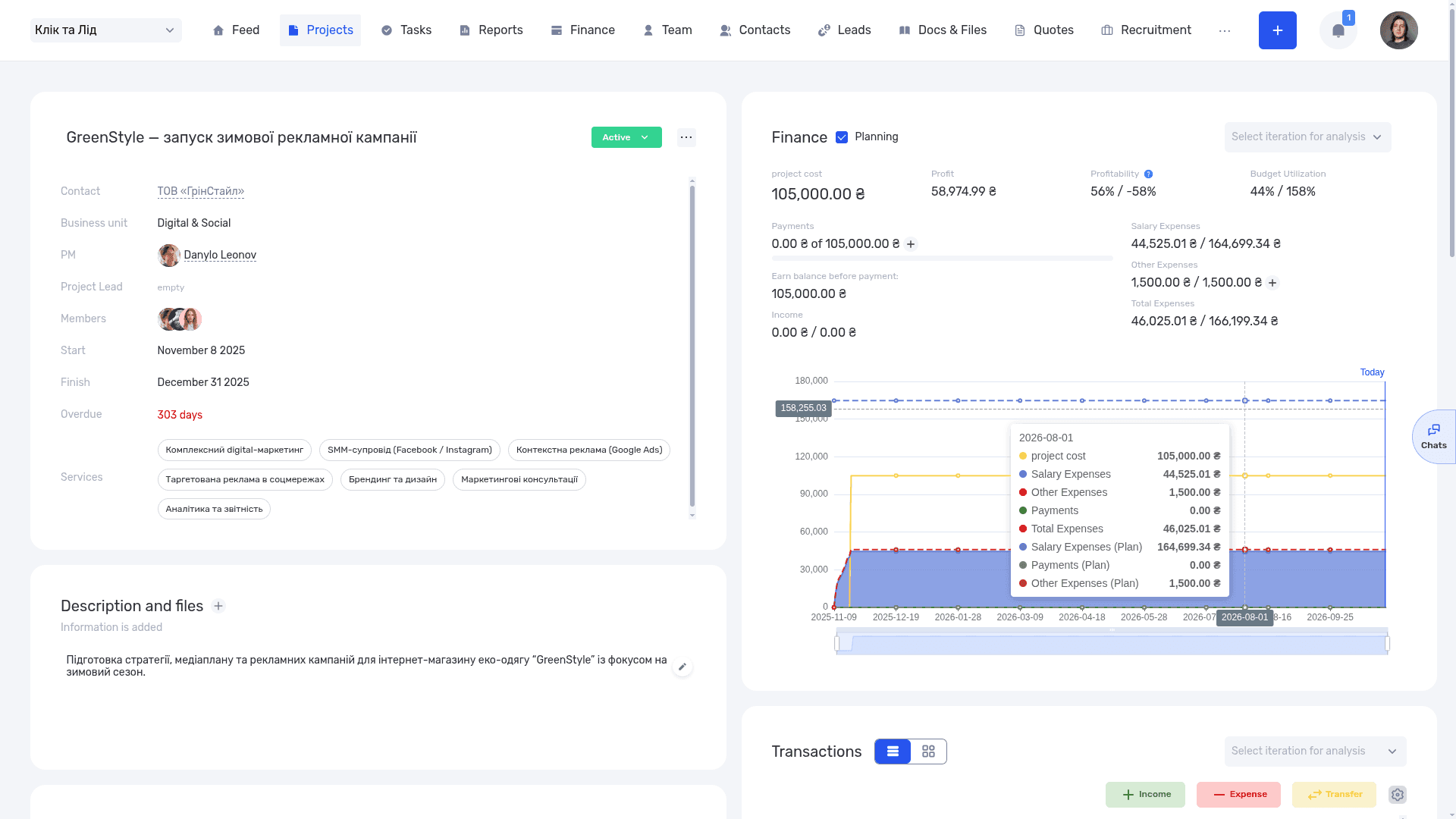
Planned and actual figures help the team review the cost of its work
Choose a convenient way to start the timer
If your work often starts in a browser, try the if.team Chrome extension. It supports starting and stopping the timer, adding time manually, and viewing totals for the day and the task.
The mobile app offers another option. You can view and pause the timer from the iOS lock screen or an Android notification. The mobile timer update explains this workflow.
How a legal team uses time tracking
At the law firm Zakhyst Vlasnosti, if.team connects legal matters, tasks, and lawyers’ hours. The published case study describes hourly billing: commercial rates depend on the service or the person’s role, and time entries are used to calculate charges.
Each entry links a lawyer’s time to a legal matter and the work performed. The team can check the total charge against those entries. It also uses reports by project, task, and time.
Read the Zakhyst Vlasnosti case study for more on the workflow. It illustrates a different use of time records from our fictional studio’s fixed-price presentation.
If your studio needs to connect hours with clients, tasks, and finances, explore if.team for design studios.
You can try this workflow in if.team for free: create a sample project, add a task with an estimate, record a few sessions, and review them in Workload and the time report.
Frequently asked questions about project time tracking
What is time tracking in simple terms?
It means recording time spent on work. Project teams link that time to tasks so they can see how long individual activities, phases, and client jobs took. You can record time with a timer or add it manually.
Do fixed-price projects need time tracking?
It helps a company understand delivery costs and make better estimates for future jobs. The client pays the agreed fee, while the company can see the hours and money spent on delivery.
How should we record meetings and messages?
Link them to the work they concern. You can create a separate project task for recurring discussions. Assign internal team meetings to internal work. Each participant records their own time.
What if I forget to start the timer?
Add a manual entry for the date when the work happened. Use your calendar or other work records to check the duration, and add context. If you can only reconstruct an approximate duration, label it as an estimate.
Can we track time in Excel or Google Sheets?
Yes. A shared table with a date, person, project, task, and duration is enough to begin. Agree on naming and duration formats. When consolidating the records takes too much effort, test a dedicated system.
Can a project timesheet replace attendance records?
The records serve different purposes. A project timesheet shows how hours are distributed across work. Check separately whether its data and format meet the company’s HR recordkeeping requirements.
Does if.team support both timers and manual entries?
Yes. The task card includes a tracker and a time log; manual entries are available with the appropriate permissions. The Time report uses different icons for timer and manual entries.
How do we know whether time tracking is worth the effort?
Look at the decisions the data has changed: the next estimate, approval process, allocation of work, or payment terms. Compare the value of those changes with the time spent entering and checking records. If the reports go unused, revisit the purpose and level of detail.
Author
Vladyslav ChesnokovPublished
Oct 28, 2026
More articles to read
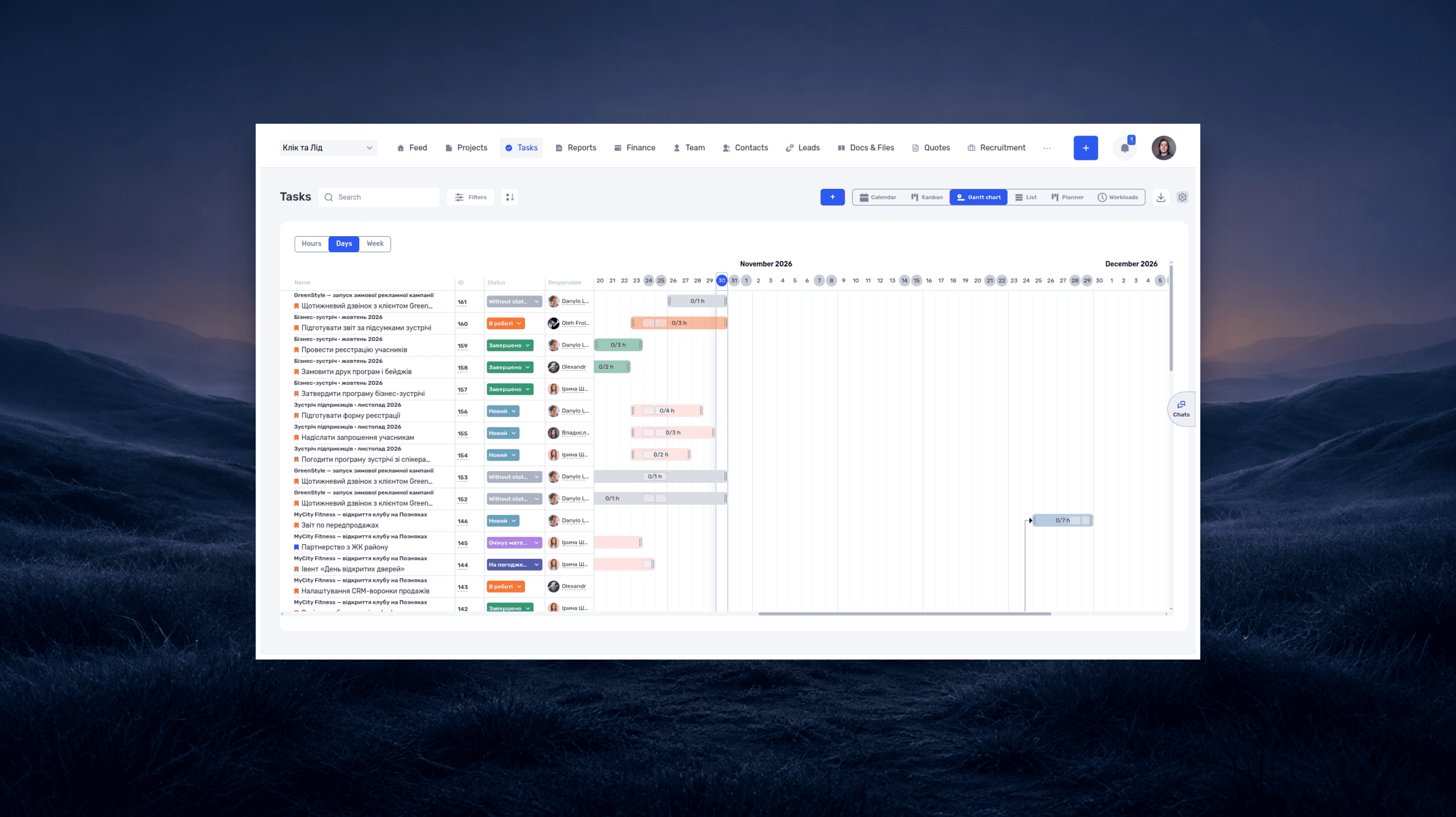
What is a deadline? How to set and meet realistic deadlines
Why six hours of work can take several days—and how to build a schedule around availability, review, and revisions. With a practical if.team walkthrough.
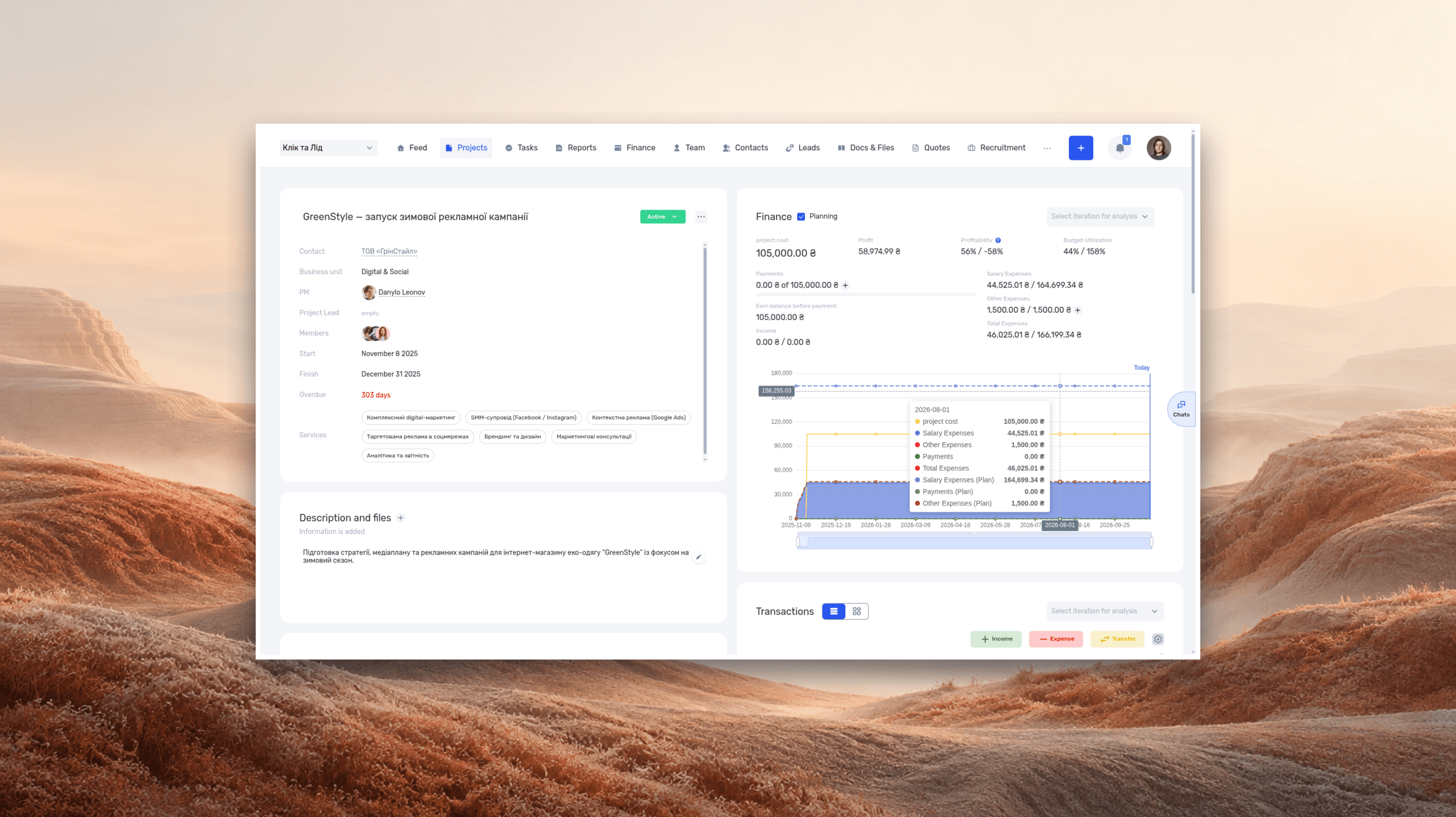
ERP systems explained—what they do and when your business needs one
See how ERP connects sales, delivery, and finances, with a worked example and a practical walkthrough in if.team.
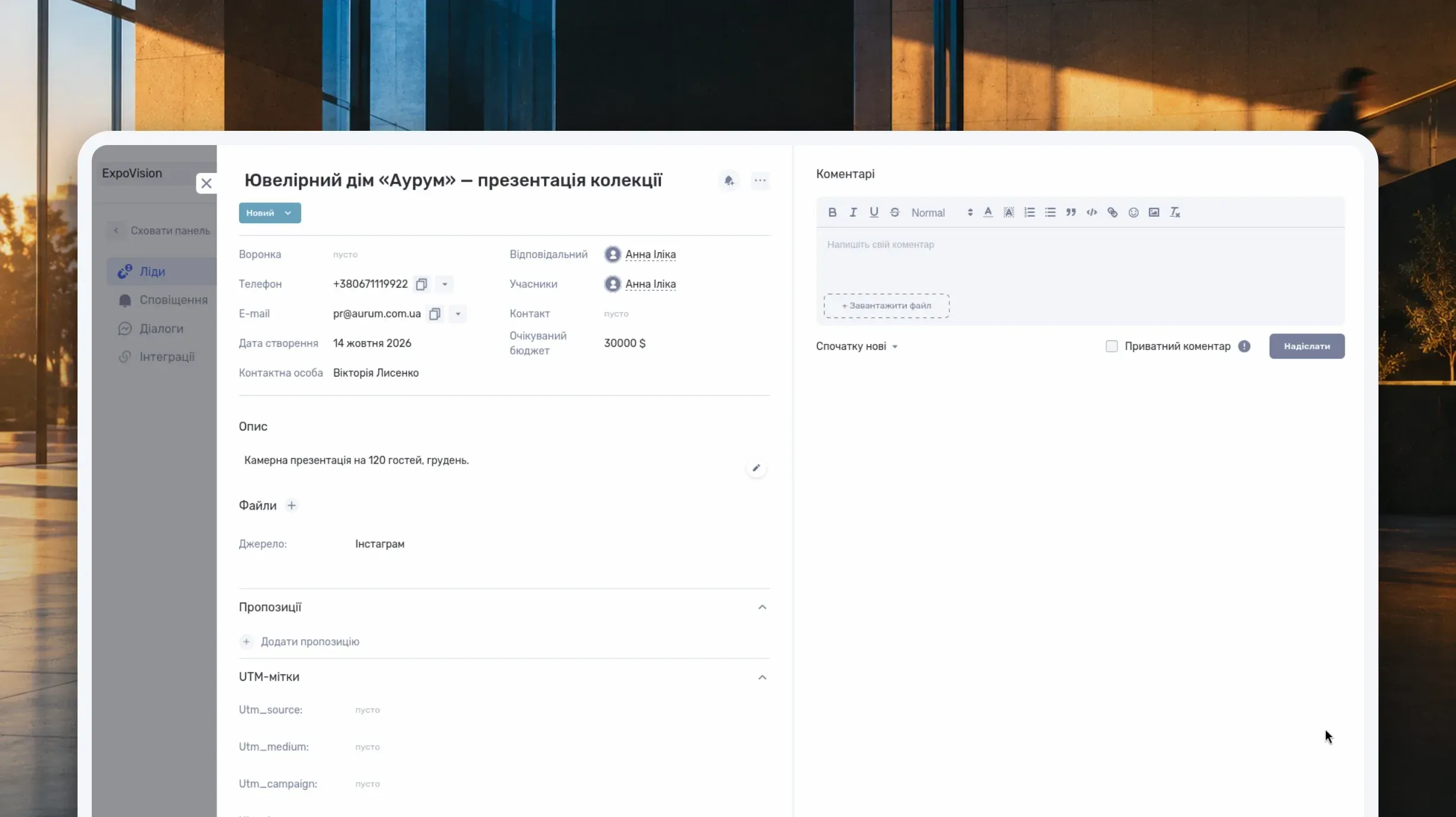
What Is a CRM System and How Do You Use It to Manage Customer Relationships?
Learn what a CRM system is, how it works from first inquiry to outcome, and which features matter day to day. Compare CRM with spreadsheets, task managers, and ERP, and see how to choose a CRM and manage clients in if.team.

What Is a Project Dashboard? Metrics, Example and Setup
Learn what a project dashboard is and how it differs from a report, a spreadsheet, or a Kanban board. See how to choose project metrics, structure the dashboard, and use it in meetings, with a website launch example and setup steps in if.team.
How to Write a Business Proposal: Examples and a Template
Learn how to write a business proposal: what to clarify first, which sections to include, and how to present price, timeline, and terms. Includes two examples — for services and installation work — a reusable template, sample emails, and steps in if.team.
How to assign tasks to your team: from briefing to tracking completion
We break down how to assign tasks so they actually get done: what a brief must contain, how to word the result and the deadline, who takes ownership and how to check completion. With an example, an acceptance checklist and a template for running the task in if.team from start to finish.
See if.team in action for your company
We’ll show how projects, team time and finances connect in one system, using your processes as an example.