What Are Tasks
The Tasks section is where all company work tasks are created, assigned, and tracked. Here, you can see tasks across all projects, filter them by various parameters, track progress and work time, and manage tasks in a convenient view.
The Tasks Section
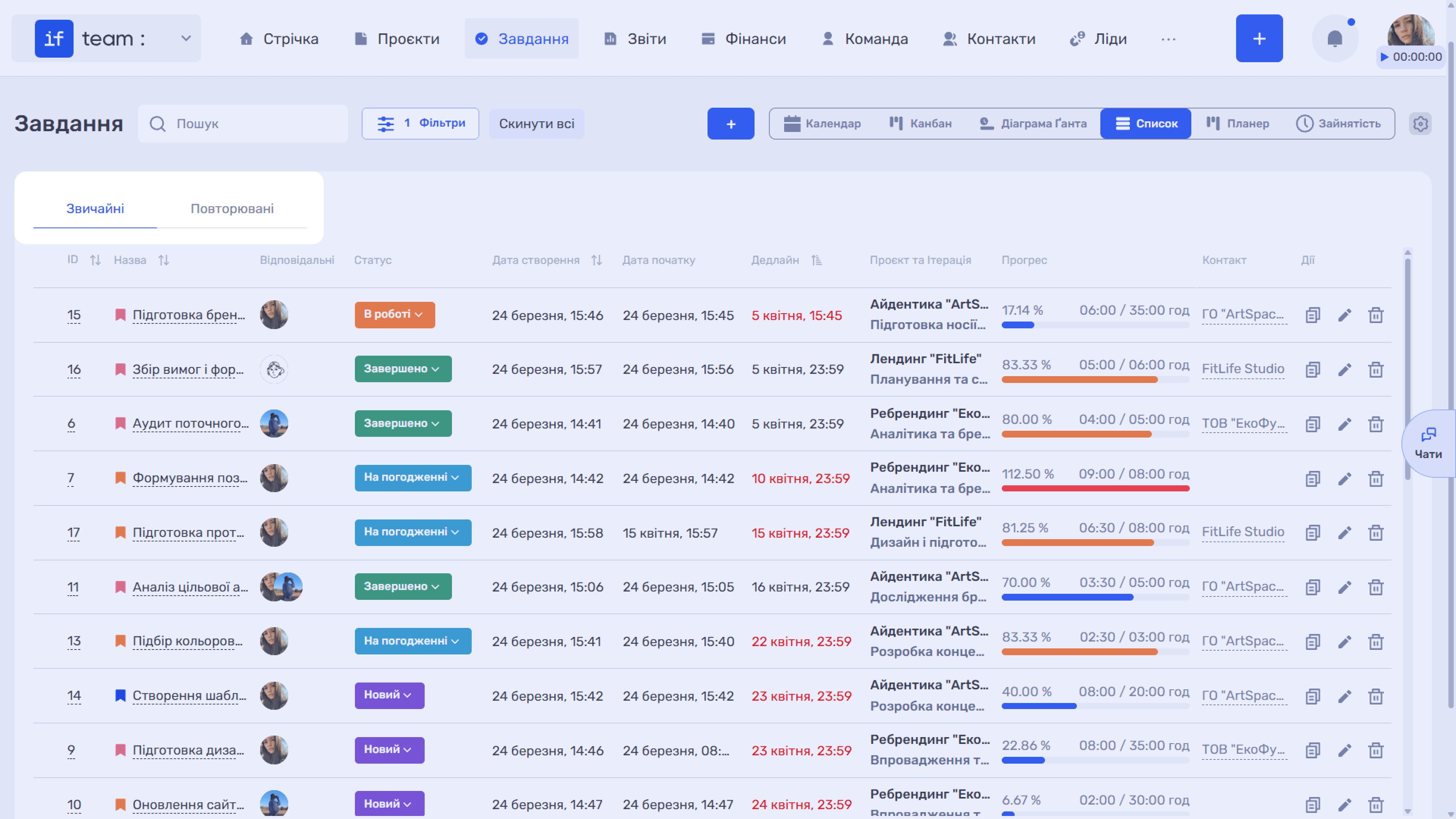
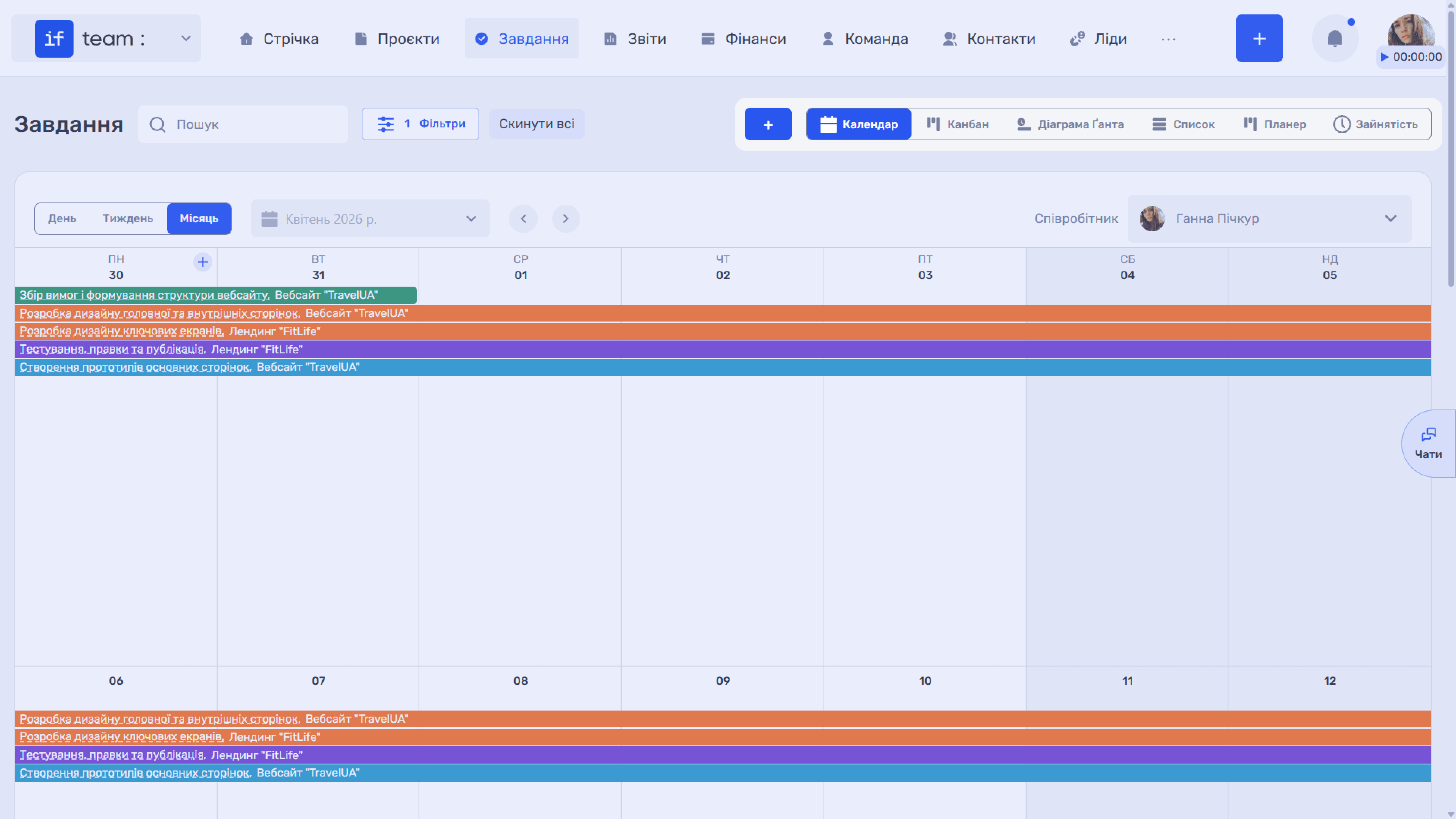
To open the section, click Tasks in the top navigation. It contains all company tasks, regardless of project. The section supports six views, which you can switch between using the buttons in the upper-right corner: Calendar, Kanban, Gantt Chart, List, Planner, and Workload. Each view is covered in detail in its respective subsection.
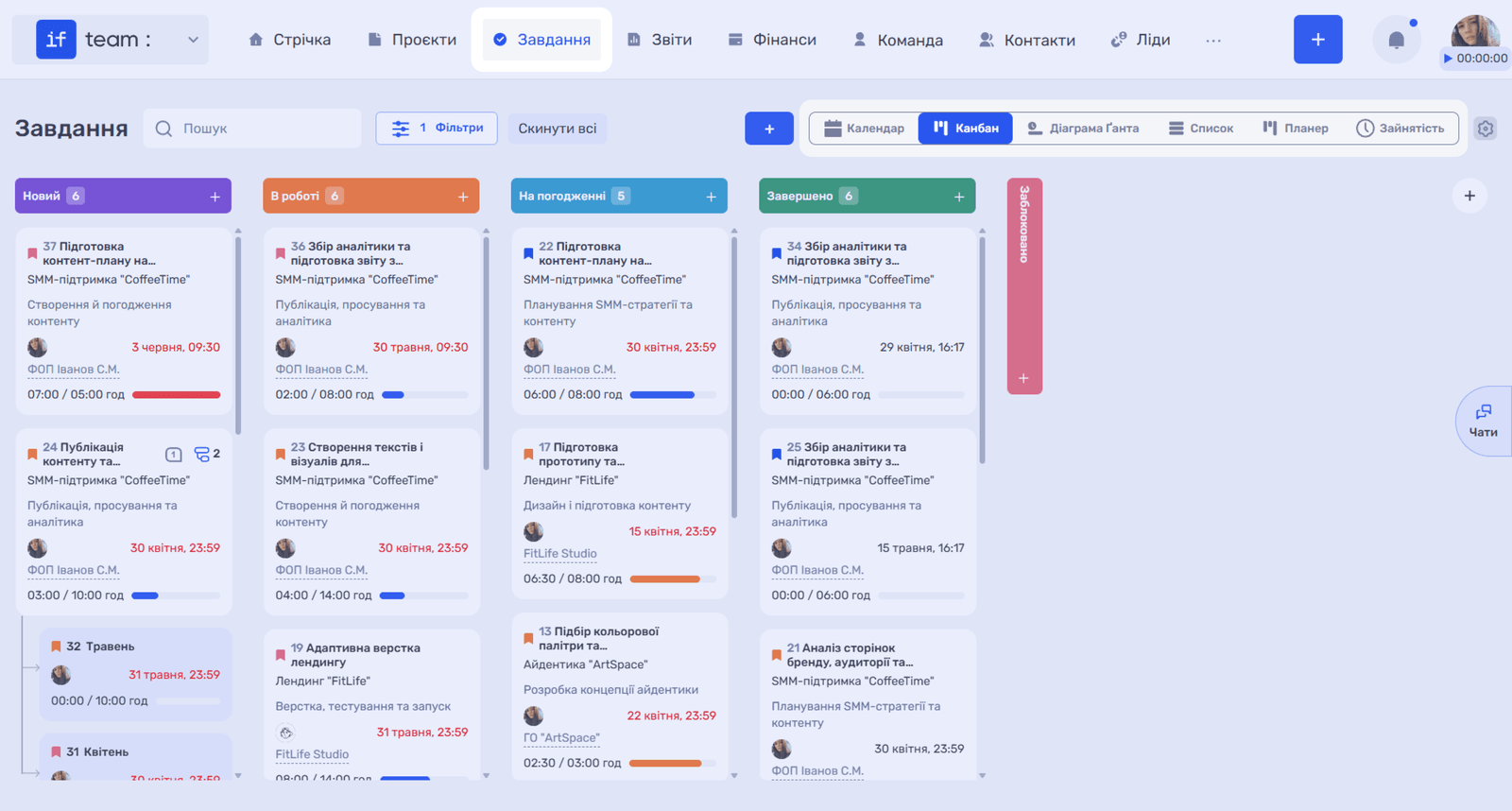
Tasks are divided into two types: standard and recurring. Standard tasks are one-time tasks with a specific result. Recurring tasks are created automatically on a set schedule, such as a weekly report or monthly review.
Task Card
A task is the core unit of work in if.team. Each task belongs to a specific project and iteration and contains all the information required to complete it: responsible employees, dates, planned time, priority, status, description, attachments, checklists, subtasks, and comments.
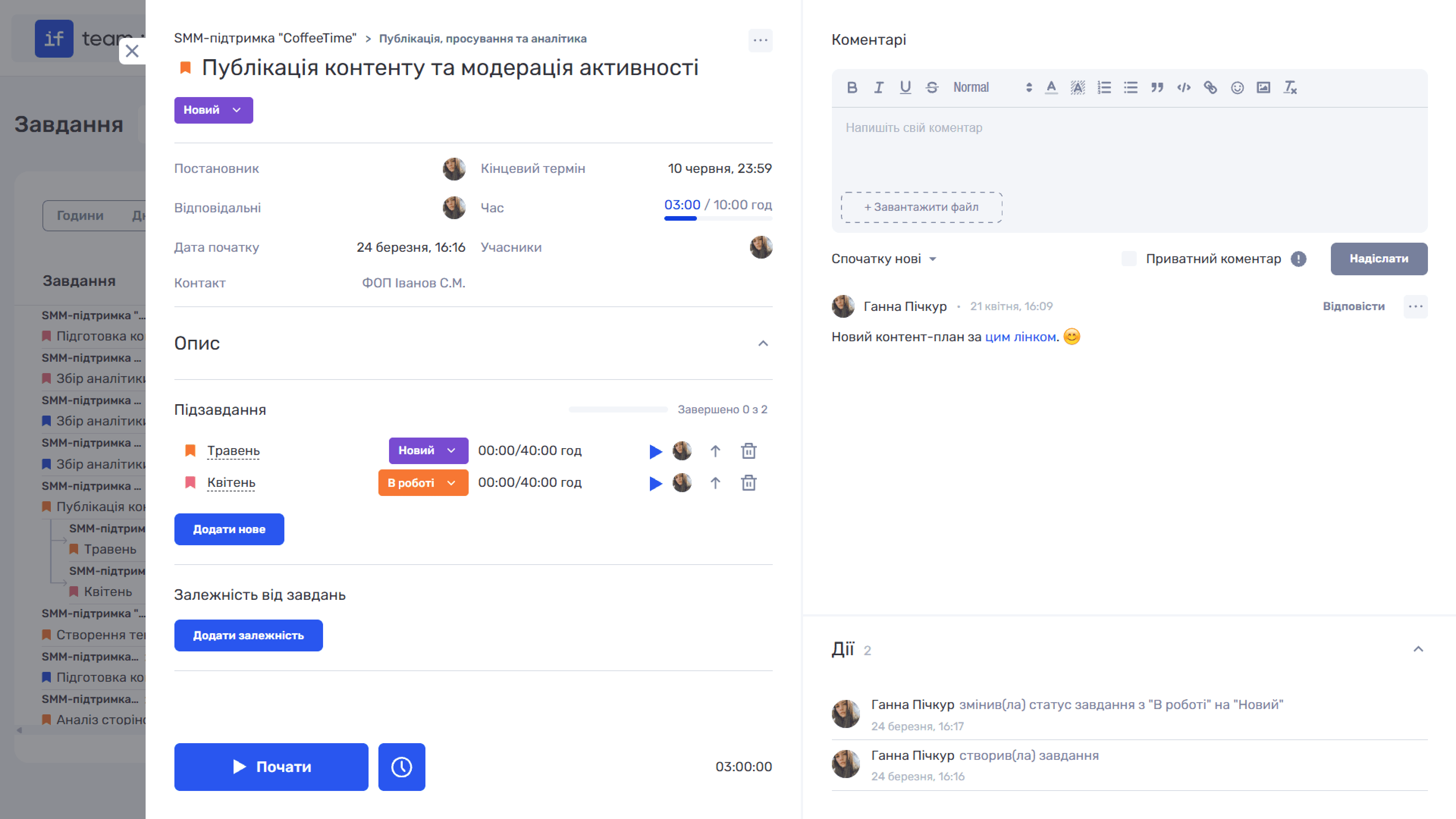
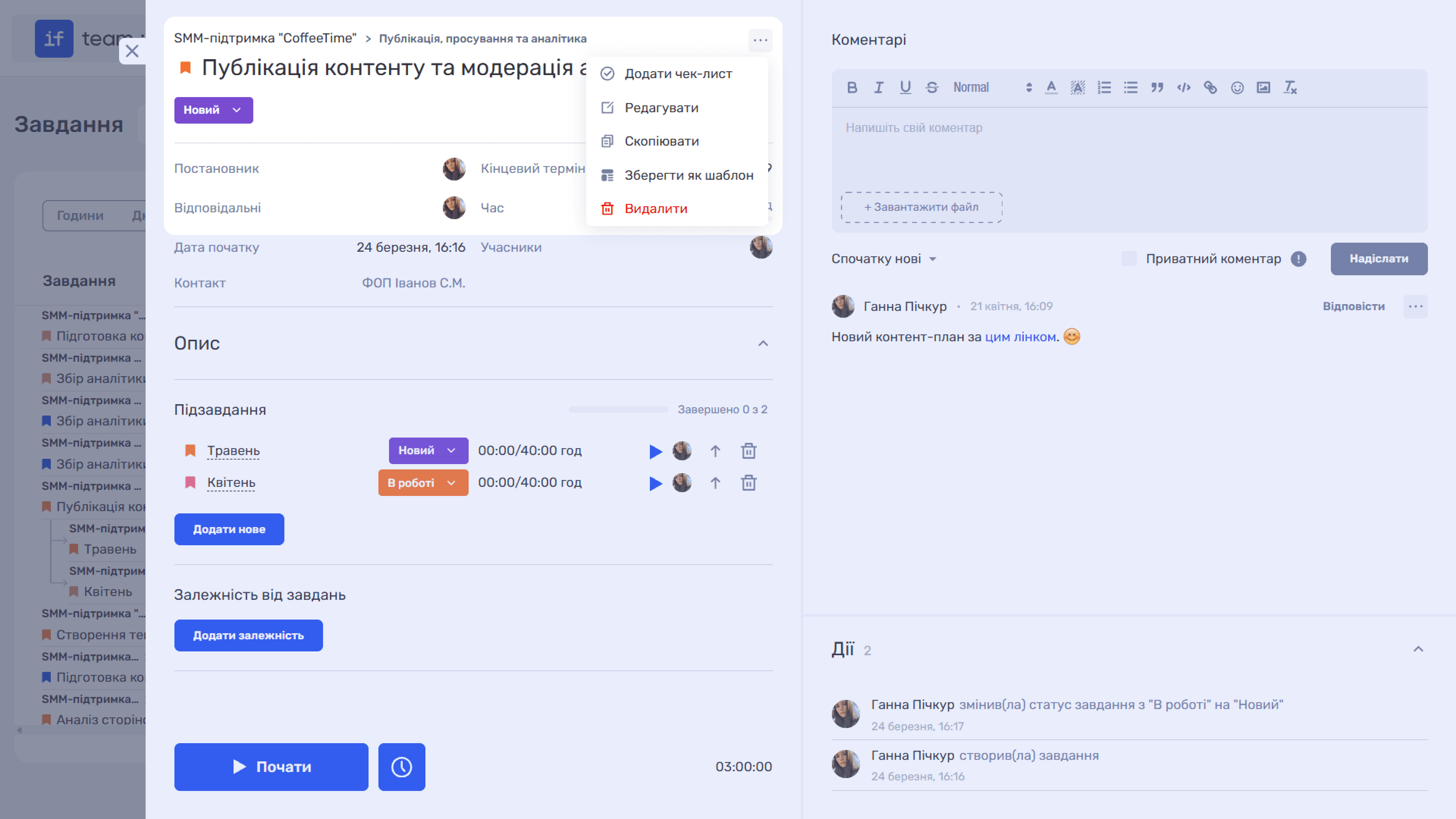
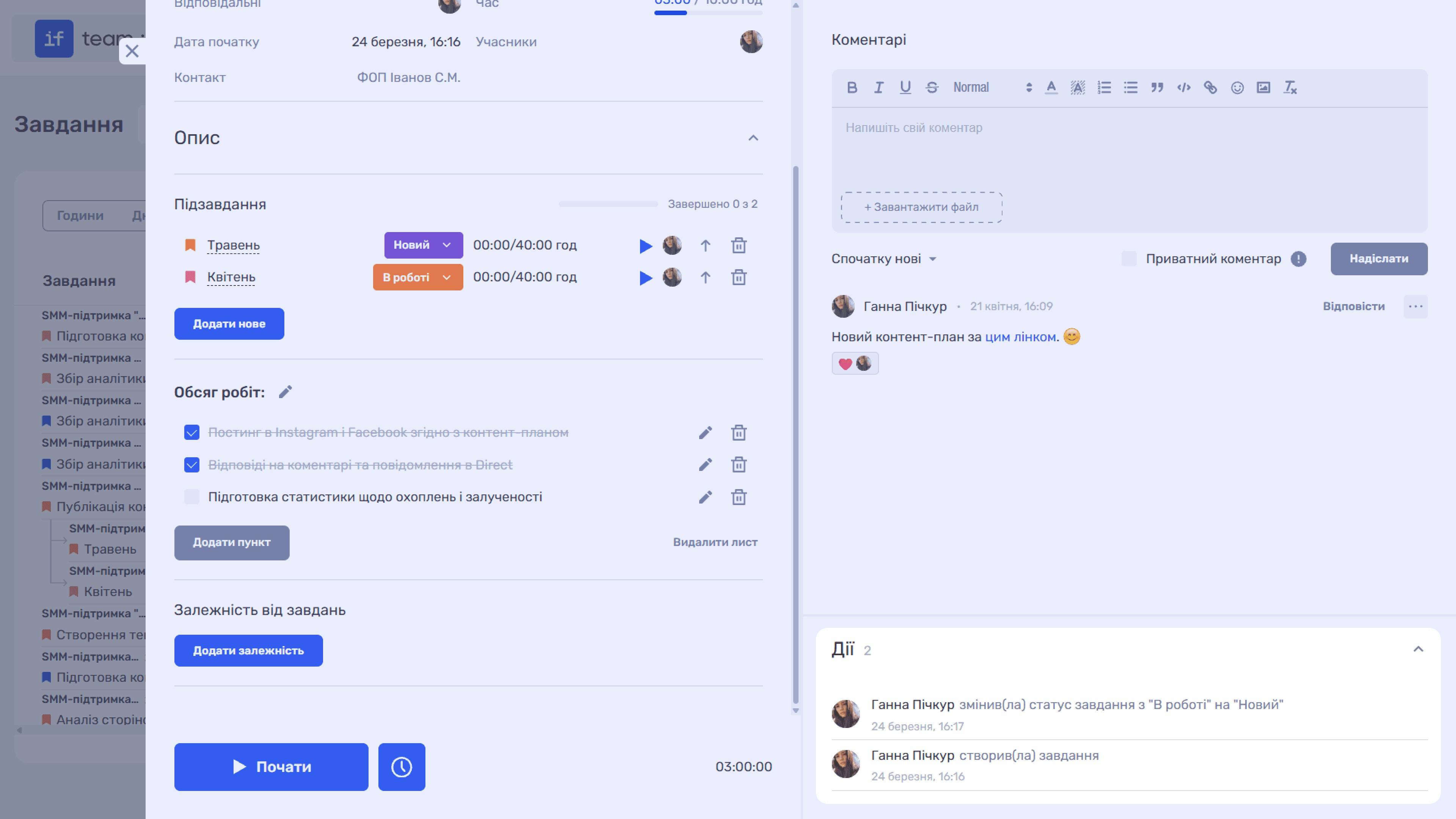
Click any task in any view to open its card. The navigation path at the top shows the project → iteration → task name. Next to the name is the current status, which you can change by clicking it and selecting another status. Additional actions are available from the menu (⋯): Add Checklist, Edit, Copy, Save as Template, or Delete.
The task card contains the following fields:
- Task Creator is the person who created the task.
- Due Date is the deadline for completion.
- Responsible Employees are the people completing the task.
- Time shows the time actually tracked out of the planned time.
- Start Date is when the task was or will be started.
- Participants are additional employees involved in the task.
- Contact is the client or counterparty linked to the task.
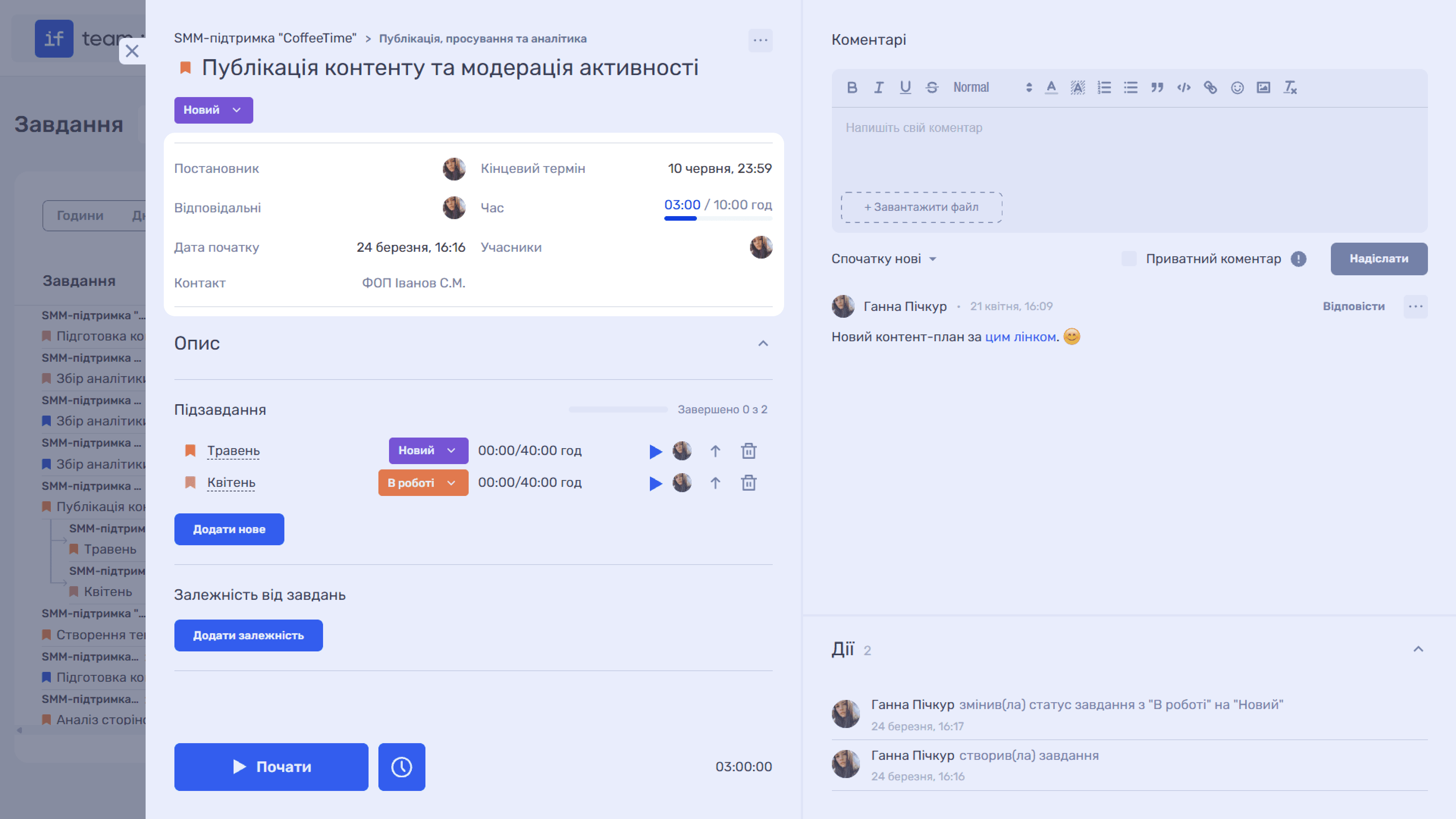
Below are expandable sections:
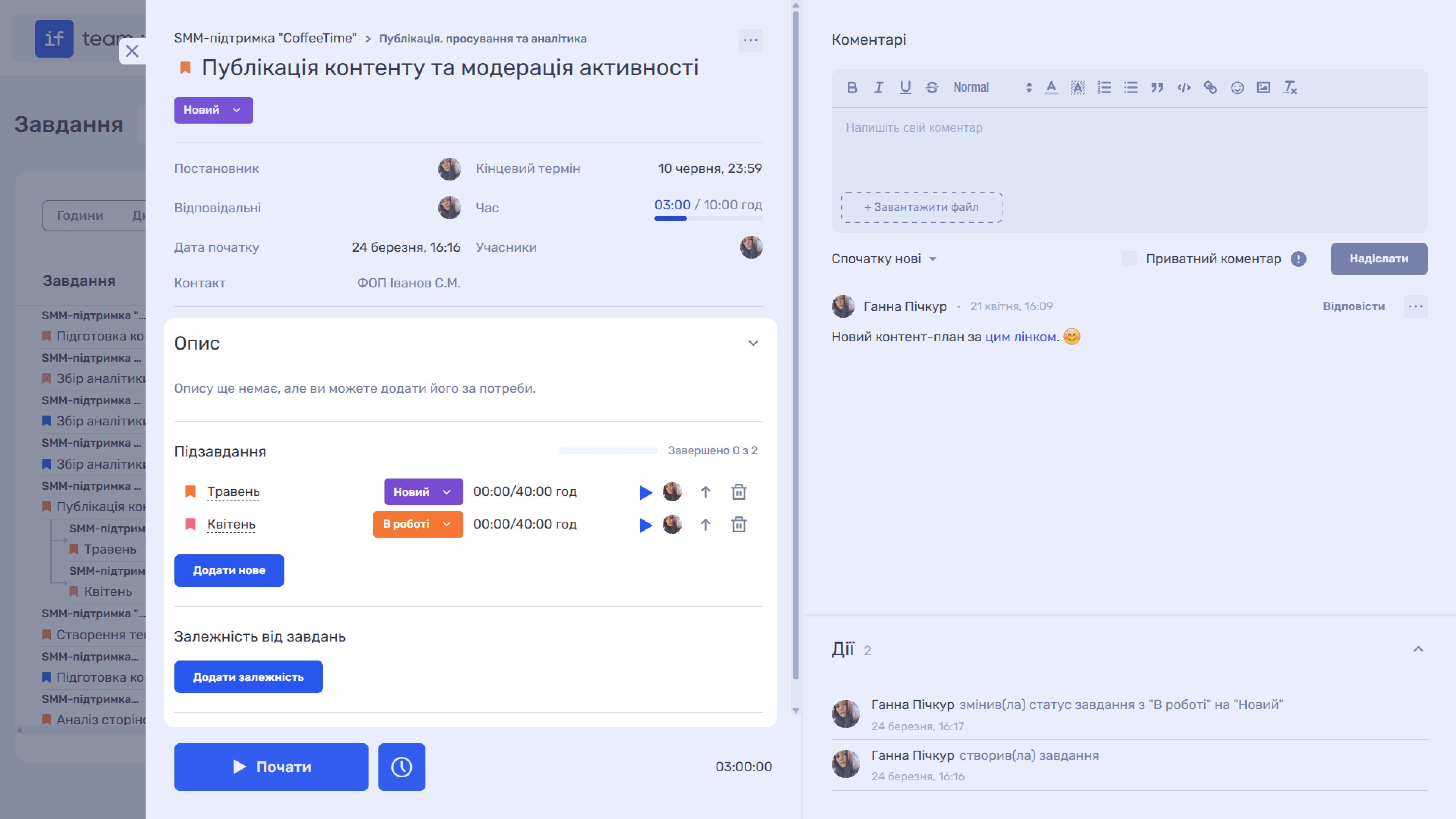
- Description is a text section for task details. If there is no description yet, the system prompts you to add one.
- Subtasks lets you divide the task into smaller parts. Click Add New to create a subtask.
- Task Dependencies lets you create links to other tasks. Click Add Dependency to specify which task must be completed before or after the current task.
- Checklist helps you divide the task into smaller steps and track their completion directly in the task card. Click the menu icon (⋯) in the upper-right corner of the card and select Add Checklist.
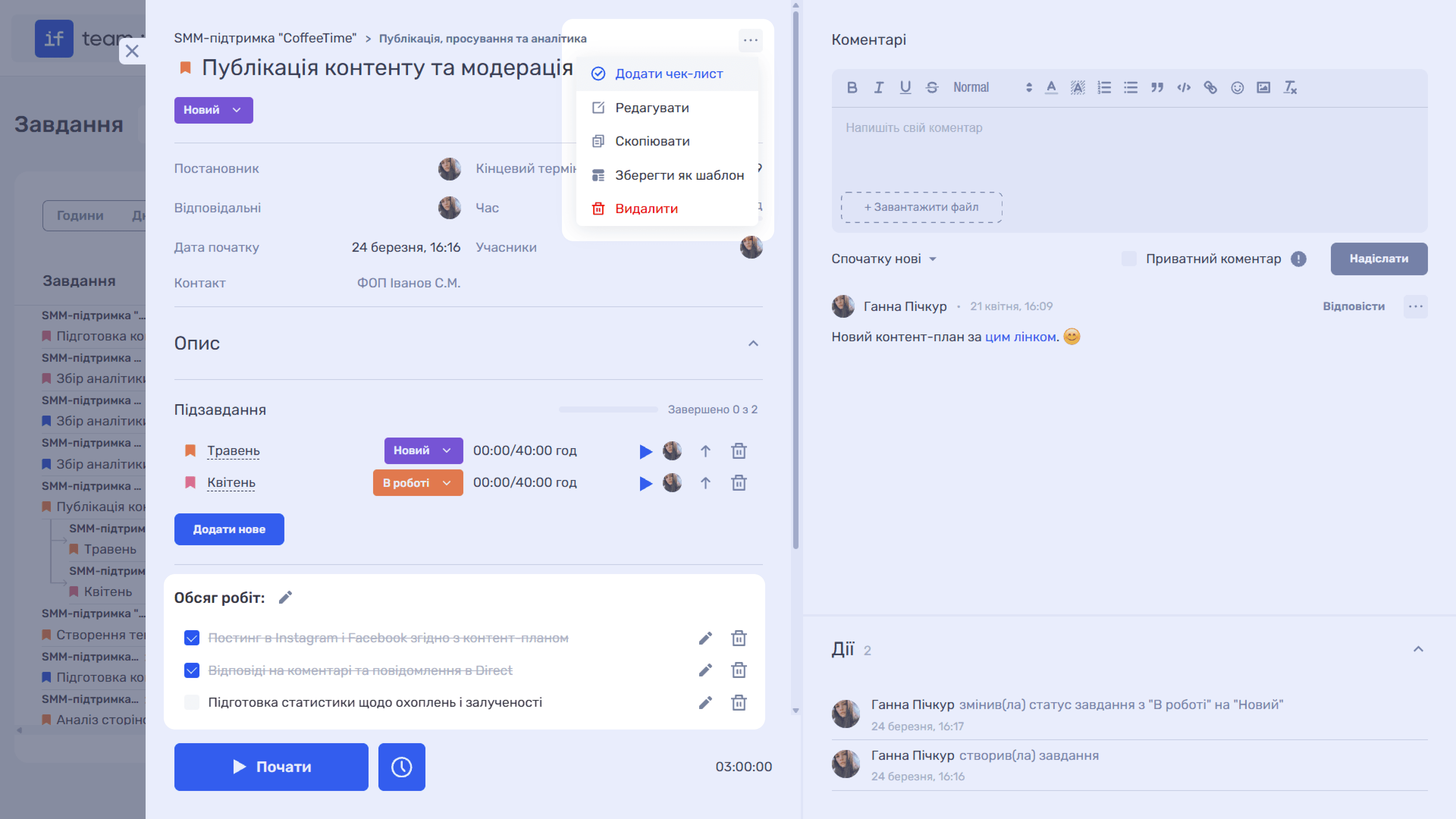
The comments panel is on the right and includes a text editor, sorting by newest, and the Private Comment option for messages visible only to you.
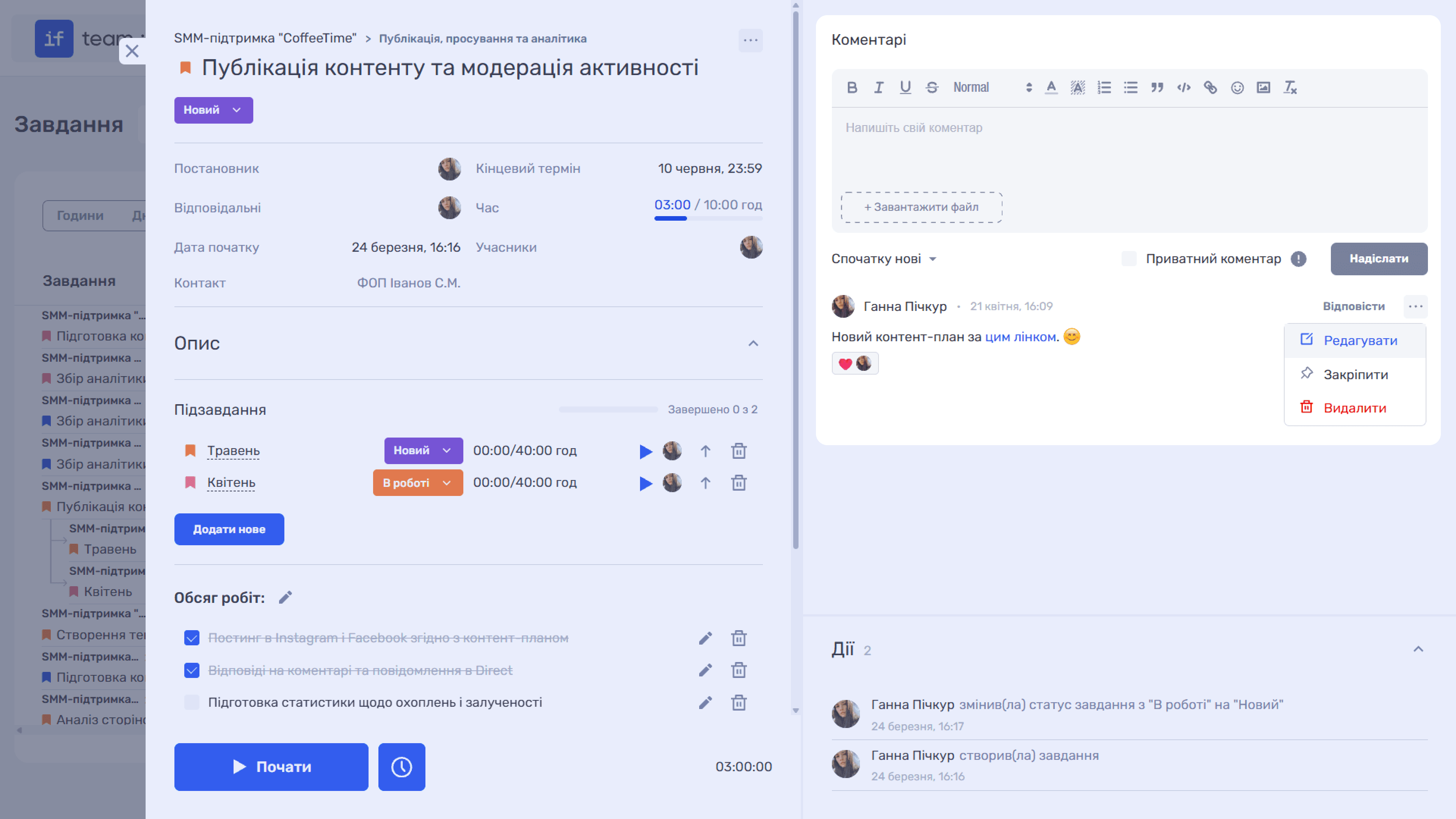
At the bottom of the card is the Start button (▶) for starting the time tracker and a clock icon (🕐) for viewing tracking history. The total tracked time appears next to them.
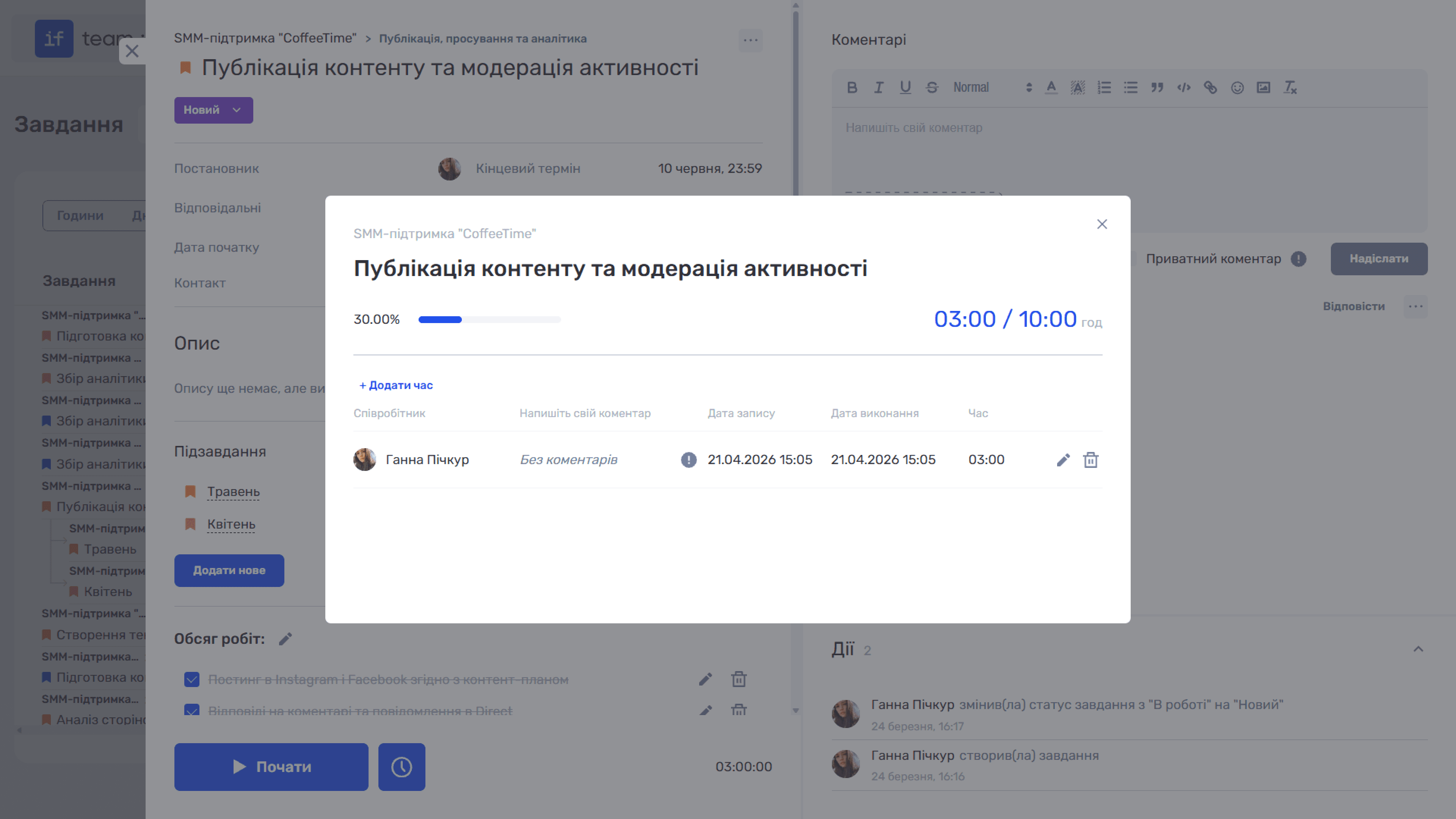
The Actions section records the history of all changes to the task: who changed its status, added a comment, or updated its data, and when.
To learn about creating a new task and all fields in the form, see Creating a Task.
Task Views
The Tasks page supports five views, which you can switch between using the buttons in the upper-right corner: Calendar, Kanban, Gantt Chart, List, and Workload.
Still have questions?
Maybe we haven't added this information yet. But you can always reach out:
Request a demo
Submit a request and we'll show you how the service works and its capabilities.
Book a demo