Calendar
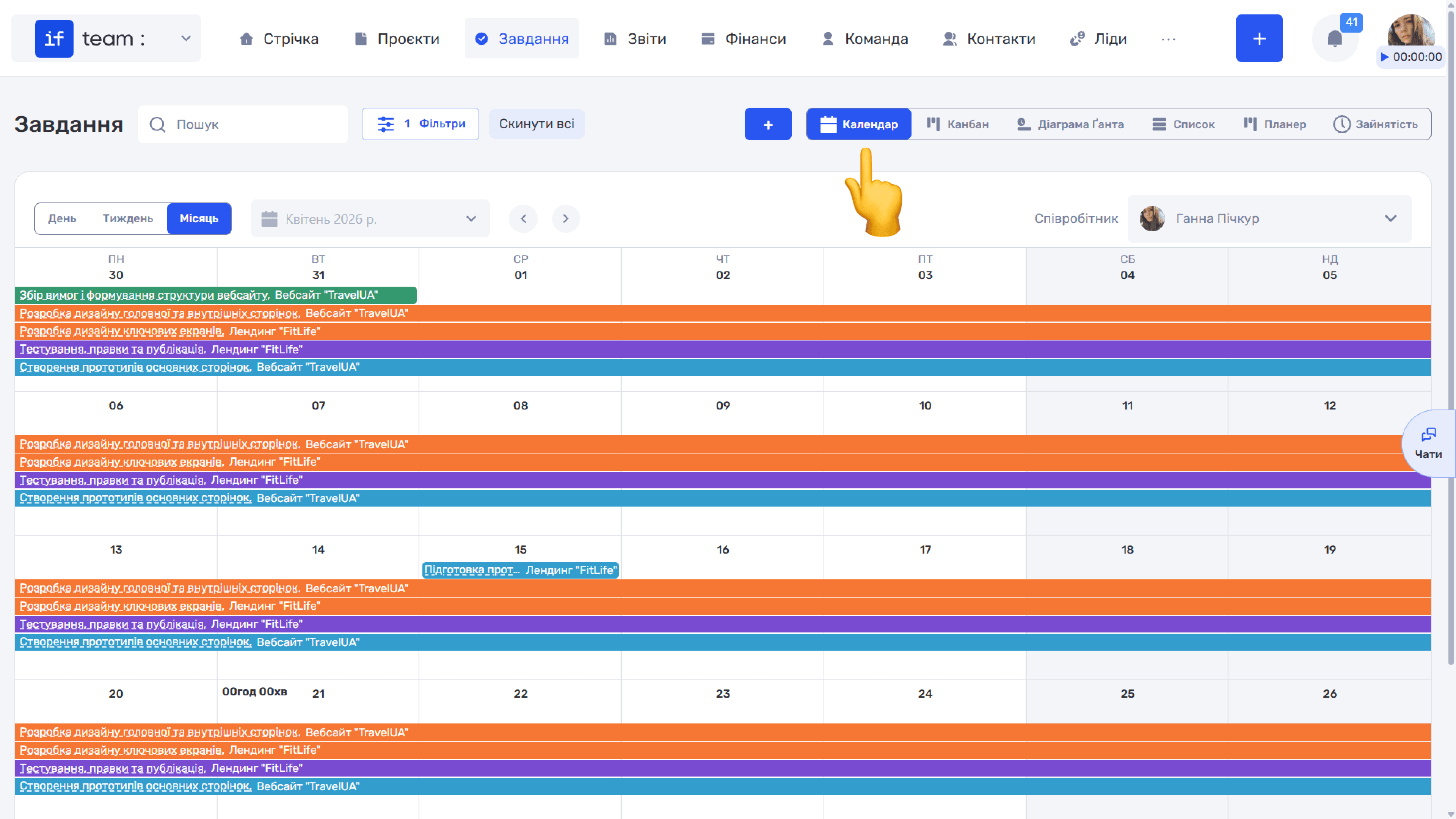
The “Calendar” view displays an employee’s tasks in a calendar and time grid, making it useful for visual workload planning. To open this view, click “Calendar” in the upper-right corner of the “Tasks” page.
Scale and Navigation
In the upper-left corner, select “Day,” “Week,” or “Month.” Use the arrows (‹ ›) or the drop-down calendar to move between dates, periods, or months.
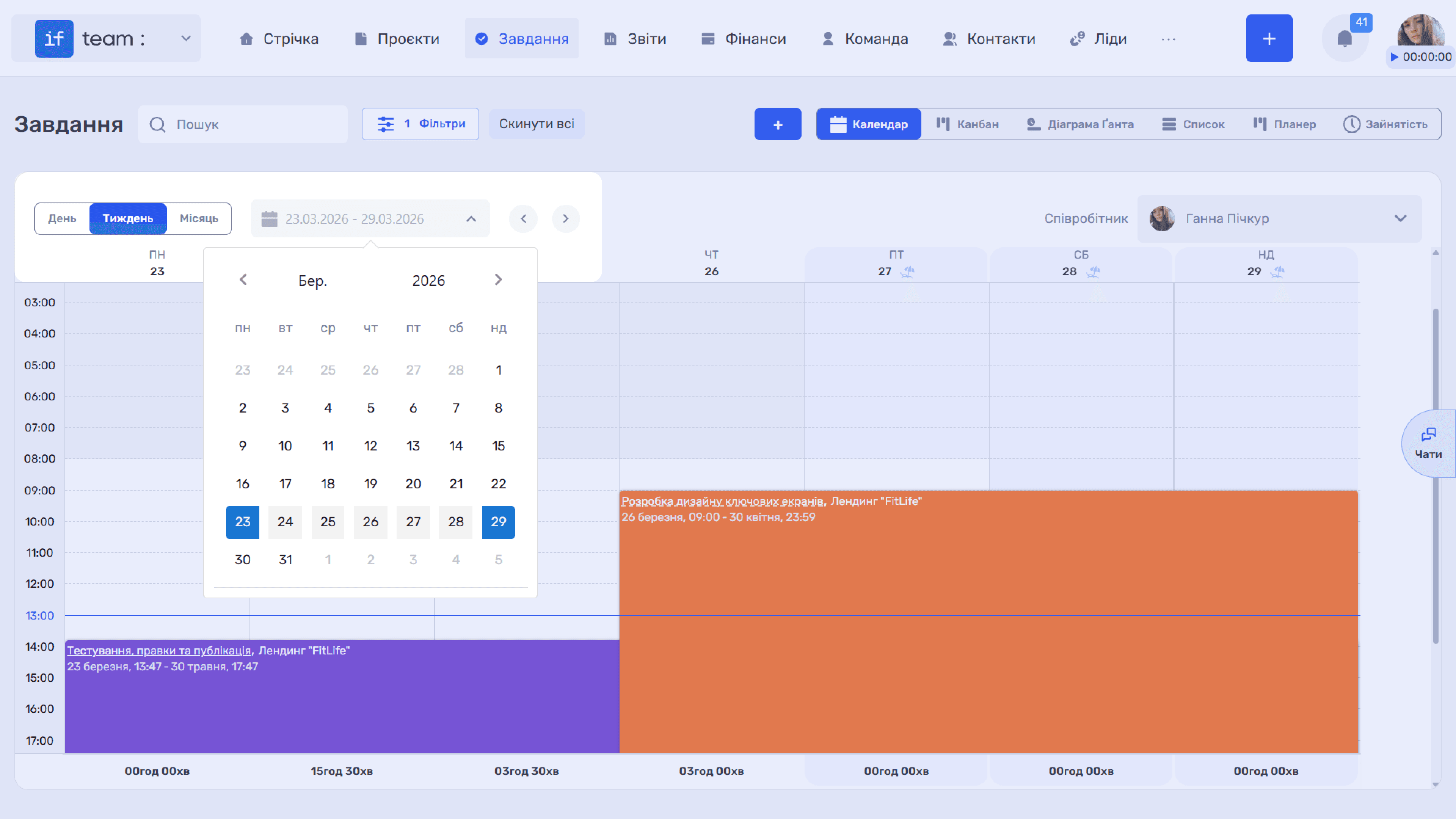
The “Employee” selector is in the upper-right corner. Select the person whose calendar you want to view. By default, you see your own tasks; with the appropriate permissions, you can also view other employees’ tasks.
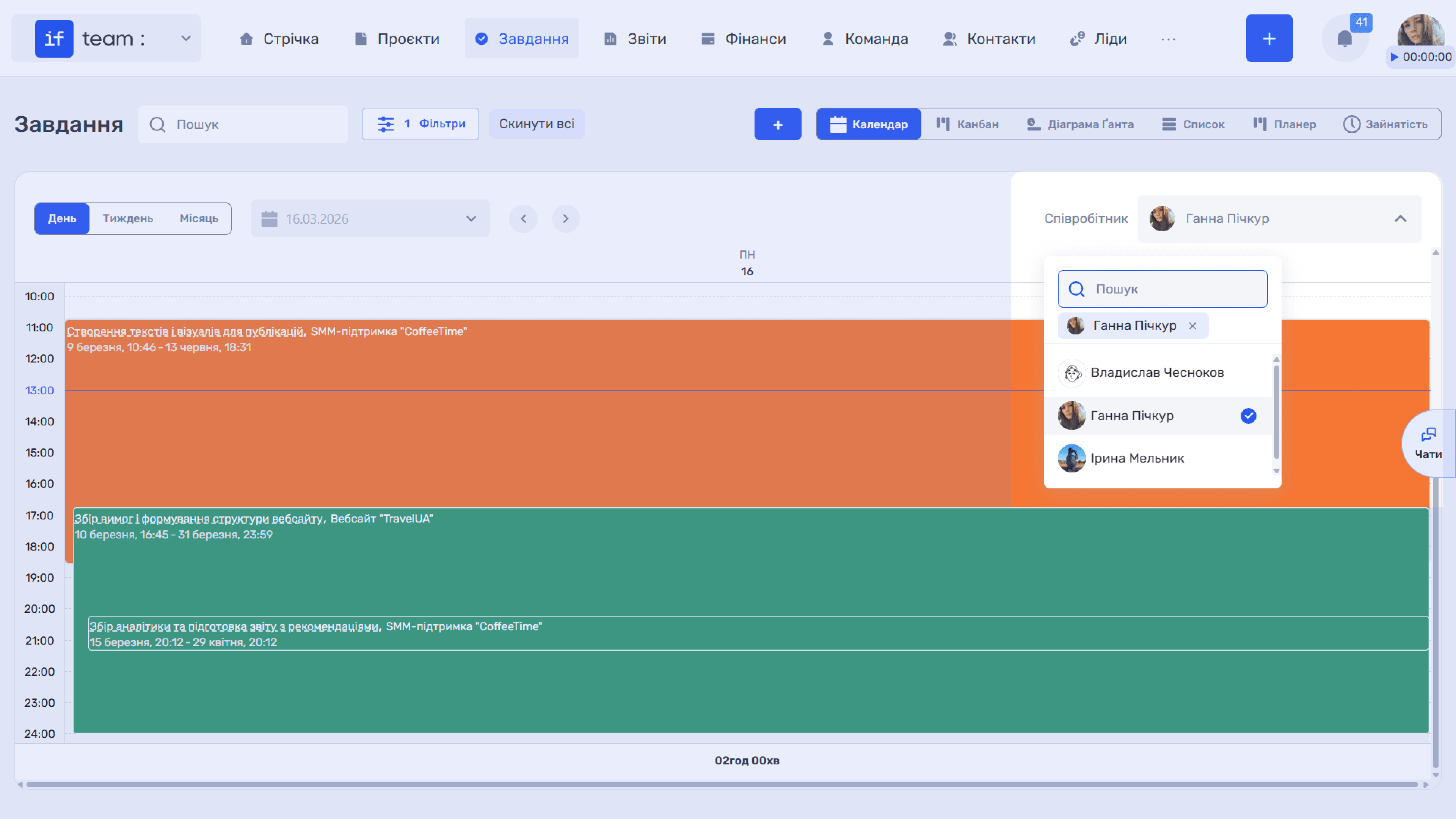
Tasks are displayed as colored bars based on their duration and status. Click a task to open its card.
Creating a Task Directly from the Calendar
You can create a new task directly from the calendar. The process depends on the selected scale:
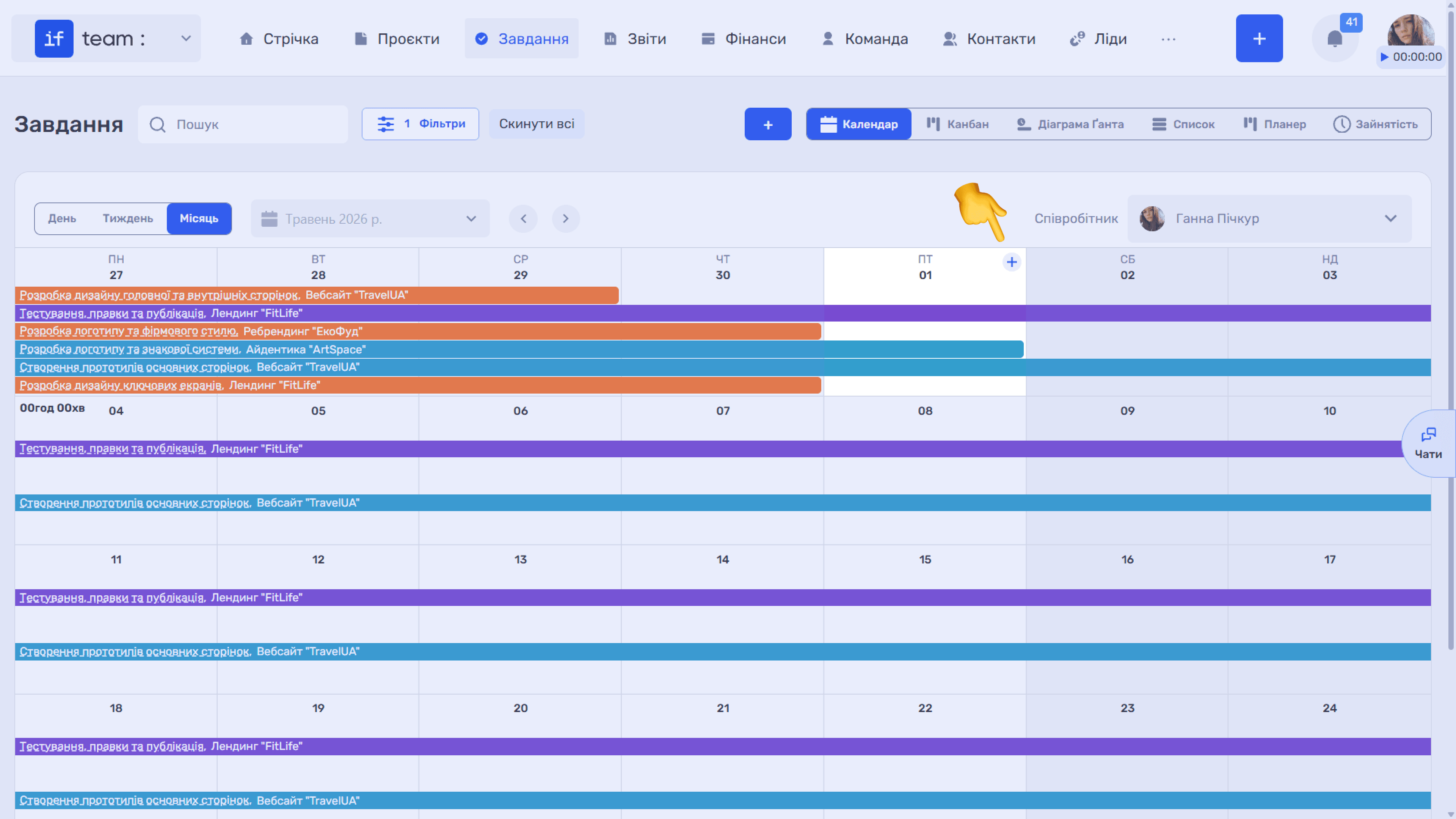
- In “Month” view, hover over the required day to display the “+” button in its cell. Click it to open the task creation form with the date already filled in.
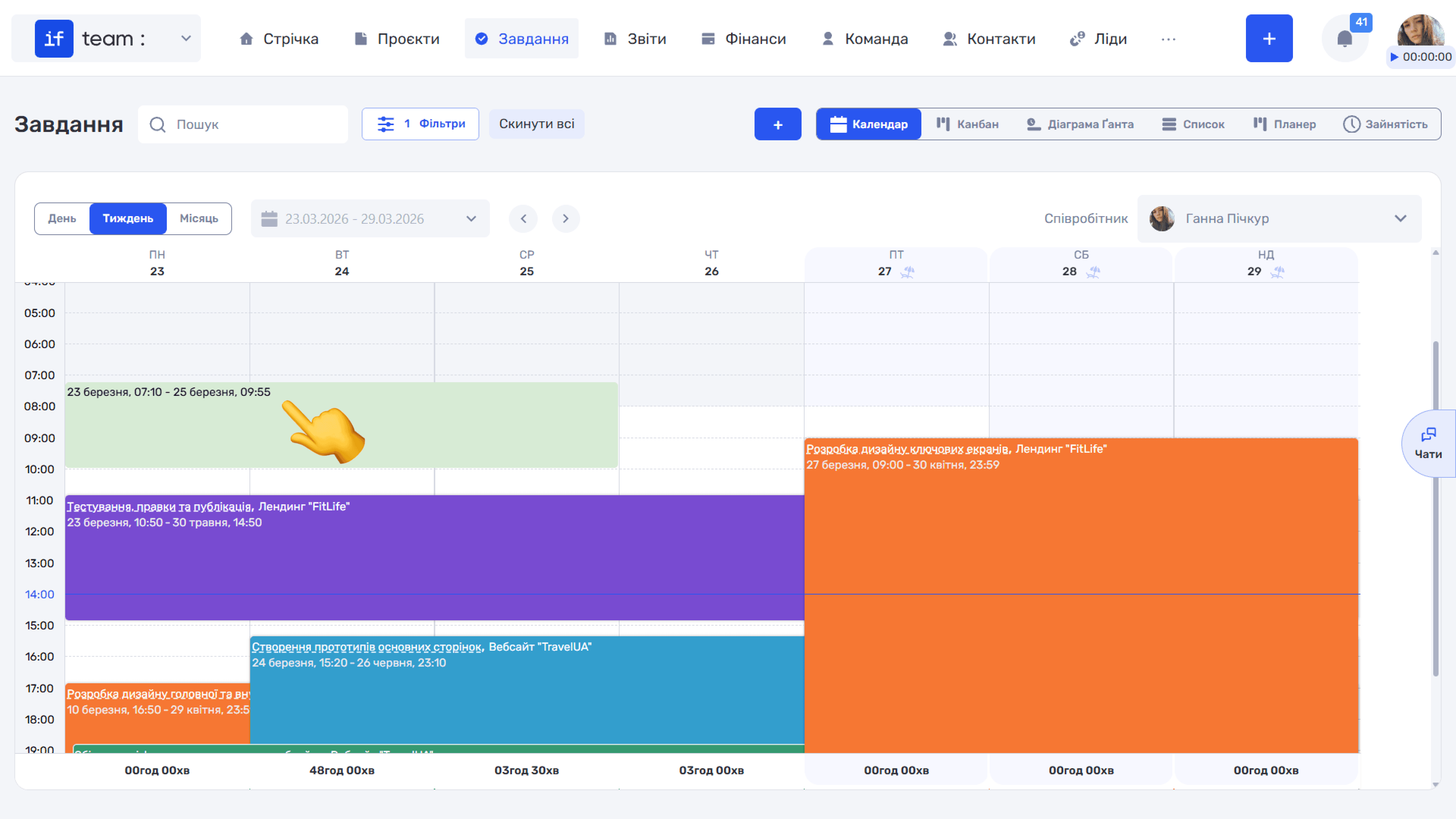
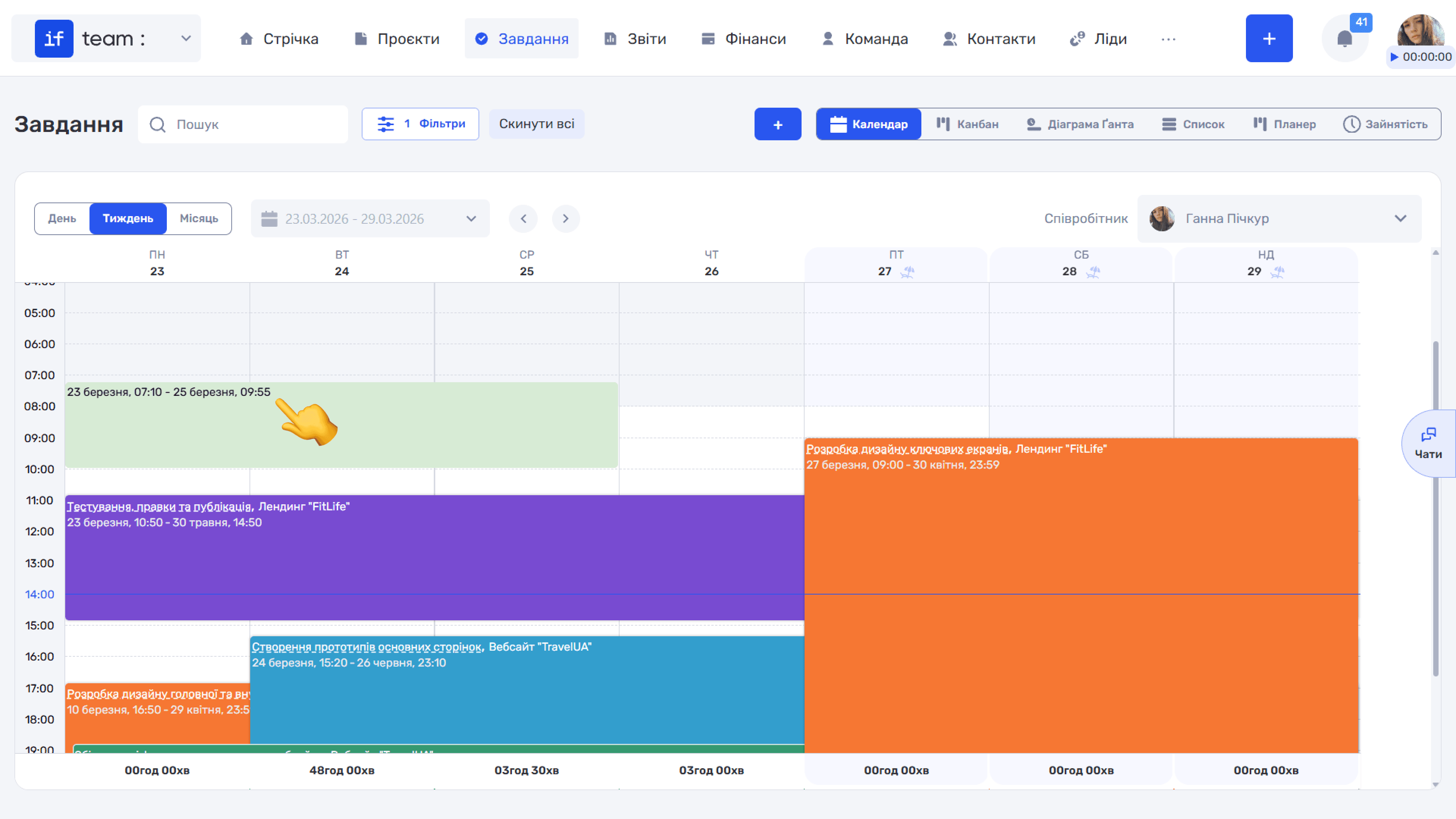
- In “Day” and “Week” views, click the required cell in the time grid and drag without releasing the mouse button. A green area appears, which you can extend across the required time range in Day view or the required days and times in Week view. When you release the mouse button, the task creation form opens with the dates and time already set.
Please note
Calendar uses the general filters and the employee selector.
For details about filters, see Task Filters.
Moving Tasks and Changing Their Duration
You can edit task bars directly on the calendar grid by dragging them. The available actions depend on the scale:
- In “Day” view, drag a bar along the timeline to change the task time.
- In “Week” view, you can drag the bar to move it or change its duration by dragging its top, bottom, or side edges to extend or shorten the task.
- In “Month” view, drag the bar to another day or change its duration using its side edges.
All changes made by dragging automatically update the task’s dates and time.
Still have questions?
Maybe we haven't added this information yet. But you can always reach out:
Request a demo
Submit a request and we'll show you how the service works and its capabilities.
Book a demo