Task Templates
If you regularly create similar tasks, save one of them as a template so you do not have to complete all the fields again next time.
Generate AI summary
Open this page in your favorite AI assistant
How to Save a Task as a Template
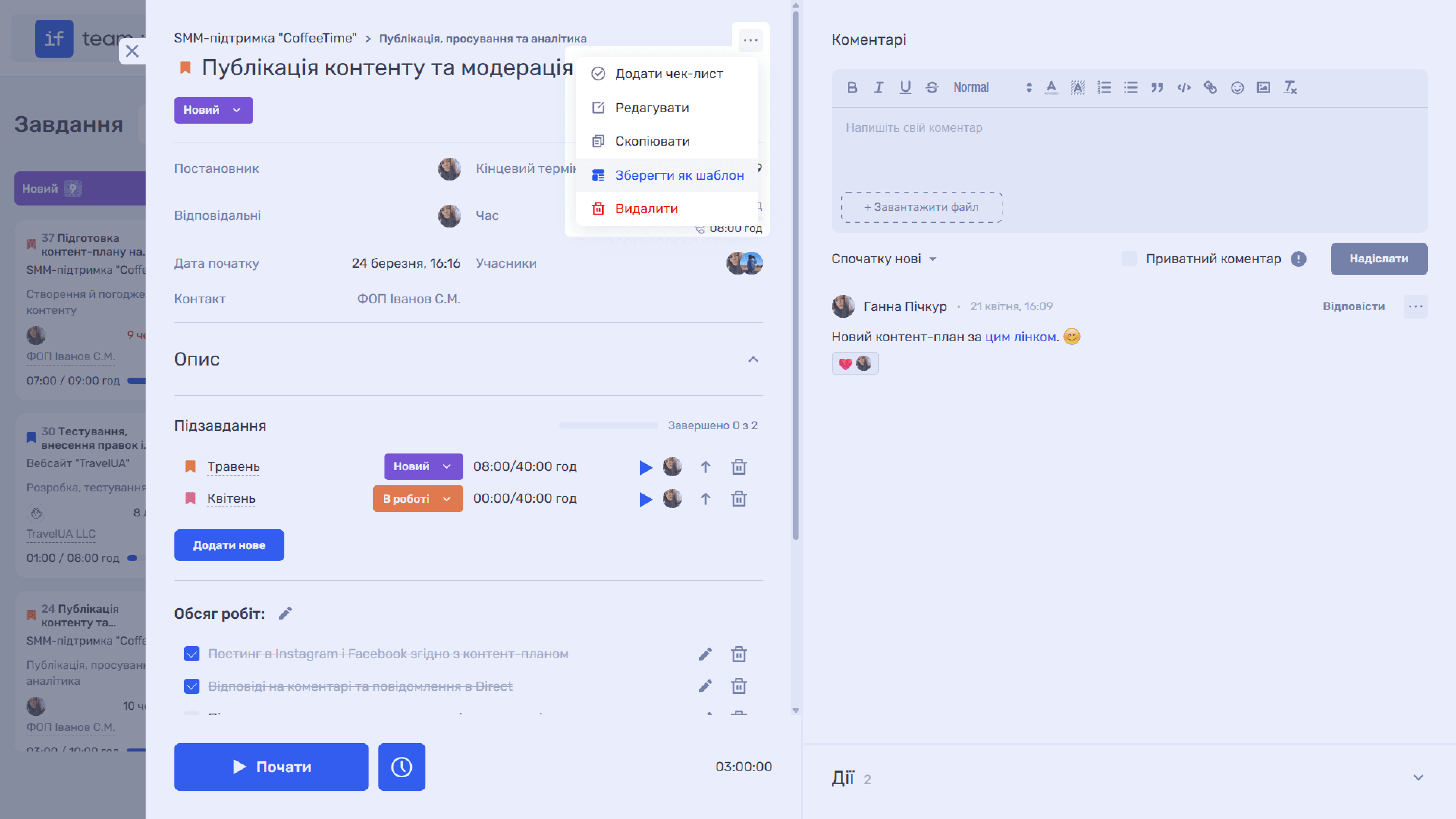
- Open the task card and click the menu icon (⋯) in the upper-right corner.
- Select “Save as Template.”
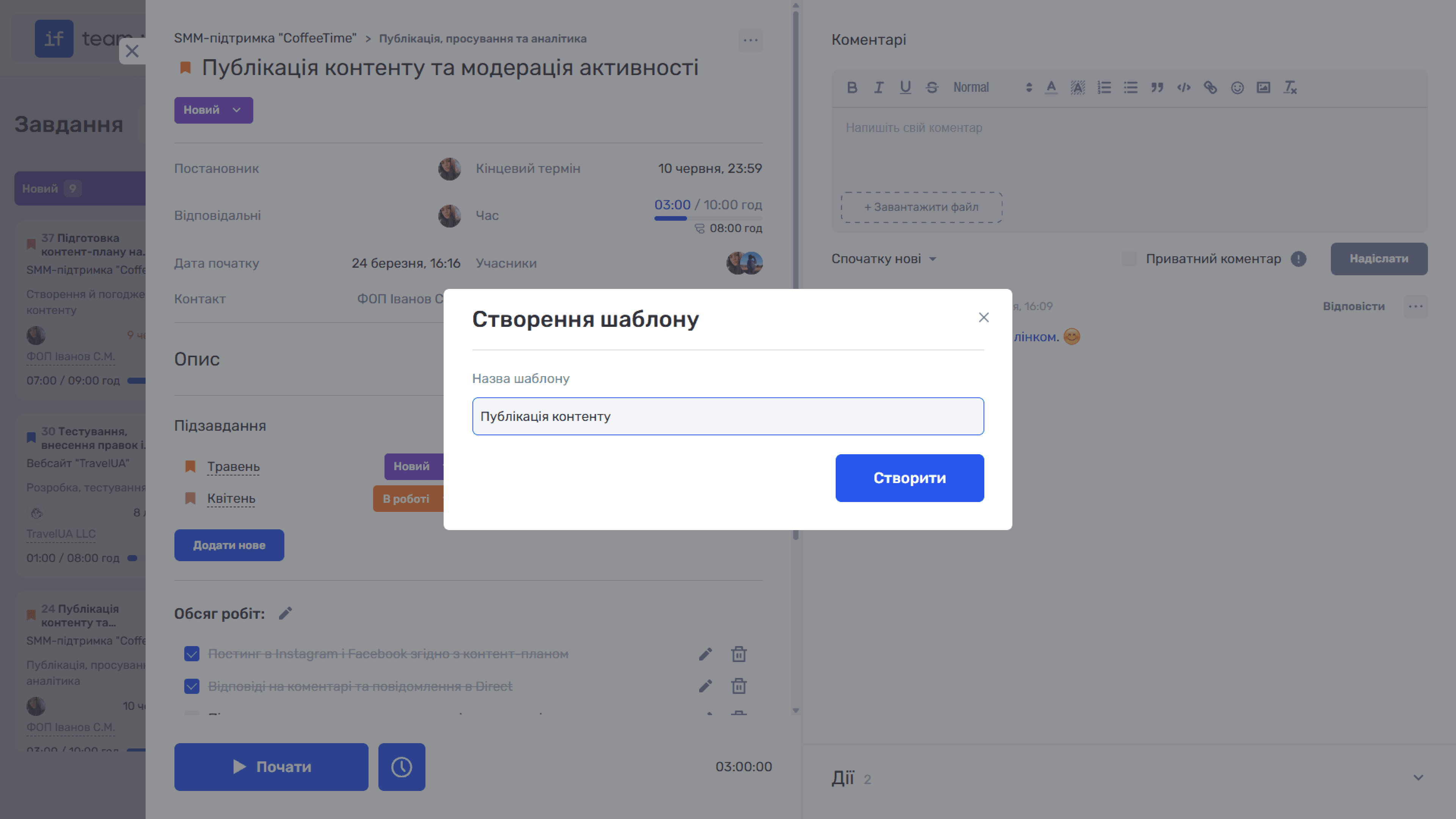
- In the “Create Template” modal window, enter the template name.
- Click “Create.”
How to Create a Task from a Template
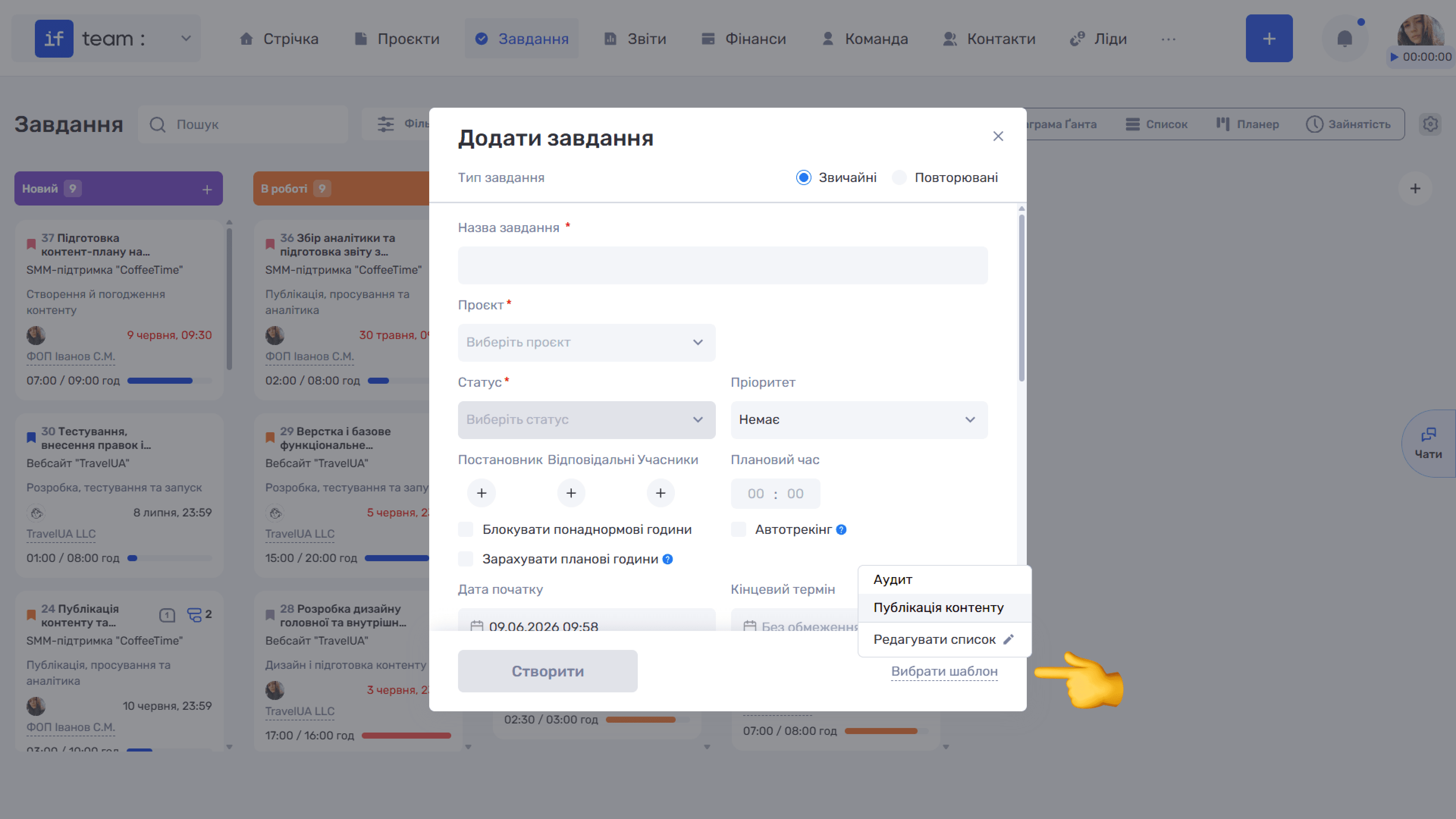
Click “+” on the tasks page to open the “Add Task” form. Click “Select Template” in the lower-right corner of the form. The system will populate the saved settings, and you will only need to adjust the details.
Still have questions?
Maybe we haven't added this information yet. But you can always reach out:
Request a demo
Submit a request and we'll show you how the service works and its capabilities.
Book a demo