Team Time Tracking
Time tracking shows how many hours go to each project and client, who is overloaded, and what the work costs. Below are five setup steps and the rules worth agreeing on with your team.
How to set up and track working time in if.team
Step 1. Set Up Work Schedules
In the Admin Panel, open Team → Employment Type and create types for your work arrangements, such as full-time, part-time, and hourly. For each type, set the standard hours per day, the working days of the week, and the number of vacation days per year.
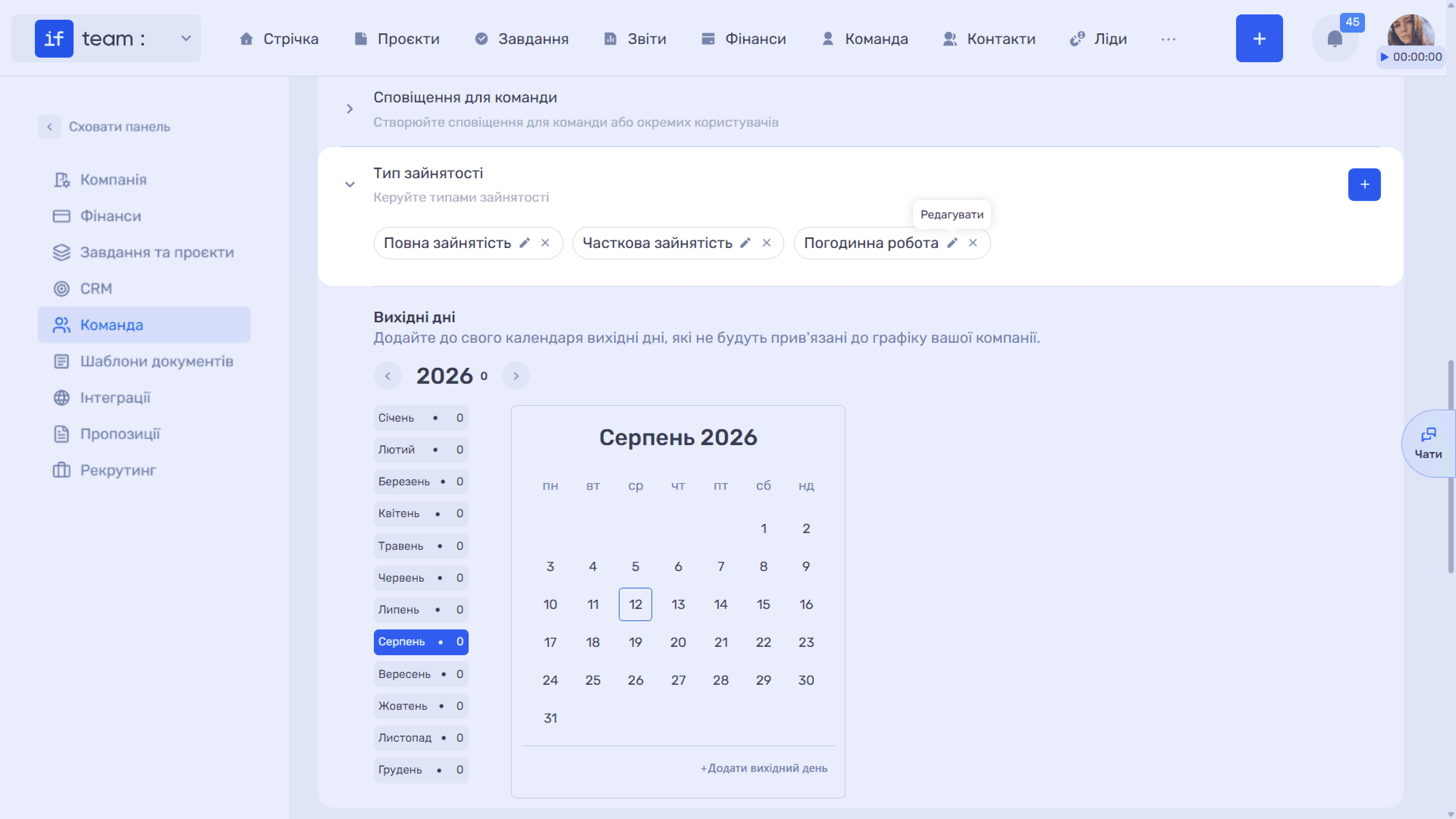
Turn on the checkbox that prohibits time tracking outside the work schedule. Then reports will not show hours logged retroactively on vacation days. Add public holidays and company days off to the Days Off calendar. See Team for details.
Step 2. Add Employee Rates
Open an employee profile and, in Rate History, click + Add Rate. if.team uses these rates to calculate payroll costs in projects. Without rates, you see hours but not money. See Employee Profile.
Step 3. Plan Hours in Tasks
Fill in Planned Time in every task. Three checkboxes in the task form help in common situations:
- Block Overtime Hours prevents tracking more than planned. It suits fixed-scope work where overruns need approval.
- Count Planned Hours records the planned time as worked once the task moves to a final status.
- Auto-tracking logs the specified hours automatically at the end of each workday. It suits routine daily work.
Step 4. Log Time
The main method is the timer. In the web app, click Start (▶) at the bottom of the task card. In the mobile app, tap Start: the timer appears on the lock screen and in notifications, where you can also pause it. When working in the browser, use the Chrome extension.
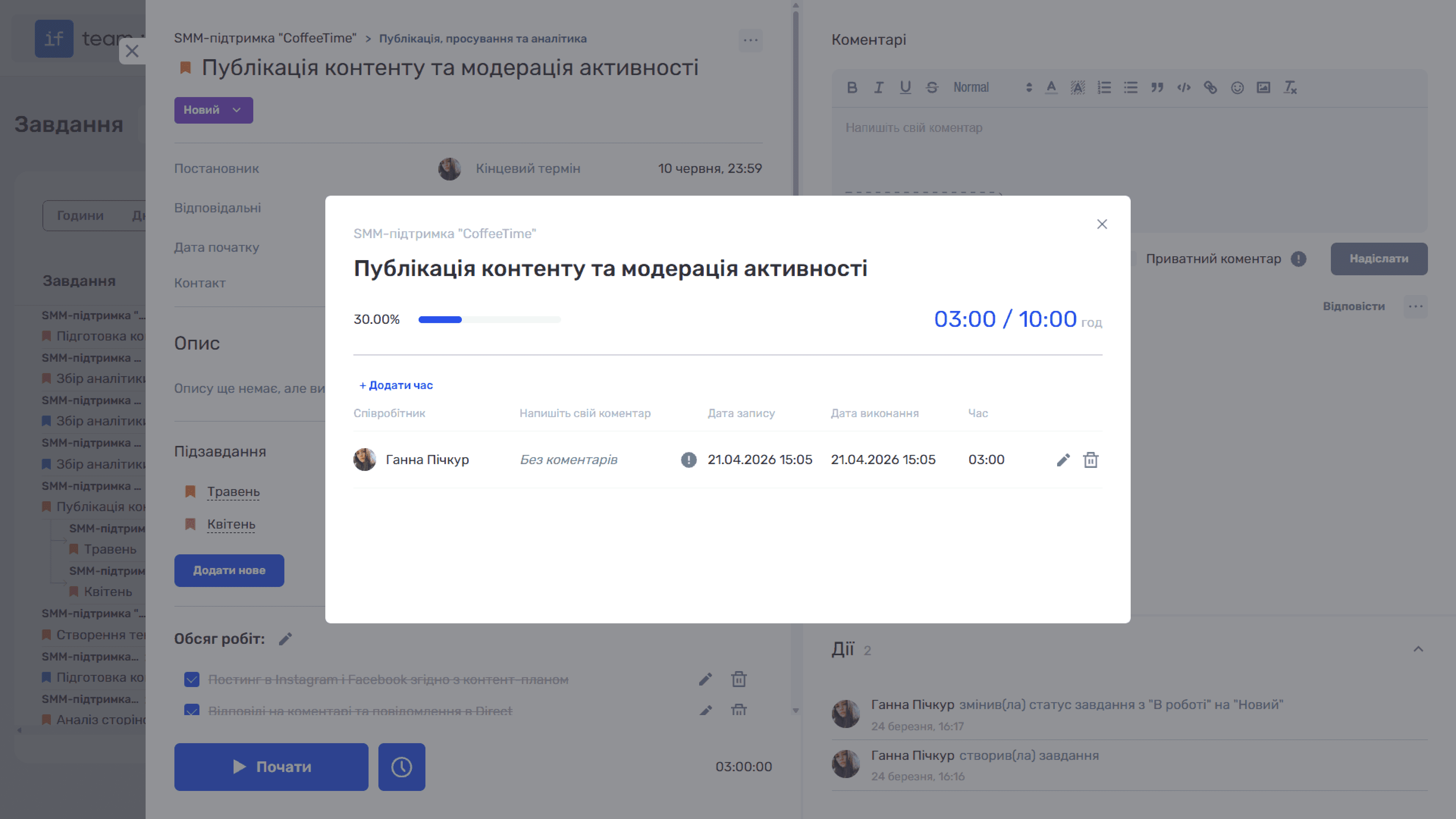
If you forgot to start the timer, click the clock icon (🕐) in the task card and add an entry manually; reports mark it with a pencil. If the timer ran in the wrong task, move all or part of the time to the right one. The transfer is recorded in the work-time change history.
Step 5. Review the Week
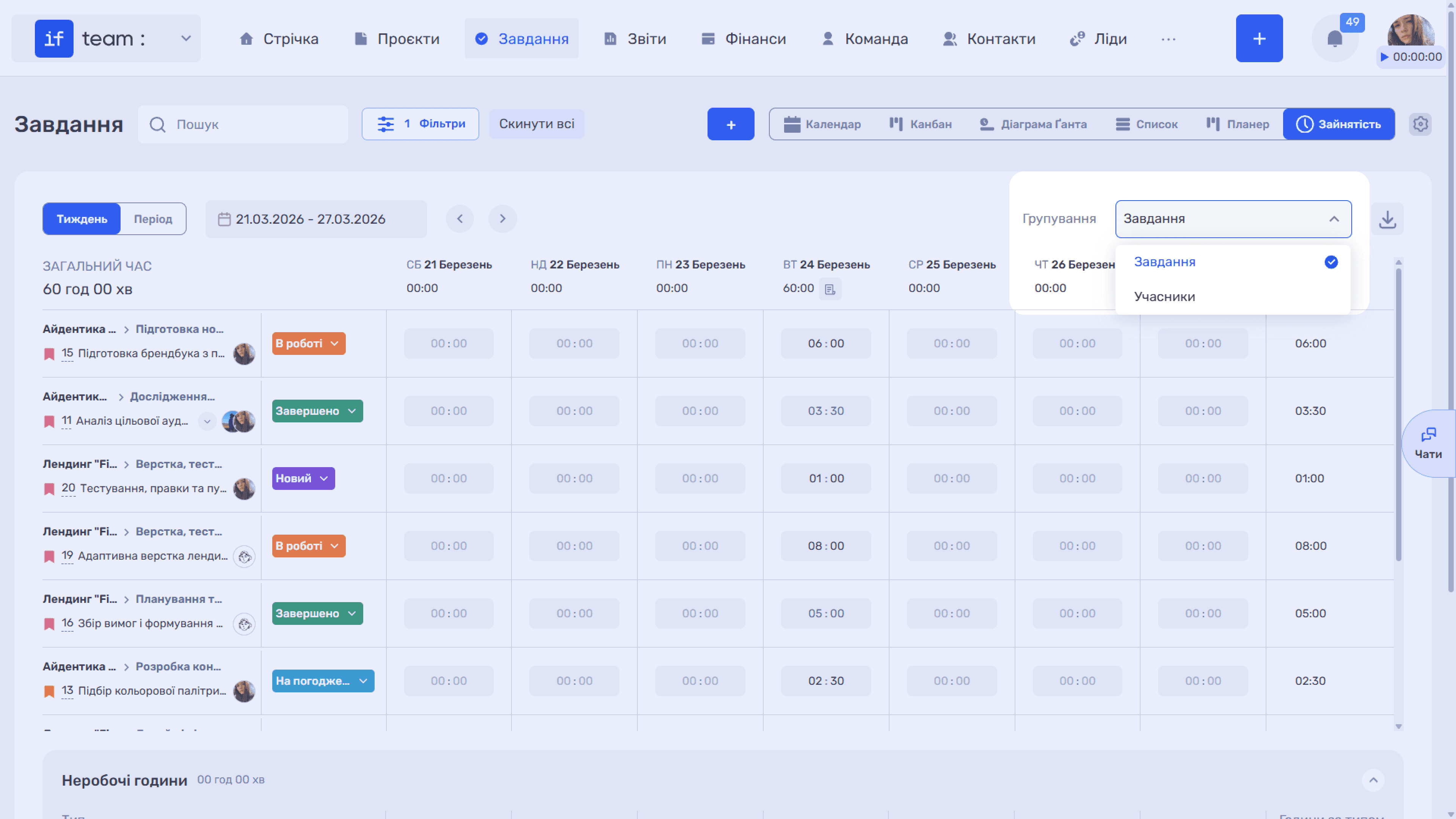
The Workload view on the Tasks page shows a timesheet: how many hours were logged for each task or employee by day. The log icon in a cell opens individual entries, which you can edit or delete. Non-working hours — vacations, sick leave, and force majeure — appear at the bottom.
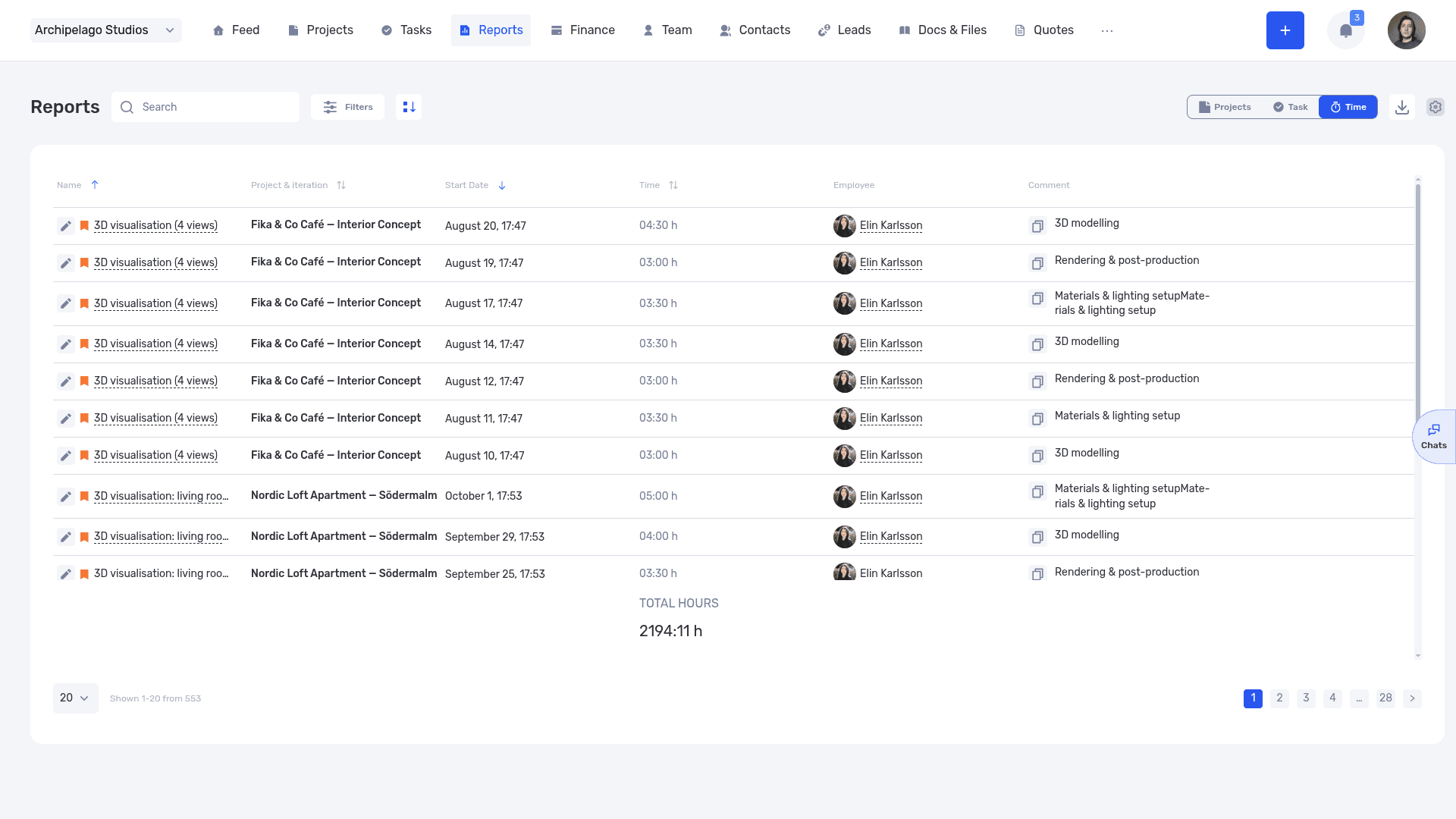
For analysis, open the time report. The icon next to an entry shows how the time was recorded: a clock for the timer, a pencil for manual entry. A large share of manual entries means people do not always start the timer.
Rules Worth Agreeing on with Your Team
- Start the timer when you begin work, not at the end of the day.
- One entry, one task. Discussing another task is a separate entry.
- Leave a comment on entries for unusual work.
- Every Friday, everyone checks their week in Workload.
- Once a week, the manager reviews tasks where actual time exceeded the plan.
Still have questions?
Maybe we haven't added this information yet. But you can always reach out:
Request a demo
Submit a request and we'll show you how the service works and its capabilities.
Book a demo