From Lead to Payment
This scenario takes a deal from the first inquiry to receiving the money: lead, quote, project, payment, and invoice. Data carries over at every step, so you never enter it twice.
How to work with quotes and estimates in if.team
Step 1. Add a Lead
In Leads, click + at the top or + Add Lead in the required Kanban column. Fill in the Name, Contact, Status (pipeline stage), Source, and Expected Budget.
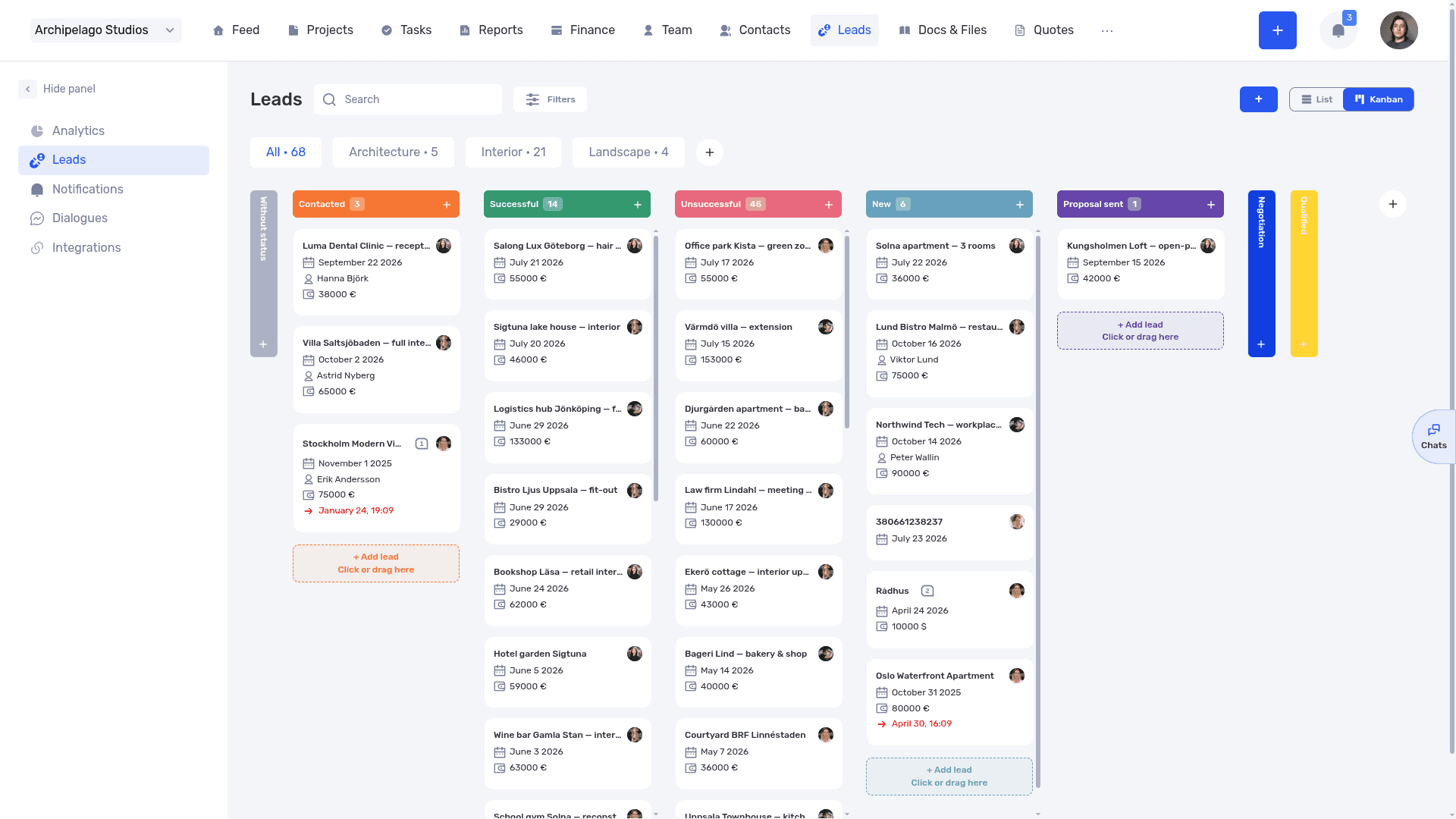
To create leads automatically from your website, email, or messengers, set up lead integrations.
Step 2. Schedule the Next Step
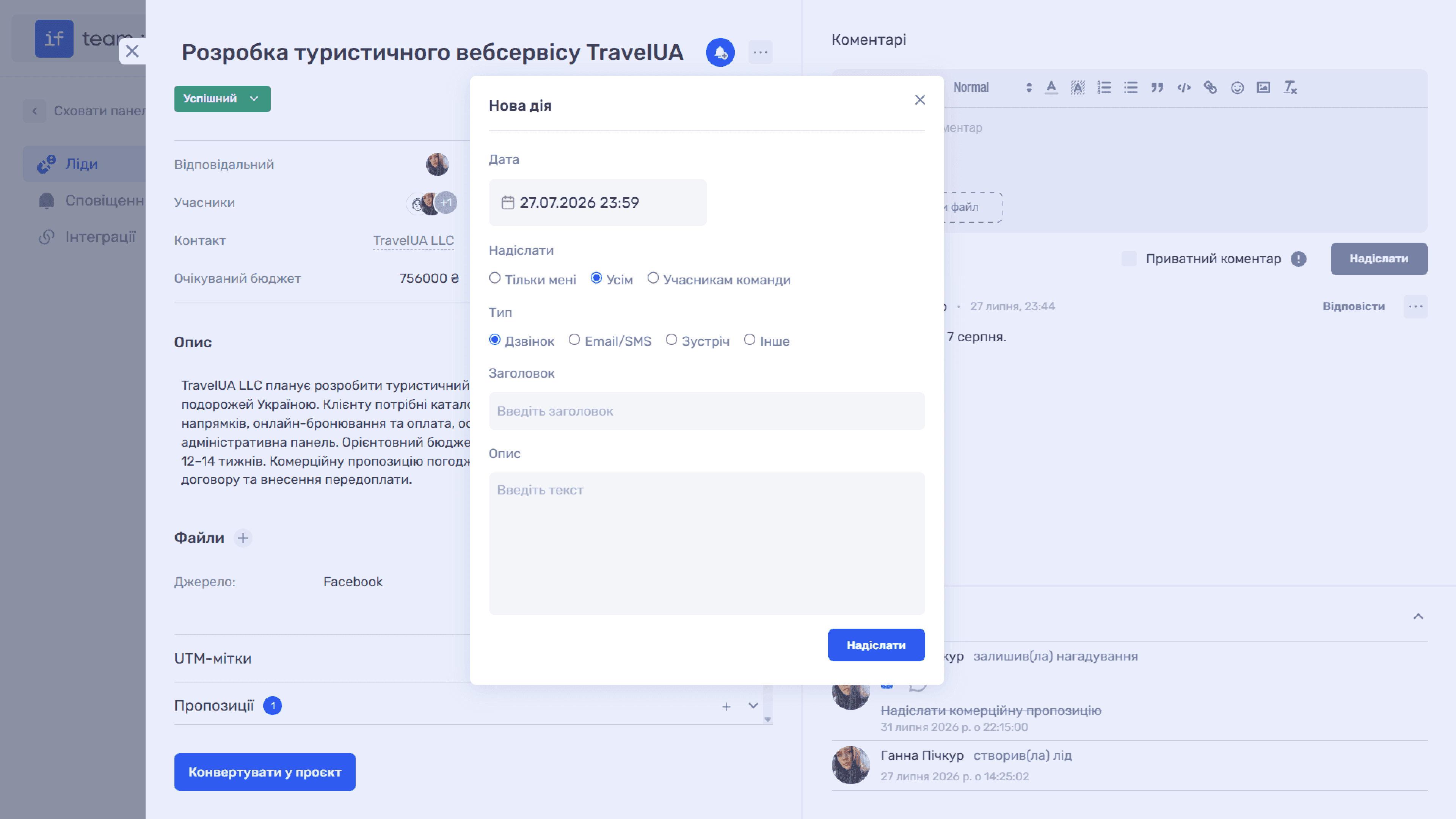
In the lead card, click the bell icon — New Activity. Set the date, type (call, email, meeting), and title. The reminder appears in Notifications, and the date appears on the Kanban card. A lead without a next activity is the first candidate to be lost.
If the team works on the deal — for example, prepares an estimate — create tasks in the lead. The time spent on the sale can later move to the project.
Step 3. Send a Quote
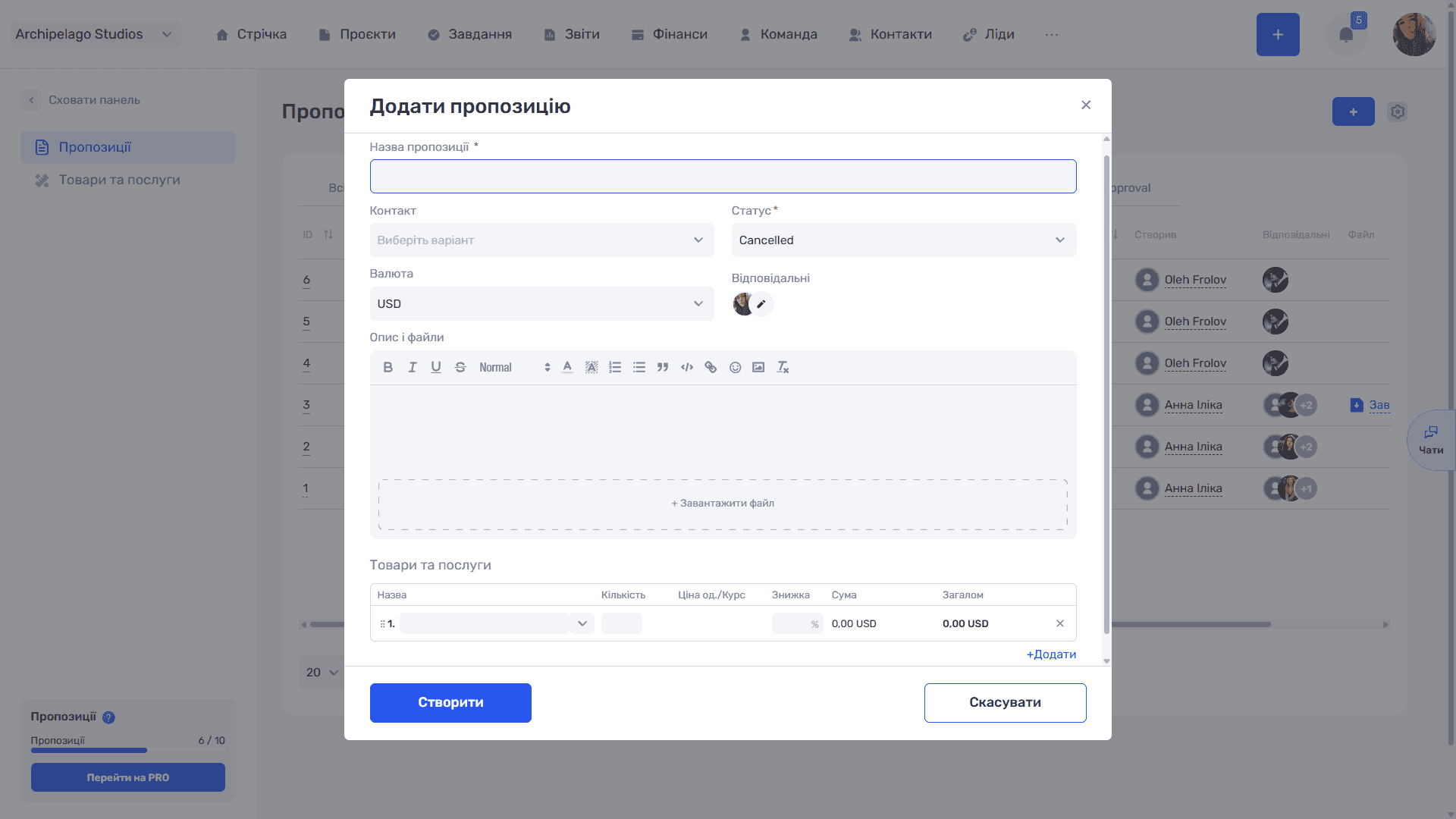
In the lead card, expand Quotes and click +. Add items from the Products and Services catalog: the price and unit fill in automatically, and you can change the discount and quantity for a specific client.
Generate the client document from the lead card: … → Generate Document. The quote data fills the company template — see Generating Documents from a Lead.
Step 4. Convert the Lead to a Project
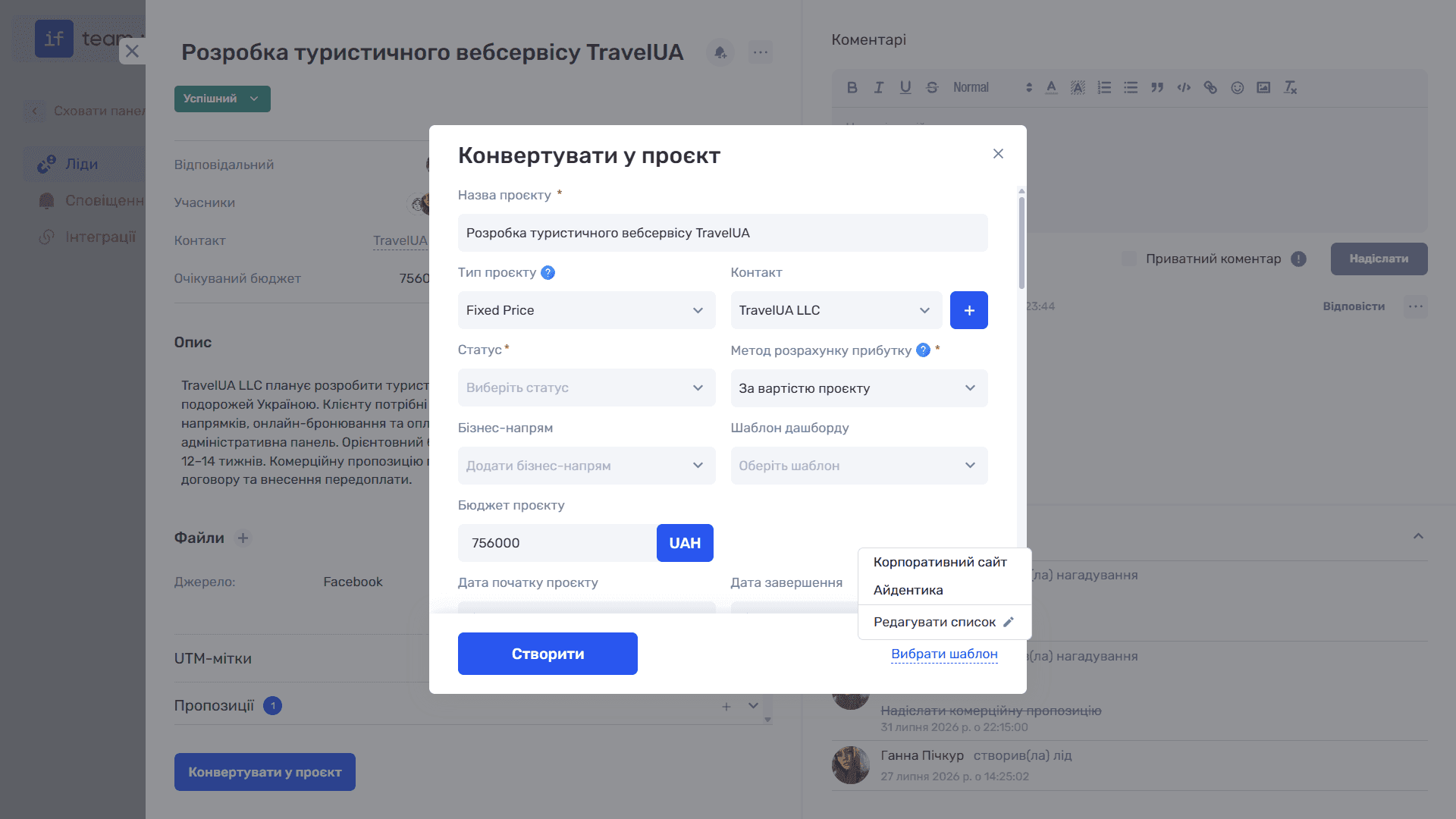
When the client agrees, click Convert to Project at the bottom of the card. The name, contact, and budget come from the lead; you only choose the status, profit calculation method, and manager. Quotes stay linked to the deal, and if.team offers to move the lead’s tasks together with their time.
Then the team works in the project: tasks, planned time, the timer. To set this up, see Your First Project and Team Time Tracking.
Step 5. Record the Payment
In Finance, click + Income. Select the project, bank account, amount, counterparty, and status. Create an expected payment with the Unpaid status and a future date, and it joins the incoming payment plan. When the money arrives, change the status to Paid.
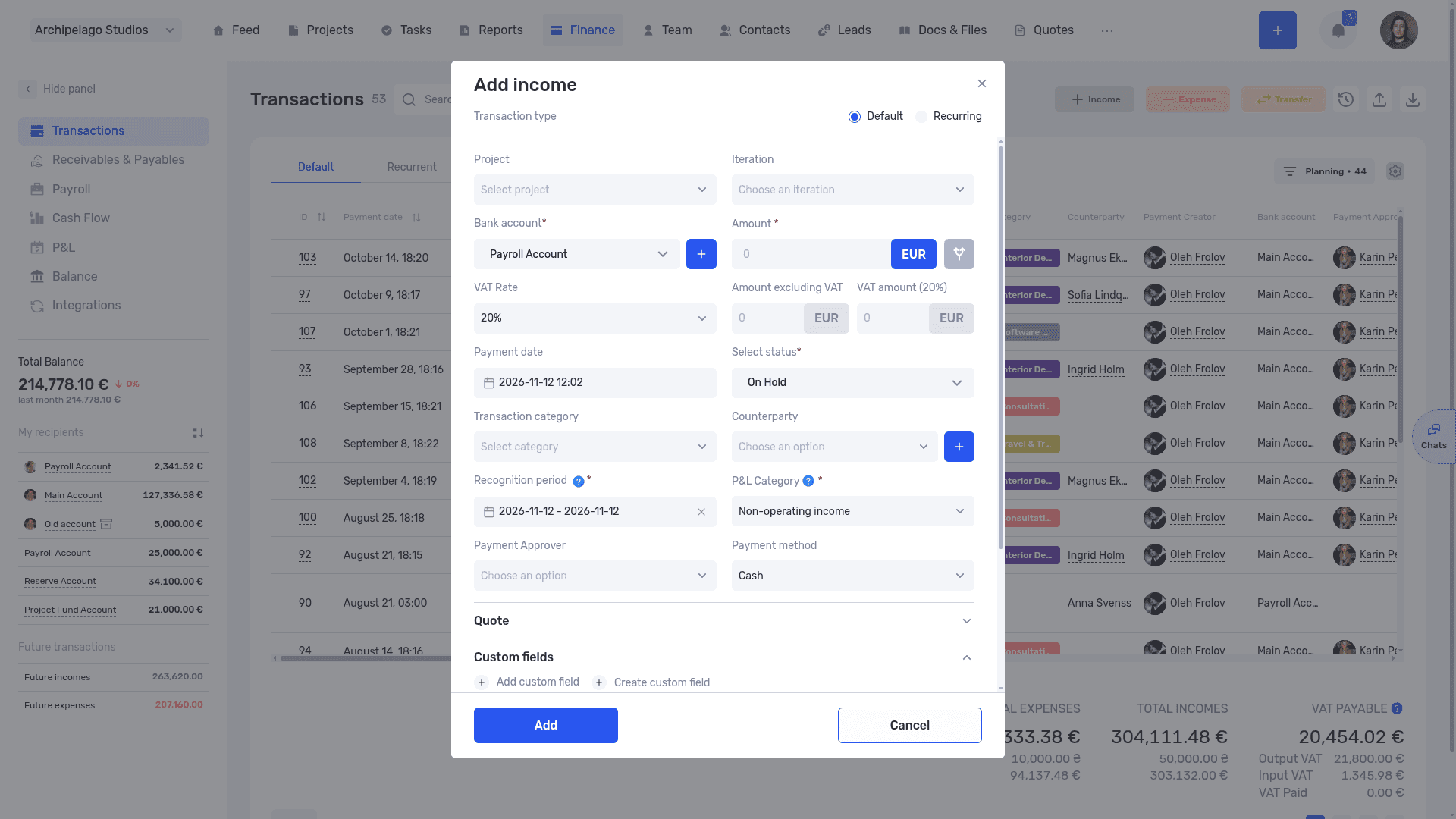
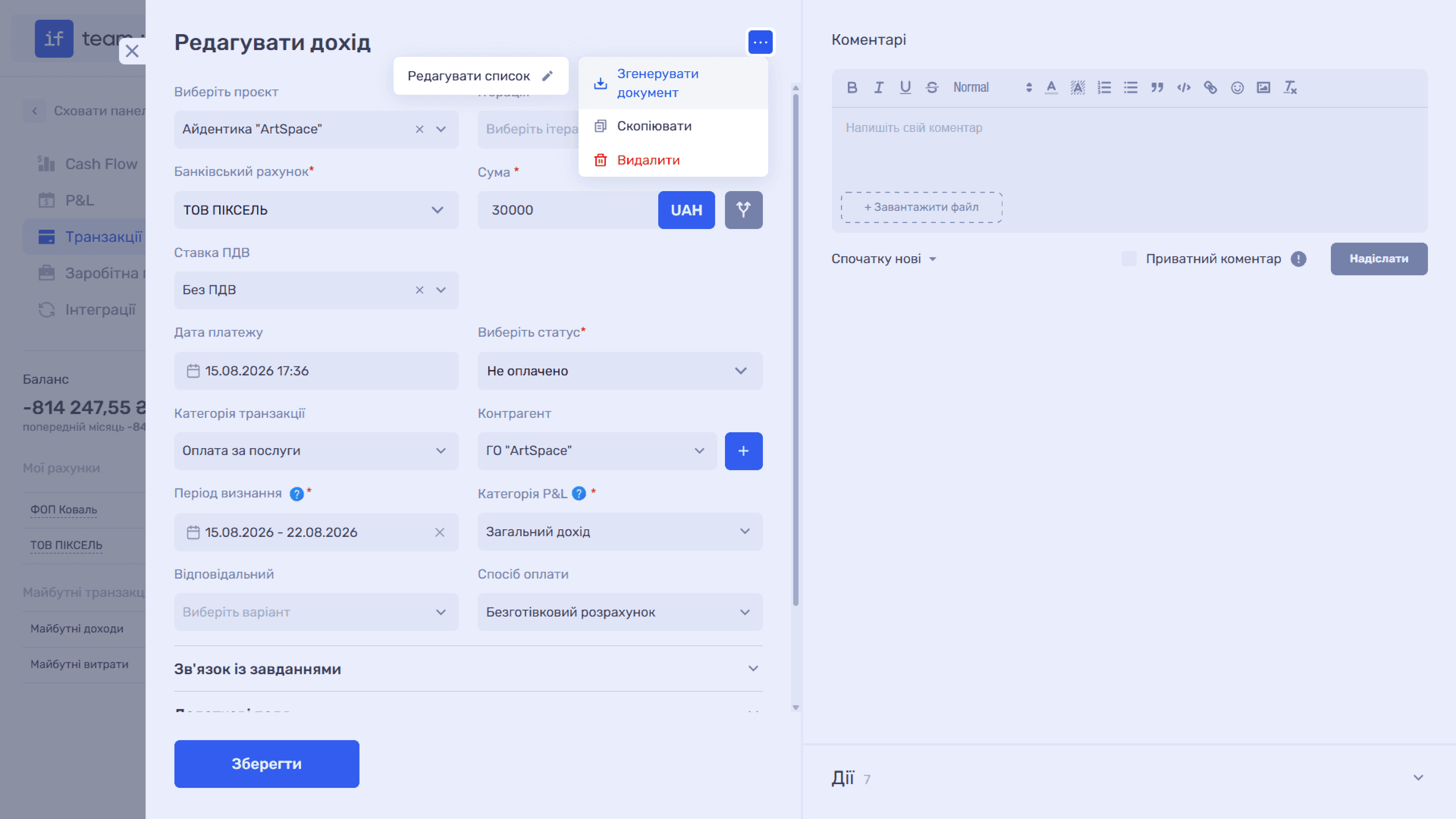
In the form’s Quotes section, link the quote to the transaction. Then you can generate an invoice or act from the transaction: … → Generate Document, and the quote items fill in automatically. See Generating Documents for Transactions.
Step 6. Track the Result
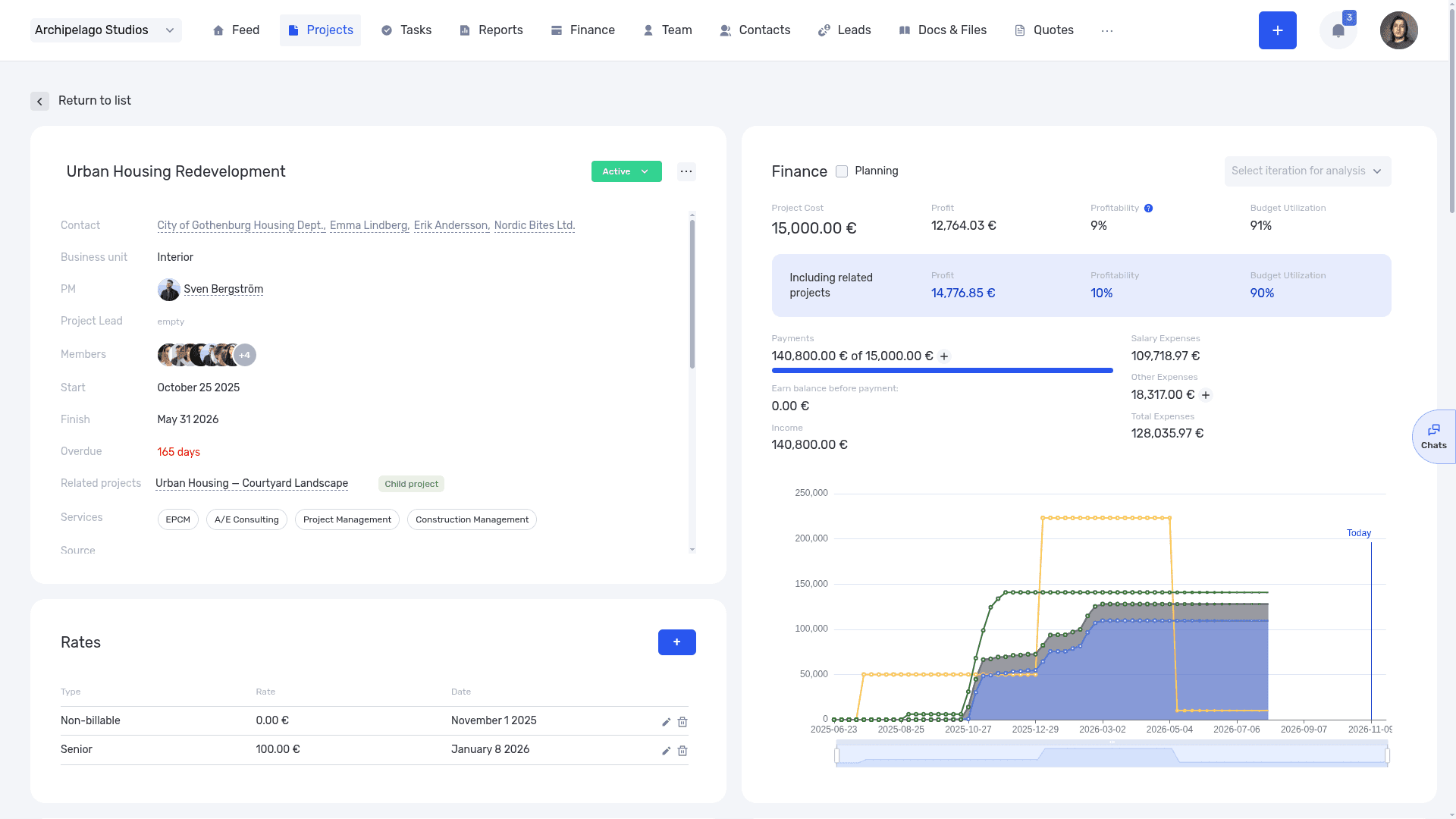
The project dashboard shows payments, the remaining balance due, costs, and profitability. The leads Kanban shows deals by pipeline stage. The manager sees both sides: what was sold and how much it earned.
Still have questions?
Maybe we haven't added this information yet. But you can always reach out:
Request a demo
Submit a request and we'll show you how the service works and its capabilities.
Book a demo