Creating a Company
A company in if.team is your workspace, where projects, members, and finances are brought together. One account can access several companies and create new ones.
How to Create a Company
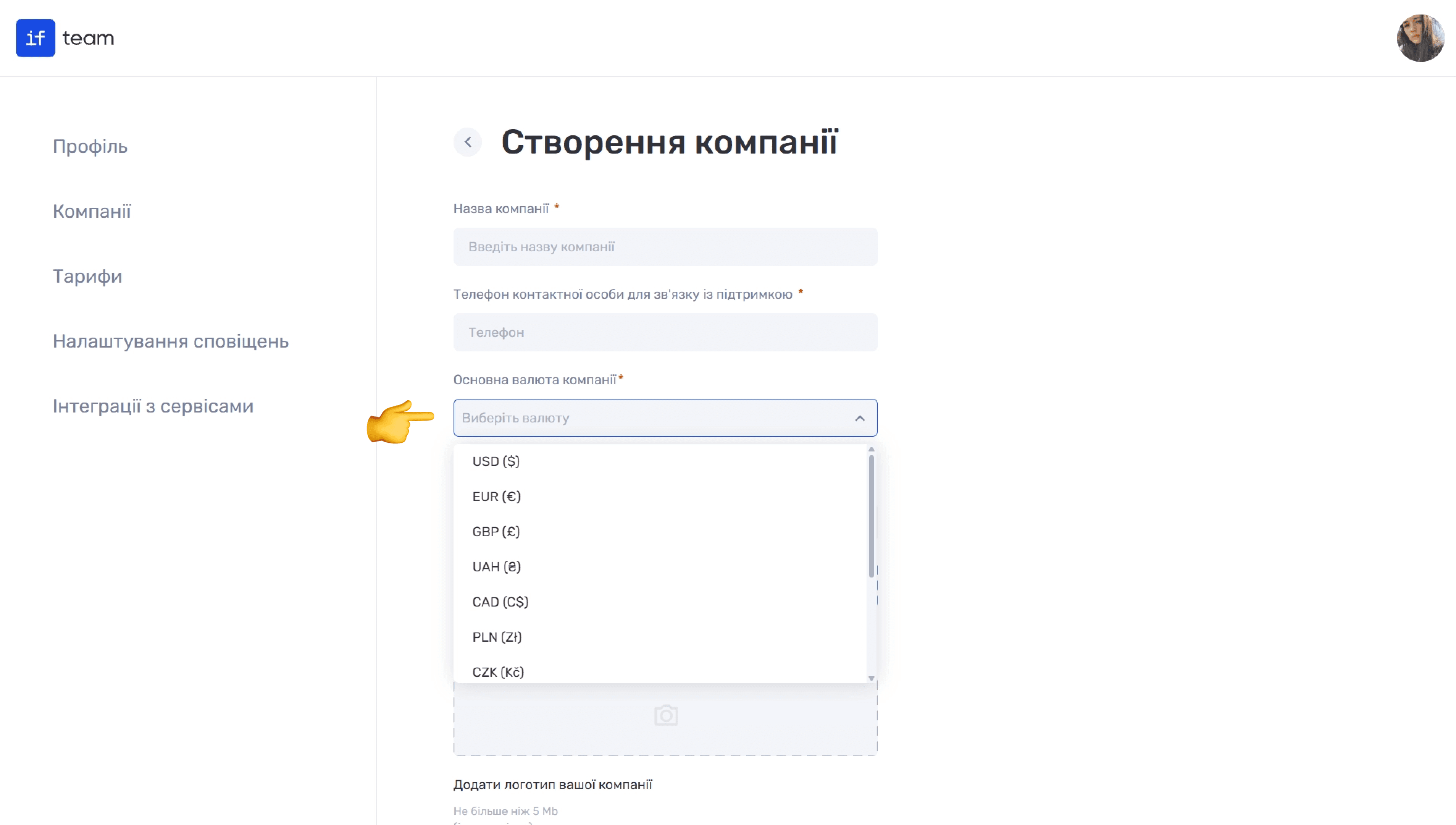
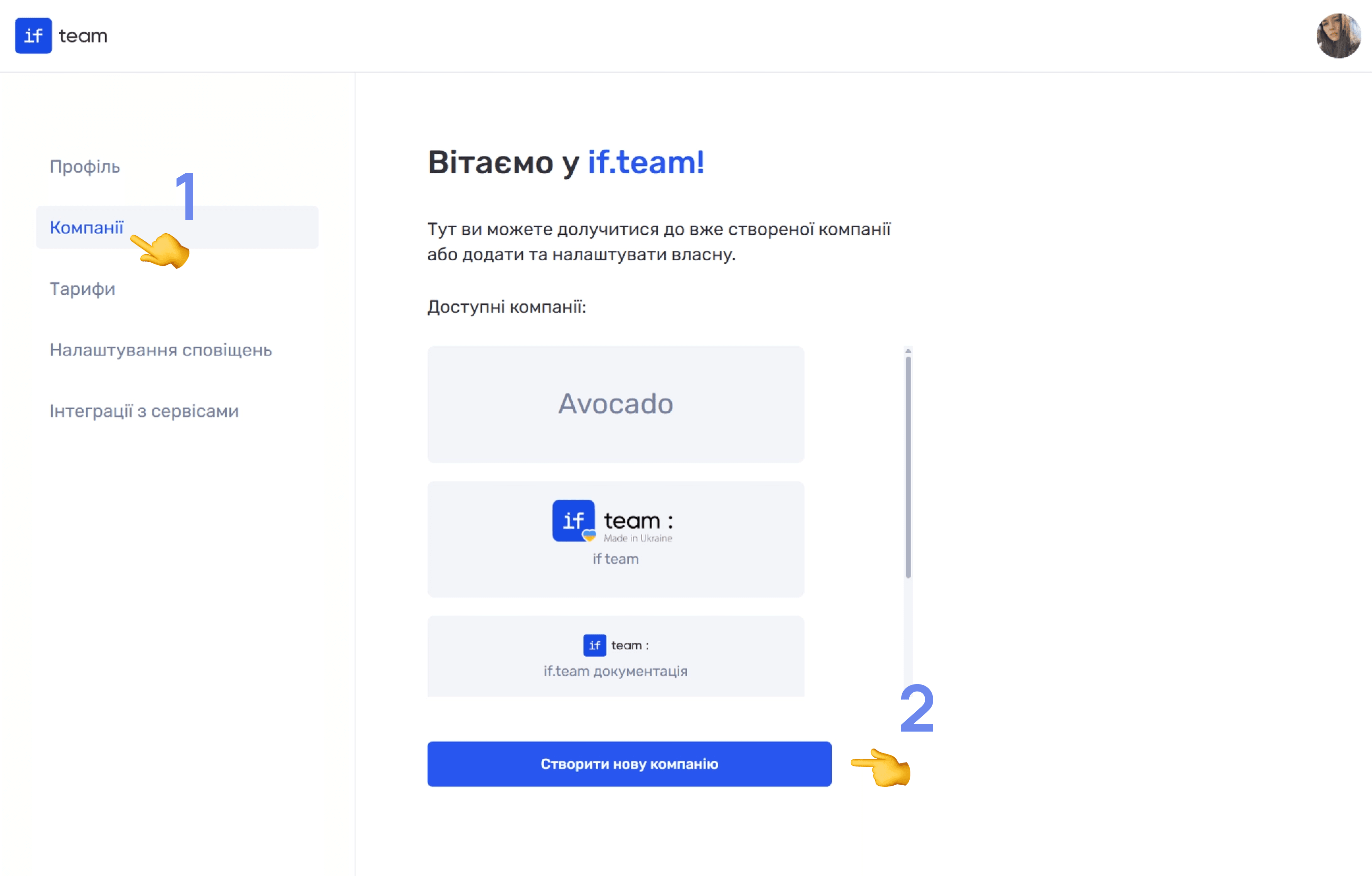
Click “Create New Company” and complete the form:
- Company Name is the name displayed in the service interface. This field is required.
- Contact Person’s Phone Number is the number that if.team support can use to contact the responsible person when necessary. This field is required.
- Company Base Currency is selected from the list, including USD, EUR, GBP, UAH, CAD, PLN, CZK, and others. Financial metrics, employee rates, and project budgets are displayed in this currency. This field is required.
Please note
Please note: the base currency cannot be changed after the company is created.
- Personal Link is a unique Latin-character name for your company’s web address on the if.team platform, in the format
https://name.if.team. This field is required. - Company Logo accepts a JPG, PNG, or JPEG file up to 5 MB. If you do not have a logo, select “Company Name Only” to display the company name as text instead of an image.
After completing all fields, click “Create.” The company will appear on the “Companies” page, where you can open it immediately and start working.
How to Open the Company List
- Click your profile avatar in the upper-right corner of the screen.
- Select “Profile” from the drop-down menu.
- Open the “Companies” tab in the left sidebar.
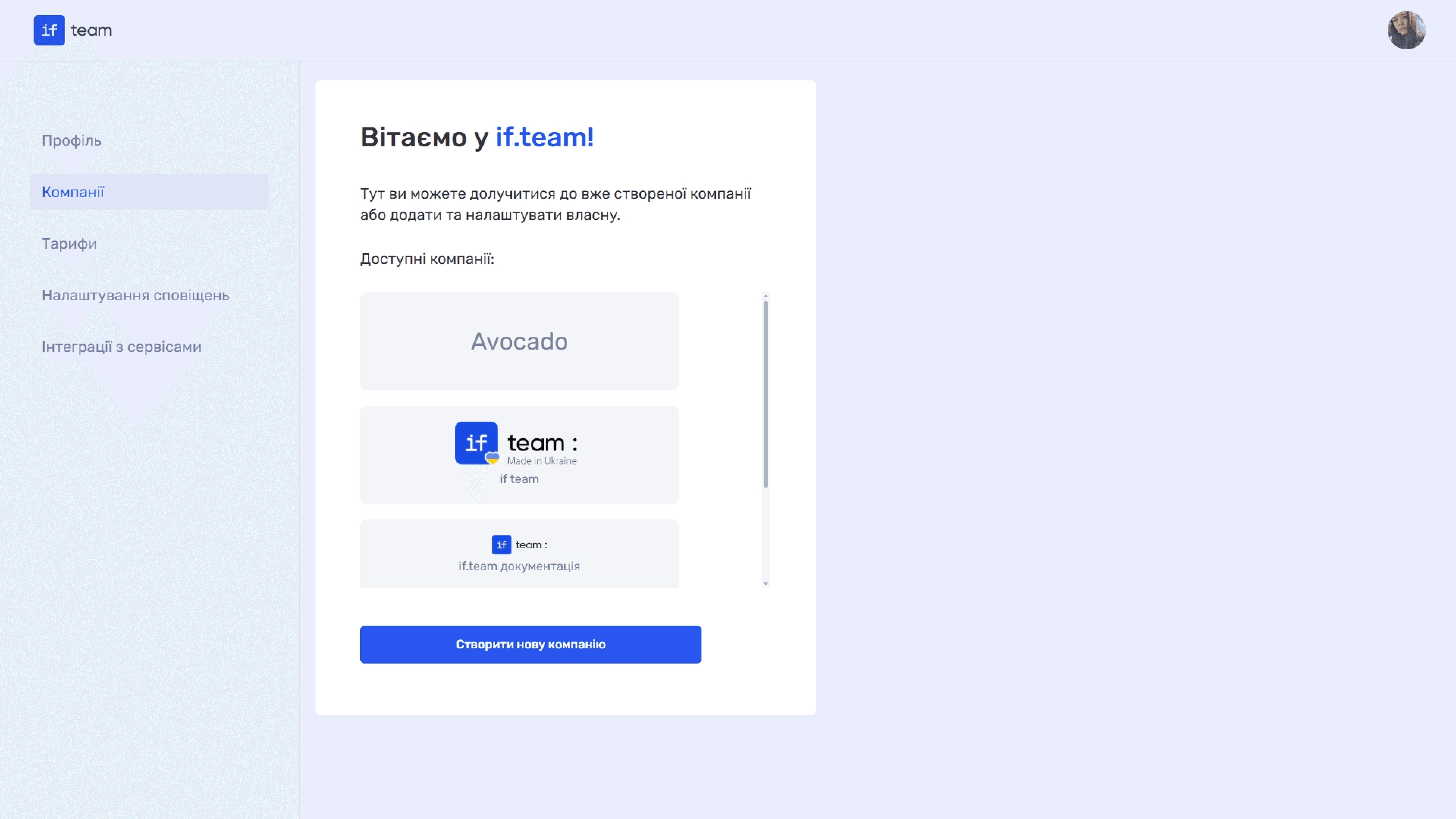
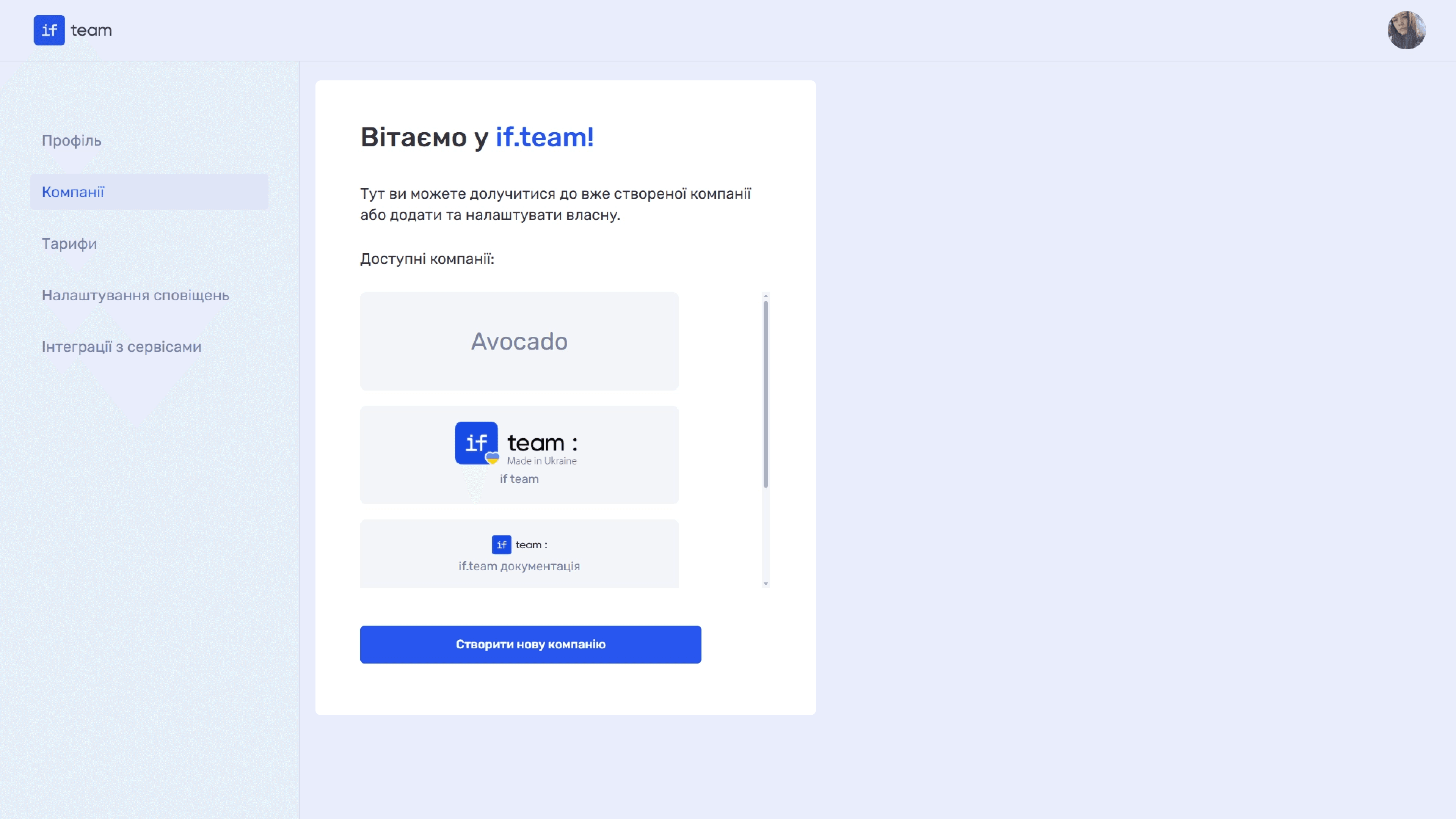
The page displays the companies available to you and a button for creating a new one. To open an existing company, click its card. To create a new company, click “Create New Company” at the bottom of the page.
How to Edit or Delete a Company
Companies are currently edited and deleted through if.team support.
- Open the company you want to change or delete.
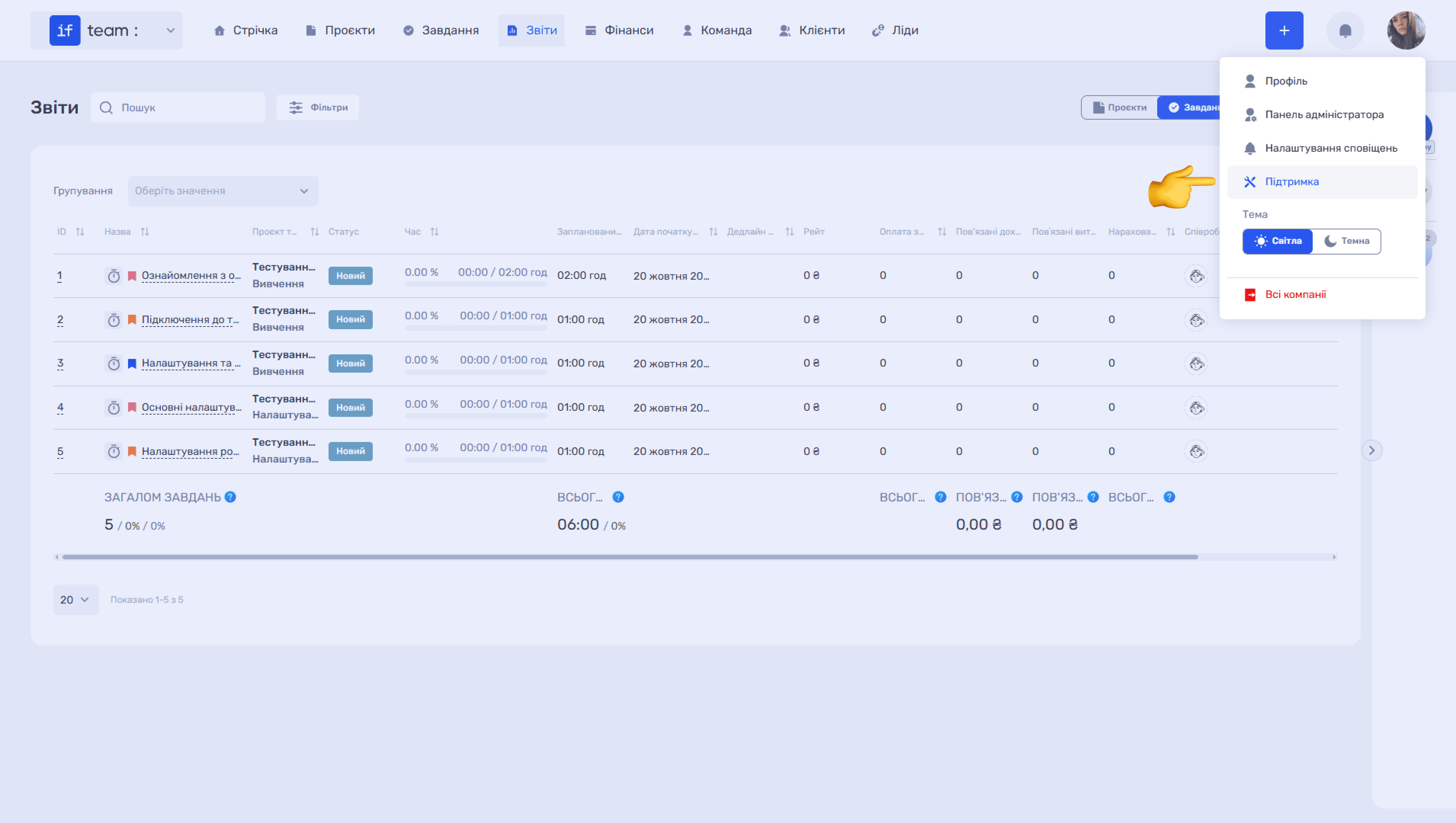
- Click your profile avatar in the upper-right corner.
- Select “Support.”
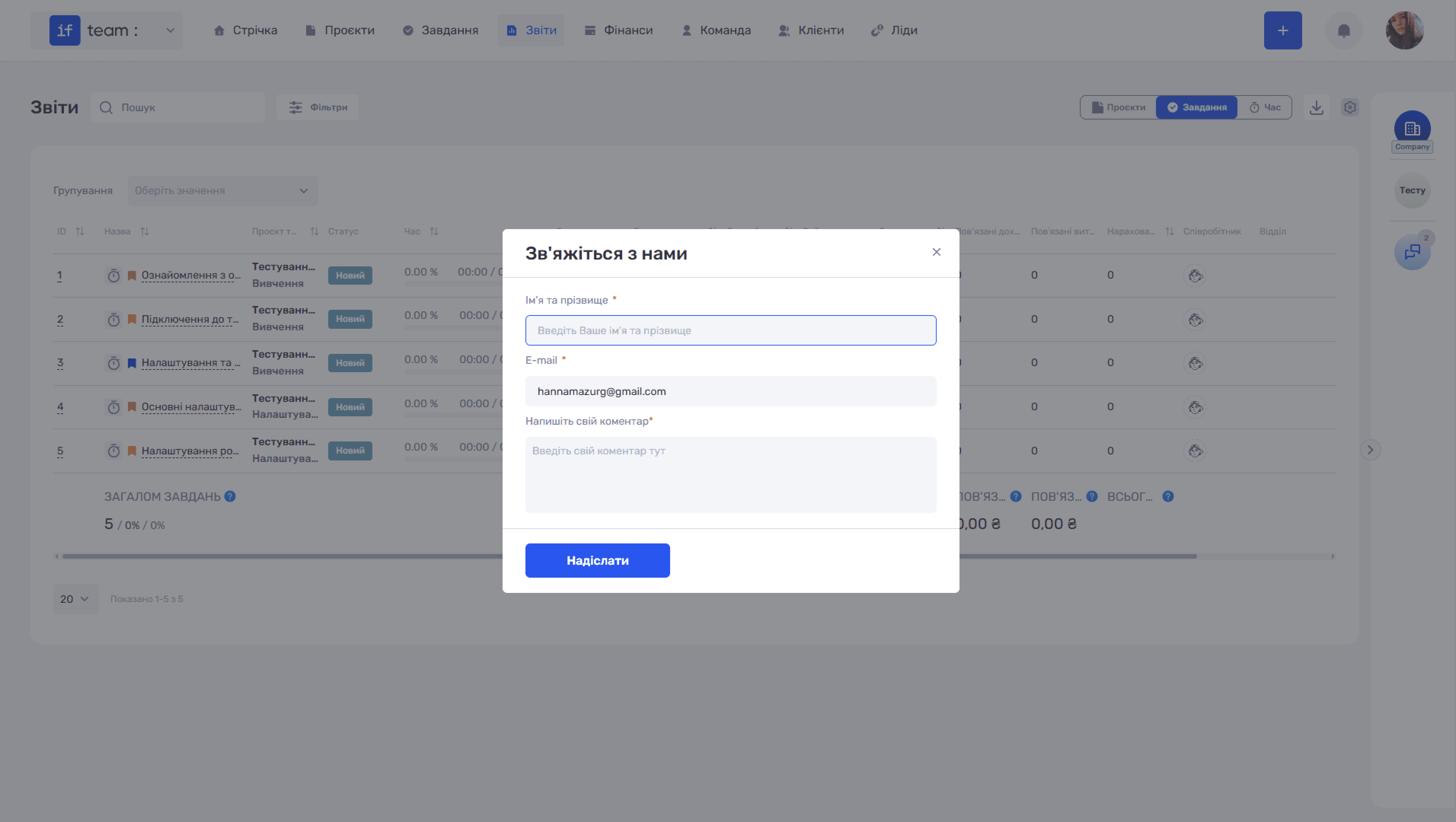
- In the “Contact Us” dialog, complete the fields for first name, last name, and email, then describe what needs to be changed or deleted in the comment.
- Click “Send.”
Still have questions?
Maybe we haven't added this information yet. But you can always reach out:
Request a demo
Submit a request and we'll show you how the service works and its capabilities.
Book a demo