Managing a Subscription
After you register and create a company in if.team, the free Trial plan is activated automatically for 7 days. It provides access to all service tools, allowing you to fully test the system before purchasing. When the trial period ends, select a subscription that matches your team size and business
How to Open the Plans Page
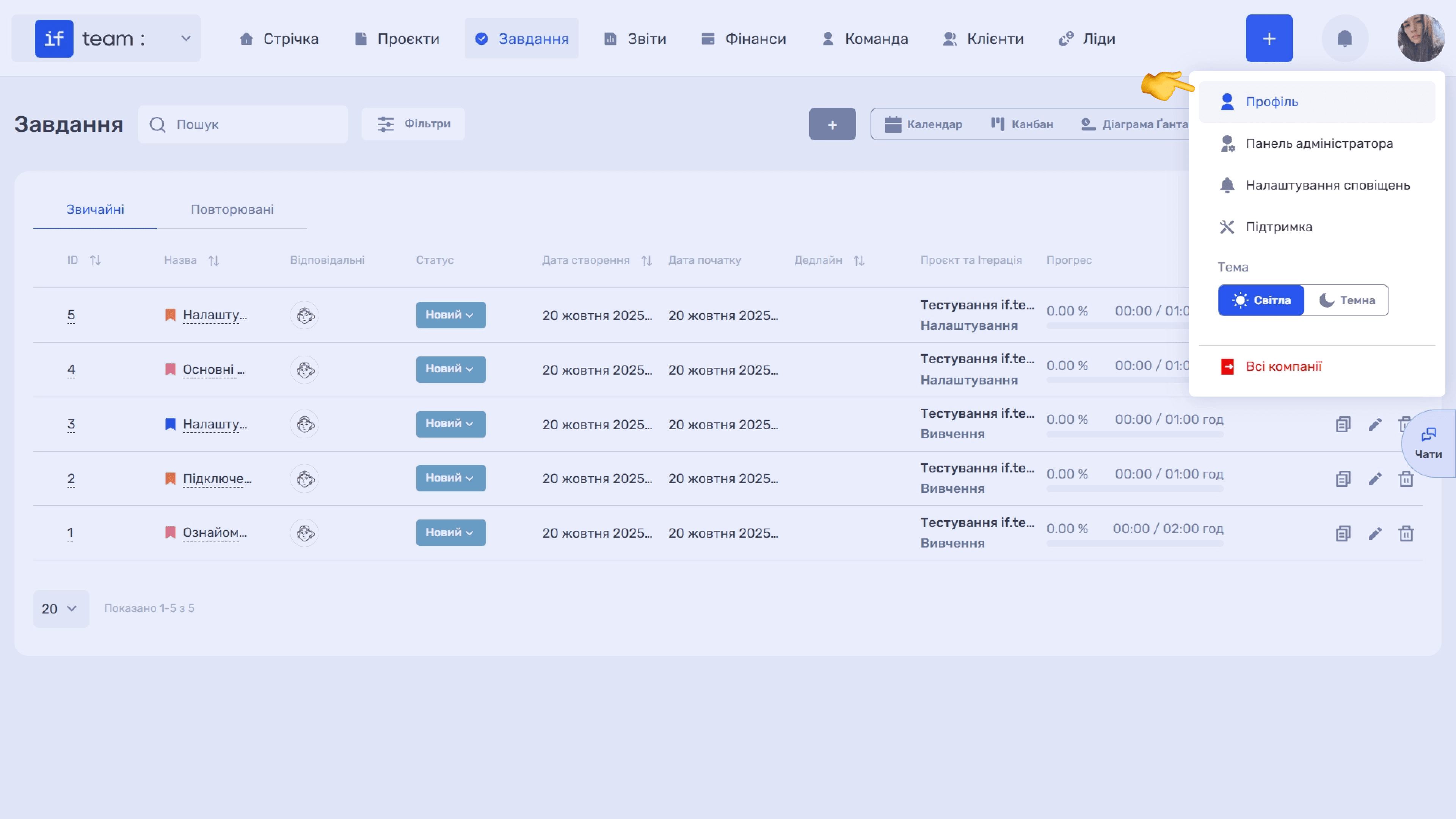
- Click your profile avatar in the upper-right corner of the screen.
- Select Profile from the drop-down menu.
- On the profile page, open the Plans tab in the left sidebar.
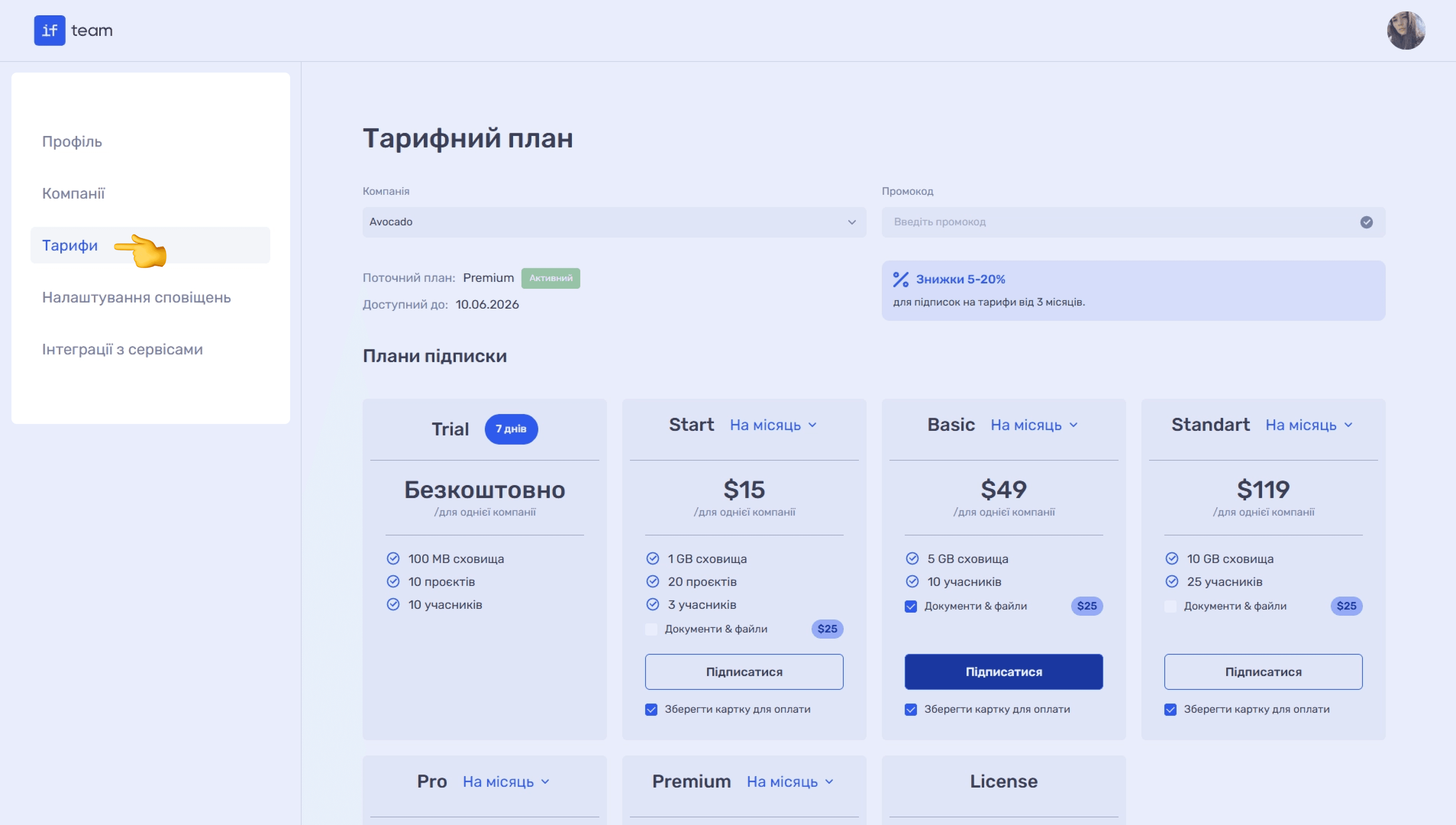
The Subscription Plan page shows your current plan, the subscription expiration date, and all available subscription plans.
Available Subscription Plans
if.team offers several subscription plans, ranging from a free trial to a custom solution for large teams. Plans differ in storage capacity, the number of projects and participants, and additional features.
- Trial is a free 7-day trial period. It provides access to all service features so you can fully evaluate them before purchasing. Limits: 100 MB of storage, 10 projects, and 10 participants.
- Start costs $15/month per company. It is suitable for small teams that are just starting to work with projects. It includes 1 GB of storage, 20 projects, and 3 participants.
- Basic costs $49/month per company. It is the optimal choice for small businesses. It includes 5 GB of storage and 10 participants.
- Standart costs $119/month per company. It is designed for growing teams and includes 10 GB of storage and 25 participants.
- Pro costs $219/month per company. It is intended for medium-sized teams with many projects and includes 15 GB of storage and 50 participants.
- Premium costs $399/month per company. It is the maximum package for large teams and includes 50 GB of storage and 100 participants.
- License is a custom plan with individual terms. It includes special modules and integrations, data hosting on the client’s server, and advanced features, including white labeling.
You can add Documents & Files to any paid plan. It is centralized storage for managing company documents. This option appears at the bottom of the plans page under Additional Tools.
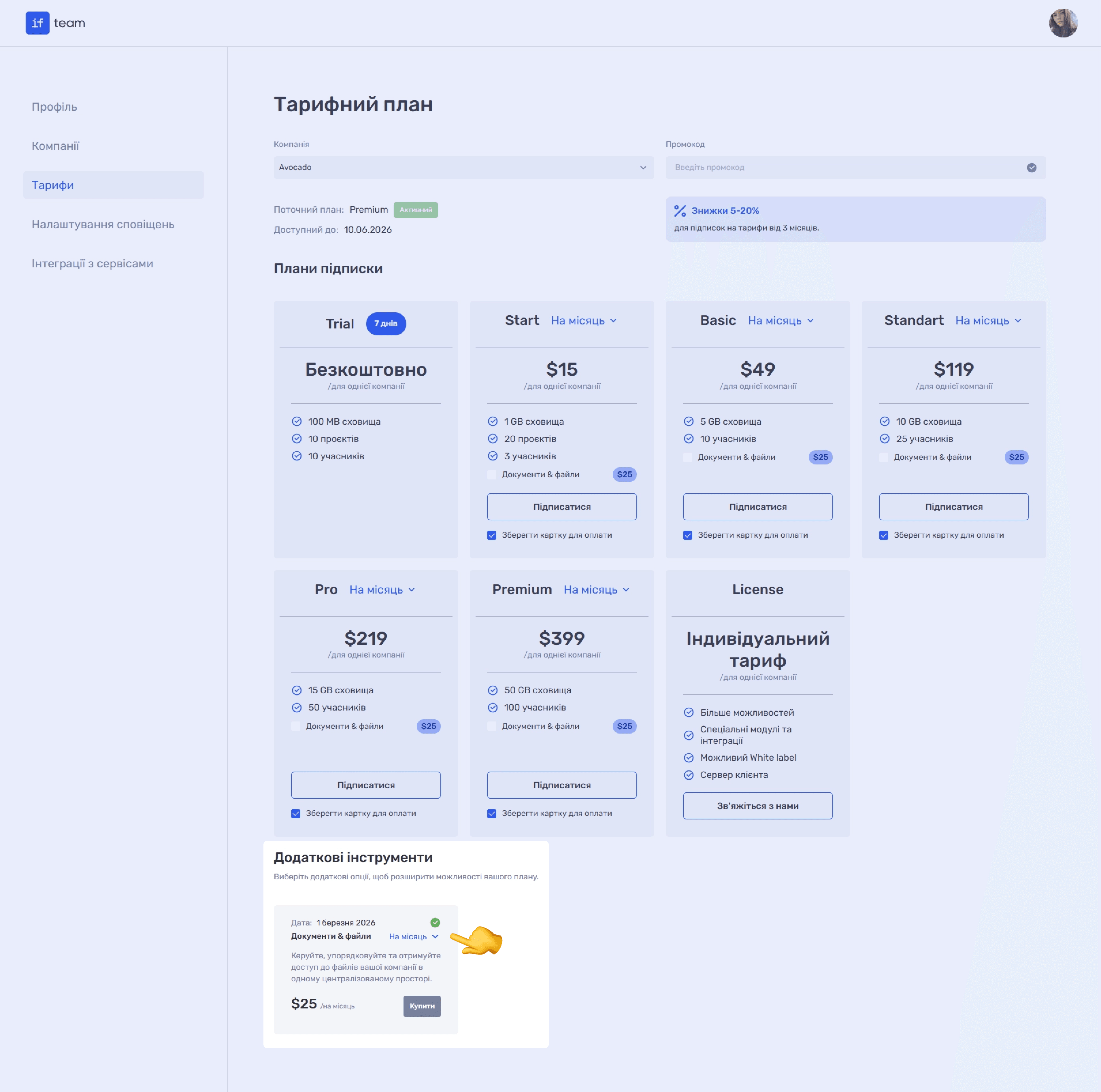
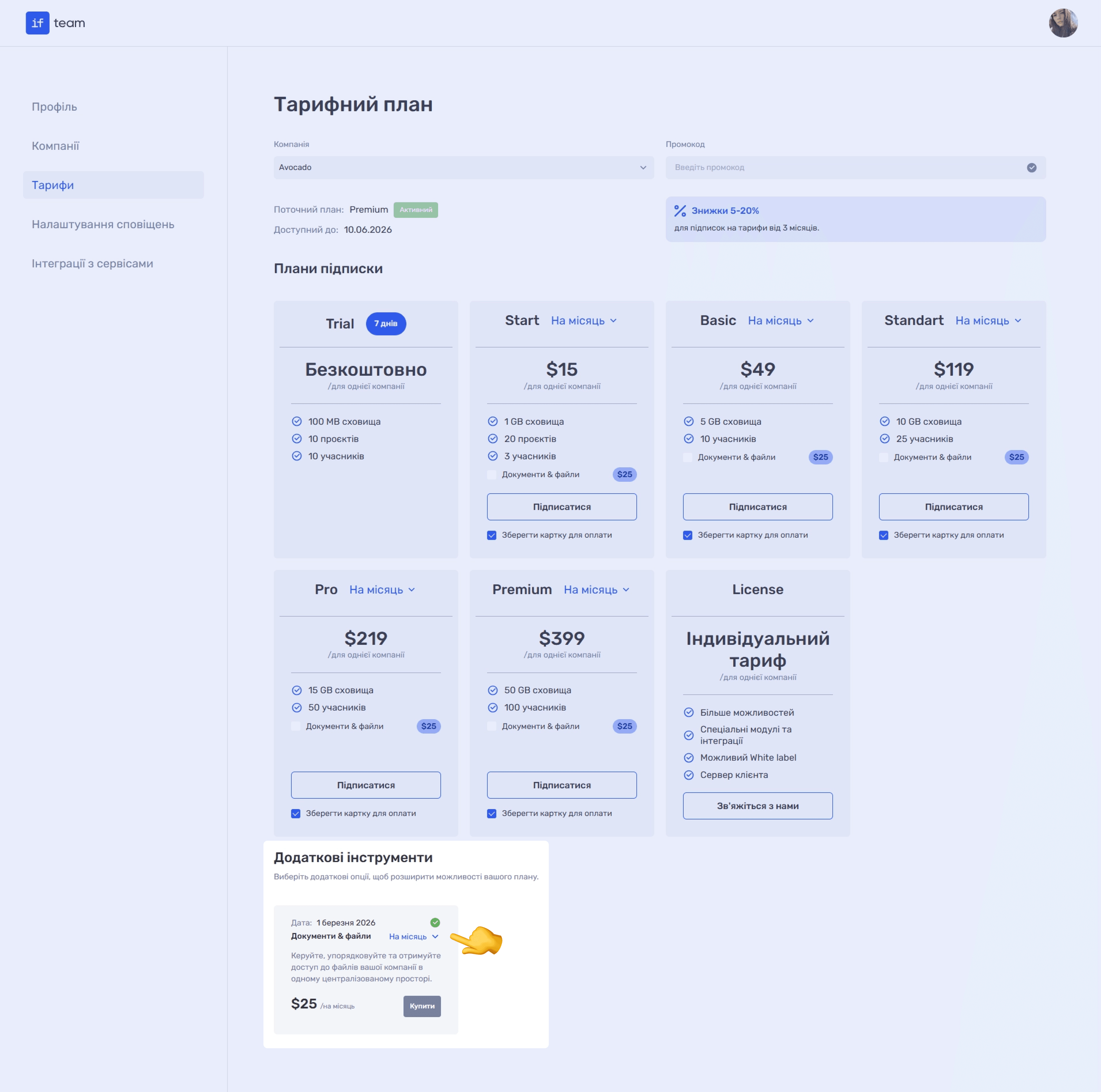
For each plan, you can select a convenient billing period: Monthly, which is the default, 3 Months, 6 Months, or Yearly. To change the period, click the Monthly drop-down list next to the selected plan’s name.
Please note
Subscriptions for 3 months or longer receive a discount of 5% to 20%.
How to Subscribe
- Select the required plan on the plans page.
- Change the billing period if necessary: monthly, 3 months, 6 months, or yearly.
- Click Subscribe.
- The service redirects you to the payment page, where you can pay for the subscription by bank card, Apple Pay, Google Pay, or a QR code in the Monobank app.
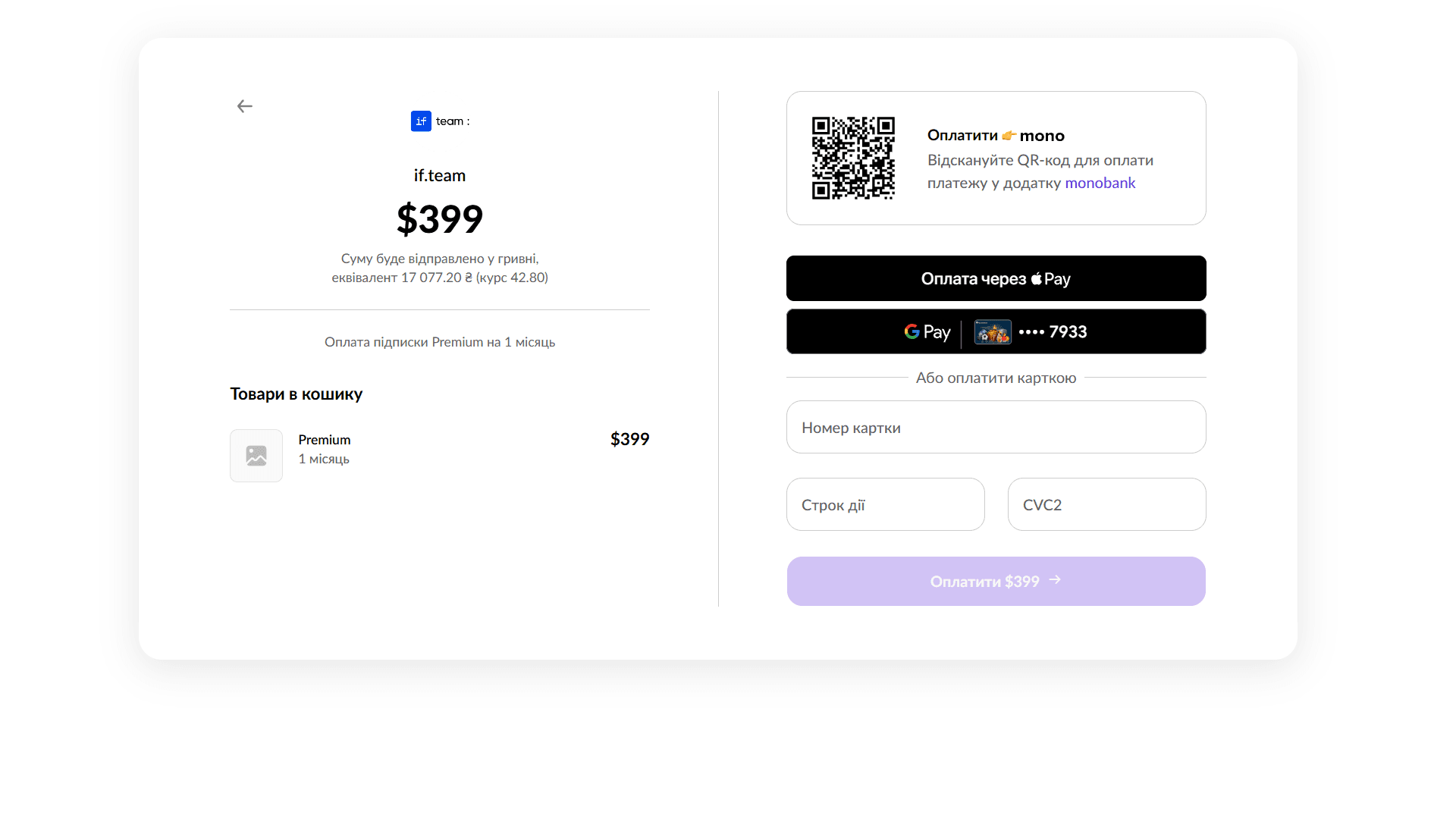
If you want to save payment details for automatic subscription renewal, select the Save Card for Payment checkbox before clicking Subscribe.
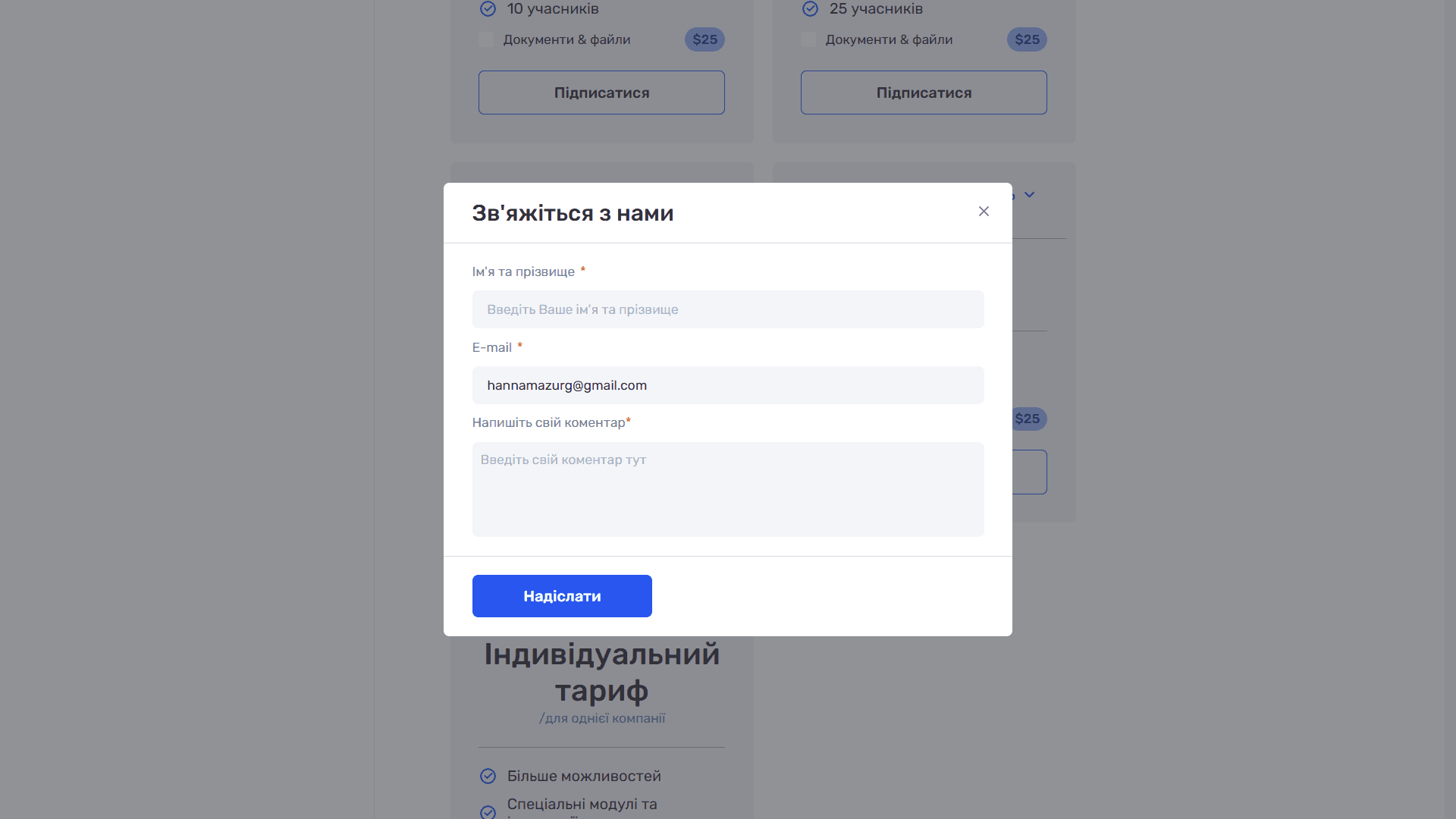
The terms of the License plan are discussed individually. Click Contact Us and complete the form.
How to Change Your Plan
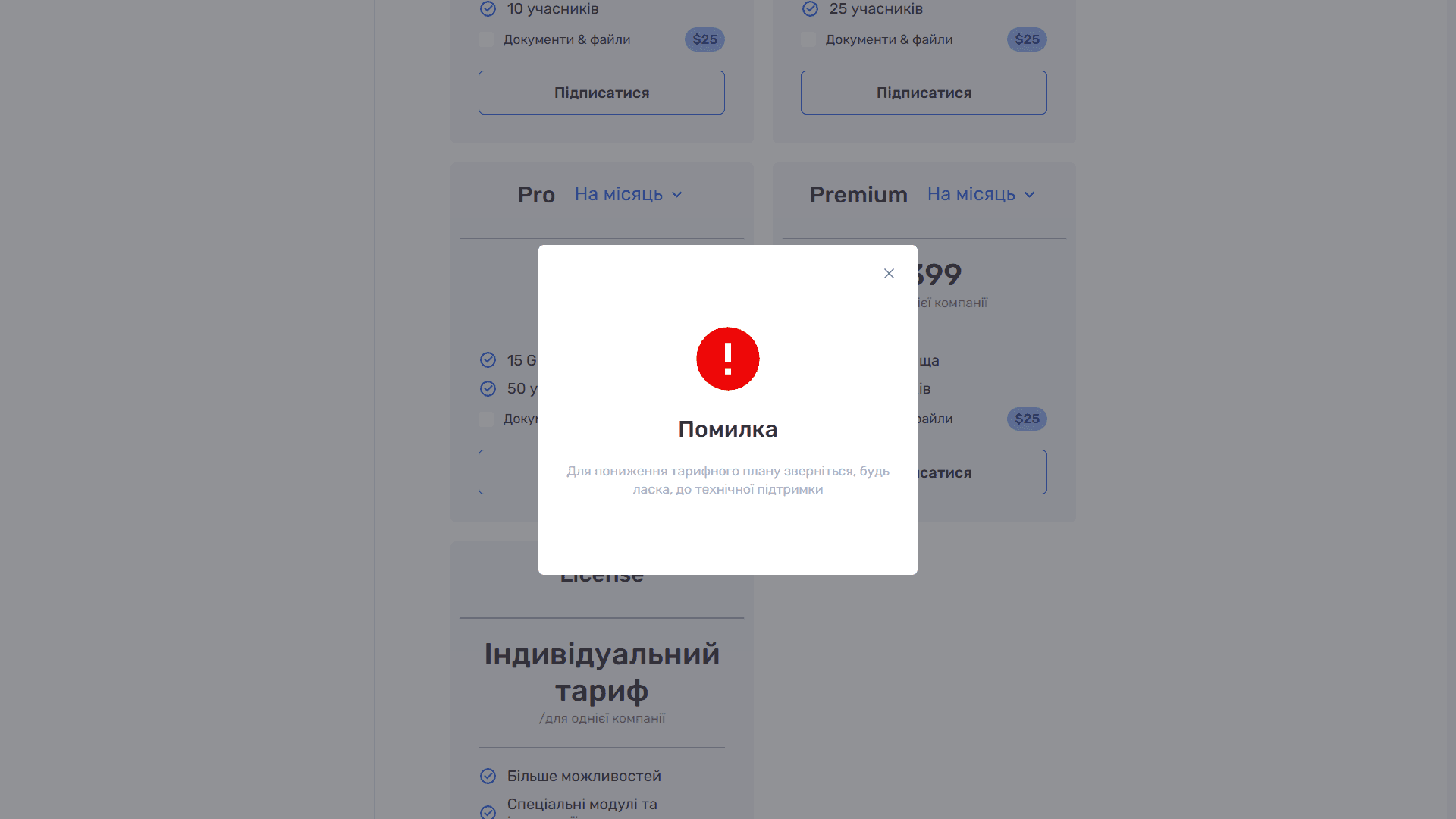
You can upgrade to a higher plan at any time on the Subscription Plan page. To downgrade, contact technical support: click your profile avatar and select Support.
How to Check When Your Subscription Ends
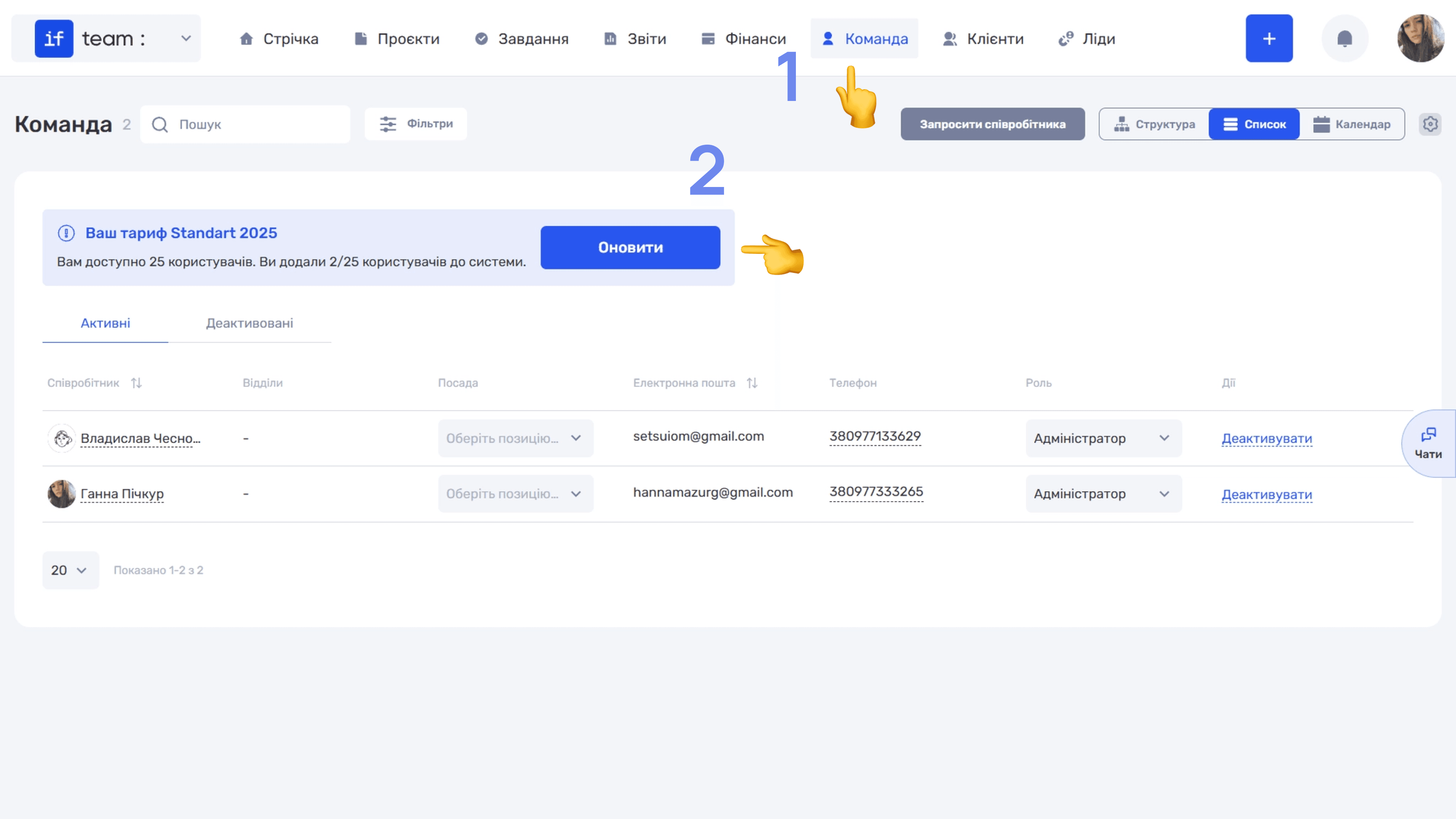
The subscription expiration date always appears at the top of the plans page. Information about the current plan is also available in Team, where the administrator sees a banner with the plan name and the number of added users relative to the limit. This lets you quickly assess how many company seats remain without opening the settings. The Upgrade button opens the Subscription Plan page, where you can change the subscription.
Still have questions?
Maybe we haven't added this information yet. But you can always reach out:
Request a demo
Submit a request and we'll show you how the service works and its capabilities.
Book a demo