Products and Services
The catalog of items that quotes are made of. Open it from the item of the same name in the module's left panel.
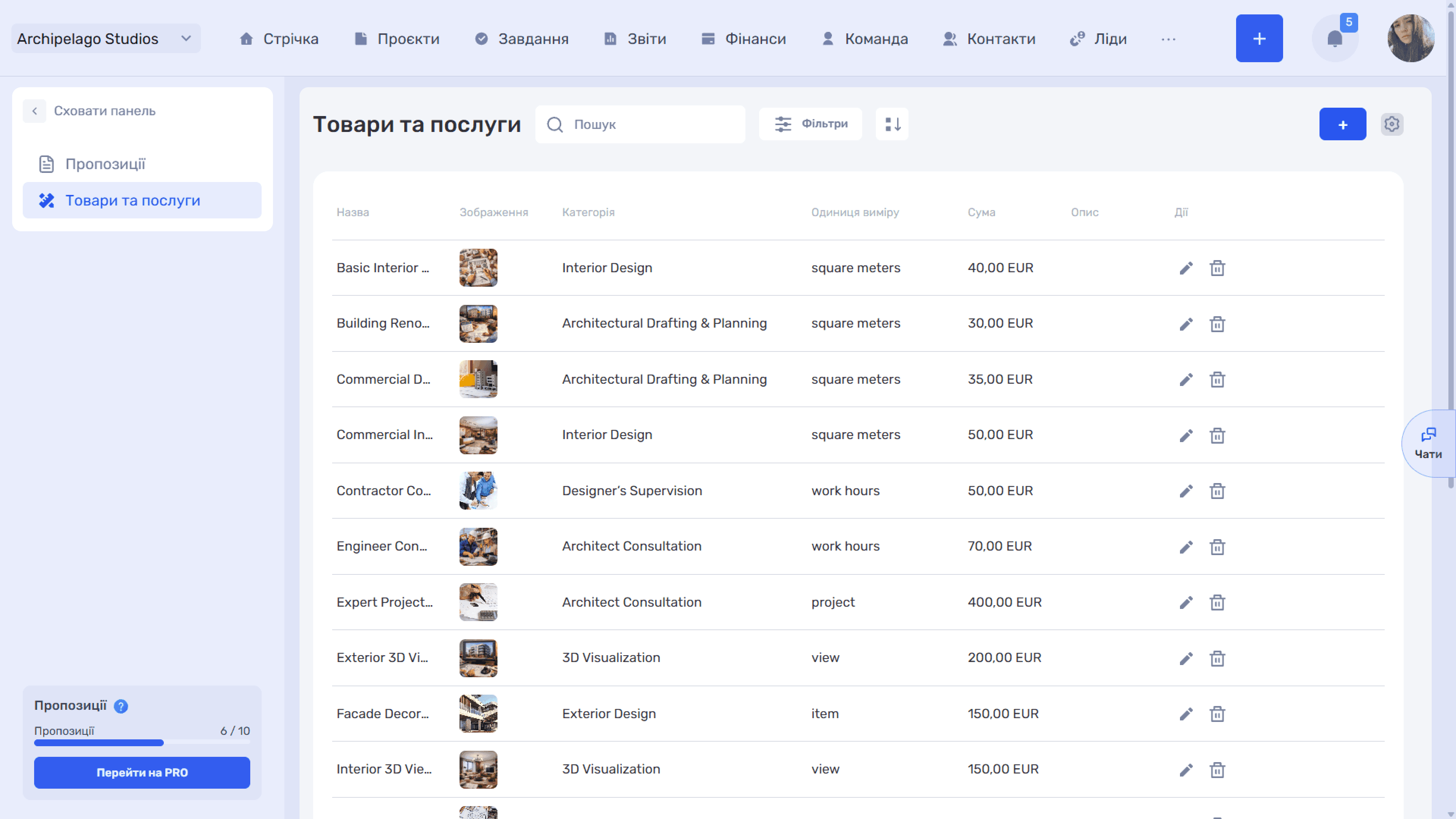
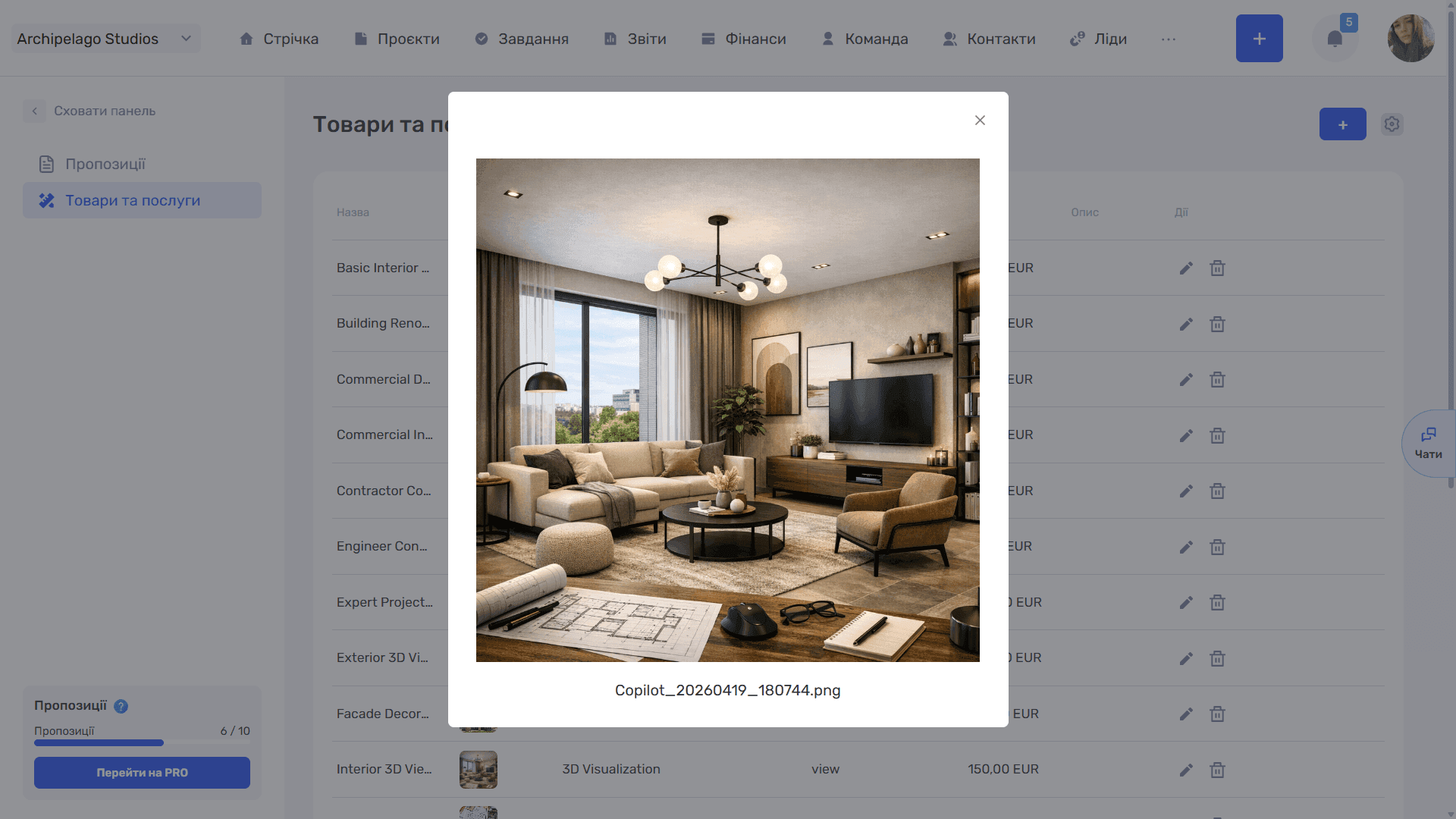
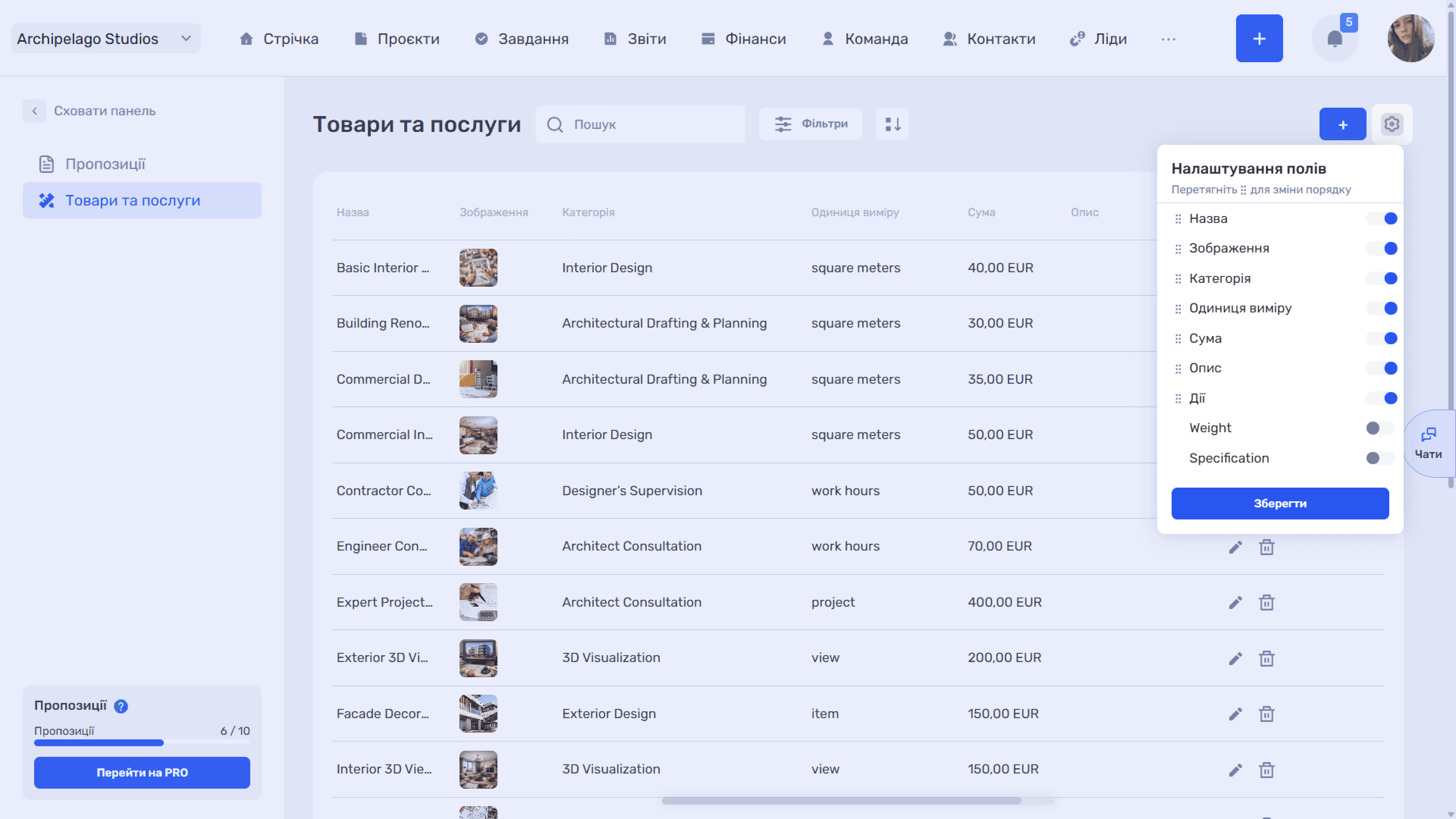
The table has the columns Name, Image, Category, Unit of measurement, Amount, Description, and Actions (edit and delete). Clicking a thumbnail opens the image at full size together with the file name.
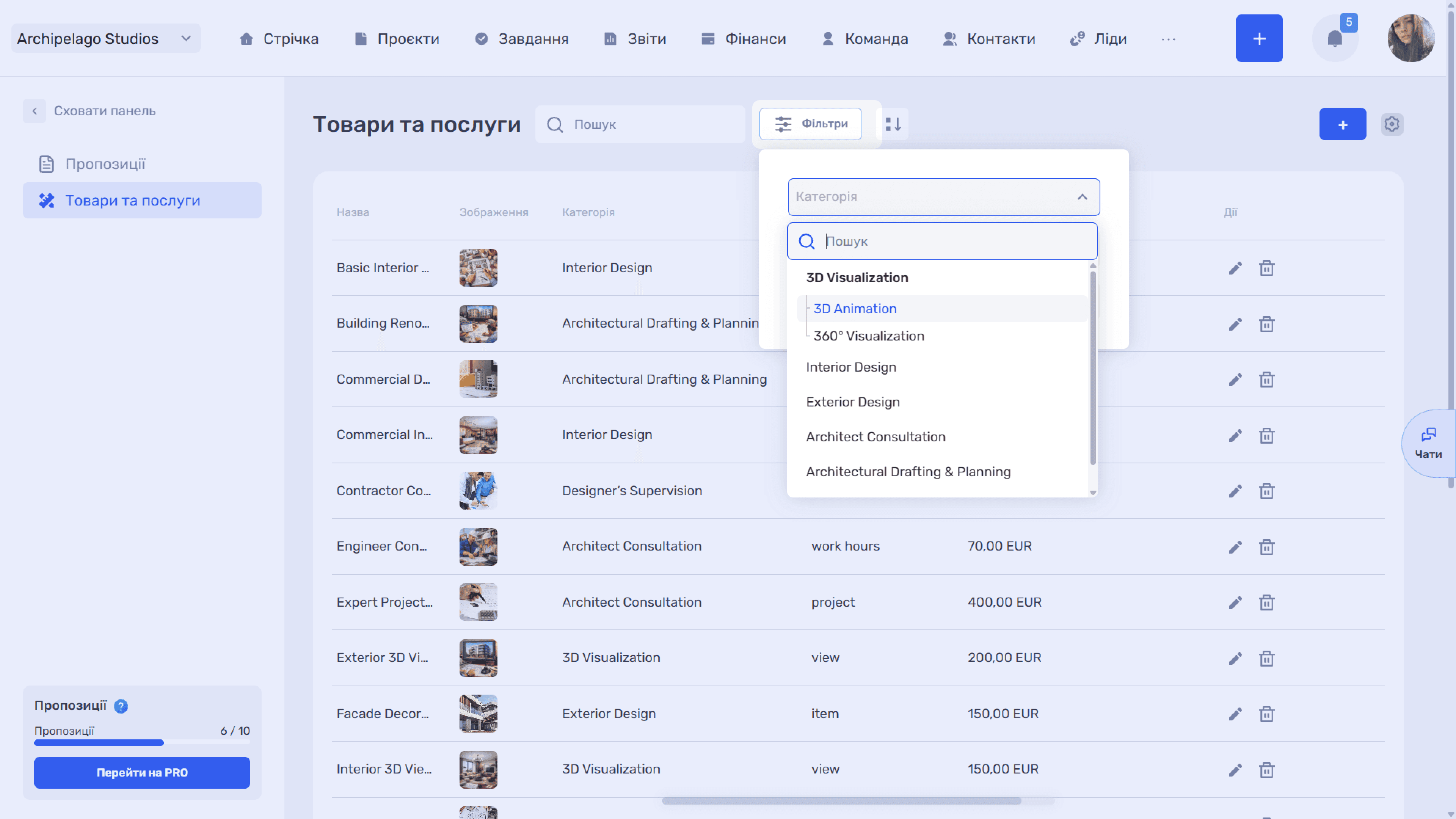
Search looks up items by name. Filters let you select items by category — the list is hierarchical, with subcategories indented.
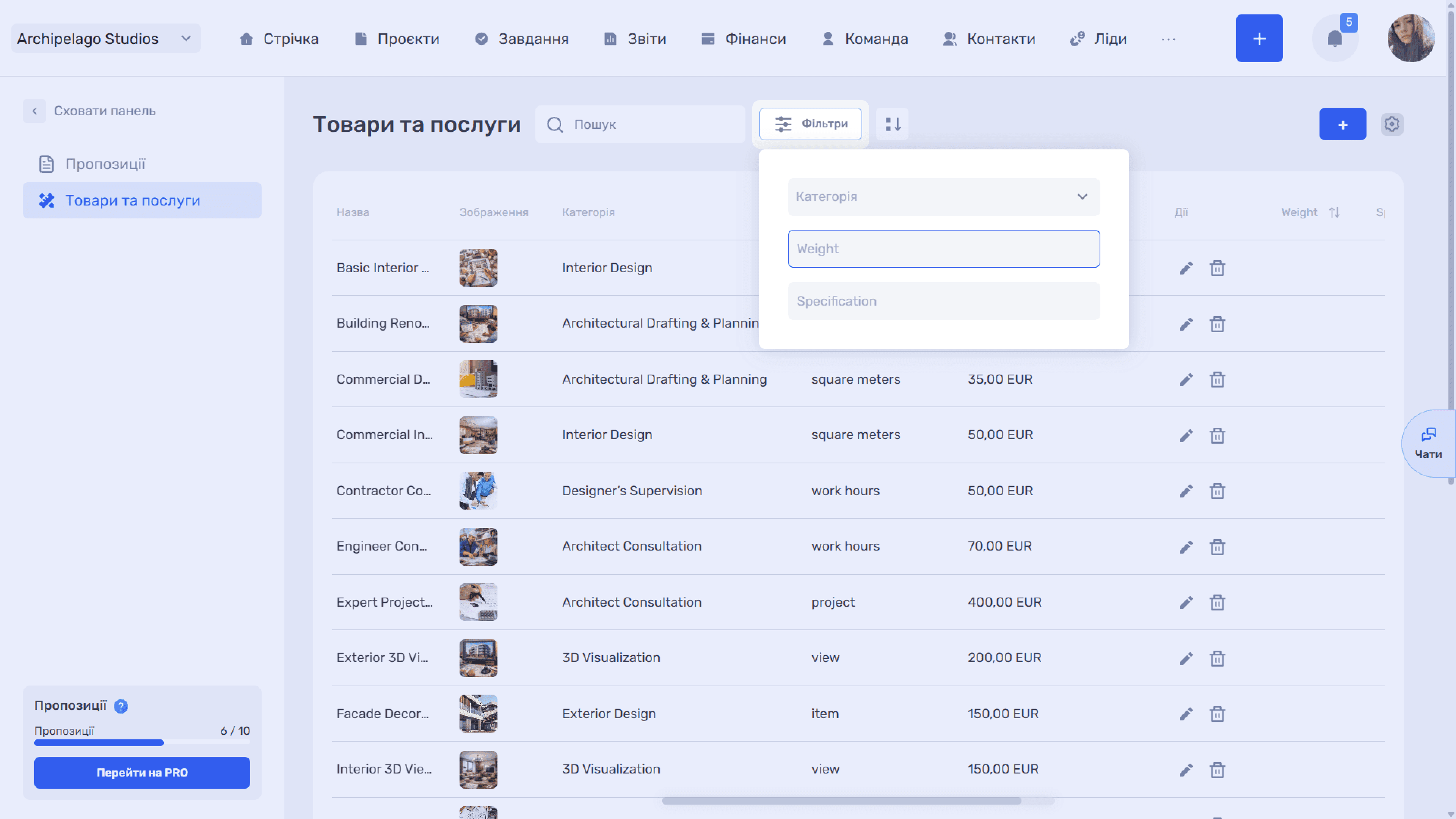
If custom fields are configured for products, they become filters too: a separate field appears in the panel for each of them (for example, "Weight" and "Specification"), and filtering works by the entered value.
The settings icon opens Field settings — custom field columns are enabled here as well. The sort icon next to it lets you reorder catalog items by dragging.
Creating and editing an item
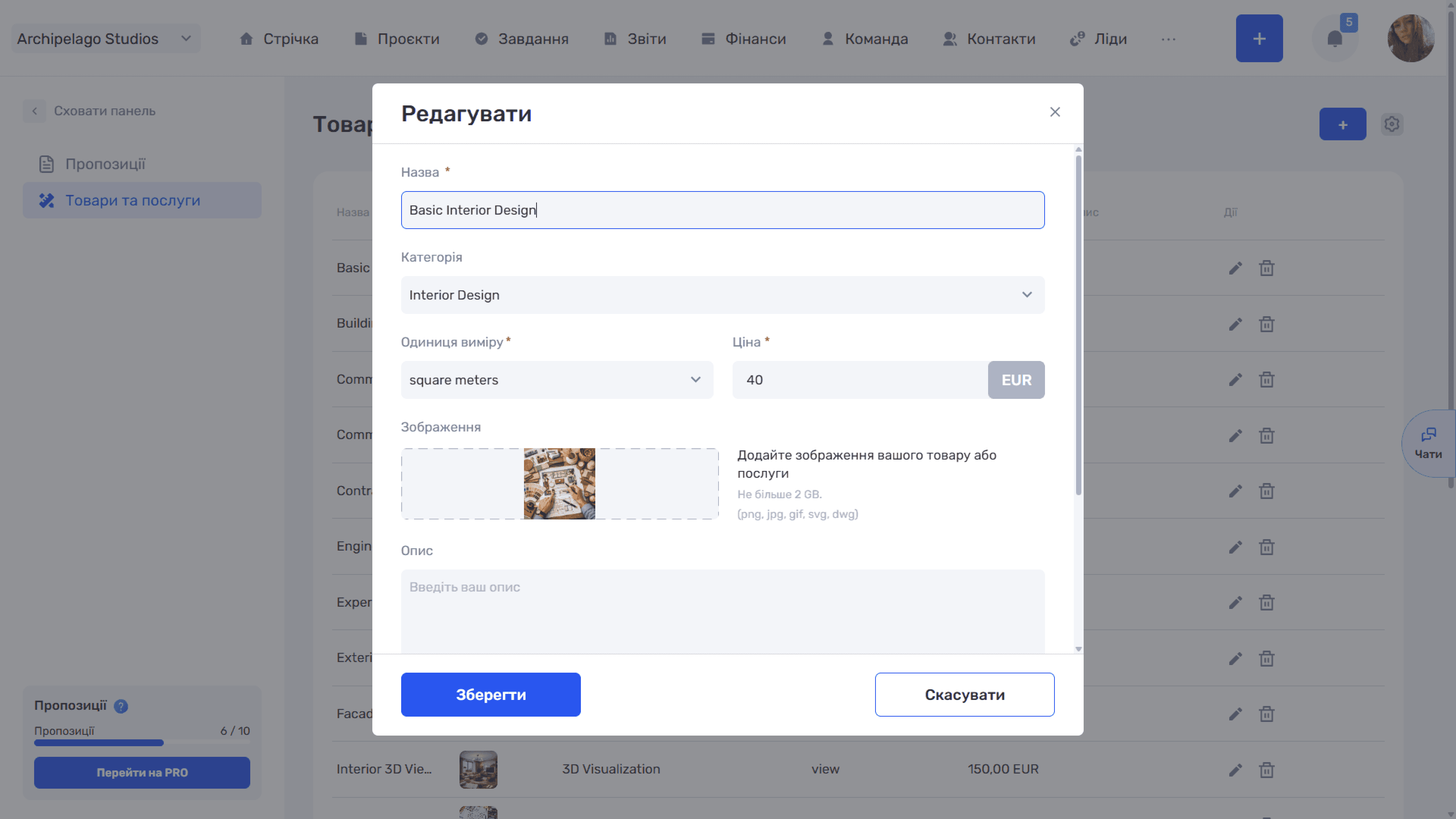
The + button adds a new item; the edit icon in a row opens an existing one. The form contains:
- Name (required);
- Category — from the list of categories configured in the admin panel;
- Unit of measurement (required) — from the list of units configured in the admin panel;
- Price (required) with a currency selector;
- Image — uploaded by dragging or selecting a file;
- Description — free text;
- Additional fields — the item's custom fields.
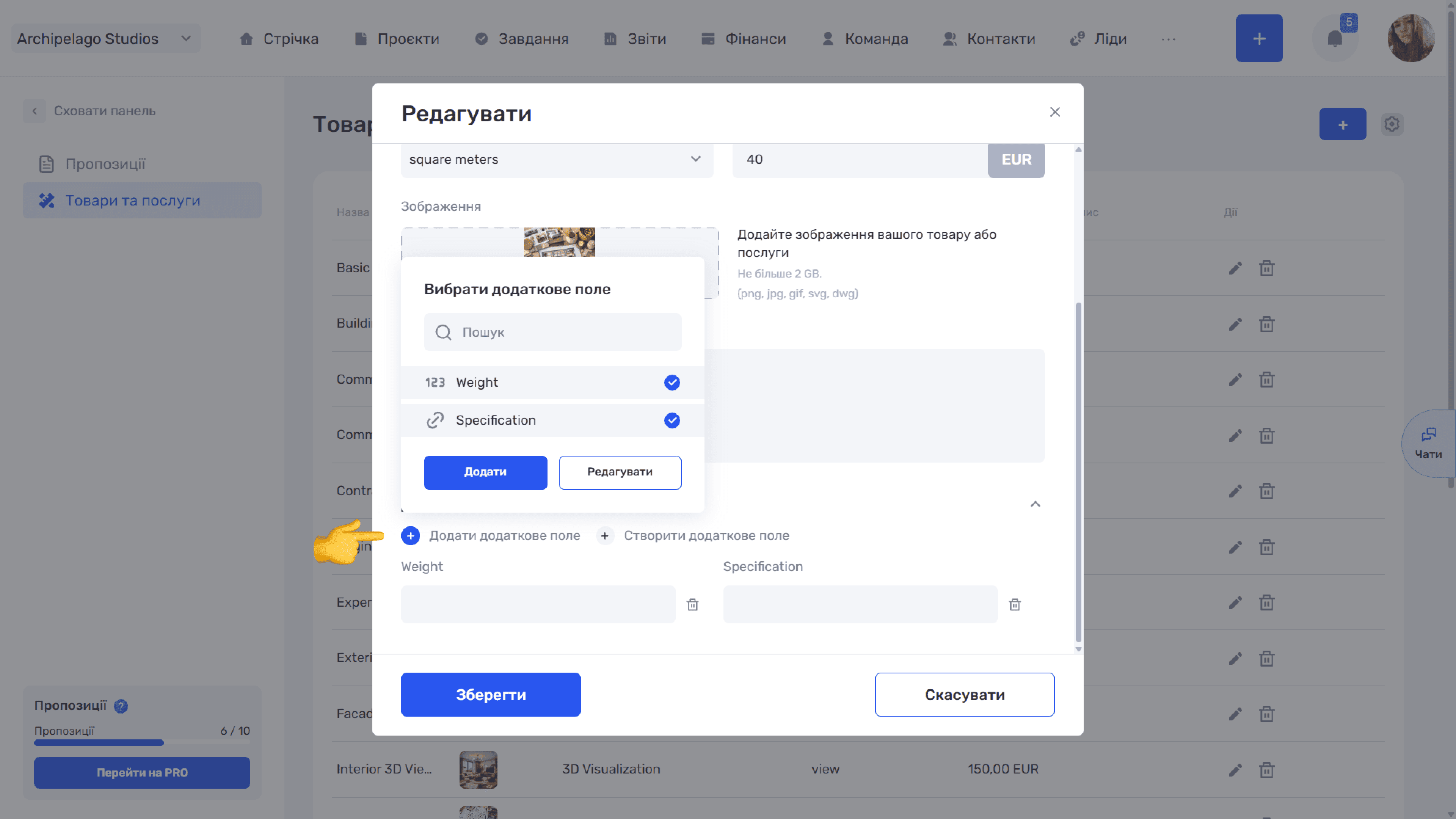
The Additional fields block has two actions:
- Add additional field attaches an already created field to the item. The Select additional field window opens with a search and a list of available fields — each shows an icon of its type (123 — numeric, a link icon, and so on). Clicking a row selects the field; you can select several at once. The Add button attaches the selected fields, Edit takes you to the additional field settings in the admin panel.
- Create additional field creates a new field.
Attached fields appear under the buttons — the name and an input for the value. The icon on the right detaches the field from the item.
Please note
Categories, units of measurement, quote statuses, and custom fields for products and services are configured centrally — in the admin panel, Quotes block (see Quotes in the Admin Panel section).
Still have questions?
Maybe we haven't added this information yet. But you can always reach out:
Request a demo
Submit a request and we'll show you how the service works and its capabilities.
Book a demo