Access Permissions
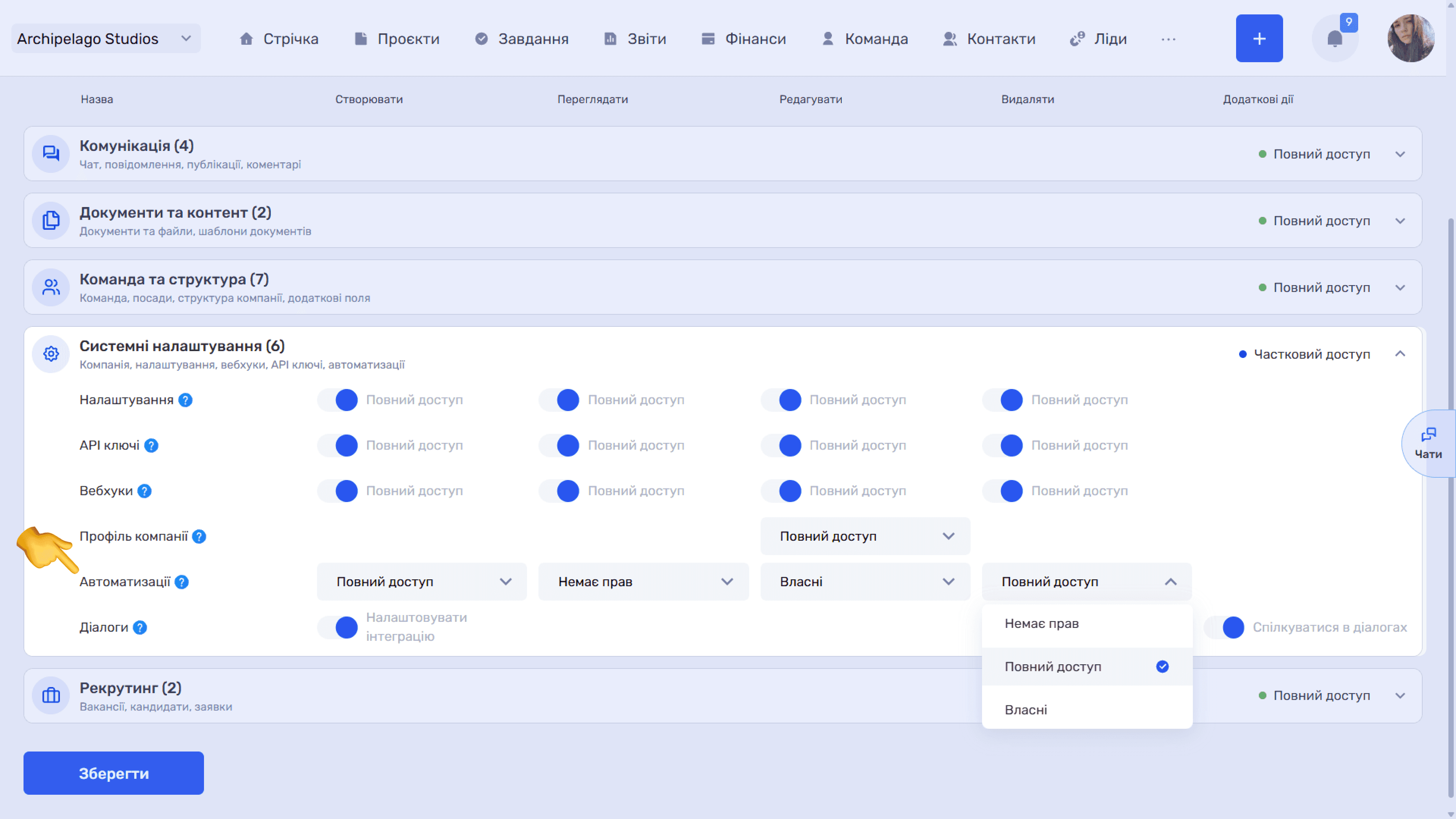
Who can view, create, edit, and delete automations is defined by the user’s role. The setting is in Admin panel → “Team” → “Roles”, in the “System settings” group (the “Automations” row). The tooltip for the row explains that it covers creating, viewing, and managing automations and their logs, including the error log.
- Create — No access, Full access
- View — No access, Full access, Own
- Edit — No access, Full access, Own
- Delete — No access, Full access, Own
The “Own” value limits the action to automations the user created themselves.
Example
Suppose project managers should set up automations for their own processes. At the same time, they should not change or delete colleagues' rules, for example the company-wide project numbering. Still, it is useful for them to see all rules so they don't create duplicates.
To set up access this way, open the project manager role in Admin panel → “Team” → “Roles”, find the “System settings” group (the “Automations” row), and choose these values:
- Create — Value: Full access; What it gives the project manager: Can create new automations
- View — Value: Full access; What it gives the project manager: Sees all company automations in the list, including others'
- Edit — Value: Own; What it gives the project manager: Can change only the automations they created
- Delete — Value: Own; What it gives the project manager: Can delete only the automations they created
Save the role. Now the project manager works with their own rules without restrictions, while rules the whole company depends on are protected from accidental changes: the manager sees them but cannot edit or delete them.
Please note
Automations change data in bulk and without human involvement, and the “Create folder” action works with the company's Google account. Grant full edit access to as few users as possible.
The full permission matrix is described in the Access permissions subsection of the Team module.
Still have questions?
Maybe we haven't added this information yet. But you can always reach out:
Request a demo
Submit a request and we'll show you how the service works and its capabilities.
Book a demo