Helper actions
Helper actions prepare data for main actions. On their own, they change nothing in records: they only calculate a value and store it in a variable. They usually go at the start of the chain, followed by “Update” or “Create folder”, which uses the resulting variables.
Get date
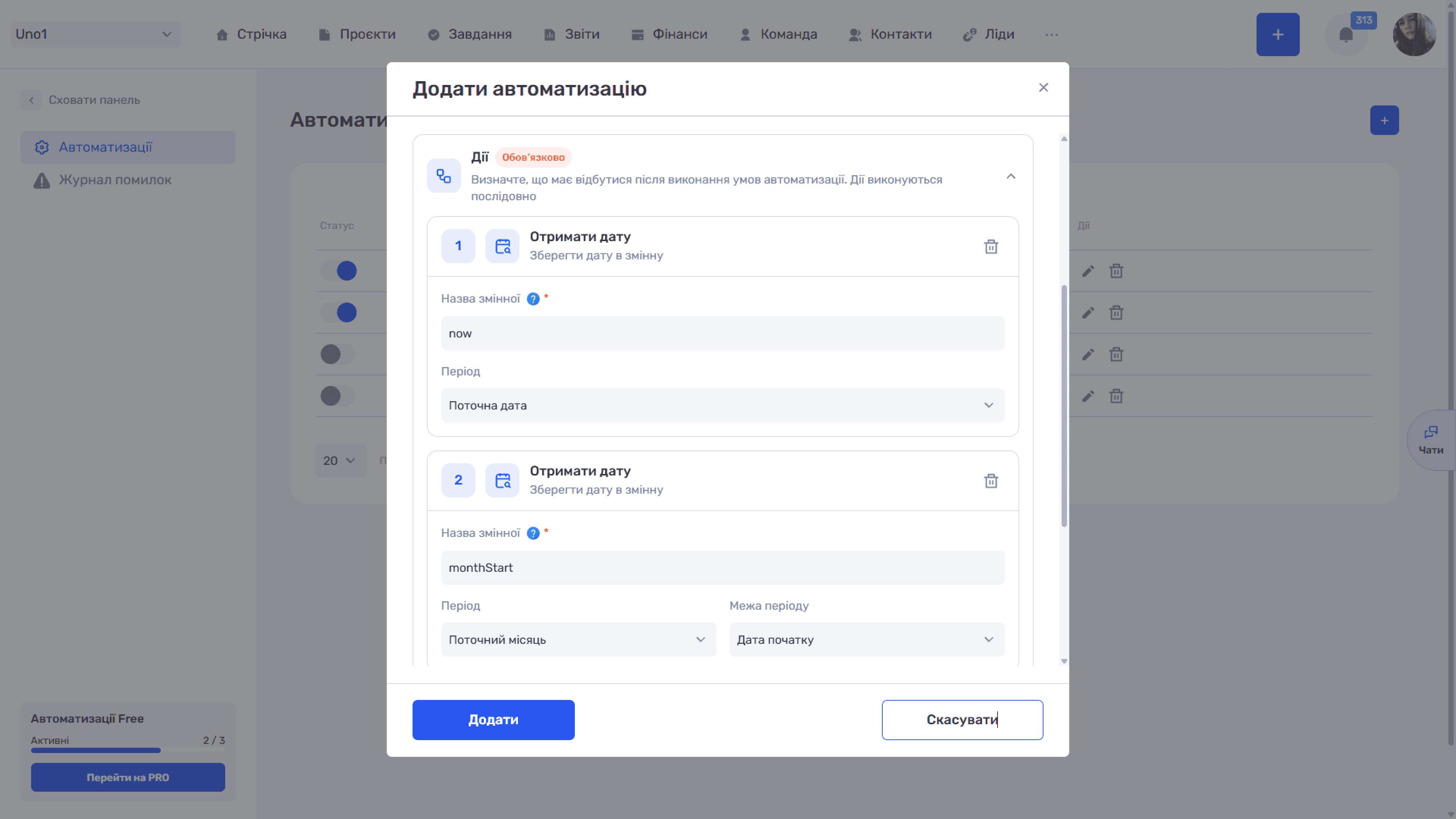
The “Get date” action captures the date at the moment the automation runs.
- Variable name * — The name under which to store the date
- Period — Current date, Current week, Current month, or Current year
- Period boundary — Appears for all periods except “Current date”. Defines which date to take: Start date or End date
This way you can get not only today's date but also the boundaries of the current week, month, or year. They are needed, for example, to count records for a month.
- Current date — 17.09.2026
- Current week · Start date / End date — 14.09.2026 / 20.09.2026
- Current month · Start date / End date — 01.09.2026 / 30.09.2026
- Current year · Start date / End date — 01.01.2026 / 31.12.2026
Please note
The week starts on Monday, as in the if.team interface calendars.
Format date
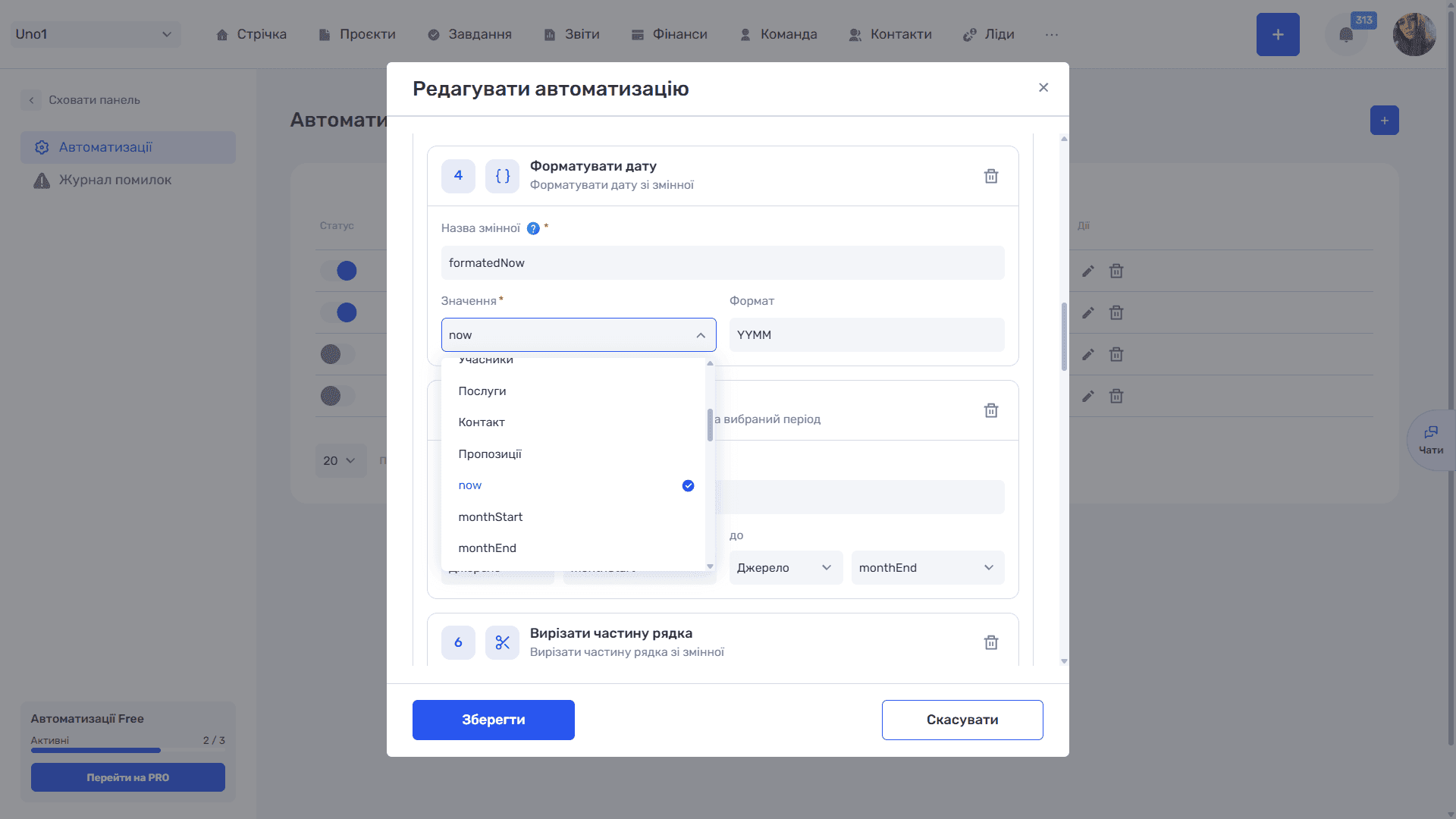
The “Format date” action turns a date into a string of the required format. This is needed when a date has to be inserted into a name or description in a compact form.
- Variable name * — The name under which to store the formatted string
- Value * — The date source: a variable from a previous step (for example,
now) or a record field - Format — The result template, typed manually, for example
YYMM
Supported format tokens:
- YYYY / YY — Gives: Full year / last two digits; Example for 17.09.2026, 17:38: 2026 / 26
- MM — Gives: Two-digit month; Example for 17.09.2026, 17:38: 09
- MMMM — Gives: Month name (in English); Example for 17.09.2026, 17:38: September
- DD — Gives: Two-digit day; Example for 17.09.2026, 17:38: 17
- dddd — Gives: Day of the week (in English); Example for 17.09.2026, 17:38: Thursday
- HH / mm — Gives: Hours / minutes (UTC time); Example for 17.09.2026, 17:38: 17 / 38
Tokens can be combined with separators: DD.MM.YYYY gives “17.09.2026”, HH:mm gives “17:38”, and YYMM gives “2609”.
Please note
Month and weekday names are output in English regardless of the interface language. Time is stored in UTC.
Change date
The “Change date” action takes a date and changes it in two ways: shifts it by a given interval (add modifiers) or sets individual parts of the date to a fixed value (set modifiers). This is needed when a process involves a relative date: a deadline three days after a task is created, the next call to a client in a week, or the end of a trial a month later.
- Variable name * — The name under which to store the changed date
- Value * — The source date: a variable from a previous step (for example,
now) or a record field - Add modifiers — How much to shift the date by
- Set modifiers — Which part of the date to set to a fixed value: for example, minutes = 00
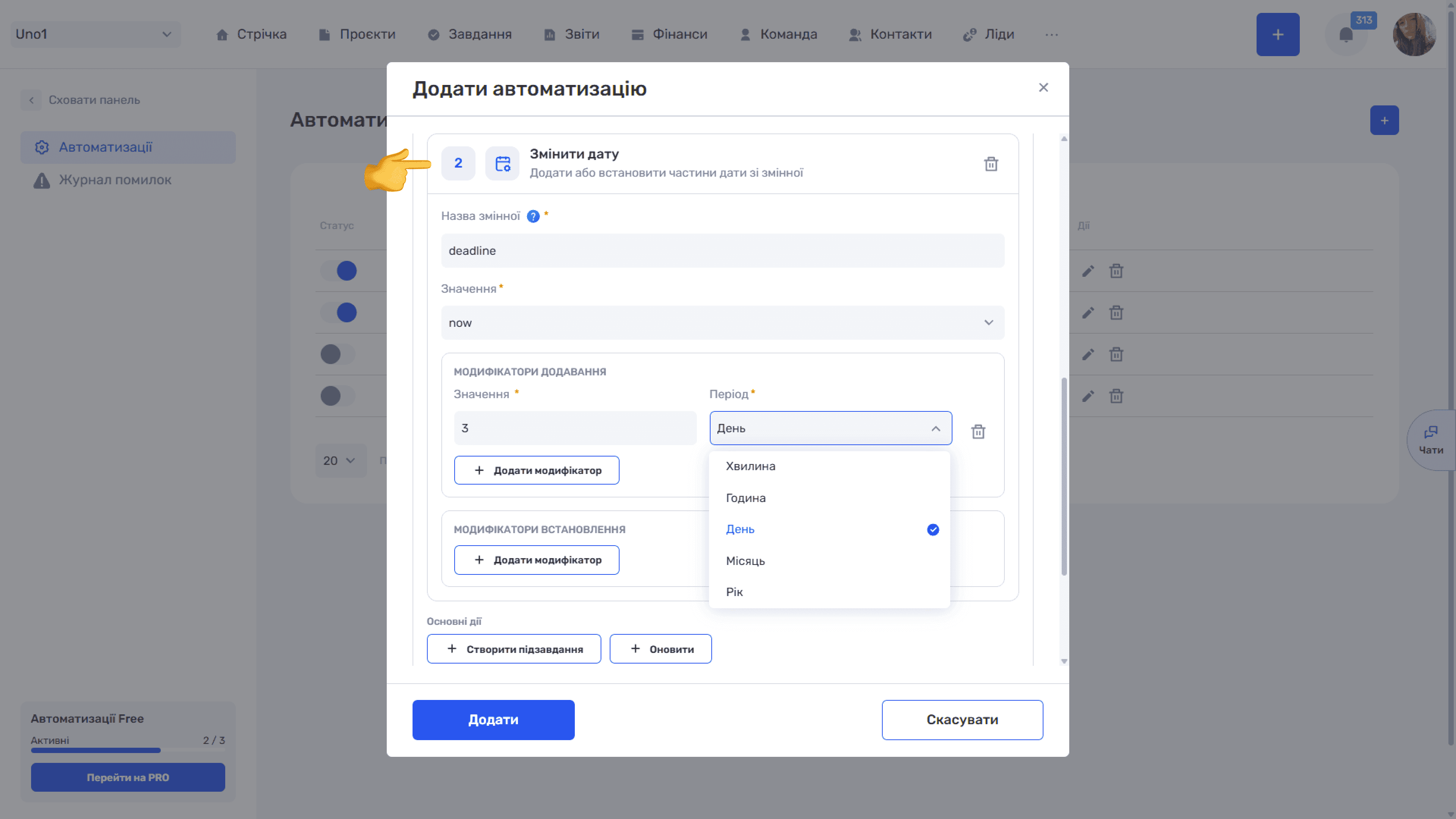
Add modifiers
The “+ Add modifier” button adds a row with two fields. “Value” is a number, “Period” is the unit: Minute, Hour, Day, Month, or Year. The value can be negative: “-3 · Day” subtracts three days. There can be several modifiers, for example “1 · Month” and “2 · Day” together shift the date by a month and two days. An extra modifier is deleted with the “🗑” icon in its row.
Example
Every new task should get a date three days after its creation date:
- Get date → variable
now, period “Current date”. - Change date → variable
deadline, valuenow, add modifier “3 · Day”. - Format date → variable
deadlineText, valuedeadline, formatDD.MM.YYYY. - Update → Description: “Deadline: ” + the
deadlineTextchip.
Set modifiers
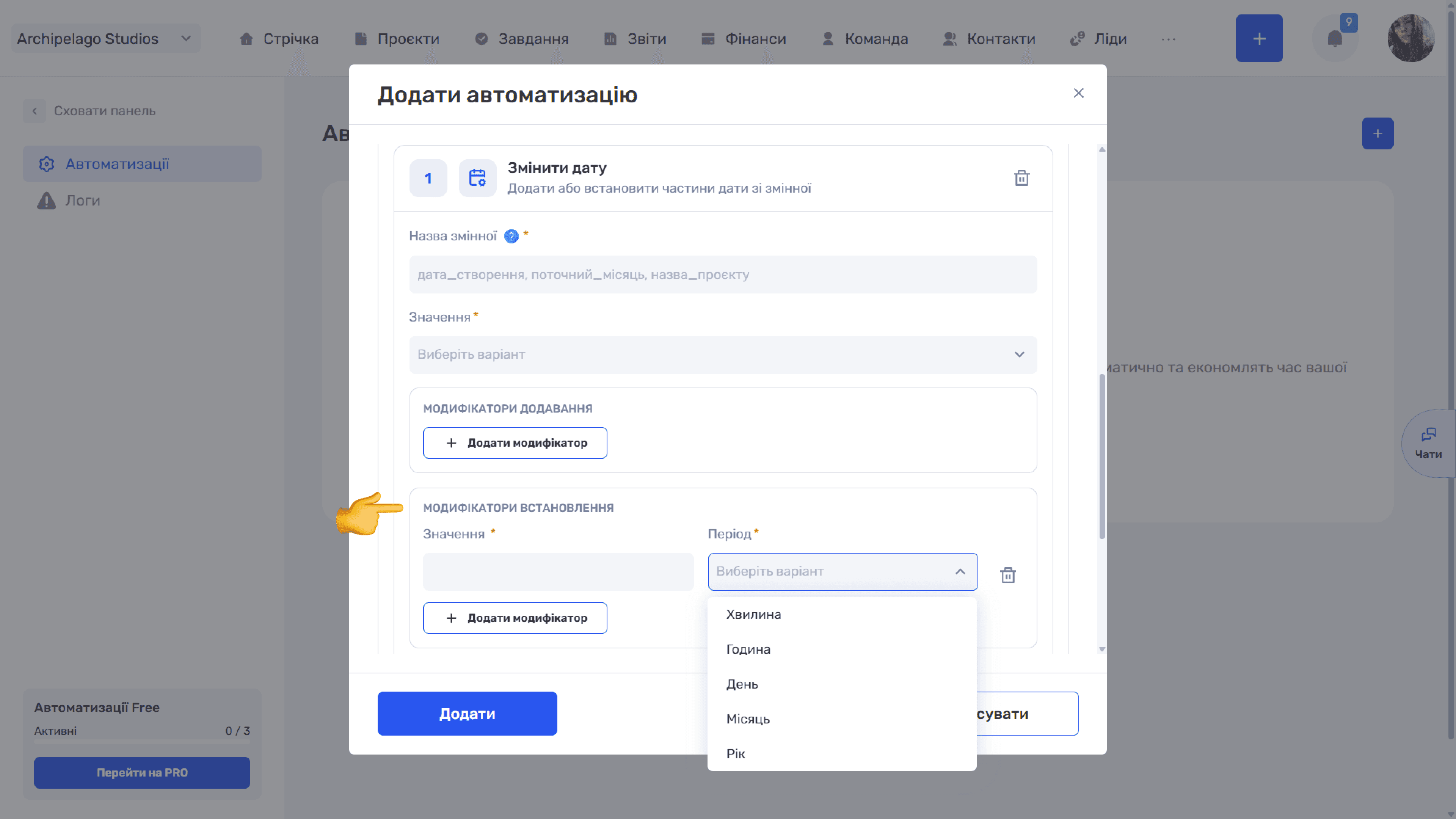
The “+ Add modifier” button in the lower block adds a row with the same “Value” and “Period” fields (Minute, Hour, Day, Month, Year). But here the value is not added to the date — it replaces the corresponding part: “0 · Minute” sets the minutes to 00, “10 · Hour” sets the hour to 10, “1 · Day” sets the first day of the month. The rest of the date stays unchanged.
This is handy when you need not just a shift but a “round” time: a call at 10:00, a deadline at the start of the month.
The difference between the two blocks, using the date 17.09.2026, 14:37:
- “3 · Day” — Add: 20.09.2026, 14:37 (+3 days); Set: 03.09.2026, 14:37 (day = 3)
- “0 · Minute” — Add: 17.09.2026, 14:37 (no change); Set: 17.09.2026, 14:00 (minutes = 00)
- “1 · Month” — Add: 17.10.2026, 14:37 (+1 month); Set: 17.01.2026, 14:37 (month = January)
Example
A call to the client tomorrow at 10:00.
1) “Get date” → variable now, “Current date”.
2) “Change date” → variable callTime, value now; add modifier “1 · Day”; set modifiers “10 · Hour” and “0 · Minute”.
3) “Format date” → variable callText, value callTime, format DD.MM.YYYY HH:mm.
4) “Update” → Description: “Call: ” + the callText chip.
Please note
If both blocks are filled in one action, adding is applied first, then setting.
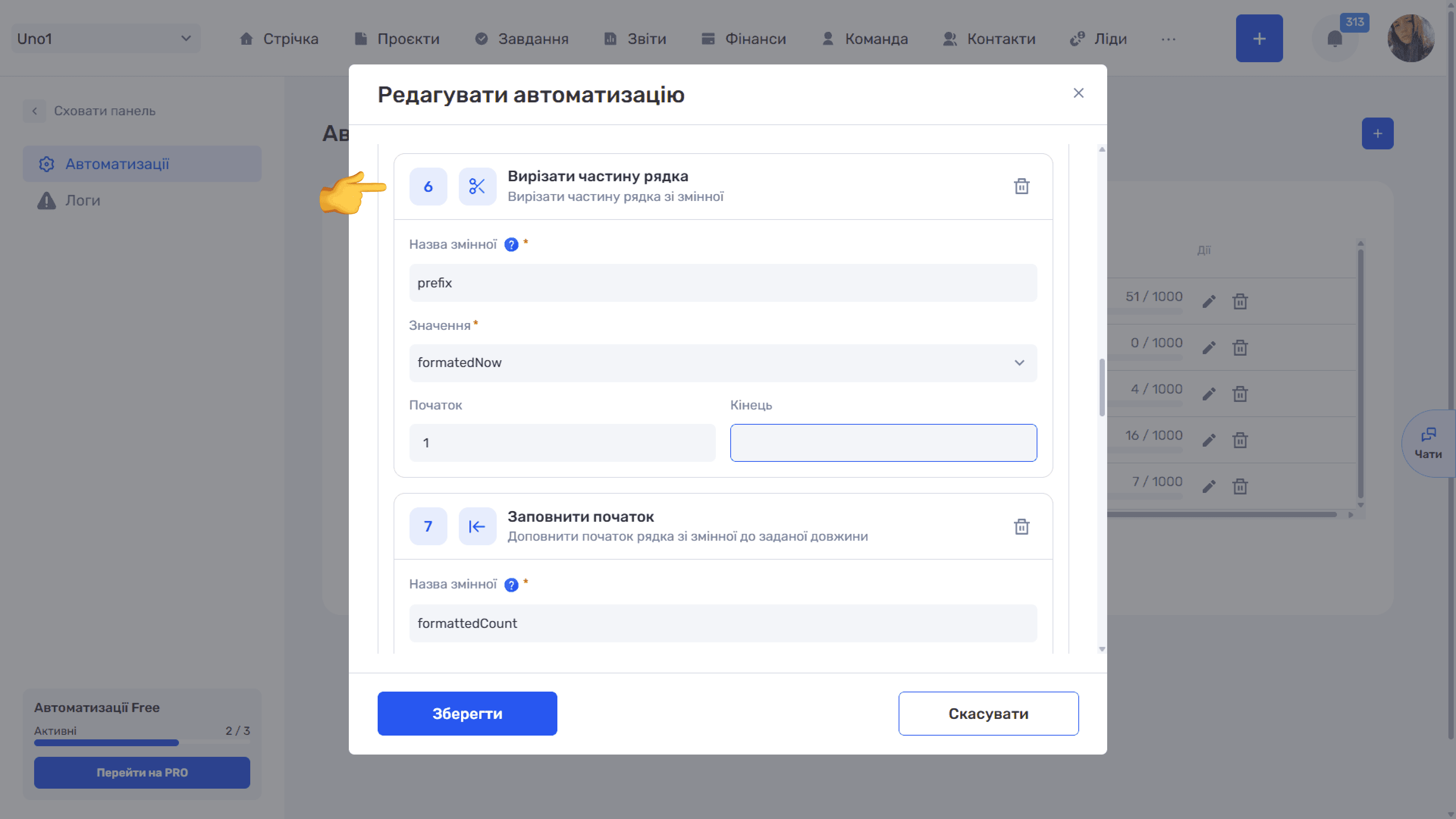
Cut part of a string
The “Cut part of a string” action takes only the needed fragment of a string. For example, shorten “2609” to “609” or take the first few characters of a name.
- Variable name * — The name under which to store the fragment
- Value * — The source string: a variable or a field (for example, “Name”)
- Start — The position of the character where the fragment starts. Counting starts from zero: 0 is the first character, 1 is the second
- End — The position before which the fragment ends: the character at this position is not included in the result
An empty “Start” means “from the beginning of the string”, an empty “End” means “to the end of the string”.
Example. To get “609” from “2609” (year and month in the YYMM format), set Start to 1 and leave End empty.
Pad start
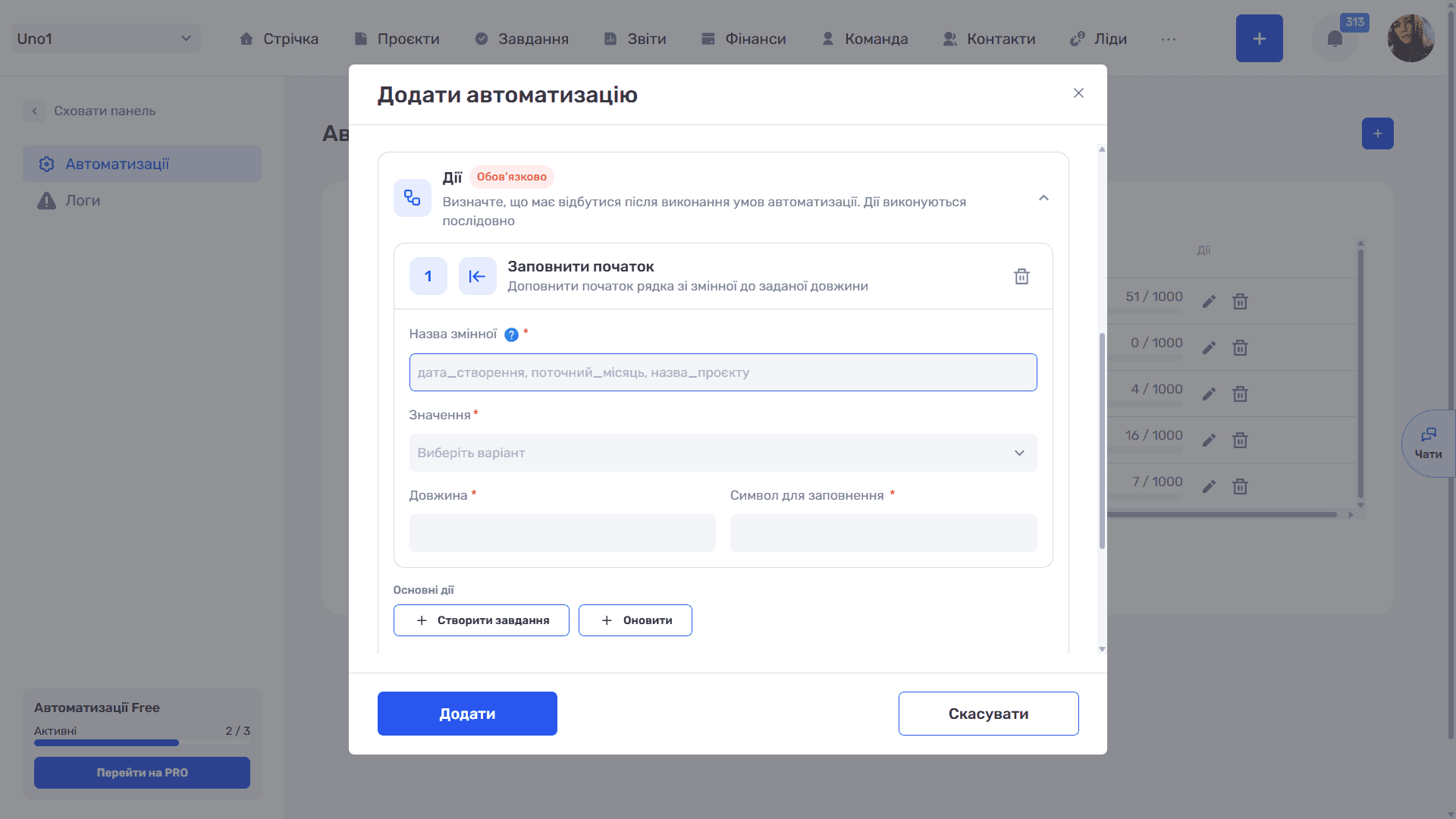
The “Pad start” action adds characters before a value until the string reaches the required length. A typical use is numbers of the same length: 007, 042, 128 instead of 7, 42, 128. Such numbers sort correctly alphabetically and look neat.
- Variable name * — The name under which to store the result
- Value * — The source value, for example the
projectCountvariable - Length * — How many characters the result should have
- Padding character * — Which character to pad with
Count projects
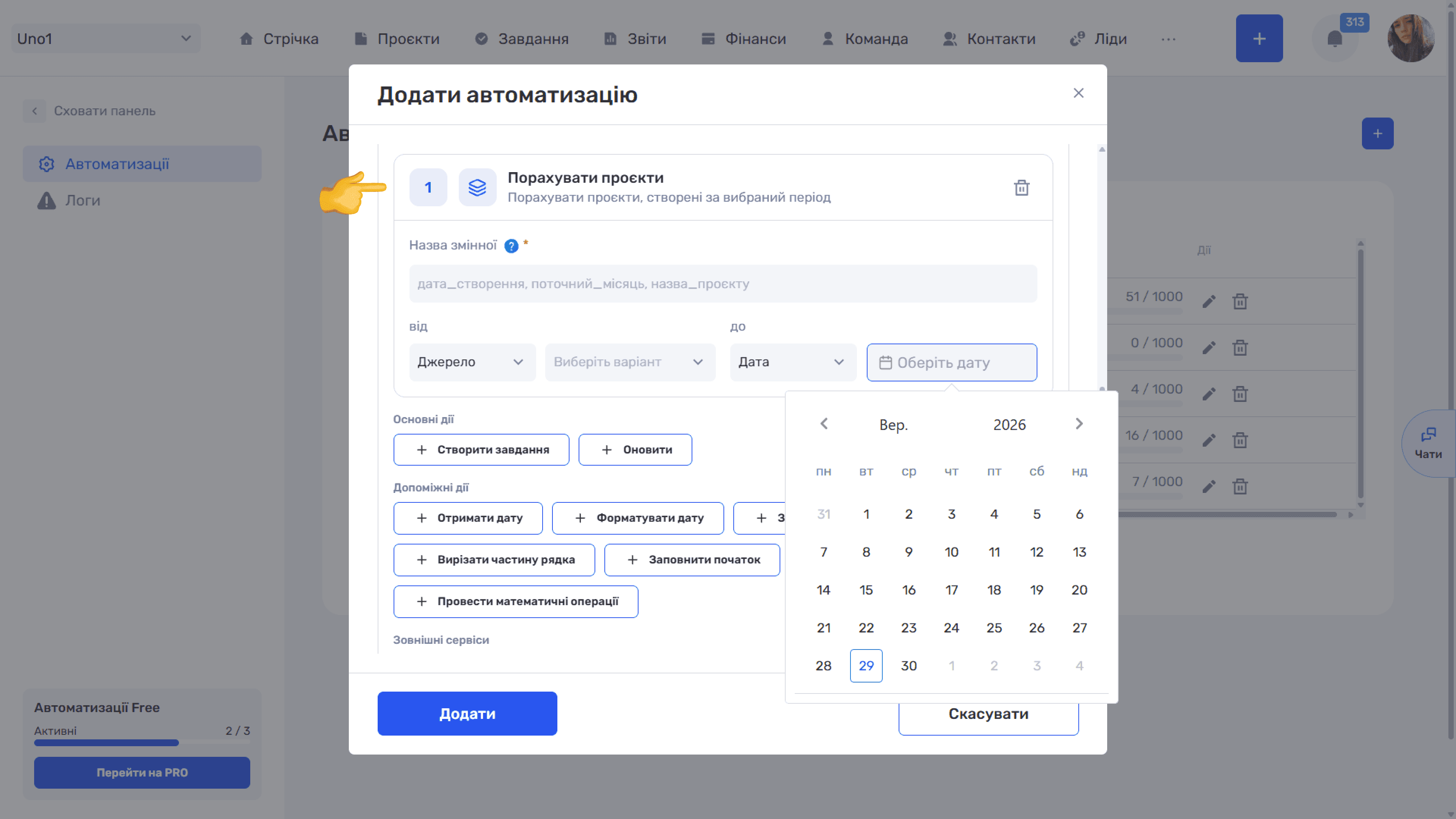
The “Count projects” action stores in a variable the number of projects created between two dates. It is most often used for sequential numbering within a month or year.
- Variable name * — The name under which to store the count
- from — Start of the period: type and value
- to — End of the period: type and value
For each boundary you can choose one of two types:
- Source — a date from a variable or record field, for example
monthStartandmonthEndfrom “Get date” actions. This way the period shifts automatically: each month, projects of the current month are counted. - Date (default) — a fixed date selected in the calendar with the “Select date” button.
Perform math operations
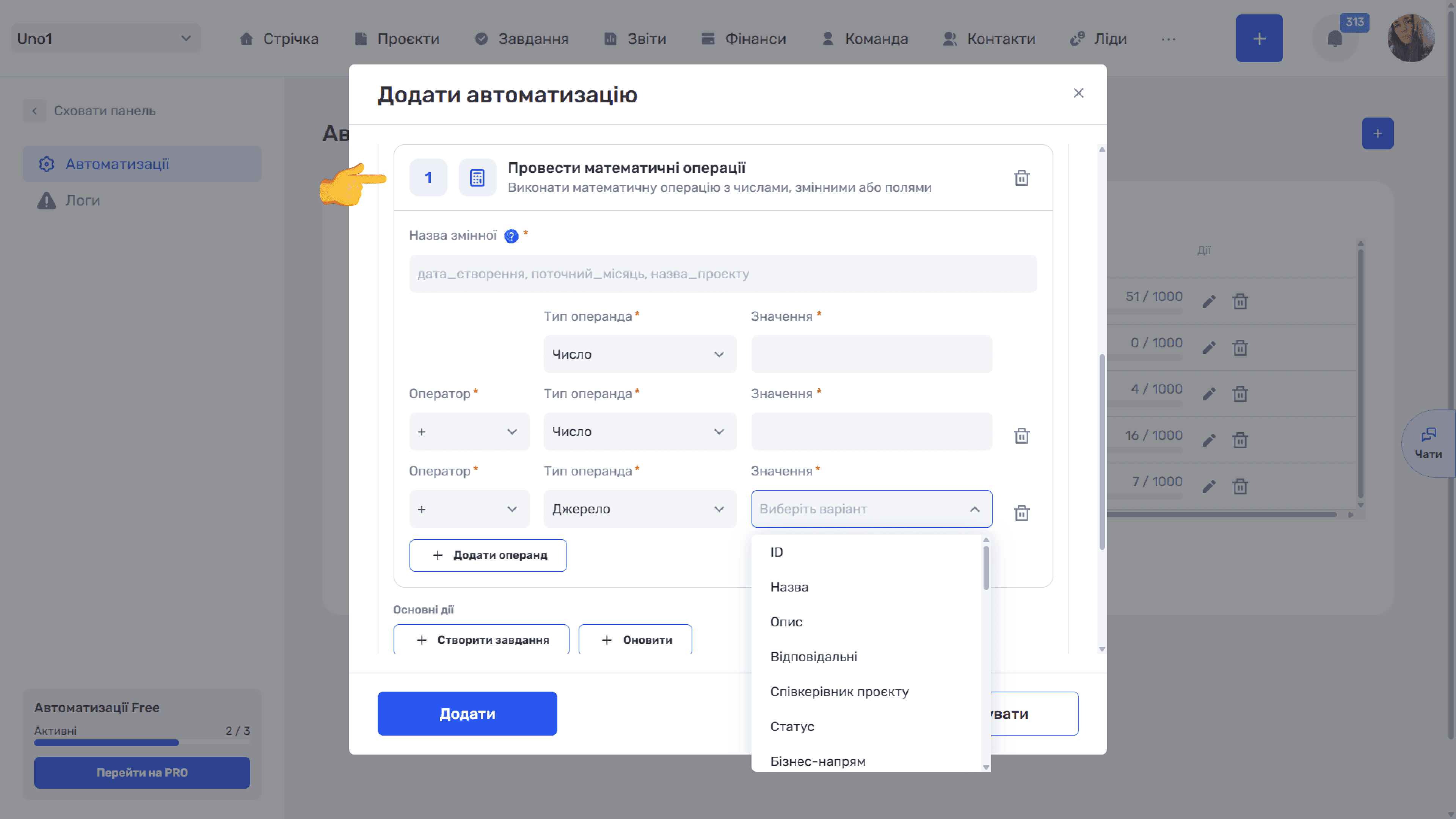
The “Perform math operations” action calculates an expression and stores the result in a variable. It is useful when a number from a previous step needs adjusting, for example adding one to a counter.
The expression consists of operands. The first row contains “Operand type” and “Value”. Each following row also has an “Operator” at the start: +, −, * (multiplication), or / (division). The “Source” type takes a value from a variable or field, and the “Number” type lets you enter a number manually. The “+ Add operand” button adds another row, so the expression can have more than two parts.
Example
Operand 1: Source · projectCount.
Operand 2: Operator “+” · Number · 1.
The result is the number of projects for the month, increased by one.
Helper actions work best together: a date, a format, and a counter combine into a number that the “Update” action inserts into the project name, and the “Create folder” action into the folder name on Google Drive.
Still have questions?
Maybe we haven't added this information yet. But you can always reach out:
Request a demo
Submit a request and we'll show you how the service works and its capabilities.
Book a demo