Main Actions
Main actions change records in if.team: they update the record the automation ran on or create new tasks and subtasks in it.
Update
The “Update” action (“Change current entity”) changes the record the automation ran on: a lead, project, task, and so on. This is the most versatile action. It is used to assign owners, change status, add members and services, fill in custom fields, or rename a record using a template.
The set of fields on the card mirrors the entity fields. For a project, for example, these are “Name”, “Description”, “Responsible”, “Project co-manager”, “Status”, “Business line”, “Members”, “Services”, “Contact”, “Quotes”, and “Custom fields”.
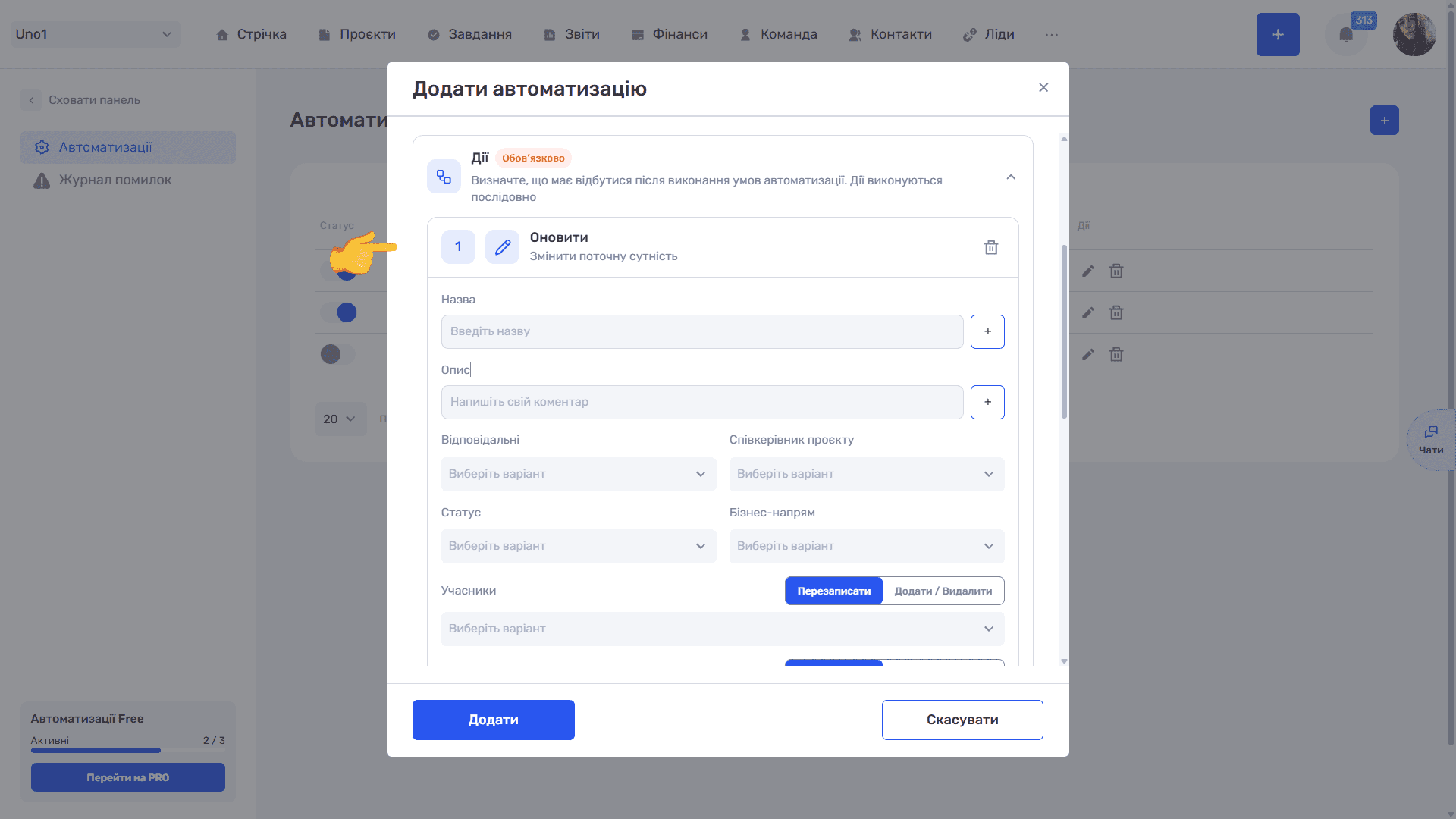
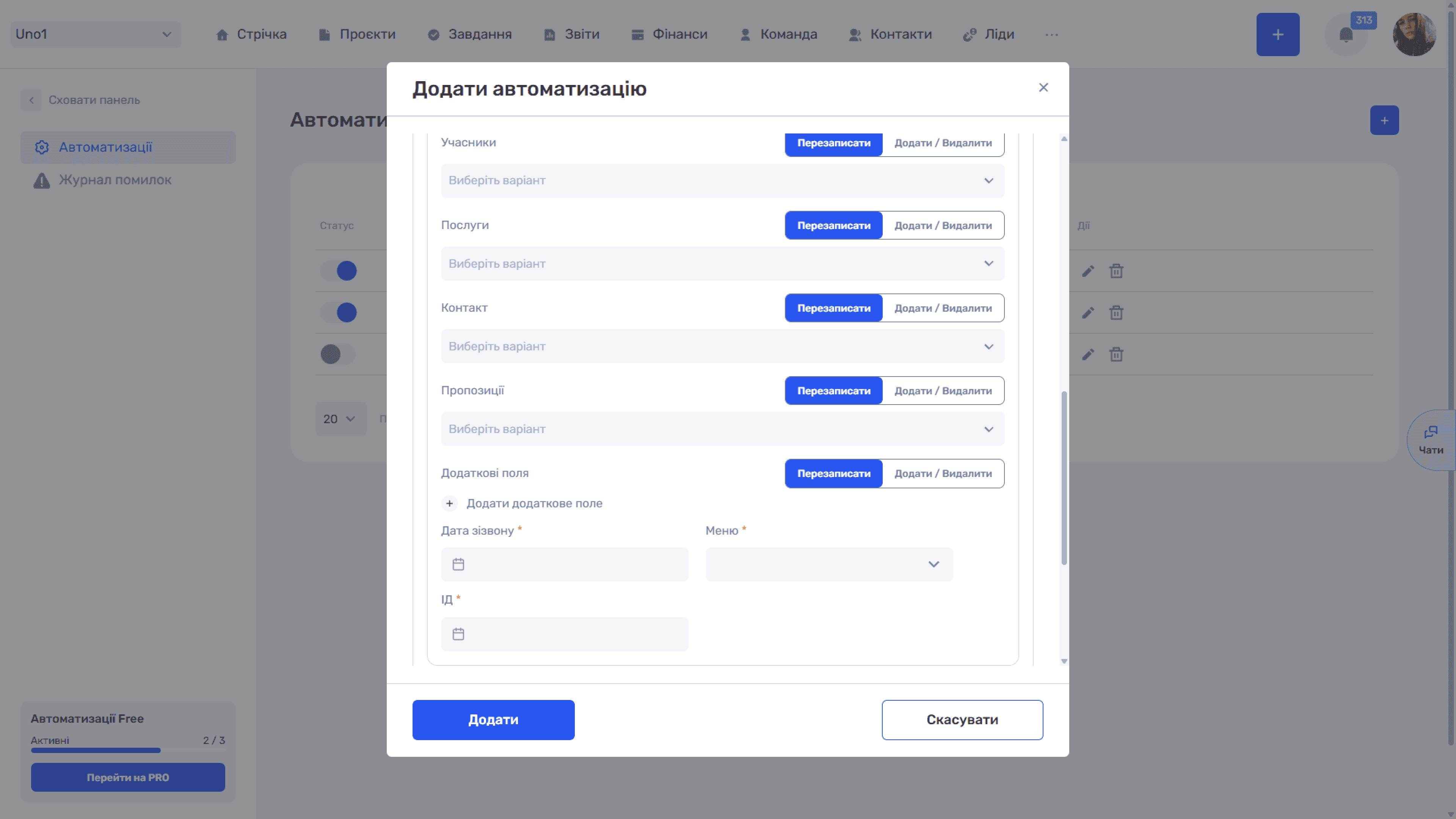
The main rule: empty fields do not change the record. For example, an “Update” action with only “Description” and “Priority” filled in changes exactly these two fields, while status, owners, and members stay as they were. So you can safely fill in only what needs to change.
Fields work differently depending on their type:
- Text fields (“Name”, “Description”) are filled with text and dynamic values via the “+” button. The new value fully replaces the old one.
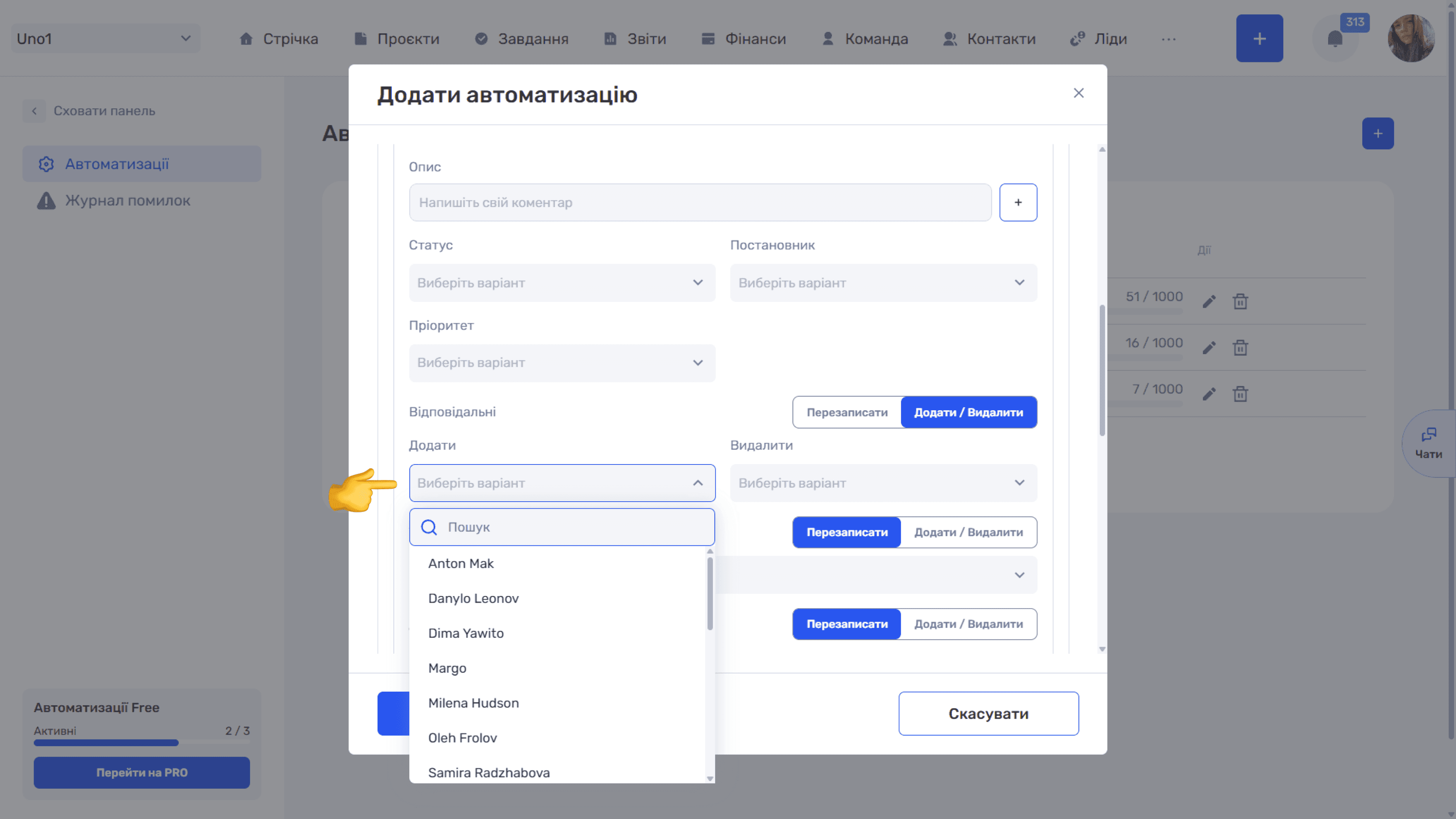
- Single-value fields (“Status”, “Priority”, “Created by”, “Business line”, “Project co-manager”) are filled by choosing from a list. Statuses and priorities are shown with colour labels, and employee lists have search.
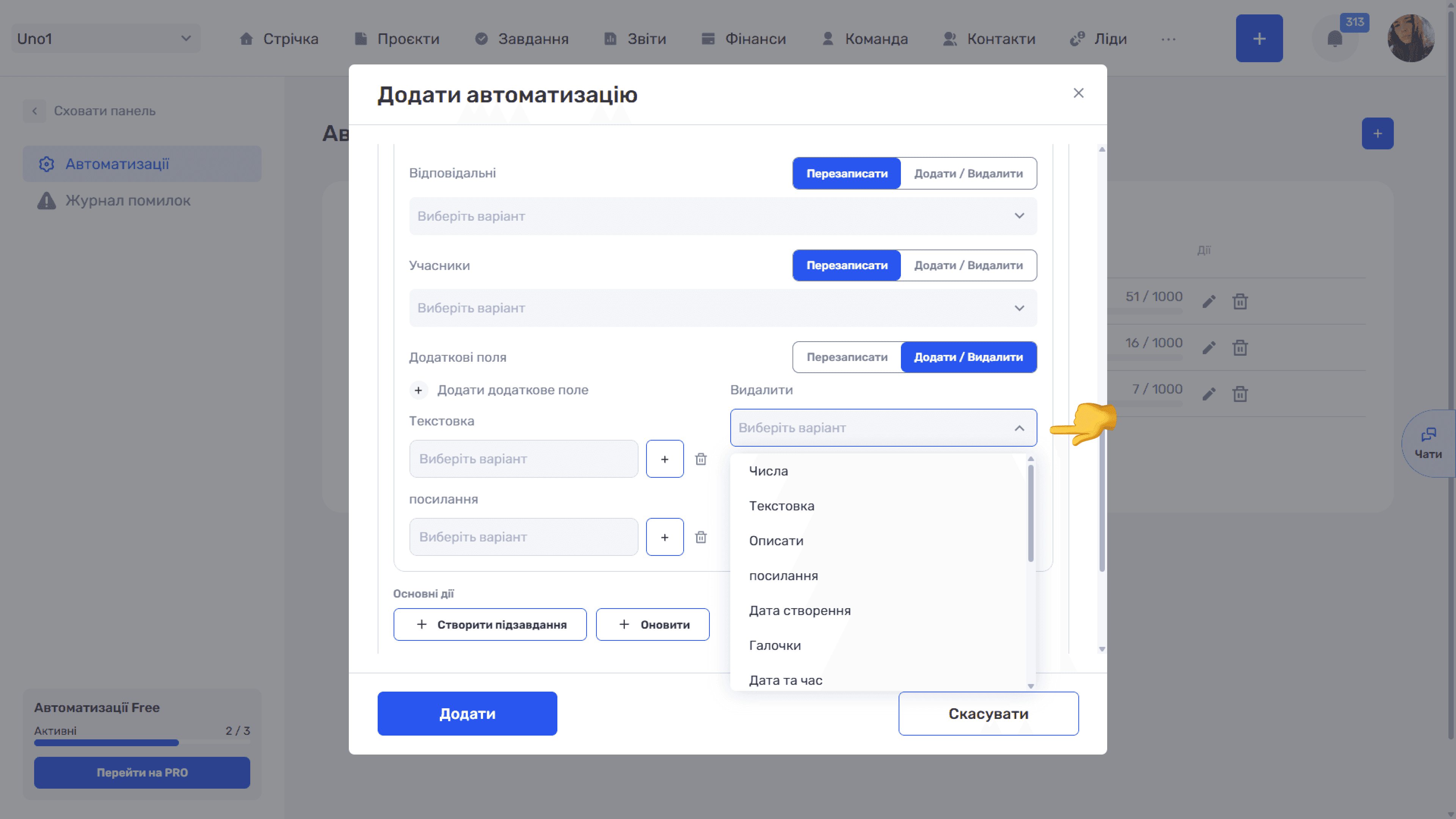
- Multi-value fields (“Members”, “Services”, “Contact”, “Quotes”, “Custom fields”, and also “Responsible” in tasks) have an “Overwrite” / “Add / Remove” mode switch.
- Overwrite — What happens: The current field values are replaced with the selected ones. If no value is selected, the field is not cleared and stays as it was; Example: A task had members Olena and Ihor, Maria is selected in the action → after the run, the only member is Maria
- Add / Remove — What happens: Two lists appear: “Add” and “Remove”. Values selected in “Add” are added, values selected in “Remove” are removed, the rest stays unchanged. The same person cannot be selected in both lists at once: the interface blocks it; Example: There were Olena and Ihor. “Add” — Maria, “Remove” — Ihor → Olena and Maria remain
The “Add / Remove” mode is more convenient when an automation should add to the data rather than overwrite what employees have already entered.
Please note
The “Responsible” and “Members” blocks look the same and sit next to each other. Before saving, check which block you filled in.
Please note
You cannot fully clear a multi-value field (remove all members) with an automation: an empty “Overwrite” is ignored. You can only remove specific people via “Remove”.
Custom fields
The “+ Add custom field” link opens the “Select custom field” window with search. Fields in it are marked with type icons (text, time, labels, date). Check a field and click “Add”, and it appears on the card with an input of the matching type: a text field, number, checkbox, date calendar, and so on.
The “Edit” button in the selection window leads to the custom field settings in the Admin panel (Tasks and projects → Custom fields).
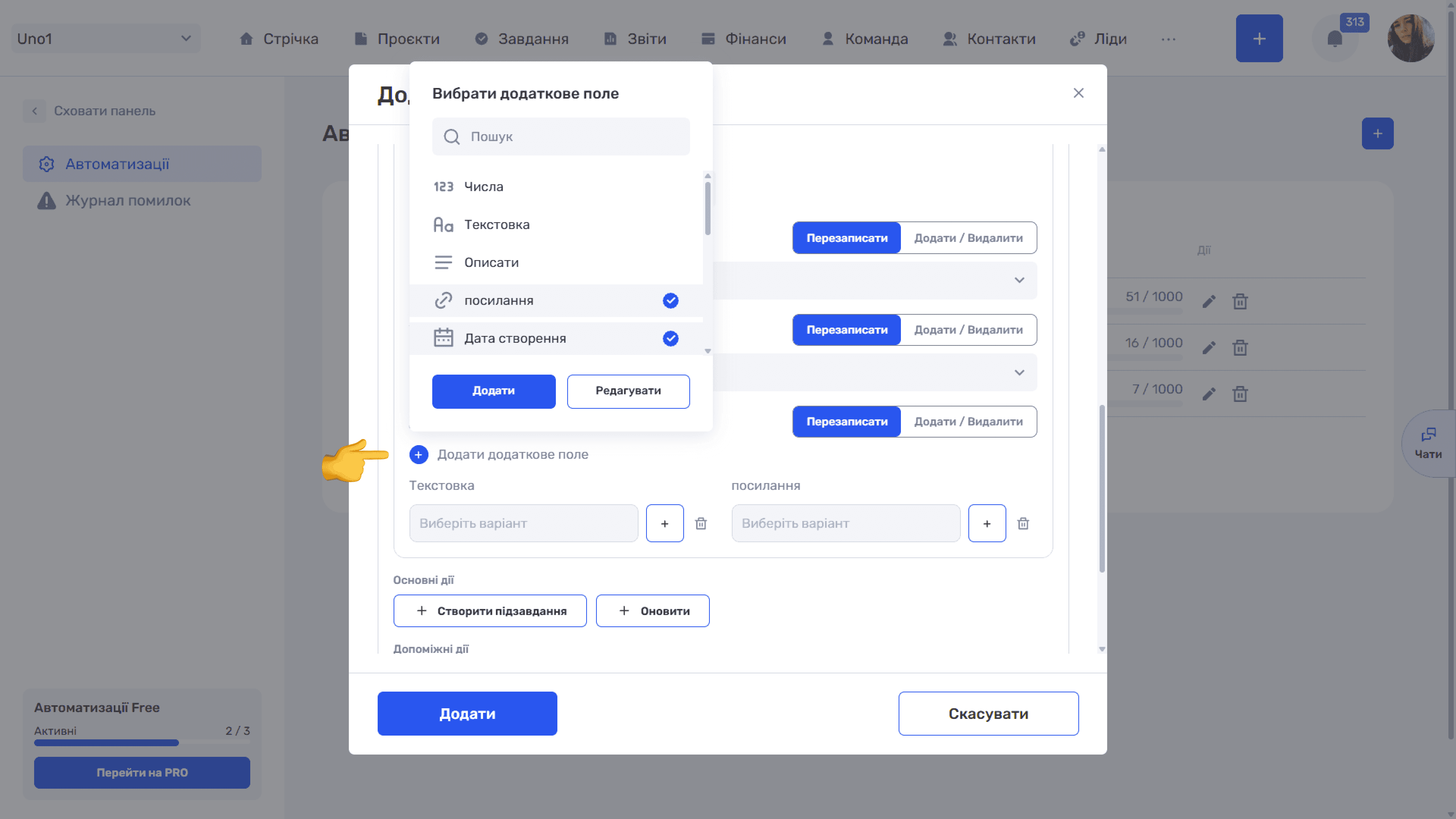
In a text field, you can type your own text or insert a variable via the “+” button.
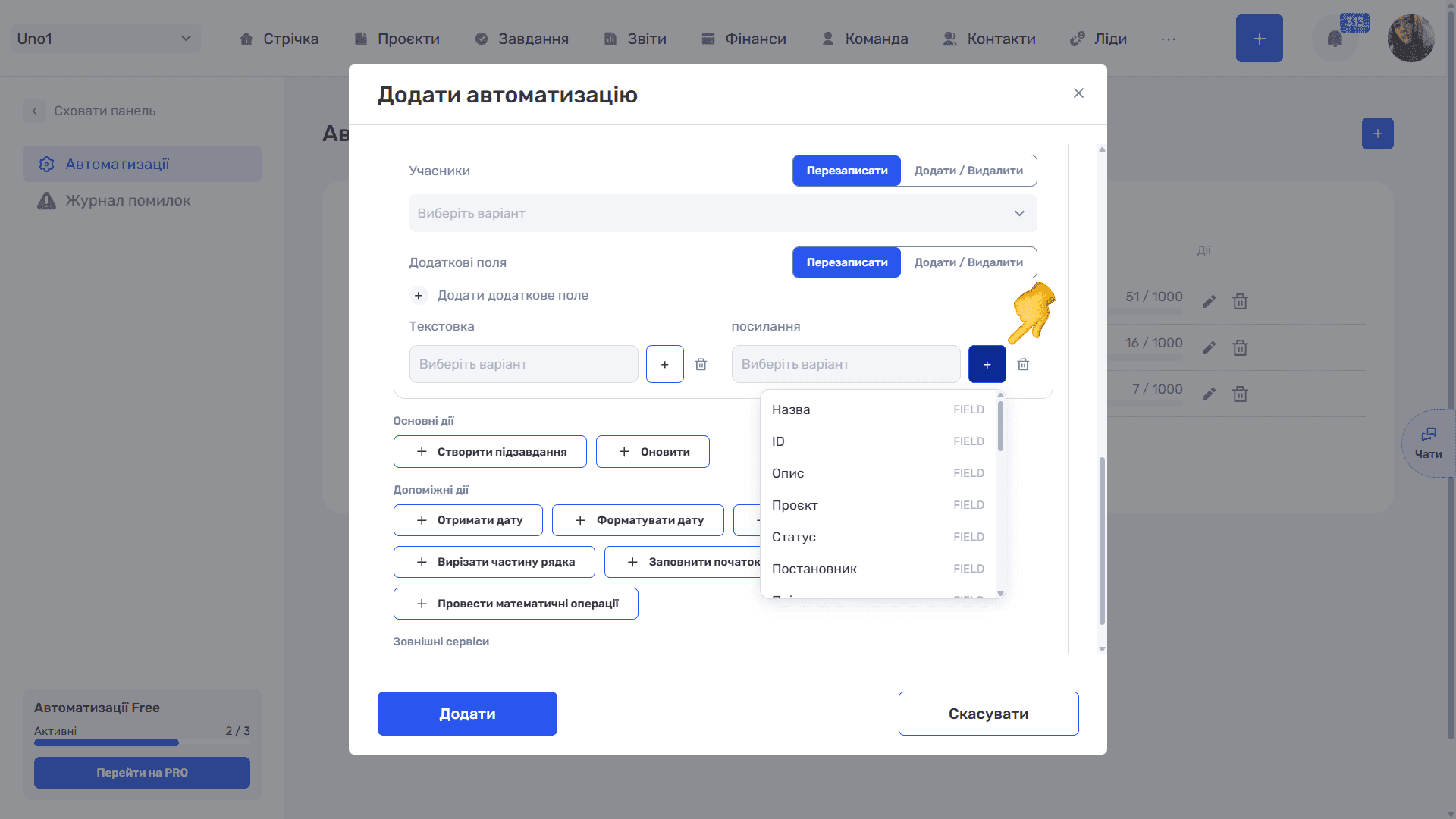
In the “Add / Remove” mode, a “Remove” list appears on the right, where you can select custom fields whose values the action should clear.
Example
The “Change lead assignee” automation: Lead · On create · condition “Lead source · Any · website” · “Update” action with the selected manager in the “Responsible” field. Every lead that comes from the website immediately gets an owner, and nobody has to distribute leads manually.
Create subtask
The “Create subtask” action is available in task automations. It creates a new subtask inside the task the rule ran on.
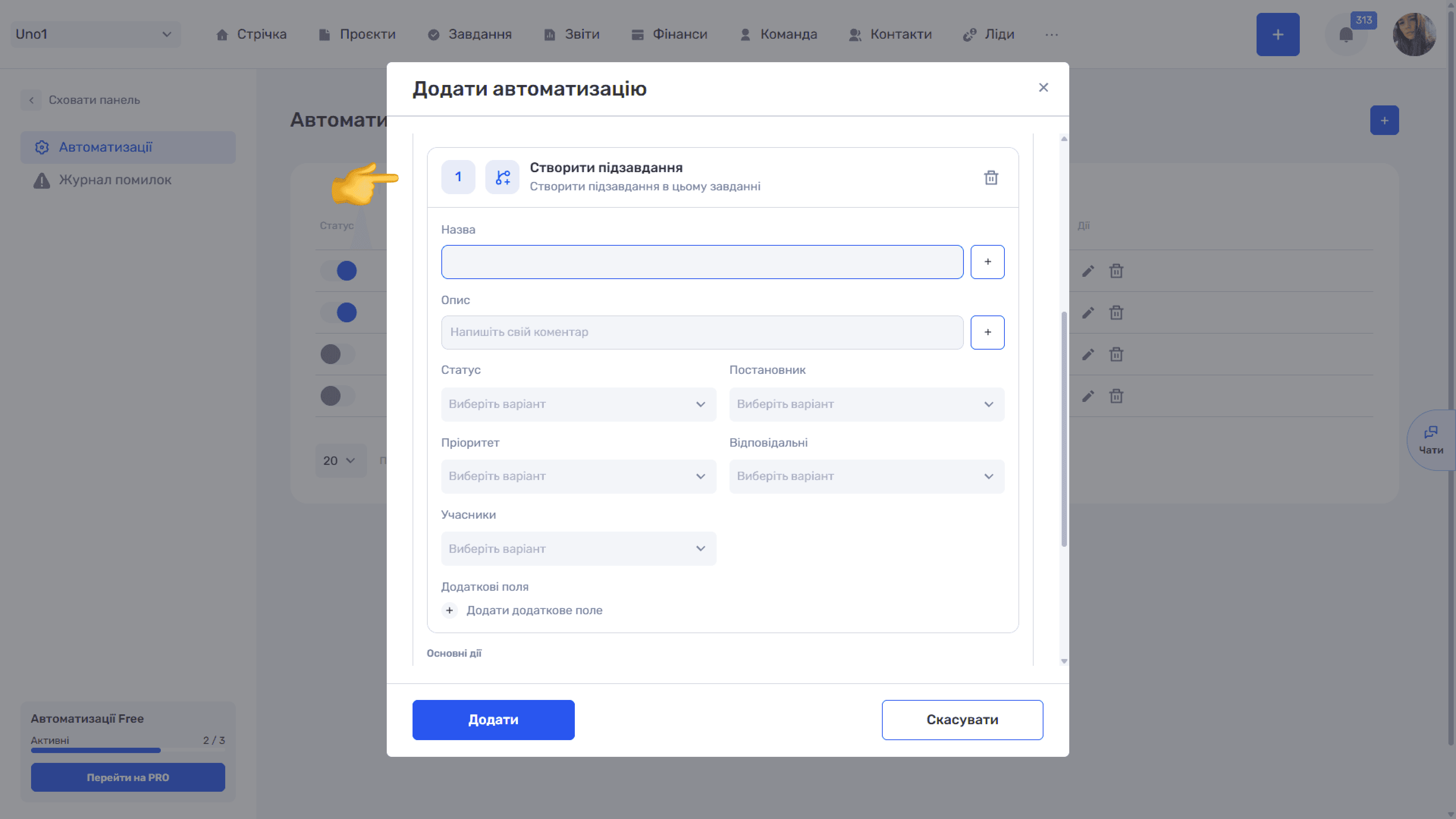
On the card you can set the fields of the future subtask. “Name” and “Description” are filled with text or dynamic values via the “+” button. “Status”, “Created by”, “Priority”, “Responsible”, and “Members” are selected from lists. “Custom fields” support all the company's field types: numbers, text, date, date and time, hours and minutes, a link to an entity (lead, project, or transaction), labels, and others. Each custom field on the card can be removed from the action with the “🗑” icon to its right.
To create several subtasks, add the action several times in a row. Each action creates one subtask.
Example
When the task “Launch an ad campaign” is created in a project, the automation adds three subtasks to it: “Prepare creatives”, “Approve the budget with the client”, and “Set up the ad account”. Each already has an owner and a priority, so the manager does not have to build the structure manually every time. To keep the rule from running on every task, limit it with a condition, for example by status or project.
Create task
The “Create task” action is available in project automations. It creates a task in the project the rule ran on: for example, “Kick-off meeting with the client” in every new project.
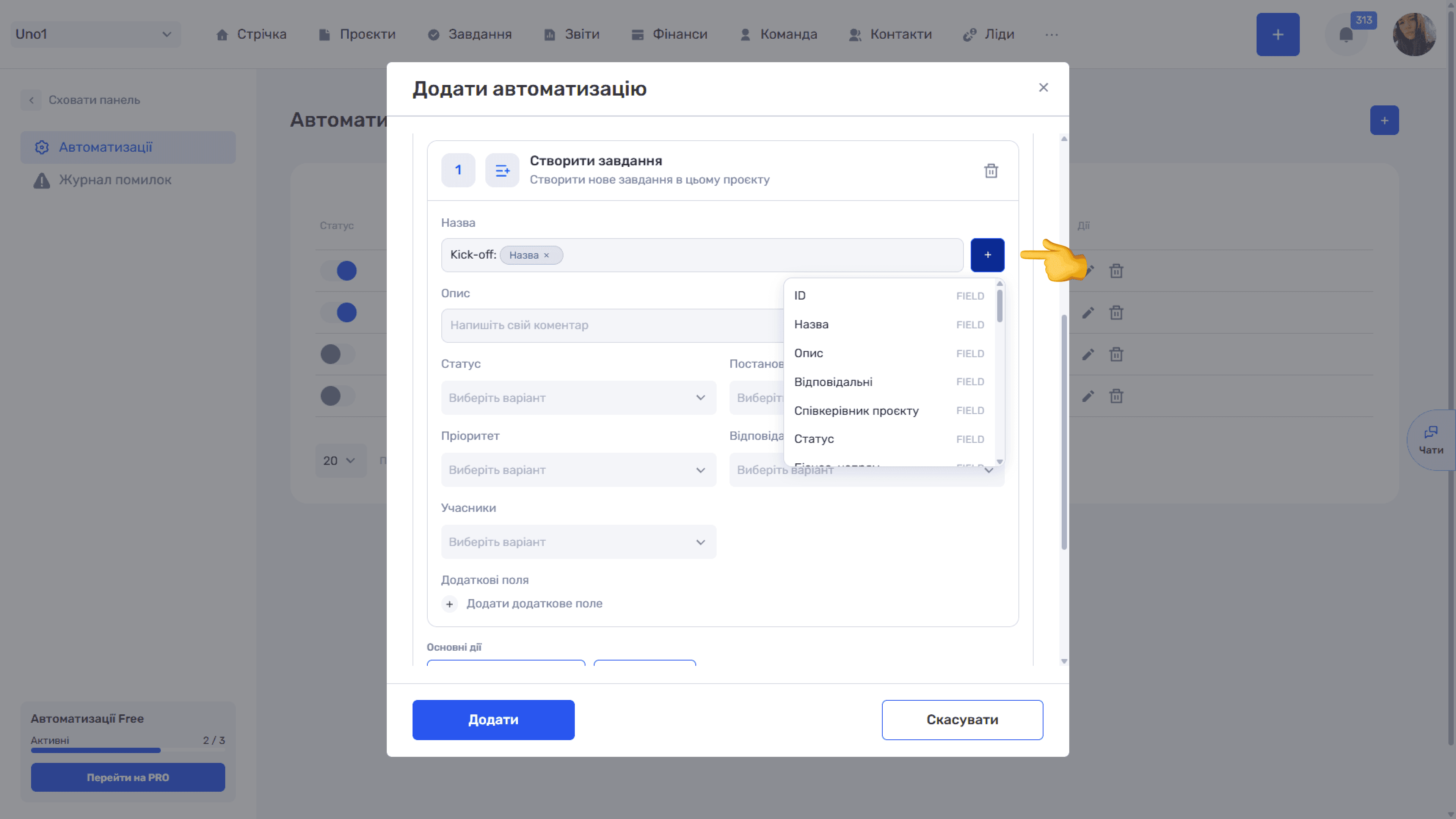
The card has the same fields as “Create subtask”: “Name” and “Description” (with the “+” button for dynamic values), “Status”, “Created by”, “Priority”, “Responsible”, “Members”, and “Custom fields”. With the “+” button in the name, you can insert the project name, for example “Kick-off: ” + the Name chip.
Add action
The “Add action” action is available in lead automations. It creates an action for the lead for the manager's follow-up — a call, an email, or another activity. Combined with a delayed run, you can, for example, schedule a call three days after a lead appears or a follow-up after a quote is sent. The call itself or the reply to the client remain the manager's job: the system only sets up the next step.
Main actions usually come at the end of the chain. If you need to insert a date, number, or other calculated value into a name or description, prepare it first with helper actions.
Still have questions?
Maybe we haven't added this information yet. But you can always reach out:
Request a demo
Submit a request and we'll show you how the service works and its capabilities.
Book a demo