Actions
The “Actions” block is required: an automation without any action does nothing and cannot be saved. Here you build the sequence of steps the system performs when the trigger fires and the conditions are met.
The buttons for adding actions are at the bottom of the block and are split into three groups:
- Main actions — Actions: “Update”, “Create subtask” (for tasks), “Create task” (for projects); What they do: Change records in the system: the current record or a new one linked to it
- Helper actions — Actions: “Get date”, “Format date”, “Change date”, “Cut part of a string”, “Pad start”, “Count projects”, “Perform math operations”; What they do: Change nothing in records. They calculate a value and store it in a variable for the next steps
- External services — Actions: “Create folder”; What they do: Perform an action in a connected external service (Google Drive)
The set of main actions depends on the entity type. For example, leads have “Update” and “Add action”, projects have “Create task” and “Update”, and tasks have “Create subtask” and “Update”. Helper actions and “Create folder” are available for all three types.
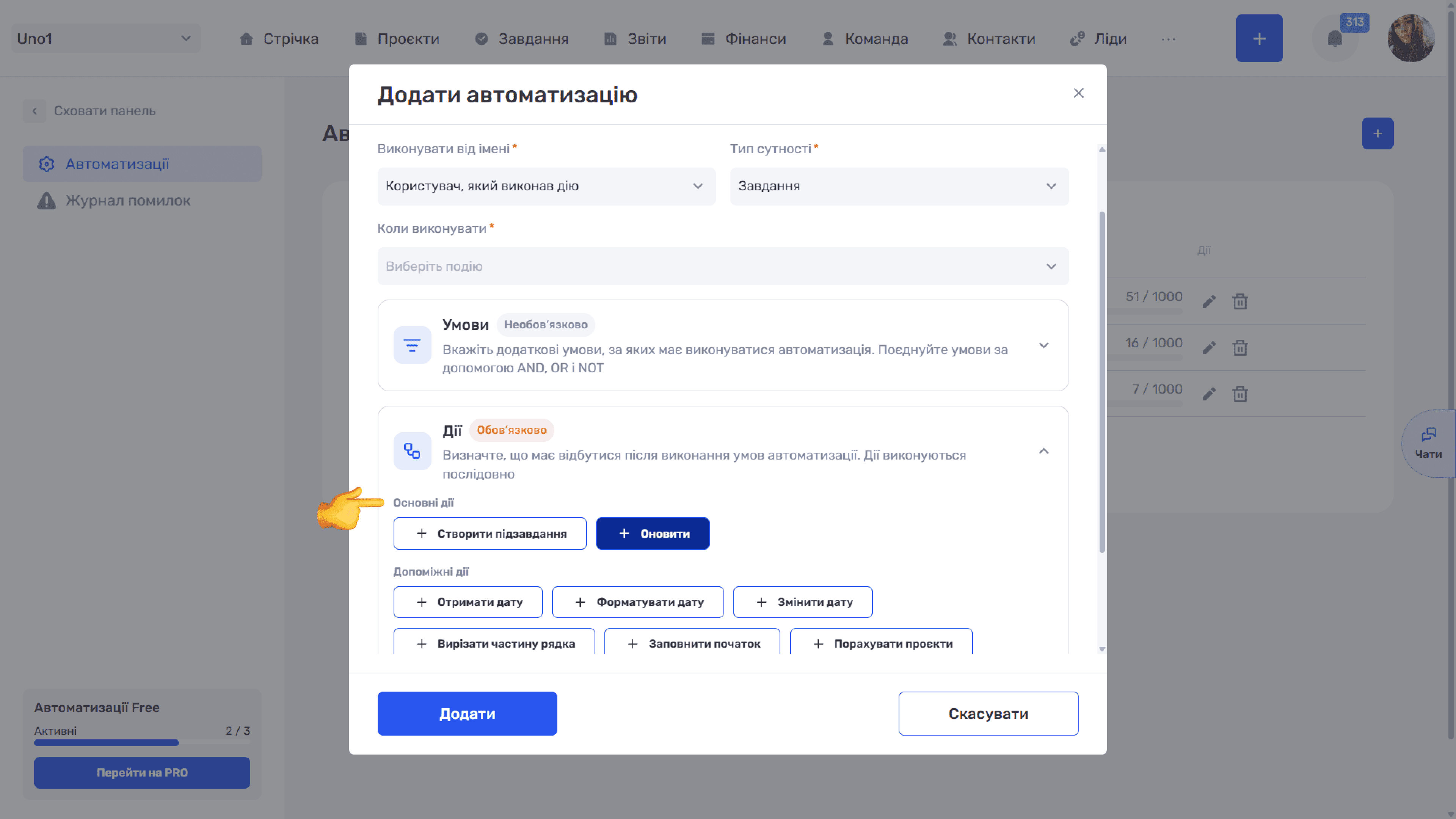
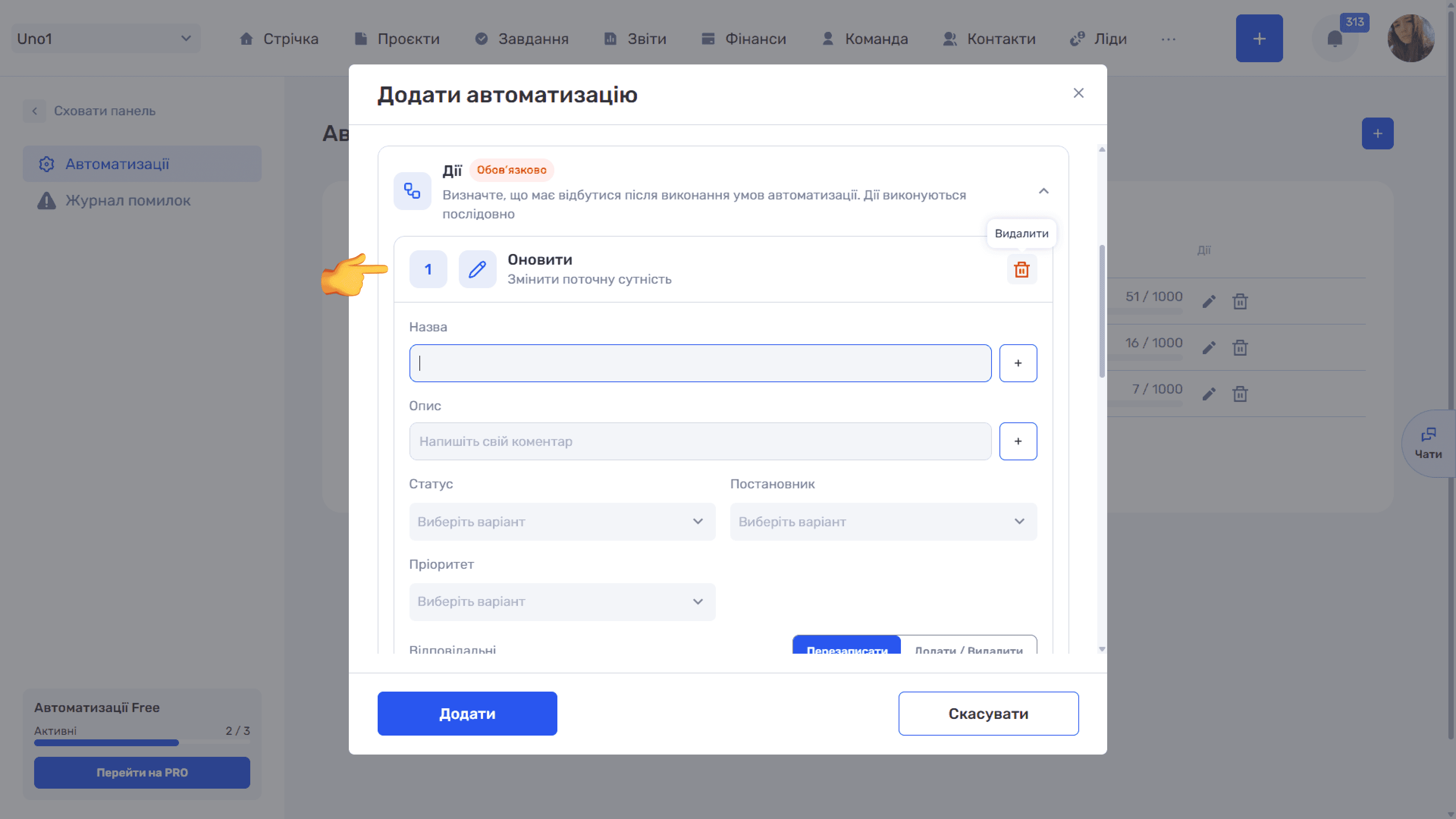
Each click adds a new card to the end of the chain. A card has a sequence number, the action name with a short description, and a “🗑” icon to delete the step.
Please note
The order of actions cannot be changed. A new action is always added to the end of the chain, and cards cannot be dragged. So plan the sequence in advance: first helper actions that prepare variables, then main actions that use them. To insert a step in the middle, delete the actions after that point and add them again in the right order.
Please note
A failure in one action does not stop the chain. The automation tries to perform all actions even if one of them had problems. If a step in the middle (for example, “Create folder”) gives no result, the next steps still run, and changes from previous steps are kept. Plan the chain so that later steps do not depend on the result of an unreliable step.
Please note
Several “Update” actions on one field. If several “Update” actions in the chain change the same field, the record keeps the value from the last one. Check that no extra cards are left in the chain after editing.
Please note
Automations do not trigger each other. Changes made by a rule (for example, by the “Update” action) are not treated as an “On update” event for other rules or for the rule itself, so loops are impossible. Changes that come from integrations (webhooks, API, website forms), however, trigger rules just like manual ones.
Variables
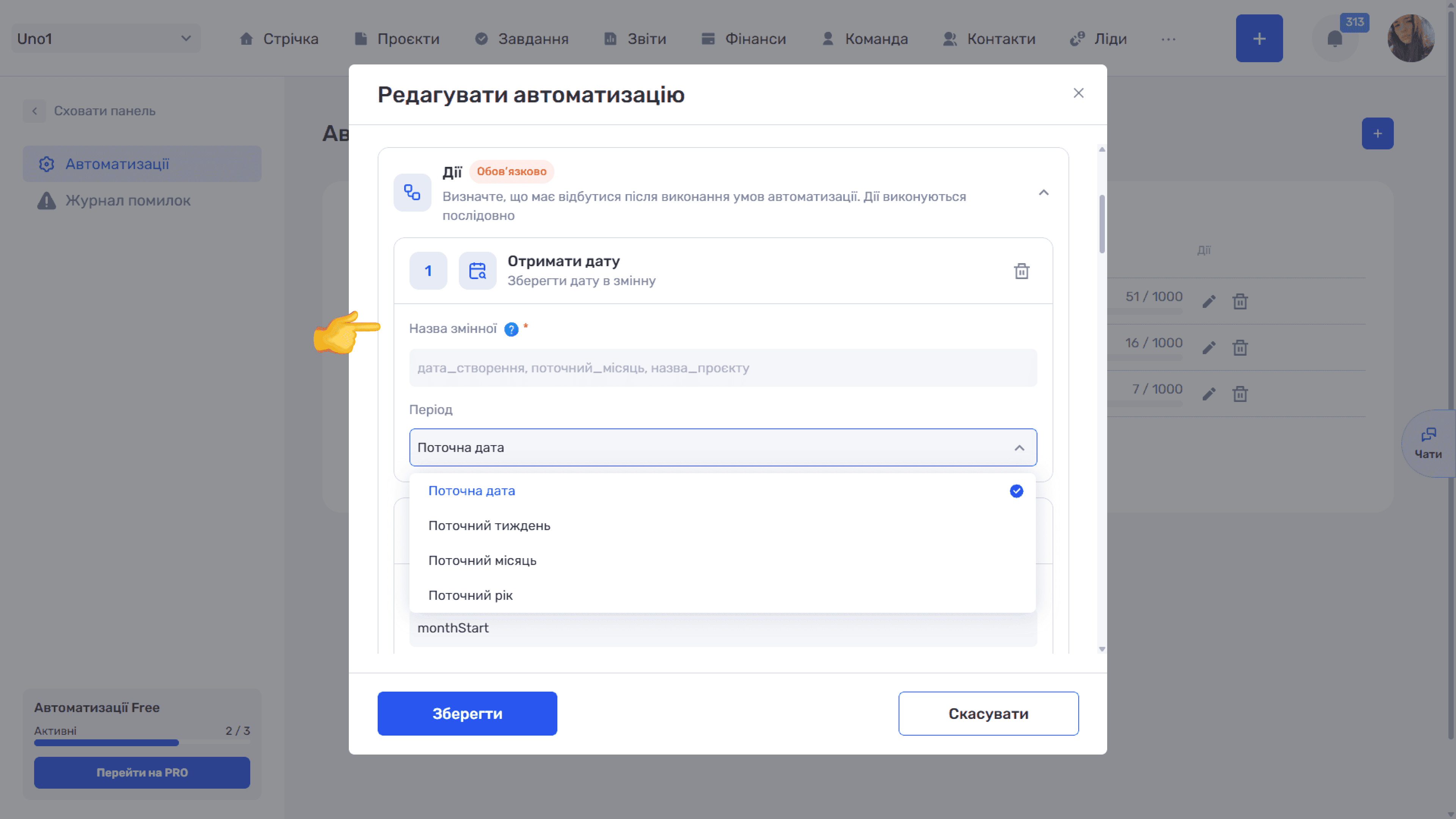
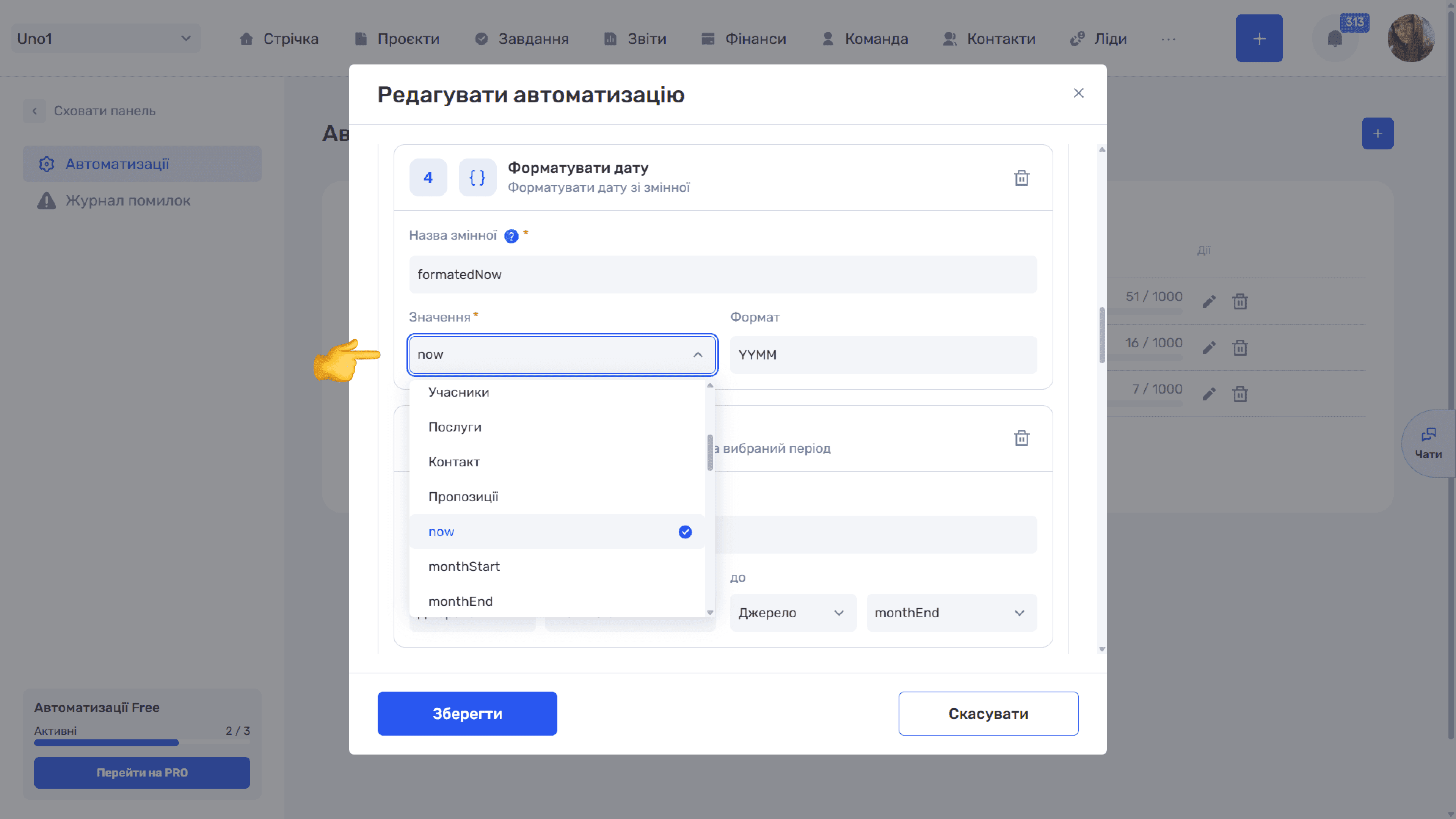
Helper actions and the “Create folder” action store their result in a variable. You set the variable name in the “Variable name” field of the action card. After that, the variable appears in the selection lists of the next steps, and its value can be used further. For example, the “Get date” action stores the current date in the variable now, and the “Format date” action takes now and creates the variable formatedNow with the value “2609”.
Please note
Variable names must be unique. If you reuse a variable name, the previous value is overwritten. Give variables meaningful names that explain what they contain: monthStart, projectCount, prefix.
In value selection lists, variables are shown next to the record fields. Fields come first (ID, Name, Description, Status, and so on), and below them are the variables created in the chain. The list also shows variables from the following steps, but they are still empty when the current step runs: use only variables from previous cards.
Dynamic values: the “+” button
Next to text fields in actions (for example, “Name” and “Description”) there is a “+” button. It opens a searchable list where you can choose a field of the current record (marked FIELD) or a variable. The selected value is inserted into the field as a chip. Chips can be combined with your own text and are removed with the “×” cross.
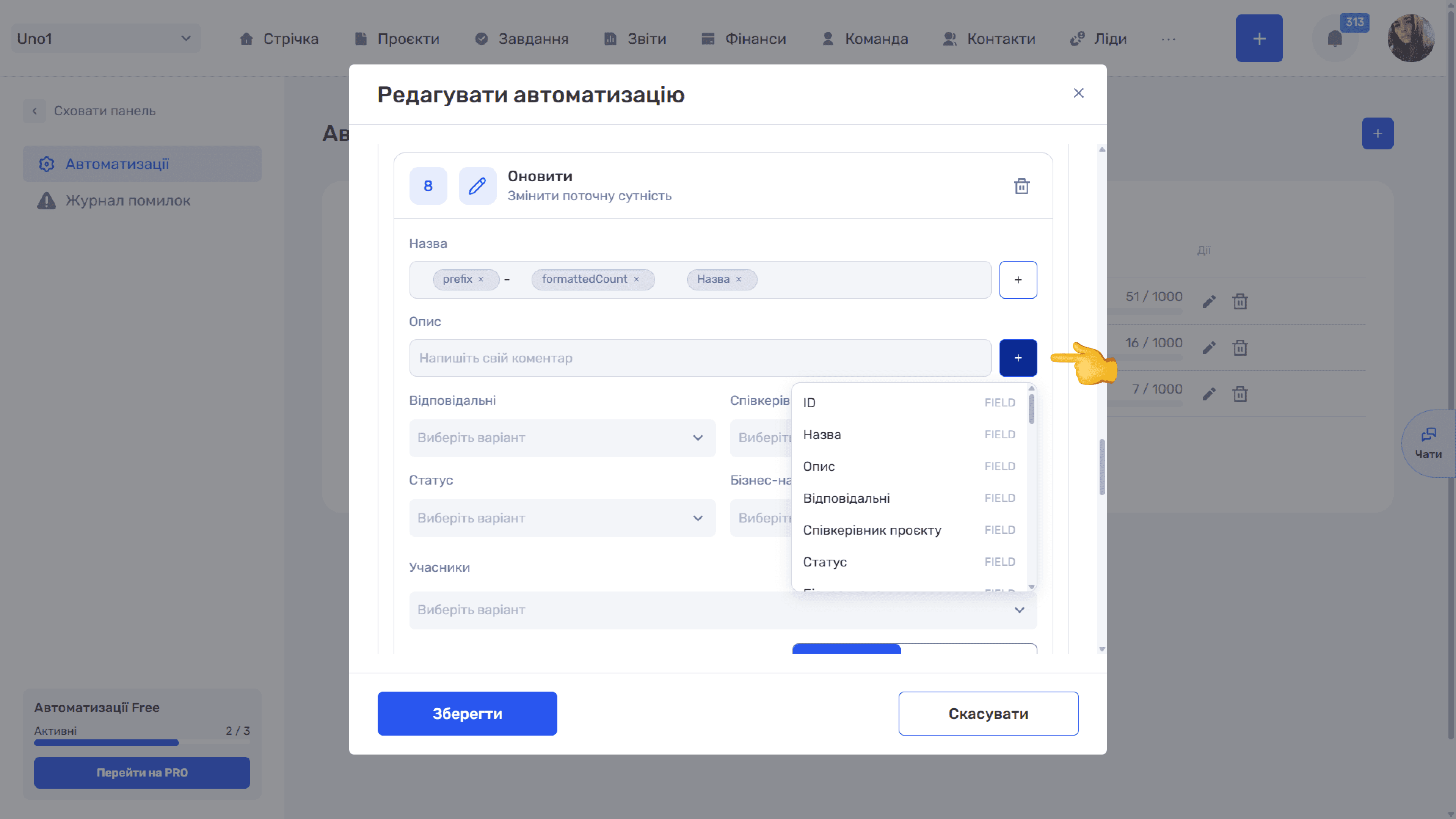
For example, you can build a project name from the chips prefix, formattedCount, and Name, adding a hyphen typed manually between the first two. When the rule runs, the system substitutes the real values for the chips, and the project “Website redesign” gets a name like “609-012 Website redesign”.
A chip with a record field inserts its most recent value at the moment the step runs. If a previous “Update” action has already changed the name, the next step gets the new name, not the original one. Keep this in mind in chains where the name changes before it is used: for example, if an “Update” action added a prefix to the name, the “Create folder” action after it gets the name with the prefix already, and you do not need to add the prefix again.
Please note
You cannot insert a variable into “Date” fields in actions: they only have a calendar, without the “+” button. The results of “Get date” or “Change date” can be written only to text fields.
Still have questions?
Maybe we haven't added this information yet. But you can always reach out:
Request a demo
Submit a request and we'll show you how the service works and its capabilities.
Book a demo