Creating an Automation
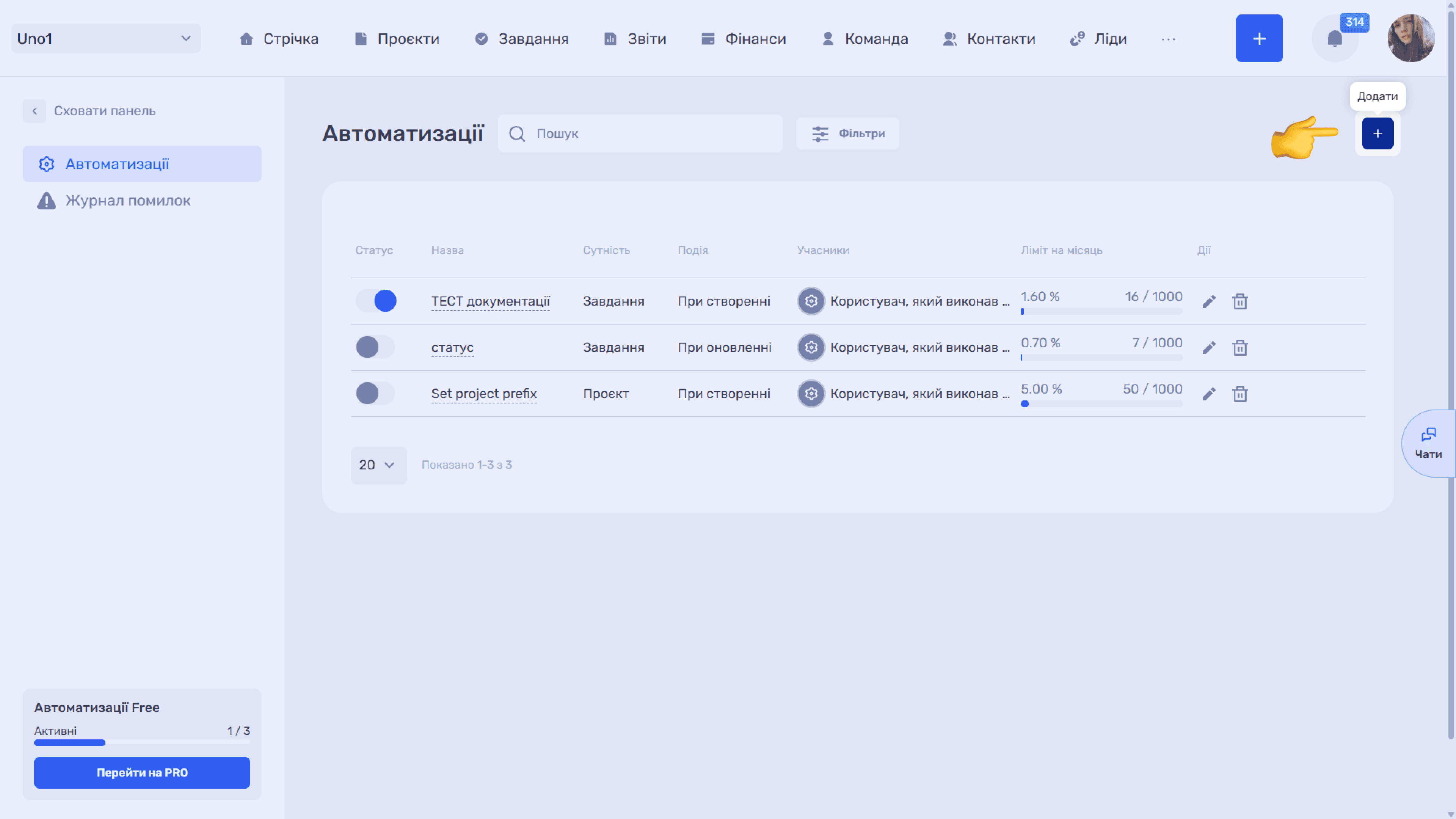
To create a new rule, click “+” in the top right corner of the page. The “Add automation” window opens.
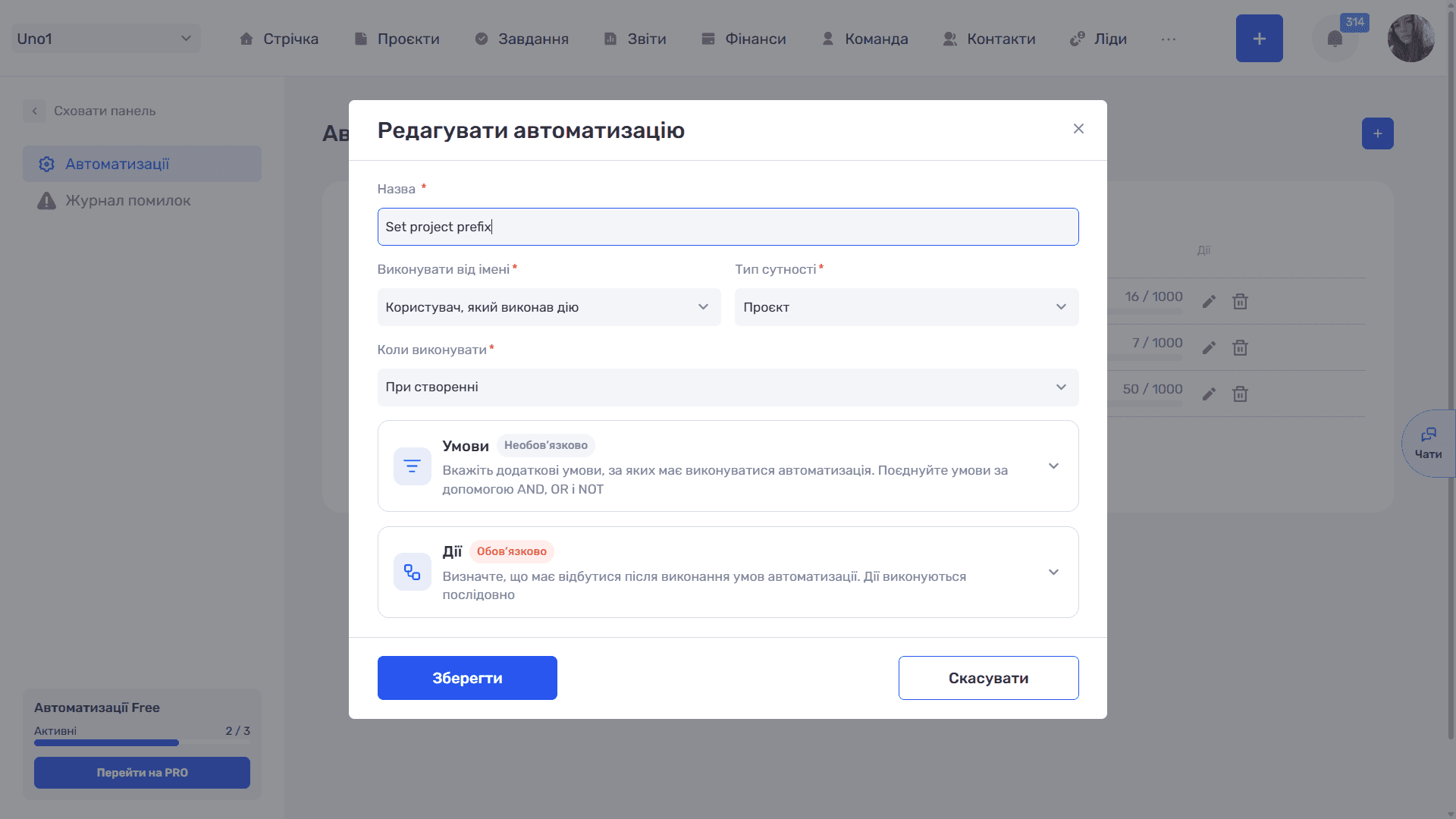
The window contains the main settings, followed by the “Conditions” and “Actions” blocks. The blocks collapse with the arrow to the right of the heading, which is handy when the chain of actions is long.
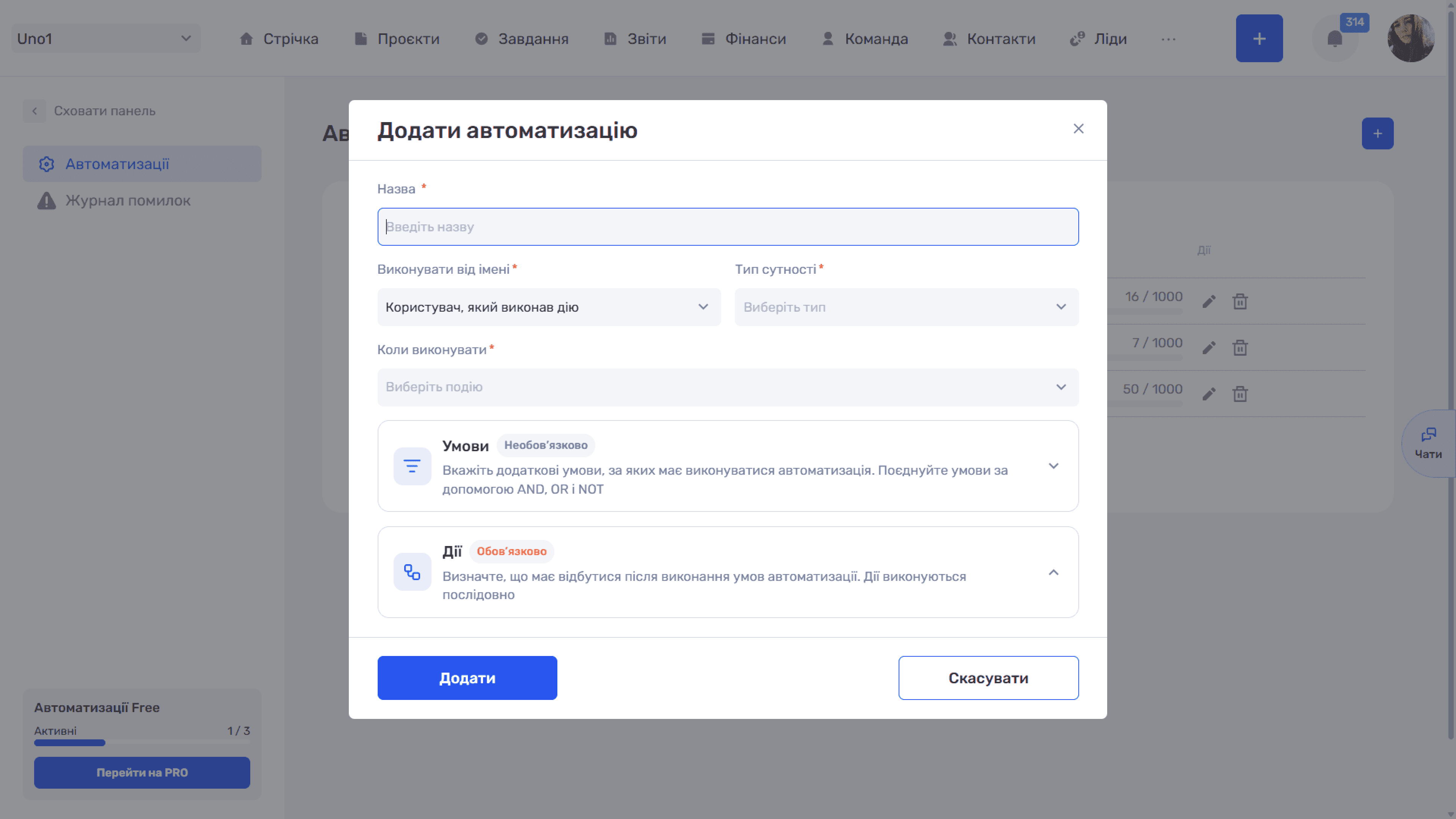
Main settings
- Name * — The rule name shown in the list and in the error log.
- Run as — On behalf of which user the system performs the actions. By default, “User who performed the action”* is selected, that is, the person who created or changed the record. You can also pick a specific employee from a searchable list.
- Entity type * — The type of records the rule reacts to. It defines the fields in conditions and the available actions
- When to run — The trigger event: “On create” or “On update”*
The “Run as” field
All actions of the rule are performed as if the selected user did them: with that user's access rights and on their behalf in everything related to the execution. At the same time, in the “Actions” block of a task, lead, or other entity card, the author of the update remains the person who created or changed the record, not the selected user. If the rule needs to change records the initiator may not have access to, specify a user with sufficient rights in this field.
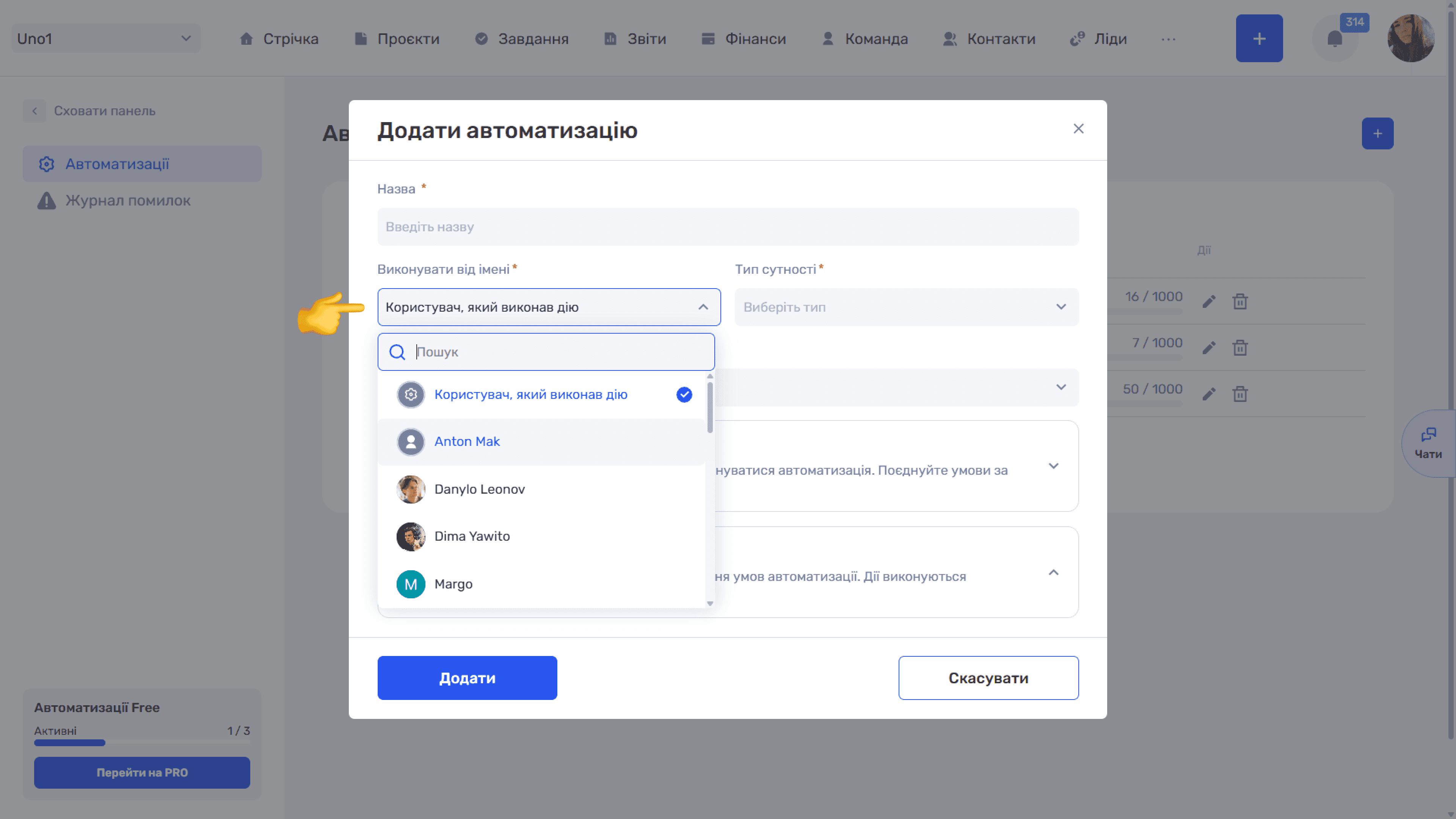
The selected value is shown in the “Members” column of the automation list.
Please note
The entity type defines everything else. The fields in conditions and the set of actions depend on the selected type. So choose the type before you start setting up conditions and actions.
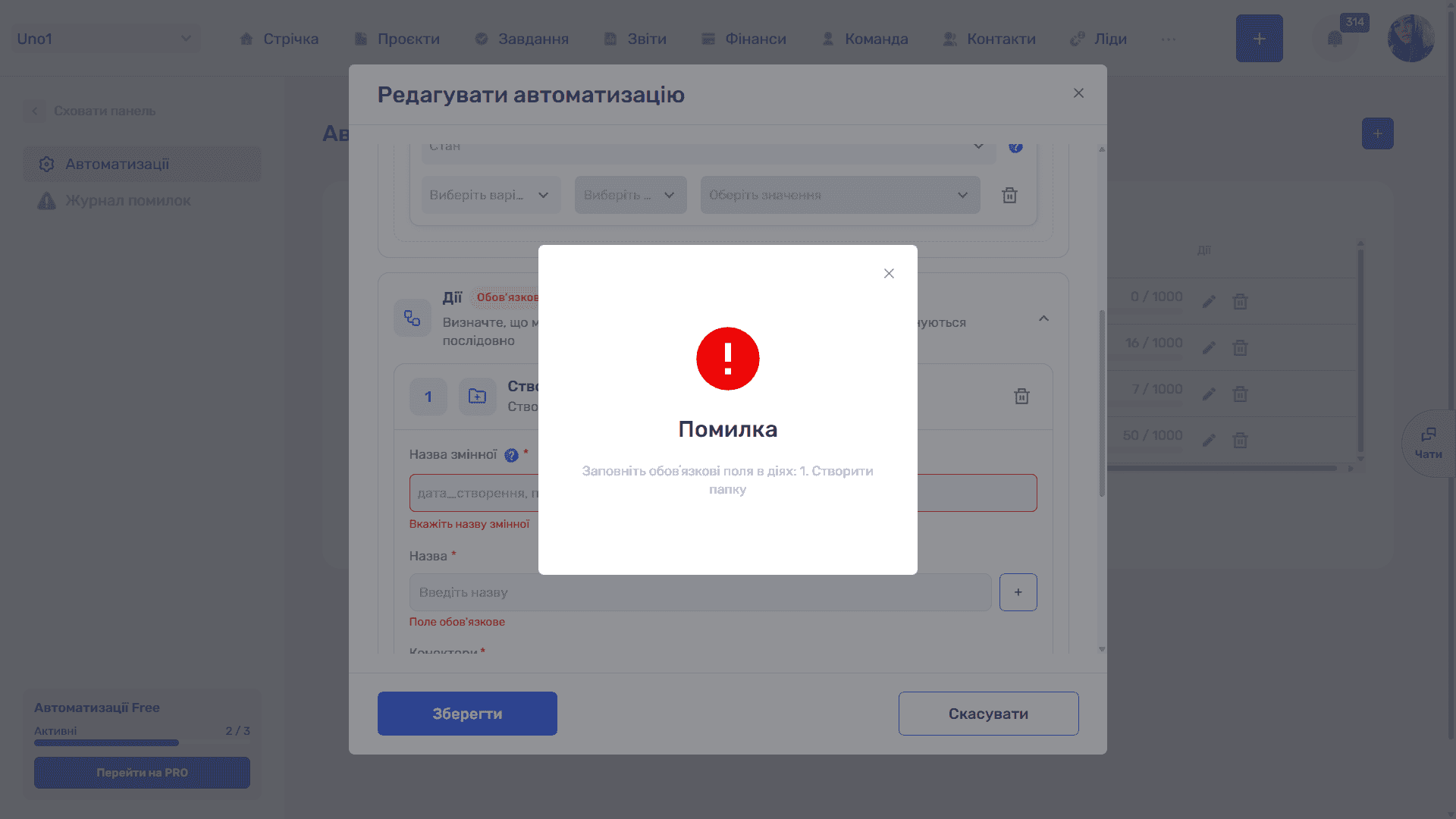
Save the settings with the “Add” button; “Cancel” closes the window without changes. An automation cannot be saved without at least one action, and required action fields are checked on saving: if something is missing, an “Error” window appears with a list of the actions that lack data.
Delayed run
An automation can run not only right after an event but also after a set period of time. Before running, if.team checks the conditions again, so the record's state at the moment of execution is taken into account, not at the moment of the event.
This is useful when the situation may change while waiting. For example, a rule changes the status of a lead with no recent activity, or completes a task that has stayed untouched for two weeks. The company sets the delay and conditions to fit its process.
Editing and deleting
The “✏” icon in a list row opens the “Edit automation” window. It has the same structure as the create window, and changes are saved with the “Save” button. The “🗑” icon deletes the automation.
After saving, the rule appears in the automation list. Next, set up conditions if the rule should apply only to some records, and the actions the system will perform.
Still have questions?
Maybe we haven't added this information yet. But you can always reach out:
Request a demo
Submit a request and we'll show you how the service works and its capabilities.
Book a demo