Conditions
The “Conditions” block is optional. Without conditions, the automation runs for every record of the selected type on the selected event. Conditions are needed when a rule should apply only to some records: leads from a certain source, tasks in a certain status, or projects of a specific owner.
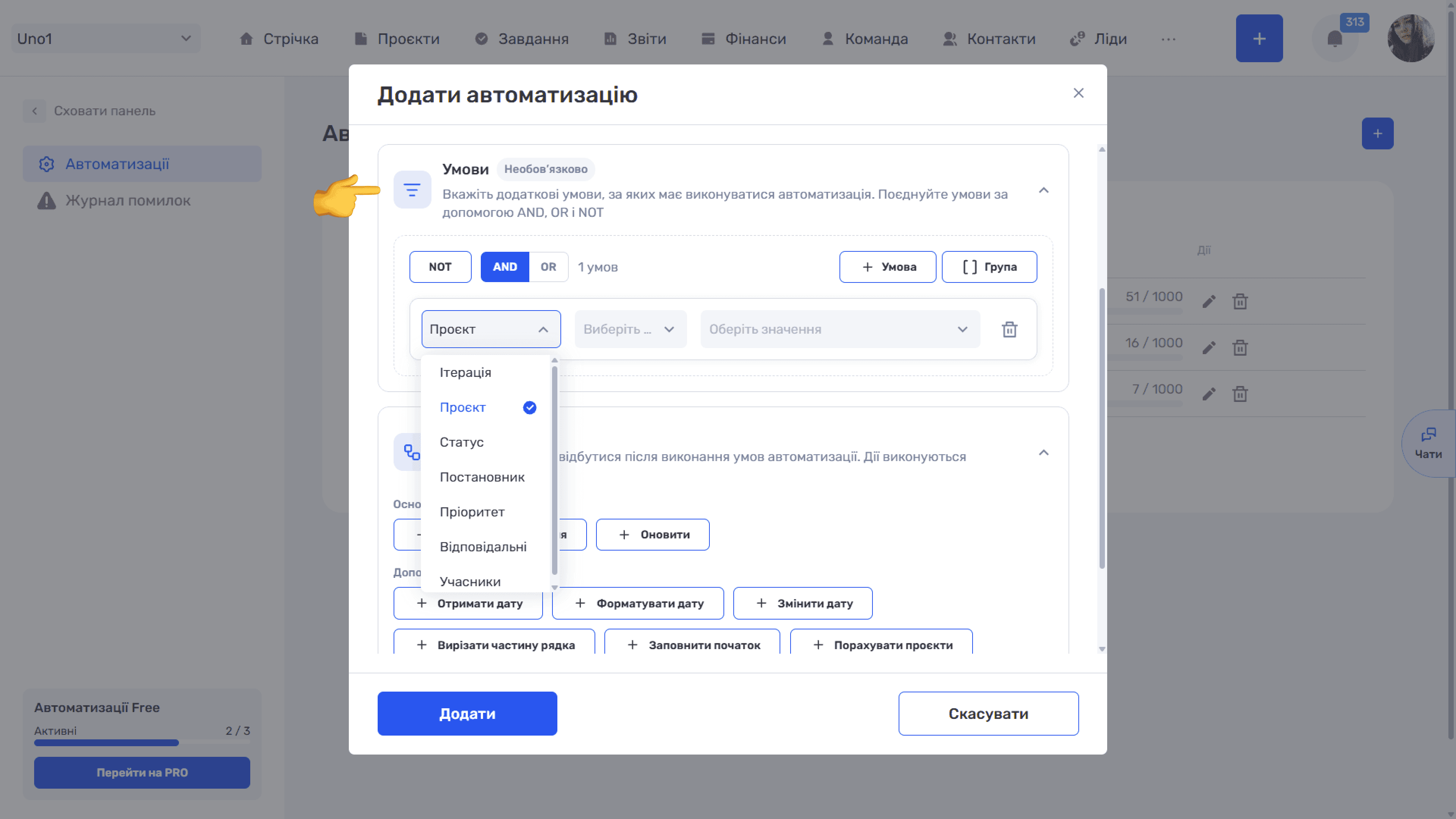
Condition structure
Each condition is one row of three fields that read like a sentence:
- Field — which property of the record to check, for example “Status”, “Responsible”, “Lead source”.
- Operator — how to compare.
- Value — what to compare with. You can select several options in the value field at once: for example, mark “Done” and “Successful” for the status, and the condition will match either of them.
For example, the row “Lead source · Any · website” means “the lead source is the website”. The “🗑” icon on the right deletes the condition.
The list of fields depends on the entity type. For leads, “Status”, “Contact”, “Responsible”, “Members”, “Services”, “Lead source”, and “Quotes” are available. For tasks, “Iteration”, “Project”, “Status”, “Created by”, “Priority”, “Responsible”, and “Members”.
Values are selected from lists: statuses and priorities are shown with the same colour labels as in the cards, and long lists of projects or employees have search.
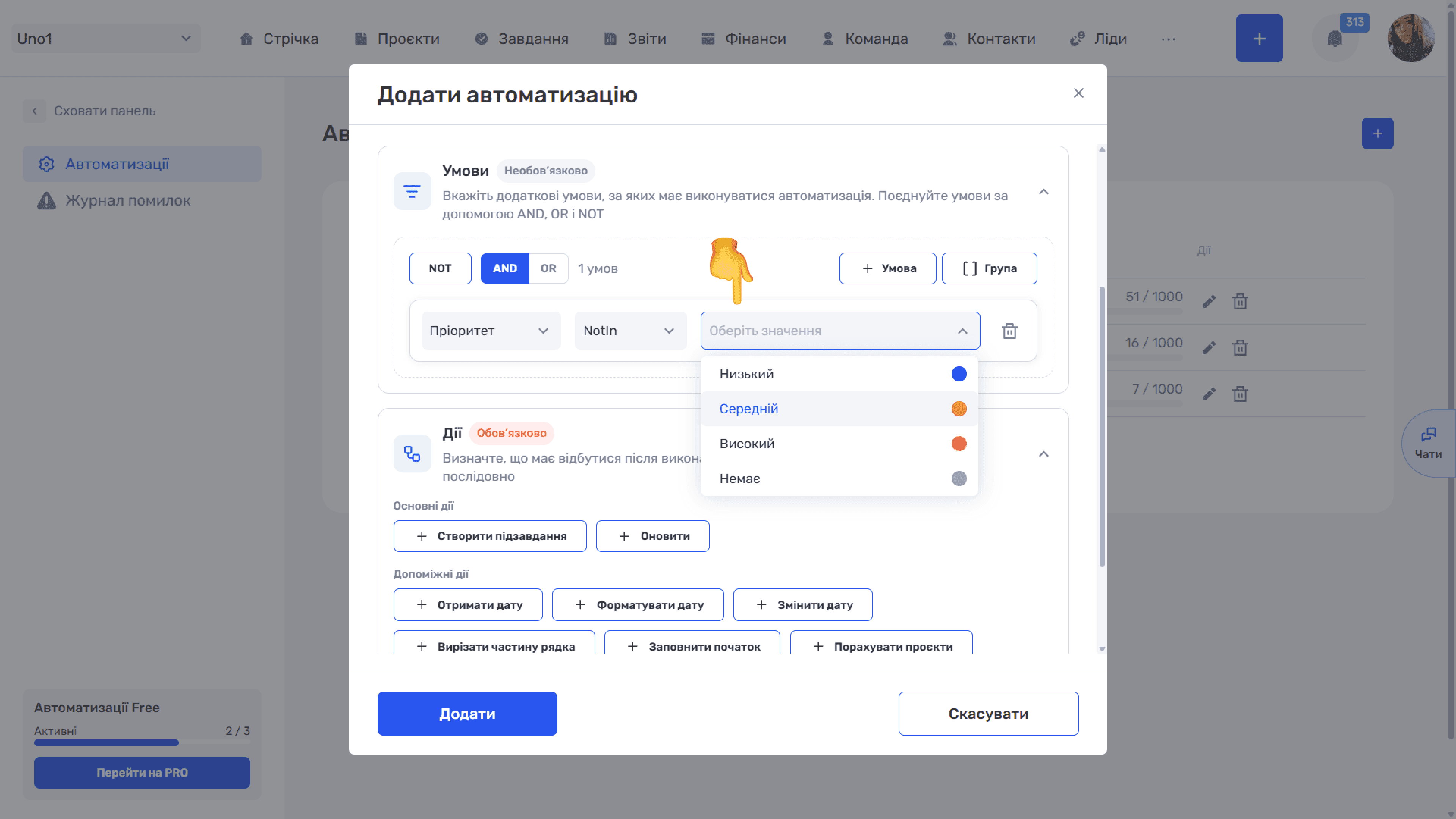
Comparison operators
The set of operators depends on the selected field. Single-value fields have the In / NotIn pair, multi-value fields have the Any / All pair.
- In — Fields: Single-value fields: Project, Status, Created by, Priority, Contact; Matches when: The field value is one of the selected ones
- NotIn — Fields: The same fields; Matches when: The field value is none of the selected ones
- Any — Fields: Multi-value fields: Responsible, Members, Services, Quotes, Lead source; Matches when: The field contains at least one of the selected values
- All — Fields: The same fields; Matches when: The field contains all the selected values
The difference between Any and All matters for multi-value fields. The condition “Services · Any · SEO, PPC” matches a lead that needs at least one of these services. A condition with All matches only when the lead has both.
An example for tasks: “Priority · NotIn · Low, None” means the rule runs only for tasks with medium or high priority.
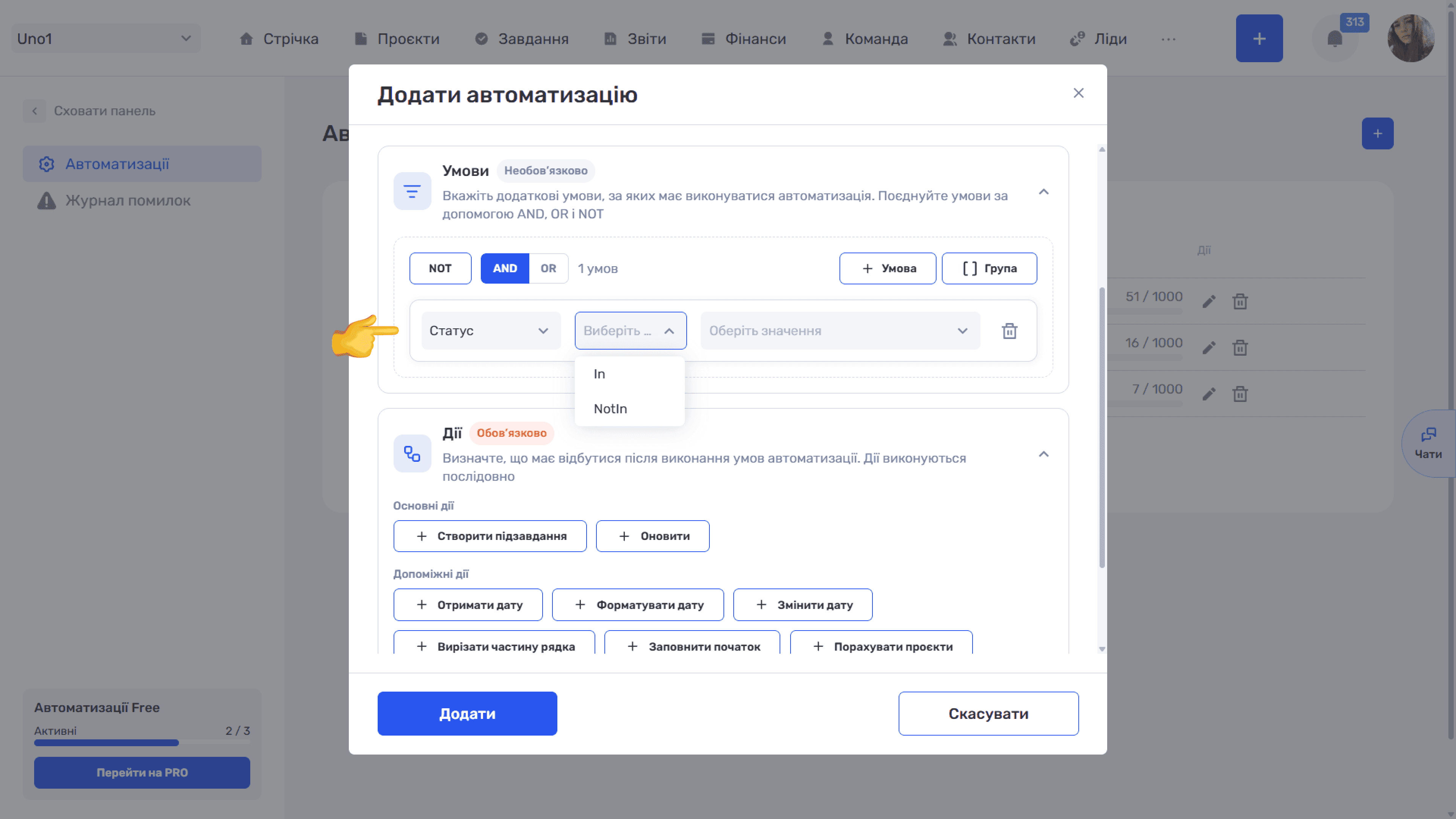
Combining conditions: AND and OR
The “+ Condition” button adds another row. Above the conditions there is an AND / OR switch that defines how the system combines all conditions at this level. Next to it is the condition counter.
- AND (default): the automation runs only if all conditions are met. Example: “Status — New” and “Responsible — not set”.
- OR: it is enough that at least one condition is met. Example: “Lead source — website” or “Lead source — landing page”.
An AND or OR label is shown between the rows so the logic is visible at a glance.
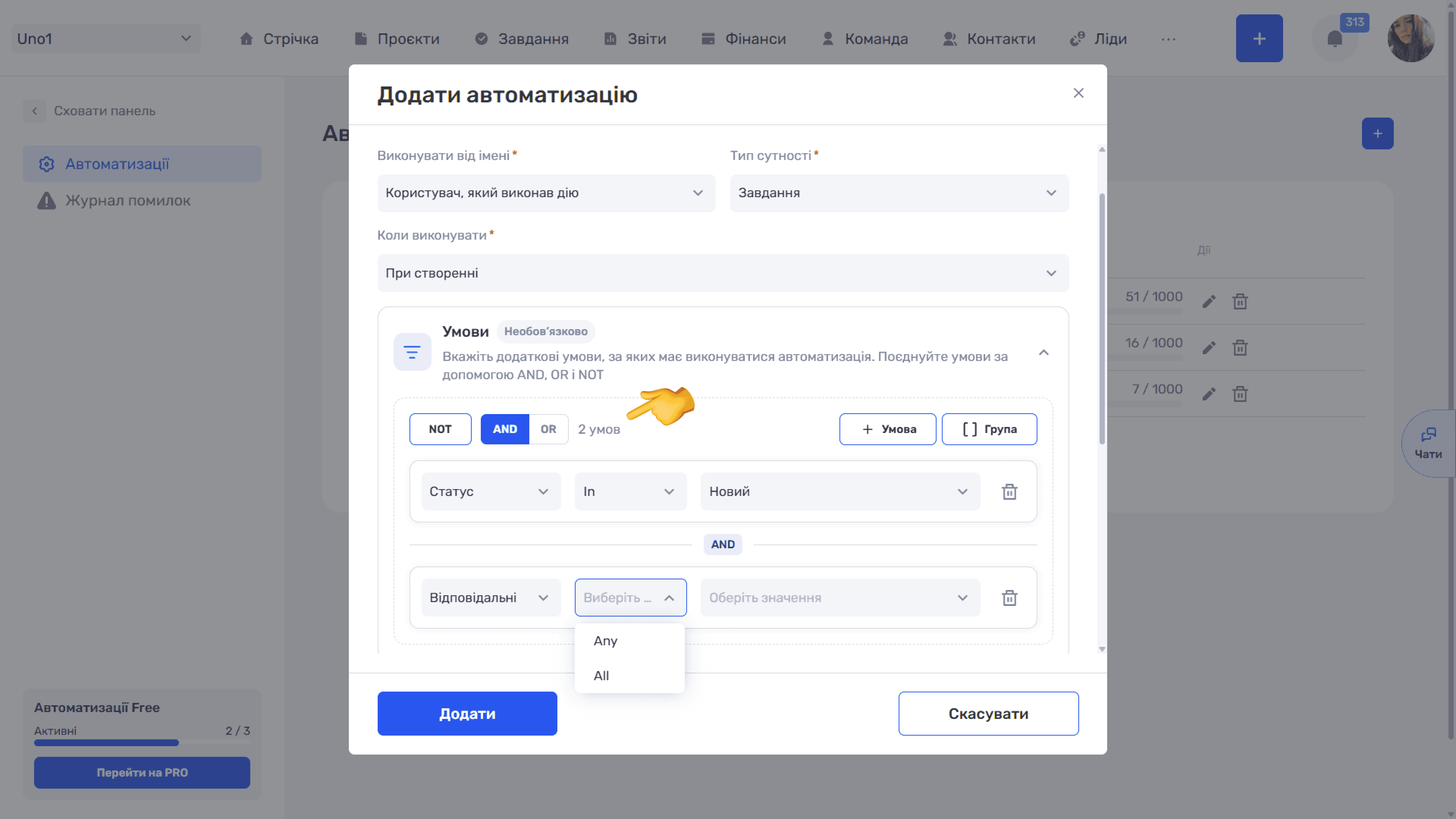
Condition groups
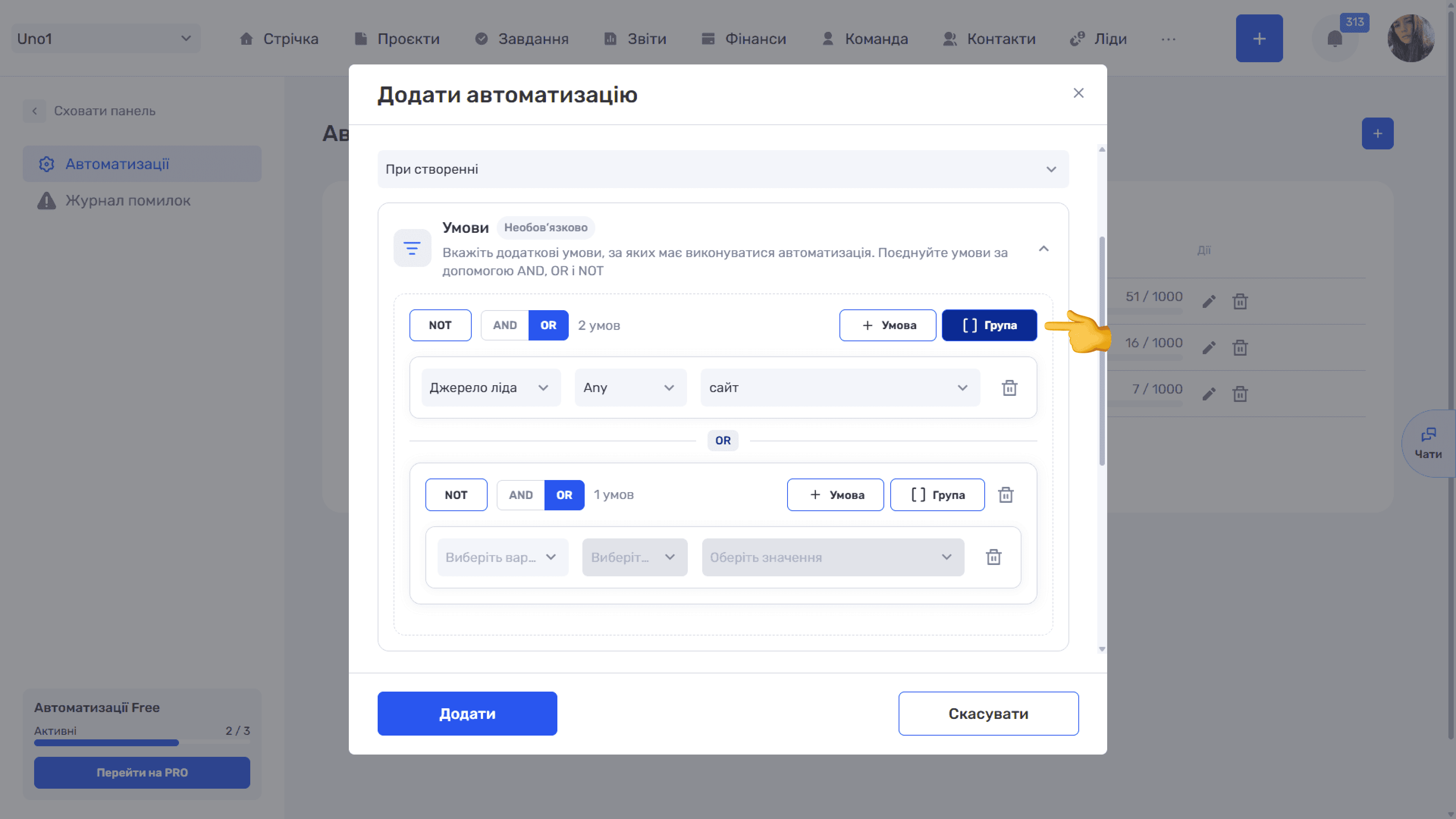
A single AND / OR switch is not enough when you need more complex logic. For example, “a lead from the website or (a lead from any source, but with the SEO service and without an owner)”. This is what groups are for.
The “[ ] Group” button adds a nested block. It has its own NOT, AND / OR, counter, “+ Condition” and “[ ] Group” buttons, and a “🗑” icon to delete the whole group. A group works like brackets in an expression. The system first calculates the result inside the group and then combines it with other conditions according to the outer level rule. Groups can be nested inside each other.
Please note
A new group is created with OR enabled, regardless of the outer level setting. Check the switch if you need AND inside the group.
Negation: NOT
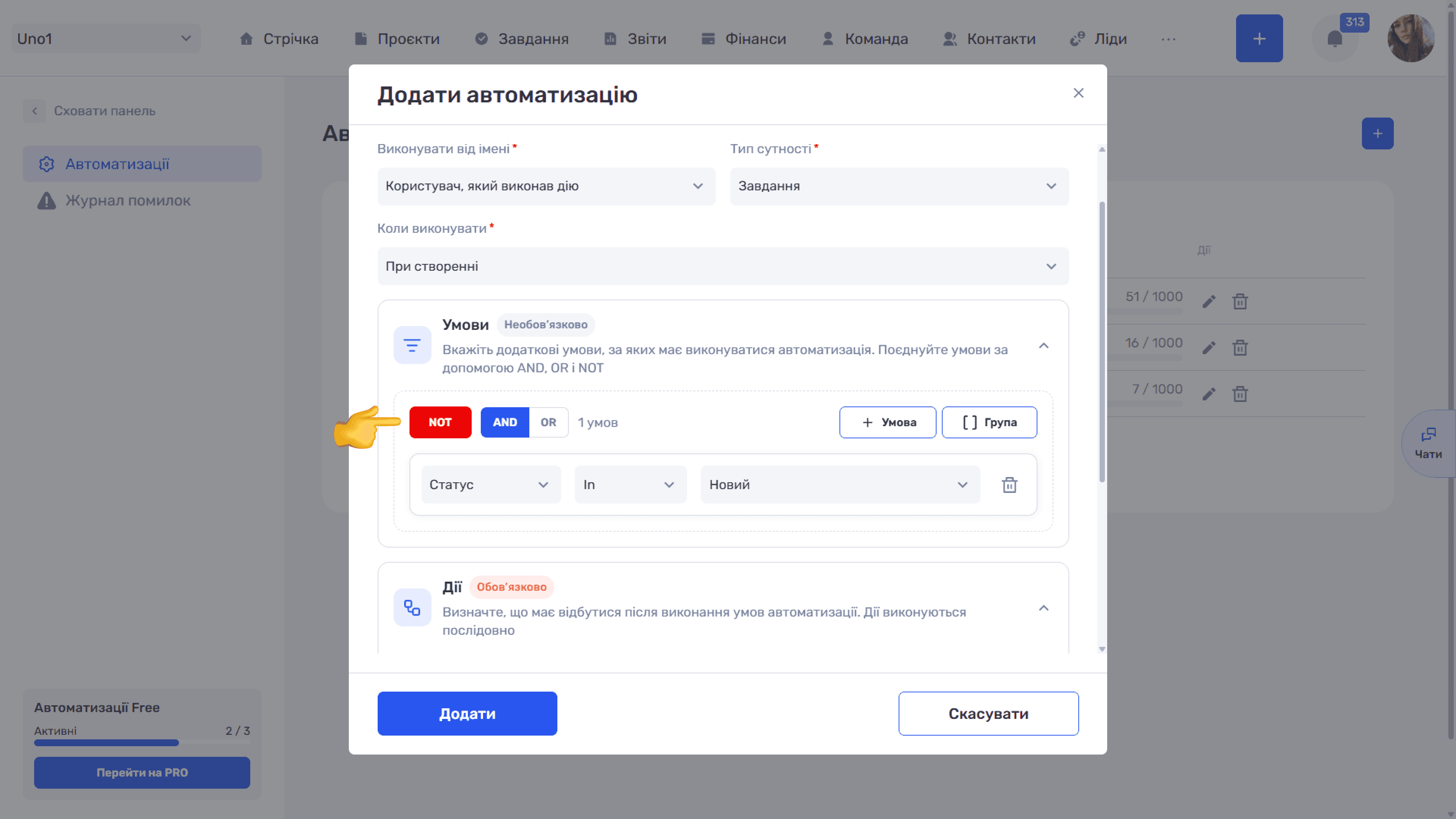
The NOT button inverts the result of the whole level: the top-level conditions or a specific group. When enabled, the button is highlighted in red. NOT is handy for setting an exception: “run for all leads except those that match the group conditions”.
Please note
NOT applies to the final result of the level, that is, to all its conditions together.
Conditions for the “On update” event: record state
If “On update” is selected in the “When to run” field, each condition gets an extra “State” list (the second one in the row, between the field and the operator). It defines which value of the field to check: the one before the change or the one after. You can clear the selection with the cross.
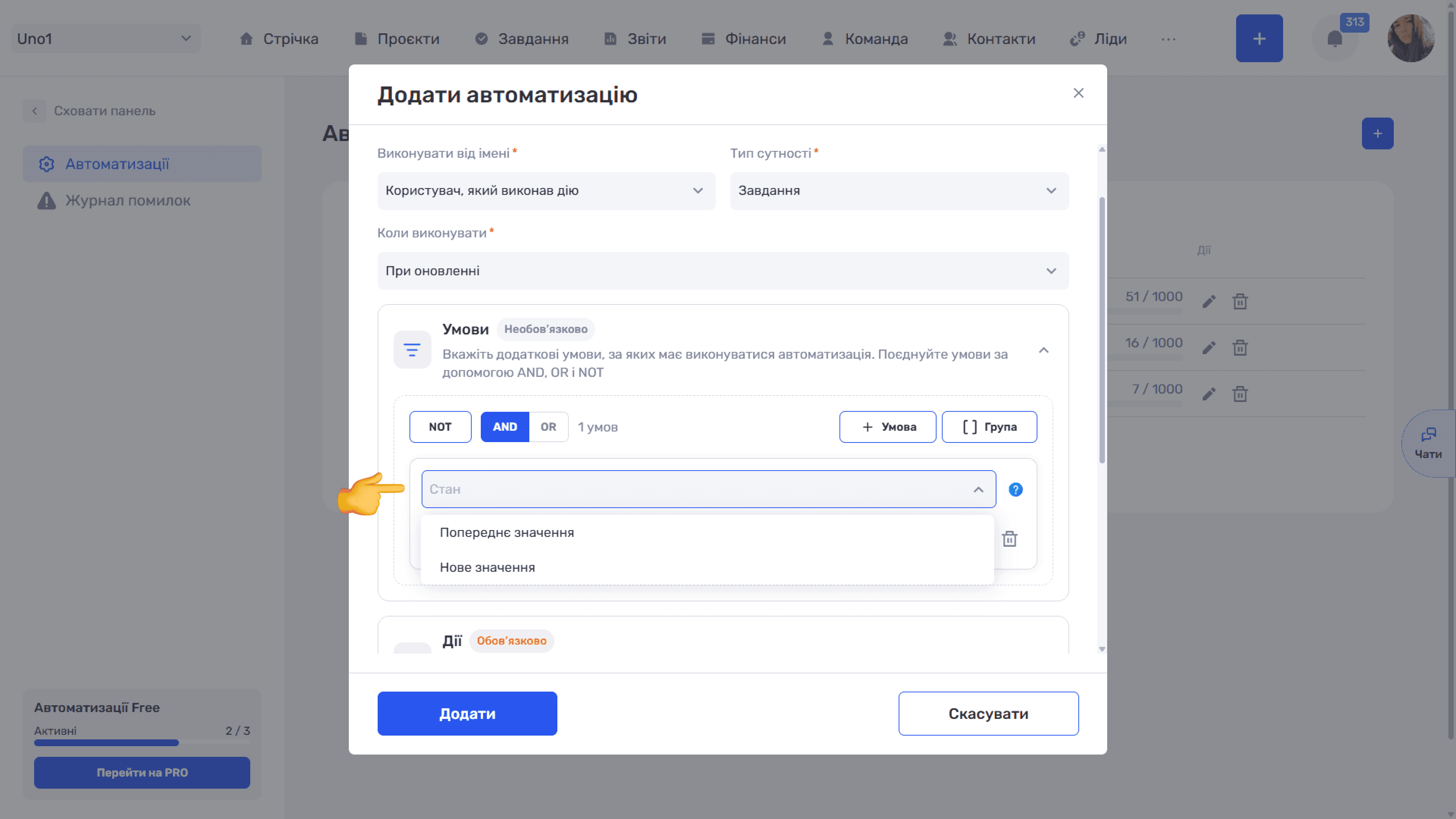
- Previous value — What is checked: The field value before the change; When to use: To check where the record moved from: “the status was New”
- New value — What is checked: The field value after the change; When to use: To check where the record moved to: “the status became Done”
- *not selected* — What is checked: The current state of the record; When to use: When only the current state matters, regardless of the change
Without a state, the rule runs on any change of the record that matches the conditions. For example, the condition “Project · In · Task name” without a state runs the rule when the task status, name, or priority changes.
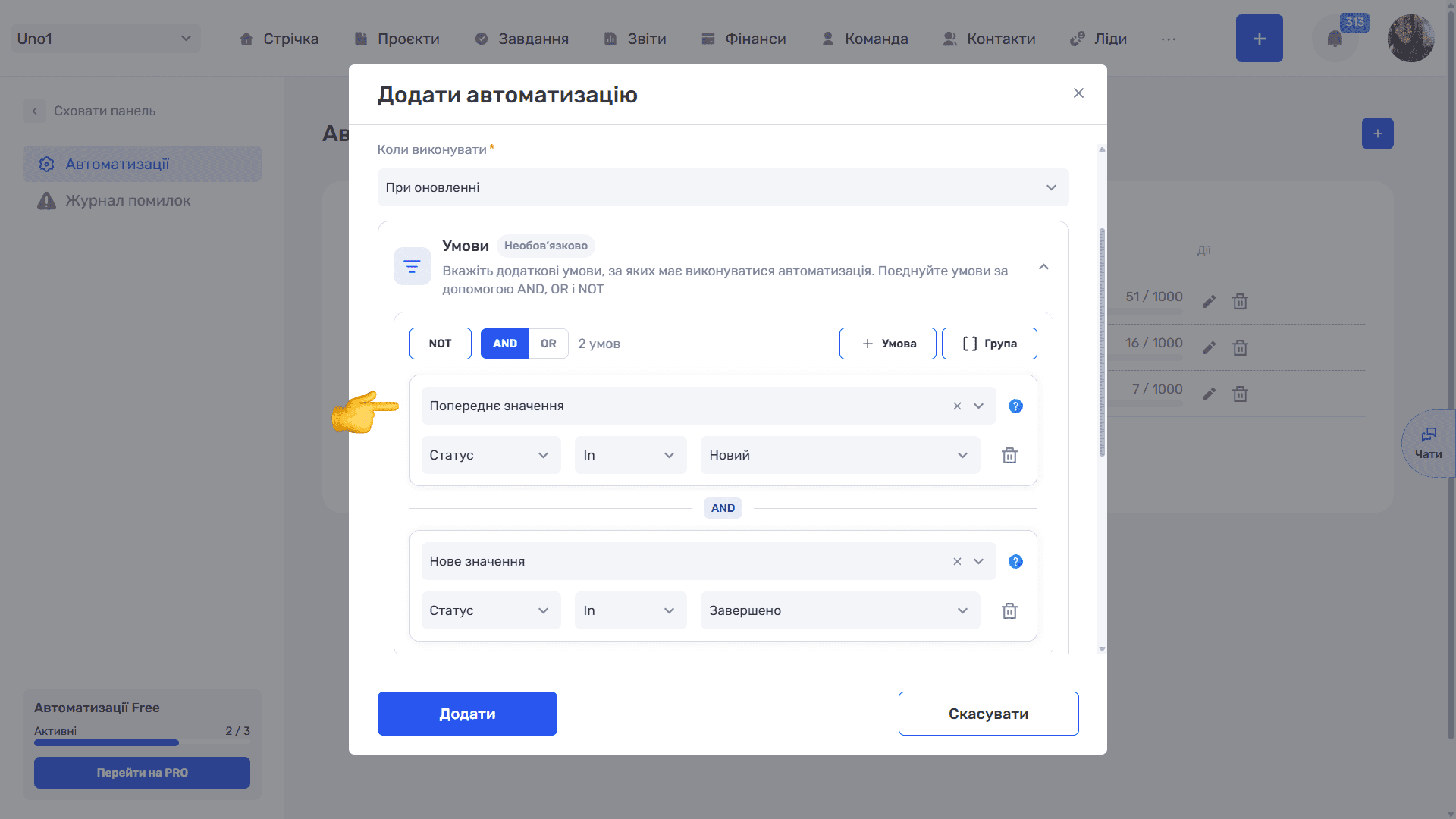
Combining two conditions with AND lets you react to a specific transition. For example, for tasks the rule runs exactly when the status changes from “New” to “Done”:
- Status · Previous value · In · New
- Status · New value · In · Done
Please note
How to avoid repeated runs. The condition “Status · In · Done” without a state checks the current status. So the rule may run every time something is edited in an already completed task: a comment, the owner, the name. To make the action run once at the moment of the transition, add the condition “Previous value · Status · NotIn · Done” or use the pair of conditions from the example above. Changes made by the automation itself do not trigger it again (see the Actions article).
Still have questions?
Maybe we haven't added this information yet. But you can always reach out:
Request a demo
Submit a request and we'll show you how the service works and its capabilities.
Book a demo