Logs
The “Logs” section in the sidebar collects automation runs that failed. Check it after creating a new rule and whenever colleagues report that something “didn’t work”: a folder didn’t appear, a name didn’t change, or a lead was left without an owner.
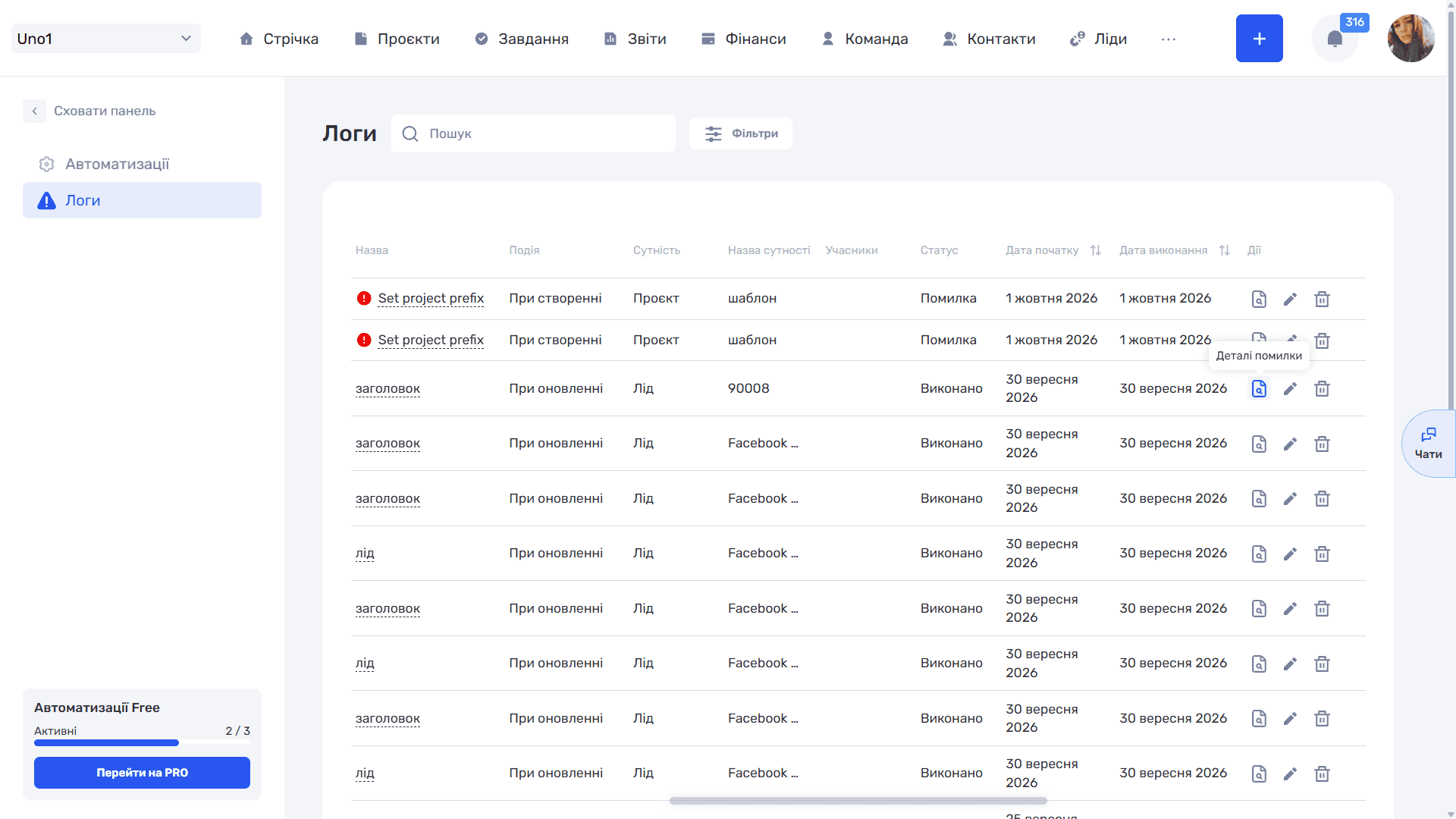
Each row corresponds to one failed run and is marked with a red “!” icon.
- Name — The name of the automation that failed
- Event — The event that triggered the automation
- Entity — The record type
- Entity name — The specific record where the error occurred. Helps you find the record and check what had time to change
- Members — The user related to the run
- Actions — Error details (magnifier icon), “✏” opens the edit window of this automation, “🗑” deletes the log entry
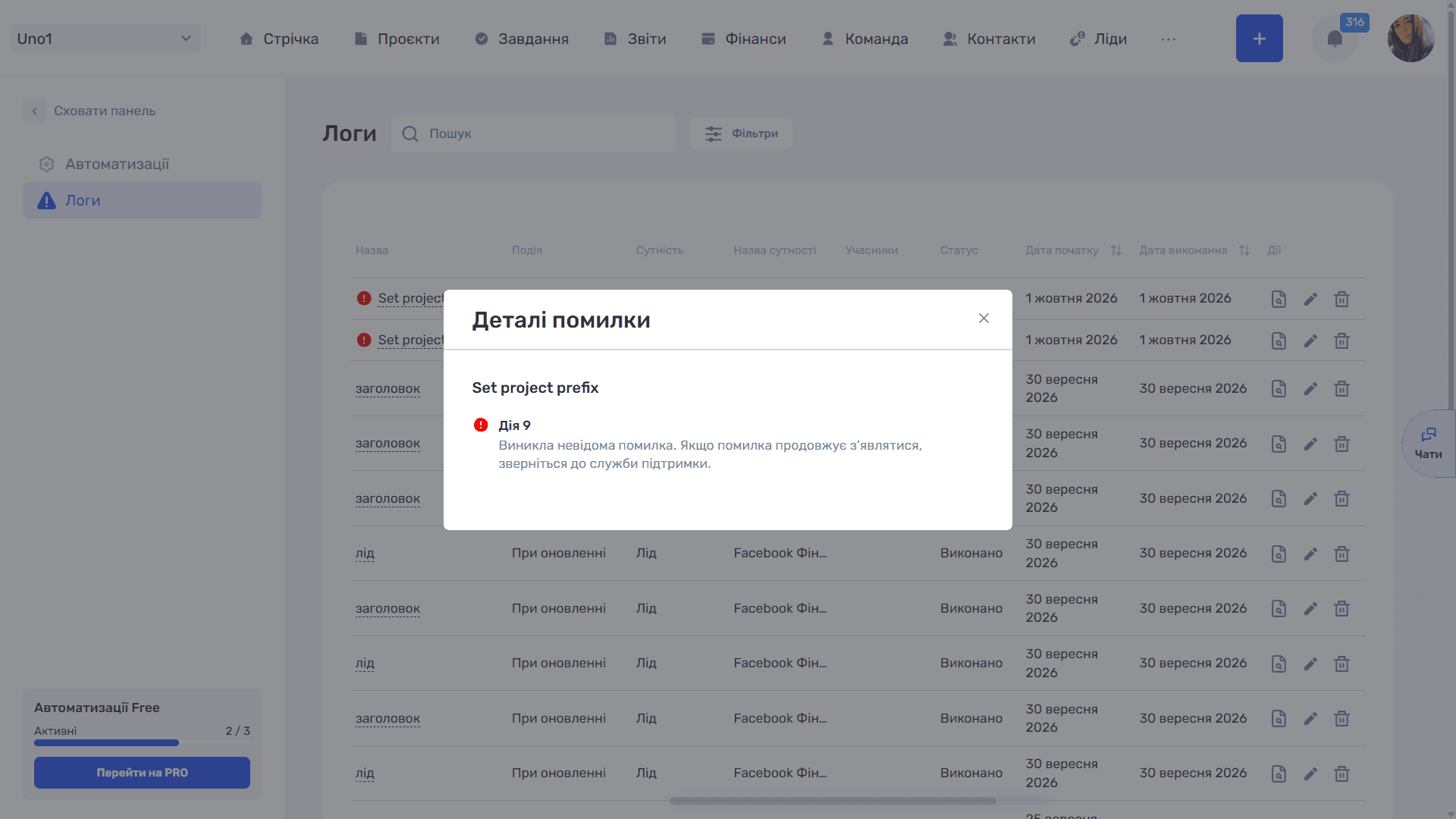
The “Error details” icon opens a window with the automation name and the number of the step where the failure happened, along with the error text. The step number tells you where to look: open the automation with the “✏” icon, find the card with this number, and check its settings.
Please note
The “🗑” icon deletes only the log entry and does not affect the automation itself.
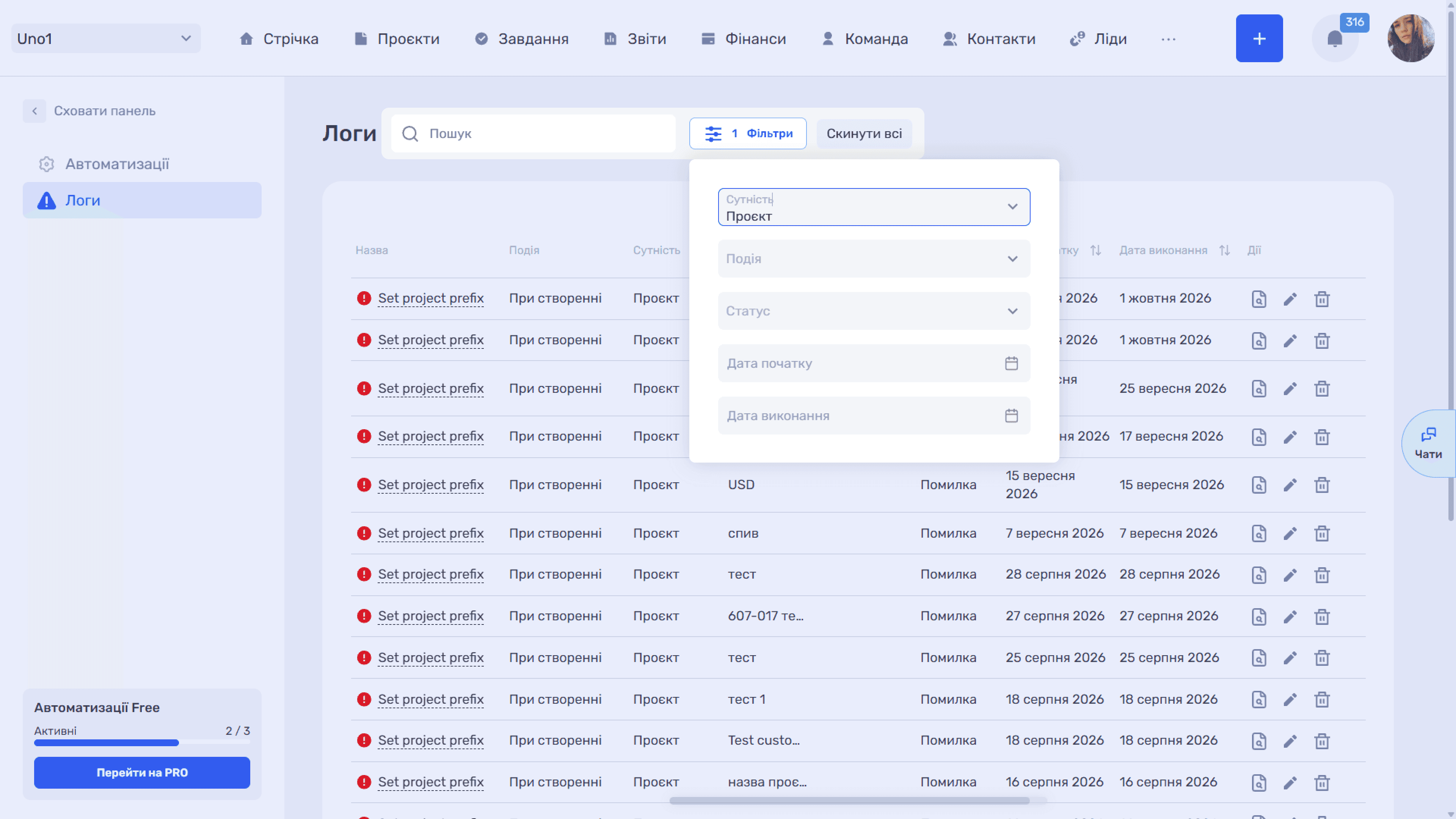
Search and filters work the same way as in the automation list: search by name and the “Entity” and “Event” filters. The number of active filters is shown on the button, and “Reset all” clears them in one click.
If an error keeps repeating, check the conditions and required action fields. For rules with the “Create folder” action, also make sure the Google Drive connector is connected and has access to the right folder.
Still have questions?
Maybe we haven't added this information yet. But you can always reach out:
Request a demo
Submit a request and we'll show you how the service works and its capabilities.
Book a demo