Automation List
On the module’s main page, all company automations are collected in a table. It helps you quickly see which rules are working, which records they apply to, and how actively they are used.
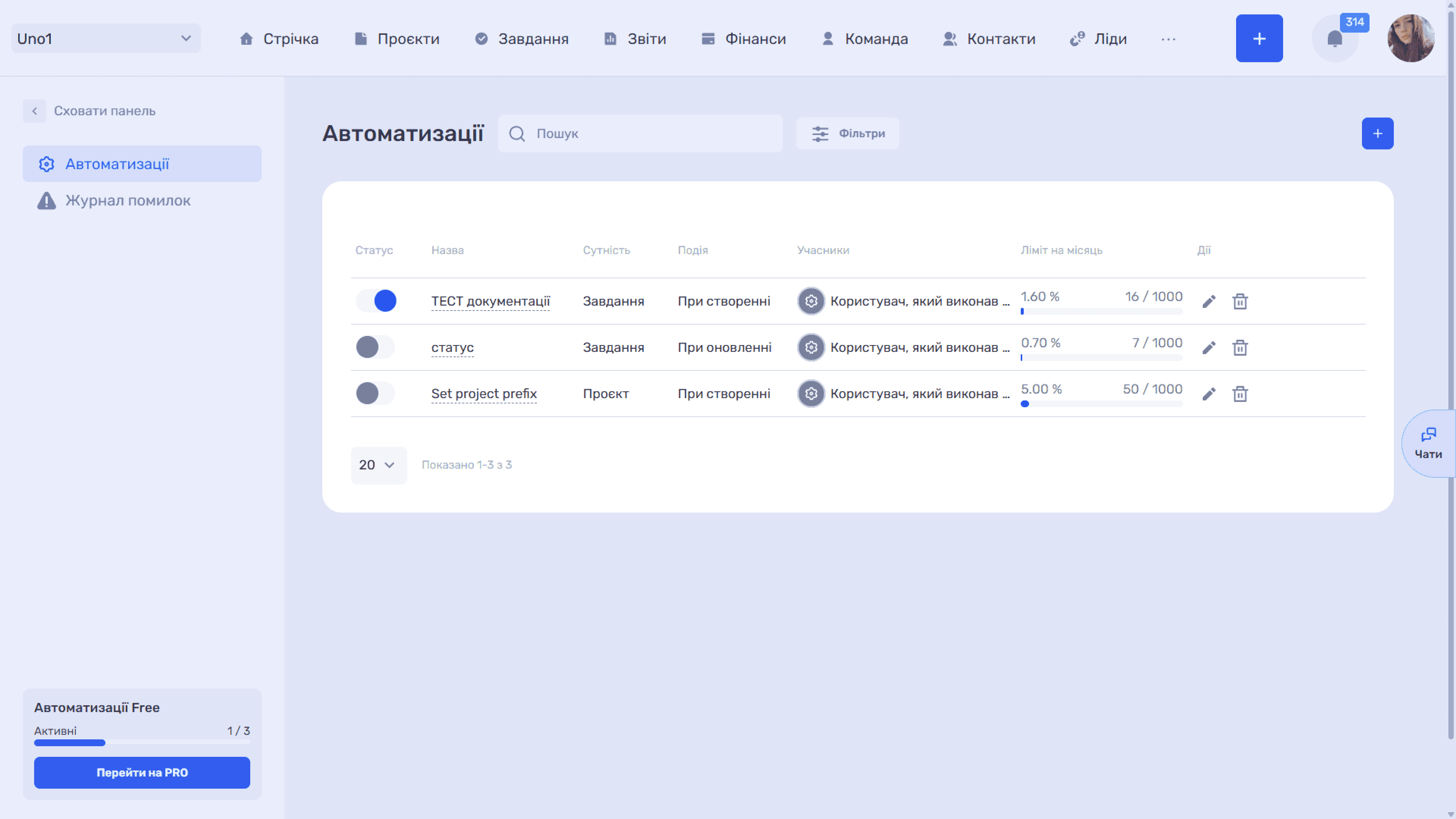
- Status — A toggle that turns the automation on and off without deleting it. A disabled rule keeps all its settings but does not run.
- Name — The name you gave the automation. Name rules so that it is clear what they do, for example “Change lead assignee”.
- Entity — The type of records the rule applies to: Lead, Project, and so on.
- Event — When the rule runs: “On create” or “On update”.
- Members — On whose behalf the actions are performed. The value matches the “Run as” field in the settings.
- Monthly limit — The number of runs in the current month as a percentage and in absolute numbers, plus a progress bar.
- Actions — The “✏” icon opens the edit window, and “🗑” deletes the automation.
The “Monthly limit” column is useful not only for keeping track of your plan. If a rule that should run every day shows “0 / 1000”, its conditions are probably too narrow or the event is wrong. This is also the only place where you can see that a rule runs at all: the system has no log of successful runs.
Search and filters
The “Search” field above the table helps you find a rule by name when there are many of them. The “Filters” button opens a panel with two lists: “Entity” (Task, Member, Project, Iteration, Lead, Transaction, or Contact) and “Event” (On create or On update). Filters are handy, for example, to review all lead rules before changing your sales pipeline and make sure none of them breaks.
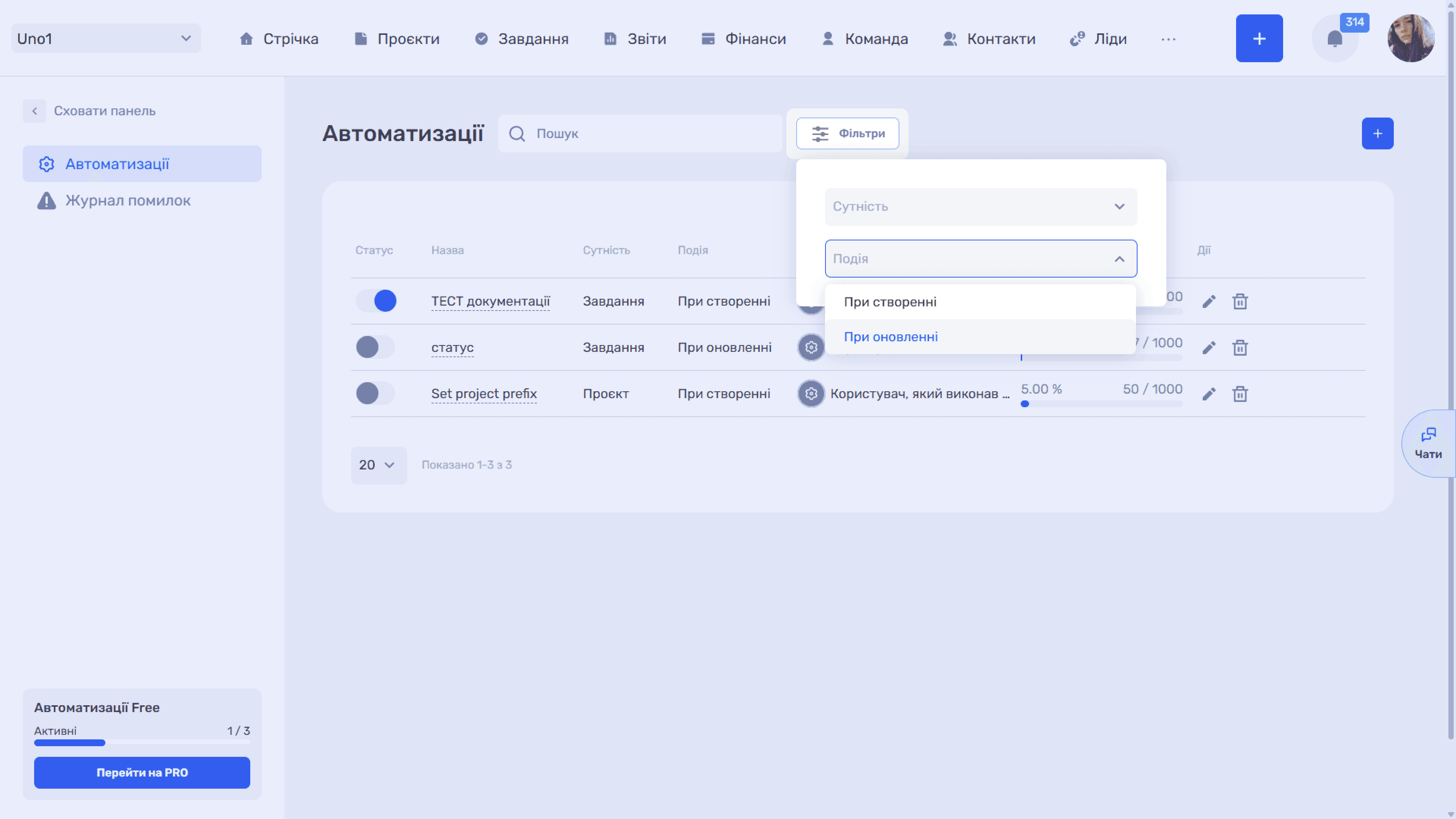
Below the table there is a rows-per-page switch (20 by default) and a caption like “Showing 1–2 of 2”.
Still have questions?
Maybe we haven't added this information yet. But you can always reach out:
Request a demo
Submit a request and we'll show you how the service works and its capabilities.
Book a demo