Access Permissions
A role determines an employee’s access permissions—what they can view, create, edit, and delete in the system. Instead of configuring access separately for each person, you configure roles once and then assign them.
Where Roles Are Configured
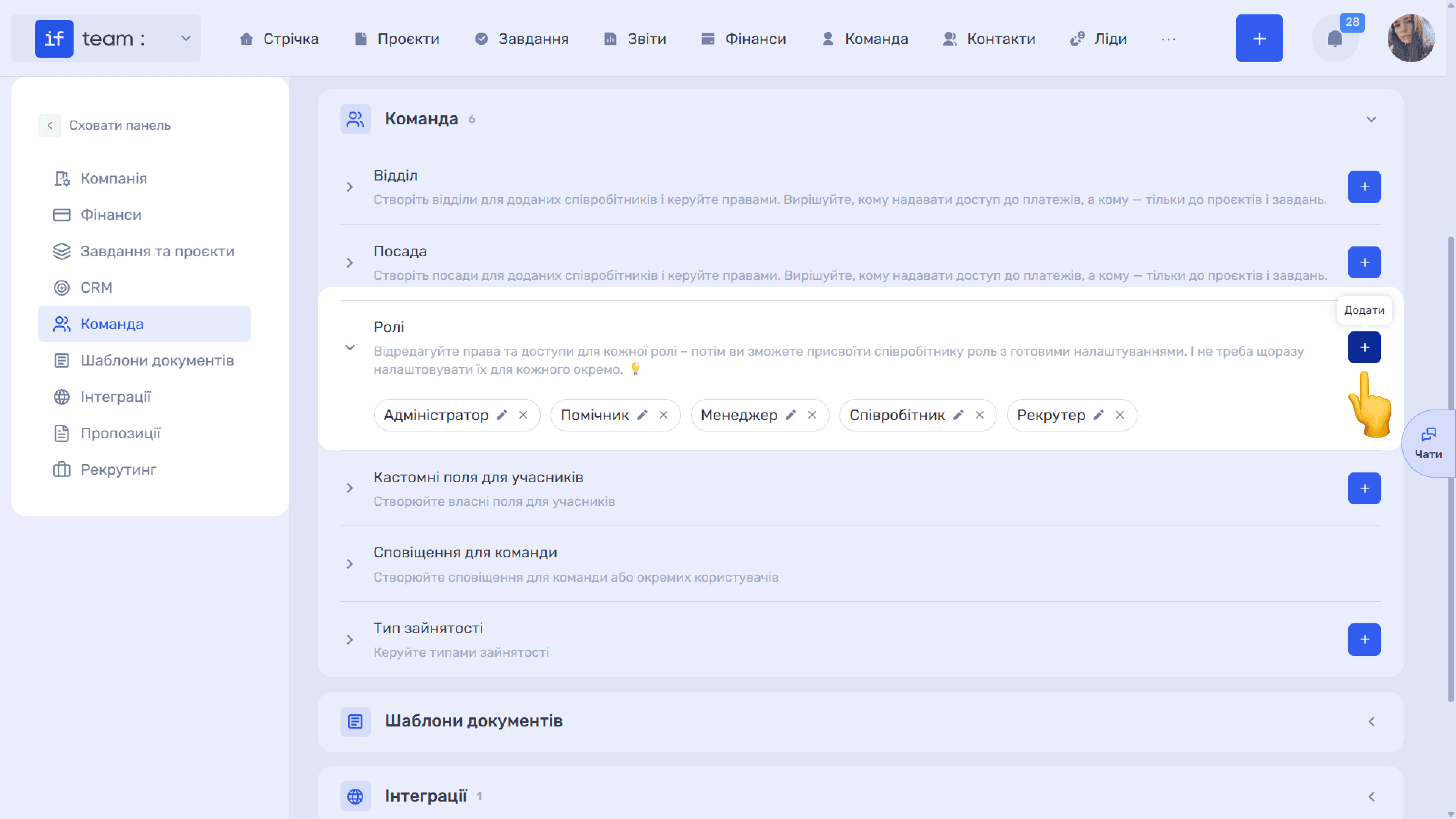
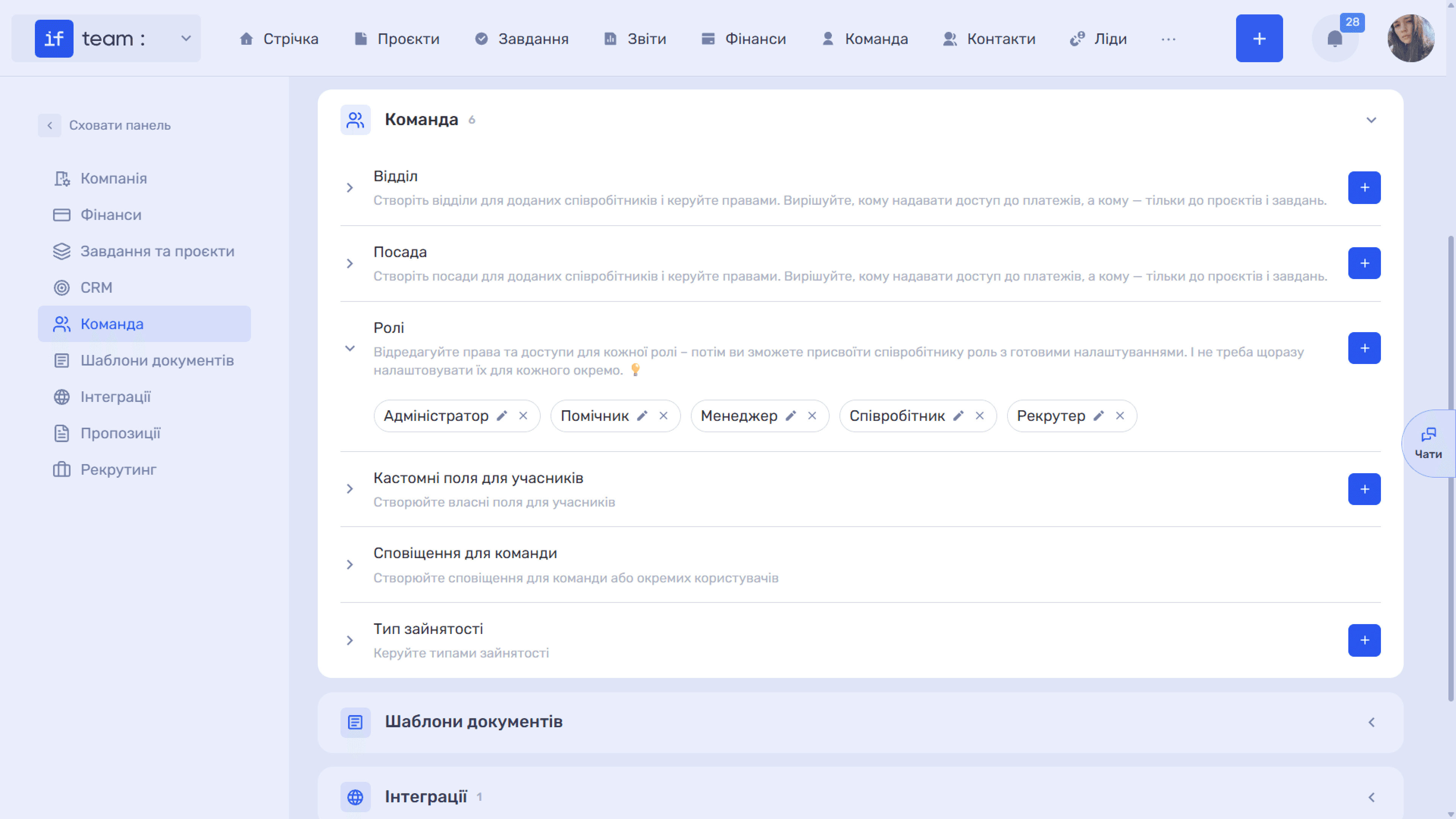
In the Admin Panel, open Team → Roles. Existing roles are listed here, such as Administrator, Assistant, and Manager. You can edit (✏) or delete (×) each role, or create a custom role for your business using +, such as a separate role for sales specialists. Role settings define its permissions and access. You can then assign this role to employees with the permission set already configured.
How to Assign a Role
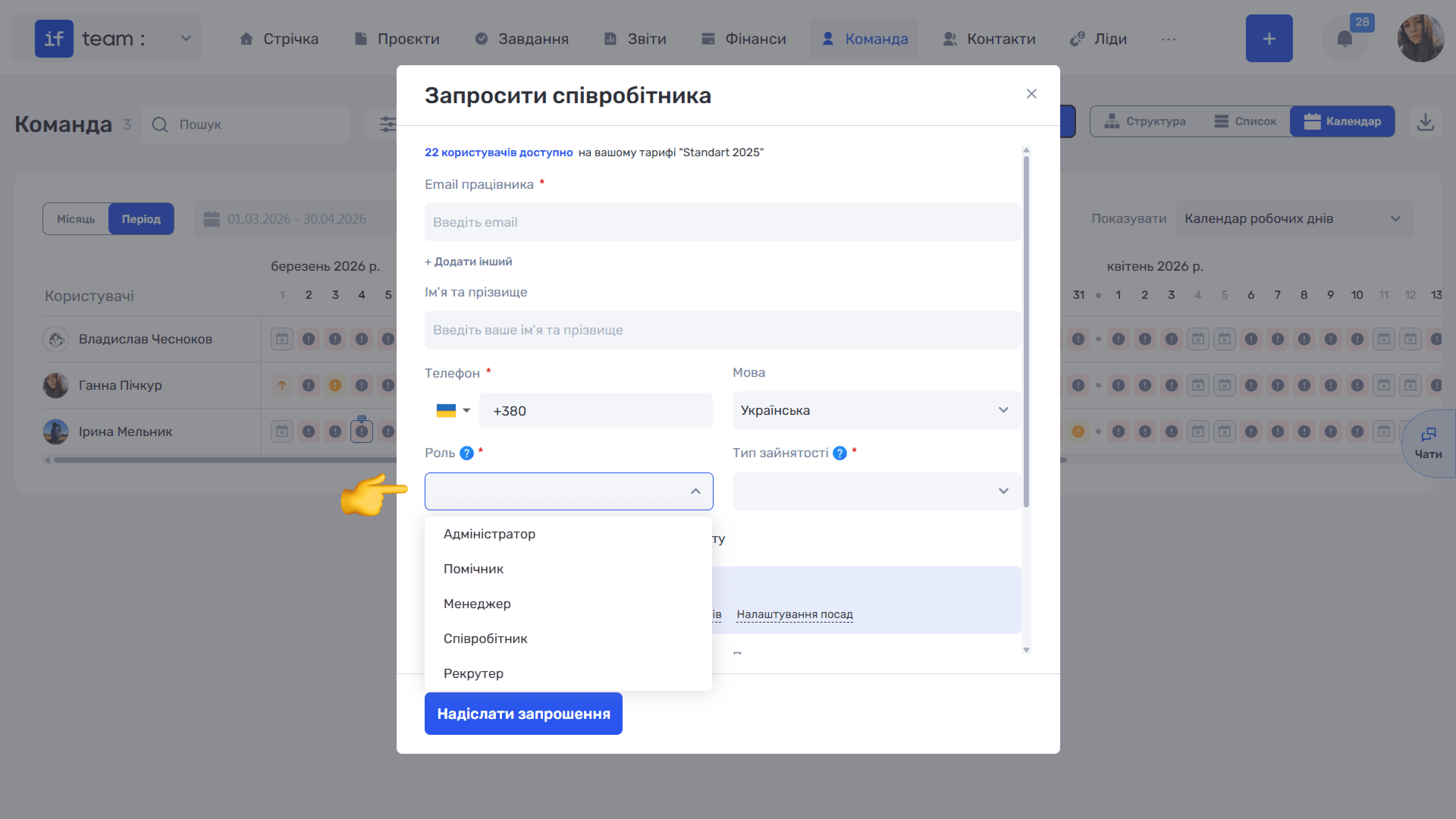
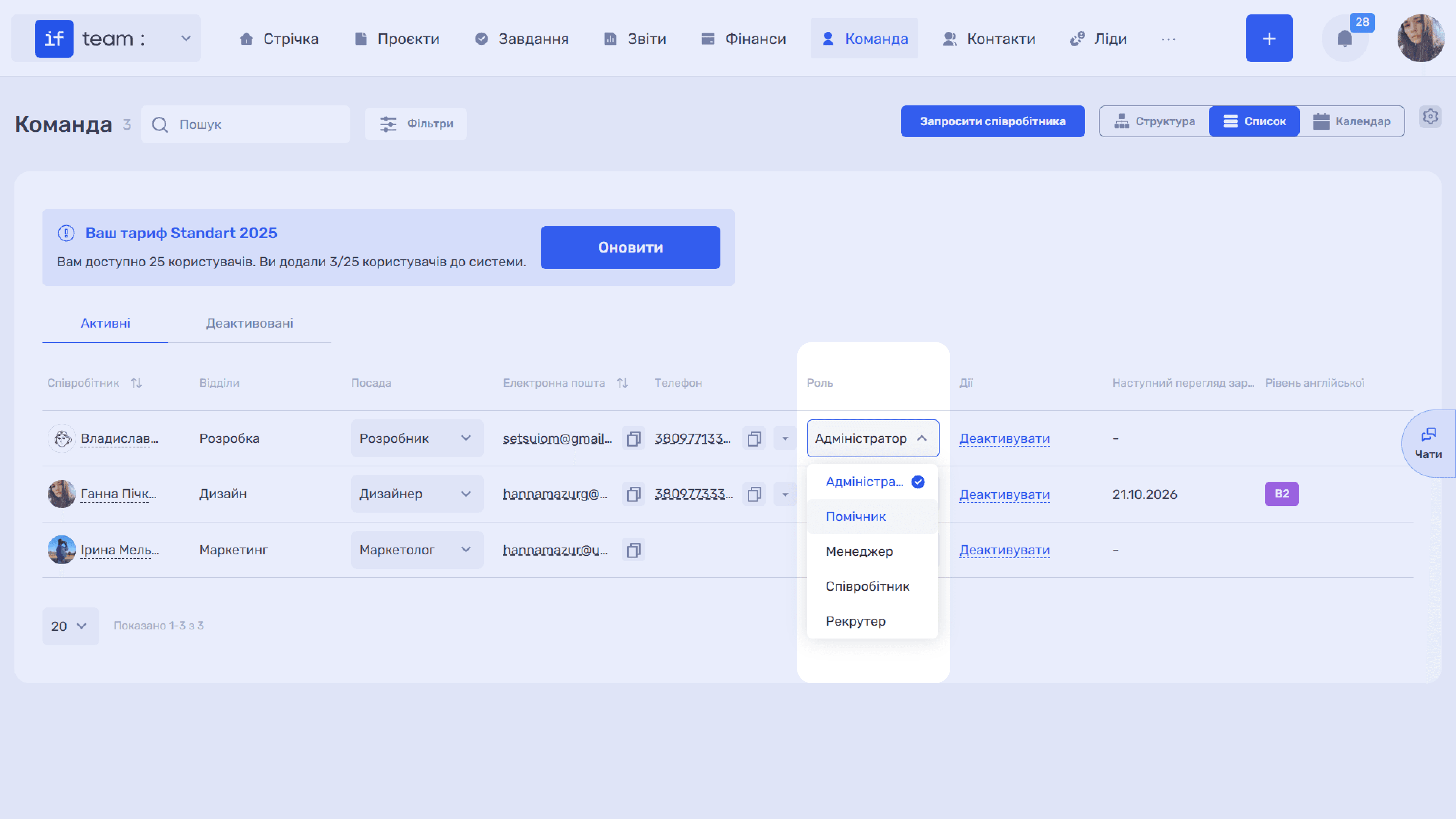
Select a role in the Role field when inviting an employee. You can change it later in Team under List view, in the Role column.
Role Editing Screen
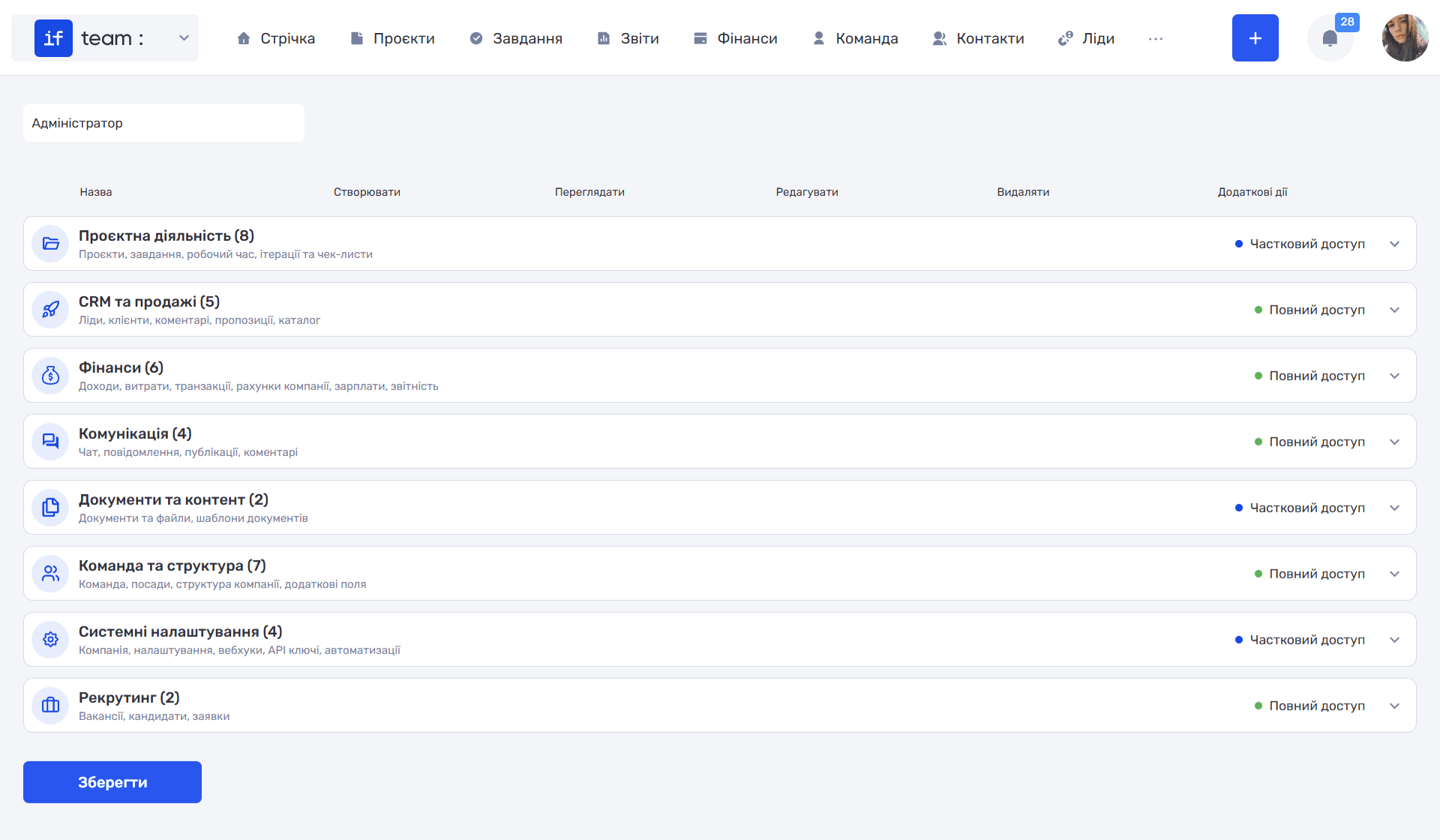
Clicking the edit icon opens the role card. The role name is at the top, followed by the permission matrix, with Save at the bottom of the page. Changes are not applied unless you click it.
Matrix Structure
All permissions are grouped into eight sections, each of which can be collapsed using the arrow. Next to the section name are the number of permissions and a list of entities. On the right is a summary status: Full Access when everything in the section is enabled, Partial Access when some permissions are restricted, or No Access, which is the default for a newly created role. This lets you quickly assess a role without expanding every section.
There are five columns: Create, View, Edit, and Delete—the four basic actions—and Additional Actions for special permissions that do not fit those four actions.
Two Control Types
Permissions use two types of controls. Most entities have a drop-down list with an access level, such as Full Access or No Access. Individual permissions use a simple on/off switch, such as Auto-tracking.
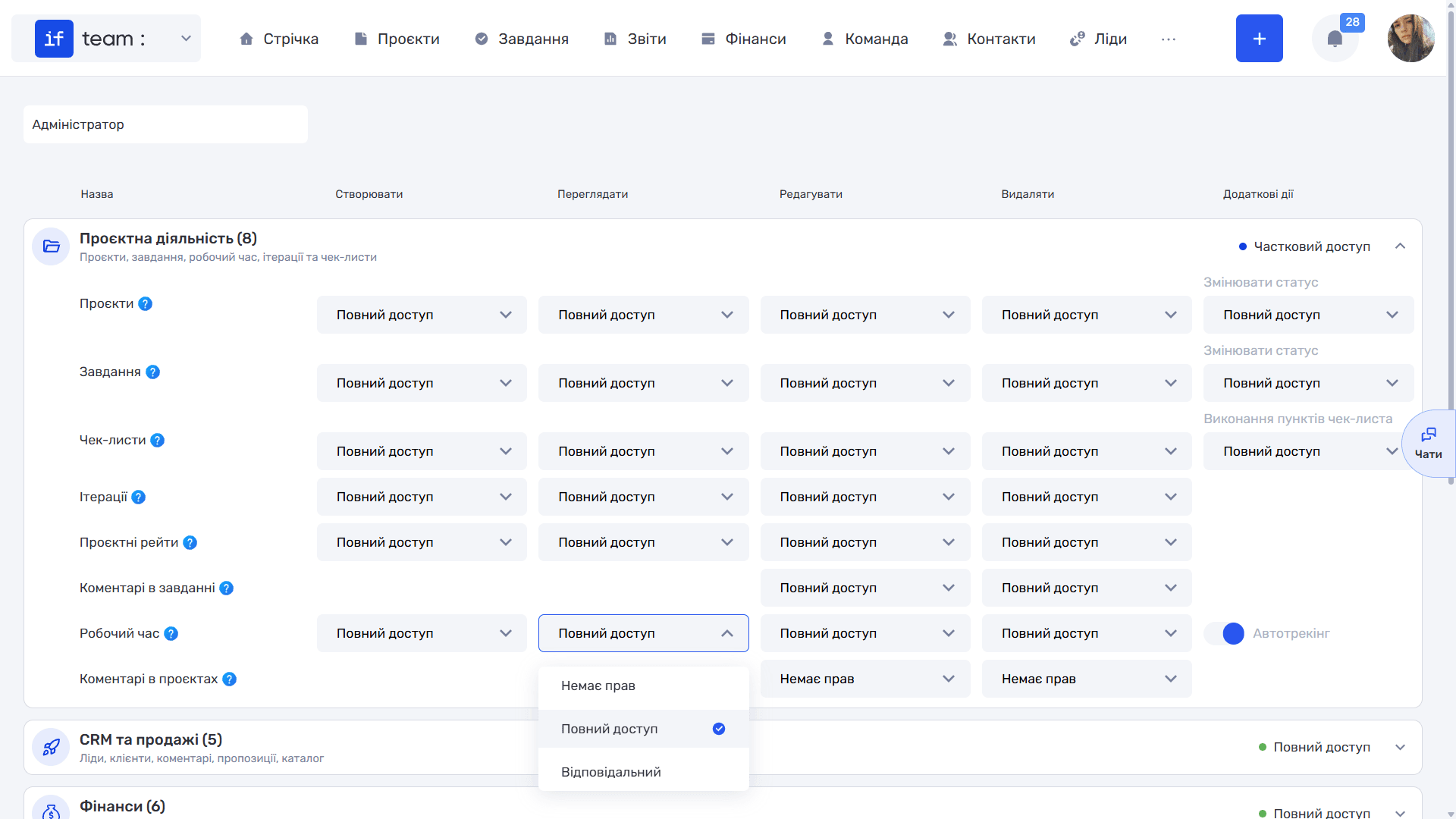
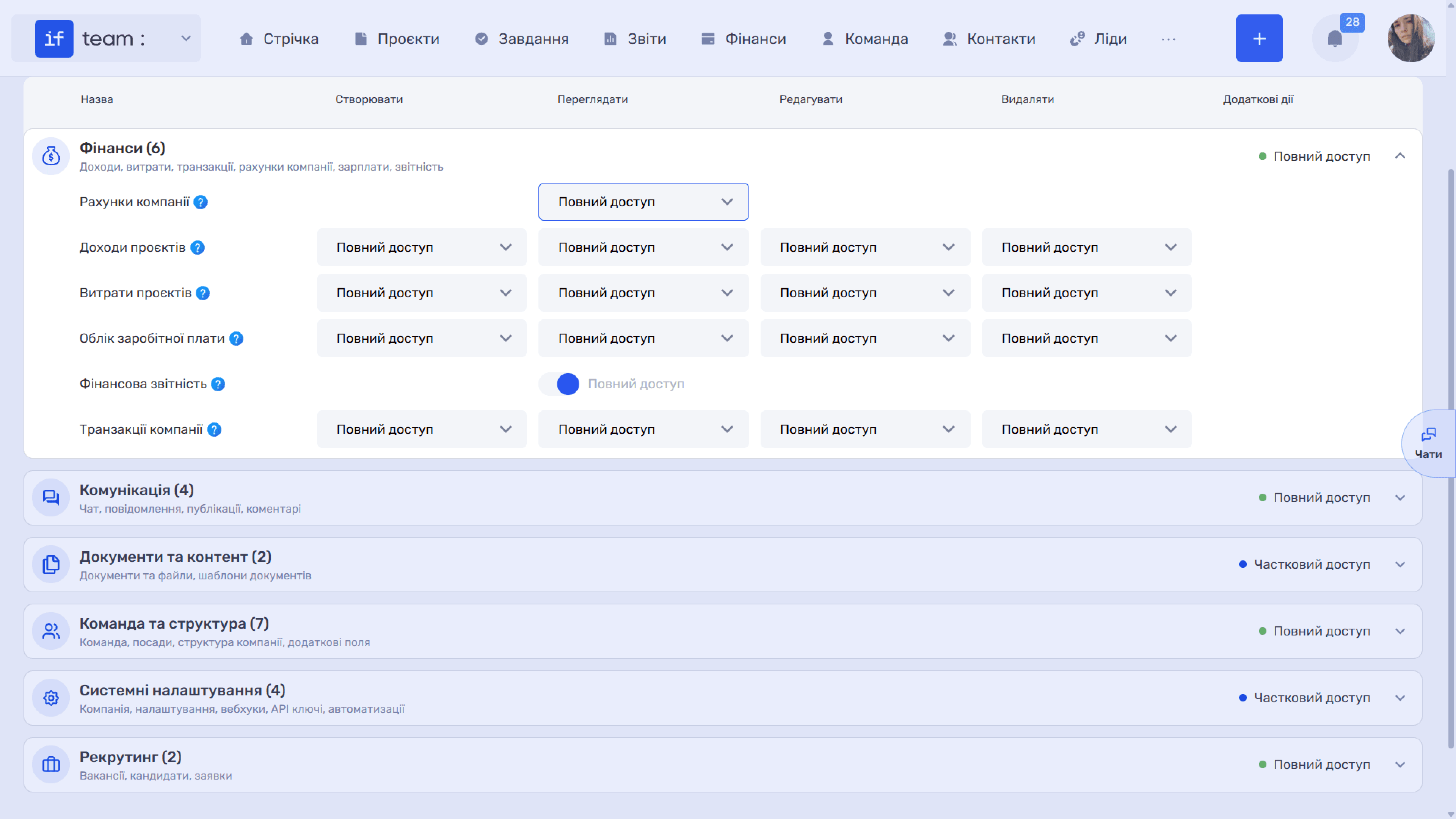
Not every entity has all four actions; the matrix includes only those that are meaningful. For example, Company Accounts lets you configure only viewing, while Financial Reporting is enabled with one switch in the View column.
Please note
Each permission has a ? icon. Hover over it to see a brief explanation of what that permission affects.
Access Levels
For most entities, the matrix drop-down offers contextual levels rather than only allowed or denied. These levels restrict an action to objects connected to the employee. For example, you can allow an employee to view income only for their projects, or allow a department manager to create payroll only within their department without exposing the entire Finance module.
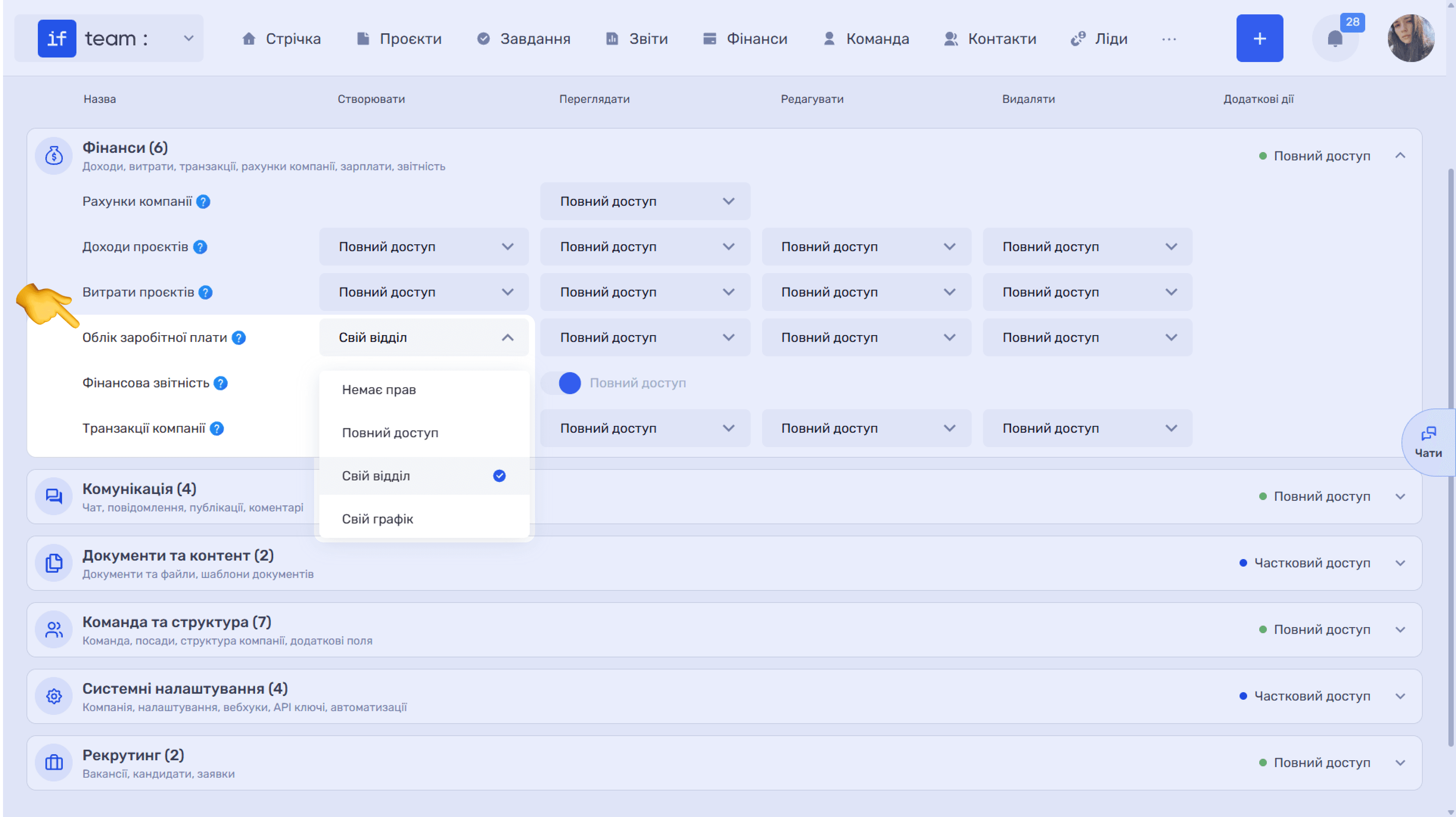
The available levels depend on the entity and even the column.
General access-level concepts used throughout the matrix:
- No Access completely prohibits the action;
- Full Access permits the action for every object of this type;
- Participant, listed as Project Participant in some lists, limits access to projects and related entries where the employee is a participant;
- Project Manager / Project Co-manager limits access to objects in projects where the employee is the manager or co-manager;
- Task Creator limits access to tasks and checklists created by the employee;
- Task Participant limits access to tasks where the employee is a participant;
- Responsible Employee limits access to entries where the employee is responsible;
- Own limits access to objects created by the employee, such as comments, messages, posts, and quotes; for company accounts, it means accounts they own;
- Tracking Only allows time to be logged only through the tracker, without manually creating entries;
- Payment Initiator limits access to payments created by the employee;
- Counterparty limits viewing to entries linked to the employee’s counterparty and is available only for View;
- Own Department limits access to the employee’s department;
- Own Schedule limits access to the employee’s own entries;
- Shared means shared company accounts;
- Chat Member limits access to chats where the employee is a member;
- Private limits access to private chats without the general team chat;
- By Access List limits access to documents and files explicitly shared with the employee.
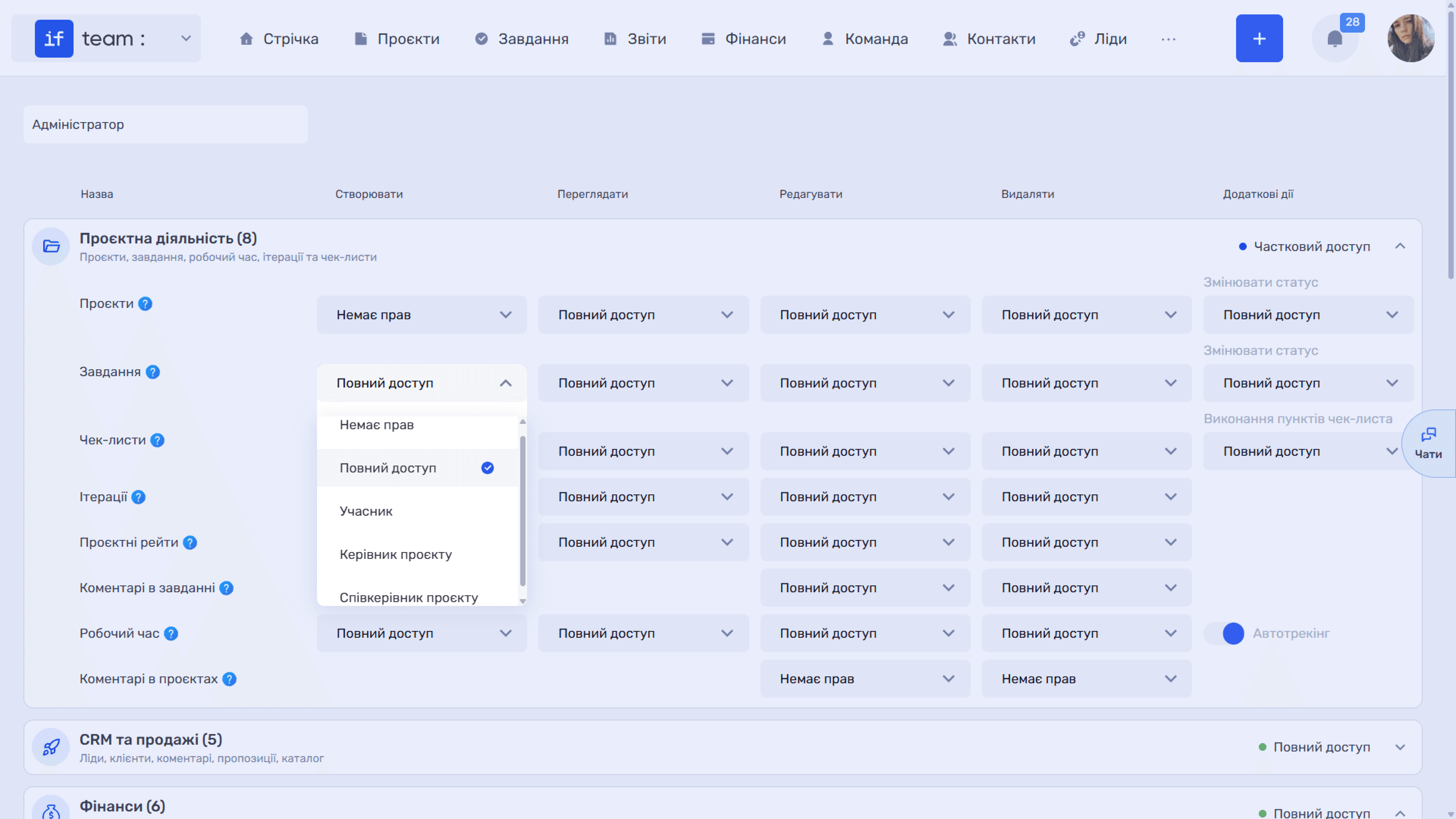
The following sections explain each permission group, what every permission controls, and the available levels.
Project Activity
Projects, tasks, work time, iterations, and checklists.
Projects controls creating, viewing, and editing projects.
- Actions: Create · View · Edit · Delete
- Levels for Create: No Access · Full Access
- Levels for View, Edit, and Delete: No Access · Full Access · Participant · Project Manager · Project Co-manager
- Additional action: Change Status is a separate permission, so project editing can be allowed while status changes remain prohibited. Levels: No Access · Full Access · Project Manager · Project Co-manager · Project Participant
Tasks controls creating, editing, and managing project tasks.
- Actions: Create · View · Edit · Delete
- Levels for Create: No Access · Full Access · Participant · Project Manager · Project Co-manager
- Levels for View, Edit, and Delete: No Access · Full Access · Task Creator · Participant · Project Manager · Project Co-manager · Responsible Employee · Task Participant
- Additional action: Change Status. Levels: No Access · Full Access · Task Creator · Project Manager · Project Co-manager · Project Participant · Responsible Employee · Task Participant
Checklists controls viewing and creating task checklists and marking completed steps.
- Actions: Create · View · Edit · Delete
- Levels, identical for all four actions: No Access · Full Access · Task Creator · Responsible Employee
- Additional action: Complete Checklist Items, which lets users mark steps separately from editing the checklist itself. It uses the same levels.
Iterations controls creating, editing, and viewing project iterations.
- Actions: Create · View · Edit · Delete
- Levels for Create and View: No Access · Full Access · Participant · Project Manager · Project Co-manager
- Levels for Edit and Delete: No Access · Full Access · Participant · Project Manager
- Additional actions: none
Project Rates controls creating and editing employees’ internal and commercial rates at project level.
- Actions: Create · View · Edit · Delete
- Levels, identical for all four actions: No Access · Full Access · Participant · Project Manager
- Additional actions: none
Task Comments controls editing and deleting comments in tasks. Employees can read and add comments when they have access to the task, so Create and View are not configured here.
- Actions: Edit · Delete
- Levels: No Access · Full Access · Own
- Additional actions: none
Work Time controls tracking and viewing employees’ work time.
- Actions: Create · View · Edit · Delete
- Levels for Create: No Access · Full Access · Tracking Only · Responsible Employee
- Levels for View, Edit, and Delete: No Access · Full Access · Responsible Employee
- Additional action: Auto-tracking switch for automatic work-time tracking.
Project Comments controls editing and deleting project comments.
- Actions: Edit · Delete
- Levels: No Access · Full Access · Own
- Additional actions: none
CRM & Sales
Leads, clients, comments, quotes, and catalog.
Contacts controls adding contacts and viewing and editing the contact database.
- Actions: Create · View · Edit · Delete
- Levels for Create: No Access · Full Access
- Levels for View, Edit, and Delete: No Access · Full Access · Responsible Employee
- Additional actions: none
Leads controls creating, viewing, and managing leads.
- Actions: Create · View · Edit · Delete
- Levels for Create: No Access · Full Access
- Levels for View, Edit, and Delete: No Access · Full Access · Participant · Responsible Employee
- Additional actions: none
Quote controls creating and editing commercial quotes.
- Actions: Create · View · Edit · Delete
- Levels for Create: No Access · Full Access
- Levels for View, Edit, and Delete: No Access · Full Access · Own · Responsible Employee
- Additional actions: none
Catalog controls company products and services.
- Actions: Create · View · Edit · Delete
- Levels, identical for all four actions: No Access · Full Access
- Additional actions: none
Lead Comments controls editing and deleting comments in leads.
- Actions: Edit · Delete
- Levels: No Access · Full Access · Own
- Additional actions: none
Finance
Income, expenses, transactions, company accounts, payroll, and reporting.
This is the most sensitive section. It often needs to allow work with project finances while hiding the company’s overall financial picture.
Company Accounts controls viewing company accounts. Only View is configured.
- Actions: View
- Levels: No Access · Full Access · Shared · Own, allowing balances and transactions to be shown only for shared accounts or accounts owned by the employee instead of all accounts.
- Additional actions: none
Project Income controls creating, viewing, and editing income linked to projects.
- Actions: Create · View · Edit · Delete
- Levels for Create: No Access · Full Access · Participant · Project Manager · Project Co-manager
- Levels for View: No Access · Full Access · Counterparty · Participant · Project Manager · Project Co-manager · Responsible Employee · Payment Initiator
- Levels for Edit and Delete: No Access · Full Access · Participant · Project Manager · Project Co-manager · Responsible Employee · Payment Initiator
- Additional actions: none
Project Expenses controls creating, viewing, and editing expenses linked to projects. The levels are identical to Project Income.
- Actions: Create · View · Edit · Delete
- Levels for Create: No Access · Full Access · Participant · Project Manager · Project Co-manager
- Levels for View: No Access · Full Access · Counterparty · Participant · Project Manager · Project Co-manager · Responsible Employee · Payment Initiator
- Levels for Edit and Delete: No Access · Full Access · Participant · Project Manager · Project Co-manager · Responsible Employee · Payment Initiator
- Additional actions: none
Payroll Accounting controls viewing and managing employee payments.
- Actions: Create · View · Edit · Delete
- Levels, identical for all four actions: No Access · Full Access · Own Department · Own Schedule. Own Department lets a line manager view and create payroll only within their department, while Own Schedule limits access to the employee’s own payments.
- Additional actions: none
Financial Reporting controls viewing company P&L and Cash Flow reports and uses a switch without levels.
- Actions: View (Full Access switch)
- Additional actions: none
Company Transactions controls viewing and editing company transactions not linked to projects.
- Actions: Create · View · Edit · Delete
- Levels for Create: No Access · Full Access
- Levels for View, Edit, and Delete: No Access · Full Access · Responsible Employee · Payment Initiator
- Additional actions: none
Please note
A typical setup is to leave Project Income and Project Expenses at the Participant or Project Manager level while disabling Financial Reporting. The employee can then work with transactions for their project without seeing the company’s P&L and Cash Flow.
Communication
Chats, messages, posts, and comments.
Chats controls access to the general team chat and private chats. Chat deletion is not configured in the matrix.
- Actions: Create · View · Edit
- Levels, identical for all three actions: No Access · Full Access · Chat Member · Private
- Additional actions: none
Chat Messages controls viewing and sending messages in chats.
- Actions: Create · View · Edit · Delete
- Levels for Create and View: No Access · Full Access
- Levels for Edit and Delete: No Access · Full Access · Own
- Additional actions: none
Feed Posts controls creating and viewing internal company posts.
- Actions: Create · View · Edit · Delete
- Levels for Create and View: No Access · Full Access
- Levels for Edit and Delete: No Access · Full Access · Own
- Additional actions: none
Feed Comments controls viewing and adding comments in the feed.
- Actions: Create · View · Edit · Delete
- Levels for Create and View: No Access · Full Access
- Levels for Edit and Delete: No Access · Full Access · Own
- Additional actions: none
Documents & Content
Documents and files, and document templates.
Document Templates controls creating, editing, and managing document templates.
- Actions: Create · View · Edit · Delete
- Levels, identical for all four actions: No Access · Full Access
- Additional actions: none
Documents & Files controls uploading, viewing, and managing project files and documents.
- Actions: Create · View · Edit · Delete
- Levels for Create: No Access · Full Access
- Levels for View, Edit, and Delete: No Access · By Access List · Full Access · Own
- Additional actions: none
Team & Structure
Team, positions, company structure, and additional fields.
Most permissions here use switches rather than levels. Work Schedule is the only exception.
Work Schedule controls viewing employee schedules and approving sick leave, vacation, and days off.
- Actions: Create · View · Edit
- Levels, identical for all three actions: No Access · Full Access · Own Schedule
- Additional action: Approve Absences switch for approving sick leave, vacation, and days off.
Team Members controls inviting members and viewing and editing employee profiles.
- Actions: Create · View · Edit · Delete (switches)
- Additional actions: none
Company Structure controls editing and viewing the company structure.
- Actions: Create · View · Edit · Delete (switches)
- Additional actions: none
Positions controls viewing and managing company positions.
- Actions: Create · View · Edit · Delete (switches)
- Additional action: Assign Positions to Employees switch, allowing positions to be assigned separately from managing the position directory.
Roles controls roles and access permissions.
- Actions: Create · View · Edit · Delete (switches)
- Additional action: Assign Roles to Employees switch.
Employee Rates controls viewing and editing employees’ monetary rates.
- Actions: View · Edit (switches)
- Additional actions: none
Additional Team Member Fields controls viewing additional employee data.
- Actions: View (switch)
- Additional actions: none
Please note
Roles and Assign Roles to Employees effectively make an employee an access administrator. Grant them only to people who should actually manage permissions.
System Settings
Company, settings, webhooks, API keys, and automations.
Settings controls access to company system settings.
- Actions: Create · View · Edit · Delete (switches)
- Additional actions: none
API Keys controls creating and managing integration API keys.
- Actions: Create · View · Edit · Delete (switches)
- Additional actions: none
Webhooks controls system webhooks.
- Actions: Create · View · Edit · Delete (switches)
- Additional actions: none
Company Profile controls editing the company’s primary information. Only Edit is configured.
- Actions: Edit
- Levels: No Access · Full Access
- Additional actions: none
Automations controls creating and managing workflow automation scenarios.
- Actions: Create · View · Edit · Delete
- Levels for Create: No Access · Full Access
- Levels for View, Edit, and Delete: No Access · Full Access · Own. Own limits the action to scenarios created by the employee.
- Additional actions: none
EasyBusy Dialogues controls access to dialogues from the EasyBusy CRM integration. When the integration is connected, client requests from EasyBusy arrive in if.team, and an employee with this permission can work with them as an operator.
- Actions: Create (Full Access switch)
- Additional action: Become an Operator switch, allowing the employee to accept dialogues as an operator.
This permission is relevant only when the EasyBusy integration is connected. If you do not use it, leave the switches disabled; they do not affect any other work in the system.
Please note
The Own level in Automations lets a broader group work with scenarios without risking someone accidentally changing or disabling another person’s automation.
Recruiting
Vacancies, candidates, and applications.
Recruiting controls creating and editing vacancies and viewing and approving candidates.
- Actions: Create · View · Edit · Delete
- Levels for Create: No Access · Full Access
- Levels for View, Edit, and Delete: No Access · Full Access · Participant · Responsible Employee
- Additional actions: none
Recruiting Rates controls viewing and editing monetary rates for recruiting candidates.
- Actions: View · Edit
- Levels: No Access · Full Access
- Additional actions: none
Configuration Tip
The easiest approach is to take the closest existing role and duplicate it using the copy icon on the tag. All permissions are copied exactly, while the name field remains empty. Enter the new role’s name and disable anything unnecessary. This is faster than building permissions from scratch. After configuring all sections, click Save at the bottom of the page.
In addition to roles, Team in the Admin Panel contains other settings referenced in adjacent subsections: Department and Position for structure and positions, Employment Type, Custom Fields for Members, Days Off—see Work Calendar—and Team Notifications for sending announcements to the entire team or individual users.
Example: Client Role
A common scenario is to give a client access to their project while hiding all internal company operations. An approximate permission set for this role is:
- Project Activity — Projects and Tasks: Participant for viewing; comments: Own for editing and deletion. Create and Delete: No Access
- Communication — Chats: Chat Member; Chat Messages: Full Access for Create and View, Own for Edit and Delete
- Documents & Content — Documents & Files: By Access List, so the client sees only explicitly shared materials
- Finance — Everything: No Access. If project payments must be visible, use Counterparty for viewing income and expenses, but leave Financial Reporting disabled
- Team & Structure, System Settings, Recruiting — No Access
Assign the role to the client when inviting them to the system using the Role field. Then add them as a project participant, and they appear in the list of available chat members.
Please note
For step-by-step instructions on inviting a client and adding them to a conversation, see Communication → Adding a Client to a Work Chat.
Still have questions?
Maybe we haven't added this information yet. But you can always reach out:
Request a demo
Submit a request and we'll show you how the service works and its capabilities.
Book a demo