What Is a Project
A project is the basic unit of work in if.team: a client order or an internal initiative with its own tasks, team, budget, and documents. Everything related to one piece of work lives on one screen, from the first task to the final invoice.
Why you need a project
A project ties the other modules together. Tasks flow into reports, income and expenses into Cash Flow and P&L, files into the company storage, and client conversations into the project chat. That is why the project level shows what matters most: whether the work is profitable and whether the team is on schedule.
A project can be any piece of work with a start and a result: a website for a client, an ad campaign, an event, an office renovation. Work with no clear end, such as support or a retainer, also fits well as a project, just with a longer timeline.
What a project includes
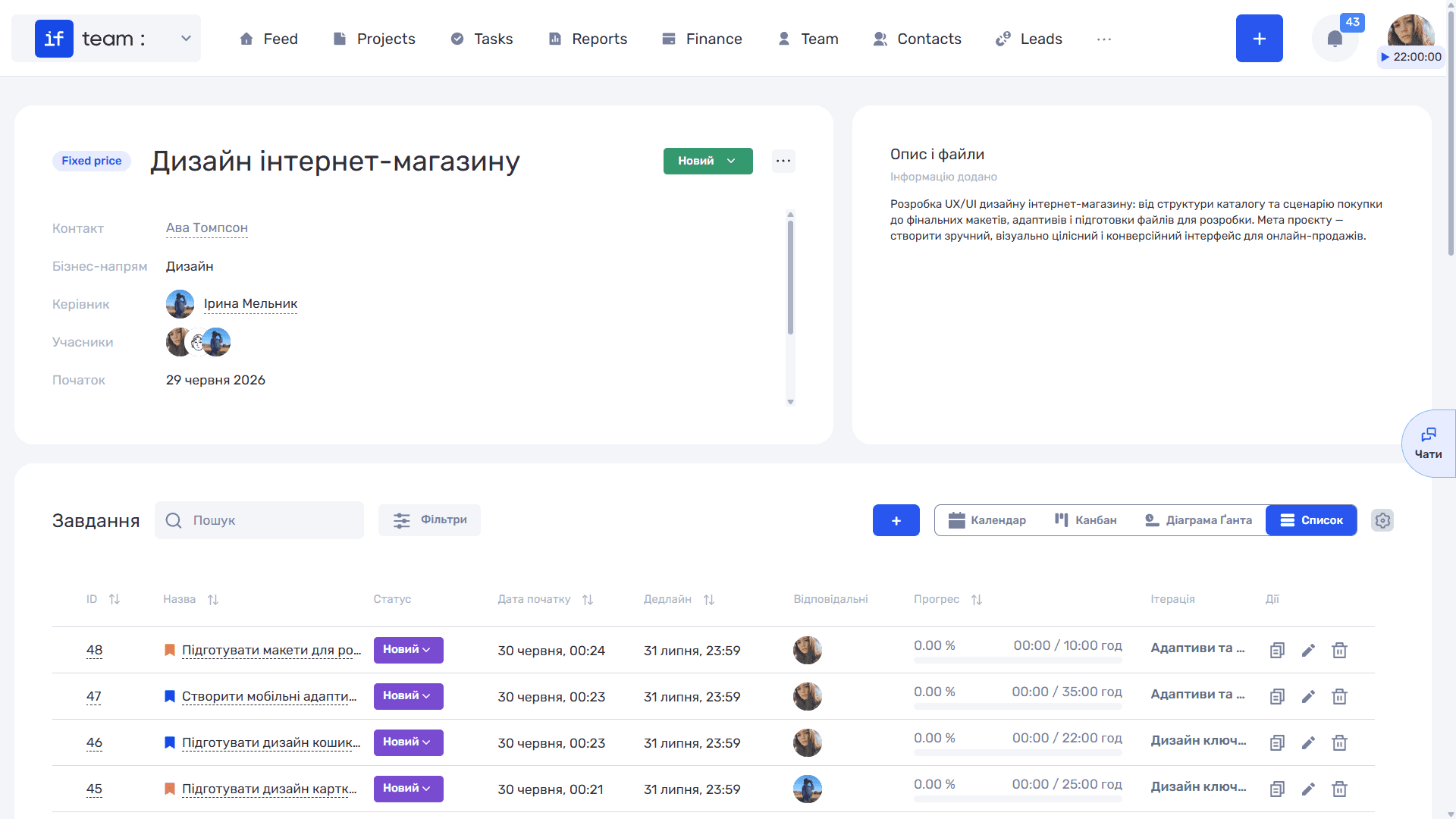
The project screen consists of several blocks:
- Card — name, status, client, business line, manager and members, start and end dates, budget.
- Tasks — the whole scope of work, broken down into tasks and iterations. View them as a list, on a Kanban board, in a calendar, or on a Gantt chart.
- Finance — the project's income, expenses, and planned figures. Here you can see how much has been earned, how much has been spent, and what is left of the budget.
- Documents and files — contracts, briefs, and designs attached to the project.
- Discussion — the project chat, which you can invite the client to.
The set and order of blocks are not fixed: you can tailor them to your team with custom dashboards.
Project types
When creating a project, you choose a payment model. It determines how if.team calculates the project economics:
- Fixed Price — the cost is known in advance. The budget is fixed; team expenses reduce the profit but do not change the amount the client pays.
- Time & Material — the client pays for actual time. The cost is made up of hours worked and employee rates, so it grows along with the work.
The other fields of the form — client, budget, currency, dates, team — are described in Creating a project.
Statuses and business lines
The status shows what stage the project is at: new, in progress, on hold, completed. You can add your own statuses to the default set in the admin panel. In the project list, statuses are shown as tabs, so switching between “in progress” and “completed” takes one click.
Business lines group projects by type of activity, for example “Web development”, “Design”, “Branding”. Each line can have its own settings, templates, and finances.
Iterations
A large project is easier to manage in iterations — stages with their own deadlines and set of tasks: “Research”, “Design”, “Development”, “Testing”. This way you see progress not only by individual tasks but also by stage, and you can plan the team's workload several weeks ahead. Time and money in reports are also broken down by iteration.
Where to start
Create a project, set its type and budget, add the team, and move on to tasks. If similar projects recur, save the first one as a template: the next ones will take seconds to create.
Completing a project with nested items
When you complete a project, if.team checks the unfinished iterations, sub-iterations, and tasks inside it and shows them in one window. There you can choose which items to close and which final status to assign. The system does not close everything without a check: the choice is yours. In the same way, you can complete an iteration together with its sub-iterations and tasks, and a task together with its subtasks.
Still have questions?
Maybe we haven't added this information yet. But you can always reach out:
Request a demo
Submit a request and we'll show you how the service works and its capabilities.
Book a demo