Project Templates
If you frequently create projects with the same structure, templates can save time. Instead of completing all fields from scratch every time, you can save any existing project as a template and use it to launch new projects quickly. When you create a new project, the system automatically populates a
How to Save a Project as a Template
- Open the page of the project you want to save as a template.
- Click the menu icon (⋯) next to the project status.
- Select “Save as Template.”
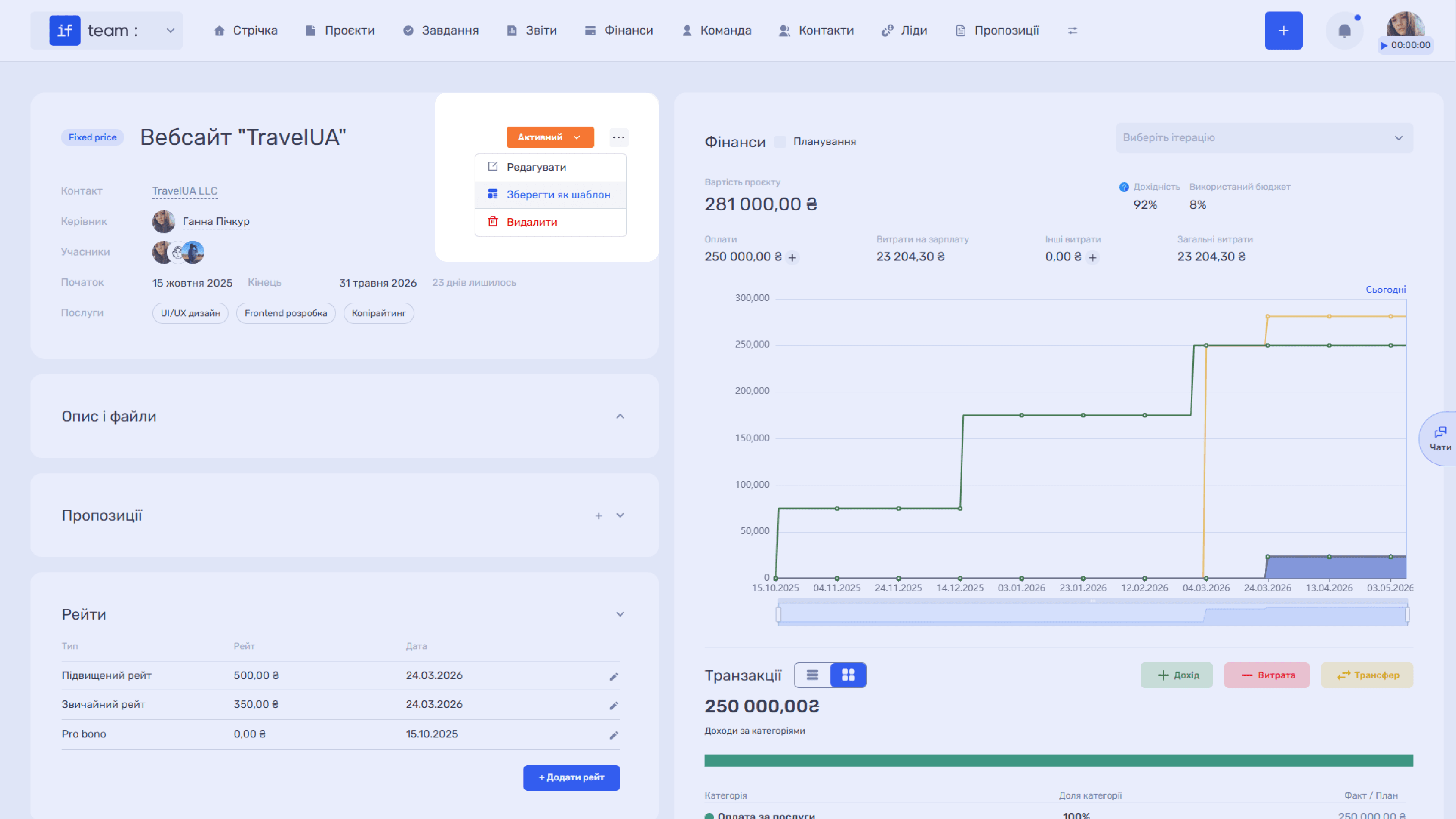
- In the modal window, enter the template name and click “Create.”
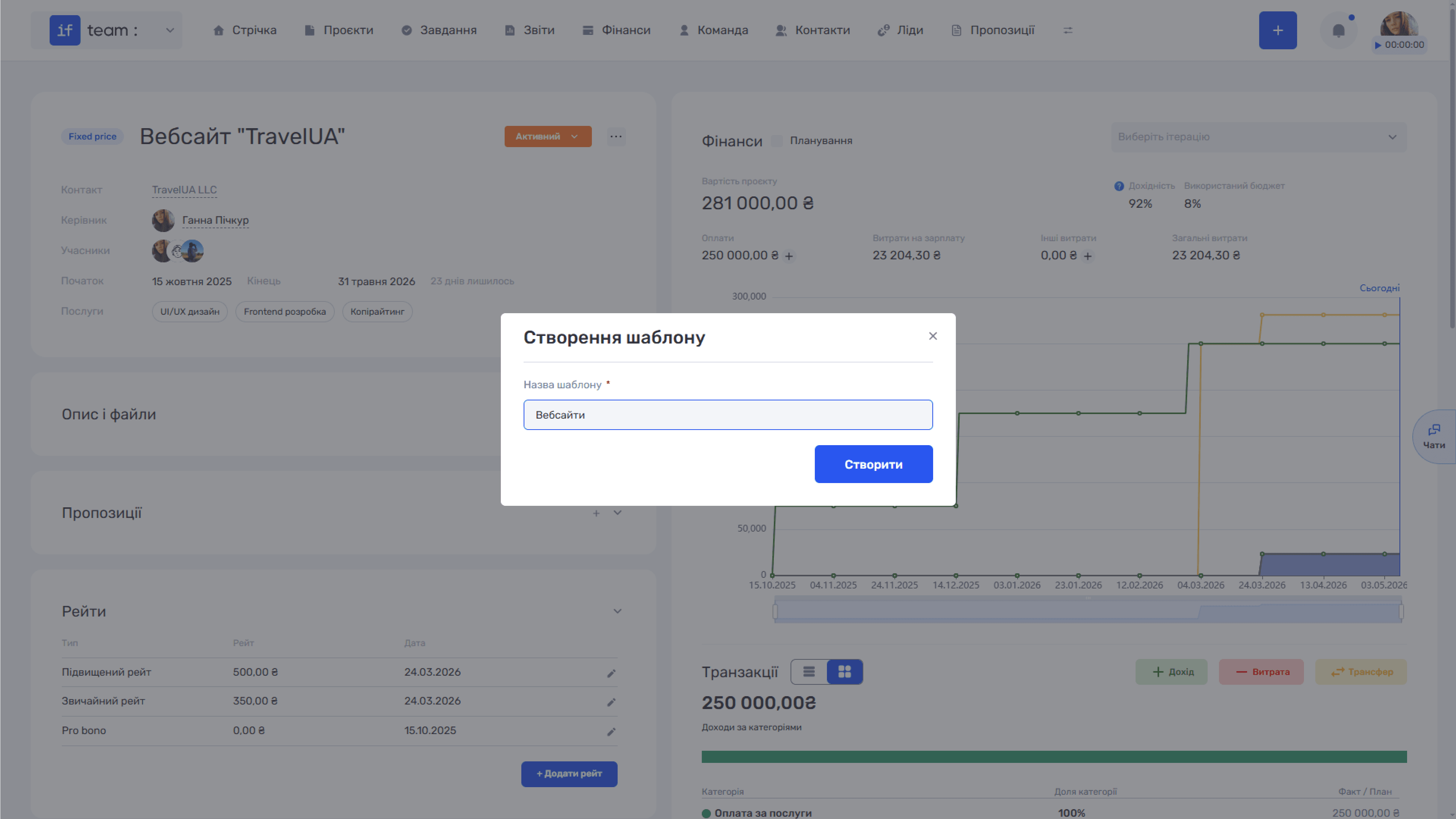
A confirmation appears after the template is saved successfully.
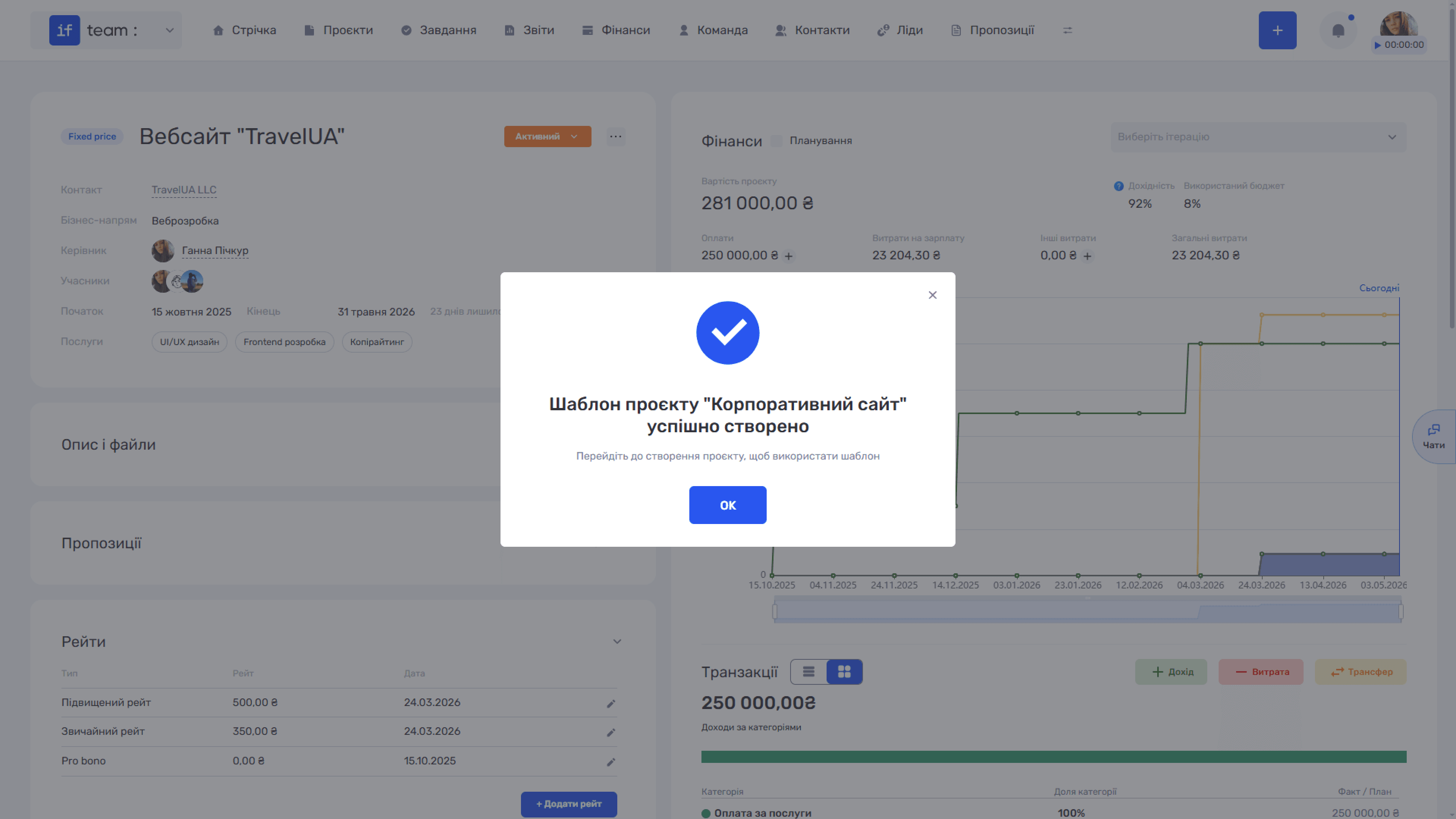
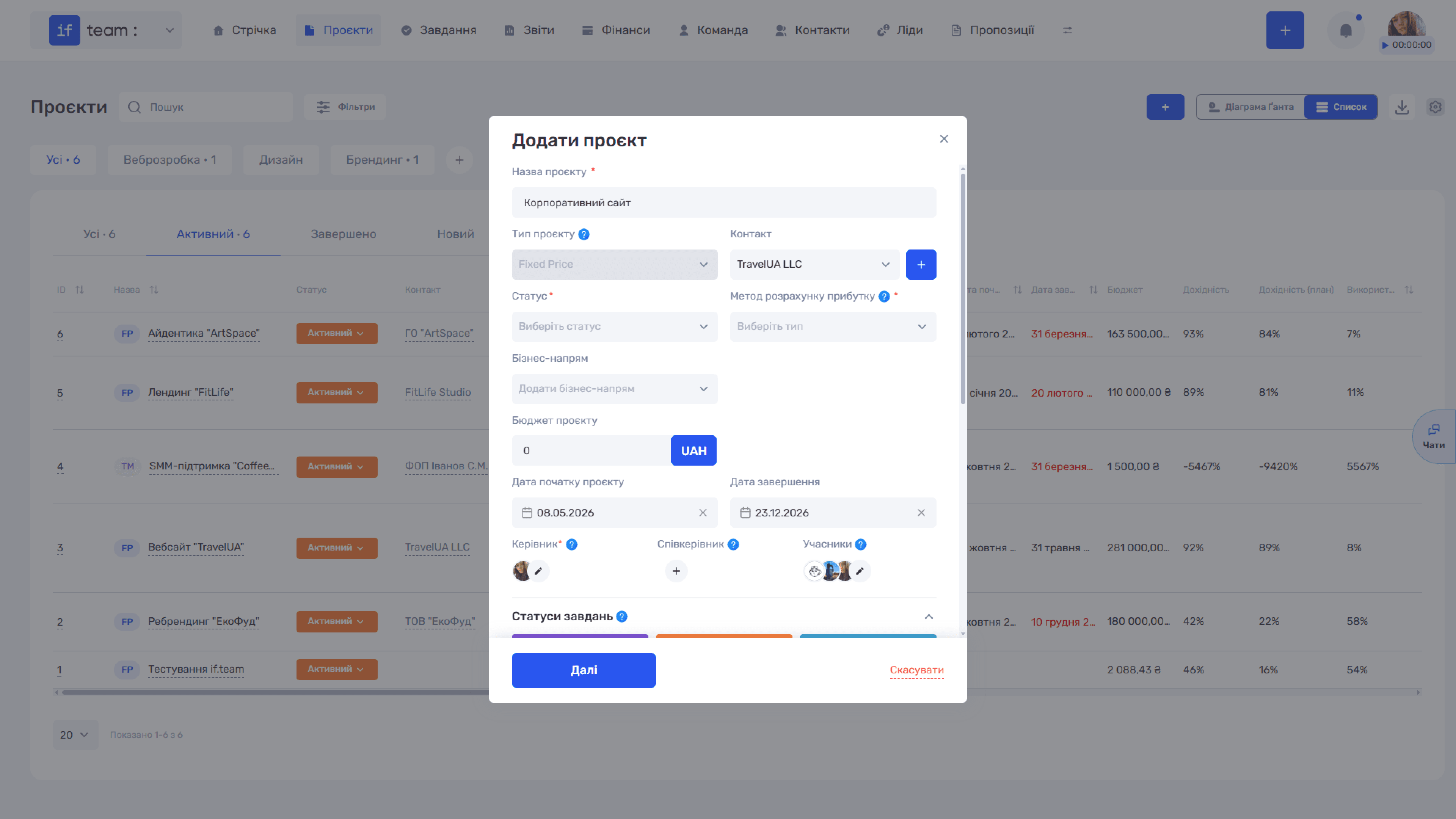
The template is saved with the project type, contact, members, services, custom fields, and other settings from the original project. You will not need to enter this information manually next time.
How to Create a Project from a Template
- Click “+” on the projects page to open the “Add Project” form.
- Click “Select Template” at the bottom of the form.
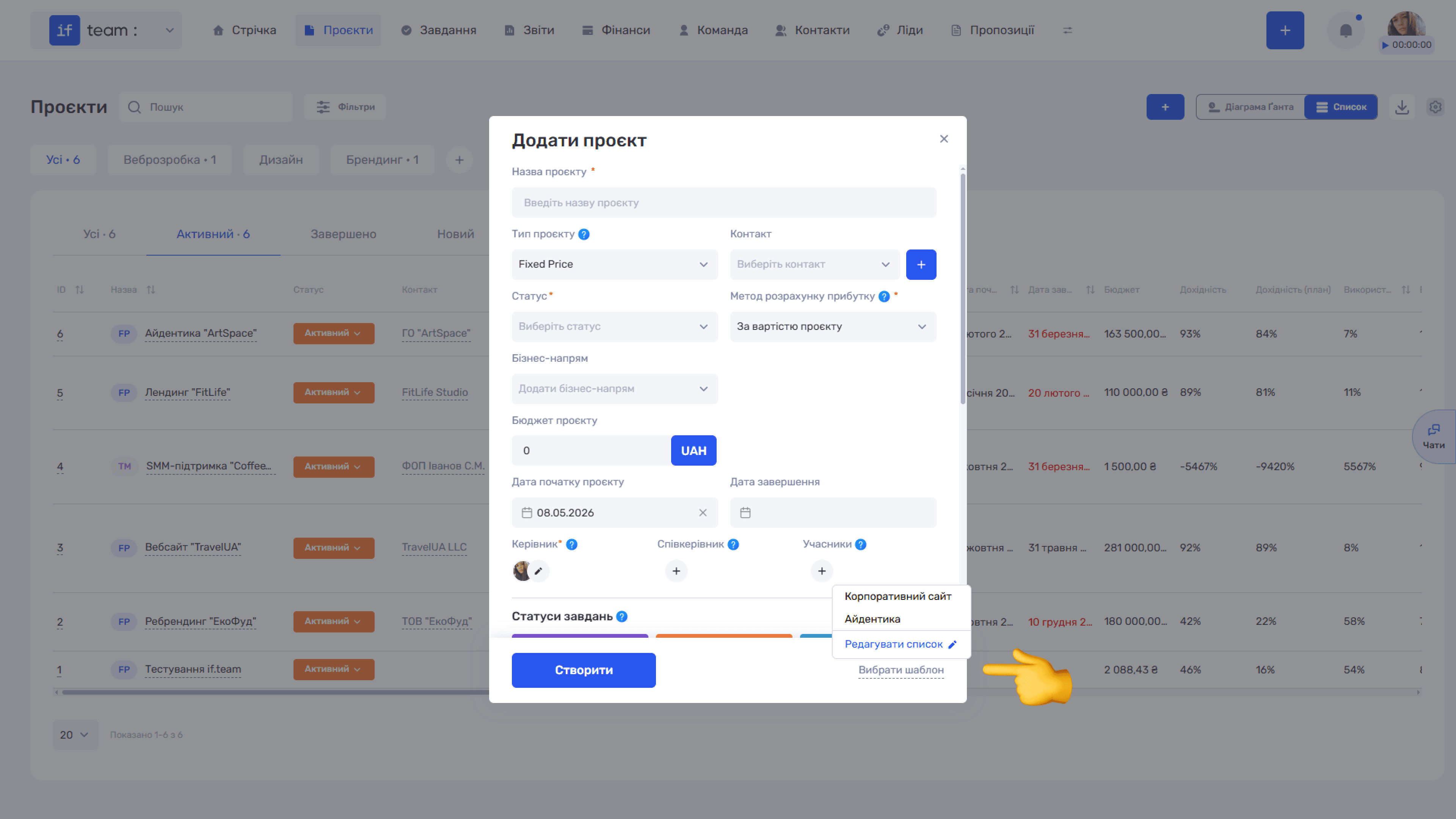
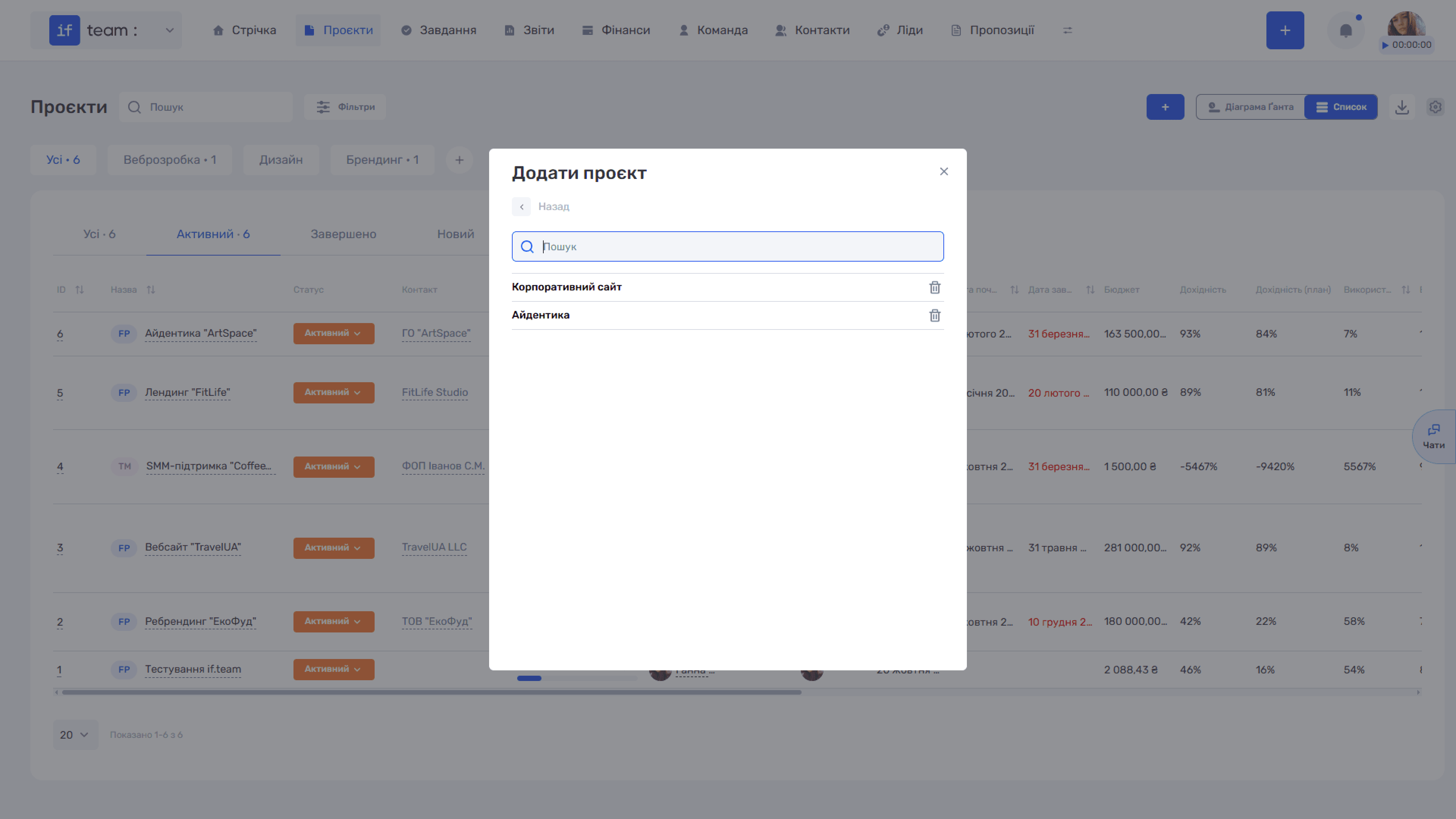
- Select the required template from the drop-down list. The form is automatically populated with the name, project type, contact, and other settings. If you have many templates, click “Edit List” and use search.
- If necessary, edit the fields that need to change, such as dates or budget, then click “Next” to continue or “Cancel” to stop. If you decide not to use the template, click “Cancel.” The form is cleared, allowing you to complete it manually or choose another template.
Templates and Custom Fields
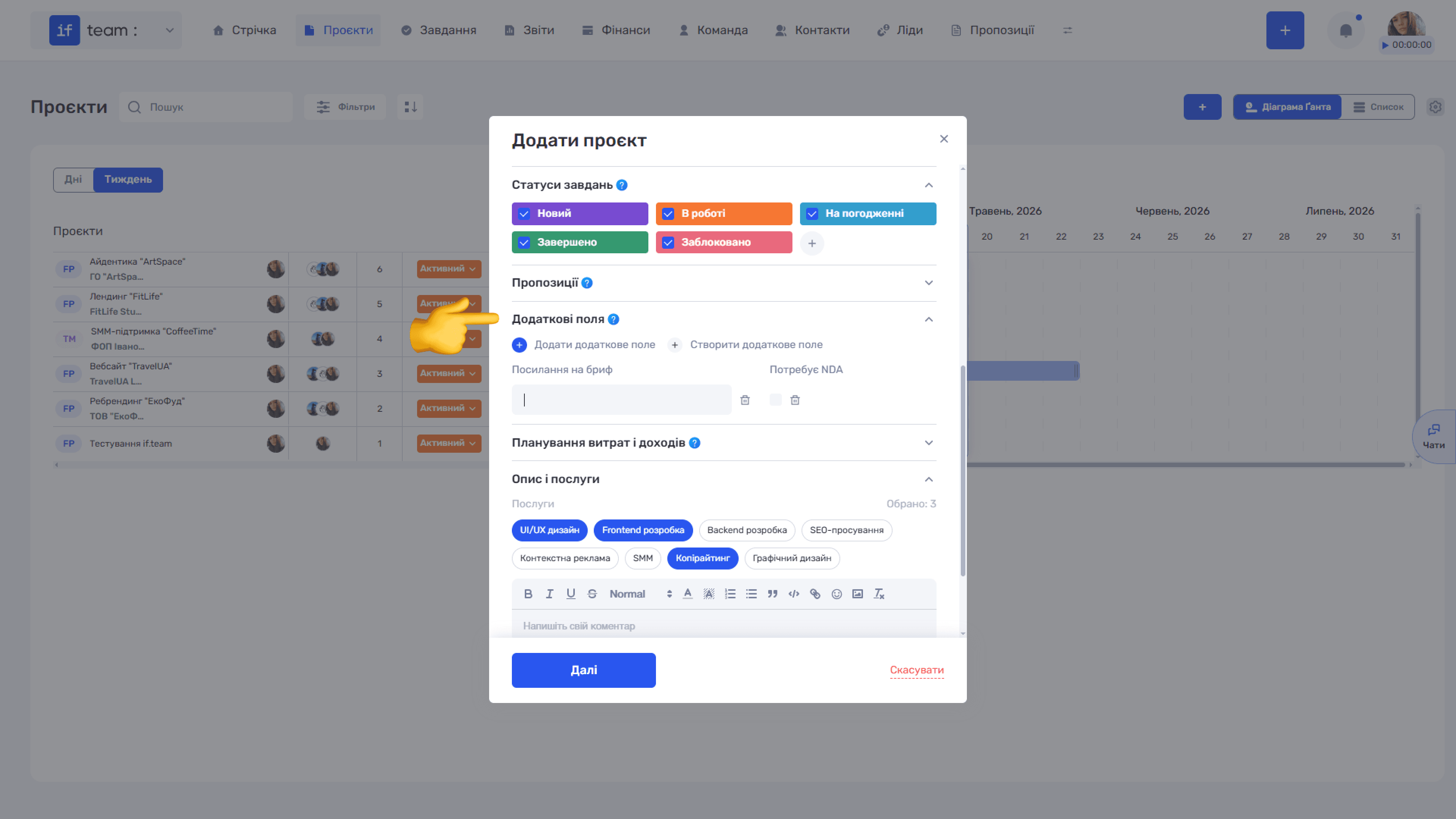
Templates are integrated with Custom Fields for Projects. All additional fields created for your company’s projects in the settings are automatically saved in the template. This lets you adapt if.team more precisely to your processes and standardize common team workflows.
Managing Templates
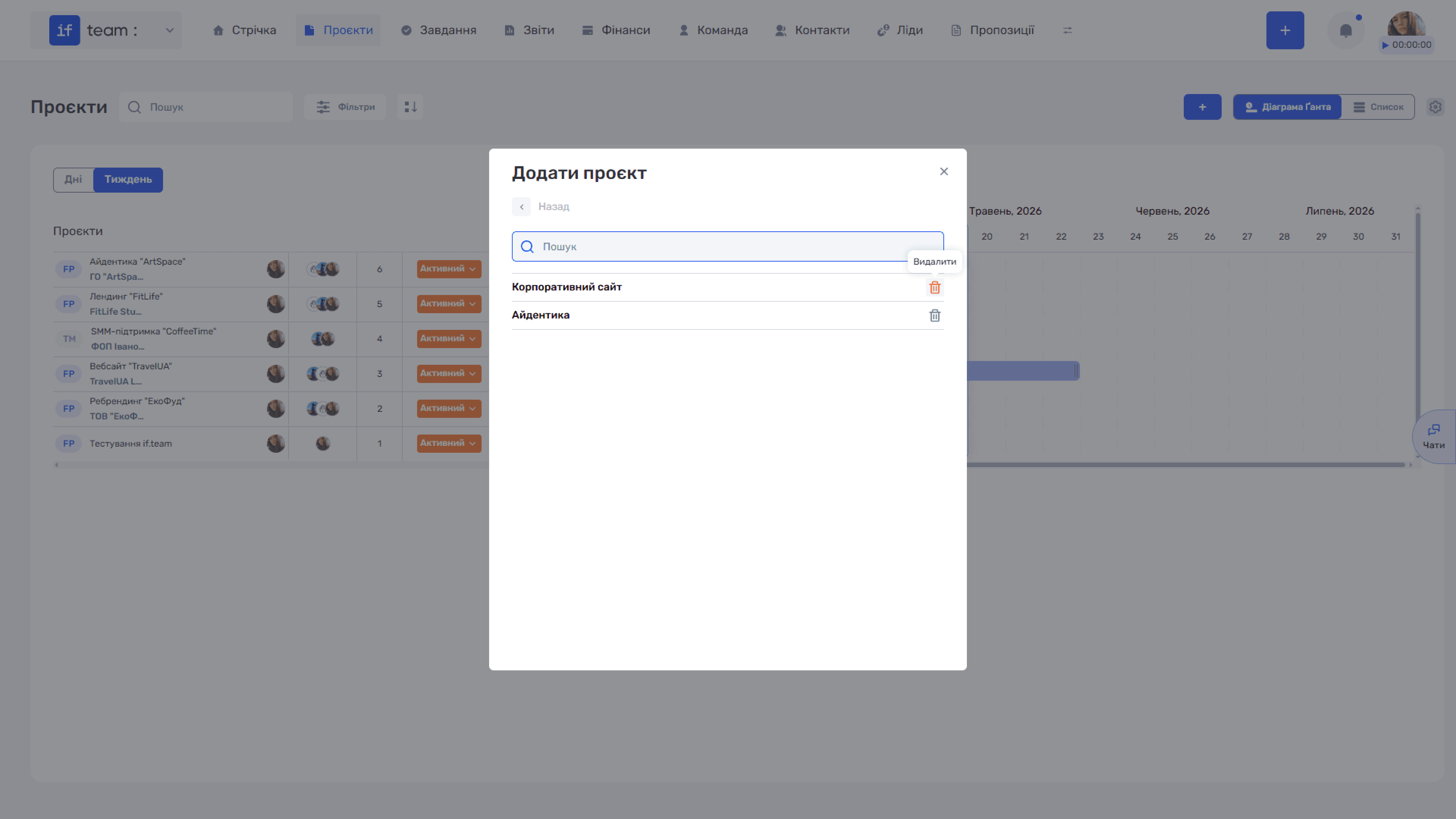
Click “Edit List” in the template drop-down to view all saved templates. Here you can find a template using search or delete one you no longer need by clicking the trash icon (🗑).
Still have questions?
Maybe we haven't added this information yet. But you can always reach out:
Request a demo
Submit a request and we'll show you how the service works and its capabilities.
Book a demo