Custom Project Dashboards
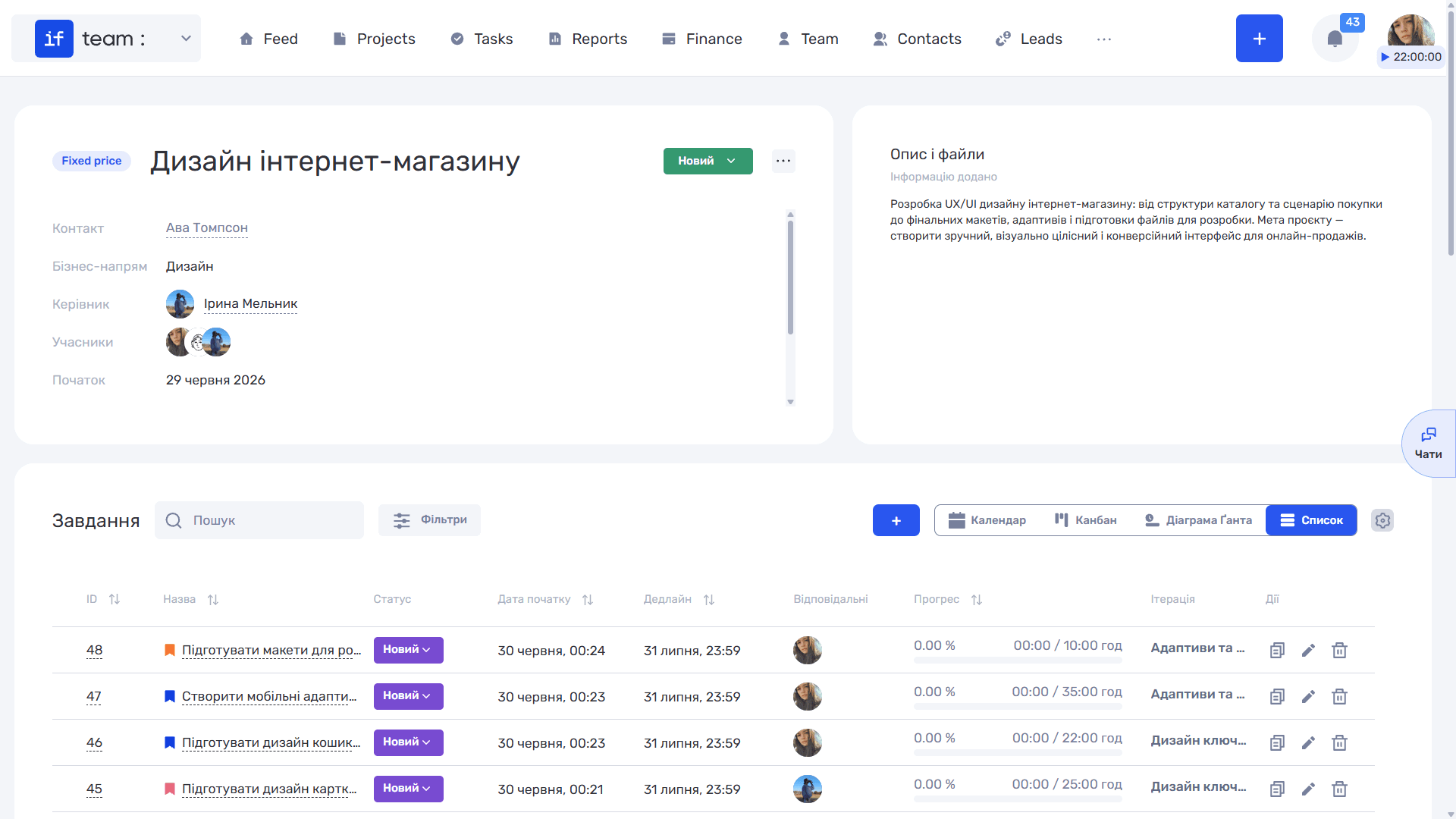
Each project screen in if.team can be adapted to the needs of a particular project, team, or business line. This lets you prioritize the information most important to the work: finances, team workload, task progress, documents, discussions, or other metrics.
With dashboards, you can:
- add, move, and hide widgets;
- create several dashboard templates in company settings;
- apply different templates to different projects;
- set a template as the default for specific business lines.
Dashboard Builder
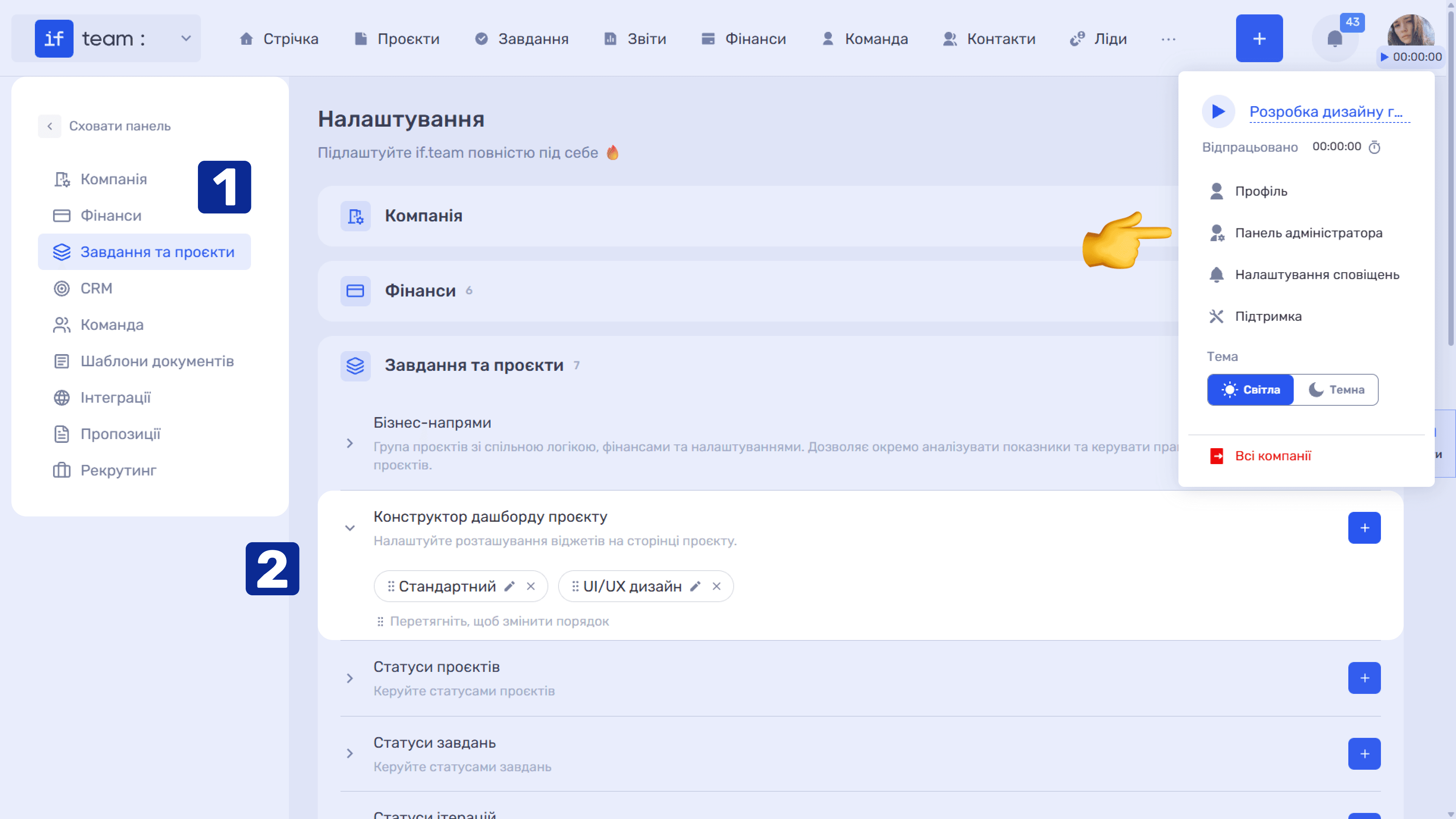
Dashboard templates are configured in the Admin Panel under Settings (Tasks & Projects → Project Dashboard Builder). All saved templates are listed here. You can edit, delete, and drag them to change their order.
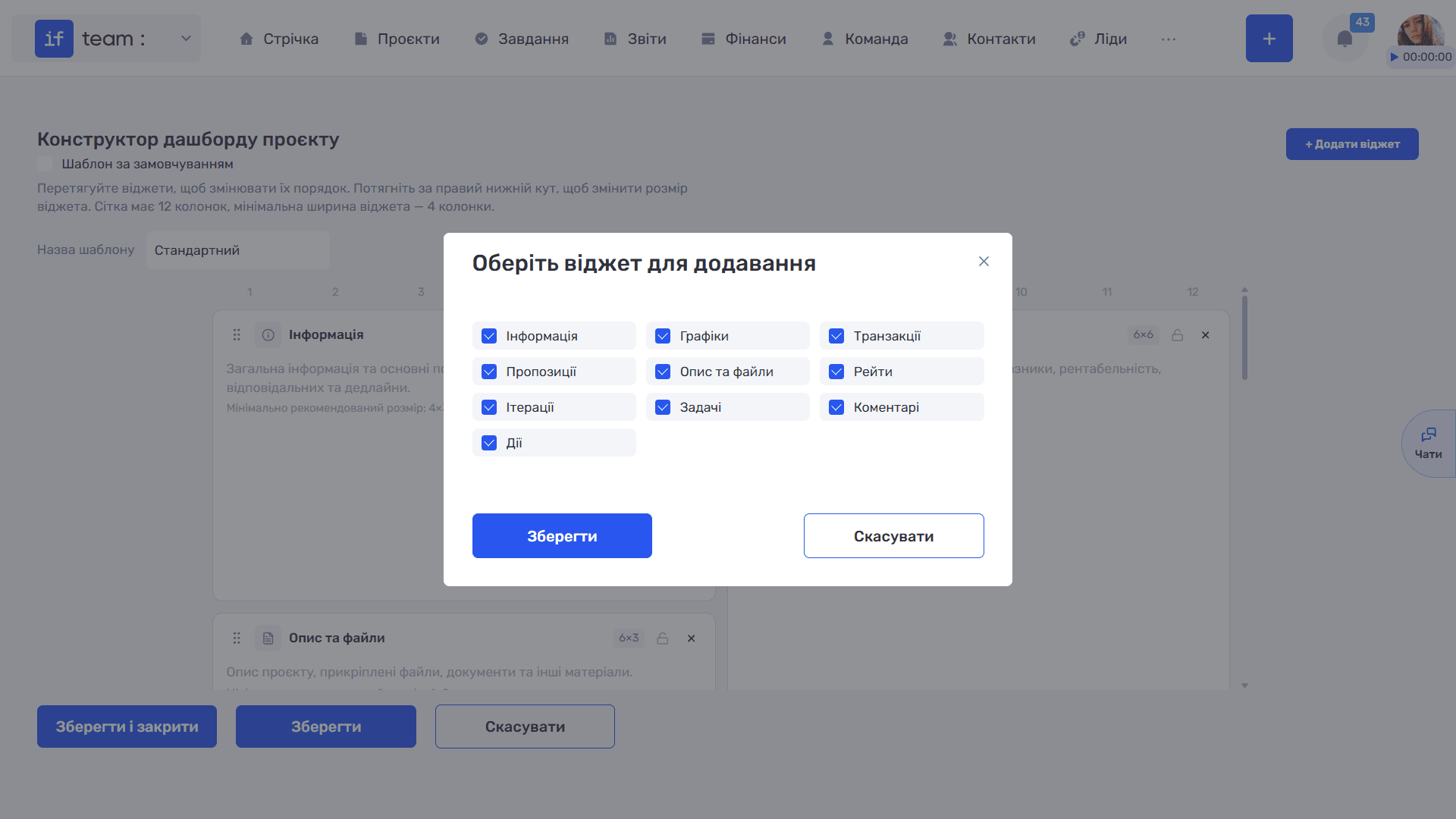
Open the builder to create or edit a template. The workspace is a 12-column grid, and a widget must be at least four columns wide. Enter the template name, use “+ Add Widget” to add widgets, drag them using the handle icon (⠿) to change their order, and drag the lower-right corner to resize them. Available widgets include Information, containing general project data and key metrics; Charts; Transactions; Quote; Description and Files; Rates; Iterations; Tasks; Comments; and Actions.
Save the template using “Save” or “Save and Close.”
How to Apply a Template to a Project
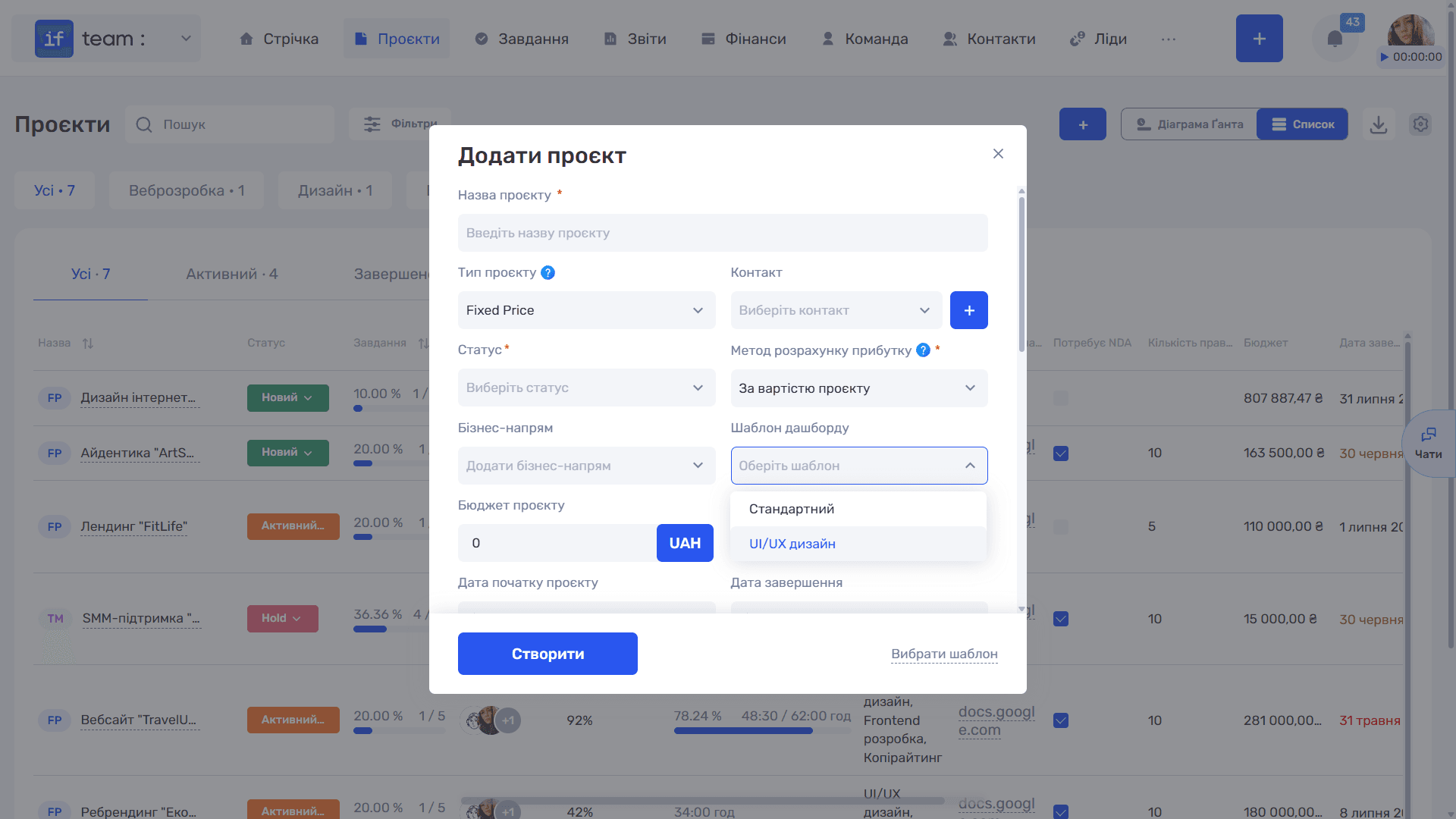
Open the project creation form and select the required template from the “Dashboard Template” field. You can set a template as the default for a business line so that it is applied automatically to projects in that line.
Still have questions?
Maybe we haven't added this information yet. But you can always reach out:
Request a demo
Submit a request and we'll show you how the service works and its capabilities.
Book a demo