
Project completion with tasks, time entry transfers, and project economics in reports
A completed project can still contain open tasks, and tracked time sometimes ends up in the wrong card. We updated if.team to make these inaccuracies easier to fix: nested items can be closed together with the project, time entries can be moved, and project economics can be reviewed in reports.
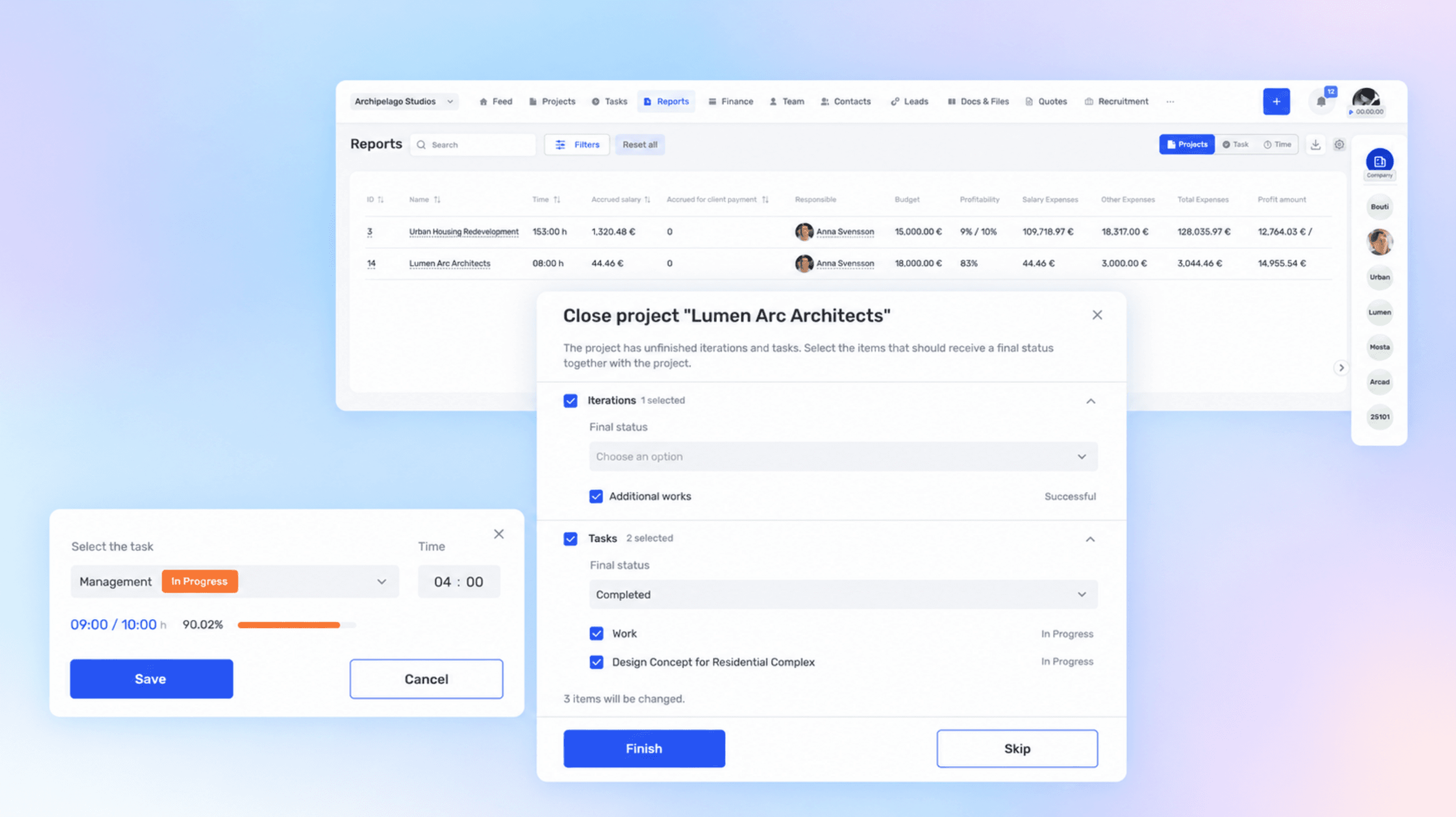
A completed project can still contain open tasks, and tracked time sometimes ends up in the wrong card. We updated if.team to make these inaccuracies easier to fix: nested items can be closed together with the project, time entries can be moved, and project economics can be reviewed in reports.
Check what is still open
When you complete a project, if.team checks for unfinished iterations, sub-iterations, and tasks inside it. The system shows them in one window and lets you choose which items to close and which final status to assign.
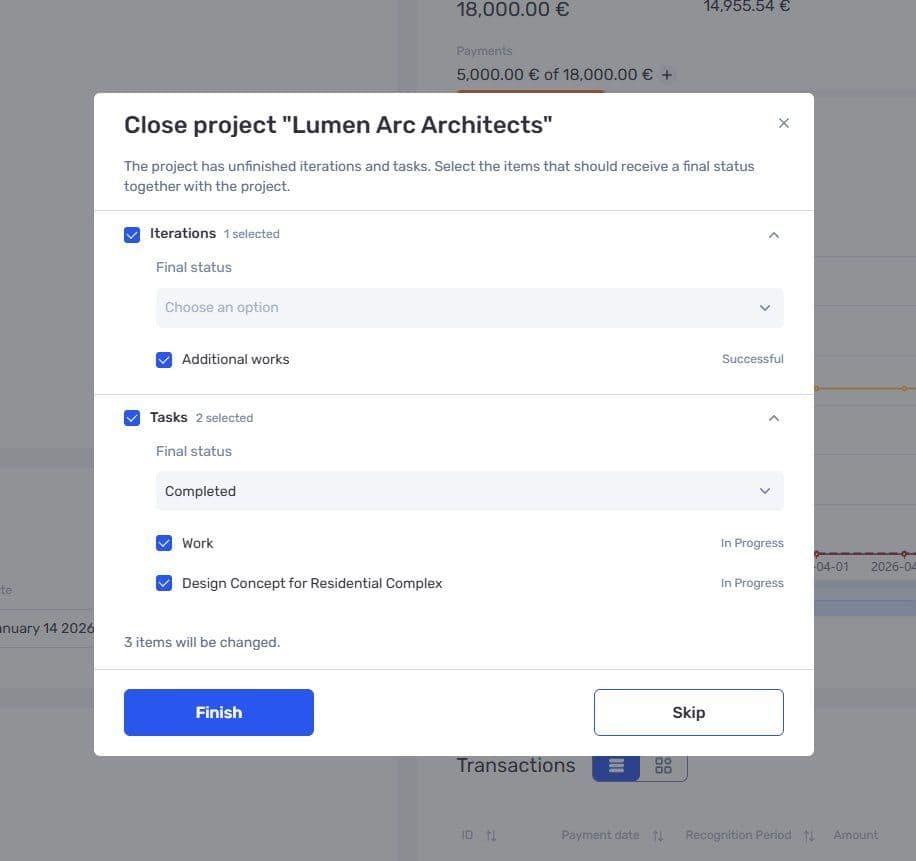
Selecting nested items and final statuses when completing a project
For example, the team has already handed the work over to the client, but several finished tasks still have the “In progress” status. You can complete them in the same window. The choice stays with you: the system does not close everything without a check.
The same principle works at other levels. You can complete an iteration together with its sub-iterations and tasks, and a task together with its subtasks. So you don’t need to open every card separately to tidy up statuses.
Move time to the right task
Before summing up the results, it is worth checking time tracking too. If the timer was running in the wrong task, you no longer need to delete the entry and create it again: the time can be moved to another task in full or in part.
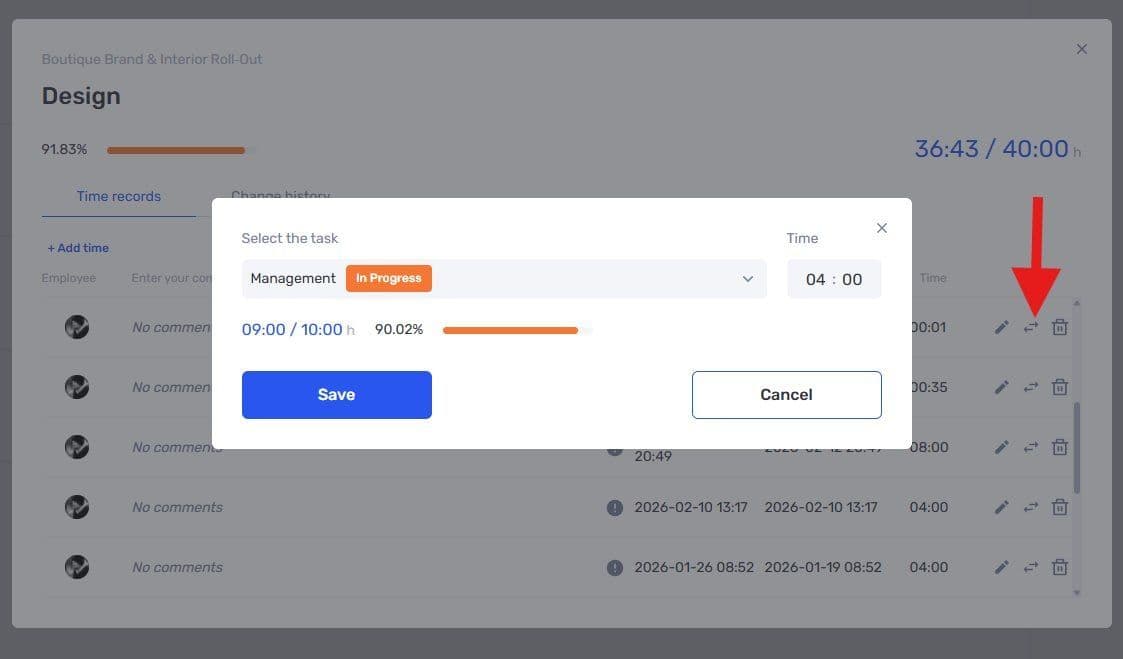
Moving part of a time entry to another task
Say you worked on a mockup for two hours, but spent the last half hour discussing a different task. In this case, you can move just the relevant part of the time. The action is available within your permissions, and the transfer is recorded in the change history.
We added the time entry history itself earlier — we covered it in the update on tasks and subtasks. Now it also helps you trace corrections like these.
Limit time entry to the work schedule
In the employment mode settings, you can prohibit tracking or entering more time than planned for the day. The limit applies to both the timer and manually added entries.
If certain administrative roles need to enter time beyond this limit, you can make an exception for them. Each company decides whether it needs the limit and who it applies to.
Review project economics in reports
Once statuses and time are checked, you can move on to results. Project economics metrics are now available in the Reports section. Previously, these figures could be viewed as a table in the project list. To bring key project metrics together on one screen, see our guide to project dashboards.
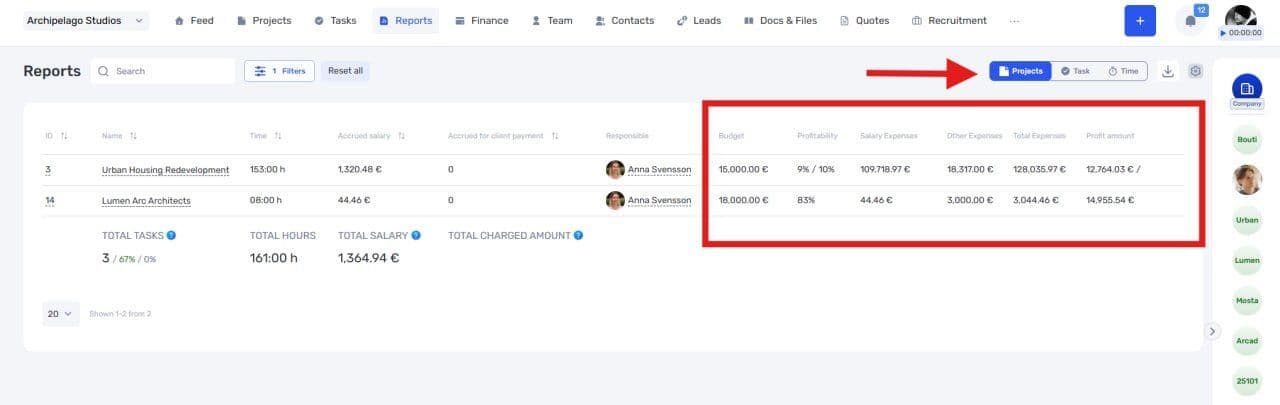
Project economics metrics in Reports
This lets you work with financial metrics in the same place where you analyze projects and working time. If you haven’t used this section yet, start with the guide to viewing reports.
Each project’s own page is still the place to examine it in detail. In the previous economics update, we showed where to see the remaining balance and how to switch the display currency.
View materials without downloading
Daily work isn’t only statuses and numbers. Teams attach meeting recordings, demos, and video explanations to tasks and projects. Attached videos can now be played right in if.team — in tasks, projects, and documents.
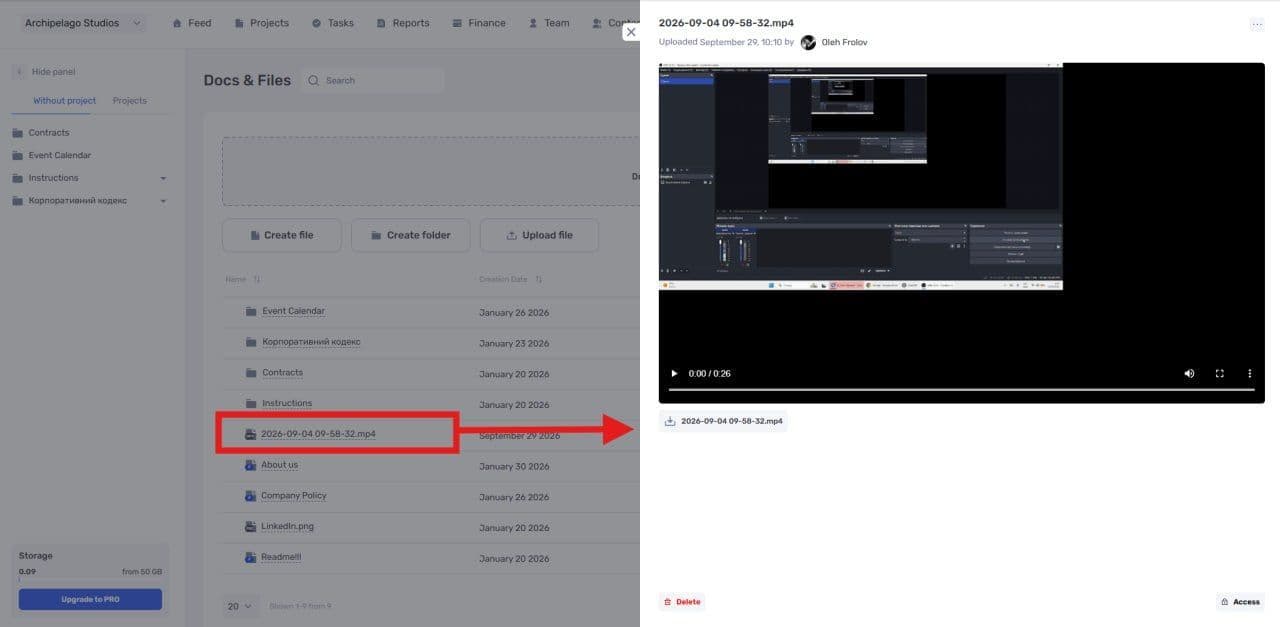
Watching an attached video in the built-in player
For example, a colleague can open a recording that explains the revisions right where the work materials are stored. There is no need to download the video file to your computer first. This complements the existing office file previews.
if.team also remembers the last selected task view separately for each project. If you run one project on a Kanban board and view another as a list, you won’t have to switch them back every time. For keyboard users, we added closing modal windows with Esc, confirming actions with Enter, and moving between elements with Tab.
Viewing candidates is easier in Recruiting
A separate improvement concerns hiring. The candidate card in a job application has been updated: key information is more visible, and you can quickly preview the résumé.
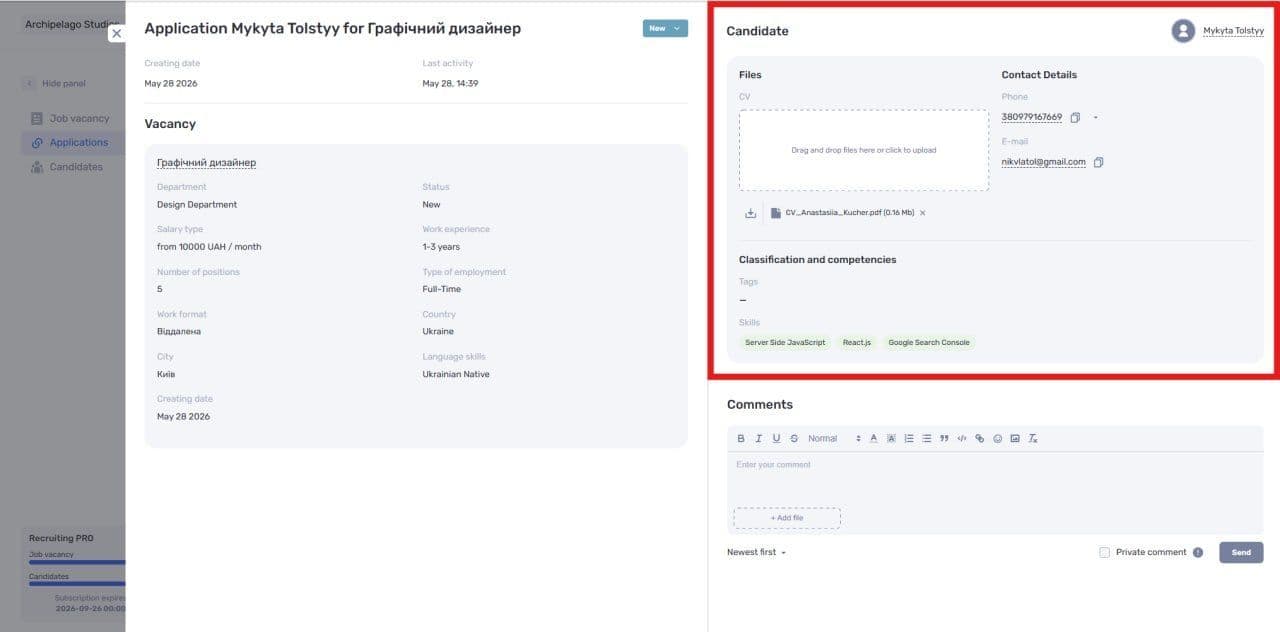
Candidate details and résumé in a job application
A recruiter can review the person’s details and go straight to their experience. And if the candidate isn’t in the system yet, the Chrome extension for recruiting lets you transfer profiles from job sites.
Author
Vladyslav ChesnokovPublished
Oct 2, 2026
Was this update helpful?
Your feedback helps us prioritise what to ship next.
See if.team in action for your company
We’ll show how projects, team time and finances connect in one system, using your processes as an example.