Lead List
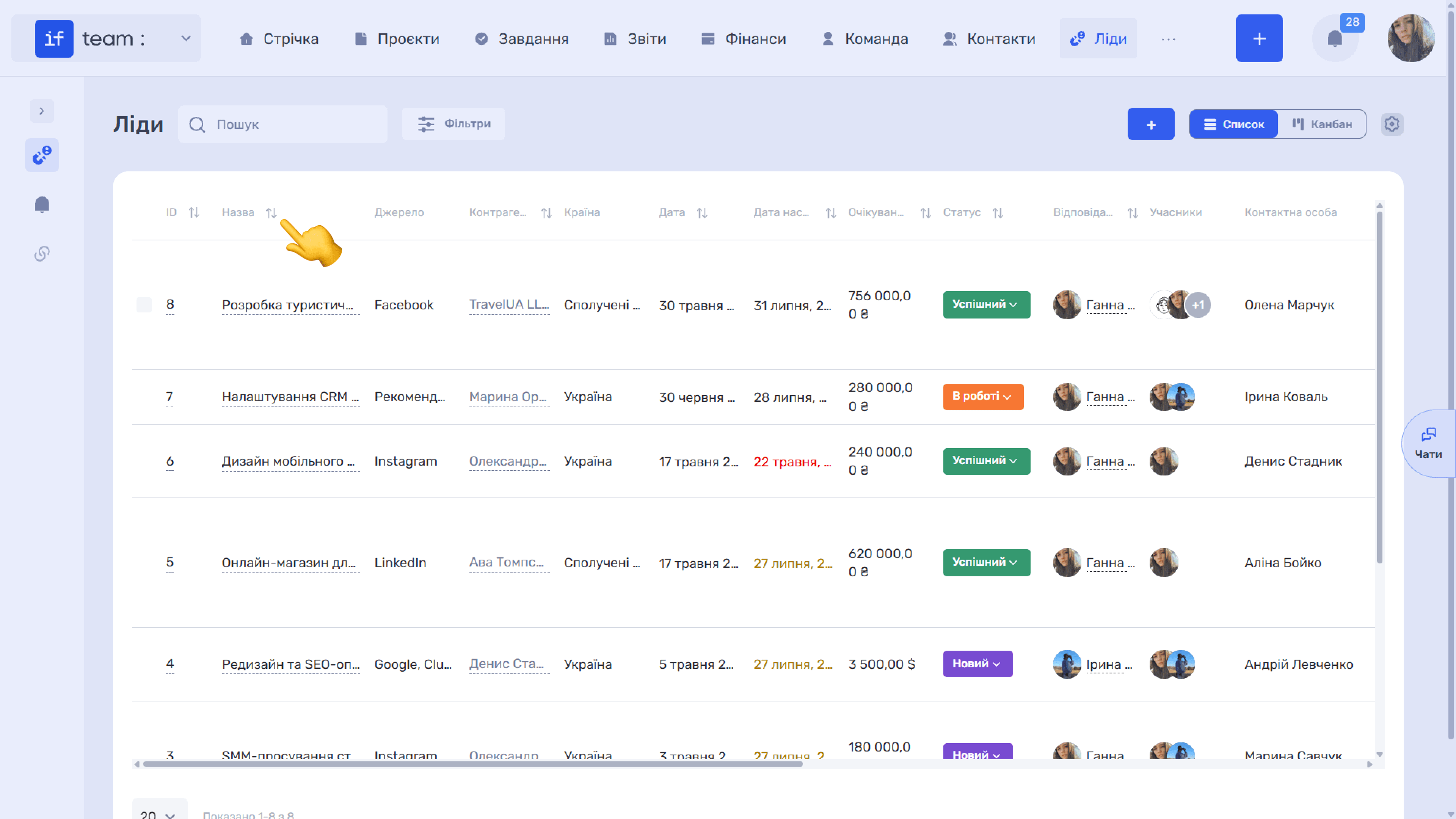
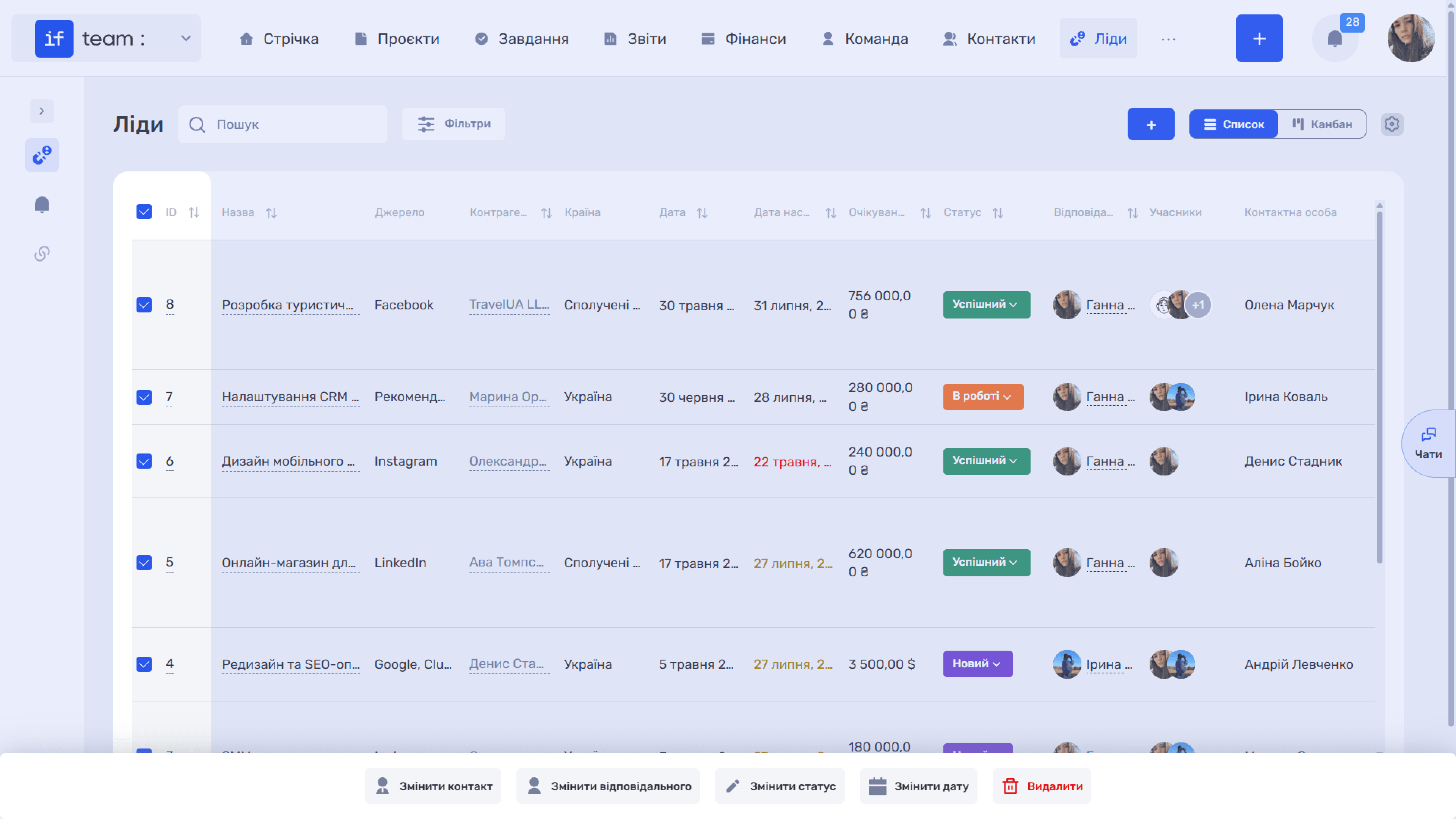
The “List” view displays leads in a table with the following columns: ID, Name, Source, Counterparty, Country, Date, Next Activity Date, Expected Budget, Status, Assignees, Members, Contact Person, Phone, Email, File, and UTM tags (utm_source, utm_medium, utm_campaign, and utm_term).
Use the arrows in the column headings to sort the list by ID, name, counterparty, dates, budget, or status. An overdue Next Activity Date is highlighted in red, making overdue leads immediately visible.
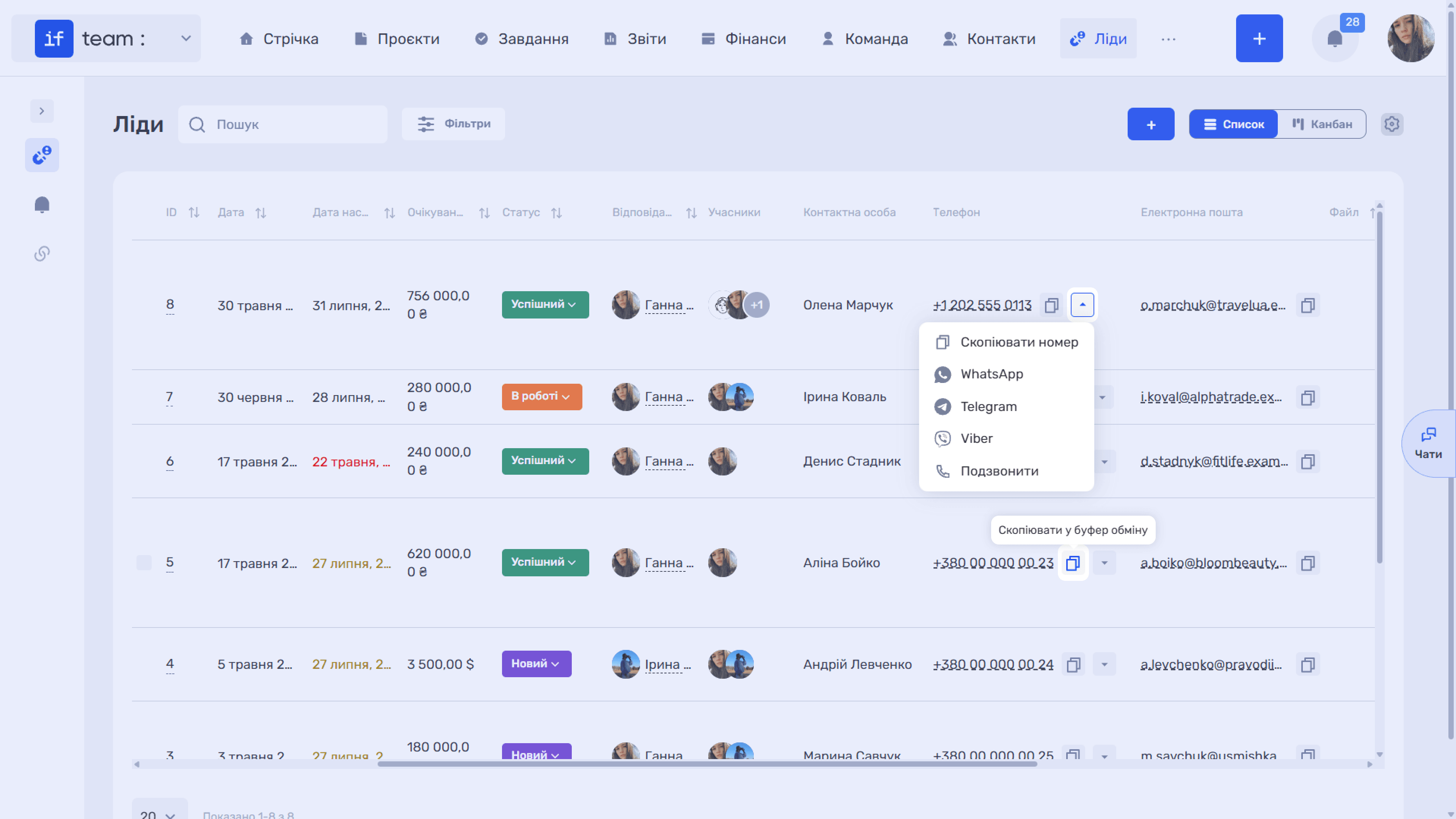
Change the status directly in the row using the drop-down list in the “Status” column, without opening the card. The phone and email fields have copy icons, while the arrow next to them opens quick actions; see Lead Card.
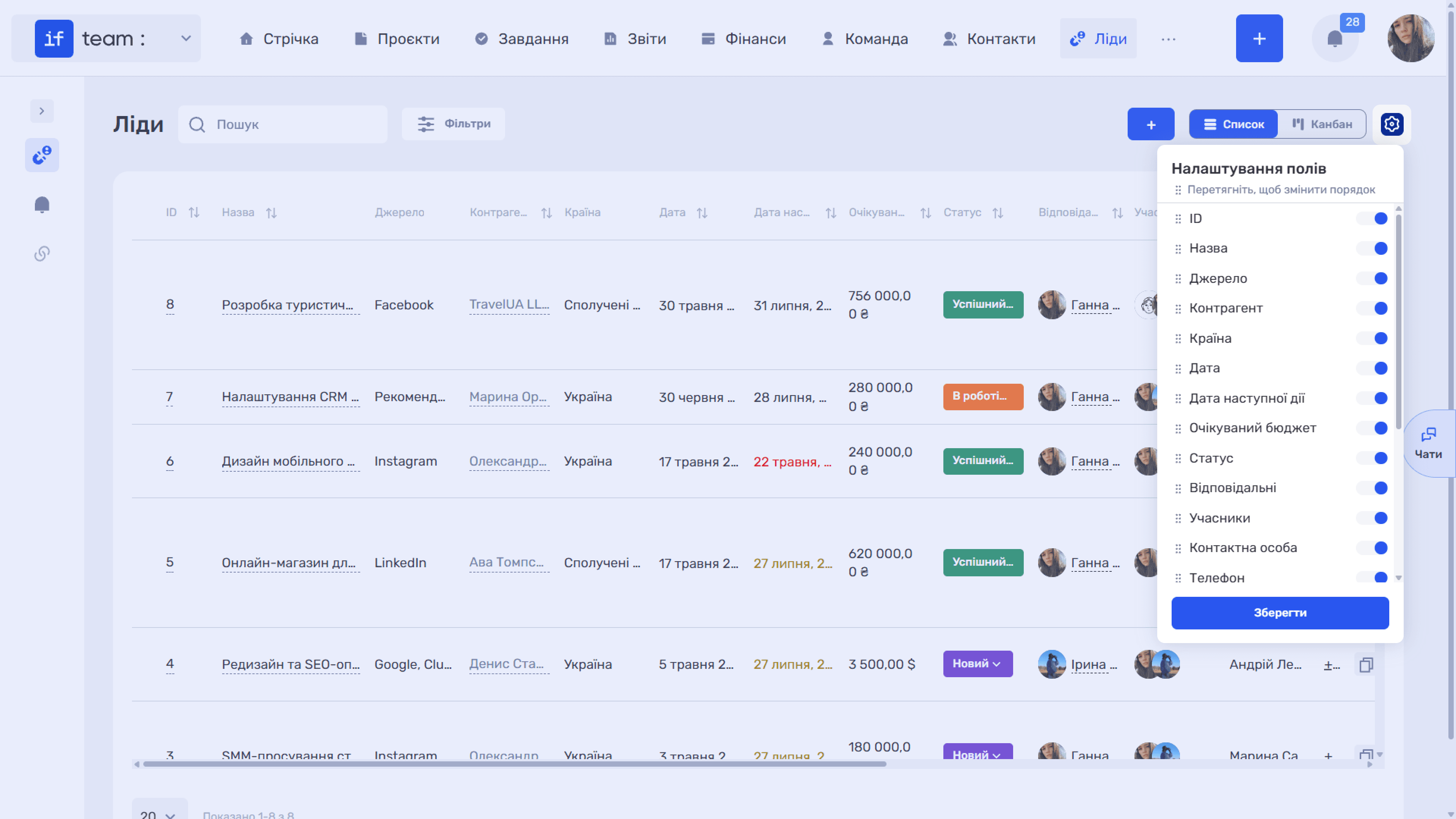
Column Settings
The gear icon opens the “Field Settings” panel. Enable, disable, or drag columns, then click “Save.”
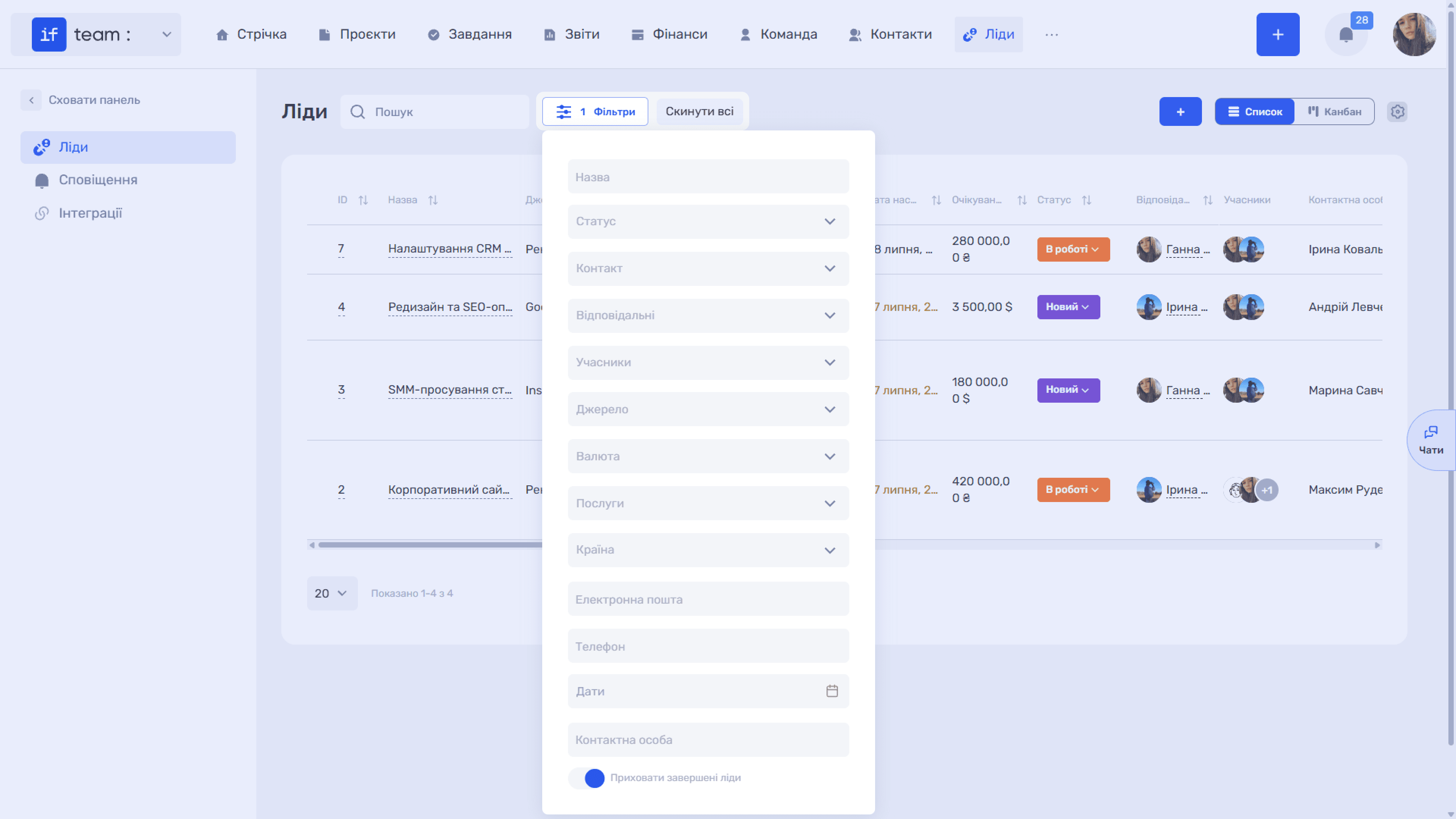
Filters
The “Filters” button narrows the list by Name, Status, Contact, Assignees, Members, Source, Currency, Services, Country, Email, Phone, Dates, and Contact Person. A separate “Hide Completed Leads” switch removes closed deals from the table, leaving only active work.
Bulk Actions
Select several rows using their checkboxes to display the following panel at the bottom: “Change Contact,” “Change Assignee,” “Change Status,” “Change Date,” and “Delete.” The checkbox in the table header selects all leads on the page.
Still have questions?
Maybe we haven't added this information yet. But you can always reach out:
Request a demo
Submit a request and we'll show you how the service works and its capabilities.
Book a demo