Lead Kanban
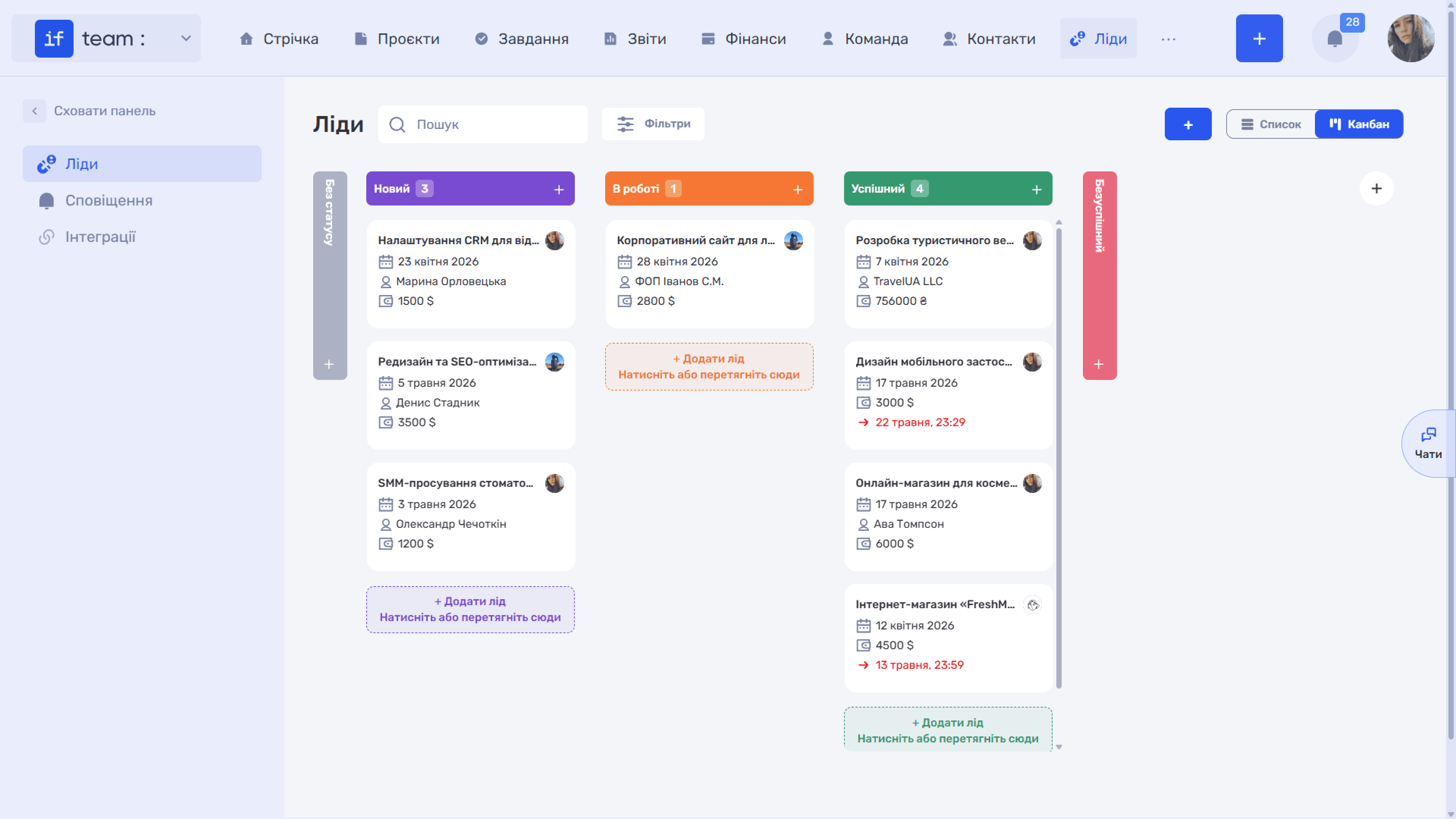
The “Kanban” view displays the same lead database as a pipeline, where columns represent statuses and cards represent leads.
The leftmost “No Status” column contains leads that have not yet been assigned a status. Your statuses follow it, with each column header showing the status name and the number of leads.
Each card shows the lead name, date, counterparty, expected budget, and the assignee’s avatar. If a next action is scheduled for the lead, the next-step date appears at the bottom. Overdue dates are highlighted in red.
How to use Kanban:
- Drag a card to another column to change its status.
- Use the “+” button in the column header or the “+ Add Lead. Click or Drag Here” field to create a lead directly in that status.
- Click a card to open the lead card.
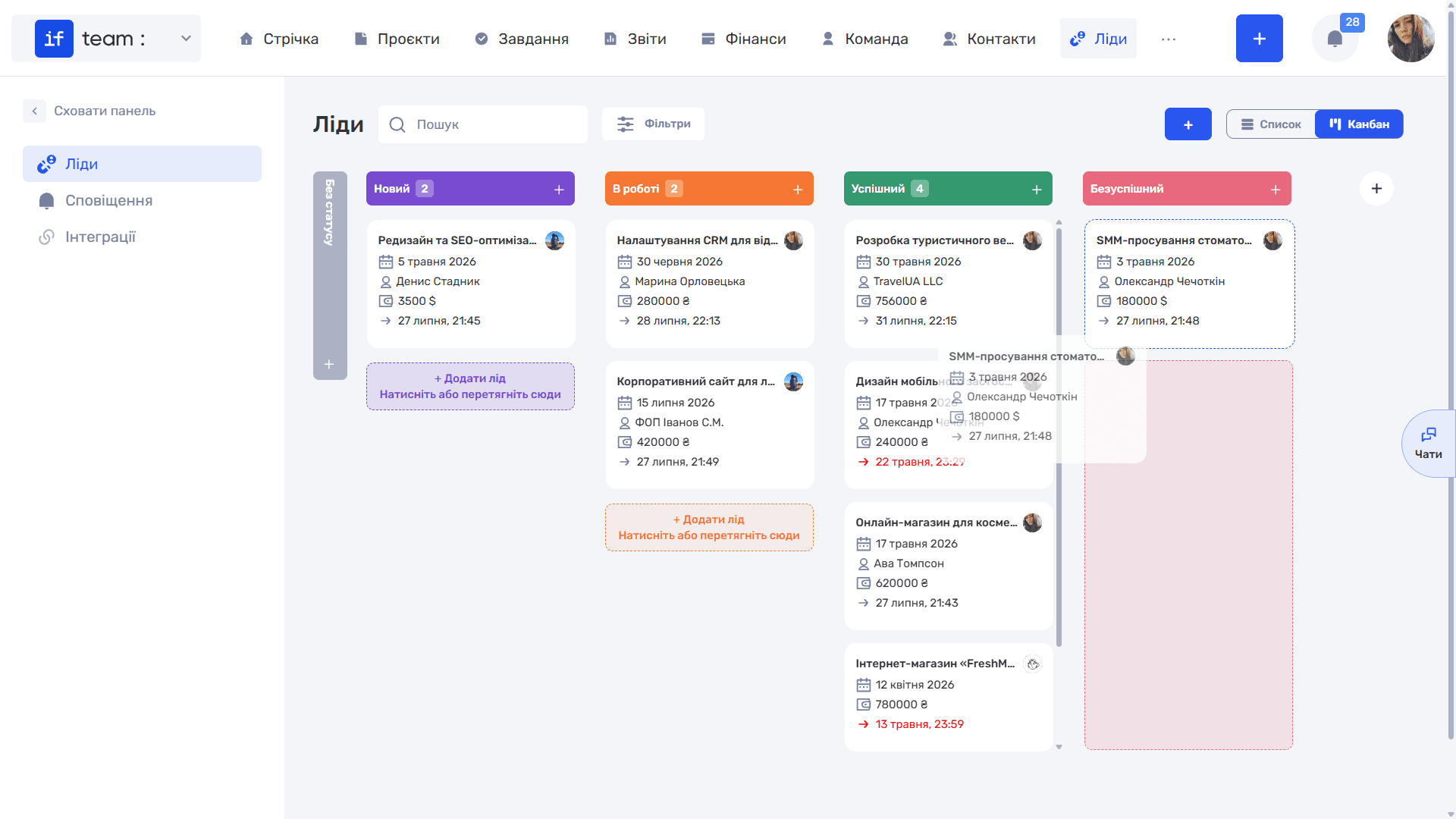
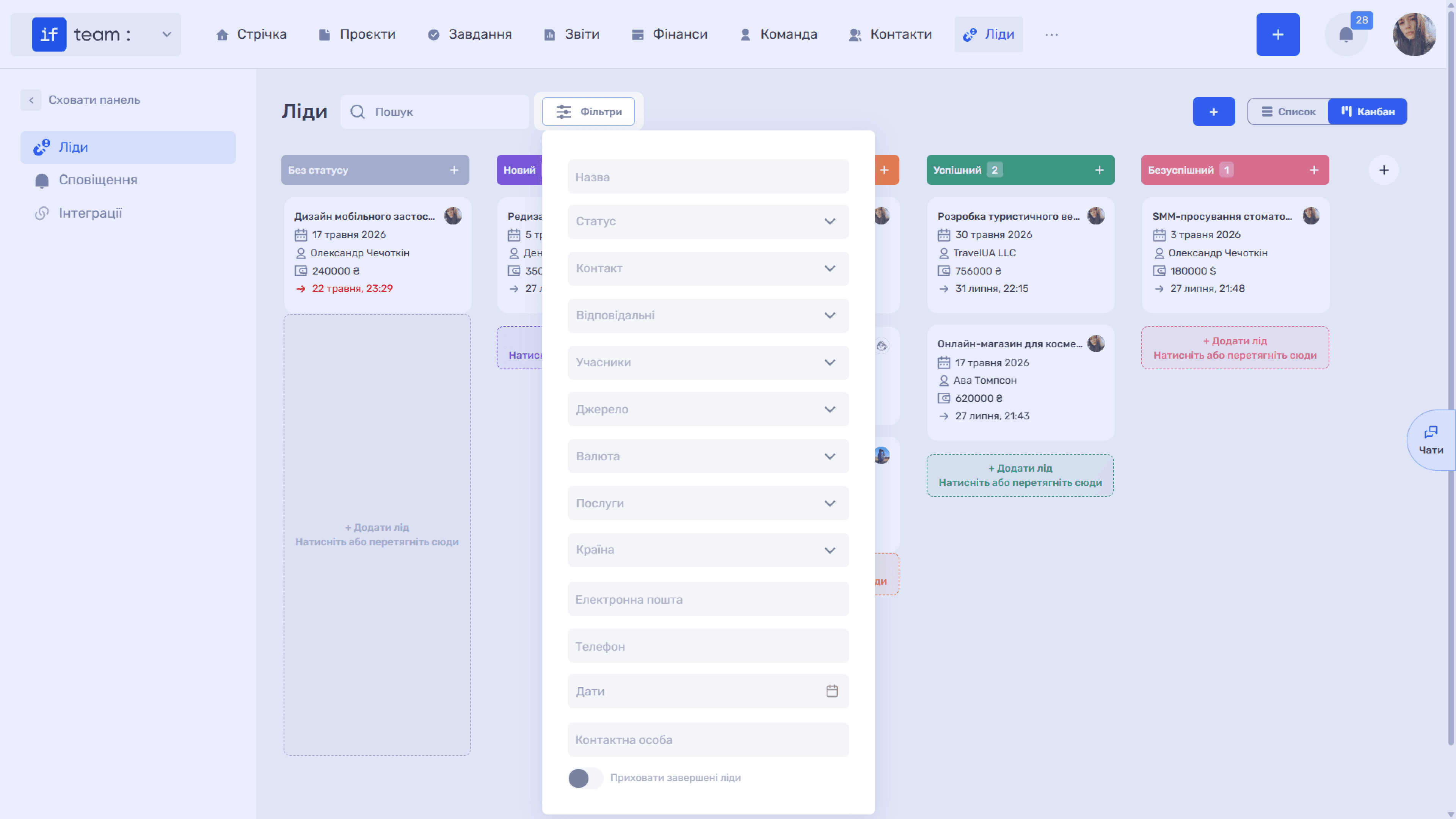
Search and Filters work in the same way as they do in the list. You can narrow the pipeline to a particular assignee, source, or period.
Still have questions?
Maybe we haven't added this information yet. But you can always reach out:
Request a demo
Submit a request and we'll show you how the service works and its capabilities.
Book a demo