Access to Files and Folders
You can configure access in two ways: use “Folder Access” to apply settings to all contents of a folder, or use the “🔒” icon in a file row (or the “Access” button in the preview panel) to configure a specific file.
Generate AI summary
Open this page in your favorite AI assistant
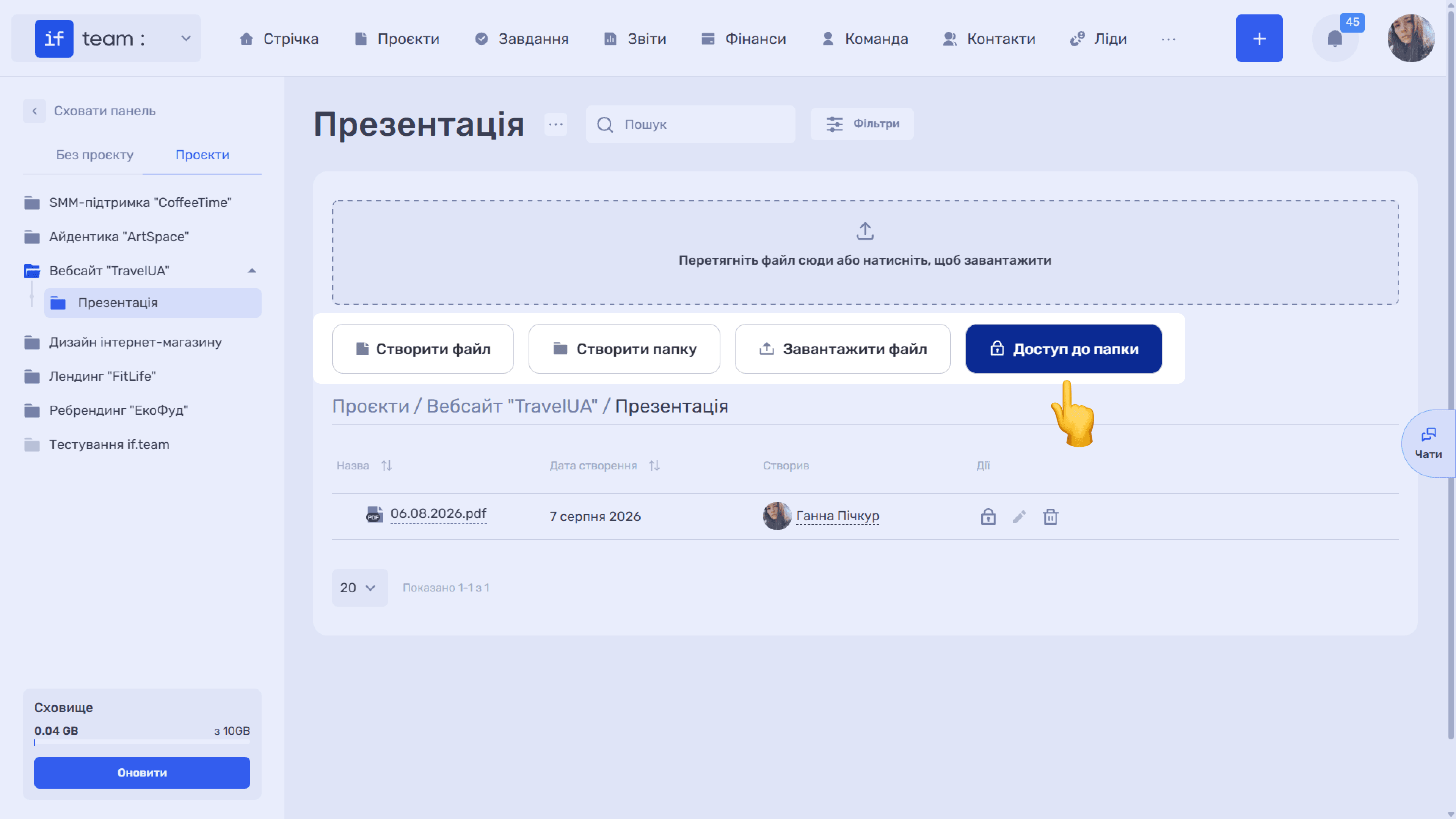
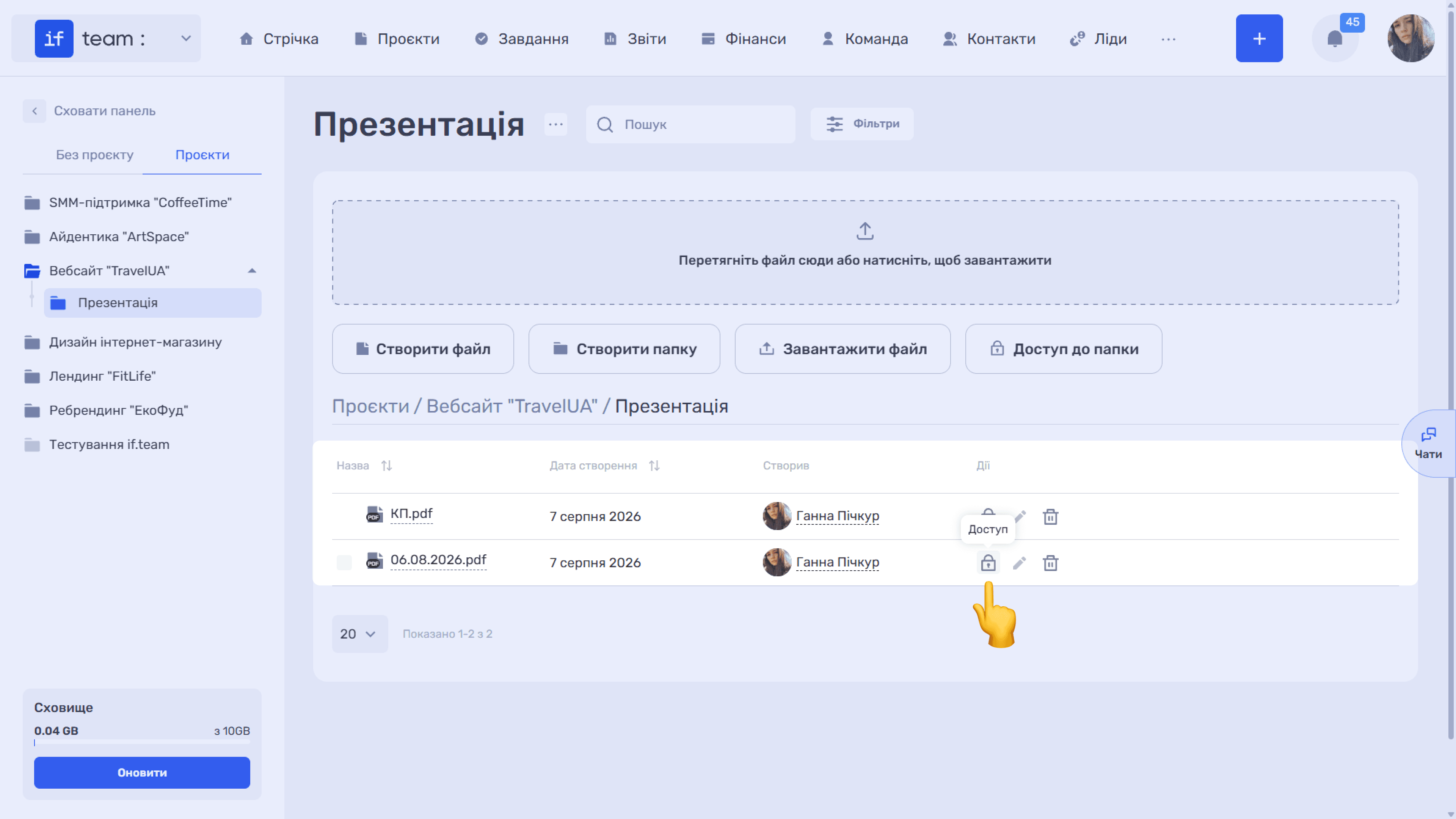
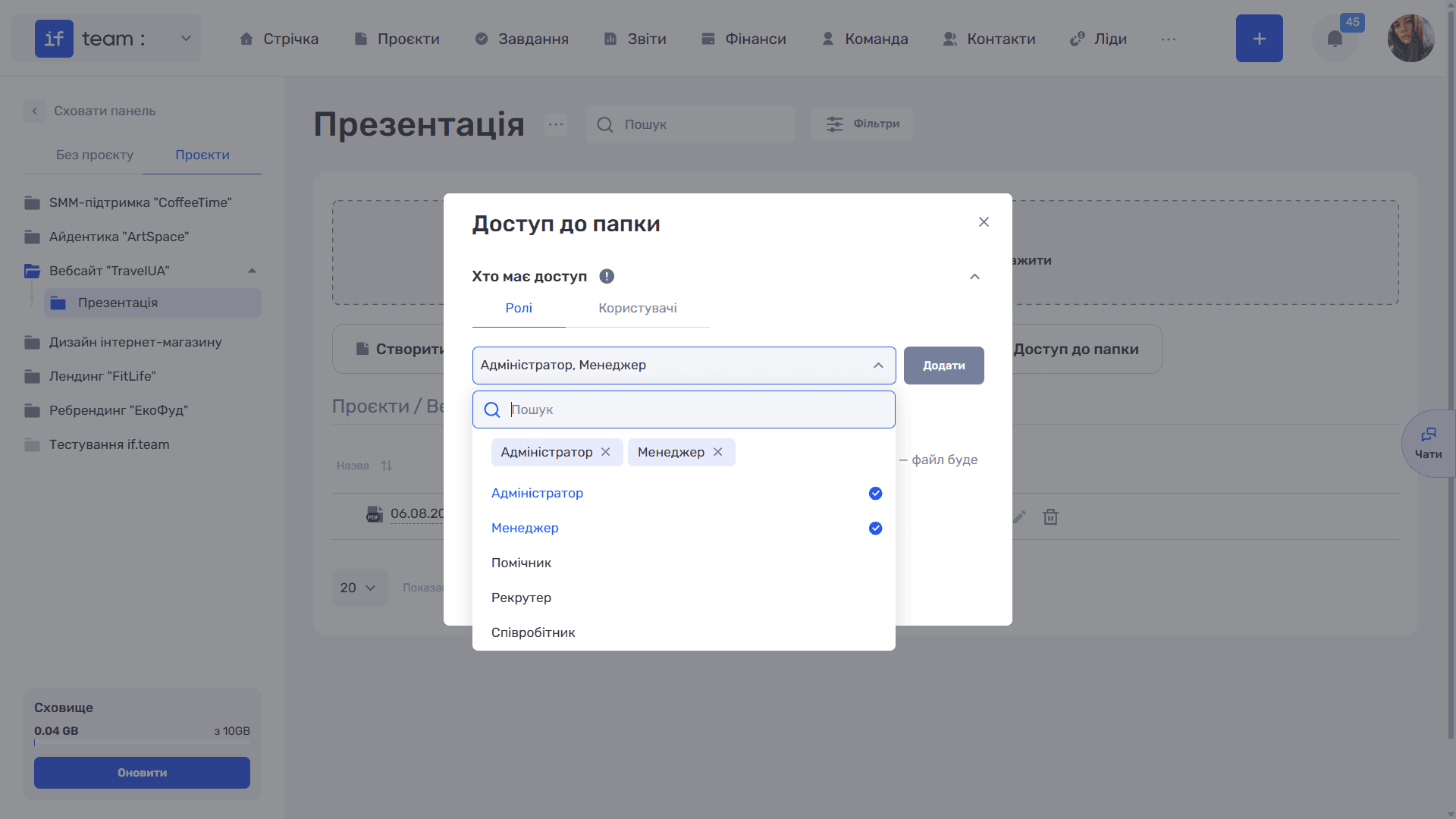
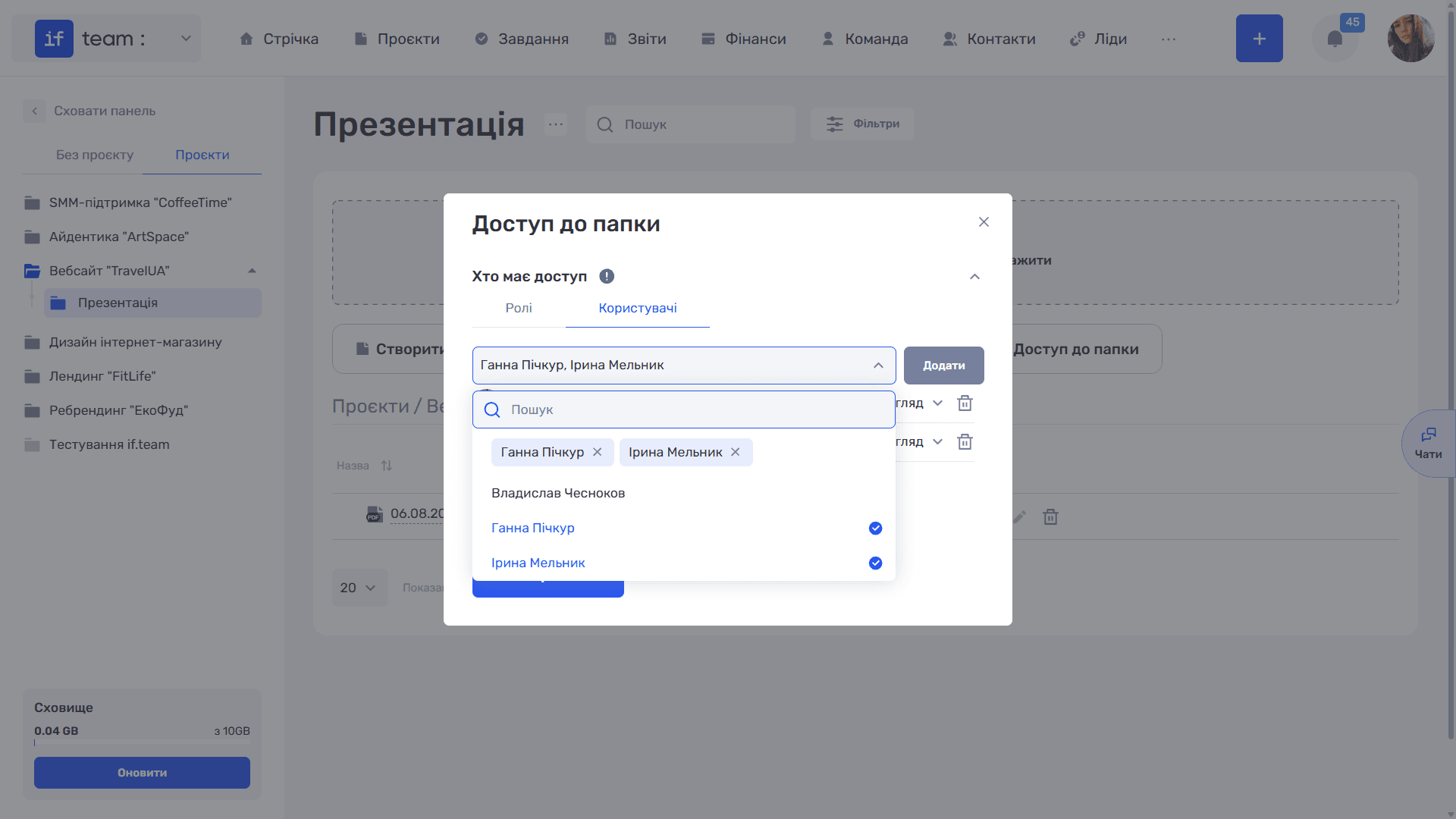
The window has two tabs: “Roles” and “Users.” The selection process is the same for both:
- Expand the list and select the required roles, such as administrator or manager, or specific people. You can select multiple items. Selected items appear as chips at the top of the list, and the “×” icon on a chip removes it. The drop-down list includes search, which is useful for large teams.
- Click “Add.” The selected values will appear in a list below.
- Set the access level for each row:
- “View Only” lets users open and download the file and is the default setting.
- “Full Access” lets users edit a document created in the built-in editor.
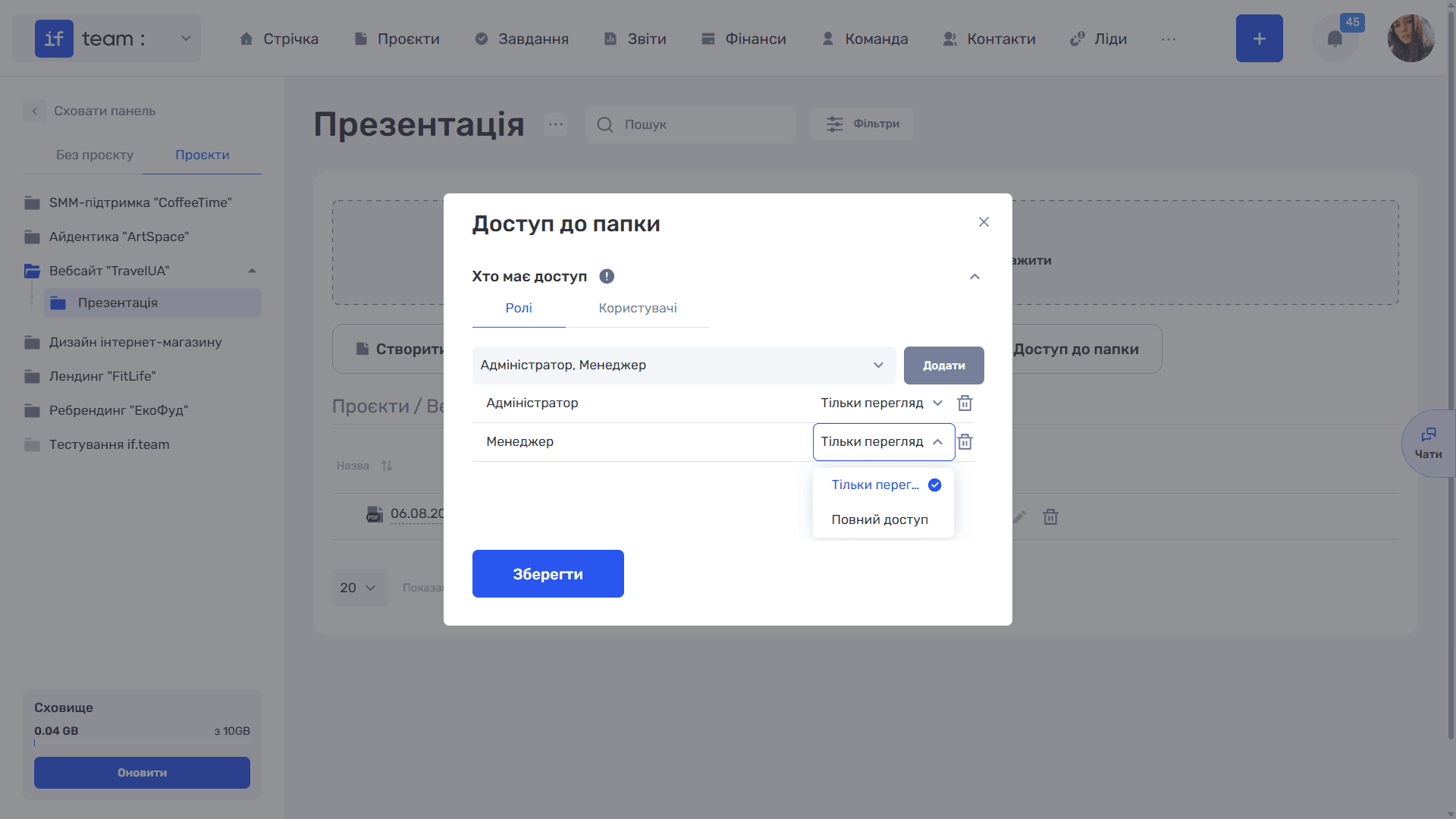
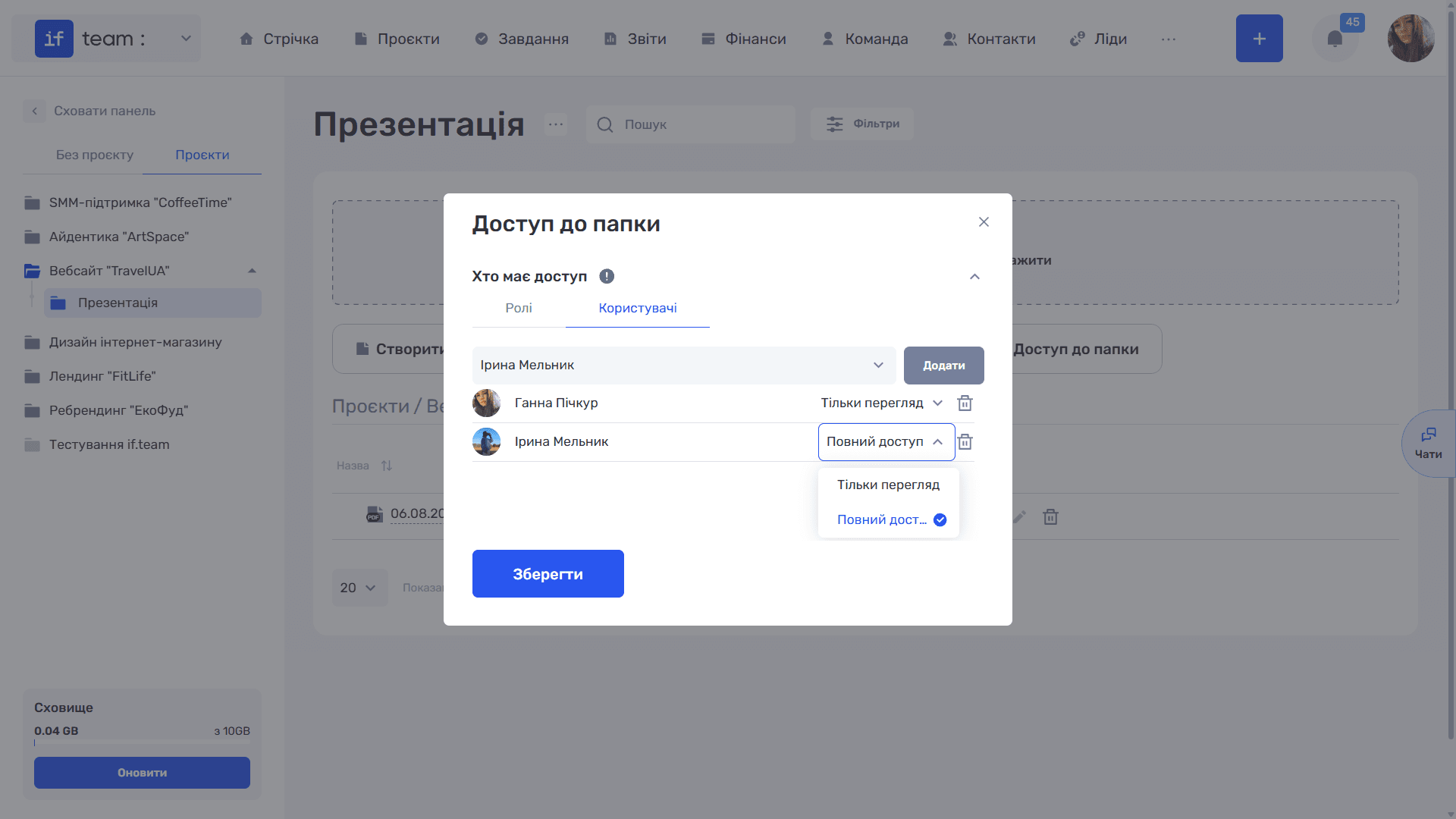
- Use the “🗑️” icon to remove a row from the list.
You can combine roles and users. For example, you can give all managers view-only access while granting full access to a specific employee. Click “Save” when finished.
Still have questions?
Maybe we haven't added this information yet. But you can always reach out:
Request a demo
Submit a request and we'll show you how the service works and its capabilities.
Book a demo