Documents and Files List
The contents are displayed as a table with Name, Creation Date, Created By, and Actions columns. You can sort names alphabetically and dates in ascending or descending order. At the bottom are the item count and a selector for the number of rows per page.
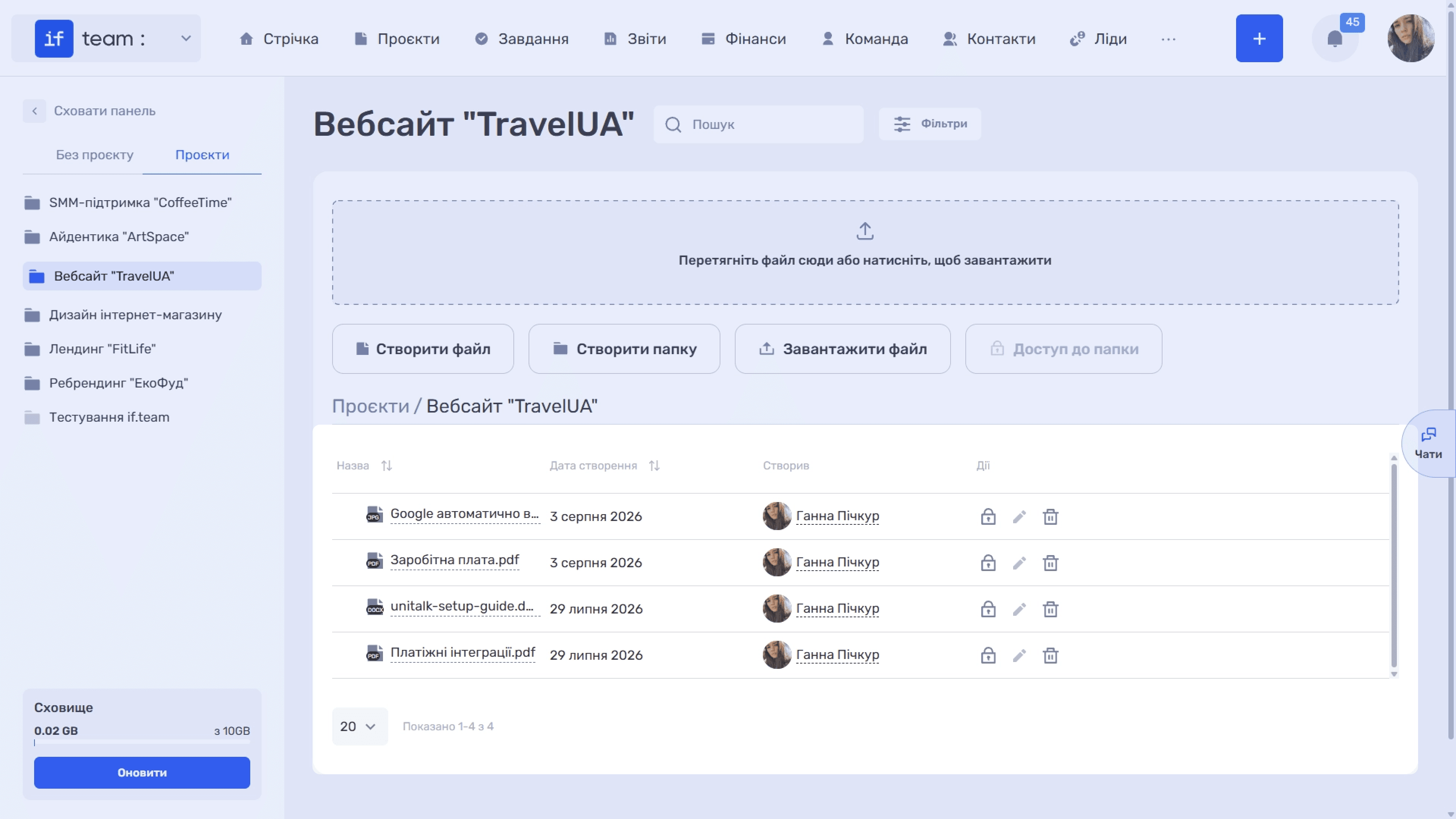
The Actions column contains three icons:
- 🔒 configures access to the file;
- ✏ edits its name;
- 🗑 deletes it.
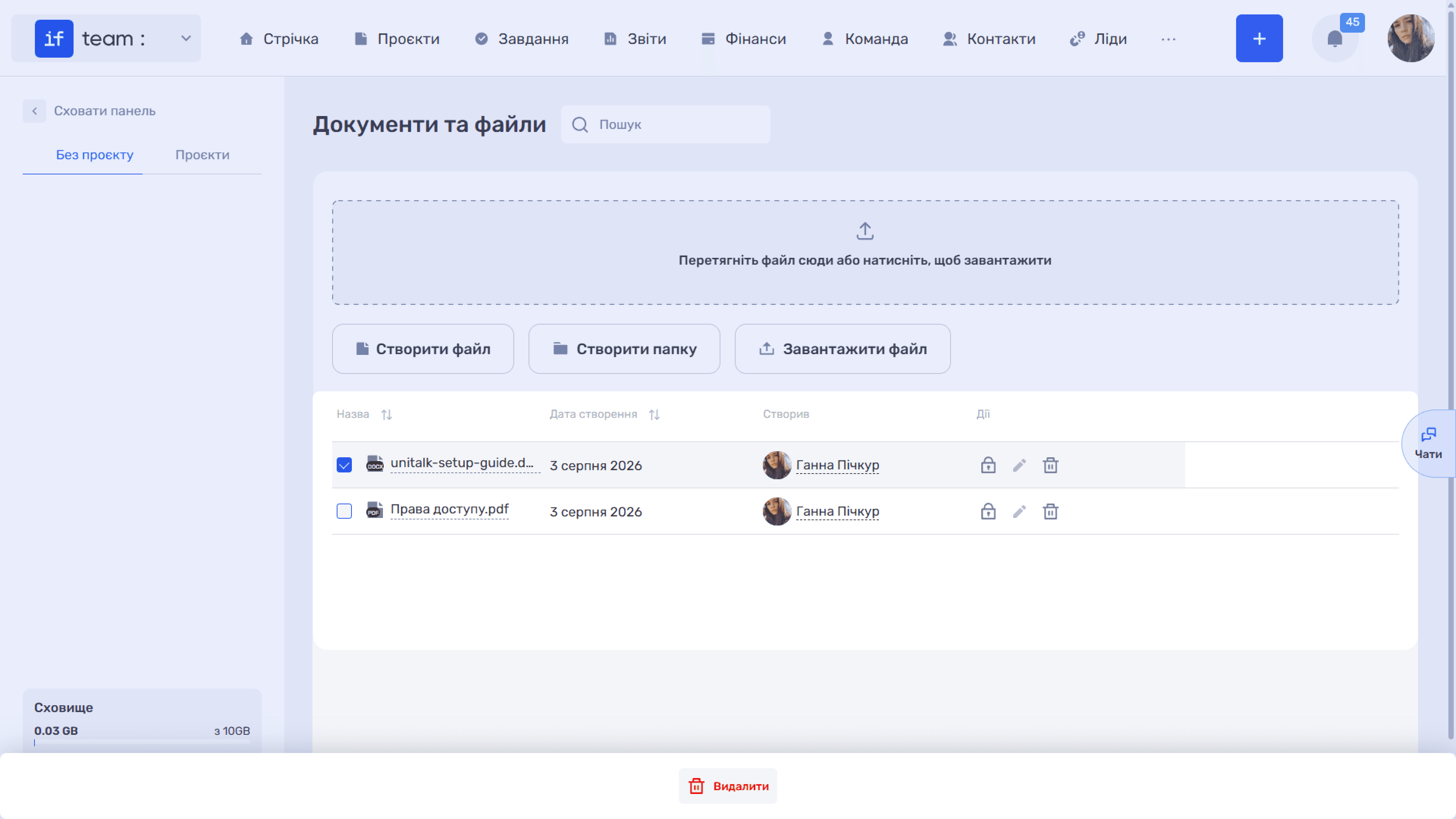
Hover over the area to the left of a file name to display a checkbox. Select several files, and a “Delete” button will appear at the bottom of the screen. It deletes all selected documents at once. This is useful when you need to clear outdated materials from a folder without deleting each file separately.
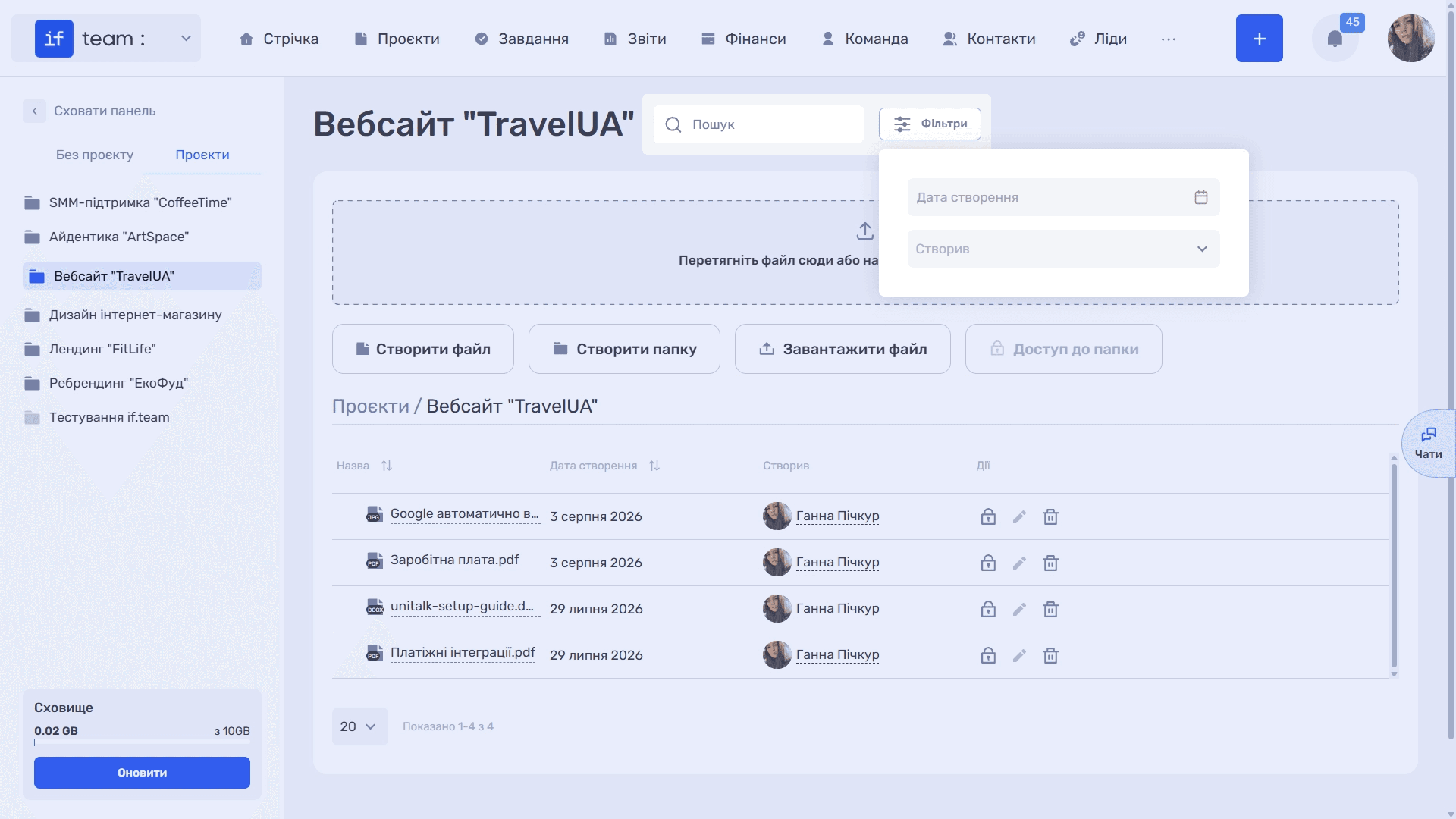
Search at the top finds files by name. The “Filters” button lets you narrow the list by creation date and author.
Search at the top finds files by name. The “Filters” button appears only inside a specific project and lets you narrow the list by creation date and author. Filters are not available on the “Without a Project” and “Projects” tabs, which display only a list of folders.
Still have questions?
Maybe we haven't added this information yet. But you can always reach out:
Request a demo
Submit a request and we'll show you how the service works and its capabilities.
Book a demo