Viewing a File
Click a file name to open the preview panel on the right. The document name appears at the top, followed by a line showing when and by whom the file was uploaded. The panel itself varies depending on the file type.
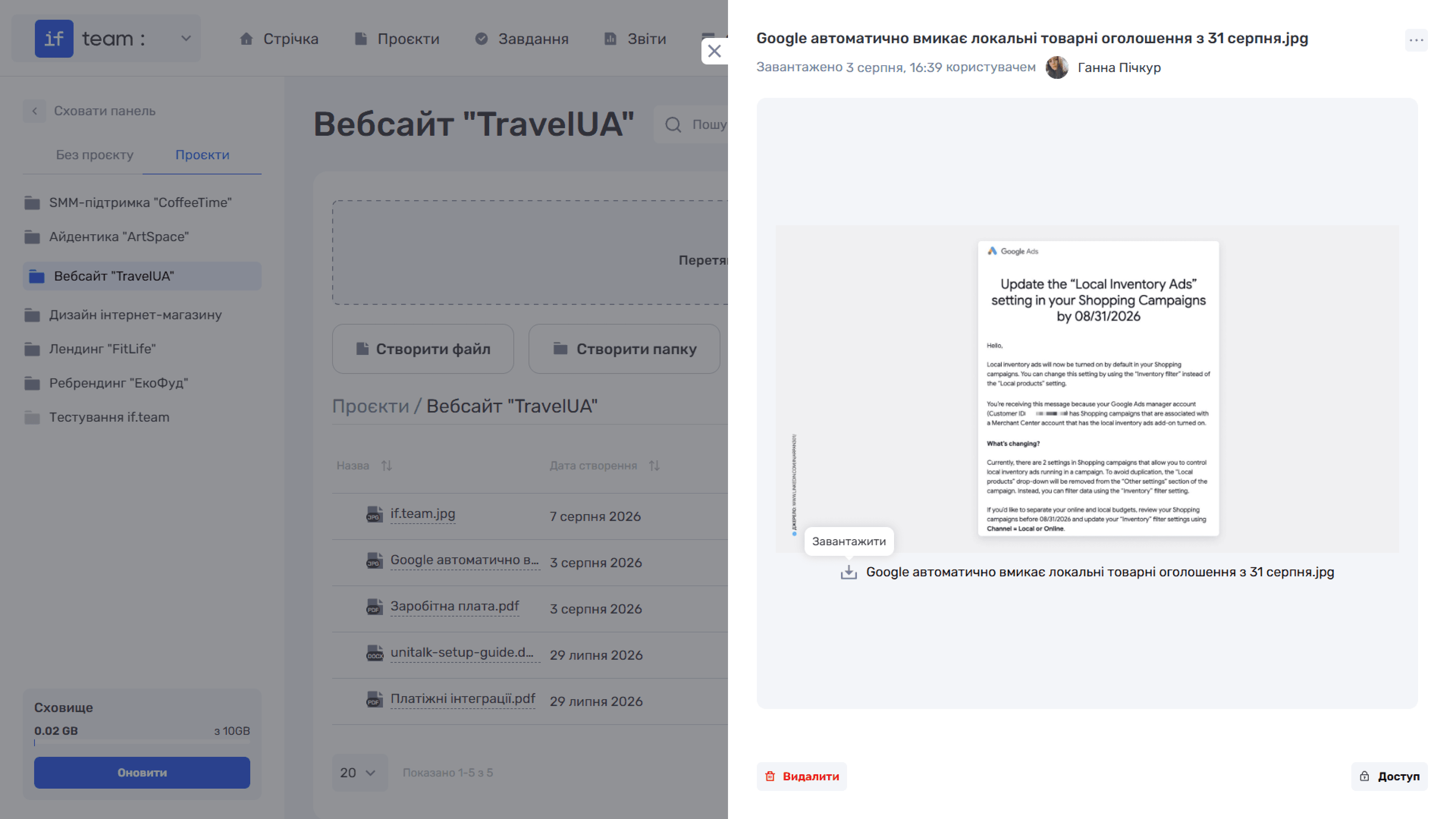
Images are displayed as previews. Click the preview to open the image full-screen together with its name. A download icon appears below the image.
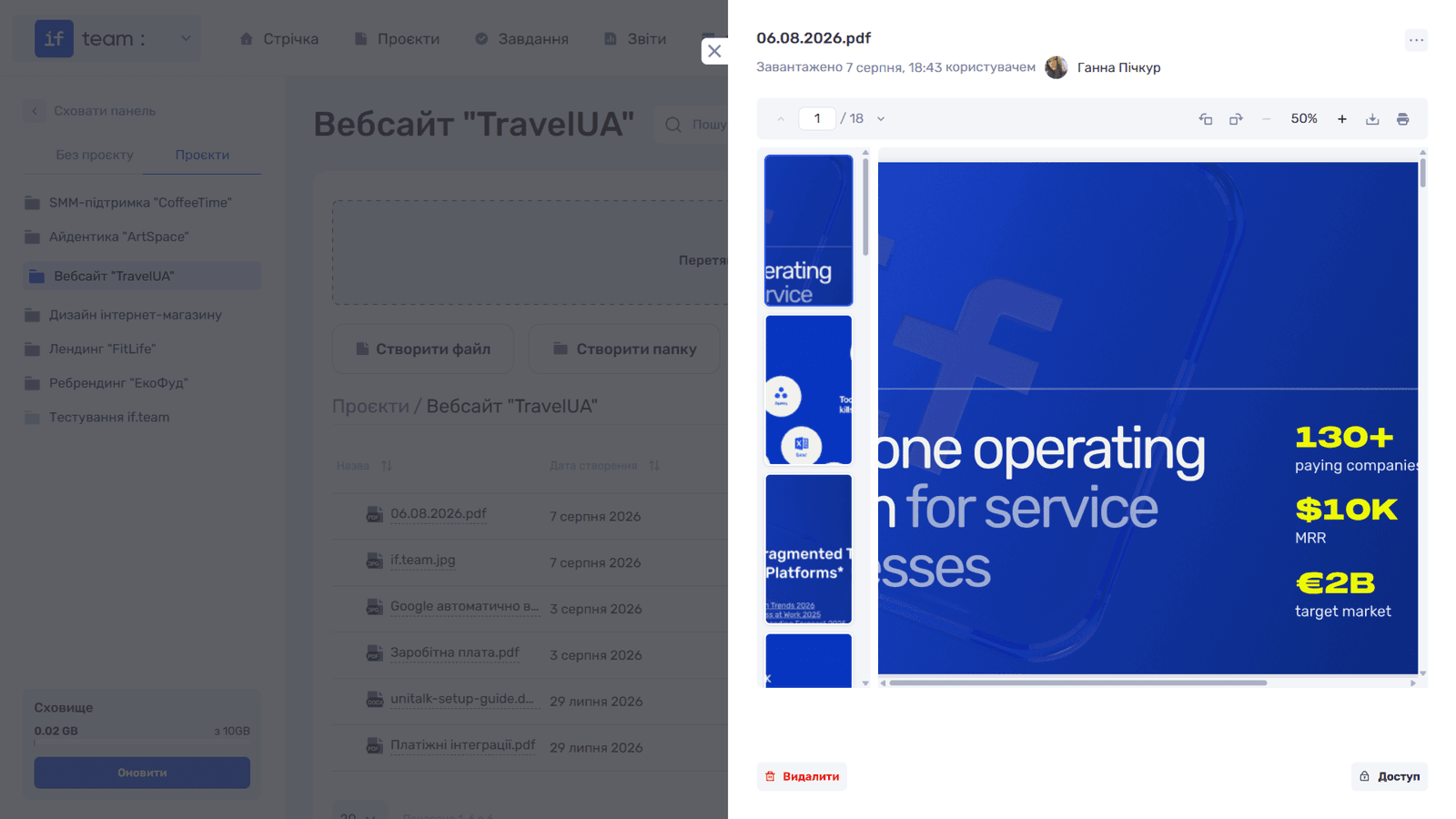
PDF files open in the built-in viewer. Use the arrows or the page-number field to move between pages. The thumbnail panel on the left provides quick navigation. The top toolbar includes page rotation, zoom controls (− 100% +), download, and print.
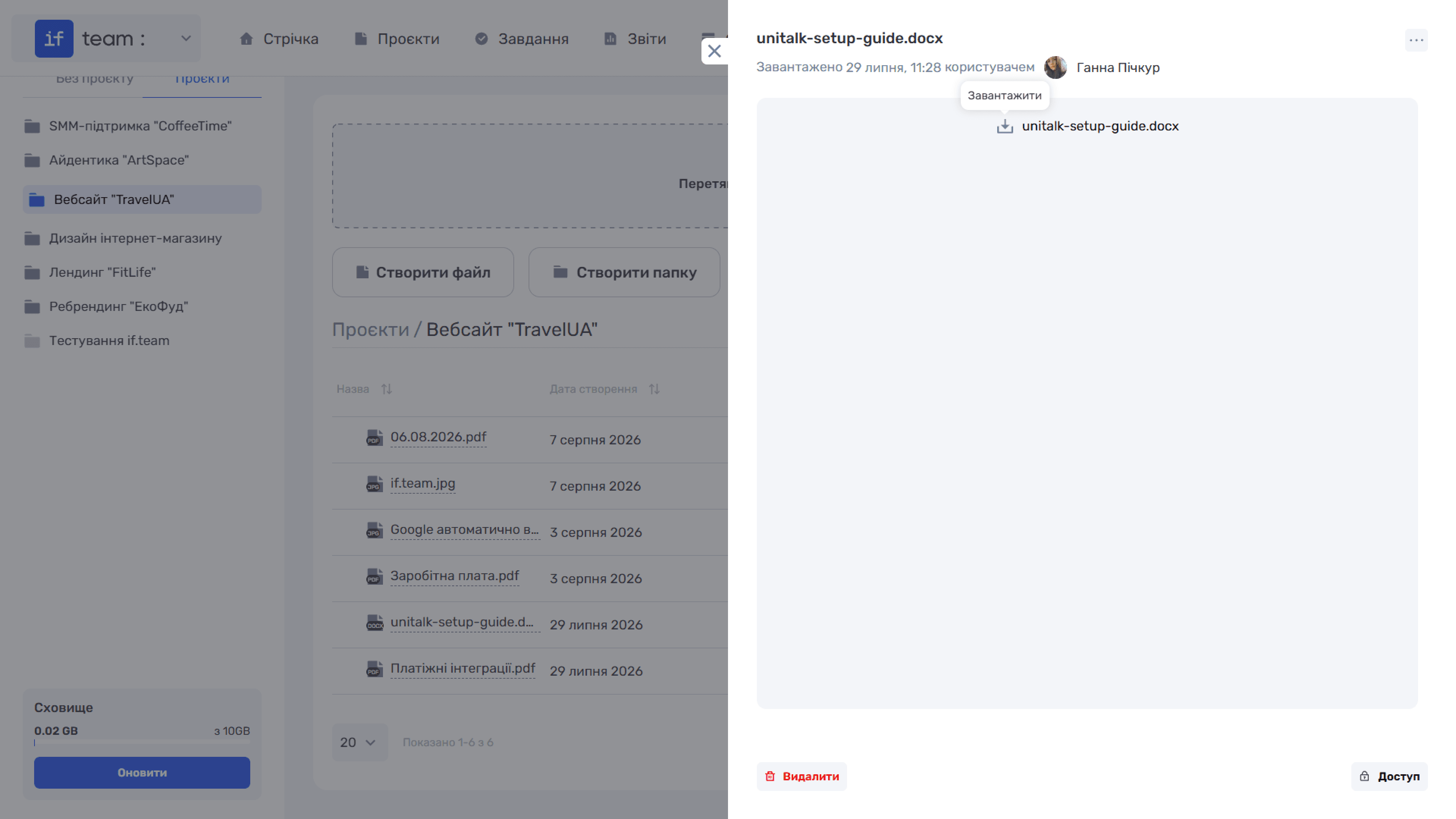
.docx files are displayed as a row with the file name and a download button. They cannot be previewed in the system and can only be saved to your computer.
Documents created in the built-in editor are displayed as text with any attached files.
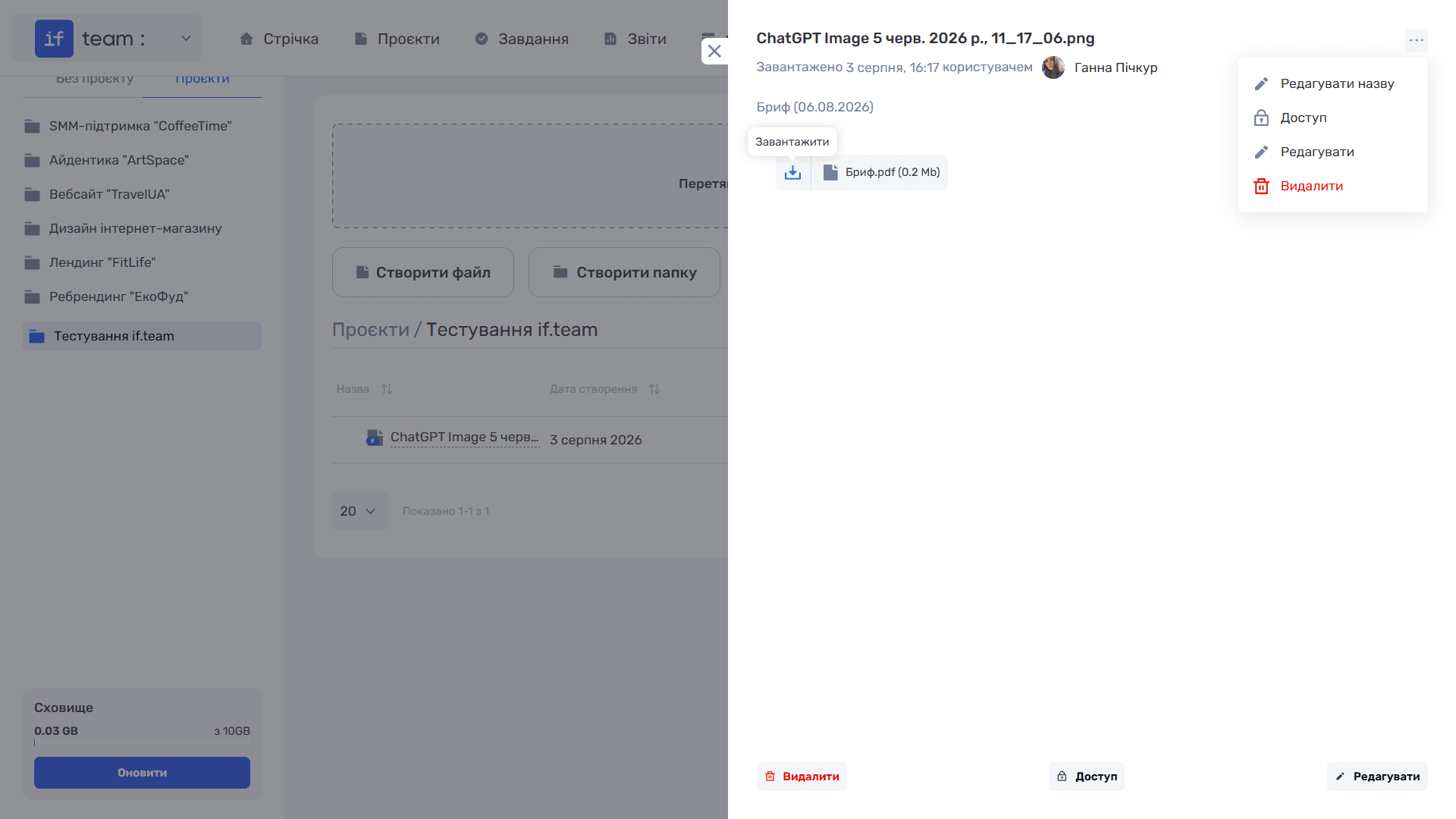
Actions at the bottom of the panel include “Delete,” “Access,” and “Edit.” The same items are available under the “…” button in the corner of the panel, together with “Edit Name.” The “Edit” option appears only for documents created in the built-in editor and only when you have full access to the file. It is not available for uploaded files such as images, PDFs, and .docx files, because their contents must be edited in the application in which they were created.
Still have questions?
Maybe we haven't added this information yet. But you can always reach out:
Request a demo
Submit a request and we'll show you how the service works and its capabilities.
Book a demo