Uploading a File
Drag a file into the upload area at the top of the page or click “Upload File.” The “Upload New File” window will open:
Generate AI summary
Open this page in your favorite AI assistant
- In the “File” section, click the upload area or drag a file into it to select the file from your computer. The selected file appears as a chip showing its name and size. Click the “×” icon to remove it.
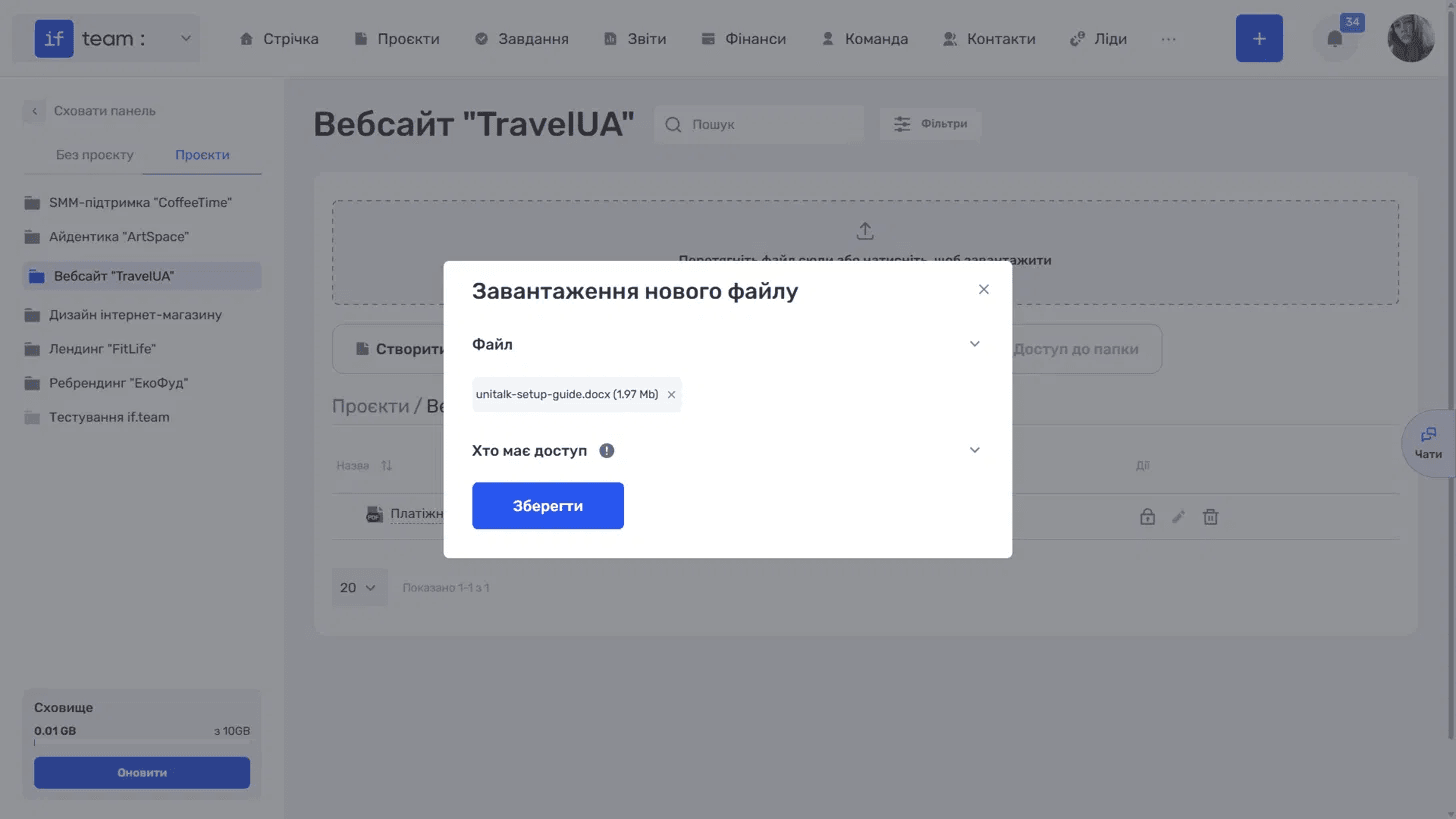
- In the “Who Has Access” section, select who can view the file. This is described in “Access to Files and Folders.” If you do not select anyone, the file will be available to everyone.
Still have questions?
Maybe we haven't added this information yet. But you can always reach out:
Request a demo
Submit a request and we'll show you how the service works and its capabilities.
Book a demo