Folders: Creating, Nesting, and Moving
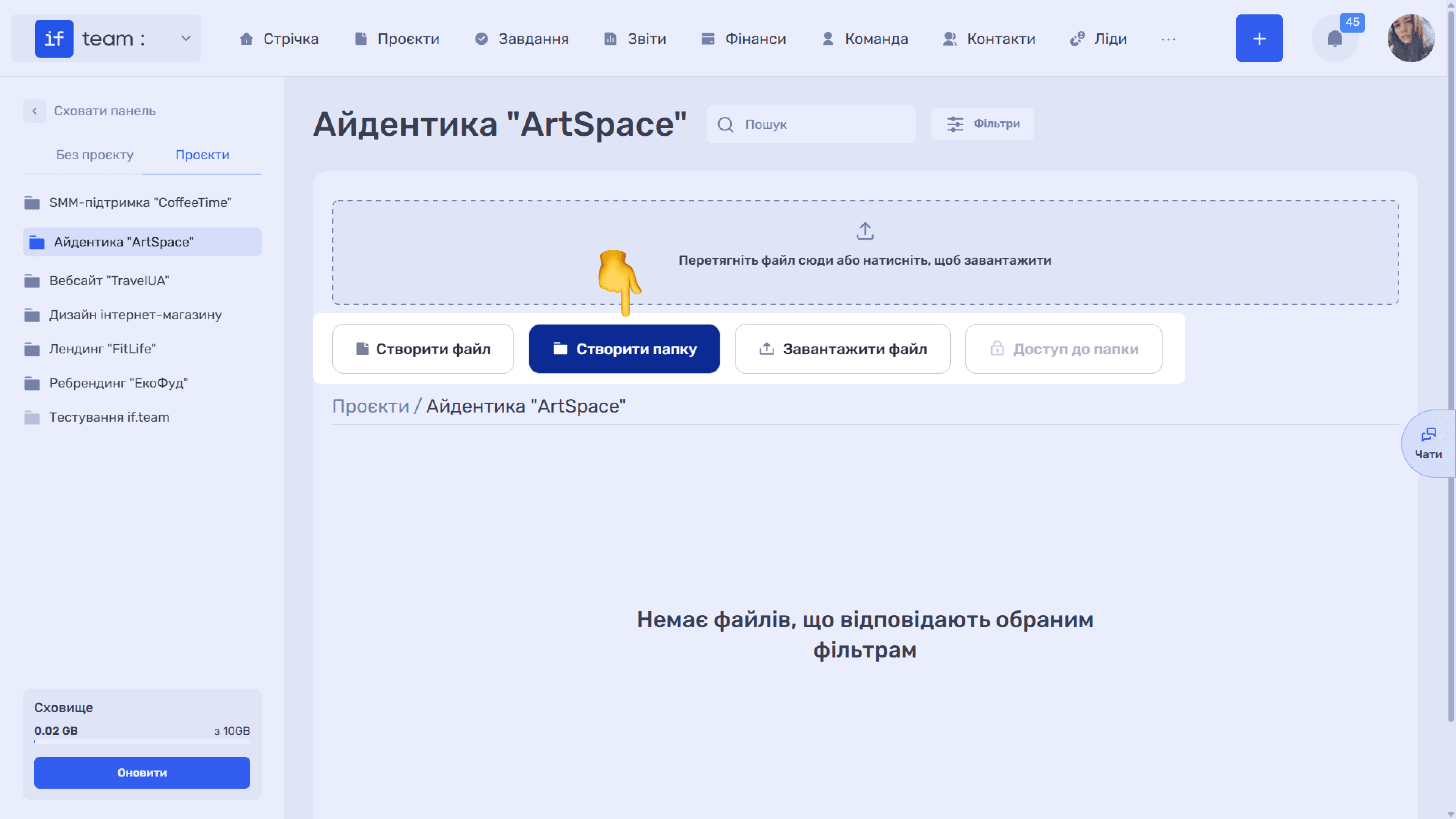
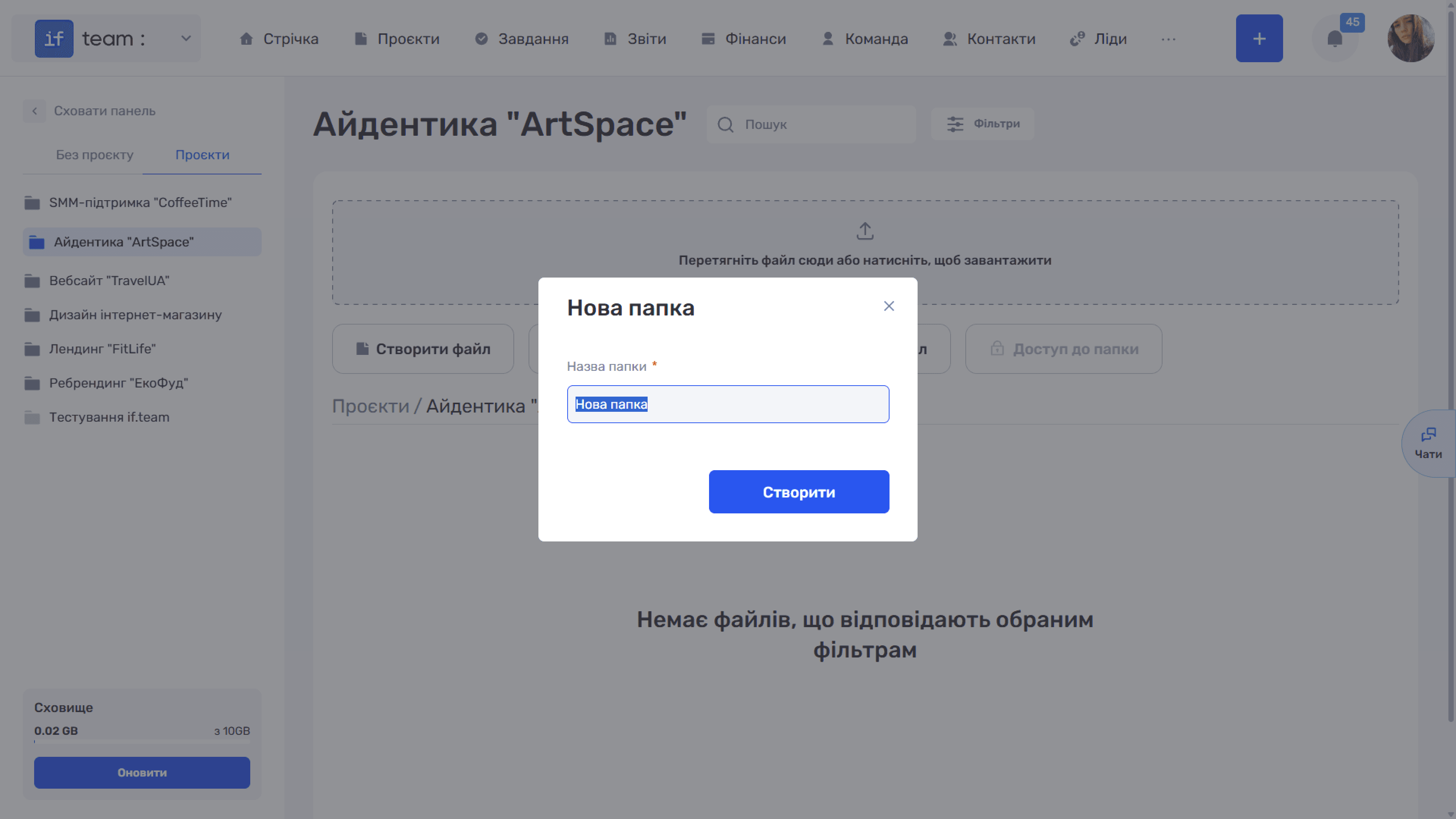
Click “Create Folder” to open “New Folder.” Enter the required name and click “Create.” Folders help organize content within a project or under “Without a Project.”
Creating a Folder
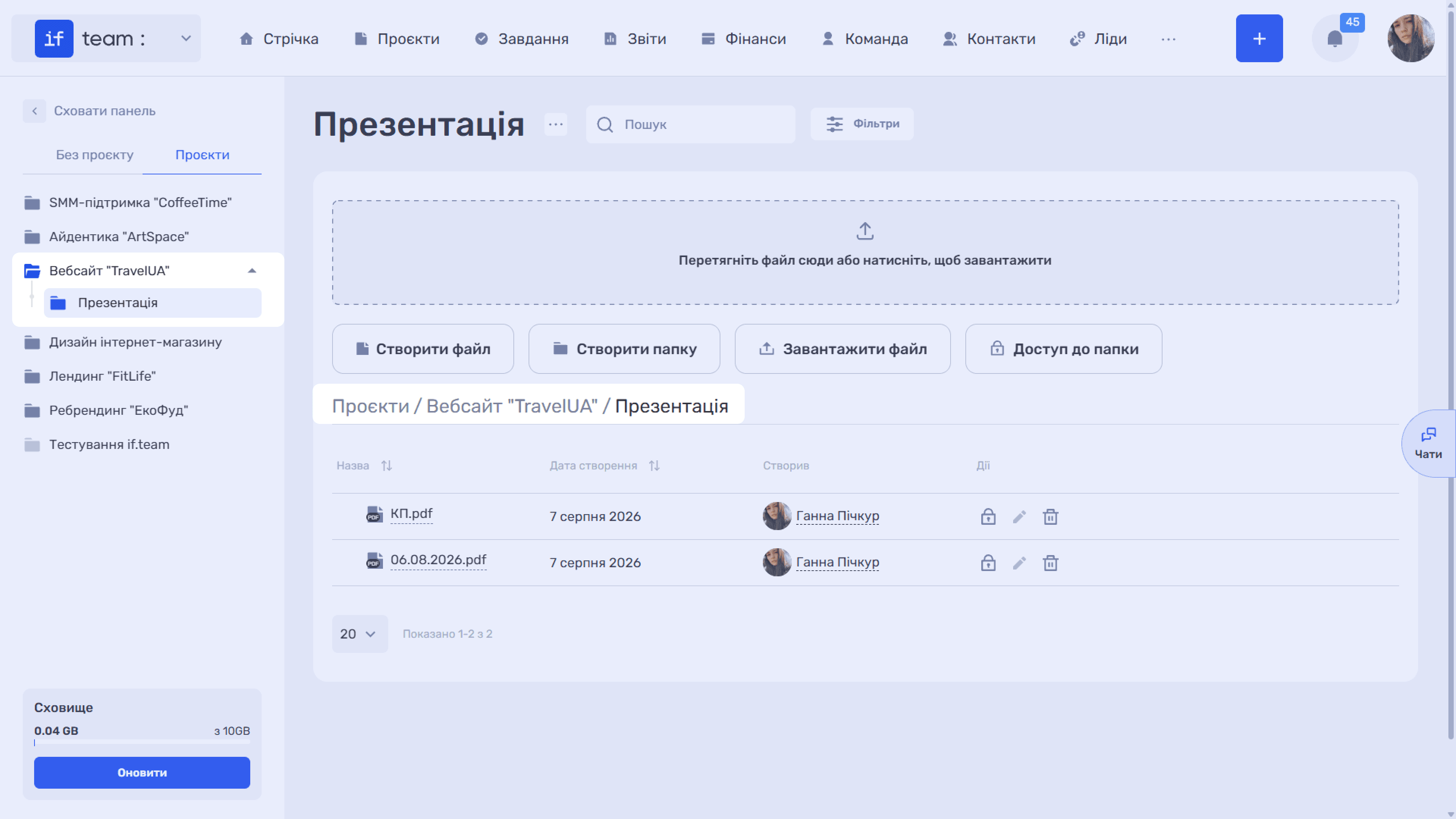
Nested Folders
You can create a folder inside another folder. Open the parent folder and click “Create Folder” again. Nesting appears in the left panel, where the parent folder gains an expand arrow and subfolders are indented, and in the breadcrumbs above the table. This makes it easy to build a structure within a project, with separate folders for presentations, contracts, and designs, for example.
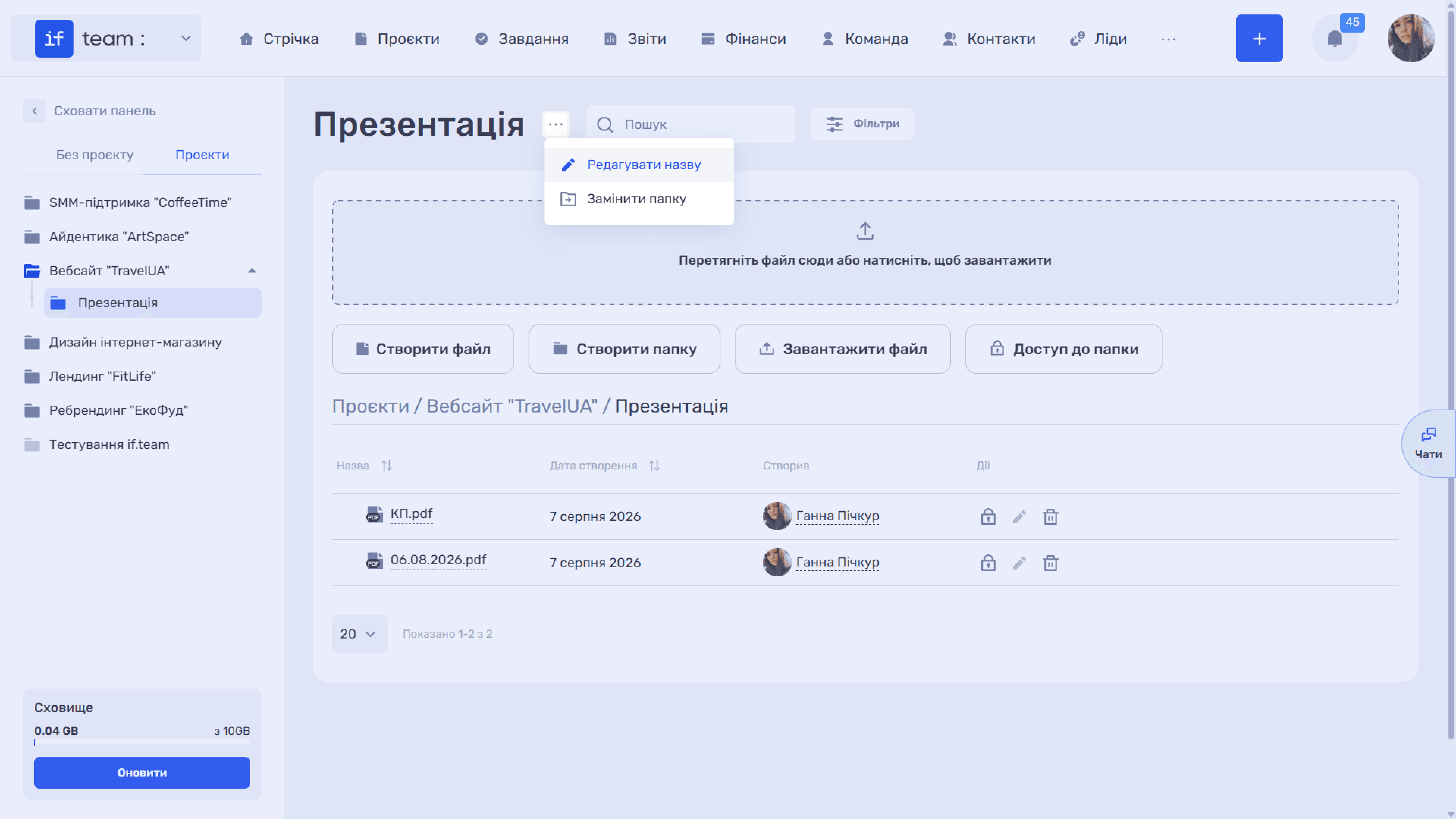
Renaming
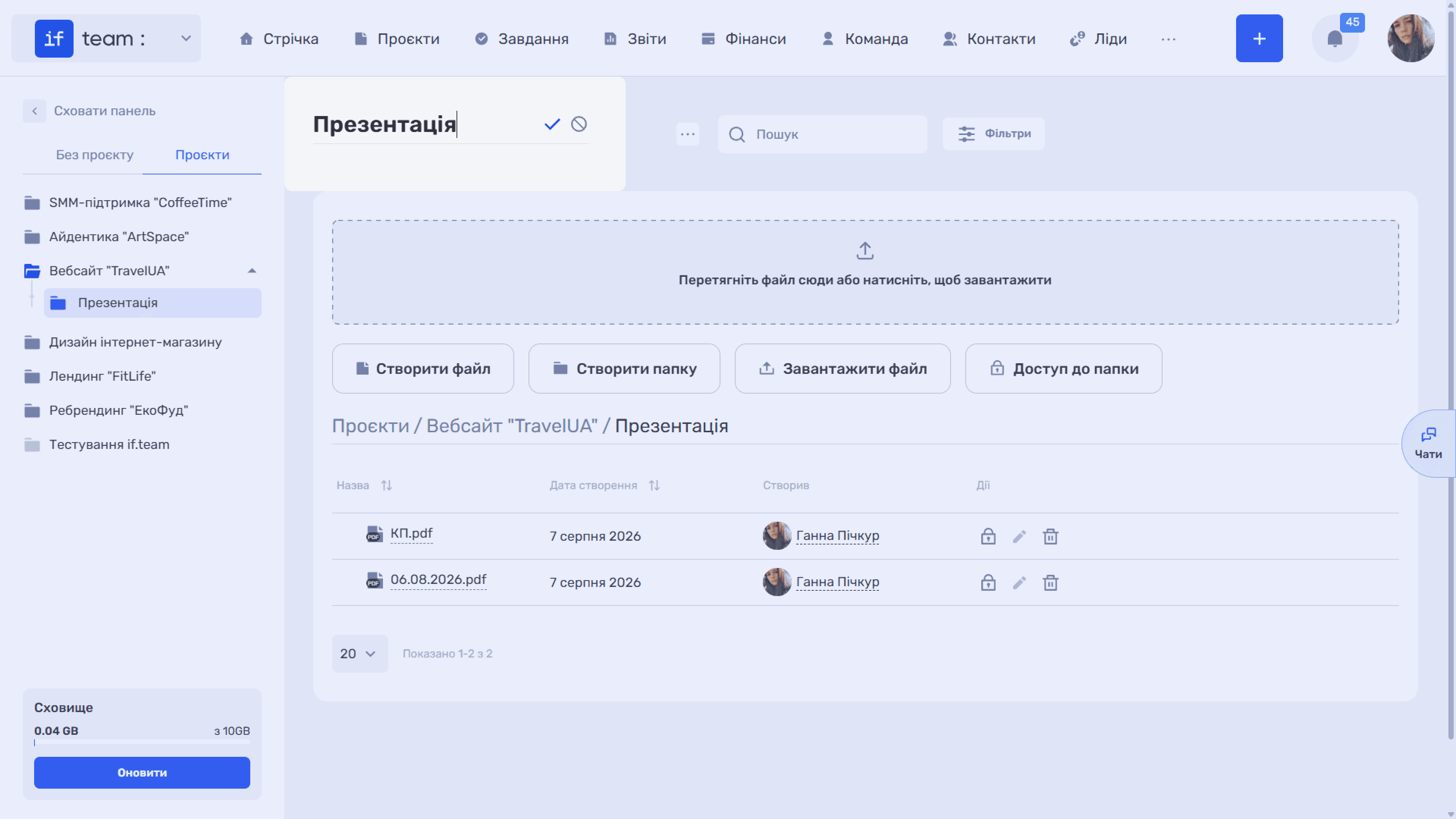
The “…” button next to a folder heading contains two options. “Edit Name” makes the heading editable in place. Change the text and confirm with the checkmark, or cancel using the “🚫” icon.
Moving
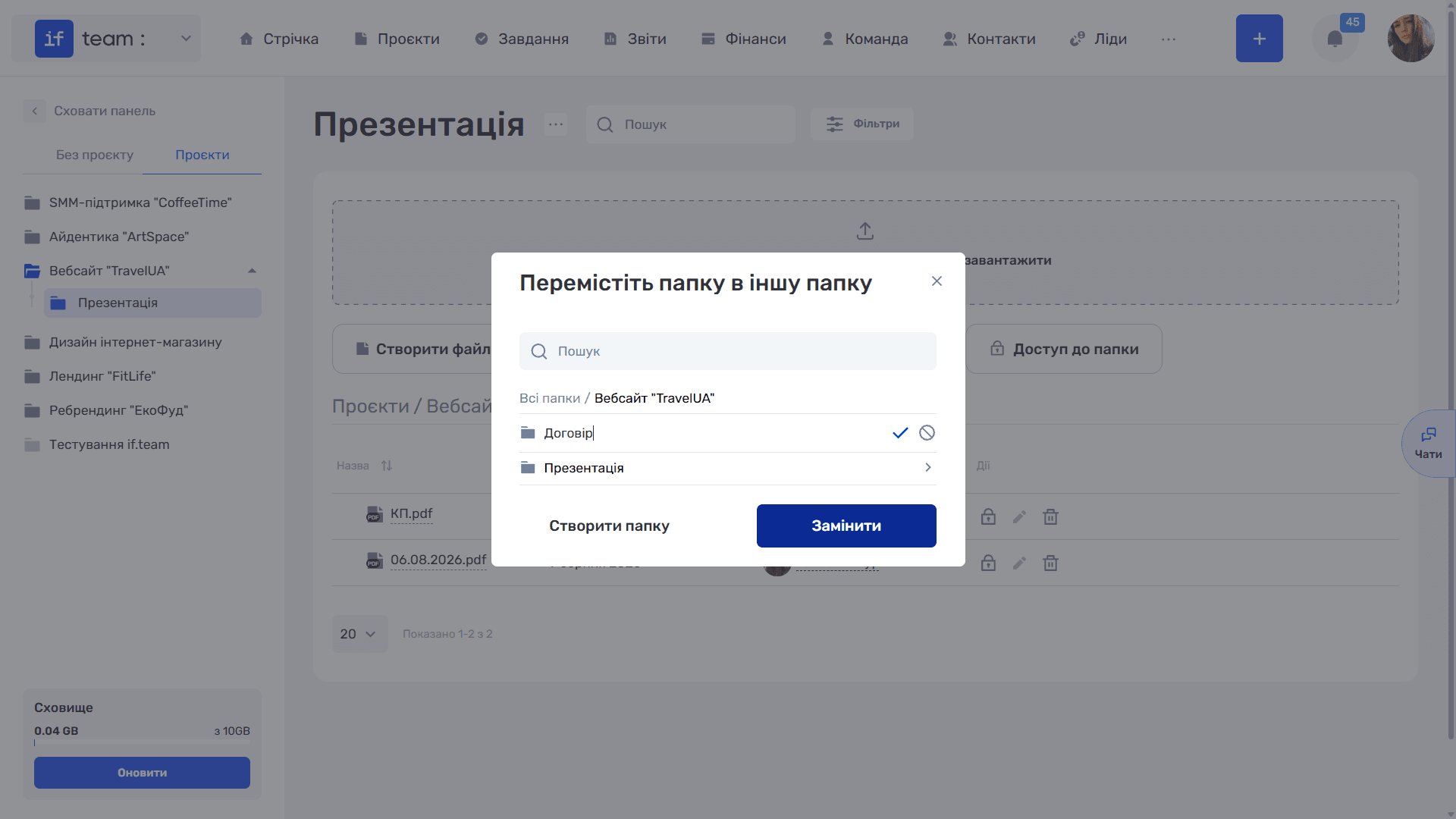
The “Move Folder” option opens “Move Folder to Another Folder,” where you select a new location for the folder together with all its contents.
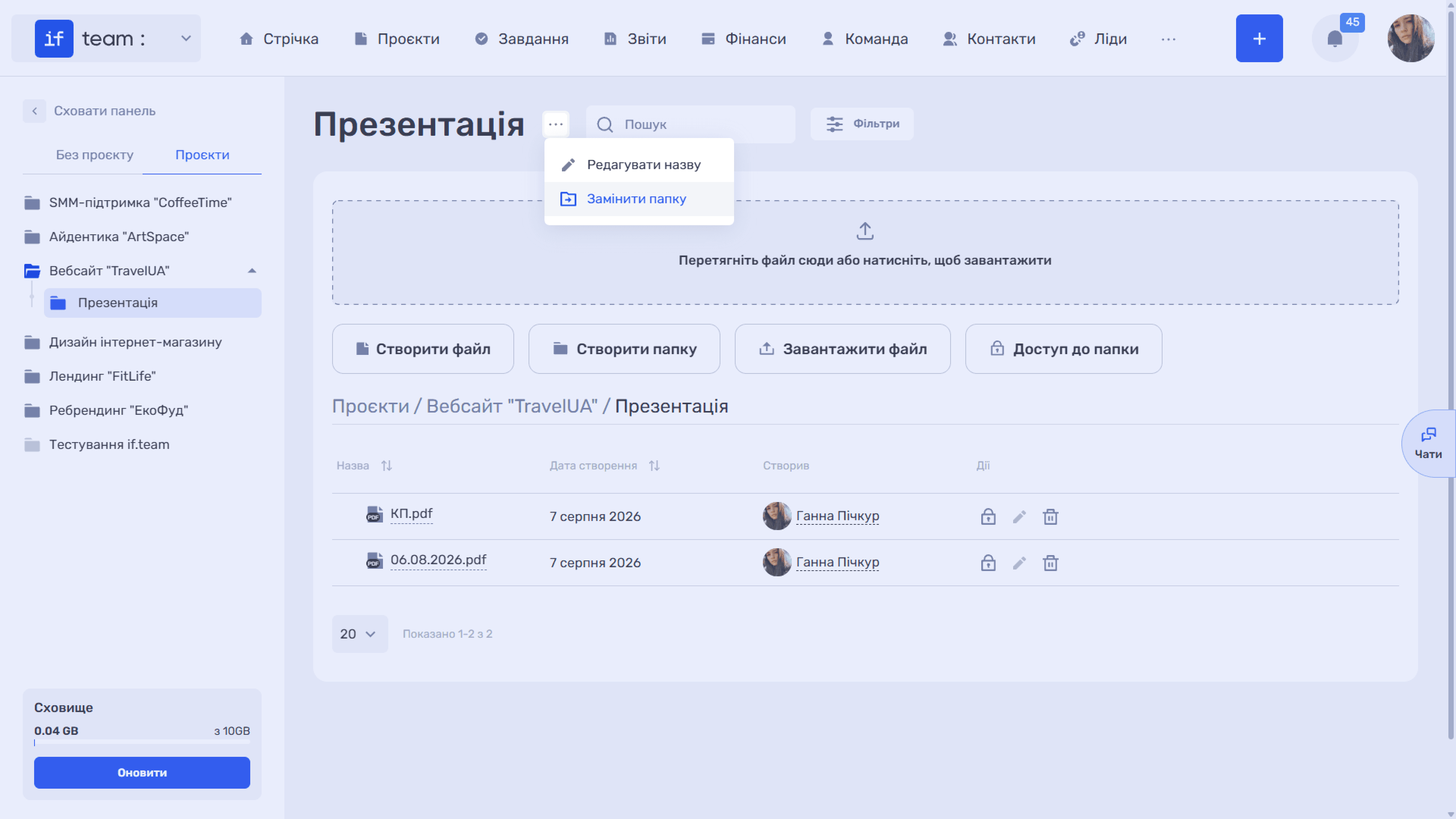
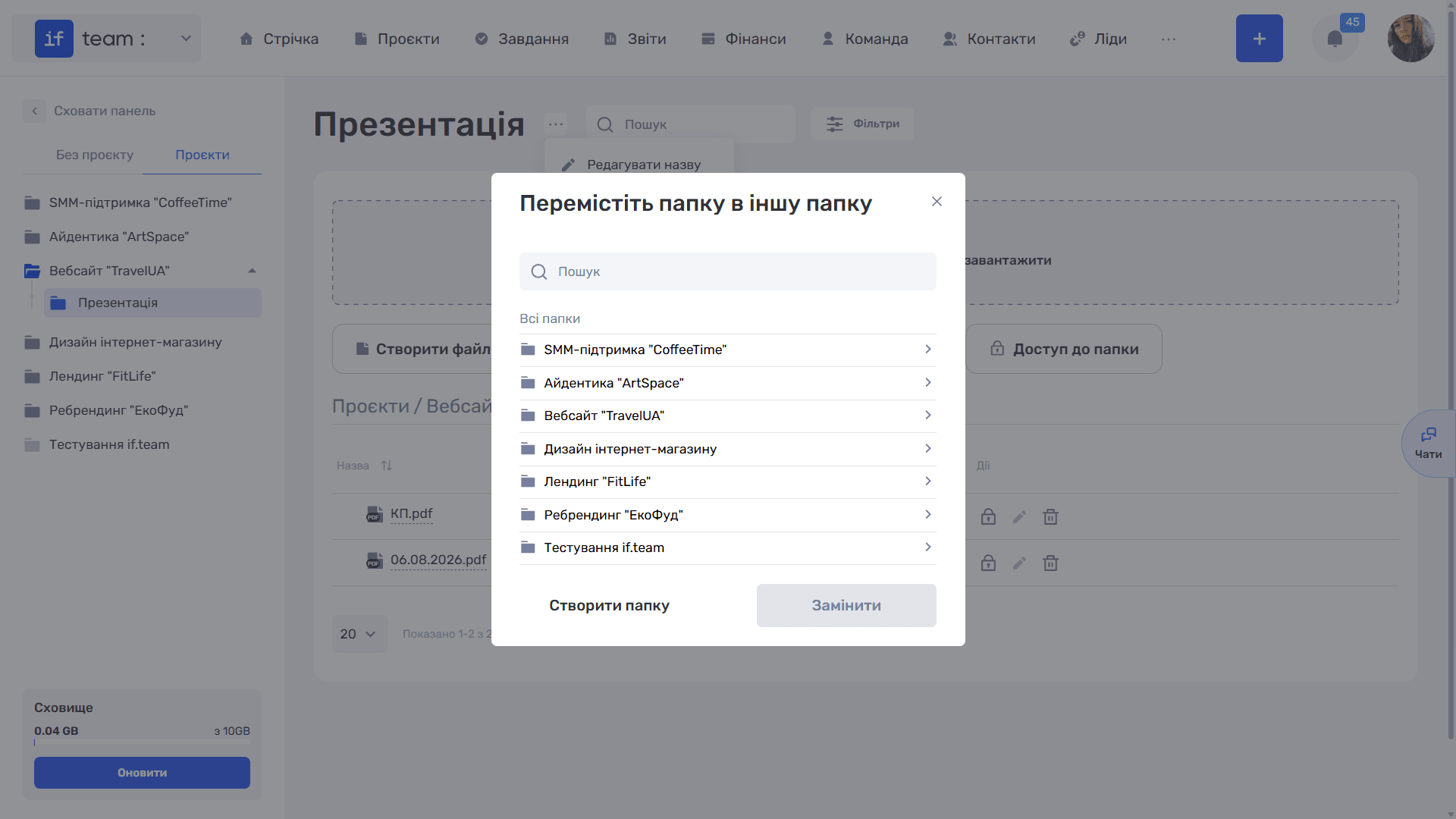
- In “All Folders,” find the required folder manually or using search. The › arrow to the right of a name opens that folder so you can select a nested location. The path you have followed appears as breadcrumbs, which you can use to return to the previous level.
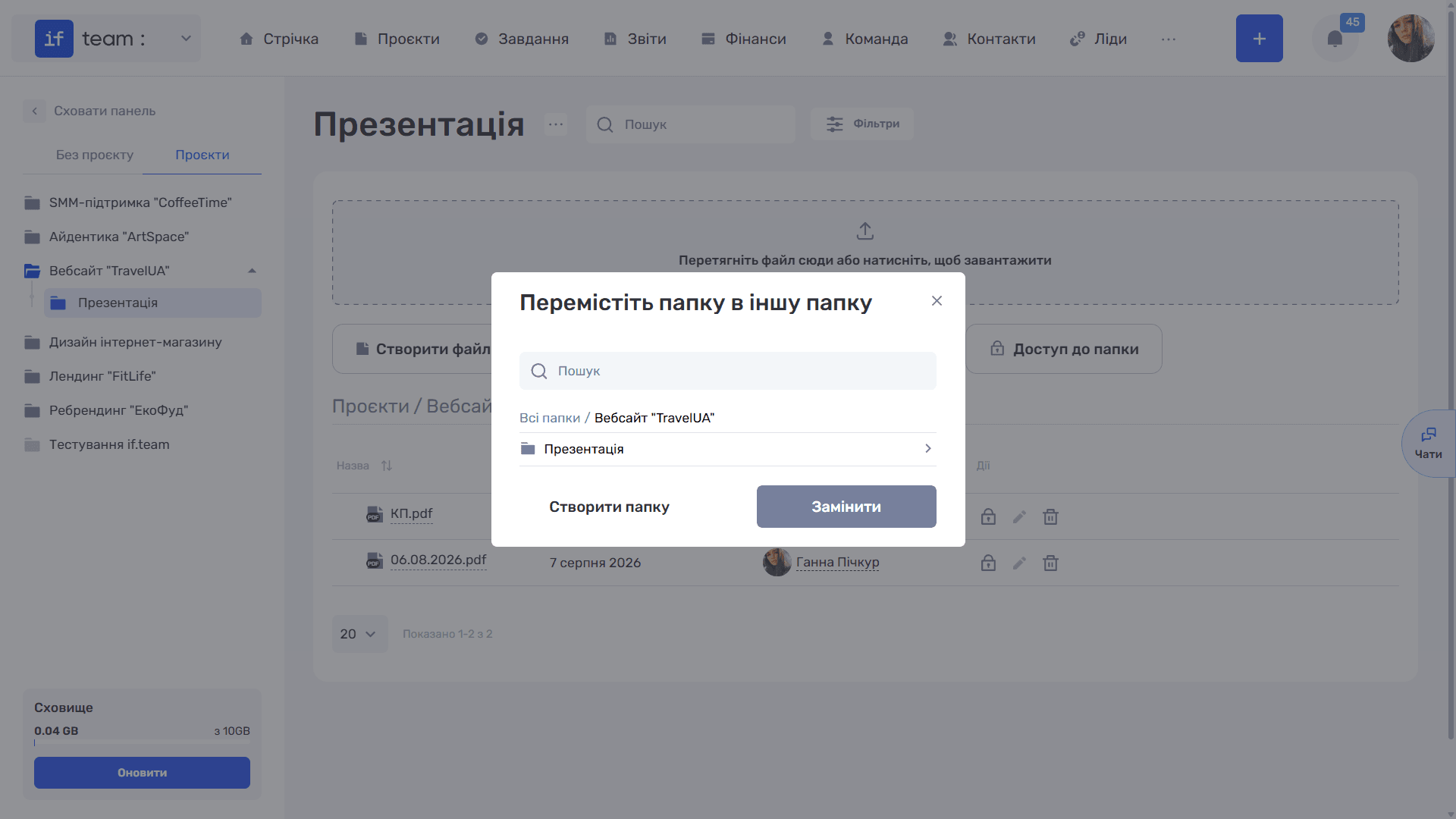
- If the required folder does not yet exist, click “Create Folder.” A name field appears at the bottom. Enter the name and confirm with the checkmark.
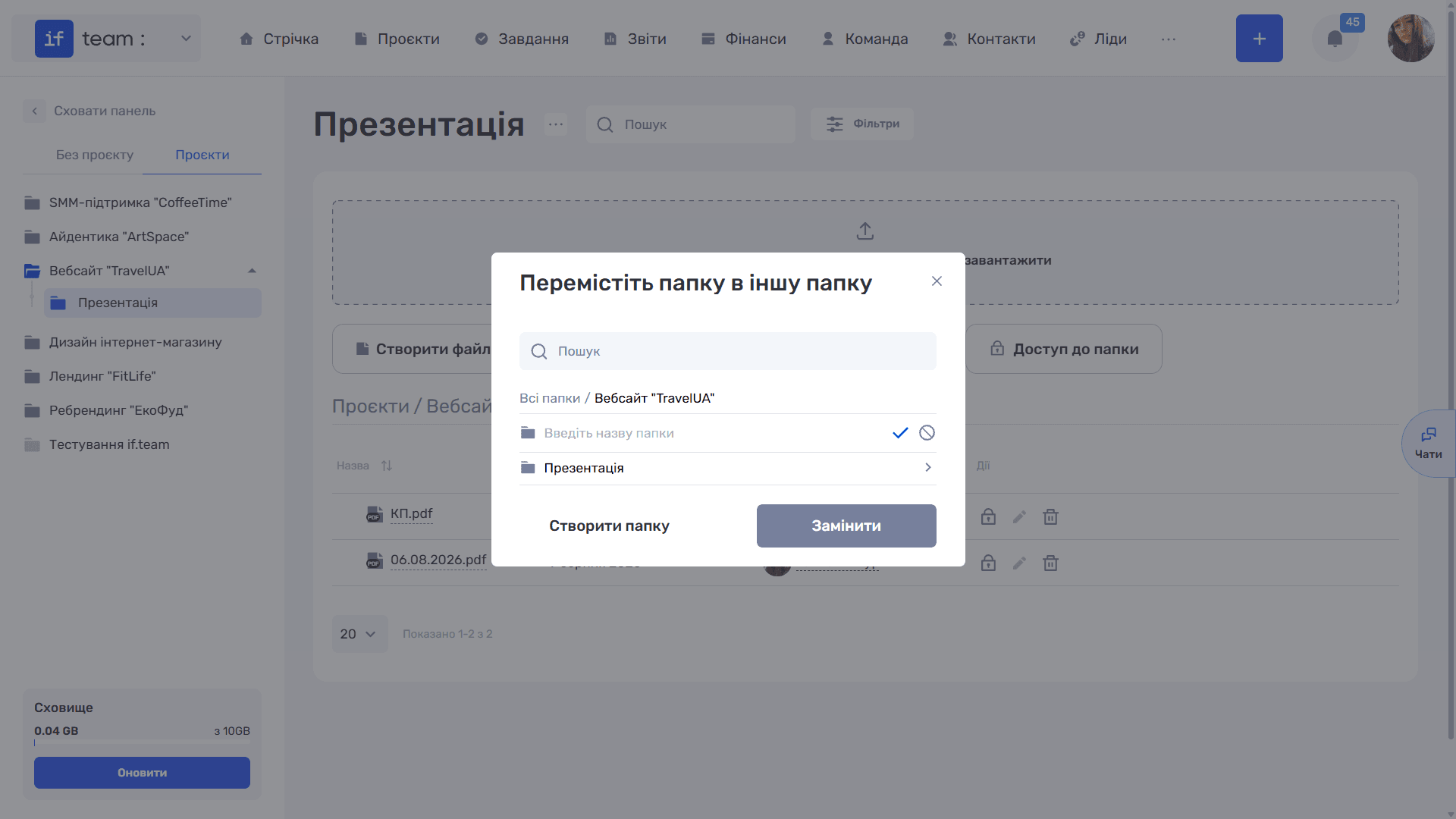
- Click “Move” to move the folder to the selected location.
Still have questions?
Maybe we haven't added this information yet. But you can always reach out:
Request a demo
Submit a request and we'll show you how the service works and its capabilities.
Book a demo