Chats Overview
Work communication in if.team takes place alongside projects, tasks, and finances. You do not need to switch between the system and an external messaging app, search conversations for agreements, or manually transfer them into tasks. The chat panel is available from every screen in the system except
Chat Types
if.team provides three types of chat:
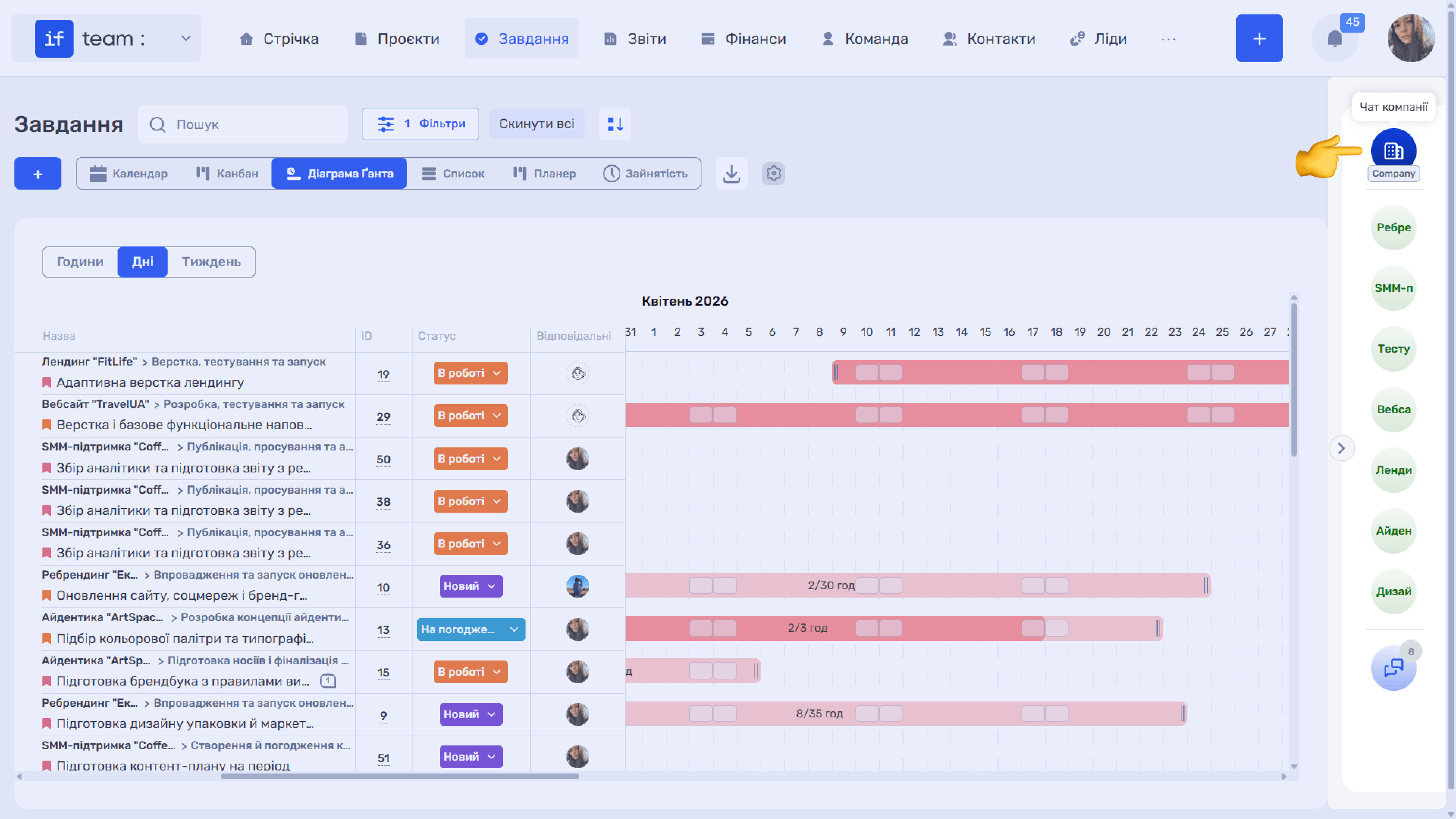
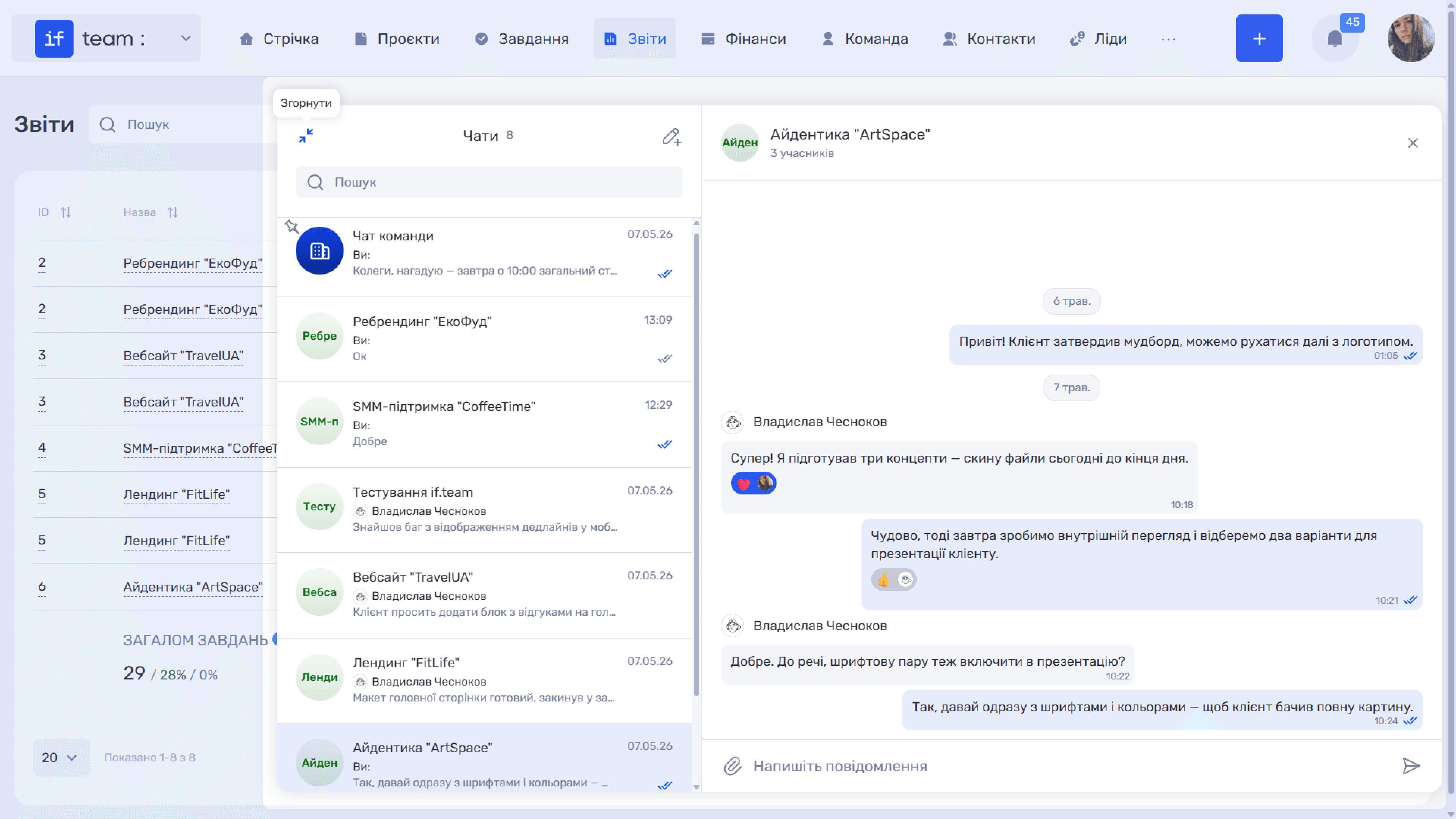
- Company chat is a shared space for the entire team. It appears in the list as “Team Chat” with the company icon. Use it for announcements, meeting reminders, and general news.
- Project chats provide a separate chat for each project. The discussion remains connected to the specific work and does not become mixed with the general message stream.
- Private chats are one-to-one conversations between employees for internal communication.
Communication Panel
The chat panel is attached to the right edge of the screen. When you do not need it, it collapses into a compact “Chats” button. It does not interfere with tables and cards but always remains within reach.
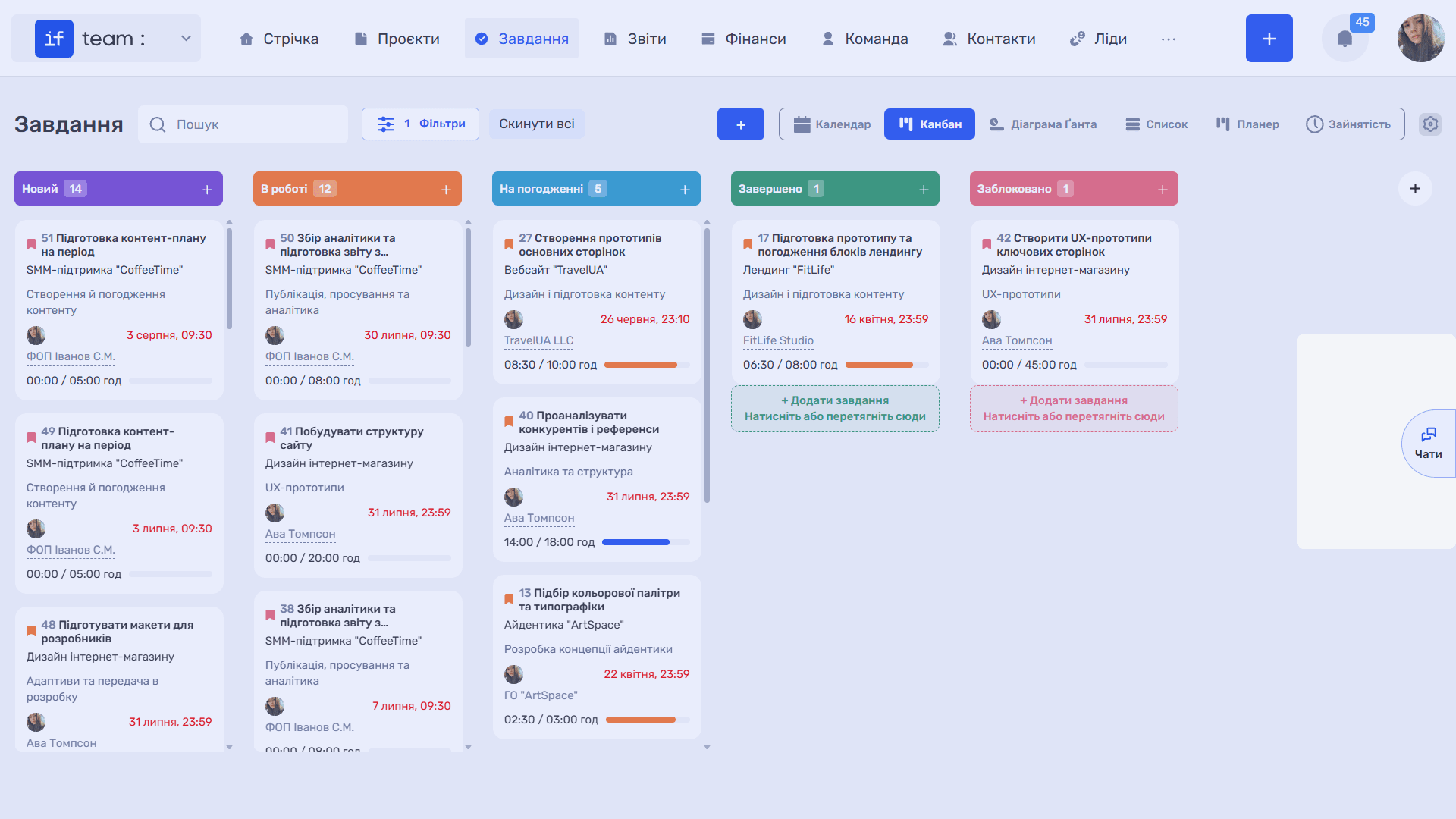
Click the button to expand a vertical panel with chat avatars. The pinned company chat, marked with the company icon, appears at the top. Below it are project chats, each labeled with the first letters of its name. Hover over an avatar to view the full chat name.
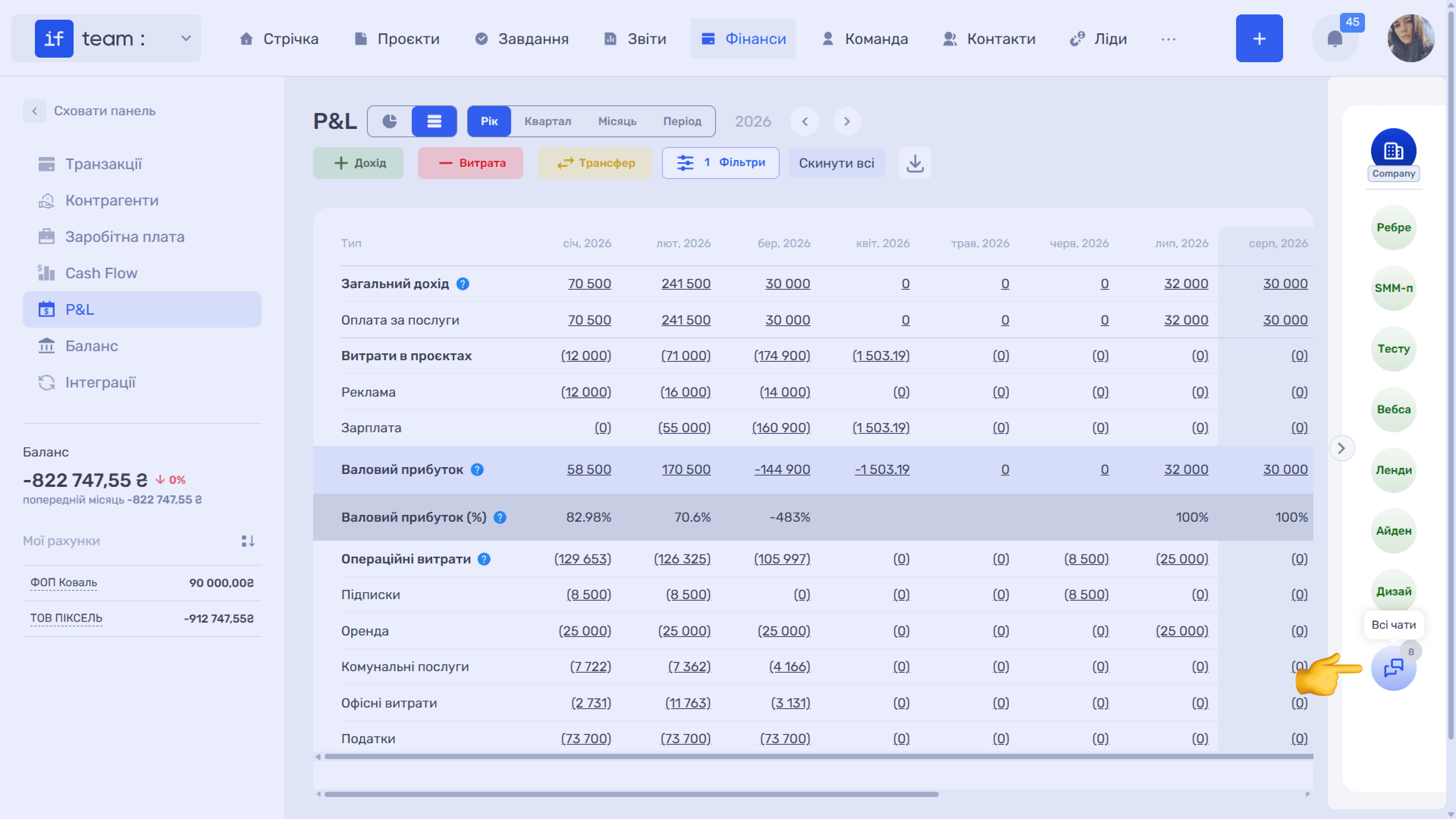
At the bottom of the panel is the “All Chats” button with a count. It shows the total number of chats available to you and opens the full list. To hide the panel, click the “>” arrow near its left edge.
Compact and Full-Screen Views
Click any chat avatar to open the conversation in a compact window on the right. The header displays the chat name and number of members, while the “Write a Message” field appears at the bottom.
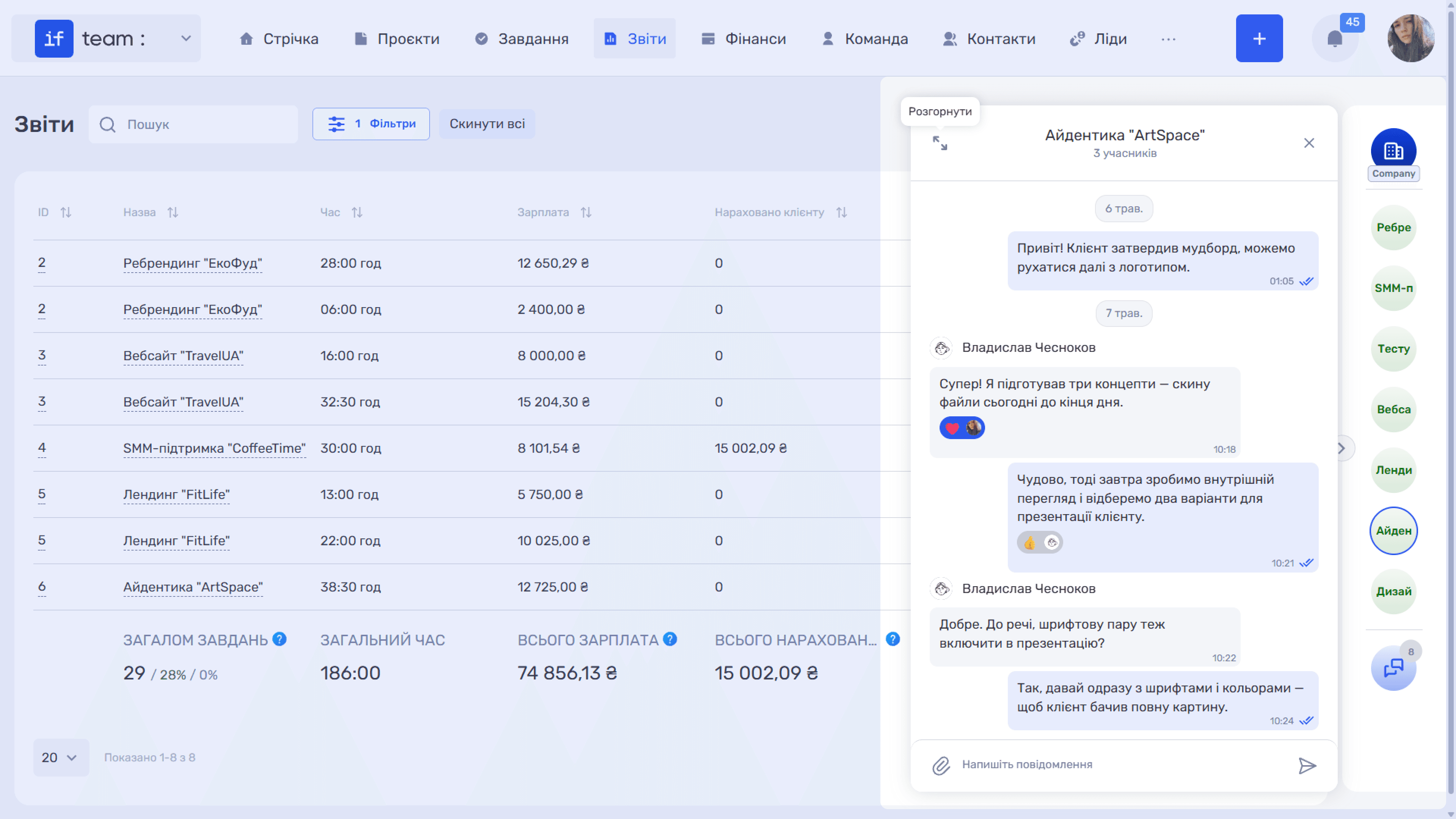
For more focused work with a conversation, click “Expand” (⤢). The window switches to a two-column view with the list of all chats on the left and the active conversation on the right. The reverse icon returns to the compact view, while “✕” closes the window.
Still have questions?
Maybe we haven't added this information yet. But you can always reach out:
Request a demo
Submit a request and we'll show you how the service works and its capabilities.
Book a demo