Working with Messages
The conversation interface is intentionally similar to familiar messaging apps, so the team does not need to learn it from scratch.
Sending Messages
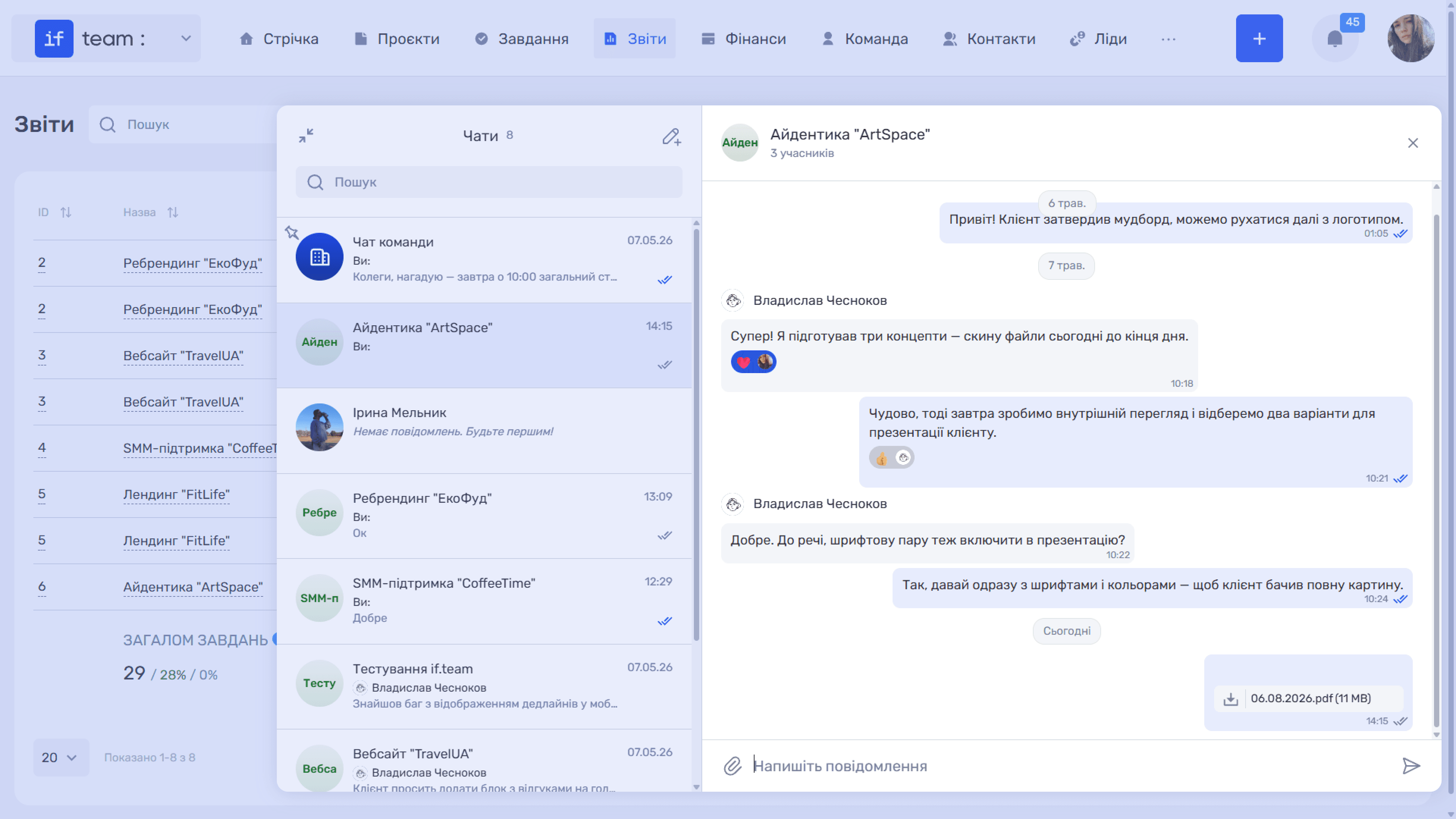
Enter text in “Write a Message” and click the send icon (➤). Messages are grouped by date, with a separator above each group, such as “May 7” or “Today,” and a sent time next to every message. A double checkmark (✓✓) means that the message has been read.
Sharing Files
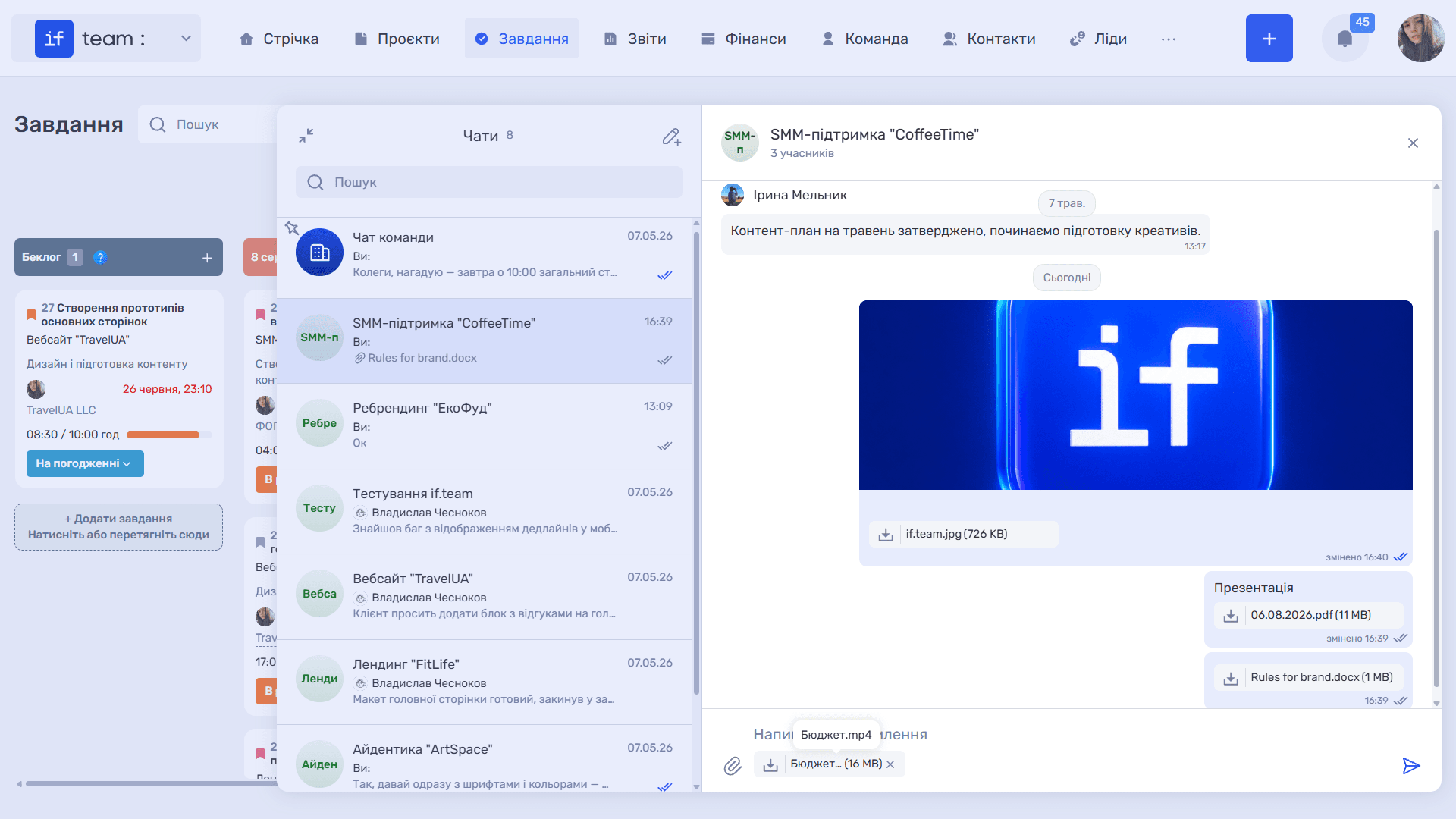
To attach a file, click the paperclip icon (📎) to the left of the input field. The attached file appears below the field as a thumbnail. You can remove it before sending by clicking ✕ on the preview. A file can be sent together with a text message.
For attachments, the system shows the file name, format, and size. The download icon saves the file to your device. Images appear directly in the conversation without needing to be downloaded.

Message Menu
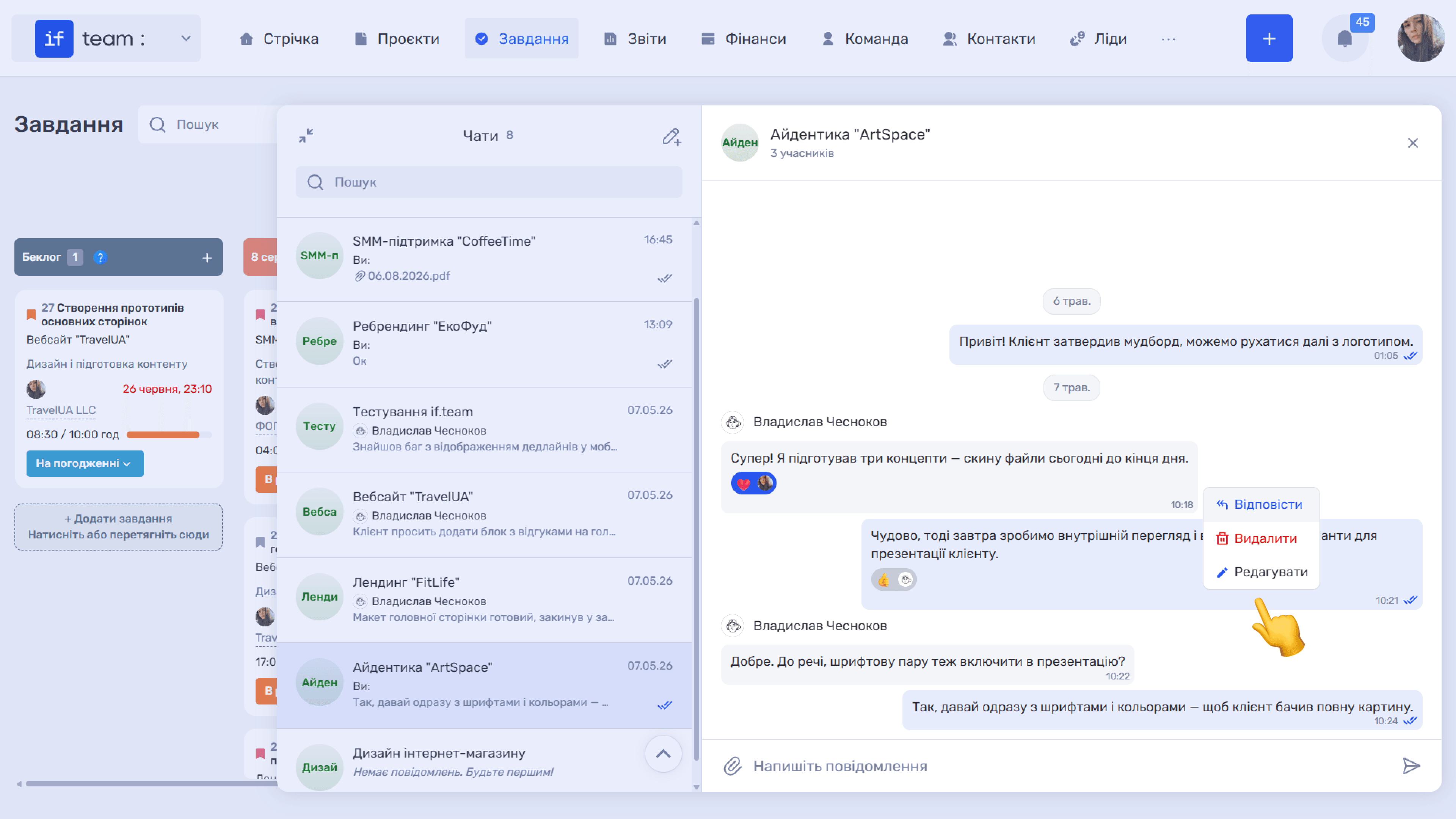
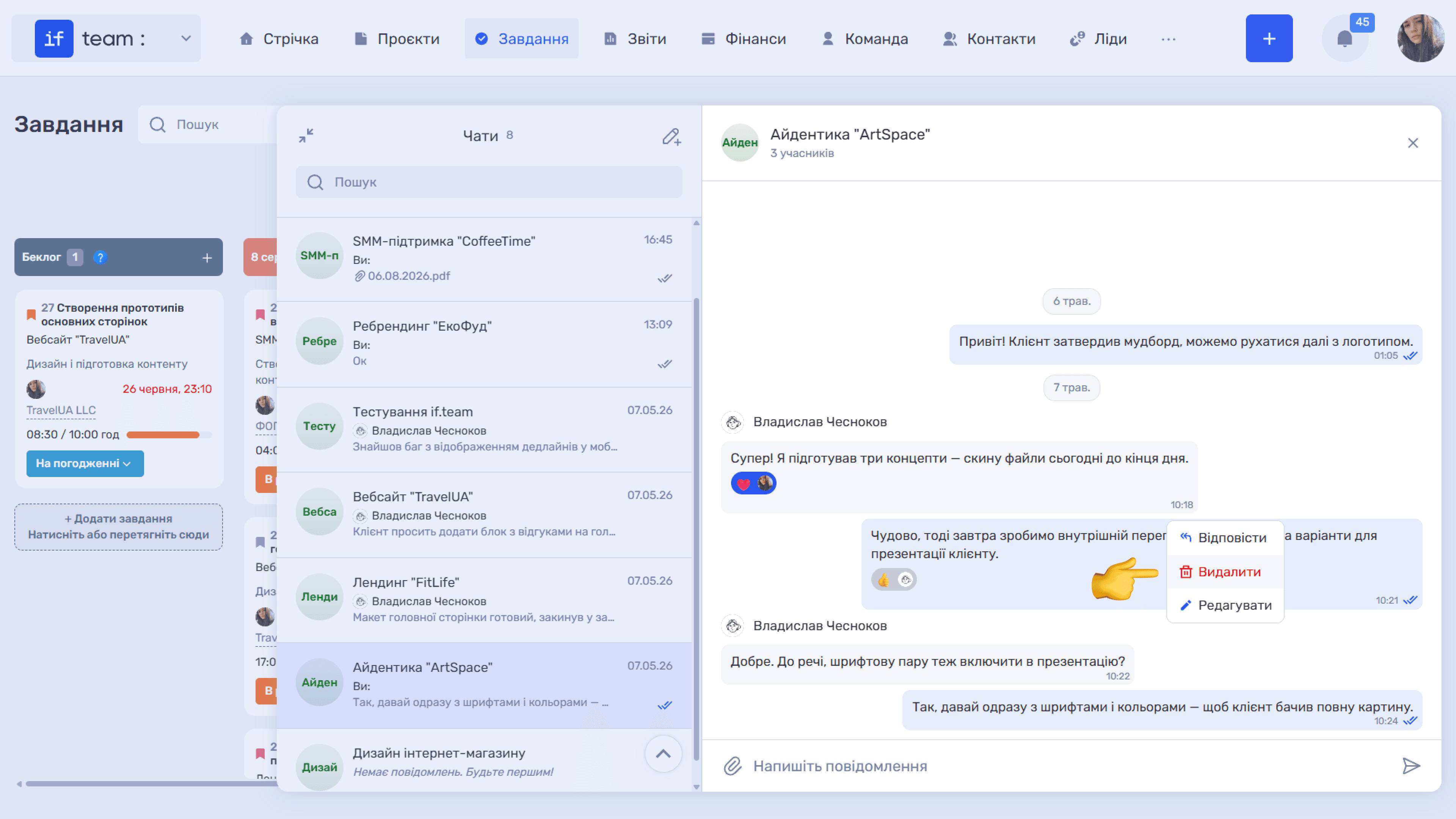
Right-click a message to open a menu with the available actions: “Reply,” “Edit,” and “Delete.” The available actions depend on your system permissions; see Configuring Chat Access.
Replying to Messages
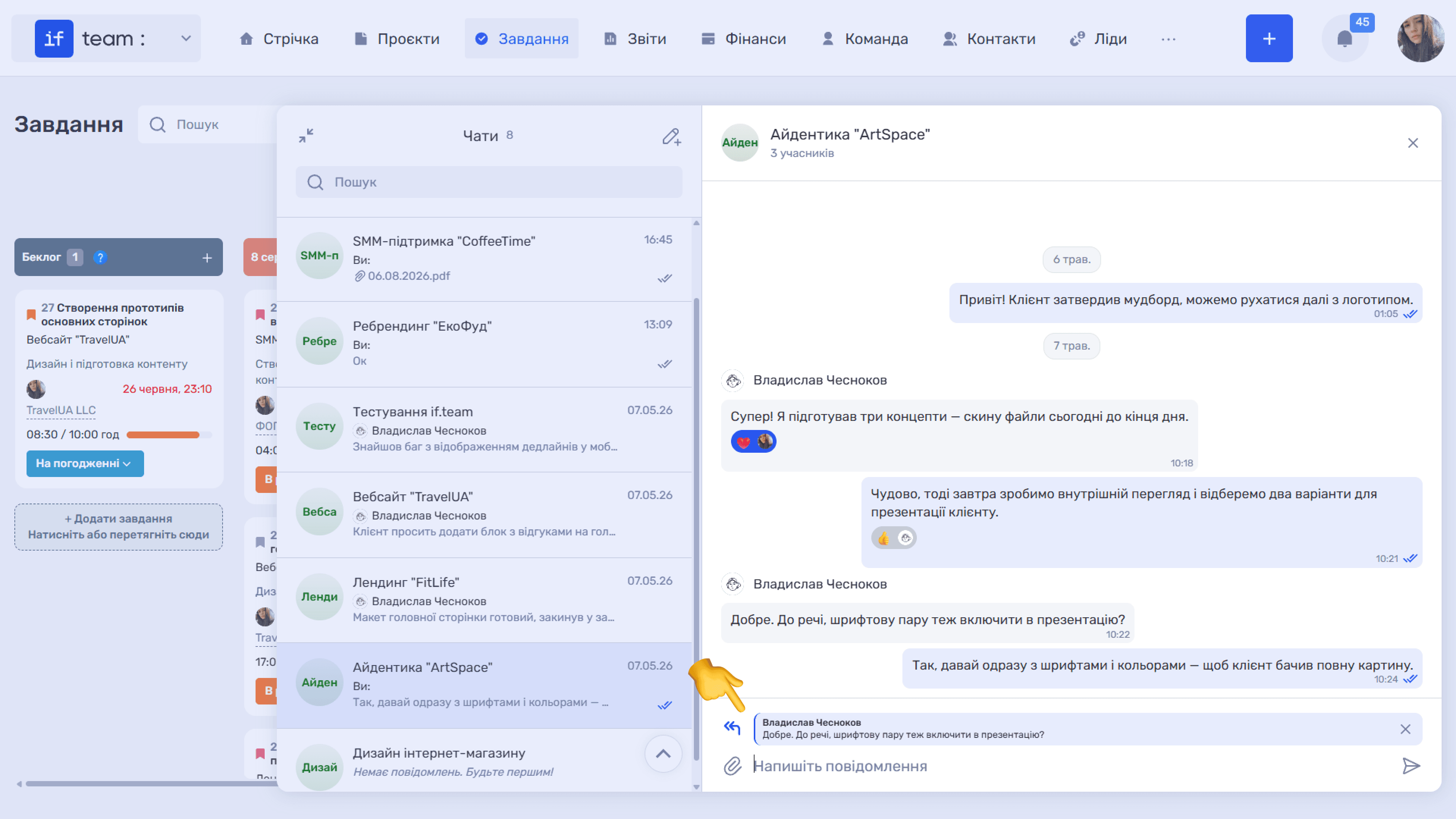
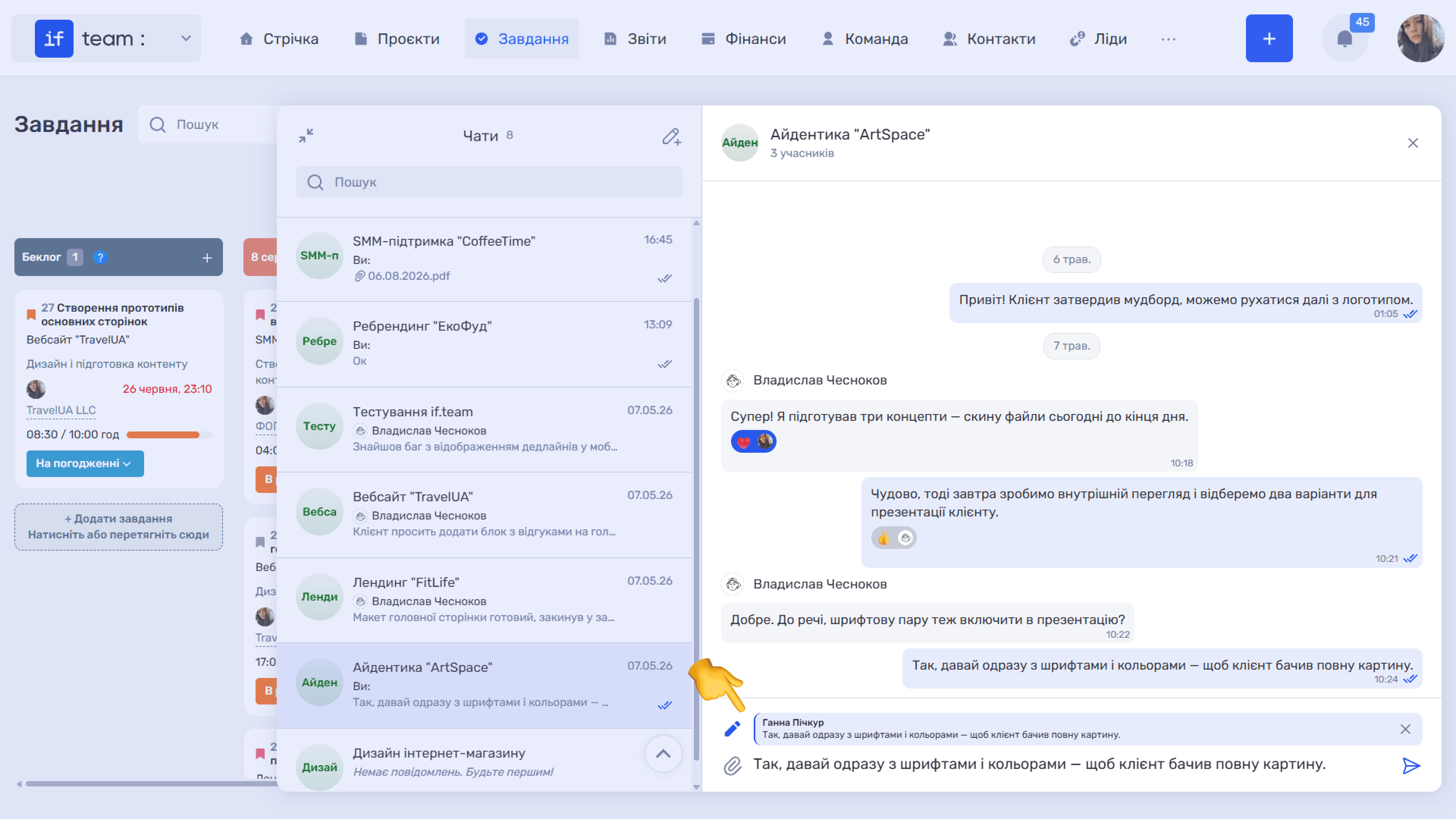
To reply to a specific message, select “Reply” from the menu or simply double-click it. A quote containing the author’s name and original text appears above the input field, showing other participants exactly what your reply refers to. Click “✕” next to the quote to cancel the reply.
Editing and Deleting
“Edit” places the message text in the input field and displays the original version above it with a pencil icon. Make your changes and send the message again.
“Delete” removes the message from the conversation.
Reactions
Members can react to messages with emoji. Reactions appear below the message text together with the avatar of the person who added them. This is useful when you want to confirm that information has been received without adding unnecessary messages to the chat.
Still have questions?
Maybe we haven't added this information yet. But you can always reach out:
Request a demo
Submit a request and we'll show you how the service works and its capabilities.
Book a demo