Chat Members
The number of members is displayed in the chat header below its name. Click it to open the “Edit Members” window.
Generate AI summary
Open this page in your favorite AI assistant
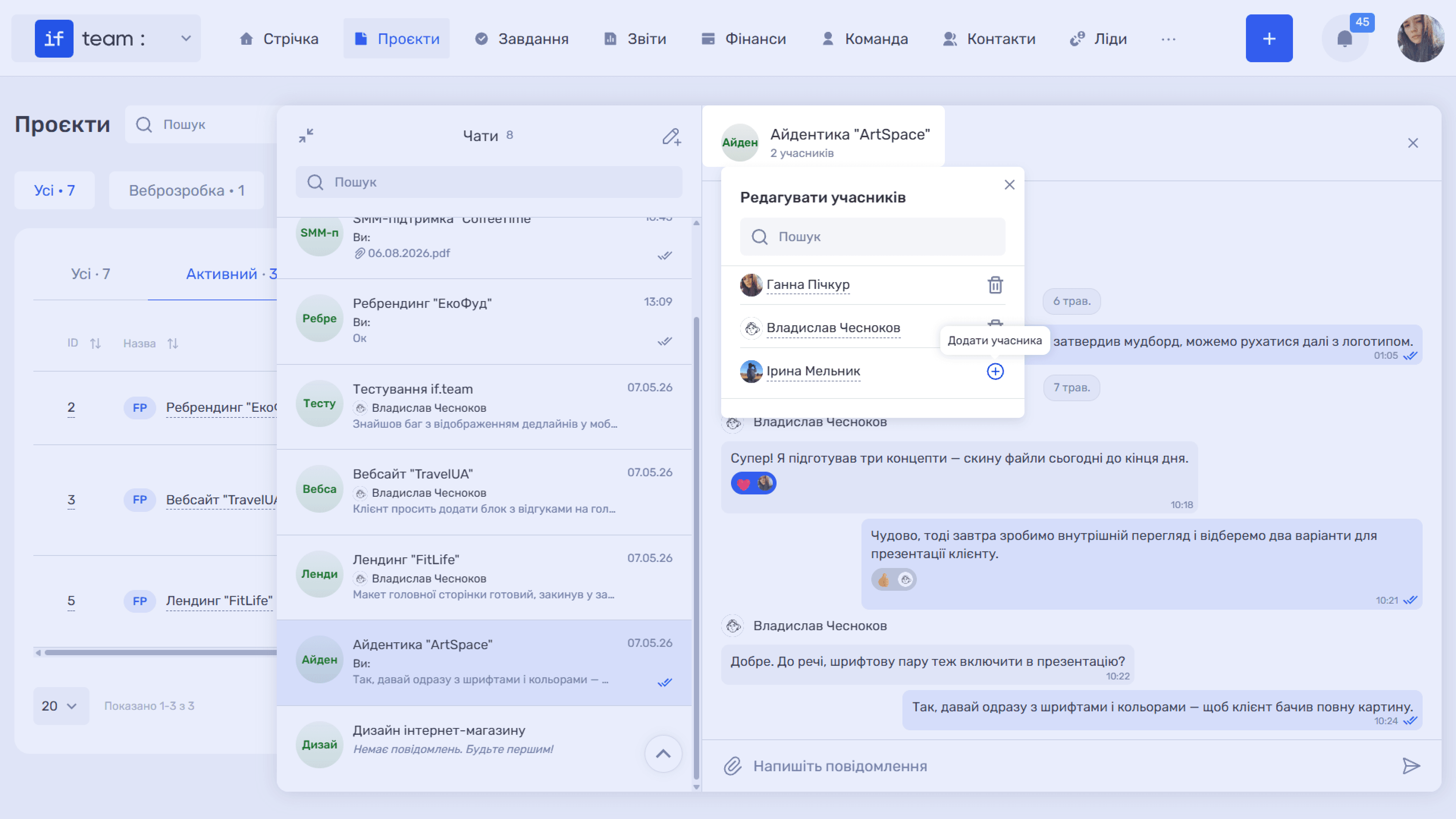
The window lists the employees available for this chat. The icon next to each employee indicates their current state:
- ⊕ “Add Member” means the employee is not yet in the chat. Click it to add them to the conversation.
- 🗑 “Remove Member” means the employee is already in the chat. Click it to remove them from the conversation.
The count in the chat header updates immediately after the list of members changes. If you have a large team, use the “Search” field at the top of the window to quickly find the employee you need.
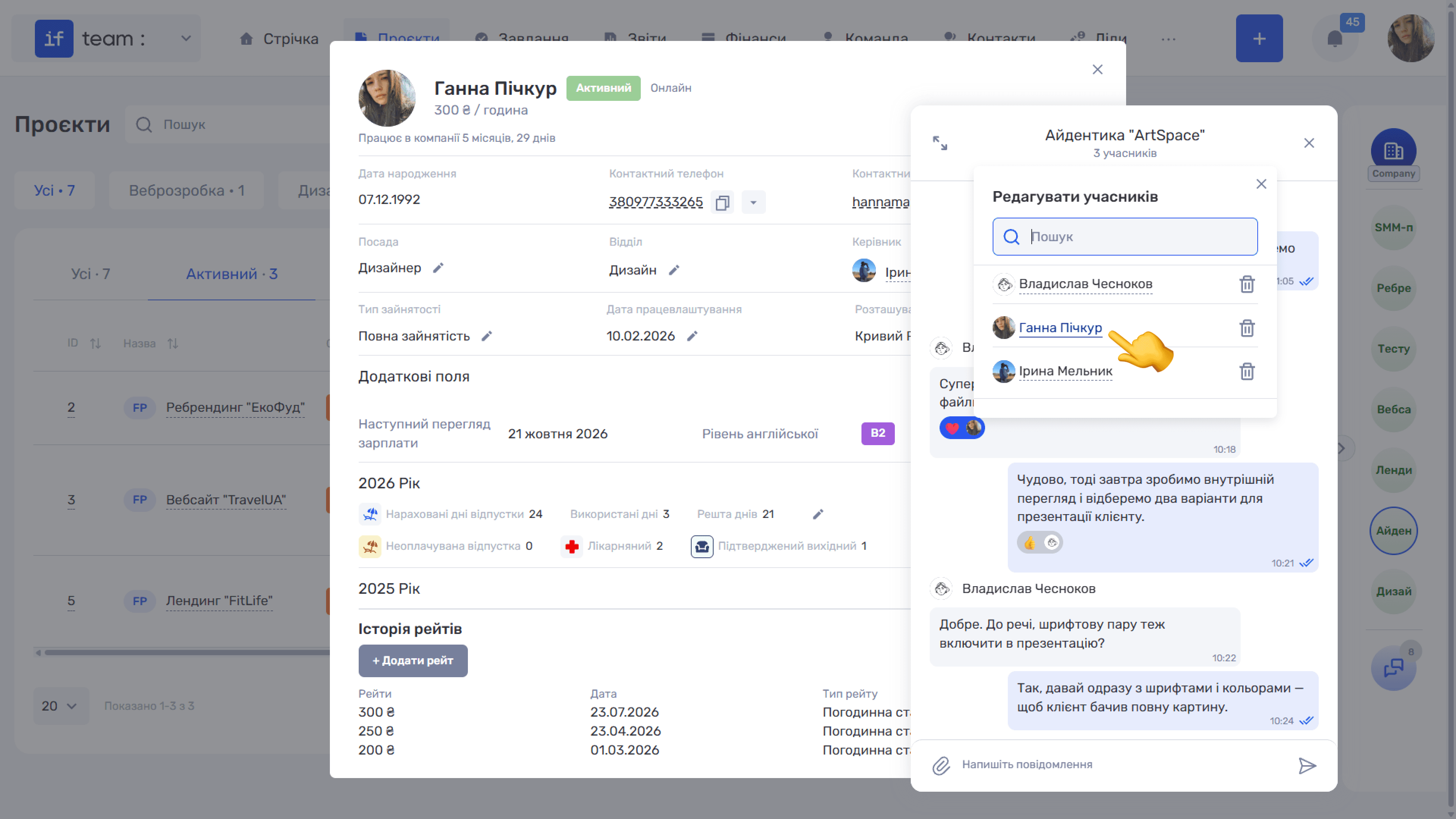
Click a member’s name to open their profile with their current status and the time of their latest activity in the system.
Still have questions?
Maybe we haven't added this information yet. But you can always reach out:
Request a demo
Submit a request and we'll show you how the service works and its capabilities.
Book a demo