Candidates
The Candidates section is the database of everyone you have ever dealt with in hiring, regardless of which vacancies they applied for.
A candidate lives in the system separately from vacancies: the same person can be considered for several positions at once, and if there is no suitable vacancy right now, their profile stays in the database for future opportunities.
The section opens from the Candidates item in the module's left panel.
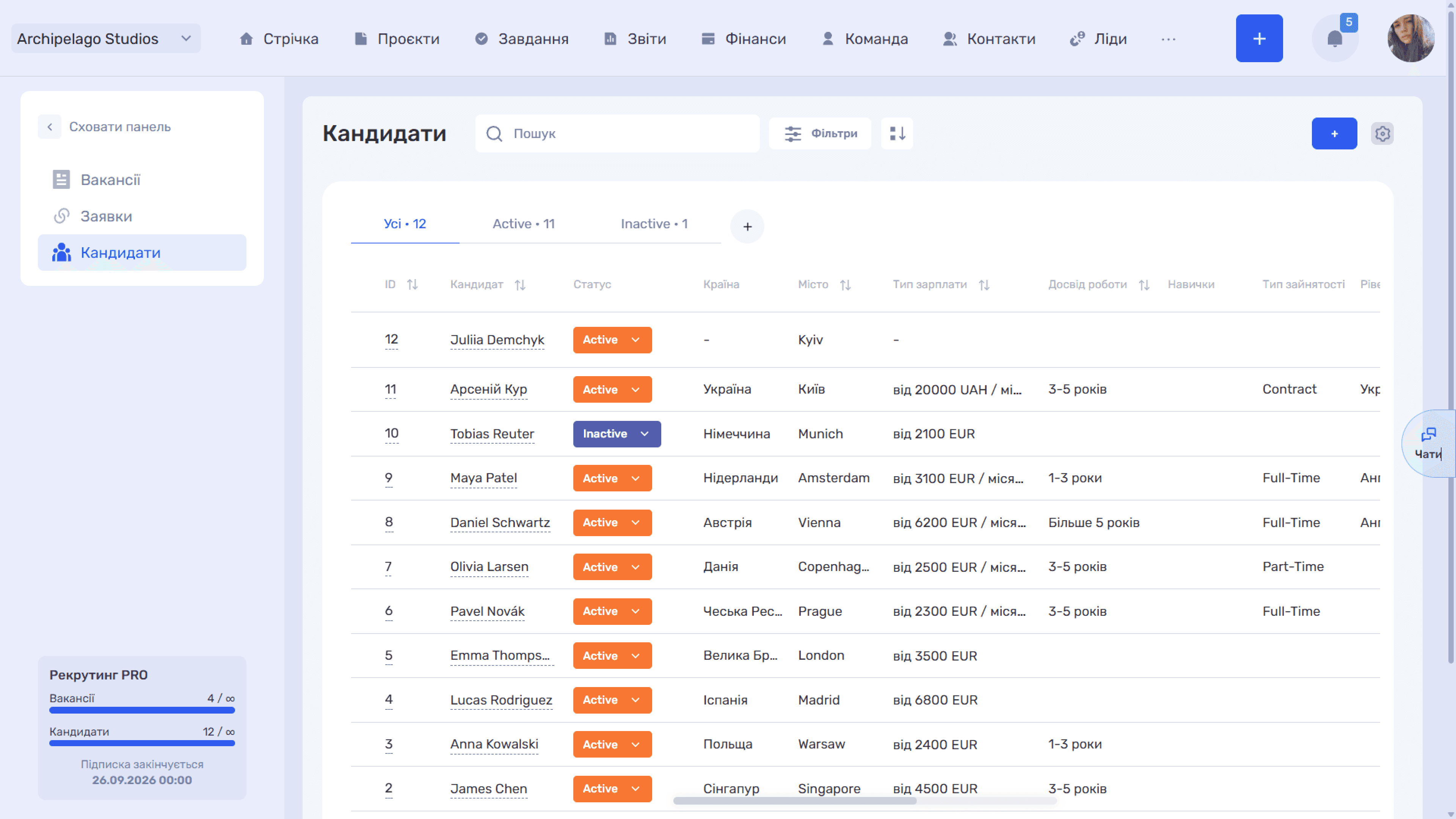
Candidate list
Above the table are tabs by candidate status: All and a tab for each status from your settings (for example, Active and Inactive). The number next to a tab name shows how many candidates are in that status, so you can immediately see how many people in the database are active and whose resumes are on hold. The + button to the right of the tabs adds a new status.
Each table row is one candidate. Available columns: ID, Candidate, Status, Country, City, Salary type, Work experience, Skills, Employment type, Language level, Description, Source, Tags, File, and Actions. The name in the Candidate column links to their card, and the status can be changed right from the list.
Three more columns — Ready for a test task, Salary expectations, and CV — are custom candidate fields. They are created for your company's needs in the admin panel (Settings → Recruiting → Custom fields for candidates) and enabled in Field settings (see Admin Panel → Recruiting).
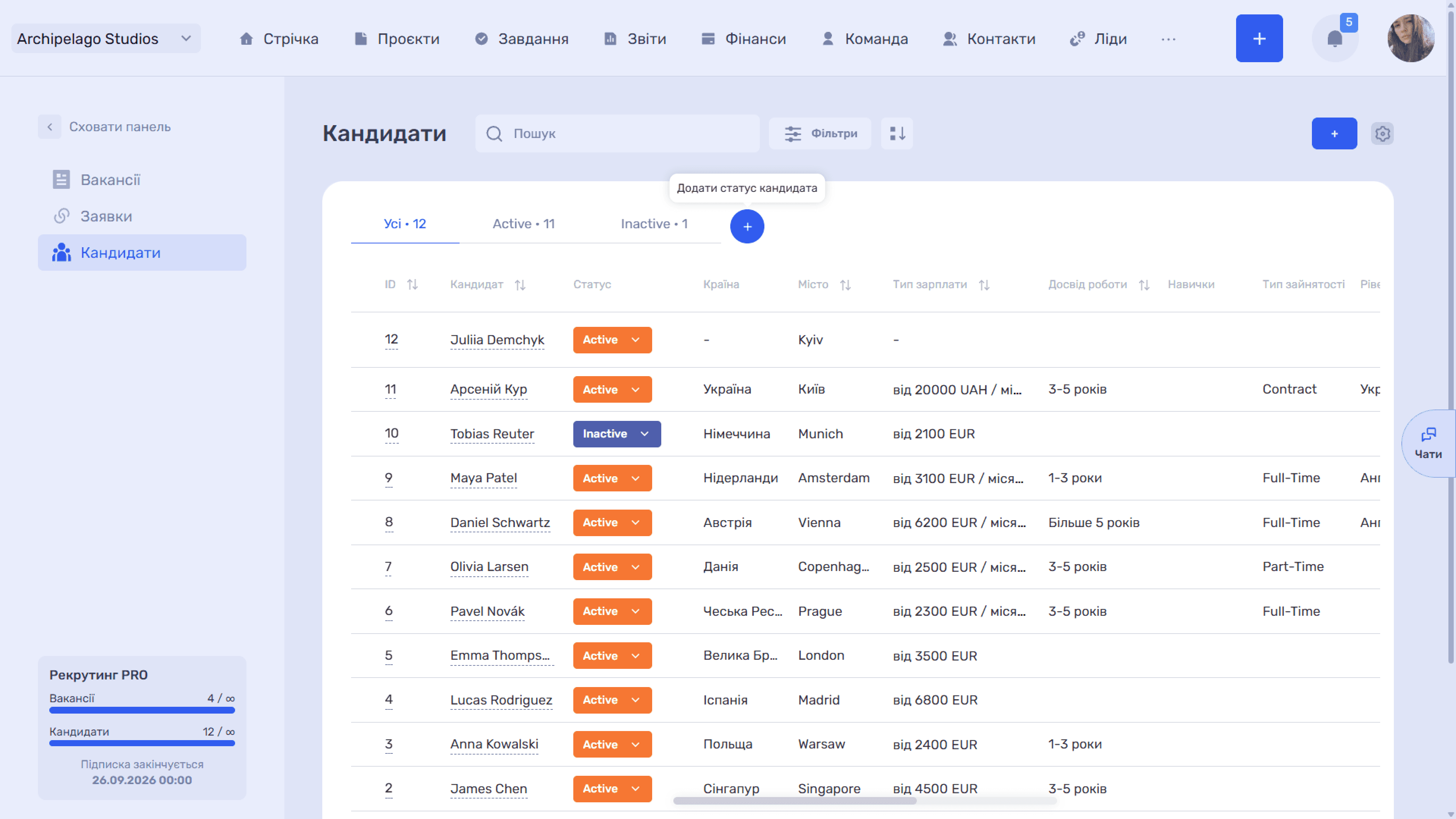
Row actions
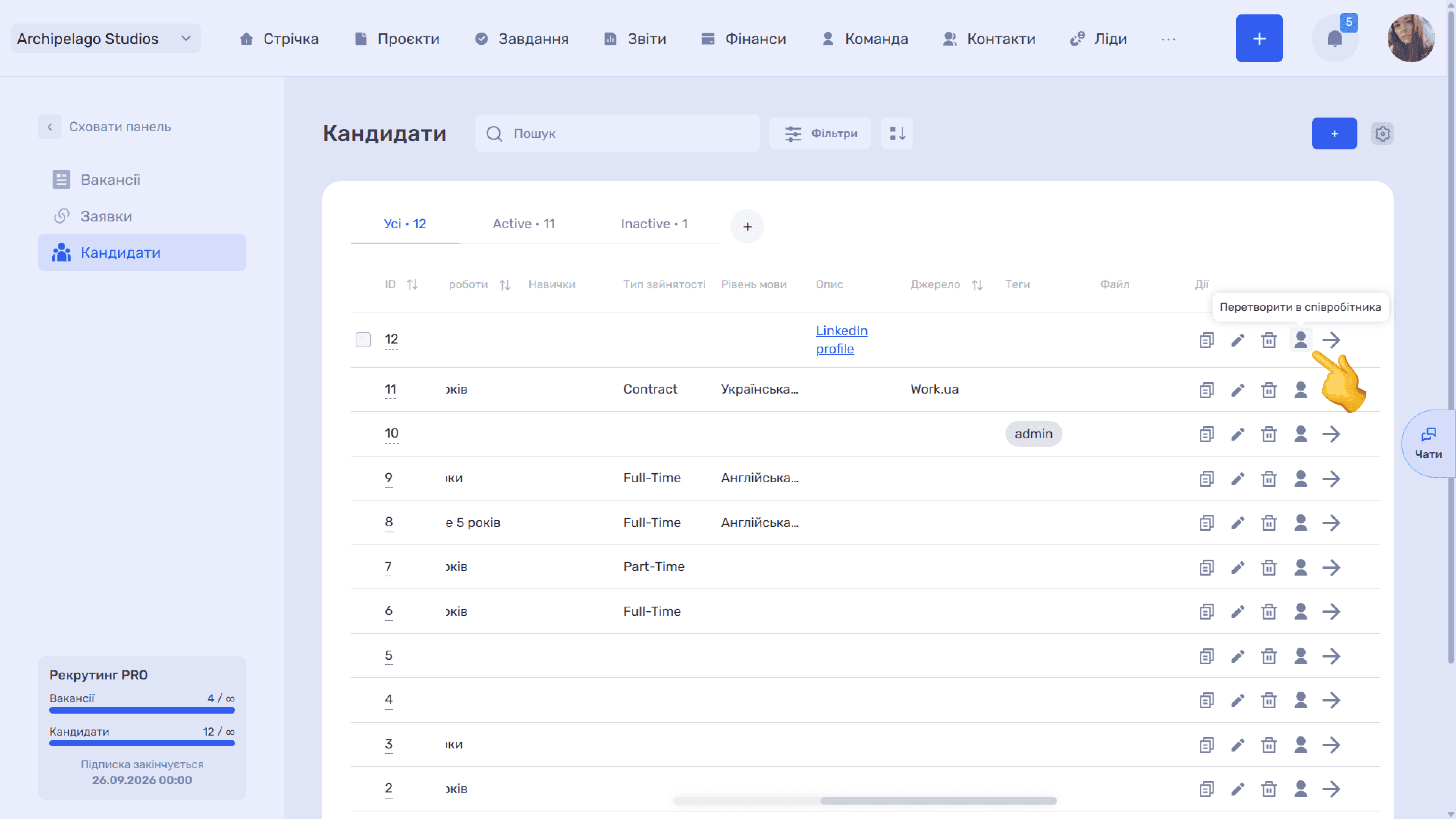
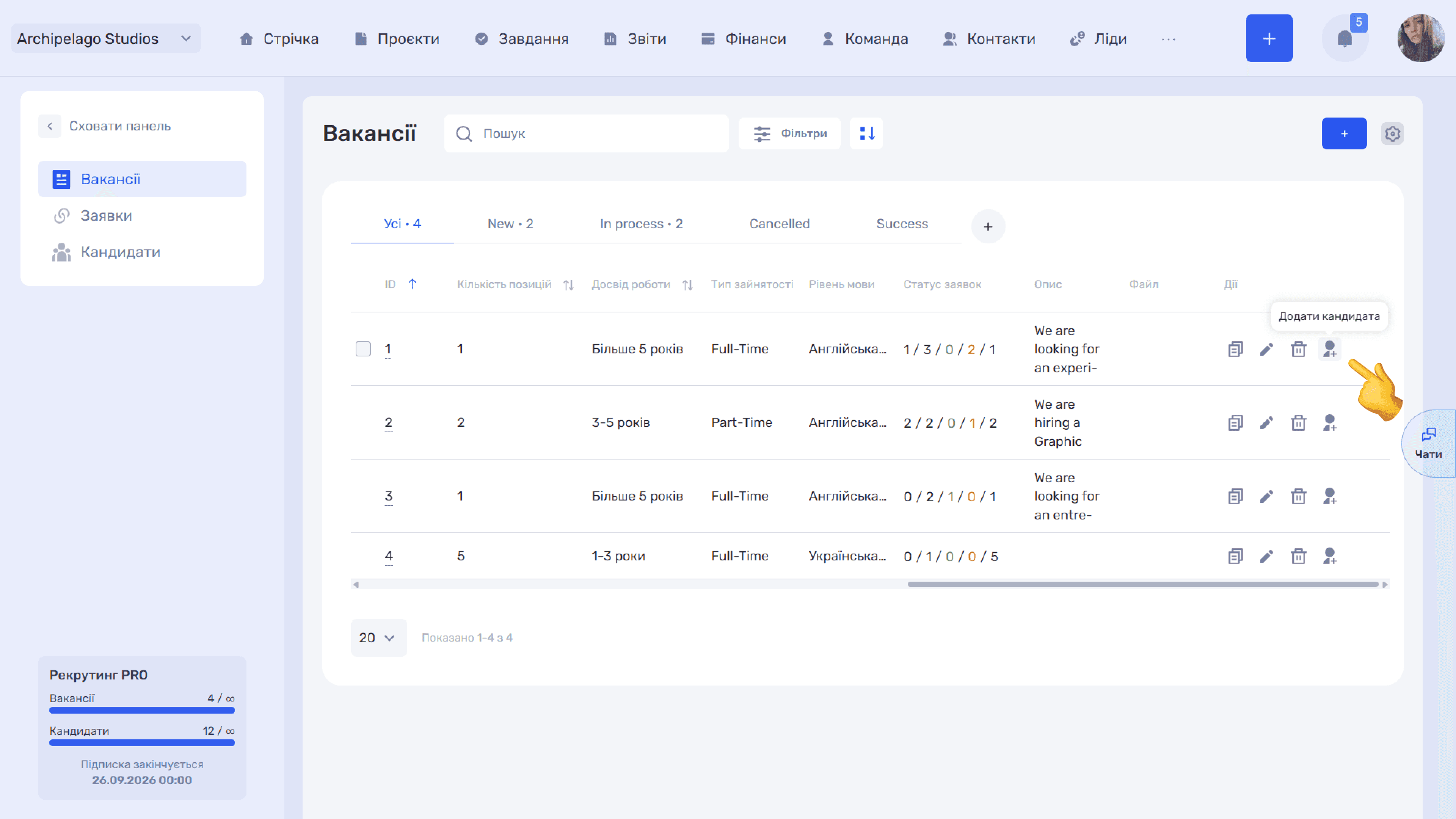
Hovering over a row shows five icons in the Actions column:
- 🗐 — copy the candidate;
- edit;
- delete;
- convert to employee (opens the Invite employee window);
- ➜ — attach to a vacancy.
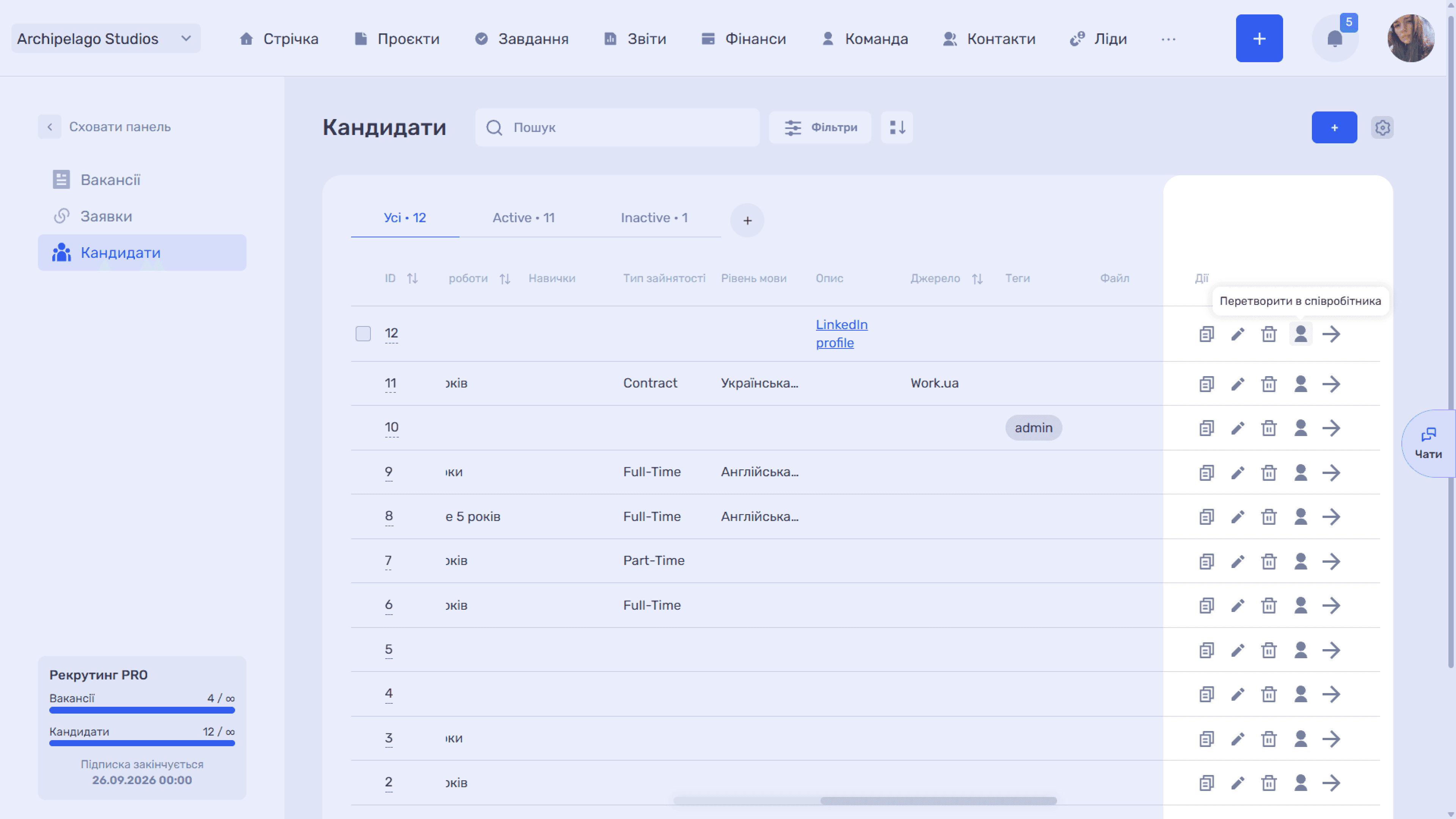
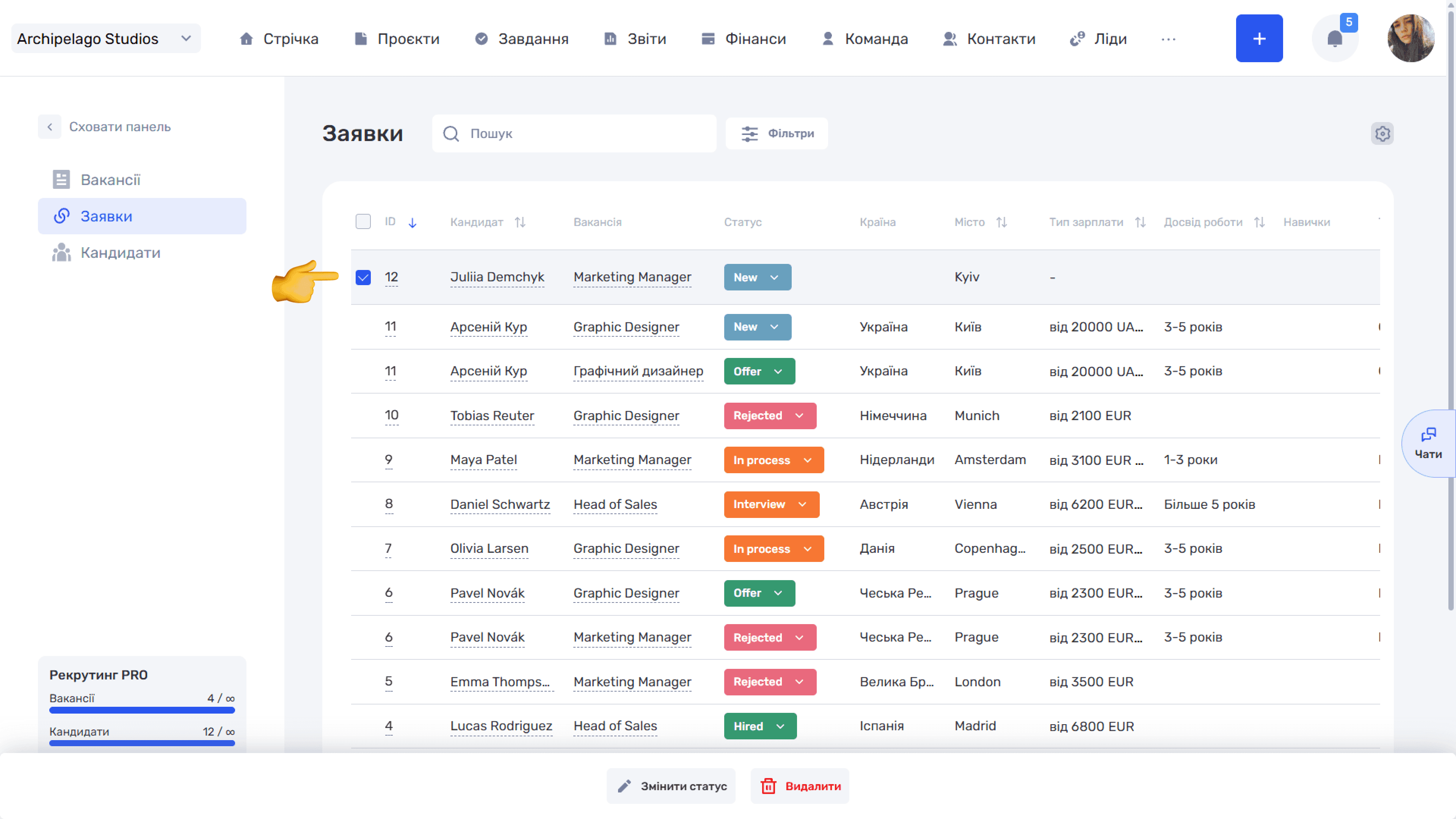
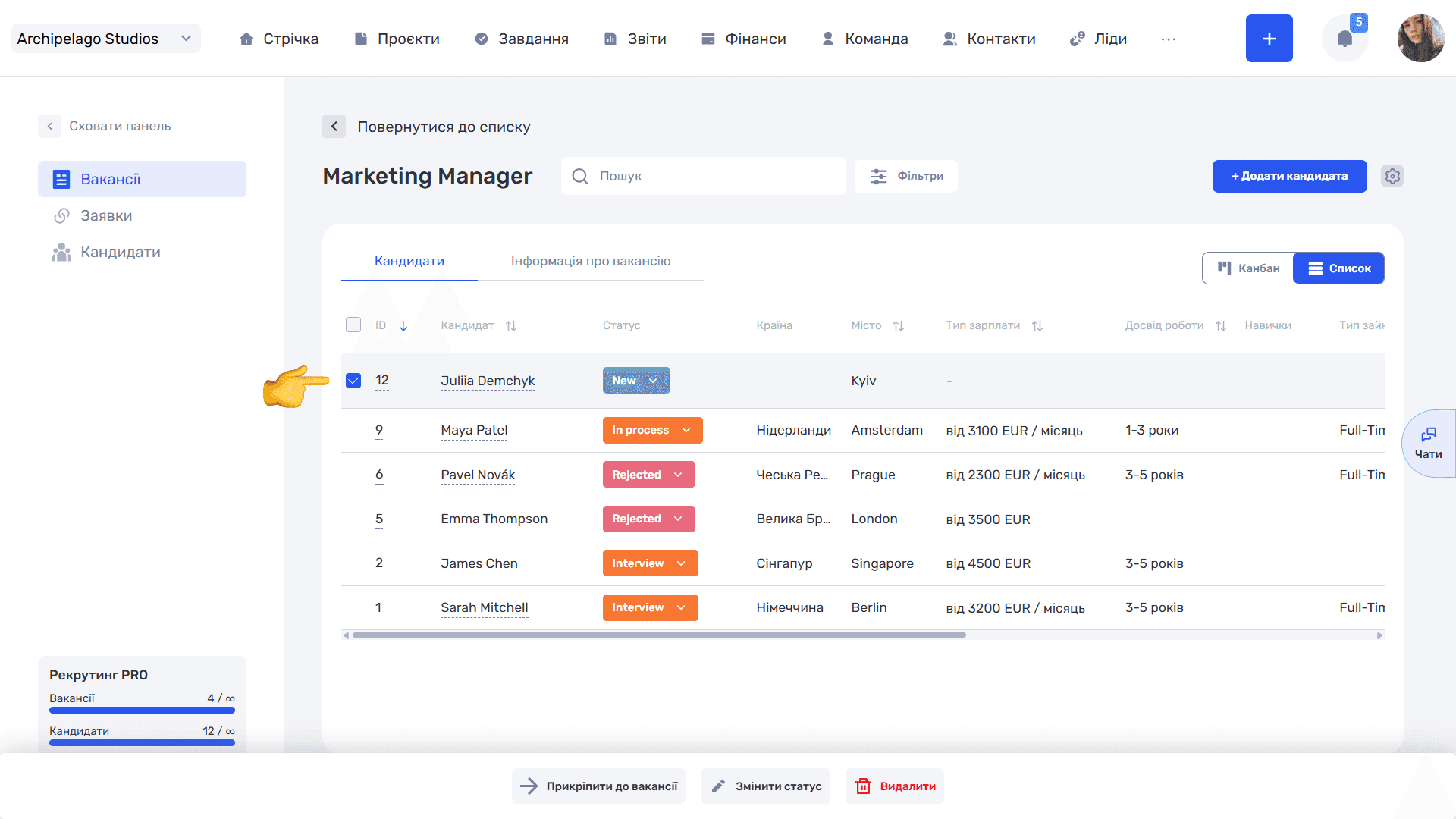
Attaching to a vacancy is the main action in this list: it is what creates an application. The ➜ icon opens the Link to vacancy window with a search and a list of open vacancies. Select the vacancy and click Save — a new row with the initial status appears in the Applications section, and the candidate appears in that vacancy's Candidates tab.
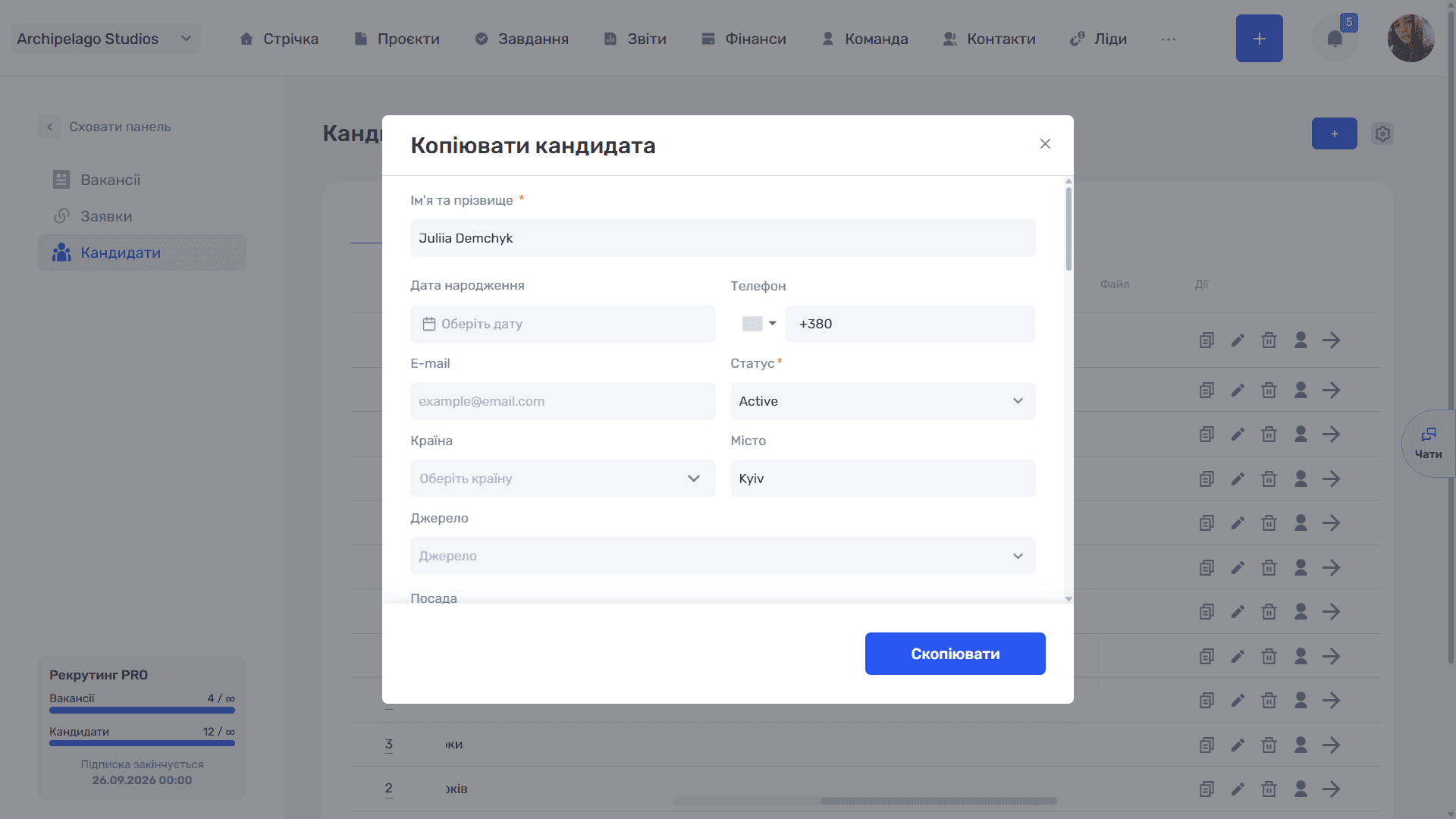
Copying opens the Copy candidate window — a full copy of the card with all filled-in fields. Anything can be changed before saving, and the Copy button creates a new candidate.
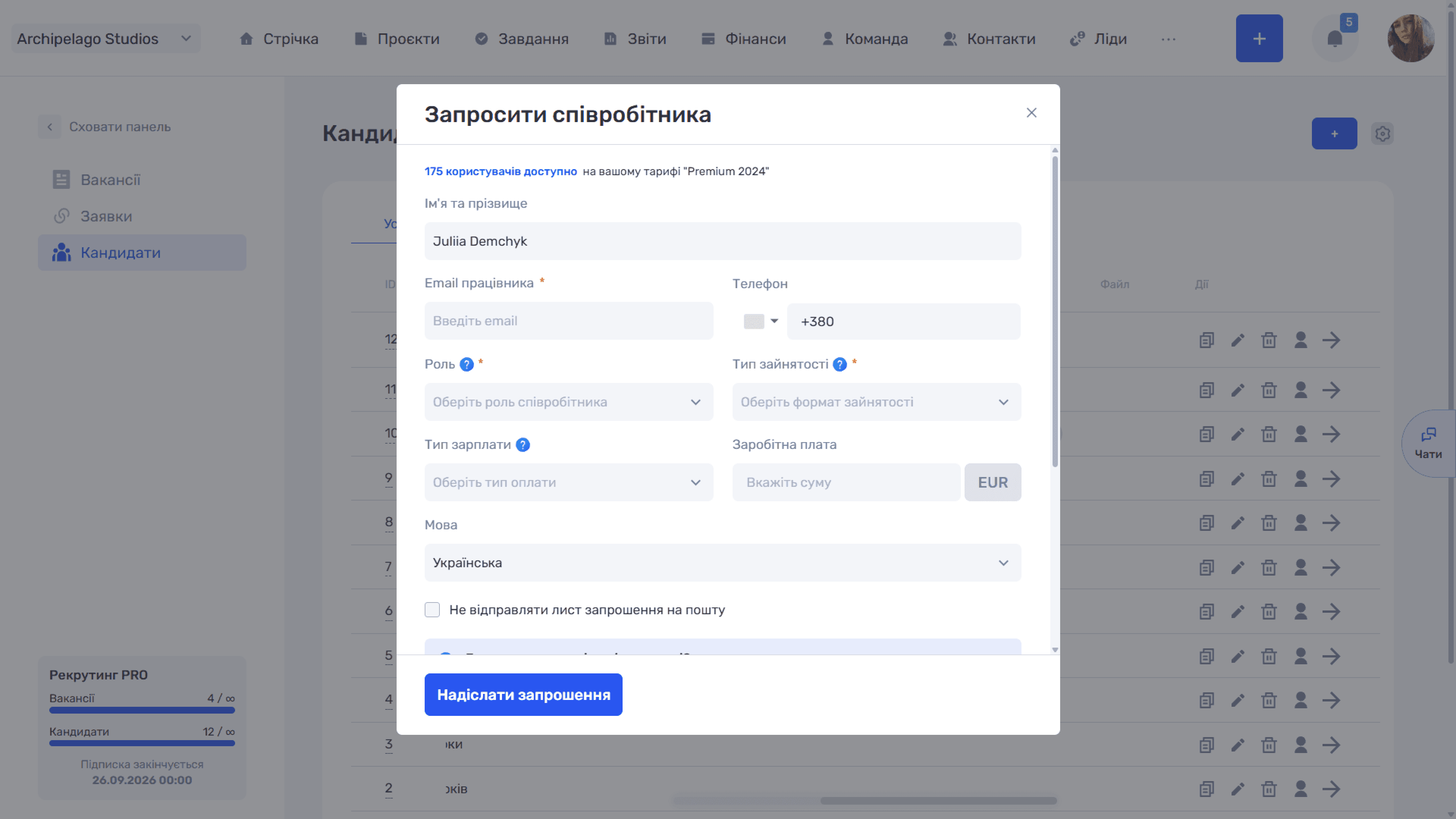
Converting to an employee opens the Invite employee window (see the field description in Applications). The candidate stays in the recruiting database together with their applications, and a new employee appears in the Team module. The application status does not change automatically — you need to move it to the Hired stage manually.
Search, filters, and table view
As the database grows, scrolling through the list becomes inconvenient — it is better to narrow the selection for each query.
Search at the top looks up a candidate by name: start typing the last name, and the table narrows right away.
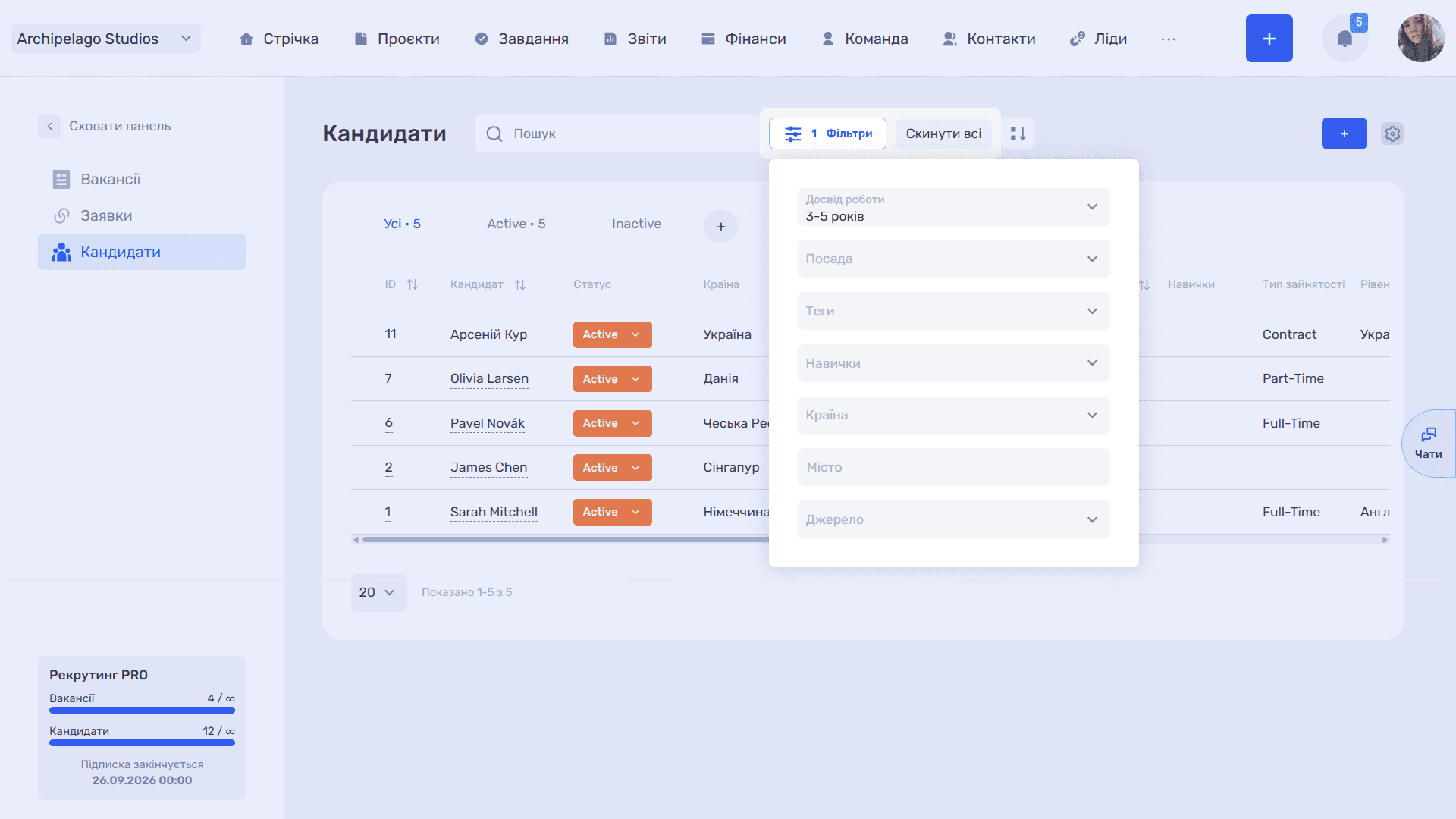
Filters select candidates by their characteristics. The Filters button opens a panel with the fields Work experience, Position, Tags, Skills, Country, City, and Source.
Filters can be combined: for example, you can select all candidates from Ukraine with 3–5 years of experience and the Figma skill. To return to the full list, clear the selected values with the Reset all button.
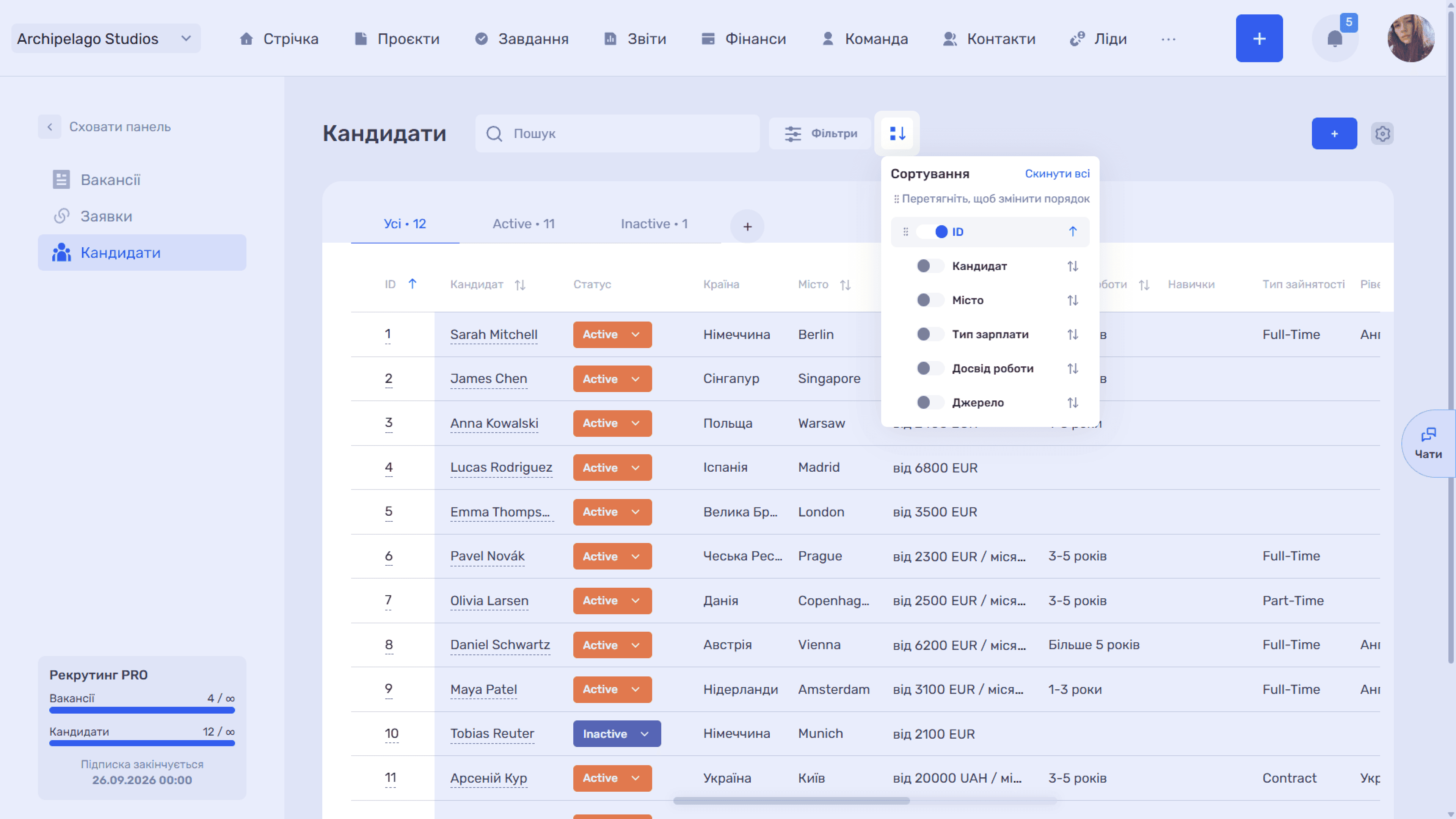
The Sorting panel (the ⇵ icon next to the filters) arranges the list in the order you need. Available parameters: ID, Candidate, City, Salary type, Work experience, and Source. An enabled parameter is highlighted, and the arrow on the right switches the direction — ascending or descending.
Several parameters can be enabled — then sorting becomes multi-level: the list is first ordered by the first parameter, and within equal values by the second. The priority order is changed by dragging ⠿, and the Reset all link turns sorting off completely.
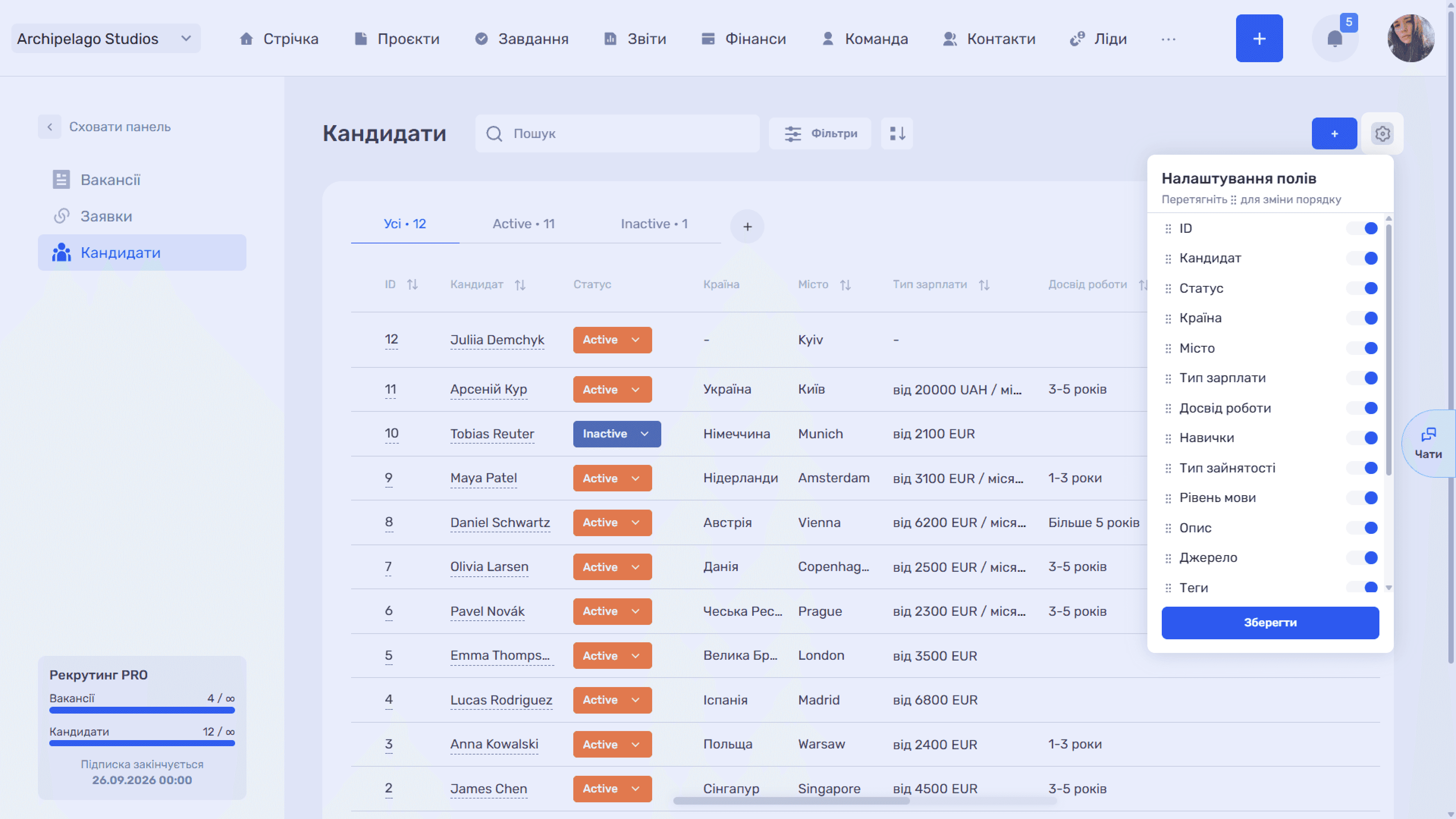
Field settings (the settings icon) let you remove columns you do not need from the table and show those that are off by default. Toggles switch columns on and off, and dragging by ⠿ changes their order. Apply changes with Save.
Candidate statuses
The status shows whether a candidate is relevant for work right now.
You can change the status right in the list row or in the candidate card — click the badge and select another value.
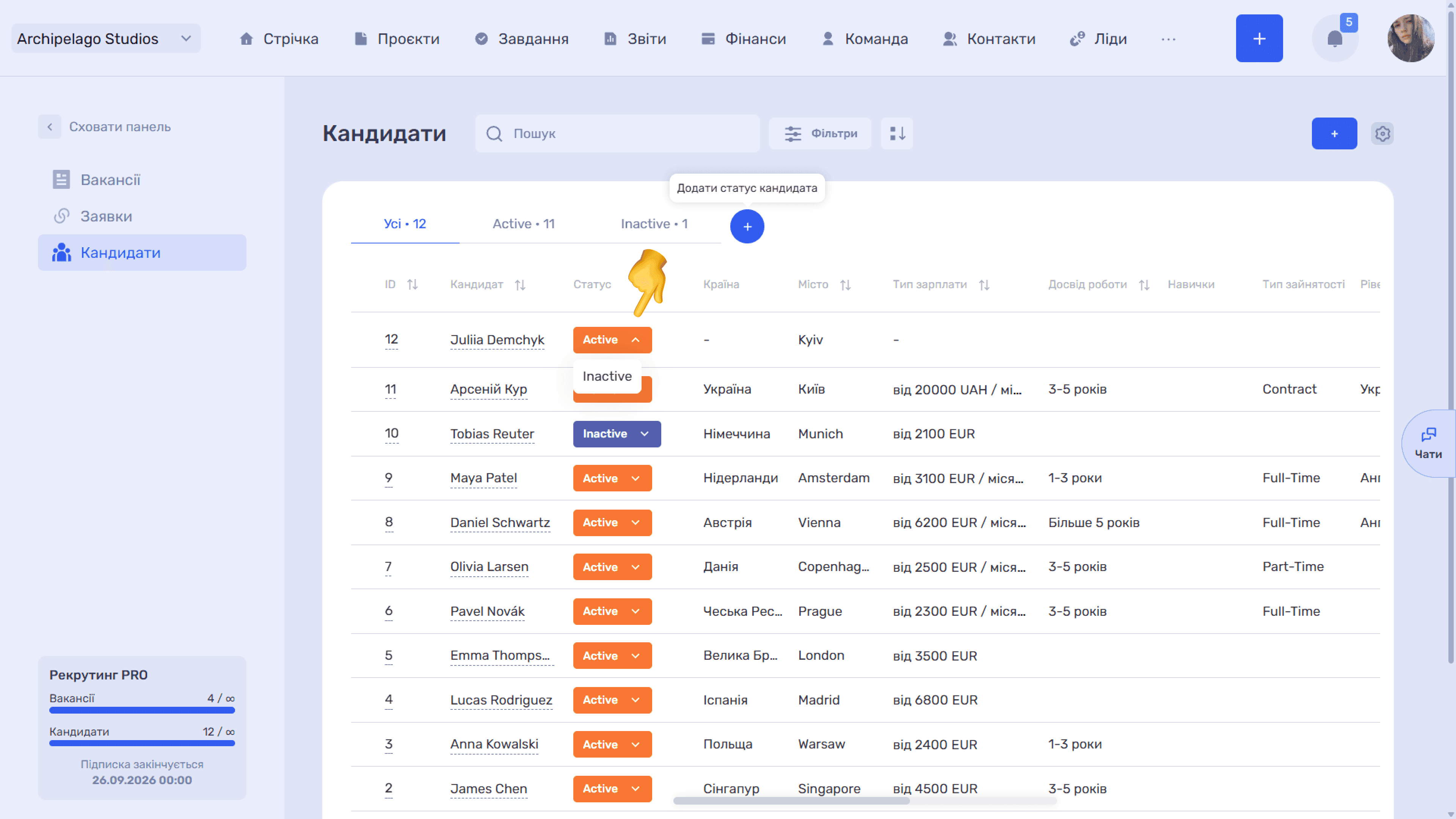
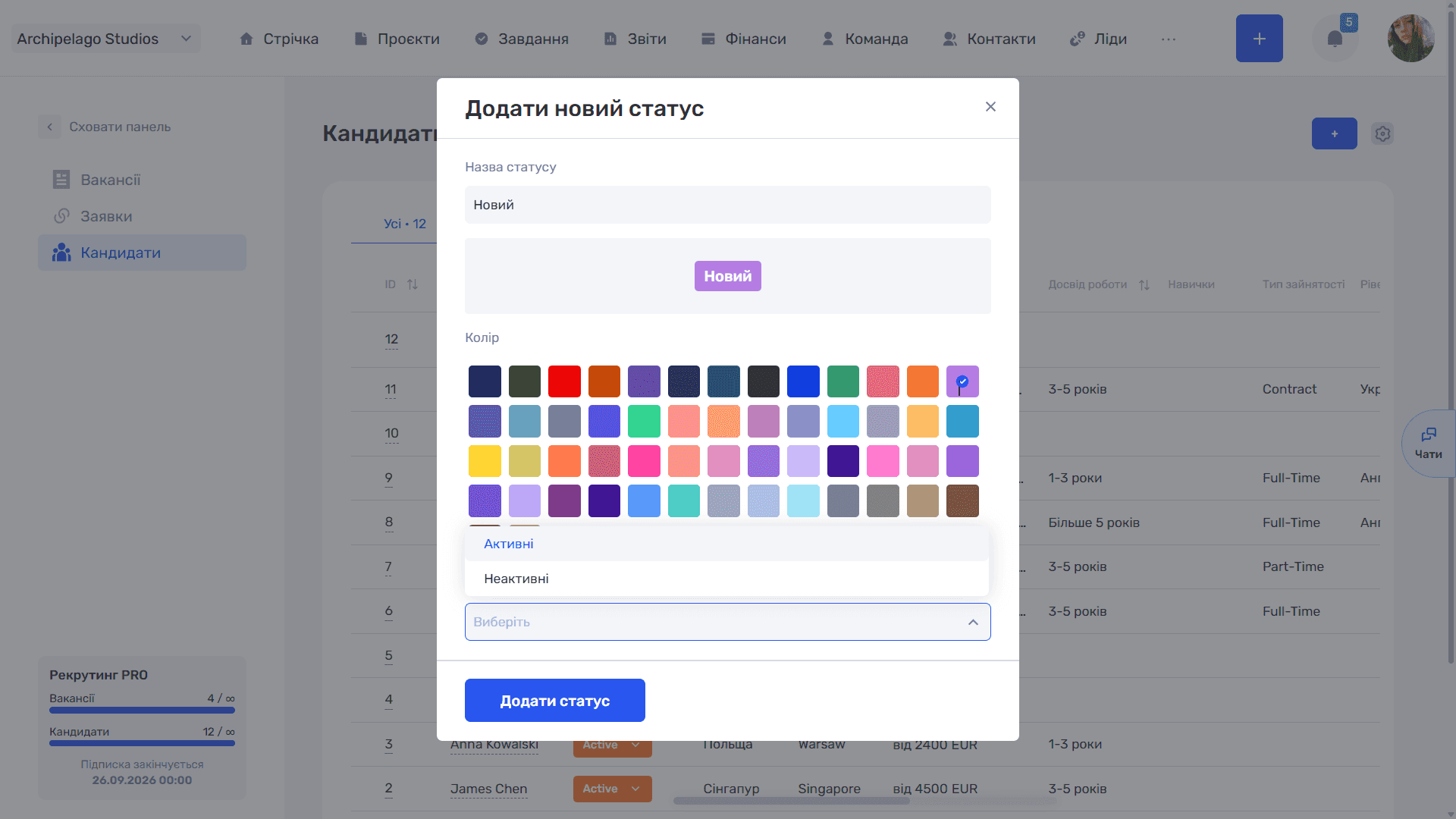
The + button to the right of the tabs opens the Add new status window. It has three fields: Status name (a preview of how the badge will look in the table appears right under it), Color from a palette of preset shades, and Status group. The Add status button creates the status, and it immediately appears as a separate tab above the table.
Please note
The full list of statuses, groups, and the rest of the module's reference data are configured centrally — see Admin Panel → Recruiting.
Creating a candidate
A candidate can be created in three ways:
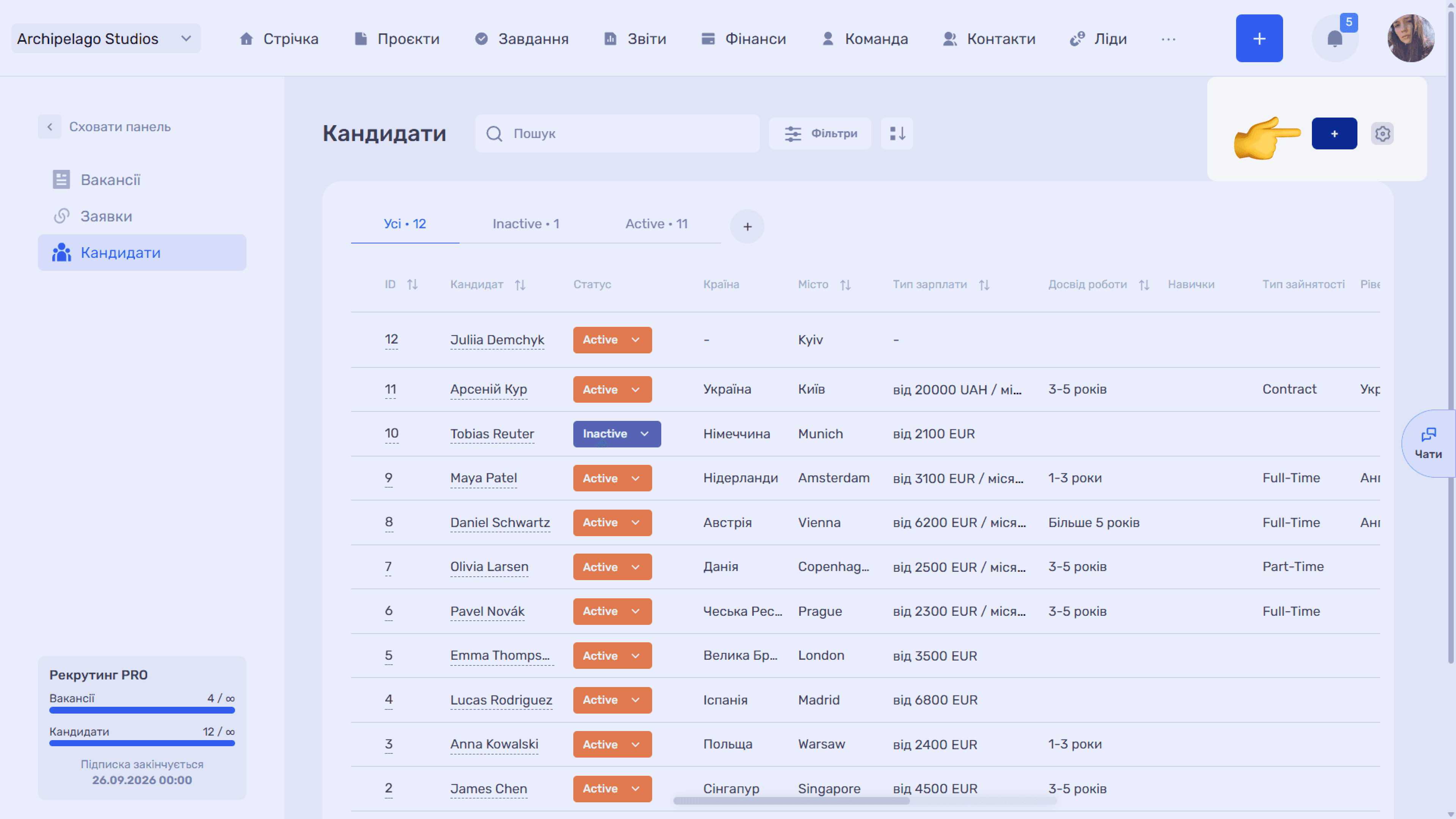
- with the + button in the Candidates section,
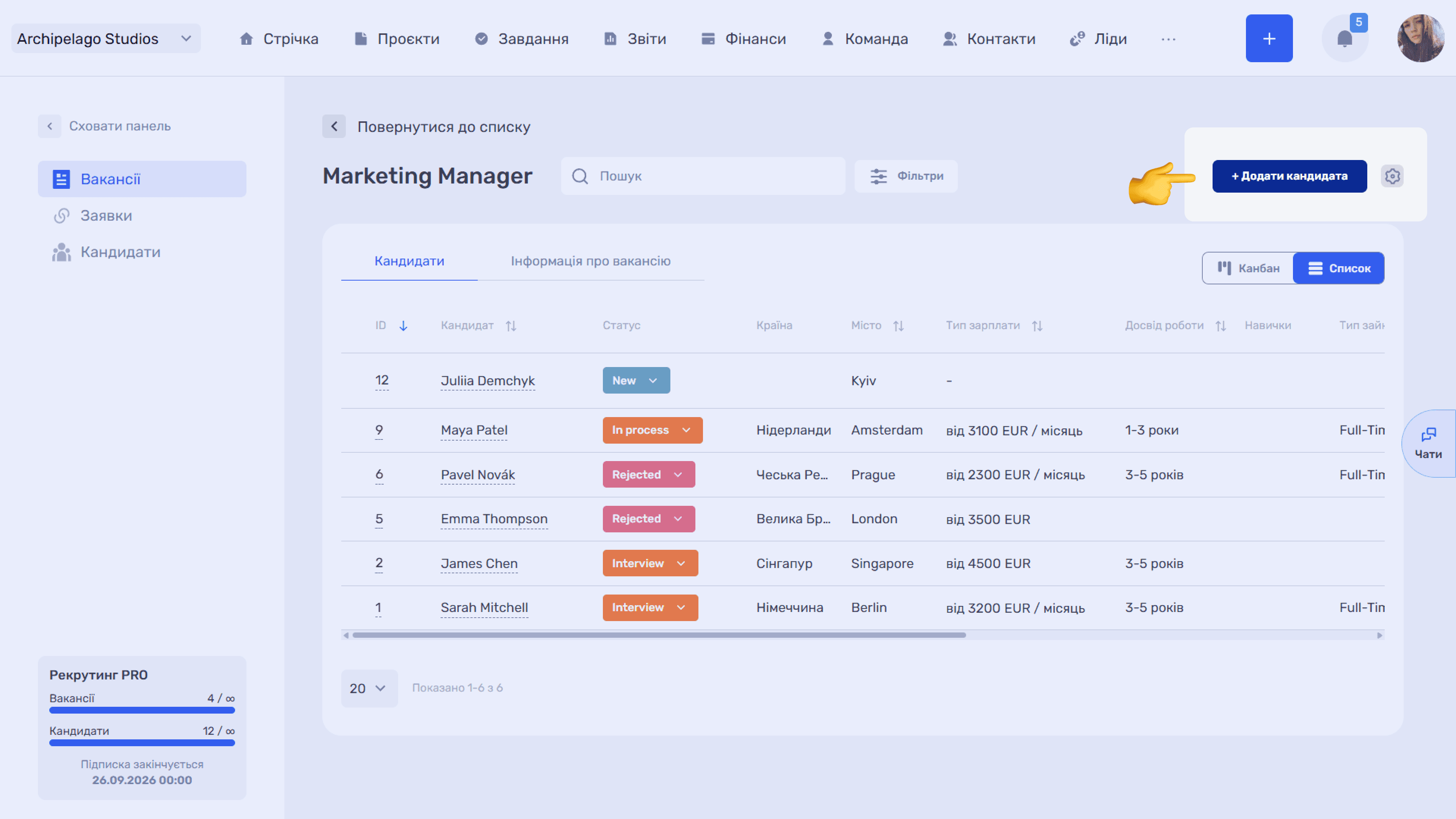
- with the + Add candidate button in the vacancy card,
- with the + icon in a vacancy list row.
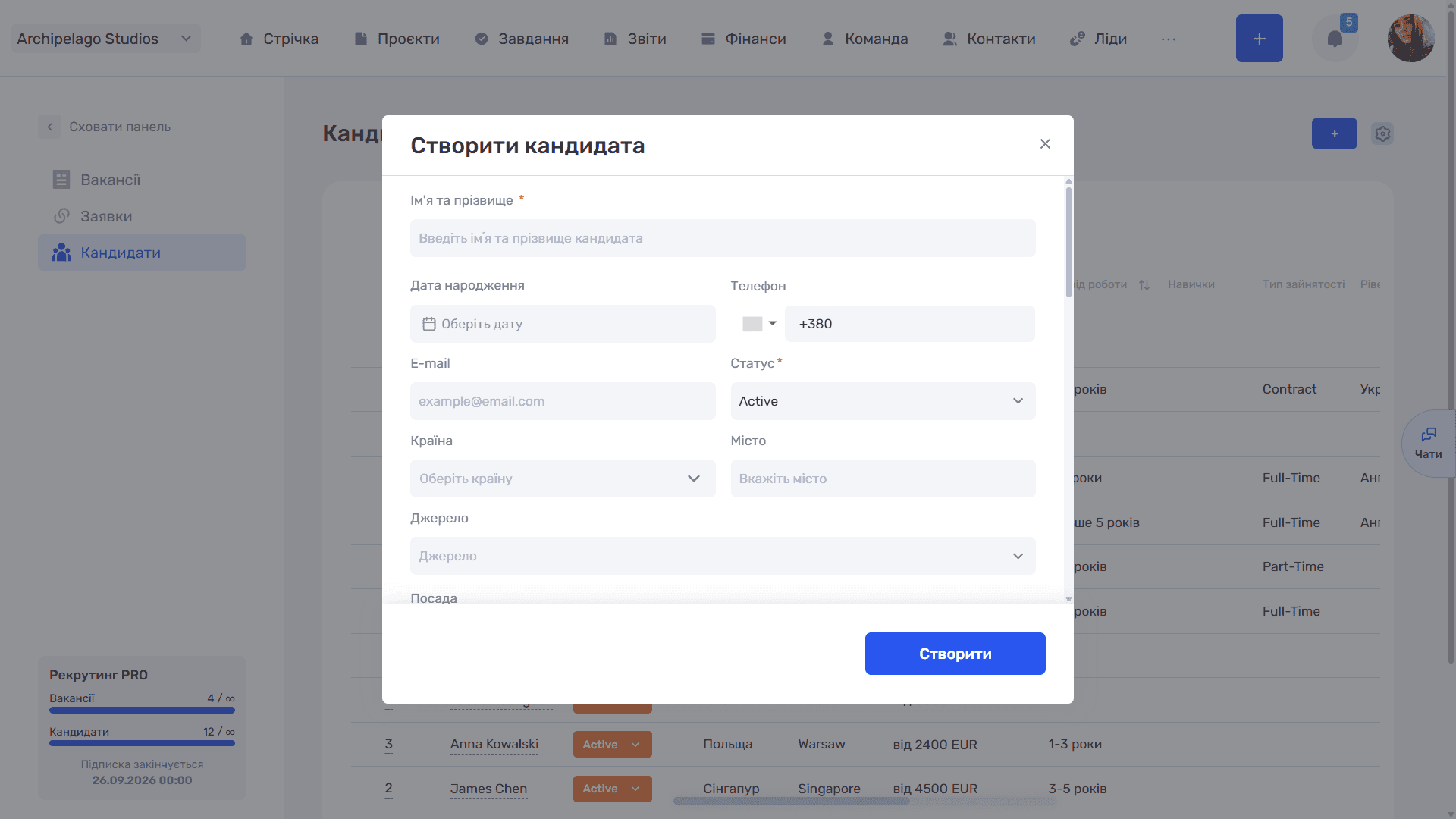
In all cases the same Create candidate form opens, and in the last two the candidate is immediately linked to the corresponding vacancy, which means an application is created along with them.
Form fields:
- First and last name — a required field; the record cannot be saved without it.
- Date of birth.
- Phone with a country code selector.
- Email.
- Status (required) — the first status from the list is filled in automatically.
- Country and City.
- Source — the channel the candidate came from, for example Work.ua or LinkedIn. The list of sources is maintained in the admin panel.
- Position — you can specify several; the selected ones are shown as chips with a ✕ icon.
- Work experience — a range of years.
- Work mode — remote, in office, or hybrid.
- Salary type and Expected salary — salary expectations with a currency selector and a Range checkbox that lets you specify a "from — to" range.
- Employment type — Full-Time, Part-Time, Contract, etc. (configured in the admin panel).
- Vacancy — the position the candidate is applying for. Fill in this field and an application is created automatically; leave it empty and the candidate will only be in the database.
- Language and Language level.
The Create button saves the candidate.
Candidate card
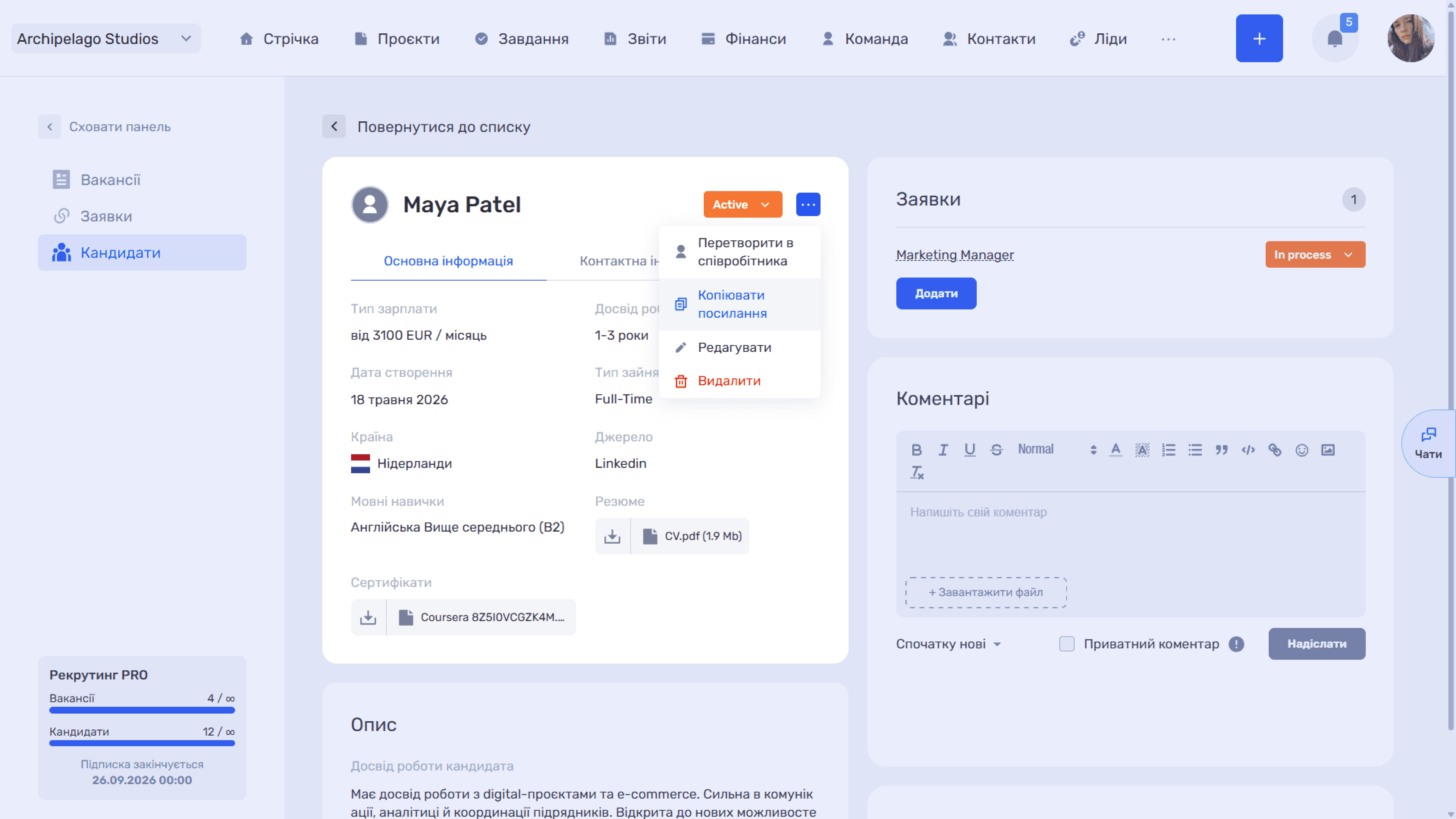
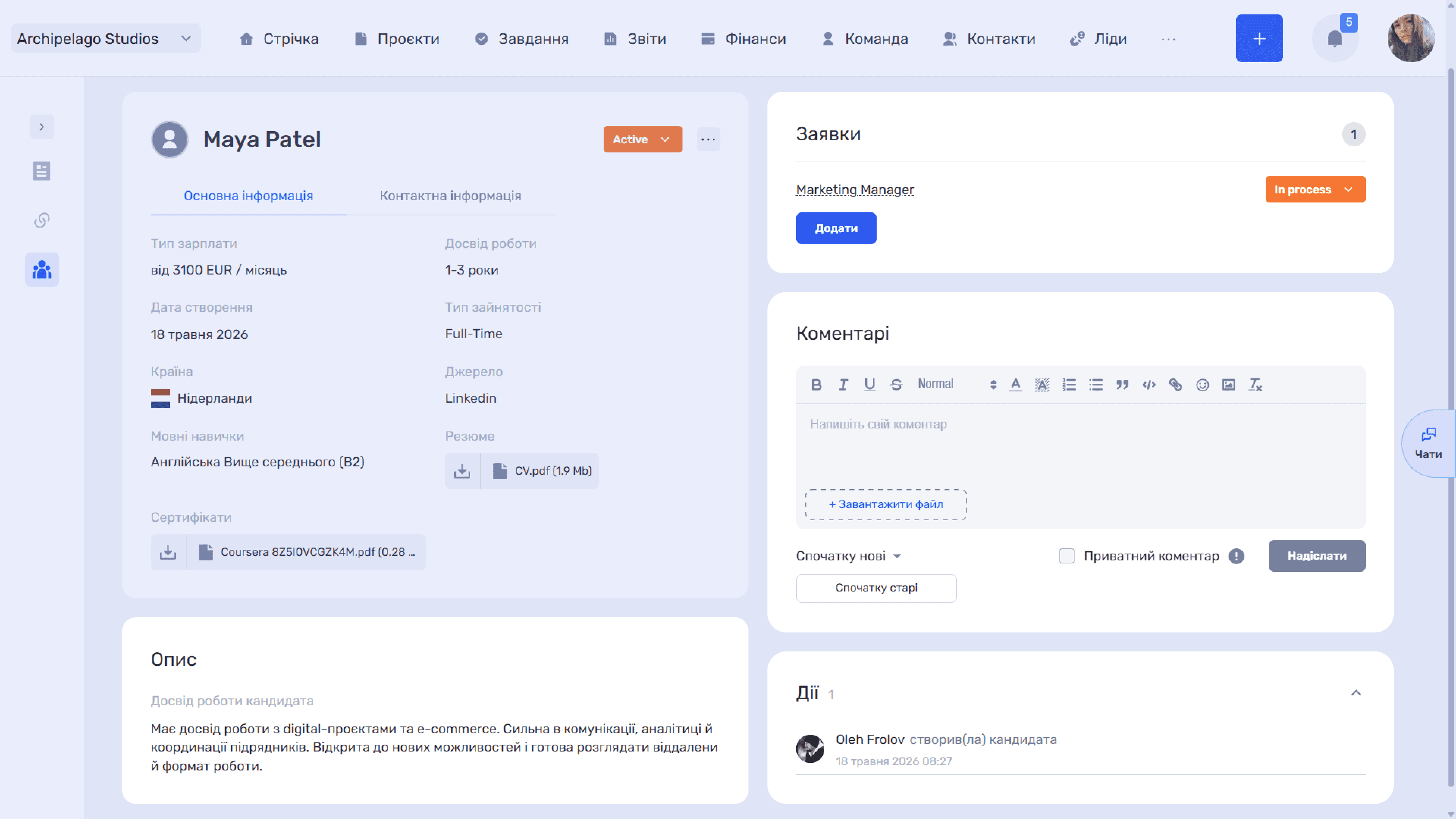
Clicking a name in the list opens the card, which collects everything about the candidate: profile data, resume, application history, and team comments.
At the top are the Back to list link, the avatar, the name, and the status badge, which can be changed right here. The ... icon on the right opens a menu with four actions: Convert to employee, Copy link, Edit, and Delete.
The data is split into two tabs:
- Main information — the professional profile: Salary type, Work experience, Created, Employment type, Country (with a flag), Language skills, as well as Resume and Certificates. Attached files are shown right in the card and are available for download.
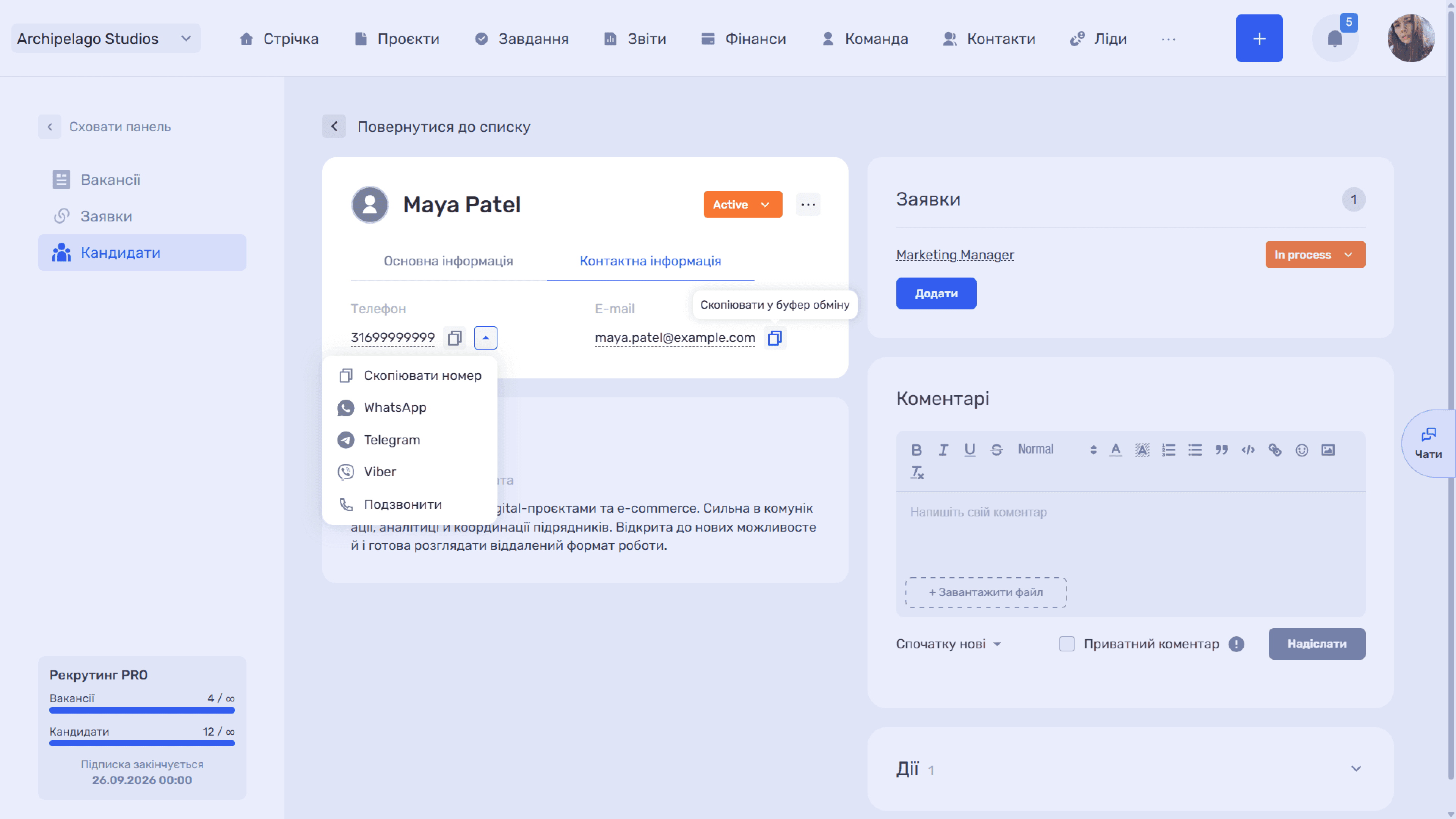
- Contact information — Phone and Email. Both fields can be copied, and for the phone number you can also open quick actions: copy the number, go to WhatsApp, Telegram, or Viber, or make a call.
Below is the Description block with the "Candidate's work experience" field containing additional information about their professional background, competencies, and other details important to the recruiter.
On the right is the Applications block with a counter, where each vacancy the candidate applied to is shown as a separate row with the vacancy name as a link and the application status, which can be changed right here. The Add button links the candidate to another vacancy.
Below are Comments with a text editor, sorting, and a Private comment checkbox for notes that should not be visible to everyone. The card ends with a collapsible Actions block with the change history.
Who can see and change the candidate base is configured as described in the module’s Access permissions article.
Still have questions?
Maybe we haven't added this information yet. But you can always reach out:
Request a demo
Submit a request and we'll show you how the service works and its capabilities.
Book a demo