Tree Structure
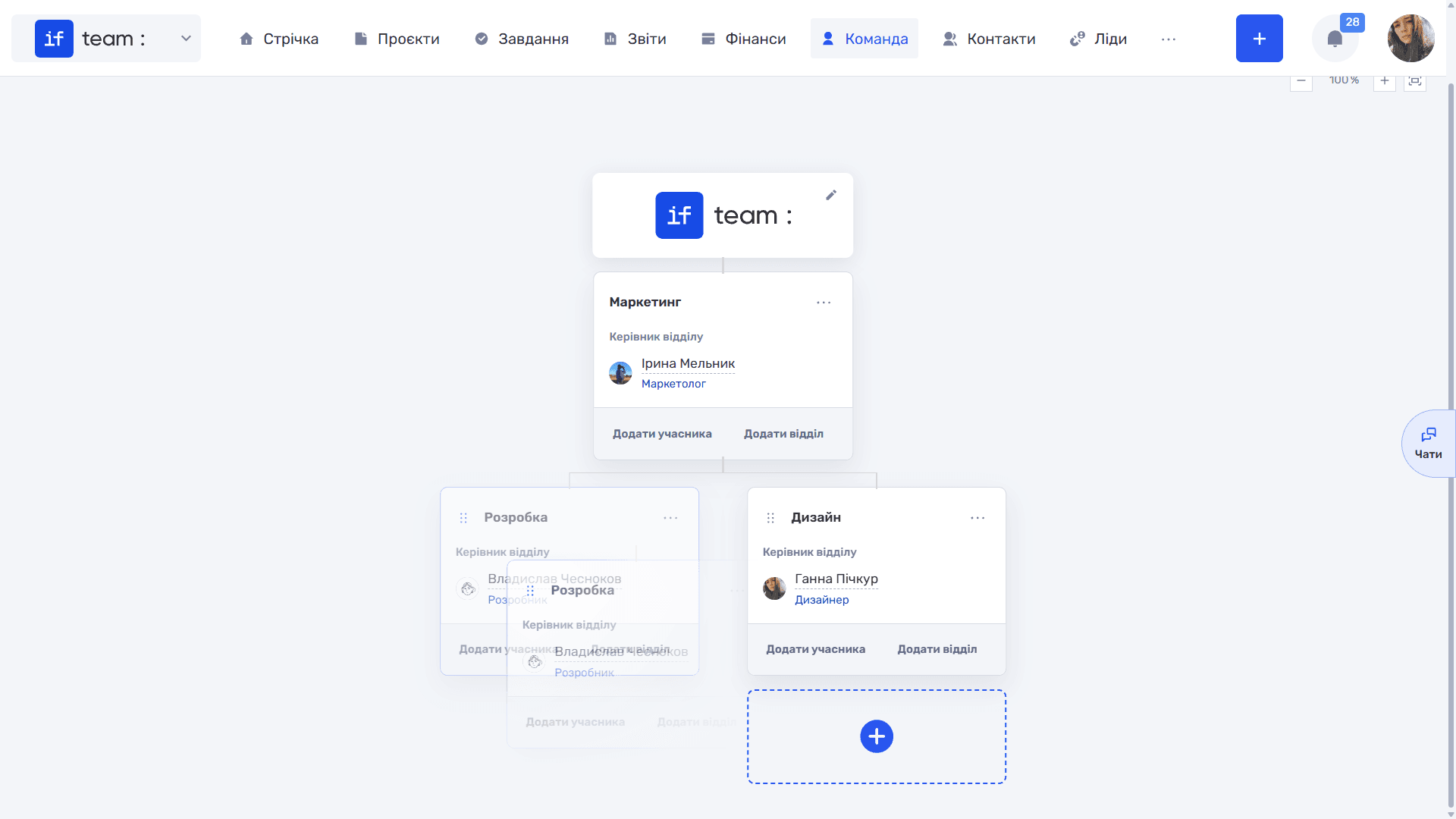
The “Structure” view displays the company’s organizational structure as a tree: the company card is at the top, with departments and their subdepartments branching below it. Adjust the scale using the zoom controls (−, +, and the percentage value) and the fit-to-window button, which quickly adapts t
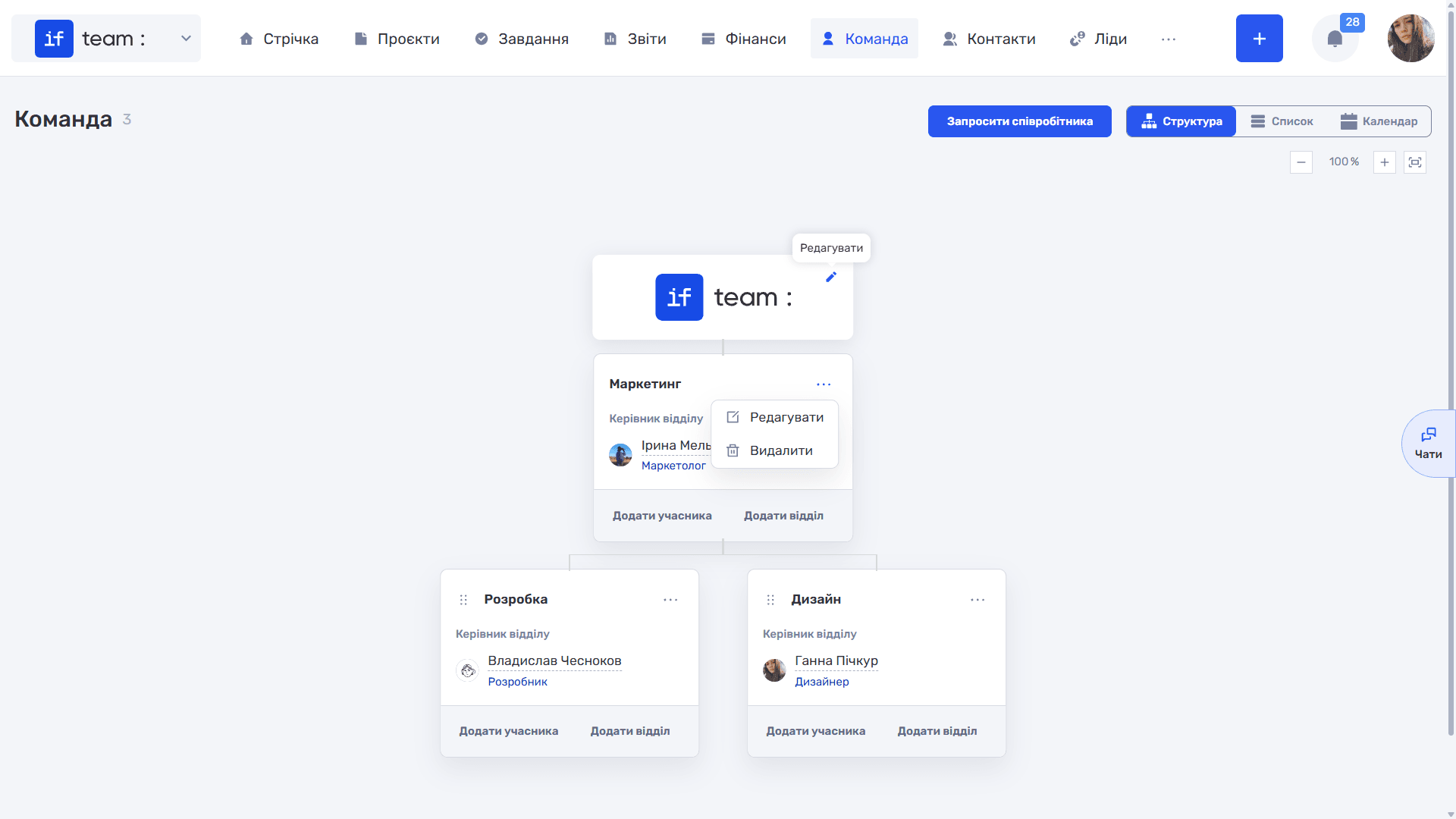
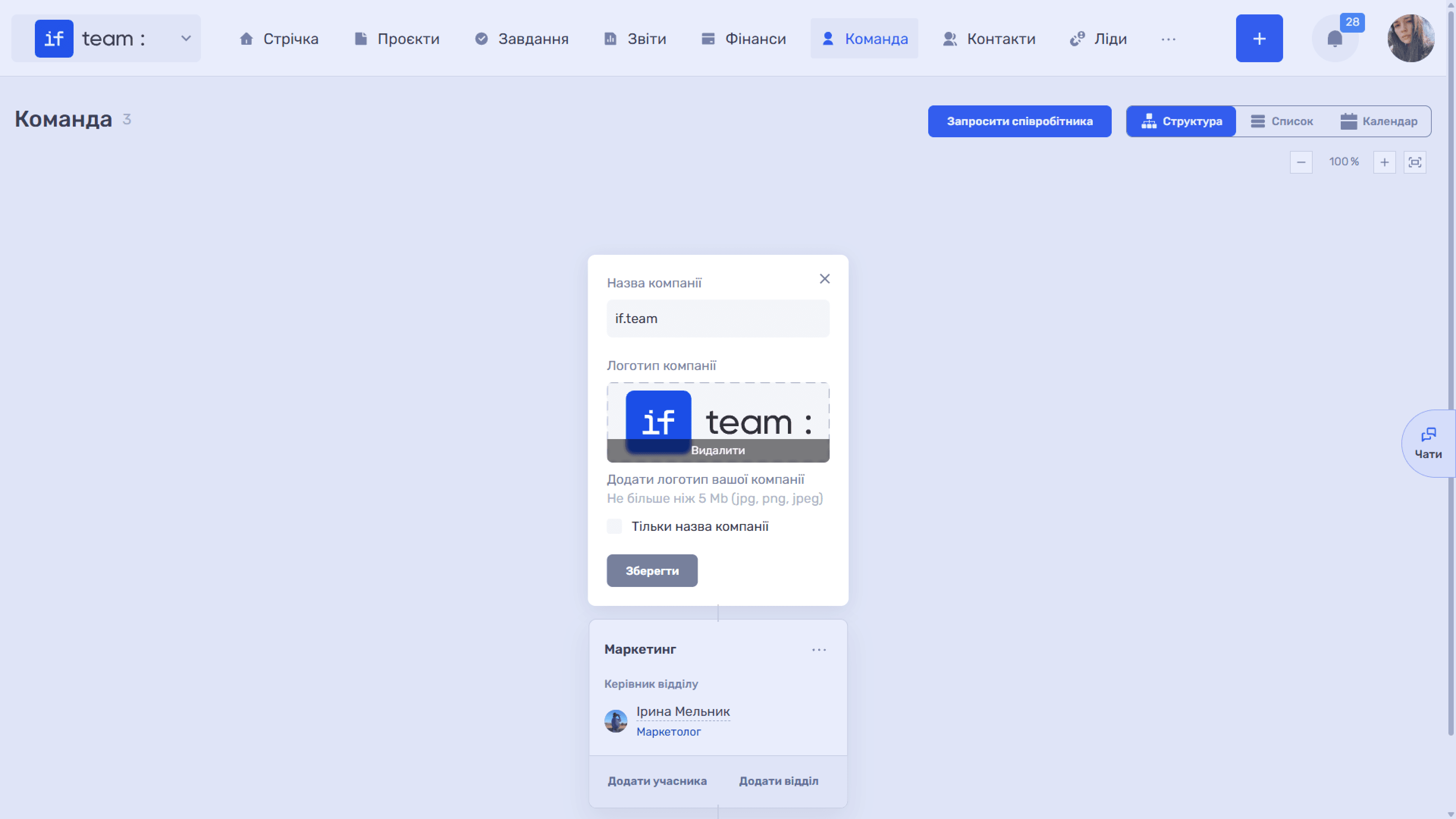
Company card. The pencil icon (✏) on the top card opens editing for the company name, logo (up to 5 MB; jpg, png, and jpeg), and “Company Name Only” checkbox, which displays the company without its logo. Click “Save.”
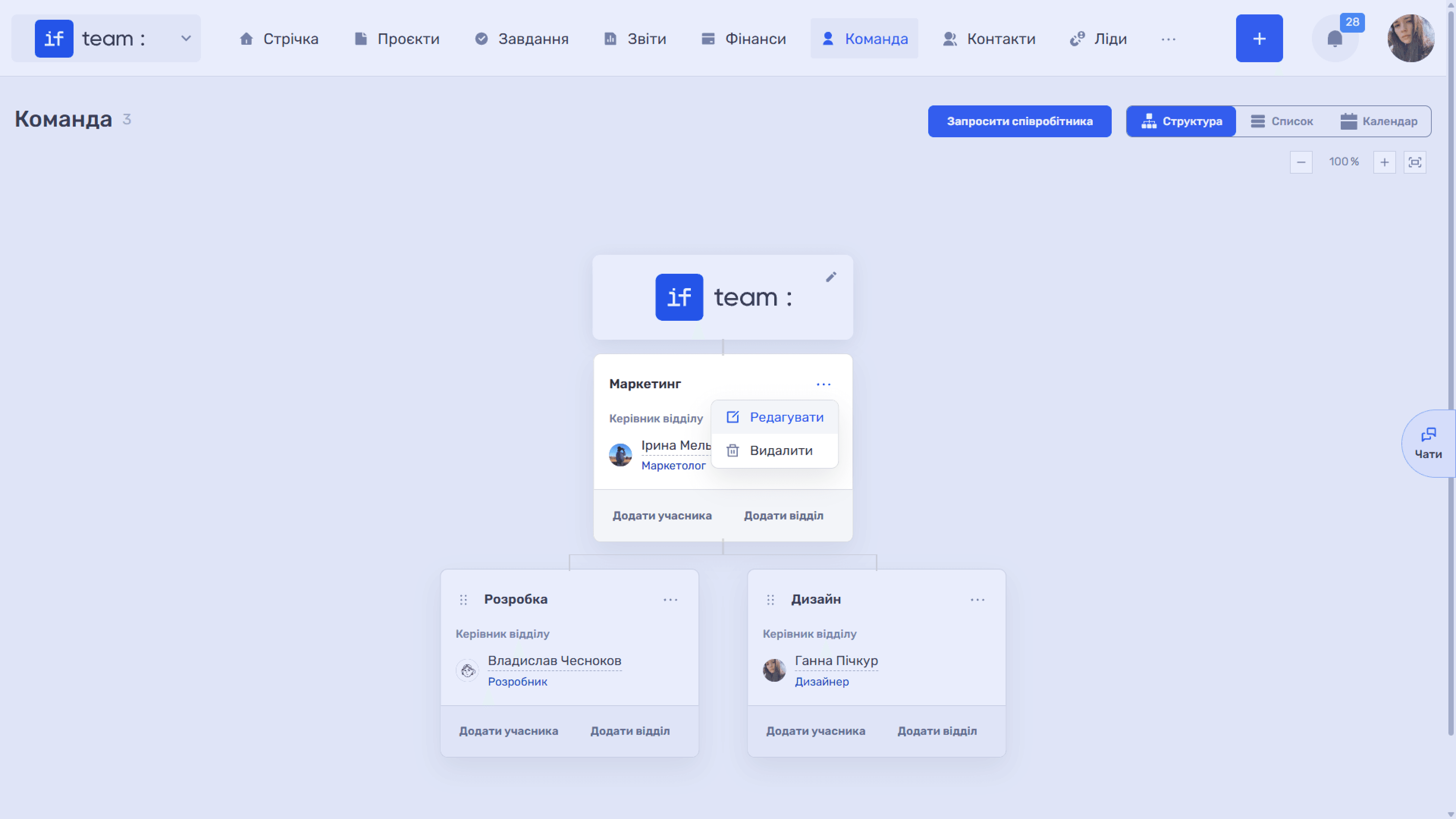
Department cards. Each department displays its name and department manager, including their position. Use the “…” menu to “Edit” or “Delete” the department.
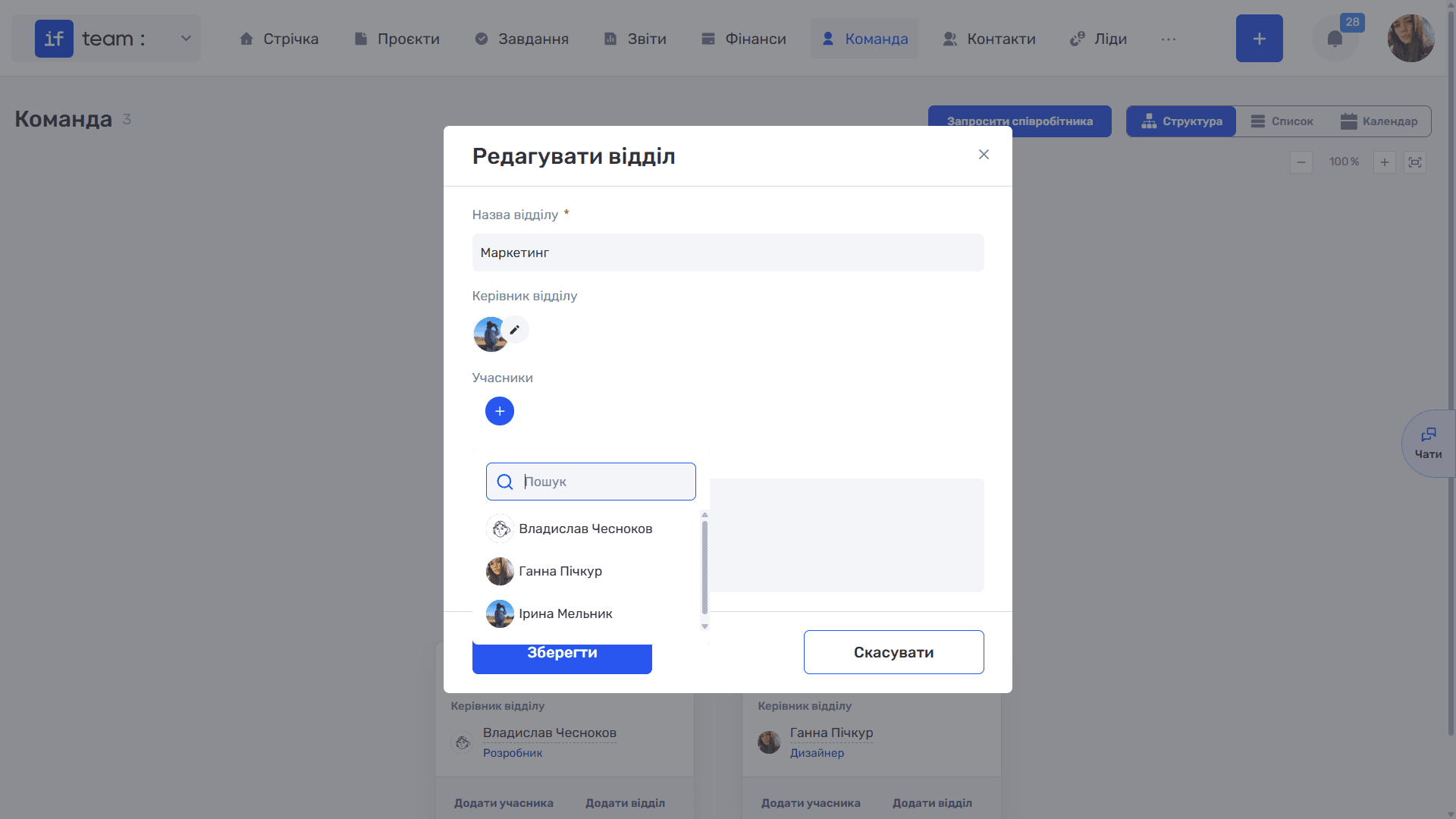
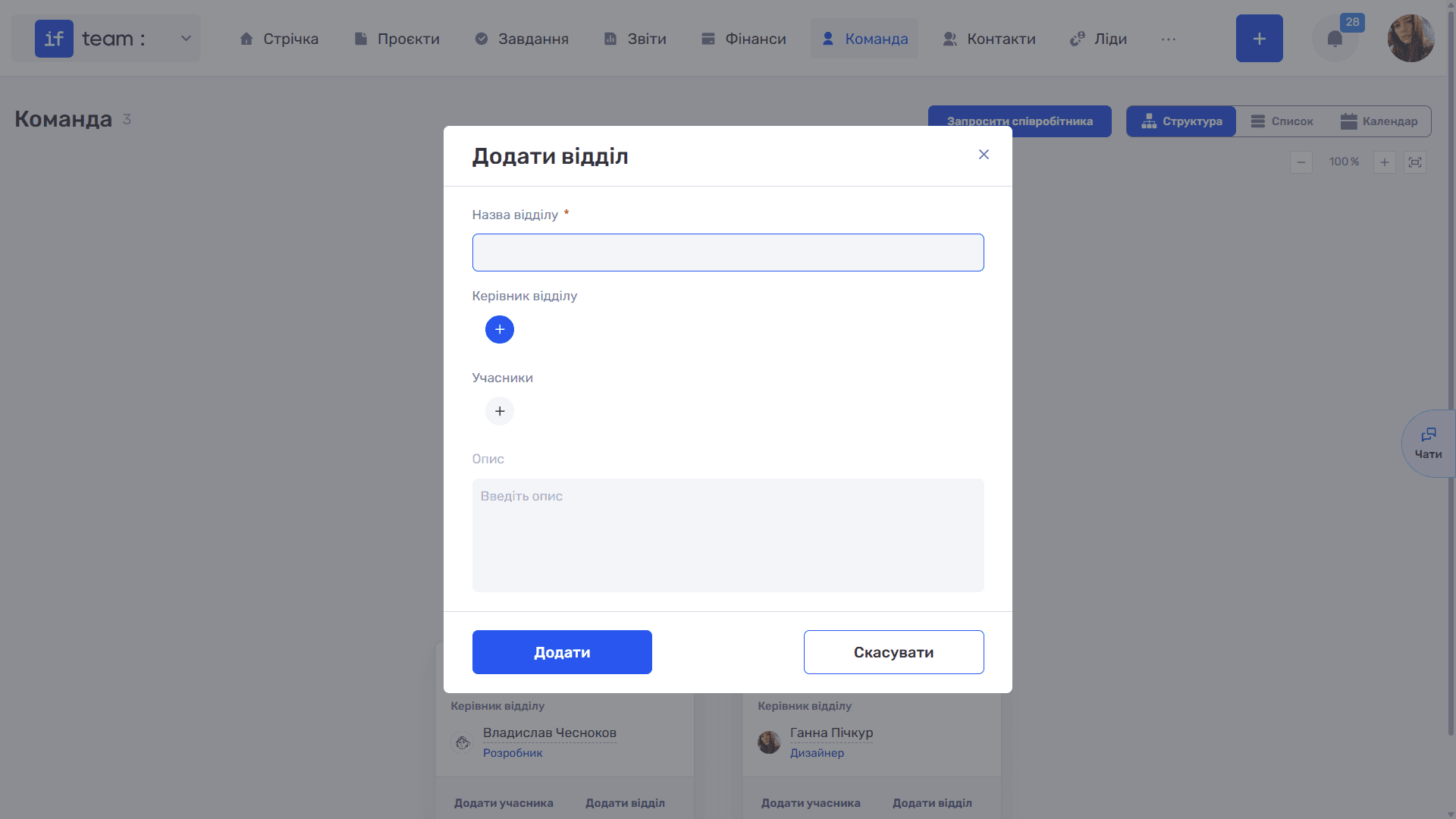
The card buttons let you quickly “Add Member” to a department or “Add Department” to create a nested subdepartment.
Drag cards using the handle icon on the left to change their order and nesting. This makes it easy to restructure the organization at any time, assign people to departments, and appoint managers.
Please note
Departments, positions, and roles themselves are created and managed in the “Team” section of the Admin Panel. This view arranges them into a visual hierarchy.
Still have questions?
Maybe we haven't added this information yet. But you can always reach out:
Request a demo
Submit a request and we'll show you how the service works and its capabilities.
Book a demo