Inviting Employees
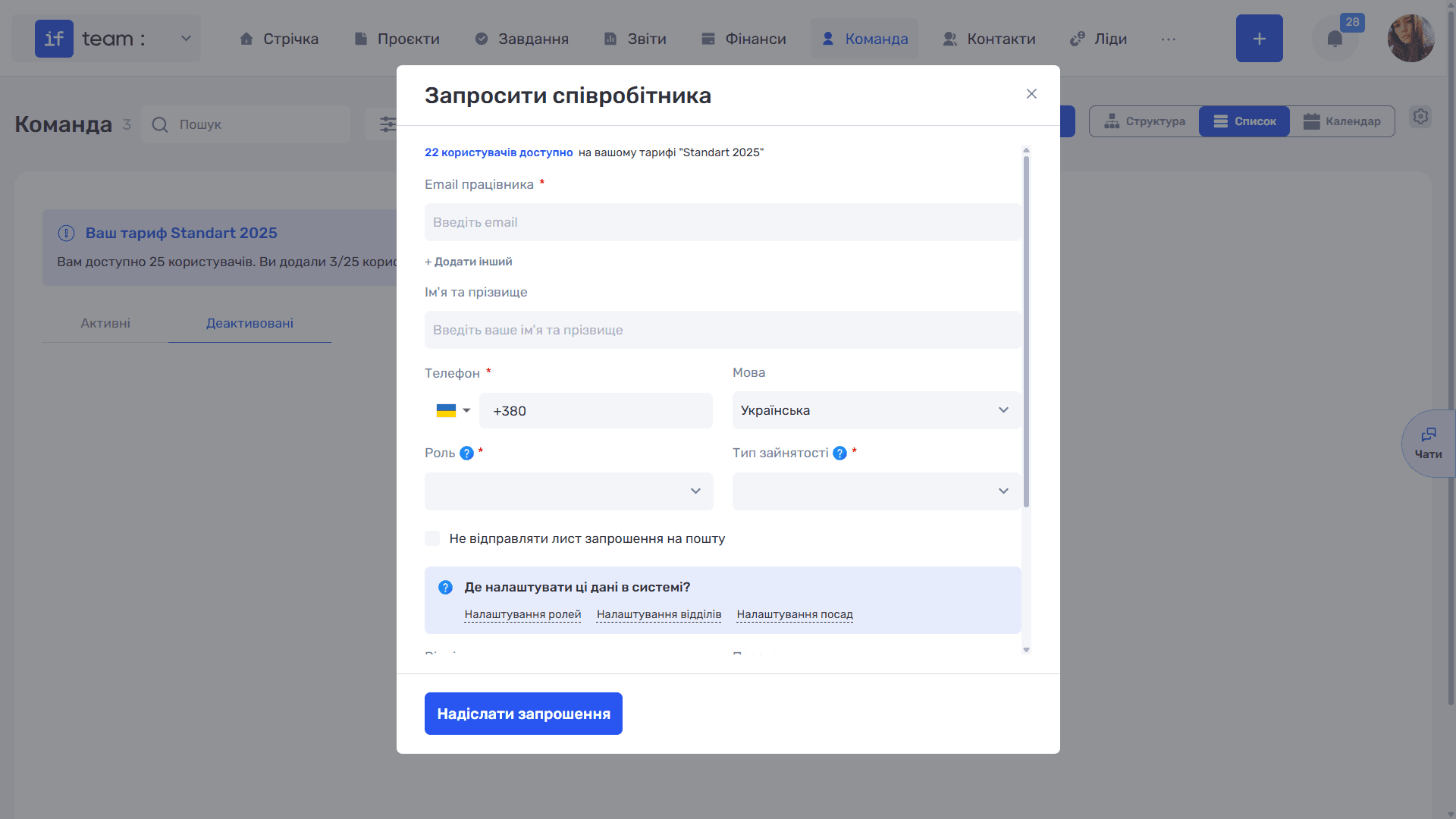
To add someone to the team, click “Invite Employee.” A window with the same name will open. At the top, you can see how many more users are available under your plan.
Generate AI summary
Open this page in your favorite AI assistant
Complete the invitation details:
- Employee Email is required. The “+ Add Another” button lets you invite several people at once.
- First and Last Name.
- Phone, including a country-code selector, and interface Language.
- Role is the employee’s set of access permissions. This field is required; see Access Permissions.
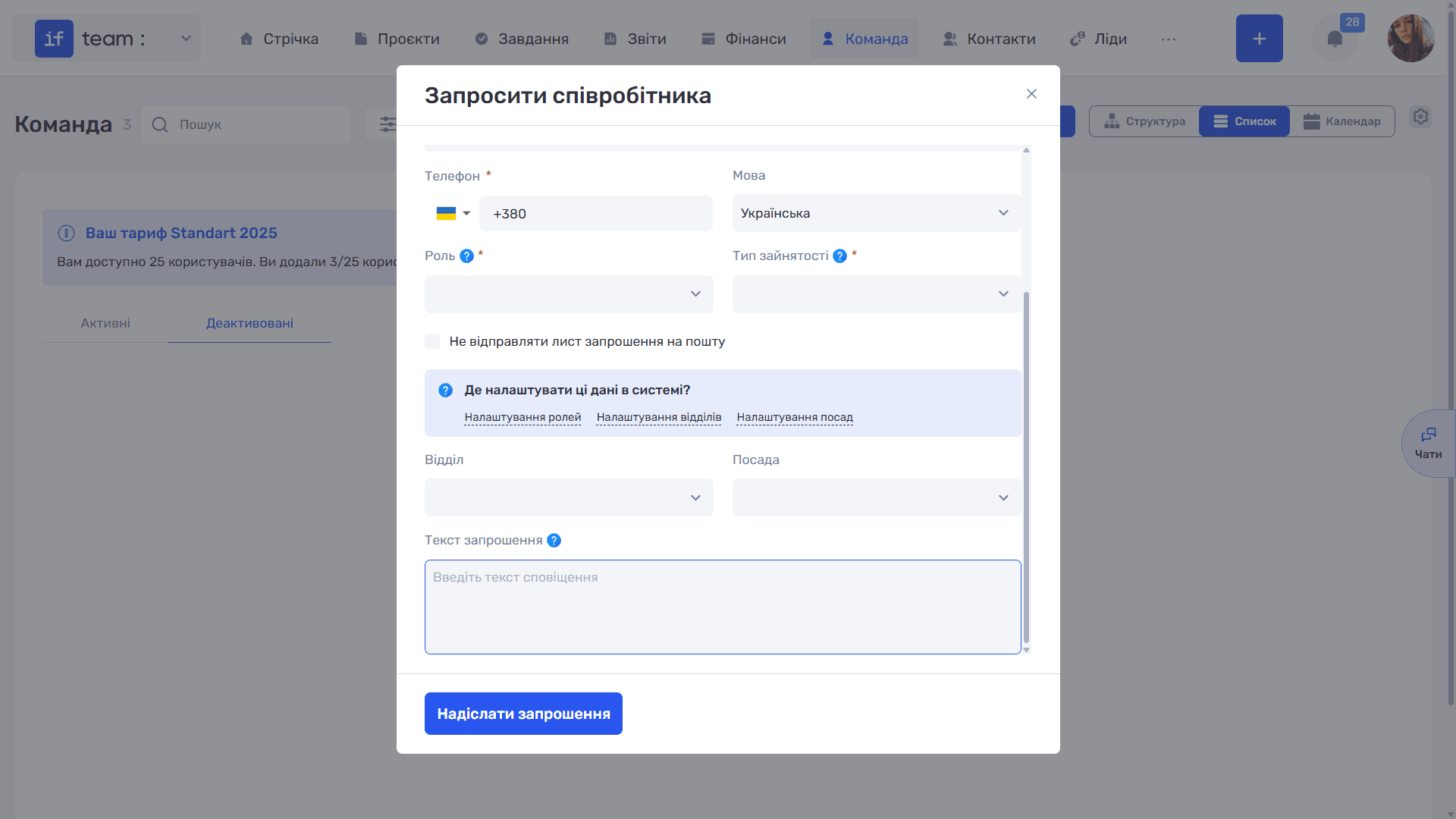
- Employment Type defines the employee’s working schedule, including hours per day, working days, and vacation days per year. It affects salary calculation, vacation tracking, and workload monitoring.
- Department and Position.
- Invitation Text is a custom message added to the invitation email.
The “Do Not Send an Invitation Email” checkbox lets you add an employee without sending an email.
The “Where Can These Details Be Configured?” section contains shortcuts to “Role Settings,” “Department Settings,” and “Position Settings” if the option you need is not yet available in the lists.
After completing the form, click “Send Invitation.”
Still have questions?
Maybe we haven't added this information yet. But you can always reach out:
Request a demo
Submit a request and we'll show you how the service works and its capabilities.
Book a demo