Employee List
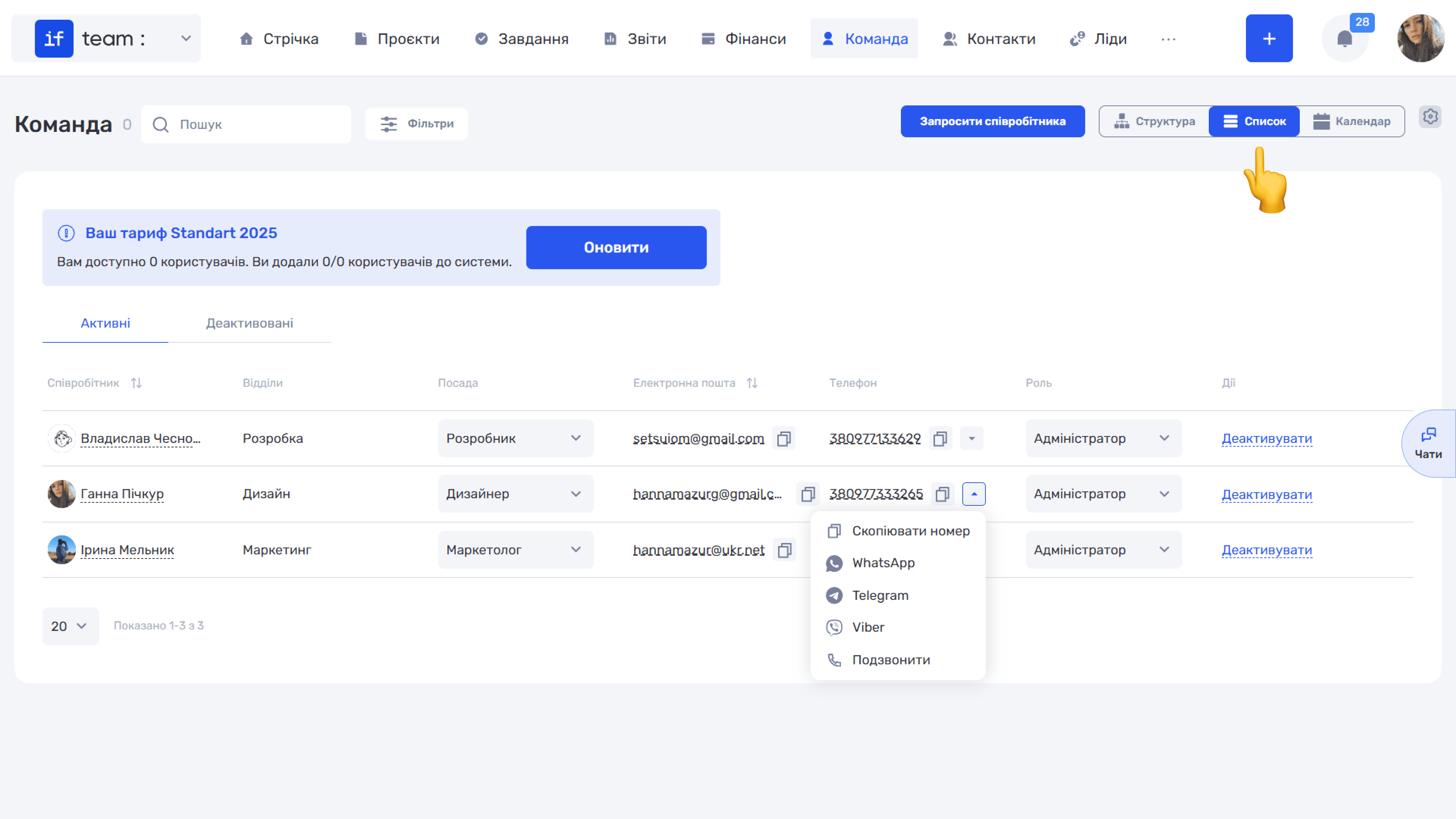
The “List” view displays employees in a table. Above it are two tabs: “Active” and “Deactivated.” This keeps former employees or people temporarily released from work separate without losing their data.
The table contains the following columns: Employee, Departments, Position, Email, Phone, Role, and Actions. You can change a position or role directly in the row using drop-down lists, without opening the profile. The email and phone fields have quick-copy icons, while the arrow next to a phone number opens quick actions: “Copy Number,” WhatsApp, Telegram, Viber, and “Call.”
Click an employee’s name to open their profile; see Employee Profile. The “Actions” column contains the “Deactivate” option.
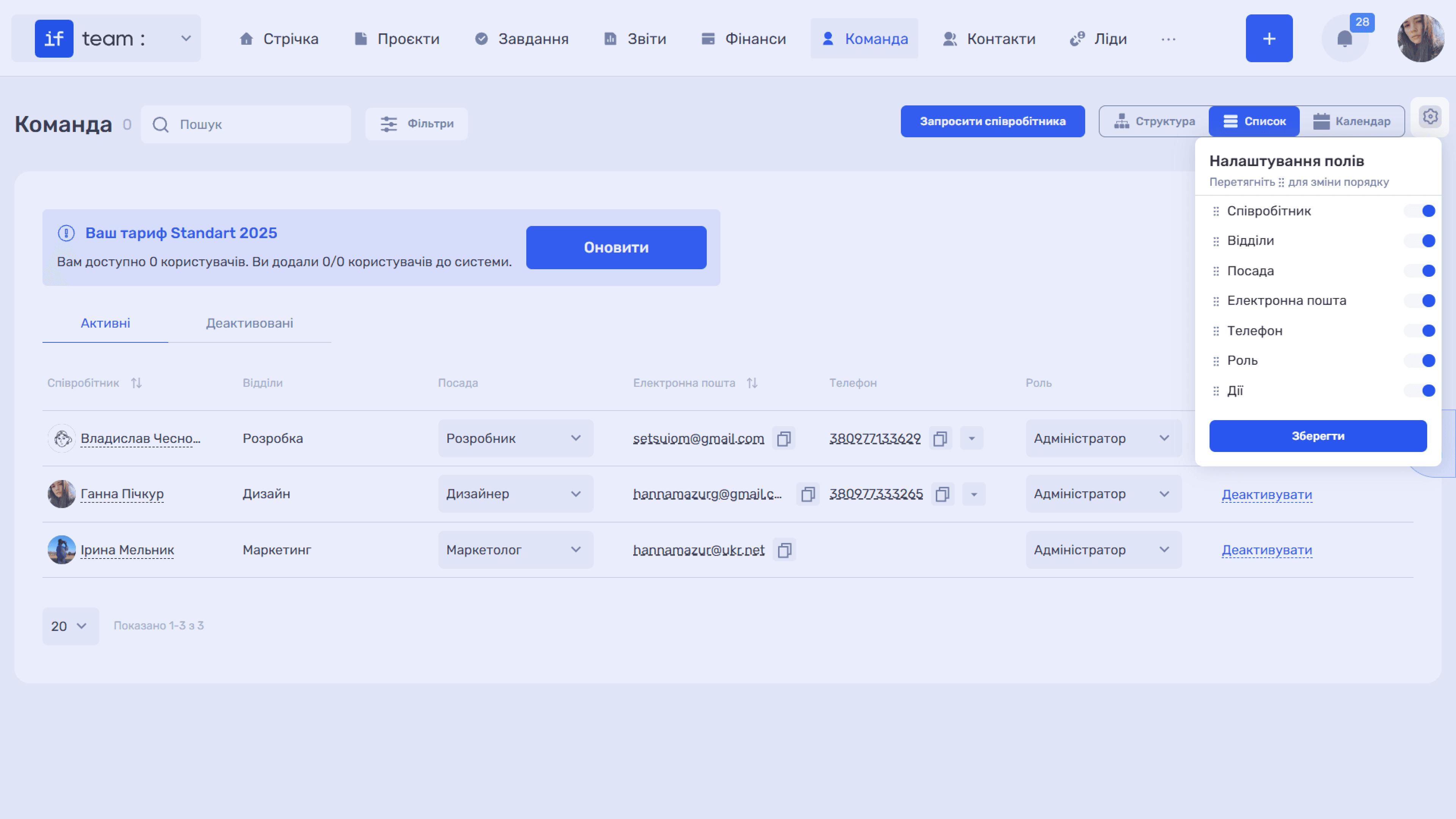
Use the gear icon (⚙) to configure the set and order of columns. In the “Field Settings” panel, enable, disable, or drag the required columns. The “Filters” button narrows the list by members, email, phone, position, department, or project.
A banner above the list shows your plan limits: how many users are available under the plan and how many have already been added. The “Upgrade” button takes you to the page where you can change your plan.
Please note
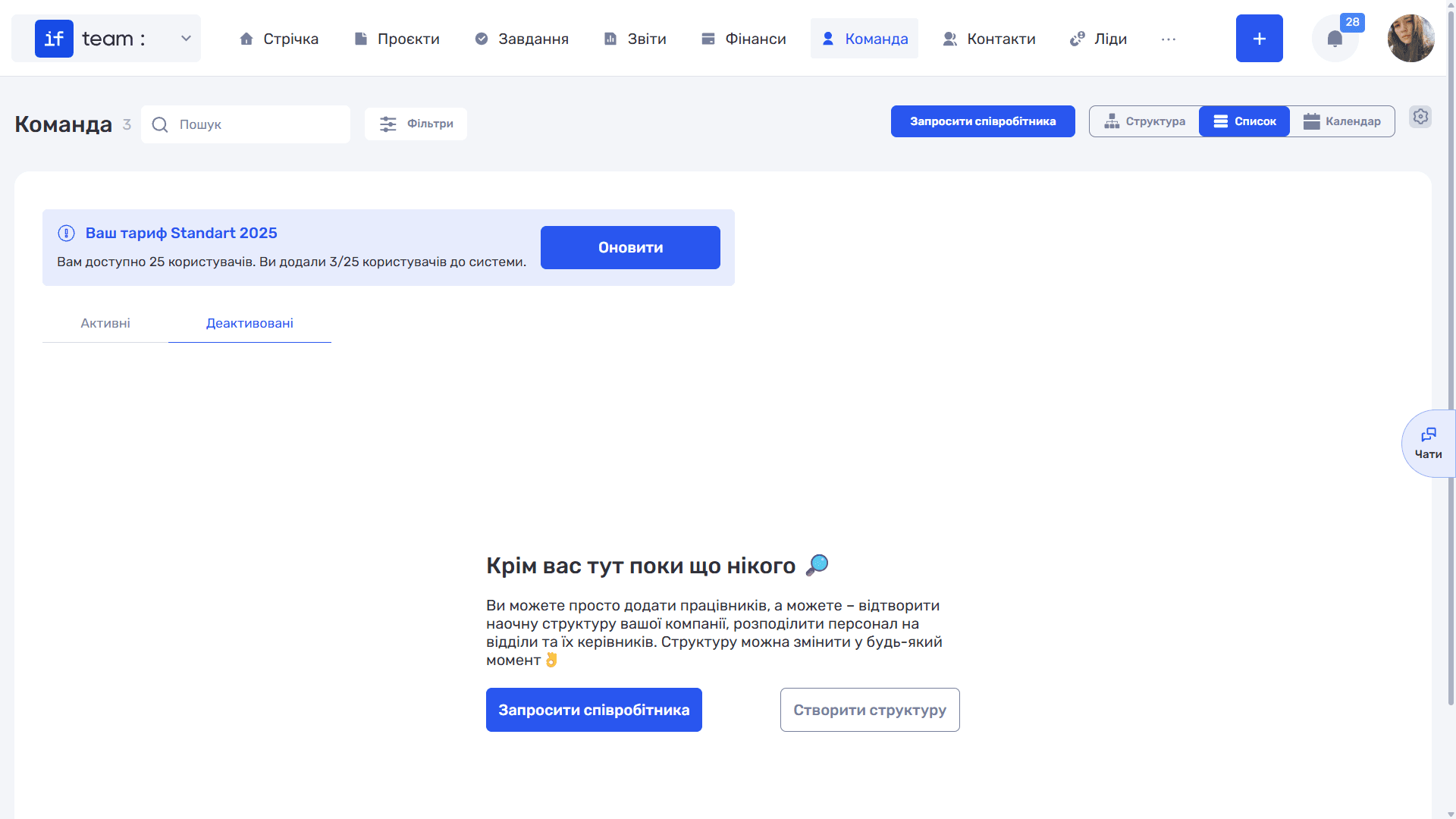
If the “Deactivated” tab is empty, or the team has no members, if.team prompts you to “Invite Employee” and/or “Create Structure” using the corresponding buttons.
Still have questions?
Maybe we haven't added this information yet. But you can always reach out:
Request a demo
Submit a request and we'll show you how the service works and its capabilities.
Book a demo